Emergency Access
Overview
Emergency Access gives physicians expedited, time-critical access to patient studies and records when standard search permissions may not apply. It's designed specifically for situations where immediate access to patient data is essential. Unlike a standard search, Emergency Access searches across all organizations, not just the ones you're normally assigned to.
Opening Emergency Access
-
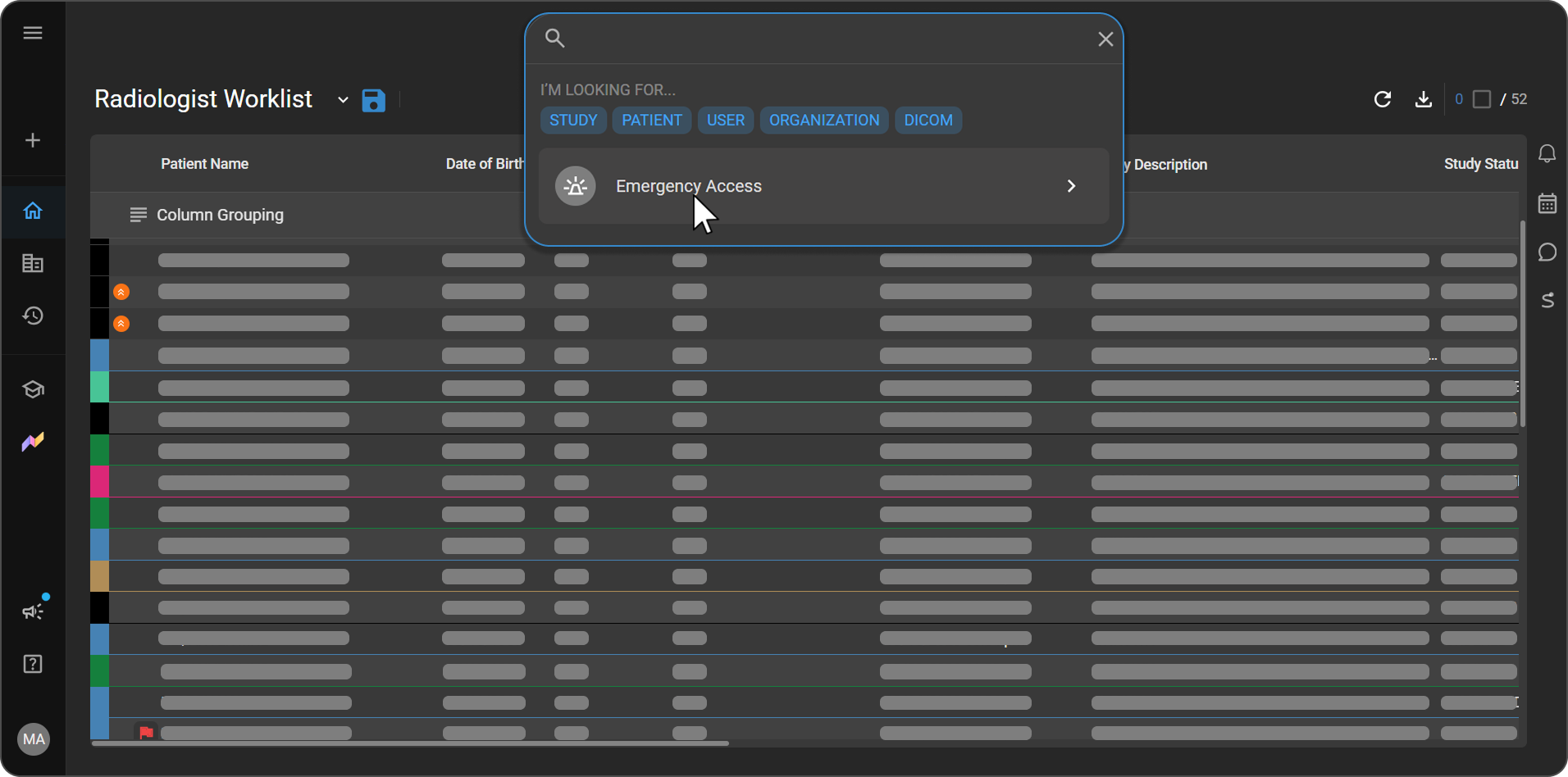
Click the search bar at the top center of any OmegaAI page.
-
Select Emergency Access from the search options to open the Emergency Access drawer.
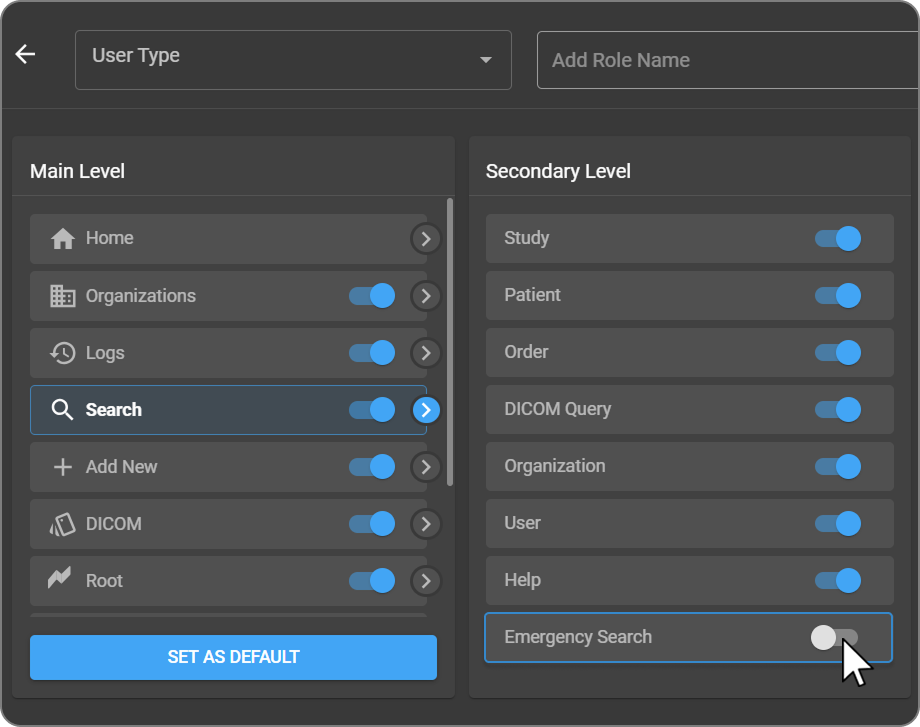
Note: Emergency Access is disabled by default for most roles. The exception is Referring Physicians using the Referring Physician portal, for whom it's enabled by default. For all other roles, an organization admin must enable it — see Enabling Emergency Access for a Role.
Entering Patient Information
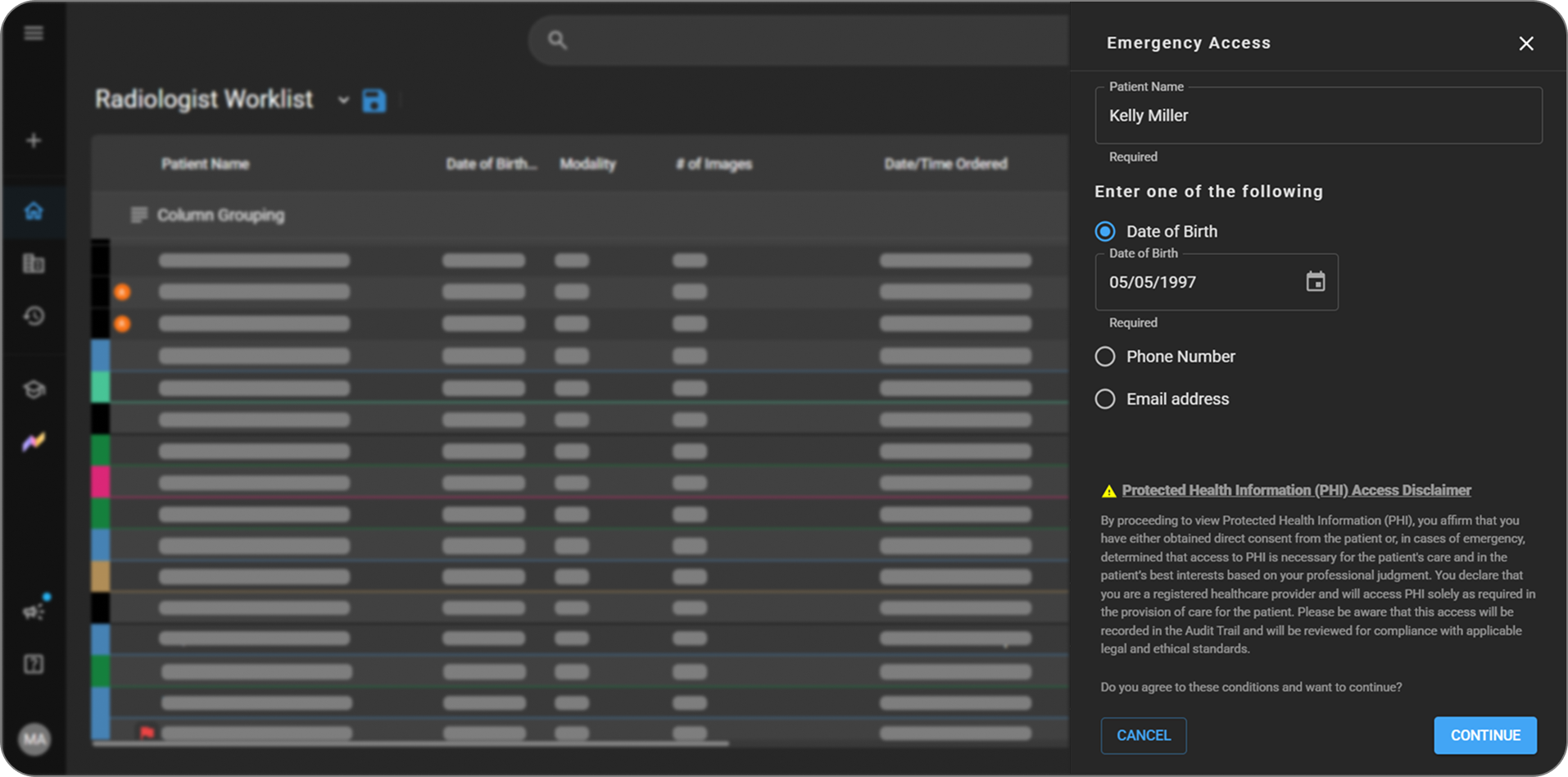
In the Emergency Access drawer, enter the patient's name in Patient Name, then complete one of the following (required):
- Date of Birth
- Phone Number
- Email address
The Date of Birth field uses separate month/day/year segments — click directly into the segment you want to edit first (for example, the month) rather than typing from the beginning of the field.
You don't need the patient's full name to search — matching works on a partial name, in any word order (first, middle, or last), and ignores punctuation and accents.
Once you've entered valid information, the Continue button becomes active.
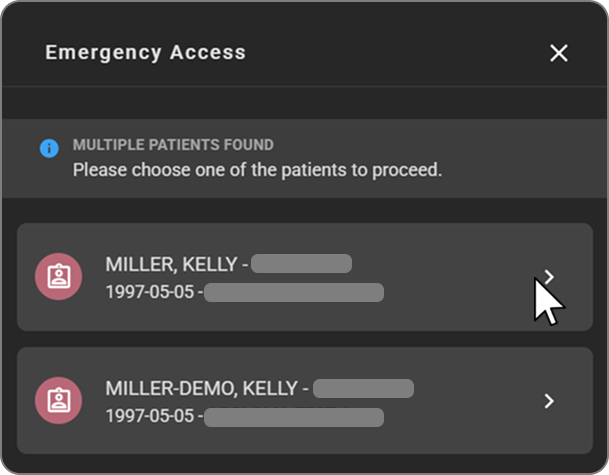
If your search matches more than one patient, a Multiple Patients Found prompt appears — select the correct patient from the list to proceed. Records marked Restricted or Very Restricted confidentiality are excluded from results, even in an emergency. |
|
Verification and Compliance
Before you can proceed, you must review and agree to the Protected Health Information (PHI) Access Disclaimer:
By proceeding to view Protected Health Information (PHI), you affirm that you have either obtained direct consent from the patient or, in cases of emergency, determined that access to PHI is necessary for the patient's care and in the patient's best interests based on your professional judgment. You declare that you are a registered healthcare provider and will access PHI solely as required for the provision of care for the patient. Please be aware that this access will be recorded in the Audit Trail and will be reviewed for compliance with applicable legal and ethical standards.
Click Continue to agree and proceed, or Cancel to back out.
Viewing Patient History and Records
Once you agree to the disclaimer — and select the correct patient, if more than one match was found — OmegaAI takes you to the patient's study history page, which lists every available study for that patient. See Managing Patient Record to learn more about working with the study history page.
Opening a study through Emergency Access also adds you as a Consulting Physician on it — this is how you retain access to the study after your emergency session ends.
Best Practices
- Use it only when necessary. Reserve Emergency Access for genuine, time-critical situations that require immediate access to patient information.
- Know your organization's policies. Stay familiar with your organization's policies on when and how this feature should be used.
- Stay compliant. Periodically review relevant rules, guidelines, and regulatory requirements to ensure your use of the feature remains legally and ethically compliant.
Enabling Emergency Access for a Role
Note: The following steps apply only to the Organization's Admin.
|
|