Understanding Triggers
Every workflow in OmegaAI begins with a Trigger Box, which appears by default on the canvas. A trigger is the starting event that activates a workflow. It is important to note that only one workflow can be active per trigger at any given time. If a trigger is already in use by an active workflow and you manually activate a new workflow using the same trigger, the existing workflow will be automatically deactivated to prevent conflicts.
Trigger Categories and Detailed Examples
Patient Triggers
Patient-based triggers initiate a workflow when specific patient-related events occur.

- Newly created in OmegaAI: This trigger is activated when a new patient record is created within the OmegaAI system, for instance, via the Blume platform.

Example: Once a patient's account is created, the system triggers a workflow to send a welcome email to the patient or initiate the onboarding process, guiding them through initial setup.
- Updates information: This trigger activates when any patient information is modified within OmegaAI, such as contact details, address, or insurance information.

Example: If a user updates a patient’s phone number, it triggers a workflow to notify the administrative team or sync the updated data with integrated external systems like a CRM.
- Successfully matched with Blume User: This trigger is initiated when the system detects that a newly created Blume user account successfully matches an existing OmegaAI patient record.

Example: If a patient registers through Blume using an email address that already exists in OmegaAI, the system automatically links the two records. Upon successful matching, a workflow may be triggered to confirm the match, notify internal teams (e.g., support staff), or update the patient’s linked status in the system.
Appointment Triggers
Workflow automation can be initiated based on changes in the lifecycle status of patient appointments. These status changes serve as key triggers for launching specific automated actions within the system.

- Supported Appointment Statuses
- Requested
- Scheduled
- Confirmed
- Arrived
- Ready for Scan
- No Show
- Cancelled

Example Use Case
Trigger: Appointment status changes to "No Show"
Automated Actions:
a. Send an automated SMS to the patient with a link or instructions to reschedule.
b. Generate an internal notification for the front desk team to follow up with the patient. This approach ensures timely communication, improves patient engagement, and enhances operational efficiency by reducing manual follow-ups.
Operation Triggers
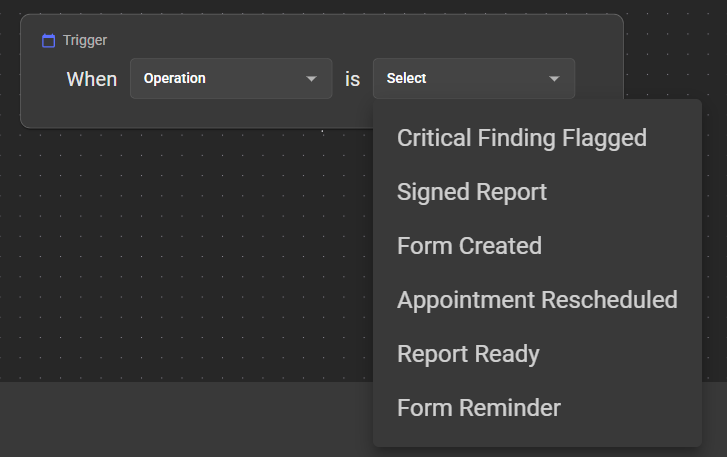
Operational triggers are based on key events that occur during the clinical and diagnostic processes within OmegaAI. These events can be used to initiate automated workflows that ensure timely communication, escalation, and documentation.

-
Supported Operational Events
- Critical Finding Flagged
- Signed Report
- Form Created
- Appointment Rescheduled
- Report Ready
- Form Reminder
Example Use Case
Trigger: Operation marked as Done
Condition: "Critical Finding Flagged" is true
Automated Actions:
a. Immediately send an urgent notification to the assigned reading physician.
b. Notify the designated consulting organization for prompt review and action.
c. This automation ensures that critical findings are escalated without delay, supporting faster clinical decision-making and improving patient safety.
Signed Report Trigger
- The Signed Report trigger is under the Operations Trigger Type in Workflow Automation (WFA).
- This trigger is especially used to automate actions such as report distribution and notifications immediately after a diagnostic report is created, ensuring seamless and timely processing without delaying DICOM workflows.
- The trigger should function independently and should not interfere with existing Study Status
SIGNEDworkflows. - Prevents delays in workflow automation due to asynchronous DICOM processing.
Scope
The Signed Report trigger applies to:
- Final Reports
- Signed Amendments
Exclusions: Preliminary reports are not included.
Trigger Activation Criteria
The Signed Report trigger is activated when any of the following events occur:
- A diagnostic report is uploaded as a final report via the Document Viewer (DV) GUI.
- A final report is received in OmegaAI through HL7 bundle transaction ingestion.
- A final structured Report is ingested via DICOM ingestion through OmegaAI Link.
- A final report with DICOM tags is imported using the IMPORT GUI.
- A final report is created or saved in OmegaAI's Document Viewer (DV), including Signed Amendments (Done-Signoff).
DICOM Receive Completed Trigger
The DICOM Receive Completed trigger starts a Workflow Automation (WFA) workflow after DICOM data has been successfully received and the ingestion process has completed in OmegaAI.
Unlike study status-based triggers, this trigger is initiated by the successful completion of a DICOM ingestion operation. It allows workflow automation to execute even when a study arrives with a status that does not change (for example, COMPLETED or SIGNED).
This enables automation immediately after DICOM ingestion, independent of the study lifecycle.
When Is the Trigger Executed?
The DICOM Receive Completed trigger executes when:
- A new study is successfully received into OmegaAI.
- Additional DICOM series or instances are added to an existing study.
- The DICOM ingestion operation has completed successfully (after the configured Receive Timeout period expires and the ingestion process is finalized).
- Study, series, instance, and ingestion metadata have been persisted and are available for workflow rule evaluation.
Note: By default, OmegaAI waits for the configured Receive Timeout (60 seconds) after the last received DICOM object to ensure the ingestion session is complete before triggering Workflow Automation.
Supported Ingestion Methods
The DICOM Receive Completed trigger is supported for all DICOM ingestion methods available in OmegaAI.
How it Works
- OmegaAI receives DICOM objects through any supported ingestion method.
- The system waits for the configured Receive Timeout to ensure no additional objects are arriving for the same ingestion session.
- Once the ingestion process is complete, OmegaAI finalizes metadata persistence.
- The DICOM Receive Completed trigger is fired.
- Workflow Automation evaluates configured conditions and executes the matching workflow asynchronously.
Note: Workflow execution occurs independently of the DICOM ingestion process and does not delay or interrupt image reception.
DICOM Receive Completed vs. Study Status Triggers
| DICOM Receive Completed | Study Status Trigger |
|---|---|
| Triggered after DICOM ingestion completes | Triggered when a study status changes |
| Executes after the configured Receive Timeout and ingestion completion | Executes immediately after a status transition |
| Does not require a study status change | Requires a study status change |
| Works for new and existing studies | Works only when the study status changes |
| Supports incremental arrivals of new series or instances | Does not execute if the study status remains unchanged |
| Ideal for ingestion-based workflows | Ideal for lifecycle-based workflows |
Study Triggers
Study-related workflows can be triggered based on specific parameters of a study.


Trigger Options
-
Status-Based Triggers: A workflow can be triggered when a study transitions to a specific status.
Supported statuses include:
- Scheduled
- Completed
- Verified
- Signed
- Reported
- In Progress
- Arrived
- Started
- To Be Amended
Example Use Case:
Trigger: Study status changes to "Signed"
Automated Action: Automatically distribute the finalized report to the referring physician.
- Priority-Based Triggers: Workflows can also be triggered based on the priority level assigned to a study.

Supported priority levels include:
- Routine
- Urgent
- ASAP
- STAT
Example Use Case:
Trigger: Study priority is "STAT" and status changes to "Signed"
Automated Action: Distribute the report to the referring physician with a "High Priority" flag for immediate attention.
These triggers ensure that high-priority and time-sensitive studies are handled with the urgency they require, improving care coordination and response times.
Blume Notification Triggers
Blume triggers initiate workflows based on patient-facing events within the Blume patient portal. These triggers enable automated communications and notifications to be sent to patients at key moments in their care journey.
Supported Blume Trigger Events:
- Blume Invite
- Share Study
- Appointment Request Received
- Appointment Confirmation
- Appointment Cancellation
- Appointment Rescheduled
- Blume Form
- Form Reminder
- Report Ready
Trigger Details
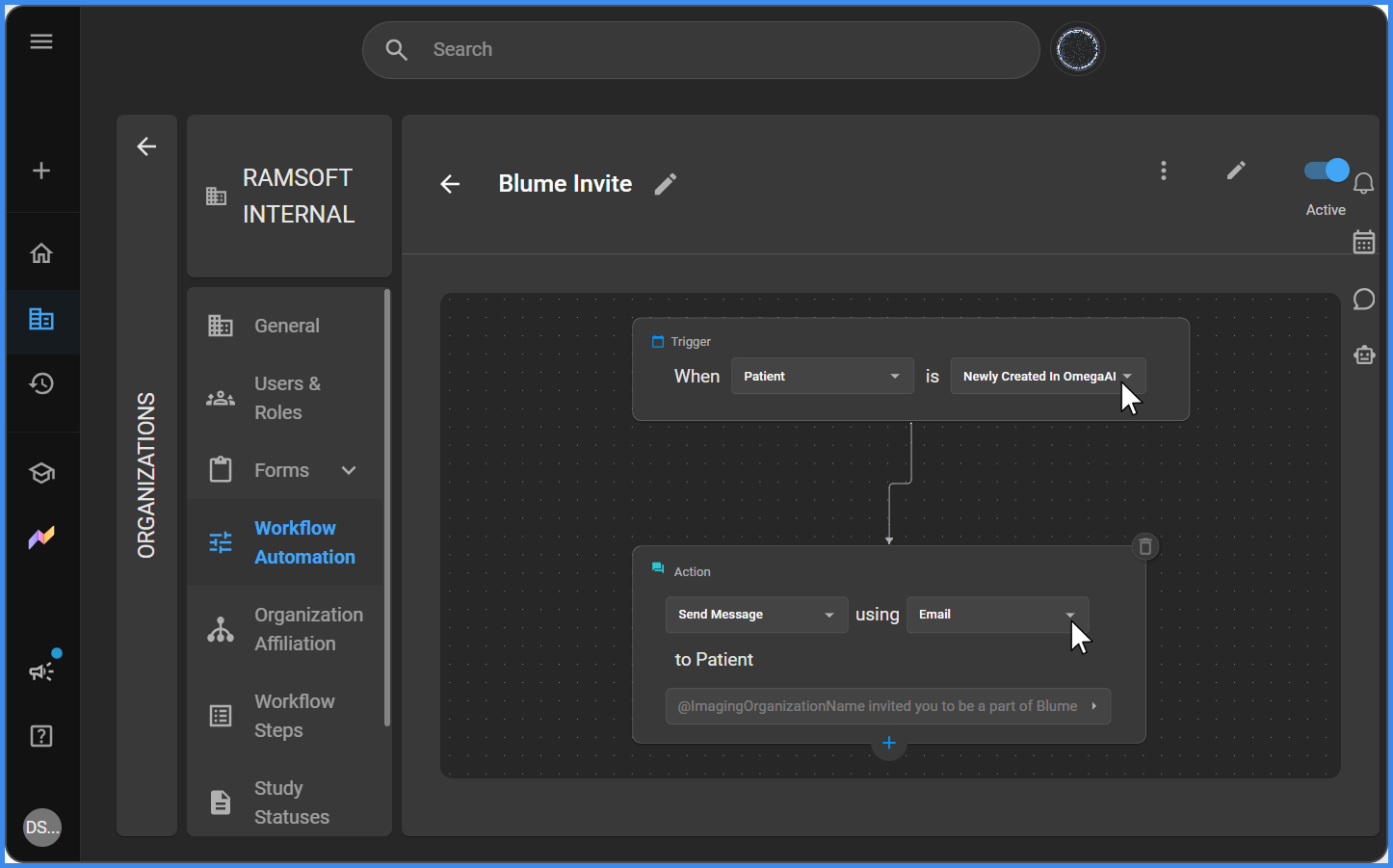
I. Blume Invite
Trigger:
- When a patient record is newly created in OmegaAI.
Automated Action:
- Send a message to the patient. The administrator can choose to deliver the message via Email, SMS, or Blume Notification.
- The message content is fully customizable.
Note: SMS delivery for this trigger currently follows the existing (pre-Workflow Automation) invite flow and is not yet routed through Workflow Automation. Email and Blume Notification delivery are configured through Workflow Automation as described above.
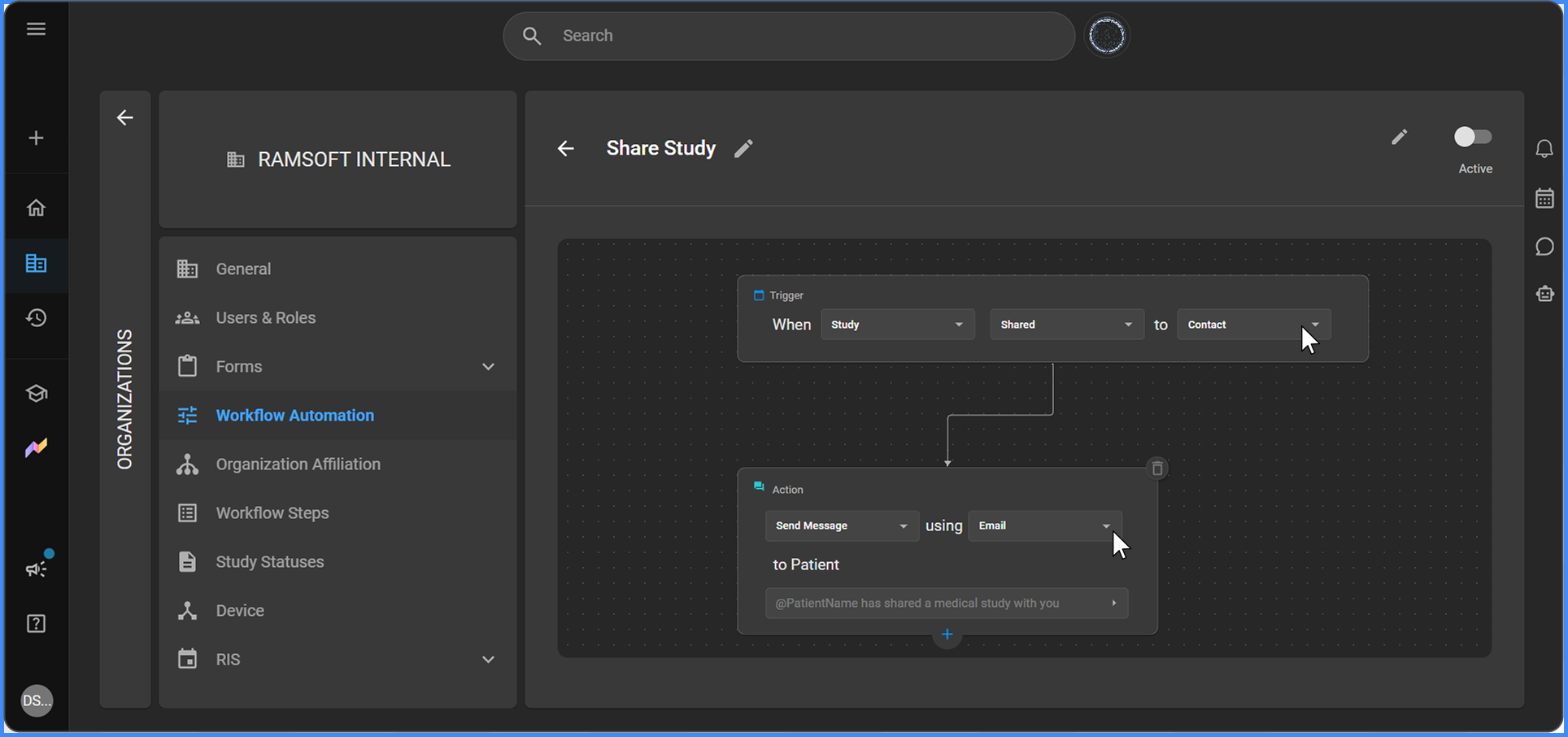
II. Share Study
Trigger:
- When a study is shared.
Automated Action:
- Send a message to the patient. The administrator can choose to deliver the message via Email, SMS, or Blume Notification.
- The message content is fully customizable.
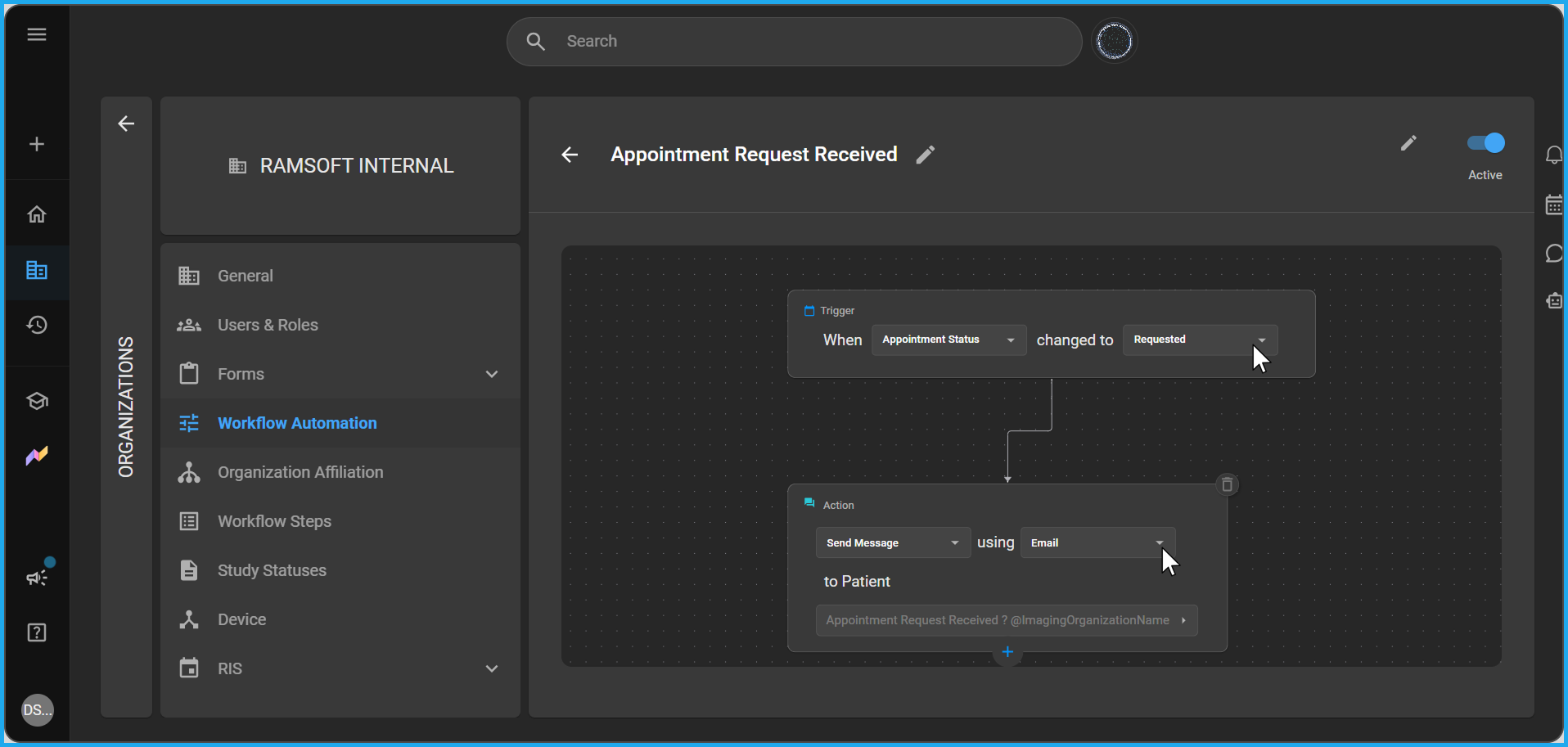
III. Appointment Request Received
Trigger:
- Appointment status changes to Requested.
Condition:
- Can be further refined based on Order, Study, or Patient attributes.
Automated Action:
- Send a message to the patient. The administrator can choose to deliver the message via Email, SMS, or Blume Notification.
- The message content is fully customizable.
IV. Appointment Confirmation
Trigger:
- Appointment status changes to Confirmed.
Condition:
- Can be further refined based on Order, Study, or Patient attributes.
Automated Action:
- Send a message to the patient.
- The administrator can choose to deliver the message via Email, SMS, or Blume Notification.
- The message content is fully customizable.
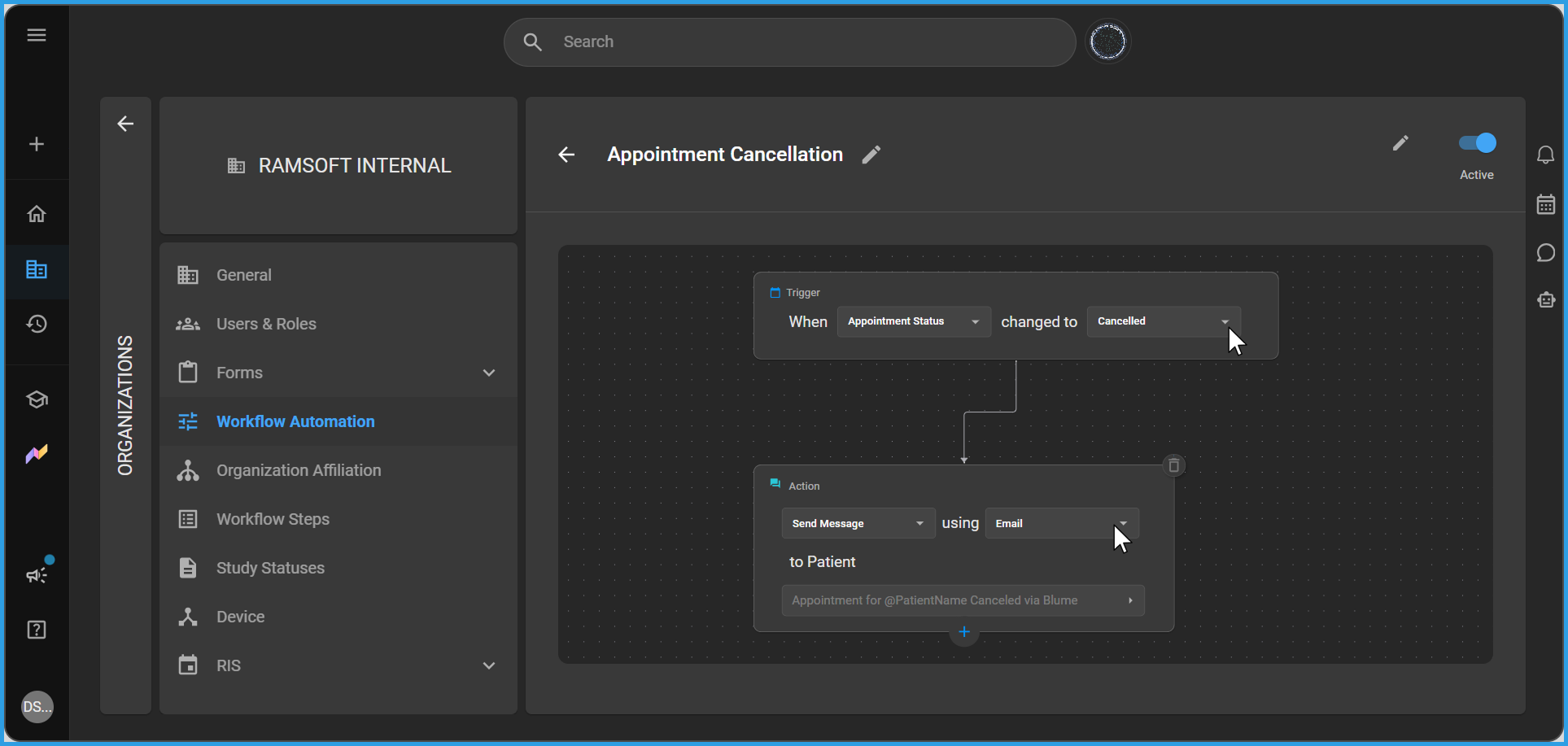
V. Appointment Cancellation
Trigger:
- Appointment status changes to Cancelled.
Condition:
- Can be further refined based on Order, Study, or Patient attributes.
Automated Action:
- Send a message to the patient. The administrator can choose to deliver the message via Email, SMS, or Blume Notification.
- The message content is fully customizable.
Note: This trigger covers two scenarios: the appointment is cancelled by the imaging organization, or the appointment is cancelled by the patient/family member directly through Blume. The patient-facing message content differs slightly between the two scenarios.
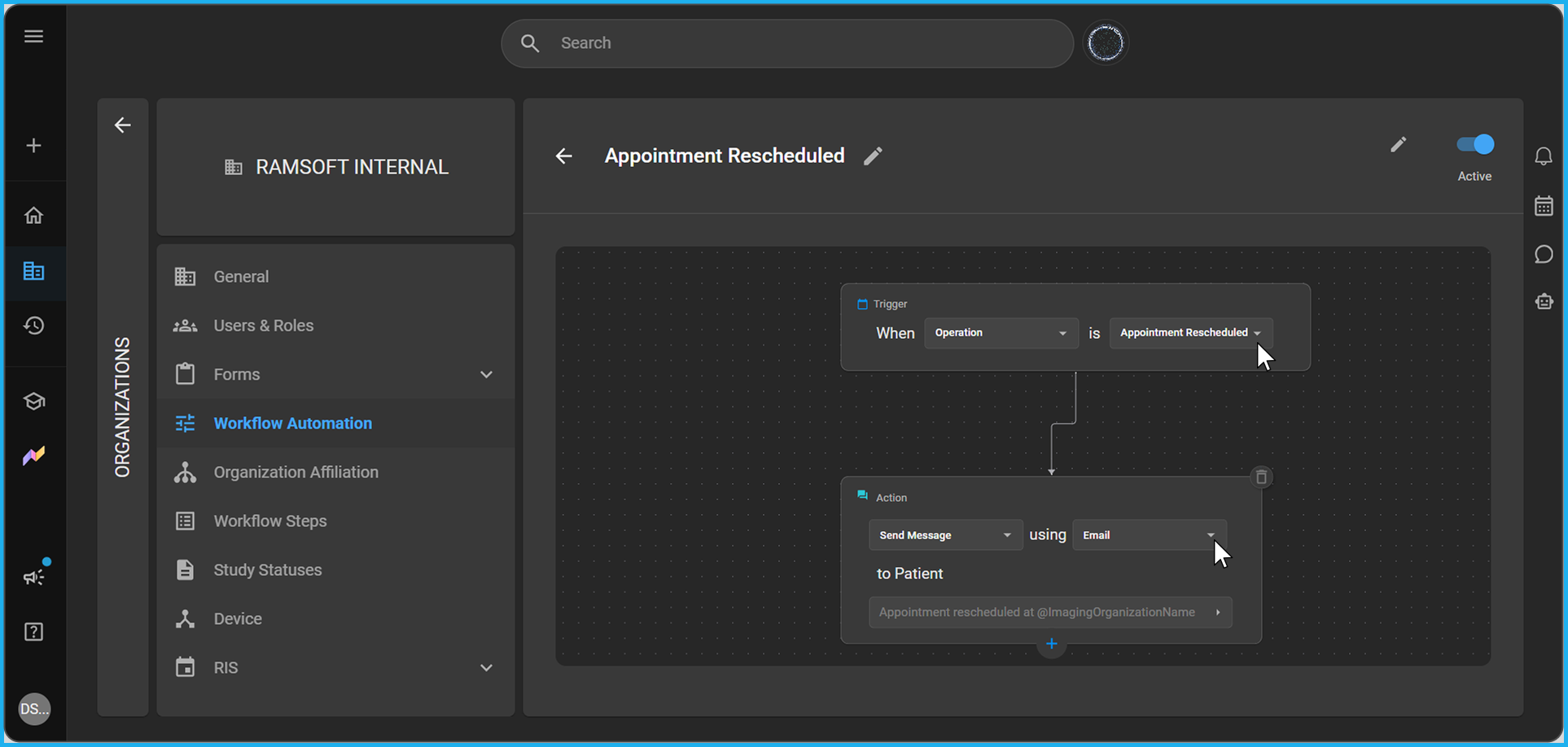
VI. Appointment Rescheduled
Trigger:
- An appointment is rescheduled.
Automated Action:
- Send a message to the patient. The administrator can choose to deliver the message via Email, SMS, or Blume Notification.
- The message content is fully customizable.
Note: This trigger covers two scenarios: the appointment is rescheduled by the imaging organization, or the appointment is rescheduled by the patient directly through Blume. The patient-facing message content differs slightly between the two scenarios.
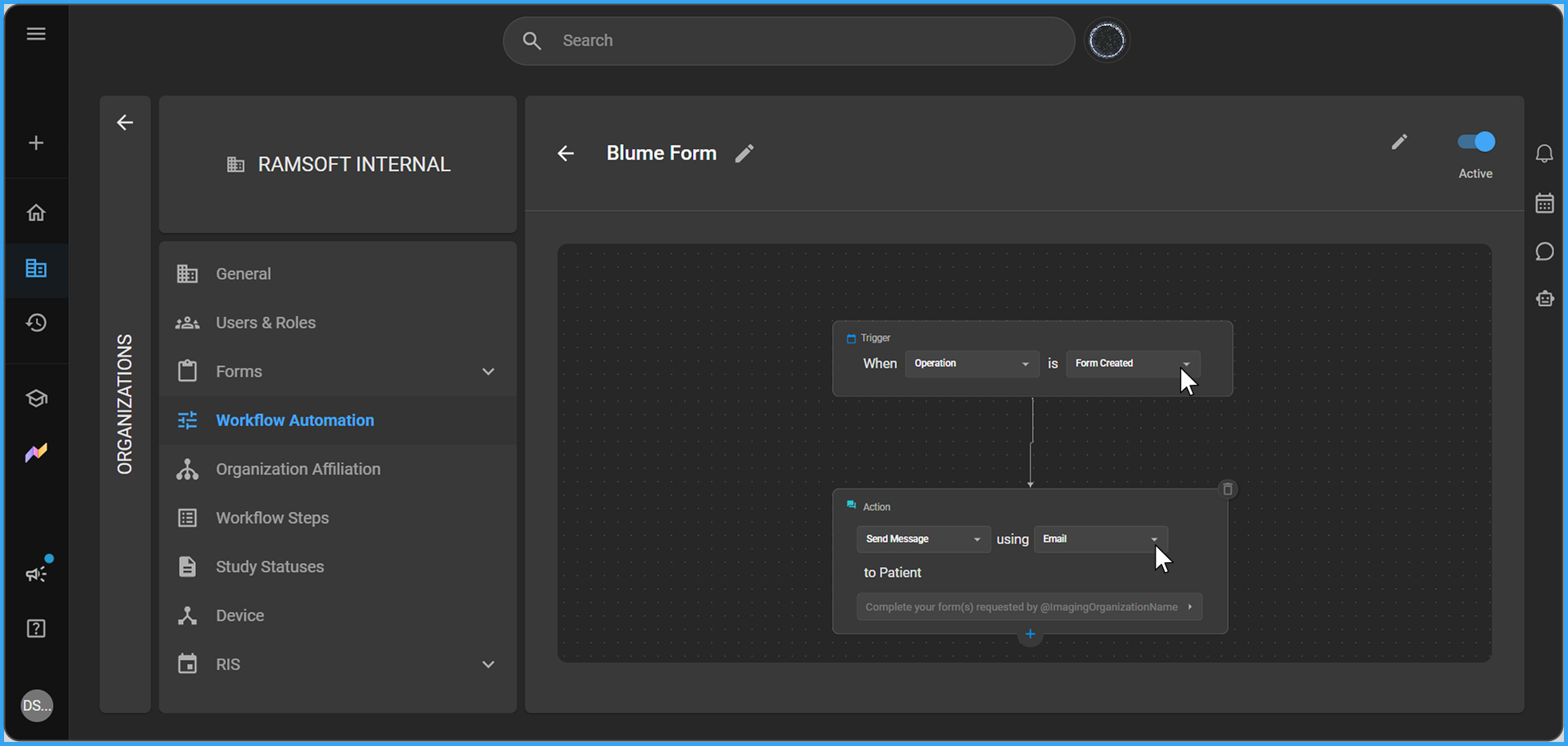
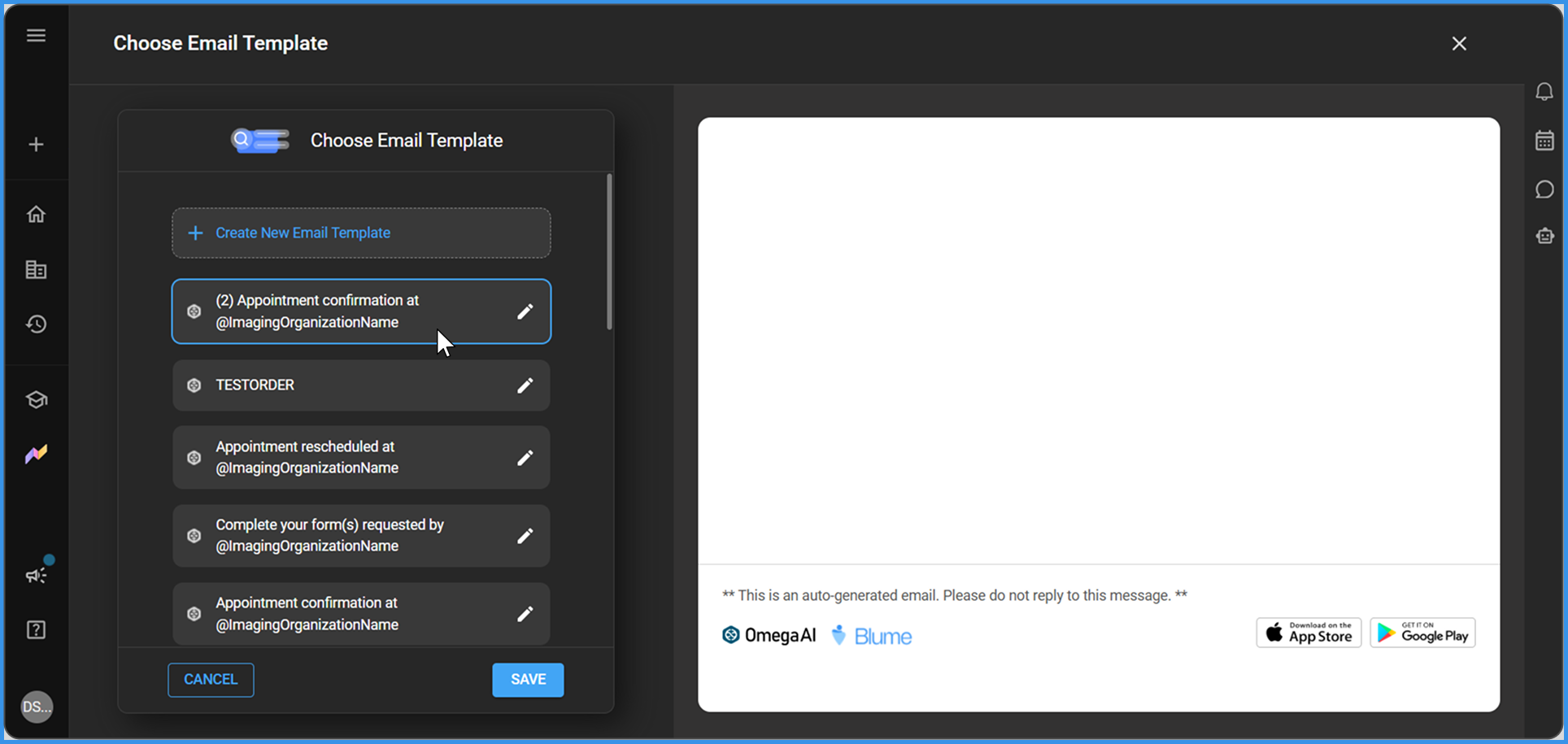
VII. Blume Form
Trigger:
- A form is created and assigned to the patient.
Automated Actions:
- Send an in-app notification to the patient within the Blume portal, reminding them to complete the outstanding form.
- Send an email notification to the patient with a link to the form.
- The administrator can choose to deliver the message via Email, SMS, or Blume Notification.
- The message content is fully customizable.
Note: This notification is not sent if the appointment has been cancelled or rescheduled.
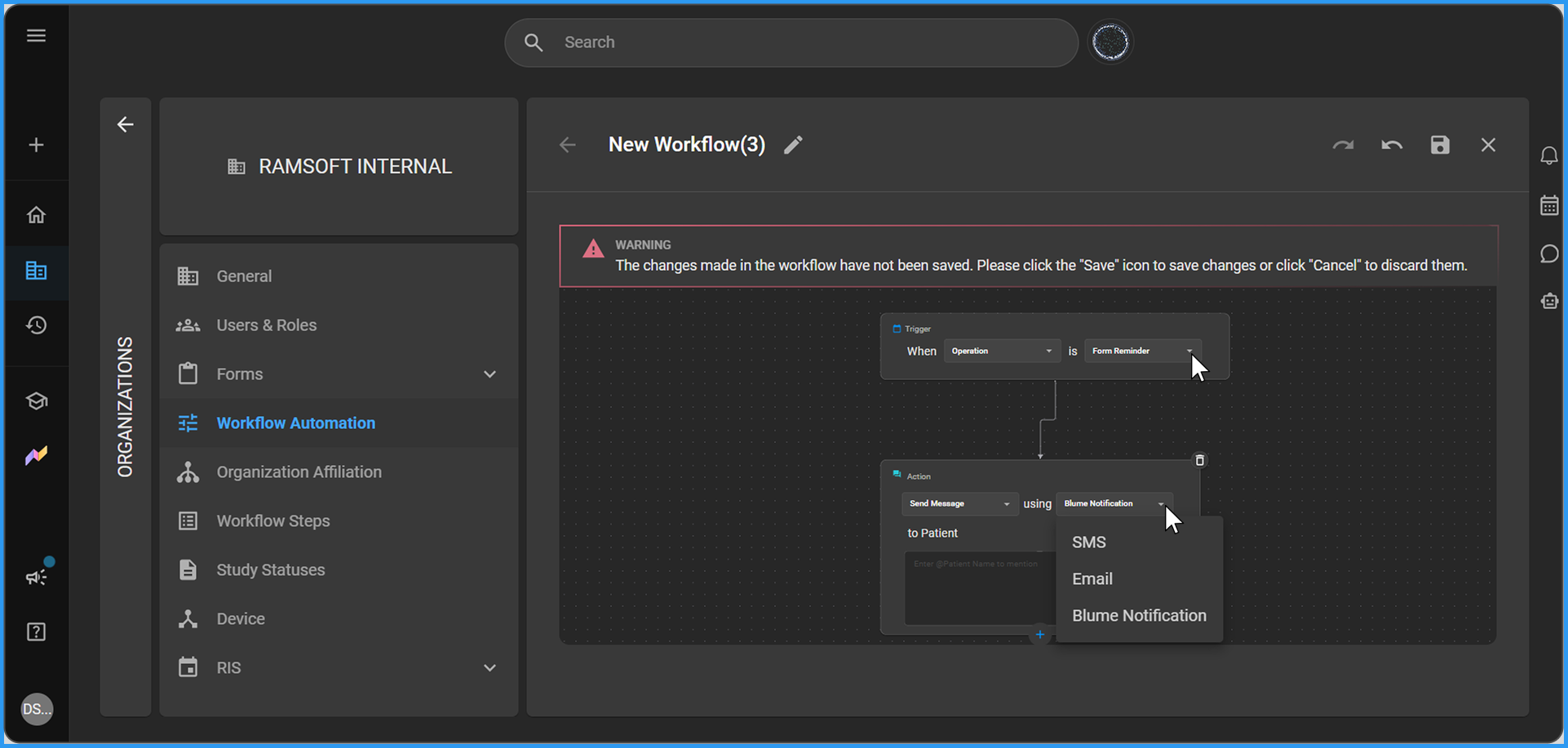
VIII. Form Reminder
Trigger:
- A required form assigned to the patient remains incomplete before the scheduled appointment.
Automated Action:
- Send a message to the patient reminding them to complete the outstanding form via Blume Notification.
Note:
-
This notification is currently delivered via Blume Notification only. No SMS or Email configuration is available for this trigger currently.
-
This notification is not sent if the appointment has been cancelled or rescheduled.
IX. Report Ready
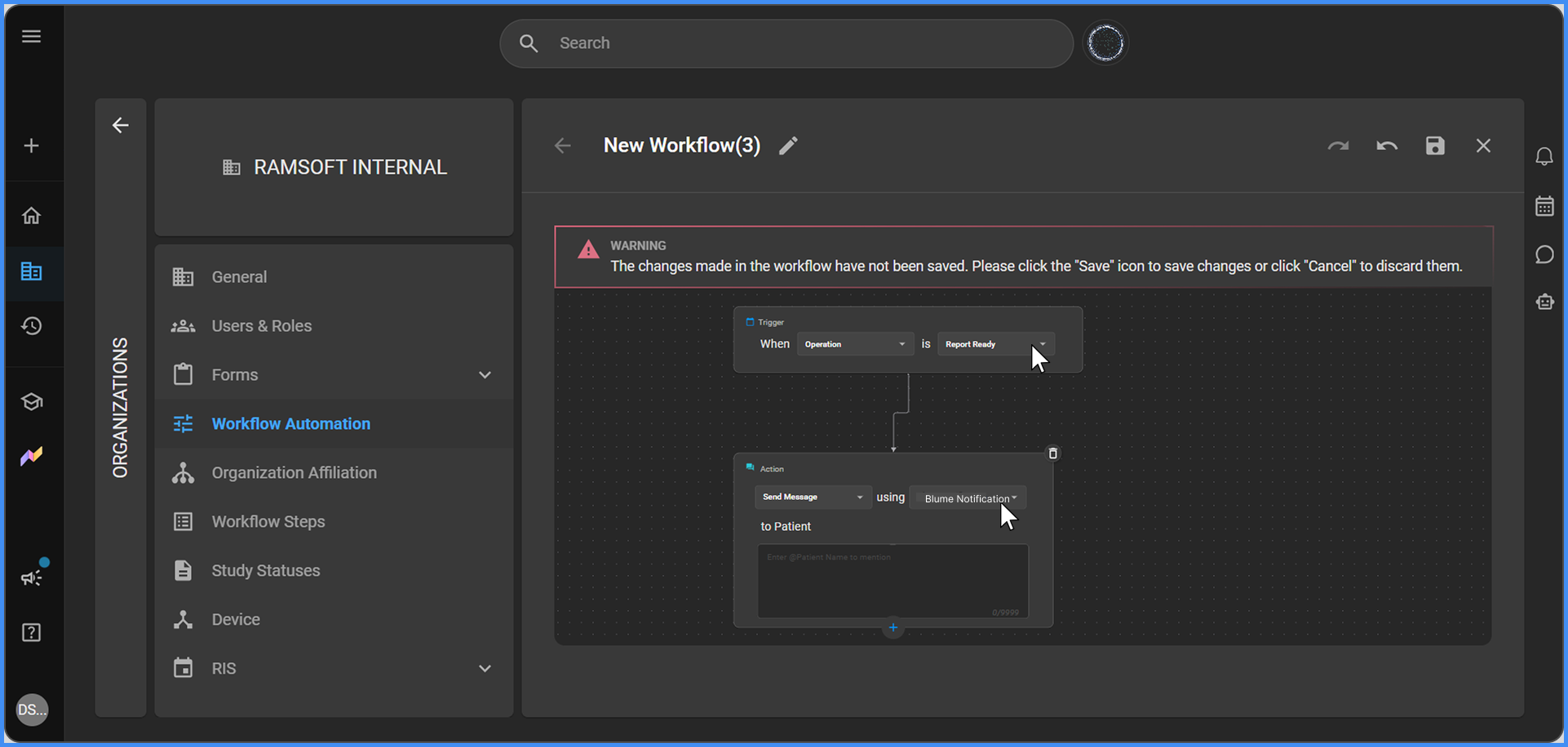
Trigger:
- Operation status changes to Report Ready.
Automated Actions:
- Send an in-app notification to the patient indicating that their report is available to view in Blume.
- The notification includes a deep link that takes the patient directly to the report within the Blume app.
Note: Report Ready is currently delivered via Blume Notification only. No SMS or Email configuration exists for this trigger currently.
Default Notification Channels
- Form Reminder is delivered via Blume Notification only. No SMS or Email configuration currently exists for this trigger.
- Report Ready is delivered via Blume Notification only (in-app, with deep link). No SMS or Email configuration currently exists for this trigger.
- Blume Invite, Share Study, Appointment Request Received, Appointment Confirmation, Appointment Cancellation, Appointment Rescheduled, and Blume Form all allow the administrator to choose Email, SMS, or Blume Notification for the patient-facing message.
- SMS for Blume Invite currently follows the existing (pre-Workflow Automation) invite flow rather than the Workflow Automation configuration.
Additional Notes
- All Blume trigger workflows are configurable under the Workflow Automation section in OmegaAI.
- ppointment status-based triggers (Request Received, Confirmation, Cancellation) support additional conditions based on Order, Study, or Patient attributes to refine further when the workflow fires.
- Only one workflow can be active per trigger at any given time. If a trigger is already in use by an active workflow and a new workflow using the same trigger is manually activated, the existing workflow will be automatically deactivated to prevent conflicts.