Root Homepage
Overview
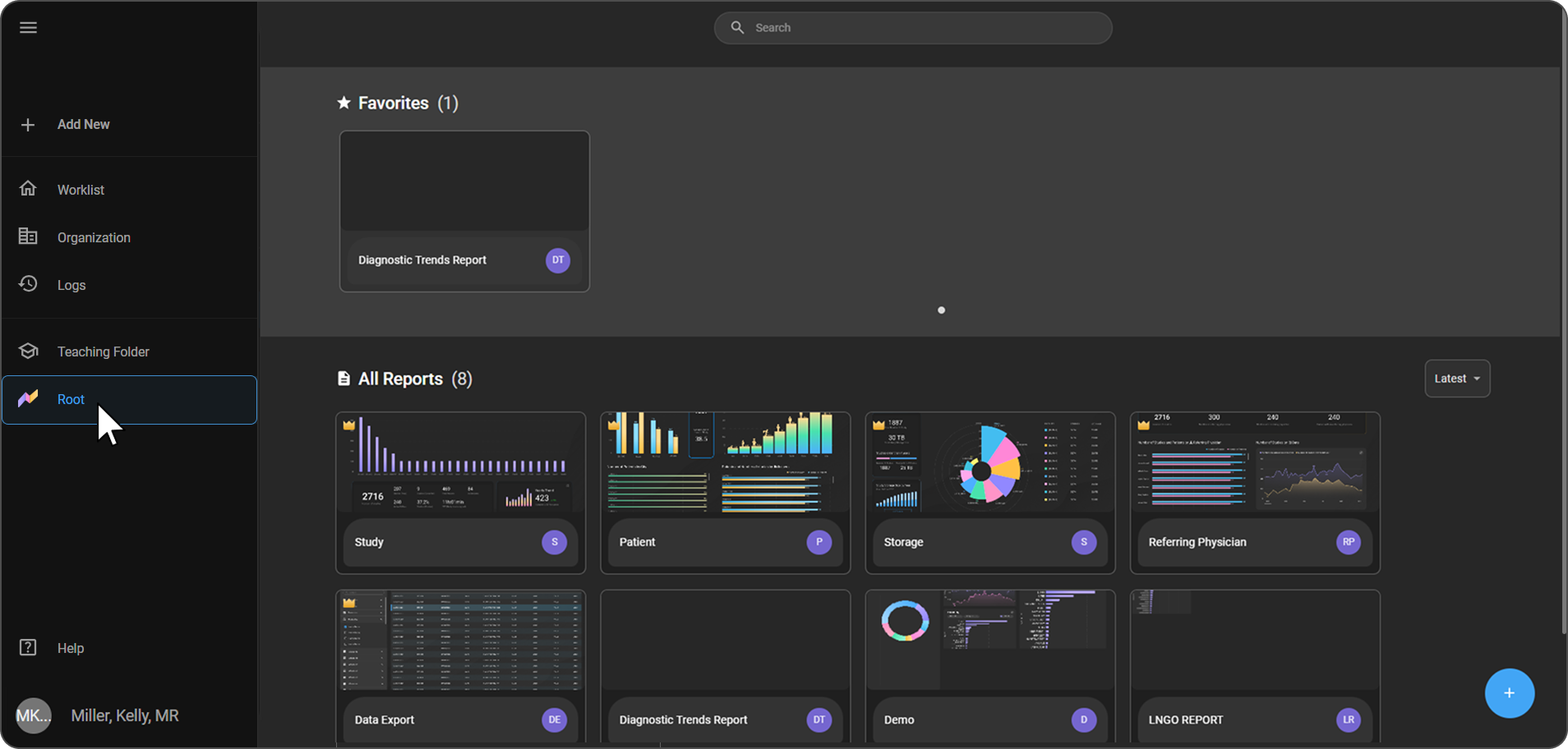
The Root Homepage is the central hub of Root Analytics, where all your reports are displayed and managed. You are presented with a visual grid of reports you are authorized to access — each displayed as a card showing a live preview of its charts and data.
Root Analytics is a data visualization tool that enables users to create, manage, and share reports for informed, data-driven decision-making.
Accessing Root Analytics
- Log in to your OmegaAI account.
- On the left sidebar, click Root.
- The Root Homepage opens, displaying all reports you are authorized to access.
Homepage Layout
| Element | Description |
|---|---|
| Favorites (n) | Appears at the top of the Homepage when one or more reports have been marked as favorites. |
| All Reports (n) | Displays all reports available to you, each shown as a card with a visual preview and title. |
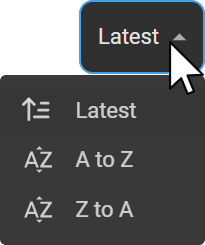
| Sort Dropdown | Located at the top right of All Reports. Options: Latest, A to Z, Z to A. |
| + Button | Blue button at the bottom right to create a new report. |
Report Types
| Type | Description |
|---|---|
| Premium Reports | Curated by RamSoft. Marked with a gold crown icon. Available to all users and cannot be modified or deleted. |
| Custom Reports | Created by users within your organization. Can be edited, duplicated, or deleted by their owner. |
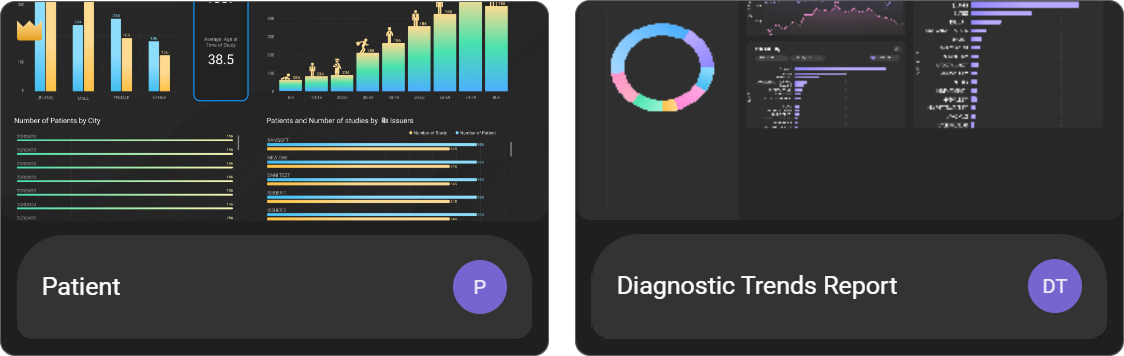
Report Card Options
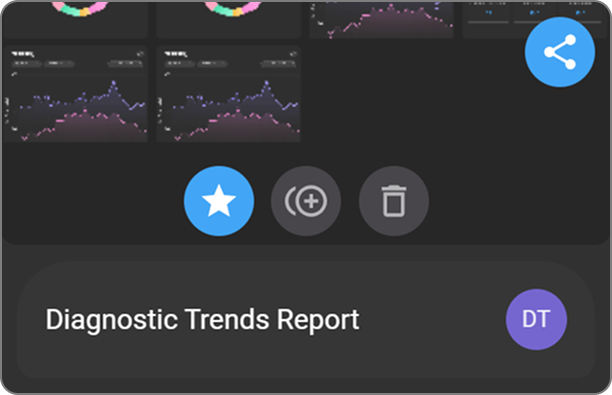
When you hover over a report card, the following options appear:
| Icon | Name | Description |
|---|---|---|
| Star | Favorite | Marks the report as a favorite for quick access. |
| Circle+ | Copy | Creates a duplicate of the report. |
| Trash | Delete | Permanently removes the report. |
| Share | Share | Shares the report with others in your organization. |
Managing Reports
Opening a Report
- Browse the report cards on the Homepage.
- Click any report card to open and view it.
Editing a Report
Open any Custom Report you own to edit it. You can drag fields in the visual builder, resize or reposition visuals, rename the report or its pages, and delete visuals. Changes save automatically.
Note: Premium Reports (gold crown icon) are read-only. Use the copy icon on the report card to create an editable version.
For a step-by-step walkthrough, see the Editing an Existing Report walkthrough below.
Marking a Report as Favorite
- Hover over the report card.
- Click the star icon.
- The report is added to the Favorites section, which appears at the top of the Homepage for quick access.
Copying a Report
- Hover over the report card.
- Click the copy icon (circle with +).
- A duplicate of the report is created and added to your report list as "Report Name - copy."
Deleting a Report
- Hover over the report card.
- Click and hold the delete icon (trash bin).
⚠️ Note: This action is permanent and cannot be undone. Only the report owner or an authorized user can delete a report.
Sharing a Report
- Hover over the report card.
- Click the share icon (blue button at the top right of the card).
- For full sharing options, refer to the Sharing a Report in Root Analytics article.
Sorting Reports
- Click the Latest dropdown at the top right.
- Select Latest, A to Z, or Z to A.
- The report grid updates immediately.
Creating a New Report
- Click the blue + button at the bottom right of the Homepage.
- A blank report canvas opens.
- For full instructions, refer to the Creating a New Report in Root Analytics article.
Watch It in Action
Editing an Existing Report
Troubleshooting
These guides cover the most common issues reported for Root Analytics reports:
- I want a report showing turnaround time, RVUs, or physician/referring-doctor breakdowns
- A report returns zero rows with a specific date range, but works fine on "All Time"
- Exported or displayed fields show blank, null, or unexpected values
Browse all entries in Troubleshooting & FAQs.