Marking Diagnostic Reports as Entered in Error
Overview
OmegaAI has updated how diagnostic reports are handled when they need to be retracted or corrected. Instead of permanently deleting a report, users can now mark it as "Entered in Error." This change protects patient record integrity, supports clinical compliance, and ensures a complete audit trail is always preserved.
This article explains what the change means, how to use it, and what to expect based on report type.
Why This Change Was Made
Diagnostic reports — including preliminary reports — are part of a patient's medical record. Permanently deleting them creates patient safety risks and compliance gaps. The previous Delete option in the Diagnostic Viewer removed the report and its associated data from the system entirely, which is not aligned with clinical record-keeping standards.
The new "Mark as Entered in Error" function retains all report data, including the audit trail, author information, timestamps, and linked observations, while clearly indicating the report is no longer clinically active.
What Changes for You
The following updates are visible in the Document Viewer:
- The Delete button has been renamed to Delete (Entered in Error) to reflect its updated behaviour.
- The trash icon has been replaced with a cross icon for clarity.
- Final reports now display a signed indicator with a green tick icon.
- Entered in Error status is shown on the report in the Patient Chart.
- Icon colours now distinguish prior studies (grey/blue) from current studies (white/green).
Who Can View Entered in Error Reports
A new User Access Control (UAC) permission called "View Entered in Error Reports" has been added under the Document Viewer section. Reports marked as Entered in Error remain visible in the system only to users with this permission.
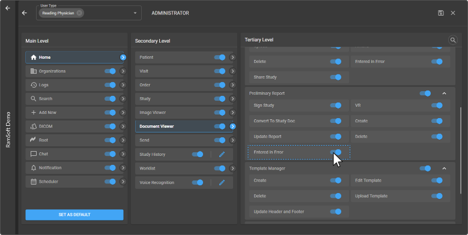
This permission is enabled by default for the following roles:
- Default Admin Role
- Radiologists
Note: For Technologists, the permission is OFF by default unless the user previously had Delete access — in that case, it carries forward automatically as part of the migration from the old permission.
How to Mark a Report as Entered in Error
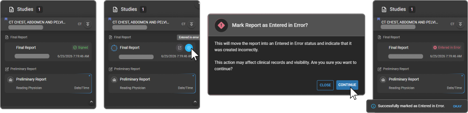
You can mark both Final and Preliminary reports as Entered in Error from the Document Viewer.
- Open the report in the Diagnostic Viewer.
- Select the Delete (Entered in Error) icon (cross icon).
- The report status updates to Entered in Error and is retained in the system.
Final Reports — What Happens Next
When a Final Report is marked as Entered in Error, the following rules apply:
- Status update: The report status changes to Entered in Error.
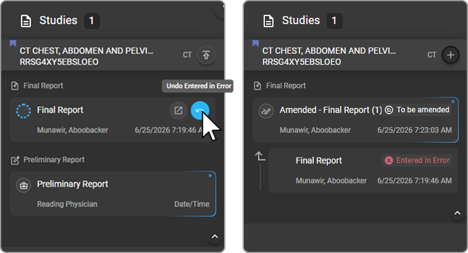
- Reversing the status: You can undo the Entered in Error status. Upon reversal, the report enters the Amended workflow.
- Editing — if an amendment already exists: The report cannot be edited.
- Editing — if no amendment exists: Editing follows the current amendment workflow.
Preliminary Reports — What Happens Next
When a Preliminary Report is marked as Entered in Error, the following rules apply:
- Status update: The report status changes to Entered in Error.
- Reversing the status: You can undo the status at any time.
- After reversal: The report becomes editable. You can make changes, finalize the report, and sign it as a Final Report.
Quick Reference
The table below summarises the key differences between Final and Preliminary report behaviour.
| Final Report | Preliminary Report | |
|---|---|---|
| Can mark as Entered in Error | Yes | Yes |
| Can reverse (undo) status | Yes | Yes |
| After reversal | Enters Amended workflow | Becomes editable; can be finalized and signed |
| Editable if an amendment exists | No | N/A |
| Report data retained | Yes (full audit trail) | Yes (full audit trail) |
Additional Notes
- Correct tooltips are displayed on hover for all report action icons.
- All existing data linked to a report — including the audit trail, author, timestamps, and observations — is retained regardless of status changes.