AI-Assisted Script Generation
Overview
OmegaAI's Script Editor now includes AI-powered script generation, allowing you to create functional scripts from natural language descriptions. Instead of manually writing JavaScript, you can describe what you need the script to do, and the AI generates ready-to-use code using the correct operations, DICOM tags, and host functions for that editor.
This capability uses large language model technology to interpret your requirements and produce ClearScript V8-compatible code that integrates with OmegaAI's scripting engine.
What's New
Describe it, don't code it
Type a description into the new AI Prompt pane and click Generate. OmegaAI returns a complete script in the editor — no hand-coding required to get started.
Available everywhere the Script Editor is
AI-assisted generation works in all three scripting contexts:
- DICOM Device scripts — logic applied when objects are sent to or received from a specific device.
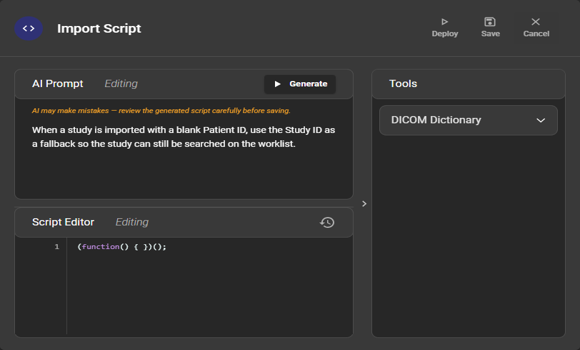
- Import scripts — clean up or stamp studies arriving through Import.
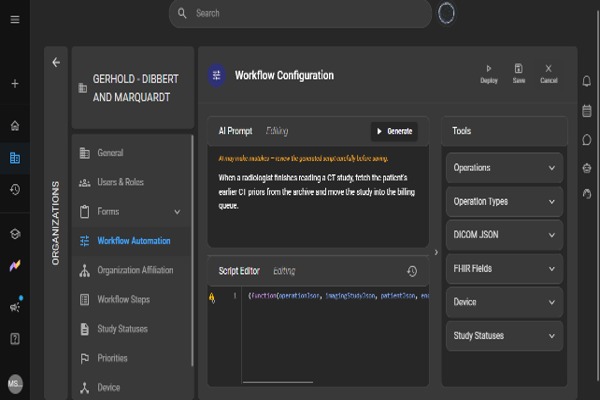
- Workflow scripts — fetch priors, route studies, transition study status, and more, driven by the Workflow Automation engine.
Context-aware and safe by design
Each editor gives the AI its own vocabulary, so the instruction produces the right kind of script in each place, and the AI only uses operations that exist in that editor's Tools panel. Exact values you type — such as a Series Description or facility name — are preserved verbatim.
Always review generated scripts. AI can make mistakes. A generated script is a starting point, not an approved rule — read it carefully, confirm it targets the right operations and tags, and test it before you deploy.
How It Works
Each Script Editor now has an AI Prompt pane above (or beside) the script area, and a Tools panel on the right listing the operations, DICOM fields, FHIR fields, devices, and study statuses available in that editor.
When you click Generate, OmegaAI sends your description — along with the context of that specific editor (its available operations and vocabulary) — to the AI, which returns a complete script in the editor.
DICOM Device Script with AI Prompt:
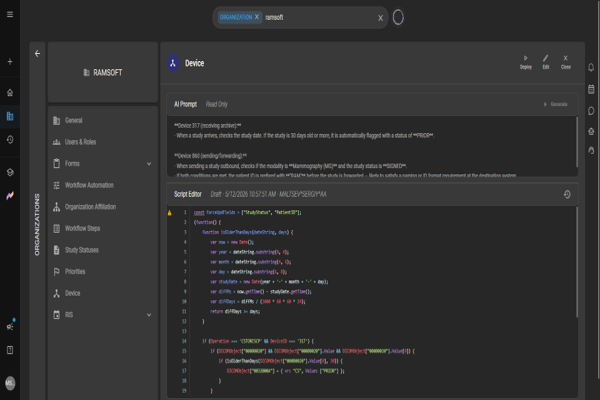
Each editor exposes a different vocabulary to the AI:
| Editor | What the AI has to work with |
|---|---|
| DICOM Device Script | Operation (e.g. CSTORESCP, CSTORESCU, CFINDSCU), DeviceID, and DICOMObject array reads/writes |
| Import Script | DICOMObject array reads/writes on each imported object |
| Workflow Script | Host arguments (study, patient, order, device, etc.) and host operations such as host.fetch(), host.route(), host.retrieveAndRoute(), and host.statusTransition() |
Steps to Generate a Script
-
Open the Script Editor for the context you want:
- Device script — open the organization's Devices, select the device, and open its script.
- Import script — open the organization's Import Script section.
- Workflow script — open Workflow Automation and open the Workflow Configuration / Script Editor.
-
Enter edit mode.
- Make sure the editor shows Editing (not Read Only).
- The AI Prompt pane and the Generate button are only active while editing.
-
Describe what the script should do.
- In the AI Prompt box, write a clear, specific description in plain language.
- Be explicit about: i. When it should run (e.g. only on inbound receive, only for CT studies). ii. What it should read or change (name the DICOM tags or fields, and any exact values that must be matched or written verbatim).
- Any conditions or guards (e.g. "do nothing if the reading physician is not set yet").
-
Click Generate.
- A progress indicator appears while OmegaAI writes the script.
- The generated script replaces the editor contents; if you have work you want to keep, save or copy it first.
Import Script Editor with AI Prompt Example:
-
Review and refine.
- Read the result against your intent.
- If it is not quite right, adjust your description and generate again, or edit the script directly.
- You can also combine AI generation with the Tools panel and type parts of the script by hand.
-
Save or Deploy. When the script is correct, Save (or Deploy, for workflow scripts) as you would with any manually written script.
Writing Effective Prompts
The clearer your description, the better the result.
A few tips:
Be Specific in Descriptions
Provide clear, specific requirements:
Good: "Create a rule that filters incoming DICOM studies from the cardiology department and only pass studies with 'Cardiac' in the series description"
Vague: "Filter DICOM data"
Specify Scope and Behavior
Include details about when and how the script should operate:
- Device type or data source
- Conditions that trigger the script
- Expected output or actions
Name the operation or event
"On inbound receive (CSTORESCP)…" or "When a study arrives via import…" tells the AI which branch to write.
Give exact values in quotes
If a rule must match an exact Series Description or Institution Name, provide the exact text — the AI preserves literal values you supply.
State the guard conditions
"Only for CT studies", "only when the patient ID is blank", "leave everything else unchanged" — these become the "if" conditions in the script.
Example Prompt
Prompt:
On inbound receive, stamp Institution Name with our facility identifier so every study arriving at this device is attributed to our imaging organization.
Generated Device Script:
(function() {
    if (Operation === 'CSTORESCP') {
        DICOMObject["00080080"] = { vr: "LO", Value: ["YOUR-FACILITY-NAME"] };
    }
}());
Review the tag, operation, and value, replace the placeholder facility name, and save.
Workflow Configuration with AI Prompt:
Best Practices for Effective Generation
Leverage Existing Scripts
Use existing scripts to understand how similar operations are implemented, then refine your prompts accordingly.
Validate Generated Code
Always review generated scripts before deployment:
- Verify the logic matches your intention
- Check for edge cases not covered in your description
Quality Assurance
Generated scripts undergo validation to ensure:
- Structural Correctness — Code follows ClearScript V8 syntax and OmegaAI conventions
- Operation Guard Enforcement — Outbound-specific operations include proper routing guards
- Text Handling — DICOM tag comparisons handle case sensitivity and whitespace appropriately
- Literal Preservation — User-supplied values (series descriptions, device names, etc.) are preserved accurately
Technical Foundation
The script generation system is built on:
ClearScript V8 Engine
The underlying JavaScript engine for script execution, upgraded from the previous Chakra Core engine. This upgrade provides improved performance, better compatibility, and enhanced reliability for script-based operations.
AI-Powered Code Generation
Interprets natural language descriptions to generate structured code.
Context Awareness
When generating a script, the generation system has access to:
- Available Functions — Functions your device or workflow supports
- Script Context — Existing tags, variables, and language features available in your environment
- Operating Parameters — Device-specific operations and configurations
Limitations and Considerations
- Complex conditional logic may require manual refinement after generation
Things to Know
- Generated scripts are validated like any other script before they run, but validation cannot judge intent — a script can be valid and still not do what you meant. Always test against real data.
- No patient data is required in your prompt. Describe the rule in general terms (tags, operations, conditions); you do not need to paste PHI to generate a script.
Support and Feedback
For issues, feedback, or clarification on generated scripts:
- Report issues directly to your support team
- Include the original prompt, generated script, and expected outcome
- Share whether the generated result met your requirements