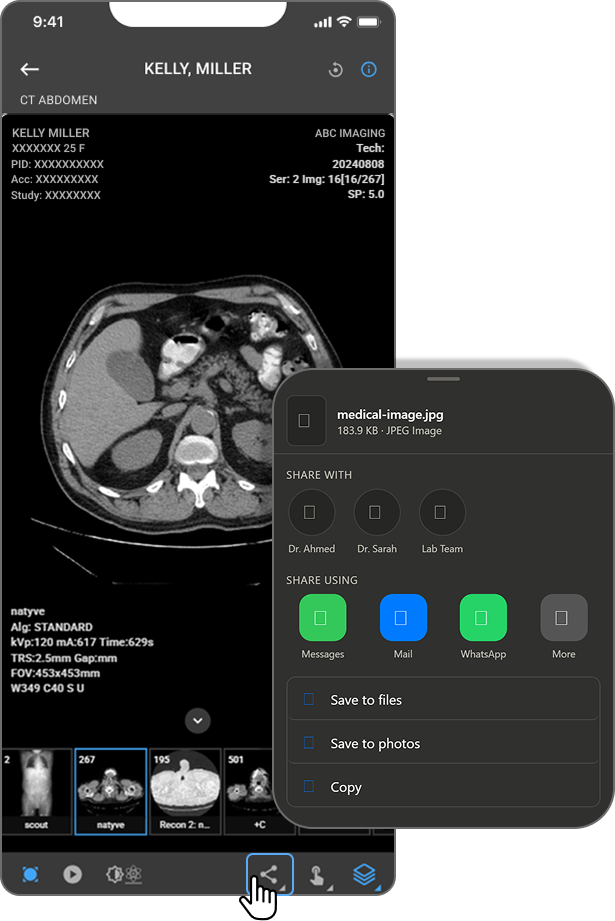
OmegaAI — Blume Mobile Image Viewer
1. Overview
What is the Blume Mobile Image Viewer?
The Blume Mobile Image Viewer is a DICOM-compliant image viewing module integrated into the Blume Patient Portal mobile app. It enables patients to access, review, and interact with their medical imaging studies directly from a mobile device, providing a secure and accessible bridge between imaging centers and patients.
The image viewer is supported on all touchscreen mobile devices running iOS or Android.
The Mobile Image Viewer supports all DICOM-based medical imaging modalities.
Intended Use
The Blume Mobile Image Viewer is intended for non-diagnostic patient review only. It is not a diagnostic workstation and should not be used for primary clinical reads.
Clinical interpretation must be performed by a qualified radiologist or referring physician using a certified diagnostic viewing platform.
Capabilities
- Full-screen DICOM image rendering across all modalities
- Multi-series navigation with thumbnail strip
- Stack scrolling through multi-frame image series
- Window Level and Clamped Window Level adjustment
- Image orientation controls (flip, rotate, invert)
- Measurement tools (length, angle)
- Pixel intensity analysis via Drag Probe
- Cine mode for sequential image playback
- Toggle annotations to keep or remove annotations from the image
- Patient and study information overlay (DICOM header)
- Image and study sharing via native device share sheet (JPEG format)
2. Accessing the Image Viewer
Prerequisites
- Patient must have an active Blume account
- Study must be in Completed status with DICOM images attached
- Imaging center must have released the study to the patient
Navigation
- Launch the Blume app and log in with your registered credentials
- On the home screen, tap the Completed tab
- Tap View Results on the appointment card
- Tap View Images → on the Study Information page to launch the Mobile Image Viewer
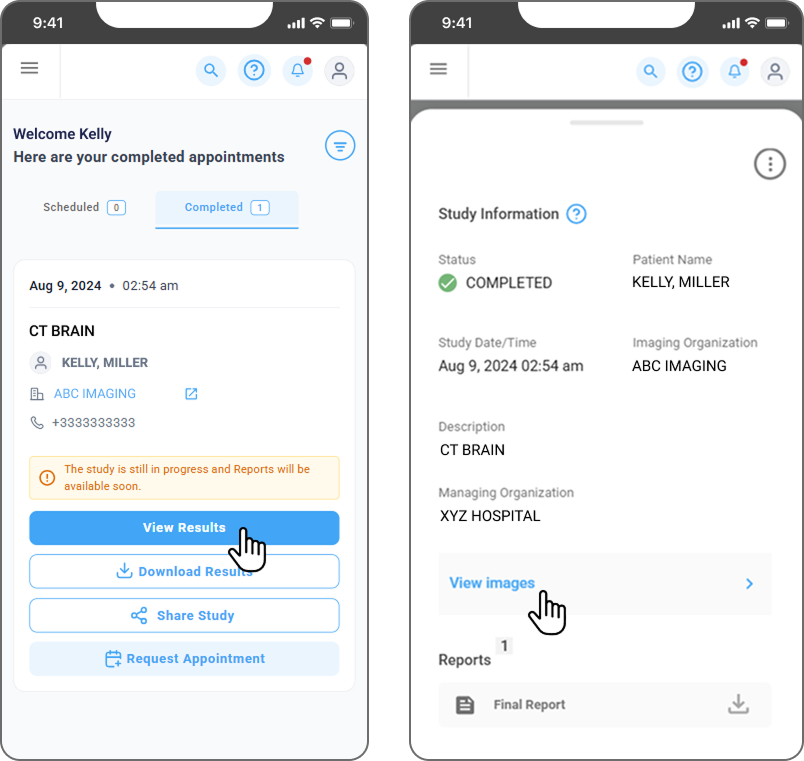
The viewer initializes and loads the DICOM series.
Note: The View Images option is only available for studies containing DICOM images. Studies in Pending status may not yet have images available.
3. Image Viewer Layout
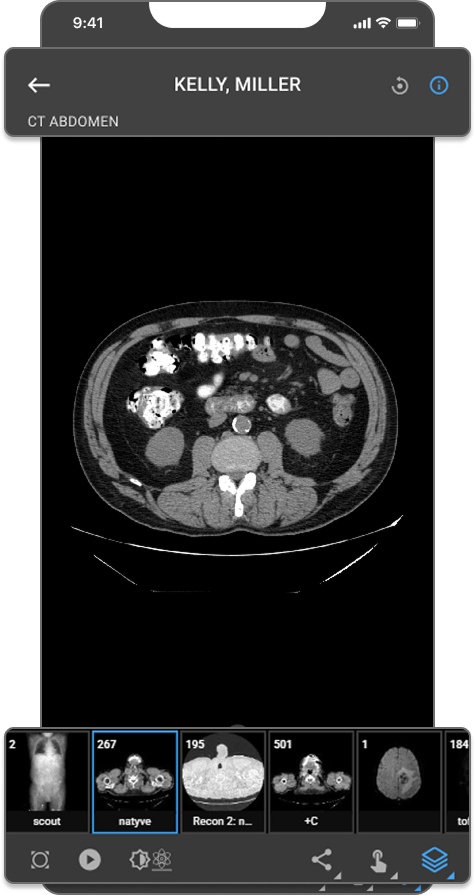
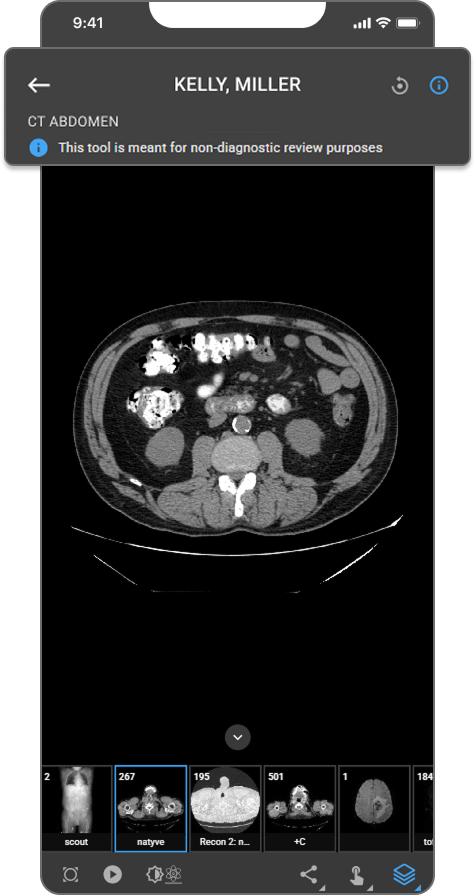
The interface is structured into three vertical zones:
Top — Header Bar Displays patient demographics, study descriptor, reset control, and disclaimer toggle.
Middle — Scan Viewing Area Primary DICOM rendering viewport with touch gesture support and DICOM overlay.
Bottom — Series Thumbnail Strip and Toolbar Series navigation strip with collapsible toggles, and a fixed toolbar providing access to all viewer tools and controls.
4. Landscape Mode
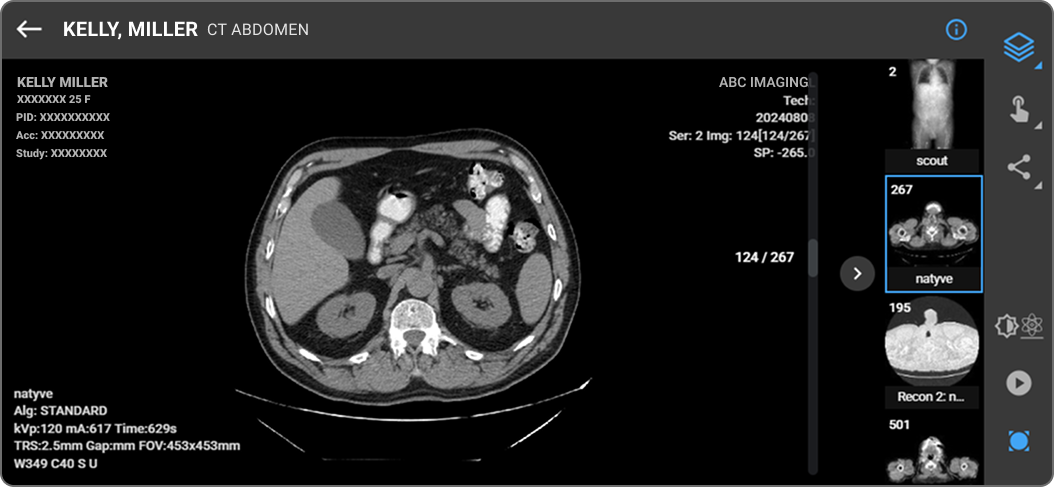
The Mobile Image Viewer supports landscape orientation. Rotating your device to landscape mode automatically adjusts the layout to make better use of the wider screen.
Layout in Landscape Mode
- The scan viewing area expands to occupy the majority of the screen
- The series thumbnail strip moves to the right side of the screen, displayed vertically. A > arrow appears on the right edge of the scan to expand or collapse the thumbnail strip
- The toolbar icons are arranged vertically along the right edge of the screen
- The stack scroll position indicator is displayed on the right of the scan (e.g., 124/267)
How to Use
- Simply rotate your mobile device to landscape orientation
- The viewer adjusts automatically — no additional steps required
- All tools, gestures, and controls work the same way as in portrait mode
Tip: Landscape mode is especially useful for wide anatomical structures such as chest CT or abdominal scans, where a wider viewport gives a better overview of the anatomy.
5. Header Bar
The header bar provides patient and study context at the top of the viewer.
| Element | Description |
|---|---|
| ← Back arrow | Exits the viewer and returns to the Study Information page |
| Patient Name | Displays the patient's name from the DICOM header |
| Study Description | Displays the study description |
| Reset icon | Resets all tool adjustments — including Window Level, rotation, zoom, flip, invert, and any annotations — back to the default state |
| ⓘ Info icon | Toggles the non-diagnostic disclaimer banner: "This tool is meant for non-diagnostic review purposes" |
6. Scan Viewing Area
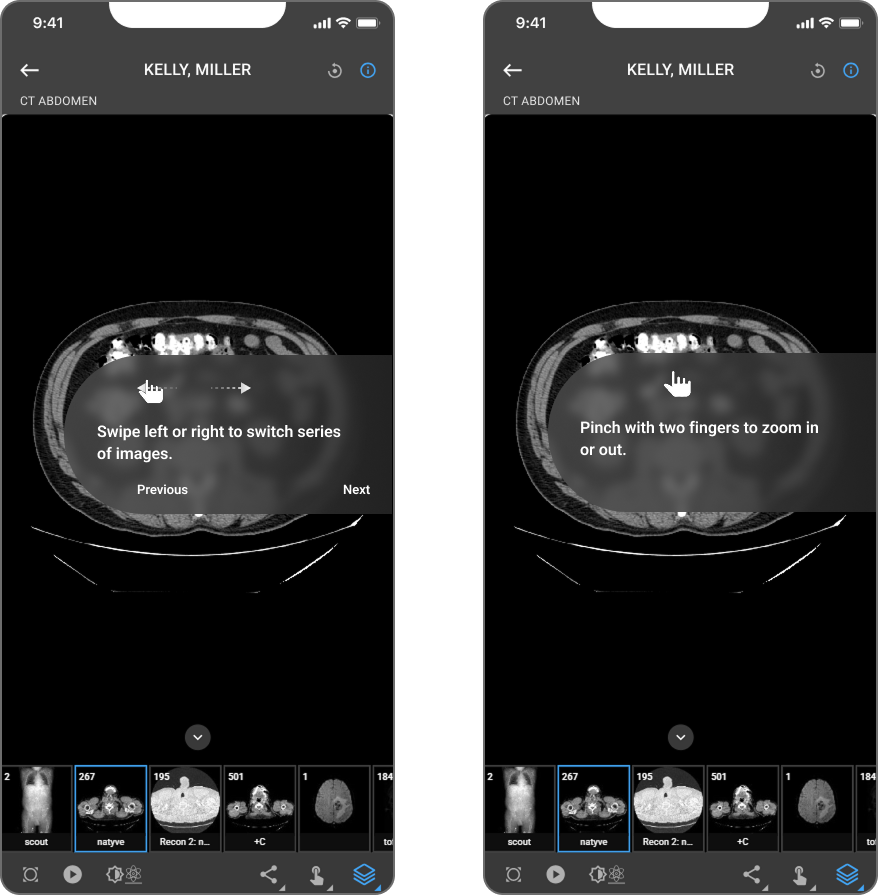
The scan viewing area renders the active DICOM series in full screen with touch gesture support.
Image Navigation
- Swipe left or right — switch to the next or previous series
Zoom Controls
- Pinch with two fingers to zoom in or out
7. Series Thumbnail Strip
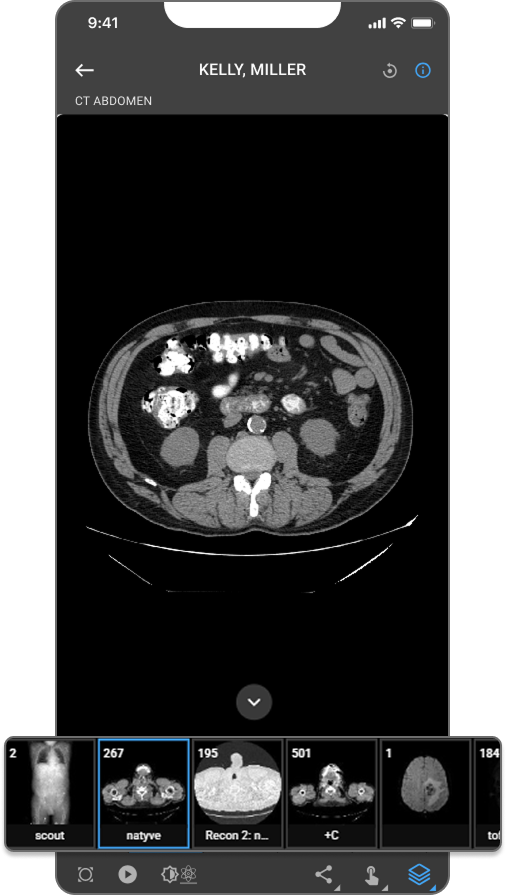
The thumbnail strip provides series-level navigation across the bottom of the viewport, directly above the toolbar.
Display
- Thumbnail preview of each series in the study
- Image count displayed above each thumbnail
- Series descriptor displayed below each thumbnail
- Active series indicated by a blue border highlight
Navigation
- Tap any thumbnail to load that series into the active viewport
- Horizontally scroll the strip to access additional series
Visibility Toggle
- Tap ∨ to collapse the thumbnail strip and expand the viewport
- Tap ∧ to restore the thumbnail strip
8. Control Menu Toolbar
The toolbar is fixed at the bottom of the screen below the thumbnail strip and provides access to all viewer controls.
| Icon | Function |
|---|---|
| Viewport / Overlay Toggle (circle icon) | Toggles the DICOM header overlay on or off |
| Play (▶) | Initiates Cine mode for sequential frame playback |
| Tools (settings icon) | Opens the tools menu |
| Share (↗) | Invokes the native device share sheet |
| Tap icon (hand icon) | Opens the image orientation menu |
| Layers (stack icon) | Opens the tools selection menu |
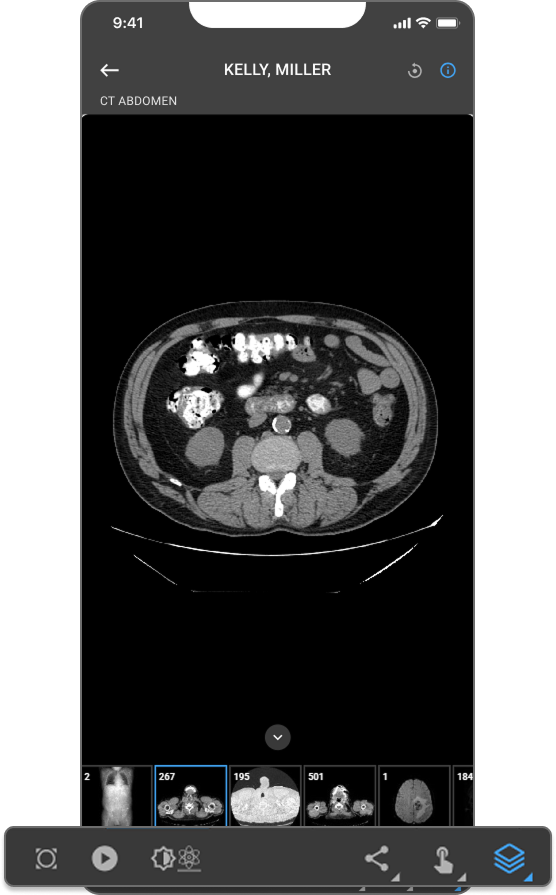
Note: The active tool is indicated by a blue highlight.
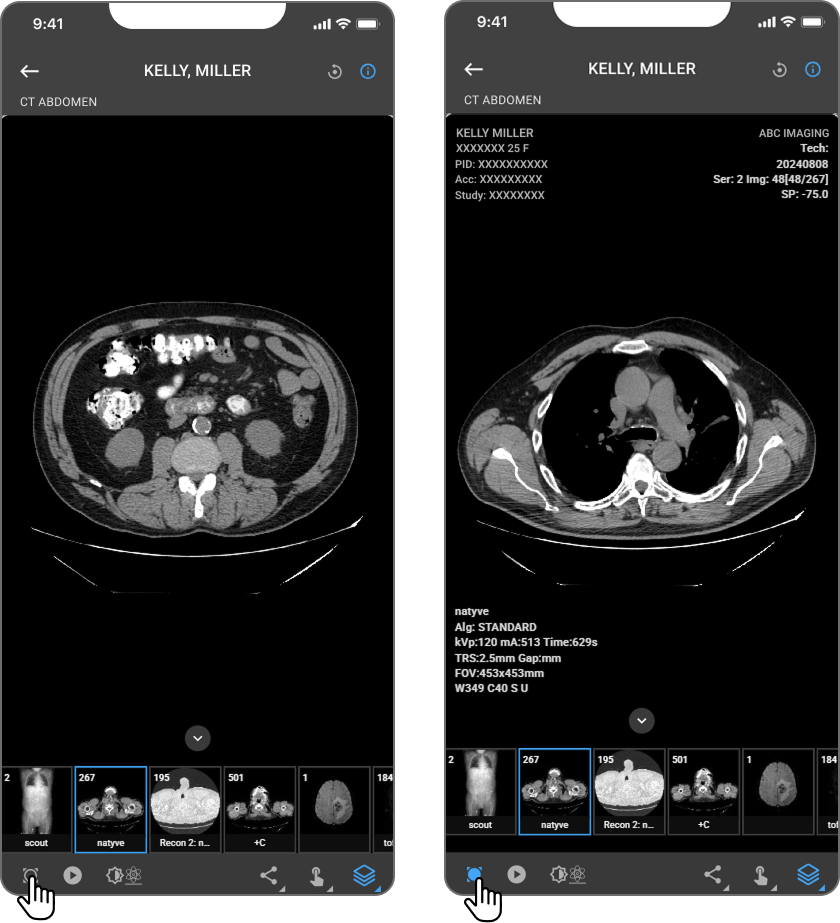
9. Overlay Toggle
The Viewport / Overlay Toggle is located at the bottom-left of the toolbar. It controls visibility of the patient and study information overlaid on the image.
- Blue (active) — DICOM header overlay is rendered on the scan
- Grey (inactive) — Overlay is suppressed for an unobstructed viewport
The information displayed depends on the metadata available in the DICOM file and may include:
- Patient ID and demographics
- Acquisition date and time
- Series and image number
- Imaging parameters
- Accession number and Study ID
- Imaging organization
Note: Not all fields may be present for every study. The overlay reflects only the metadata available in the DICOM header of the acquired study.
10. Cine Mode
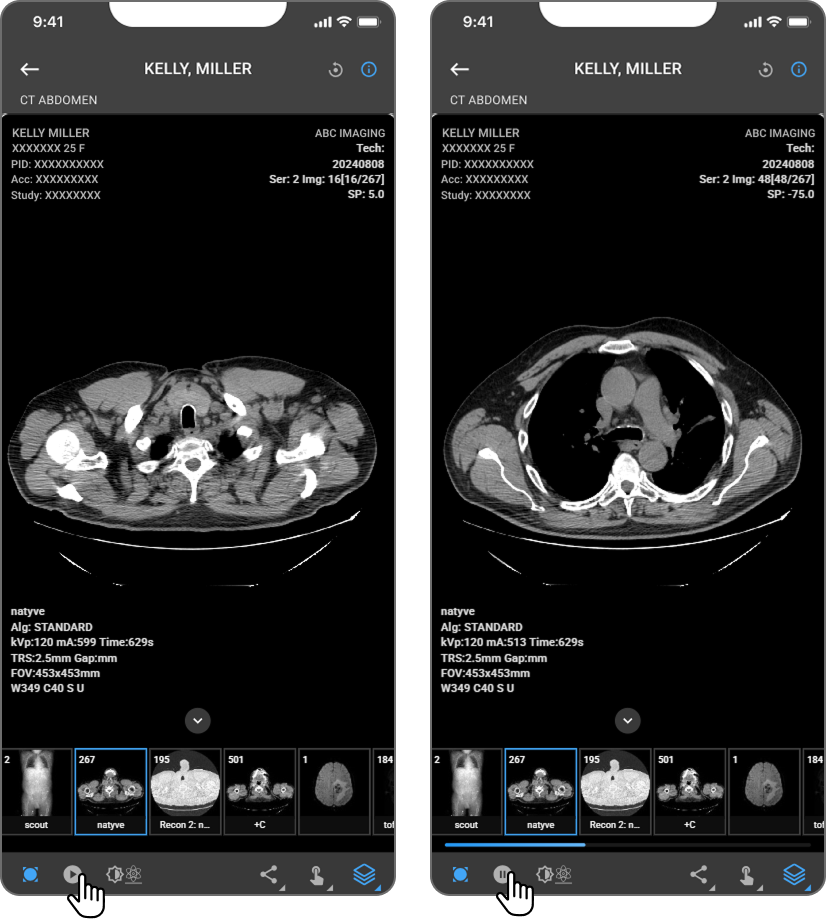
Cine mode enables sequential automated playback of frames within a series, simulating a video loop. This is clinically relevant for reviewing multi-frame series such as CT and MR studies.
Operation
- Navigate to the target series using the thumbnail strip
- Tap the ▶ Play button in the toolbar to initiate playback
- The viewer advances through all frames sequentially
- Frame position is displayed in real time (e.g., 16/21)
- Tap ⏸ Pause to halt playback at the current frame
Cine Mode Indicators
- Play button (▶) transitions to Pause button (⏸) during active playback
- A blue progress bar appears between the thumbnail strip and the toolbar, reflecting playback position in real time
- The frame counter updates continuously in the top-right of the viewport
11. Tools Menu
Tap the Tools icon (stack icon by default) at the bottom-right of the toolbar to open the tools menu. The active tool is indicated by a blue highlight.
11.1 Stack Scroll
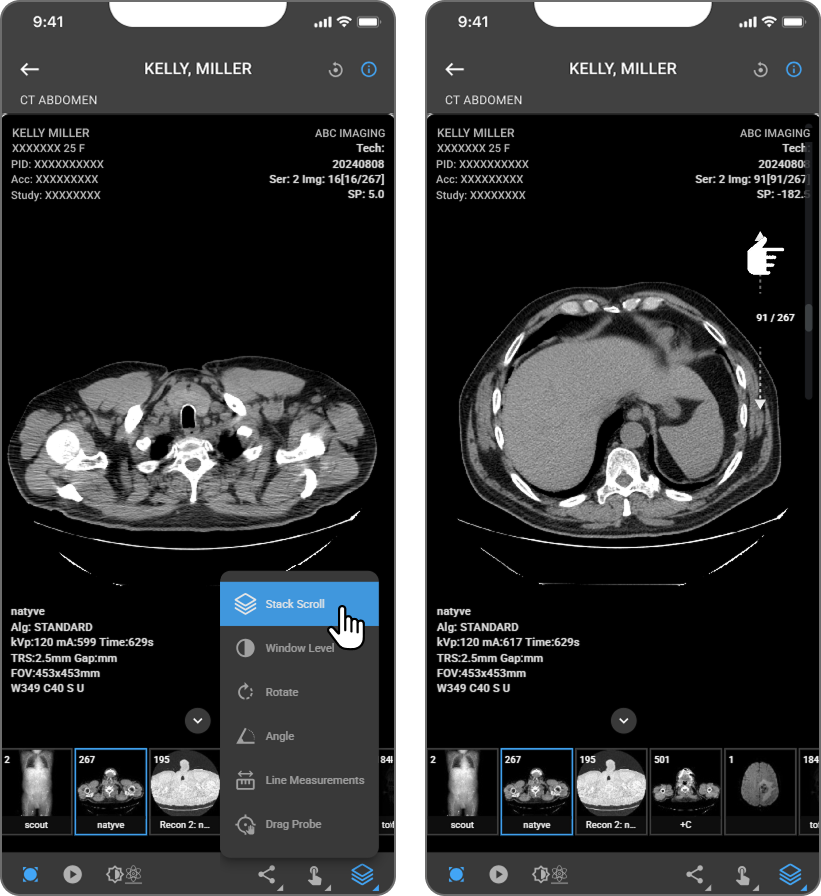
Stack Scroll is the default active tool on viewer initialization. It enables precise frame-by-frame navigation through multi-frame DICOM series via a dedicated scroll toolbar.
Operation
- Tap Stack Scroll from the control tools menu
- Swipe up or down on the viewport to scroll through image slices
- A vertical scroll toolbar appears on the right side of the scan showing your current position within the stack (e.g., 91/267)
Scroll Toolbar
The scroll toolbar displays the current slice number and total slice count (e.g., 124/486) and supports the following interactions:
- Tap — jump directly to a specific position in the stack
- Drag — scroll through slices with precision control
- Swipe — continues to scroll slices as usual, with no gesture conflict with pinch-to-zoom or Window Level adjustment
The scroll toolbar auto-hides after a period of inactivity to keep the viewport clean and unobstructed. Tap anywhere on the scan to bring it back.
Clinical Utility
- Enables precise slice navigation through multi-frame studies such as CT and MR
- The scroll toolbar provides visual position feedback within the stack
- Supports quick jumping across large series
11.2 Window Level
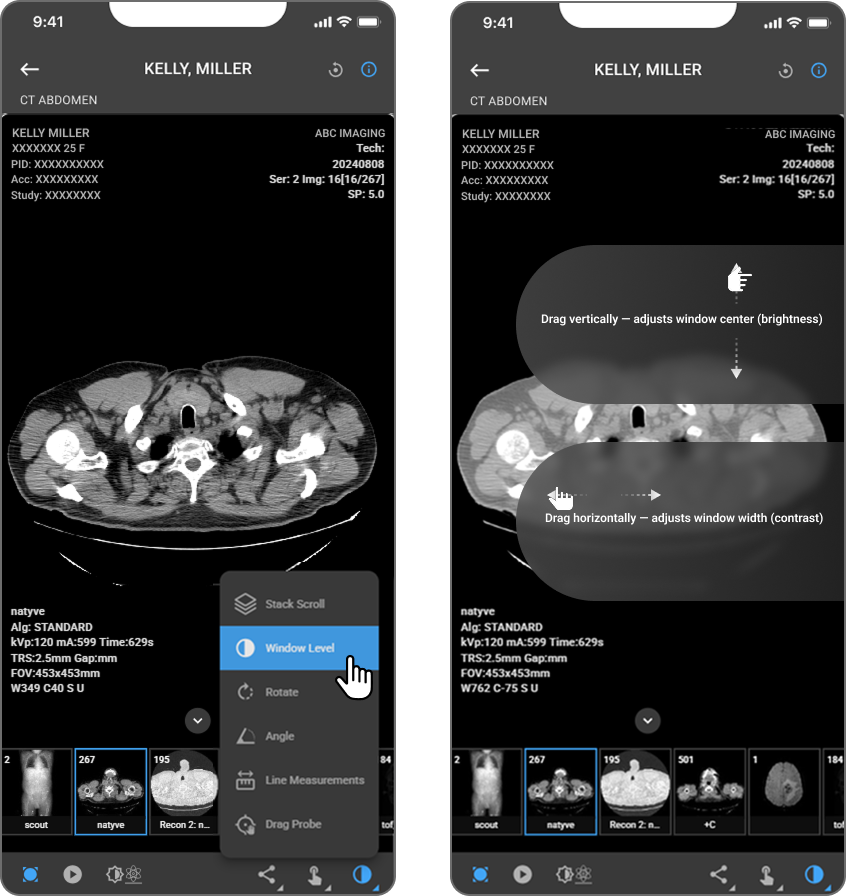
The Window Level tool adjusts the window width (WW) and window center (WC) of the rendered image to optimize tissue contrast for diagnostic review.
Operation
- Tap Window Level from the tools menu
- Drag vertically — adjusts window center (brightness)
- Drag horizontally — adjusts window width (contrast)
Clinical Utility Essential for optimizing tissue differentiation. Commonly used presets include soft tissue windows, bone windows, and lung windows in CT imaging.
11.3 Rotate
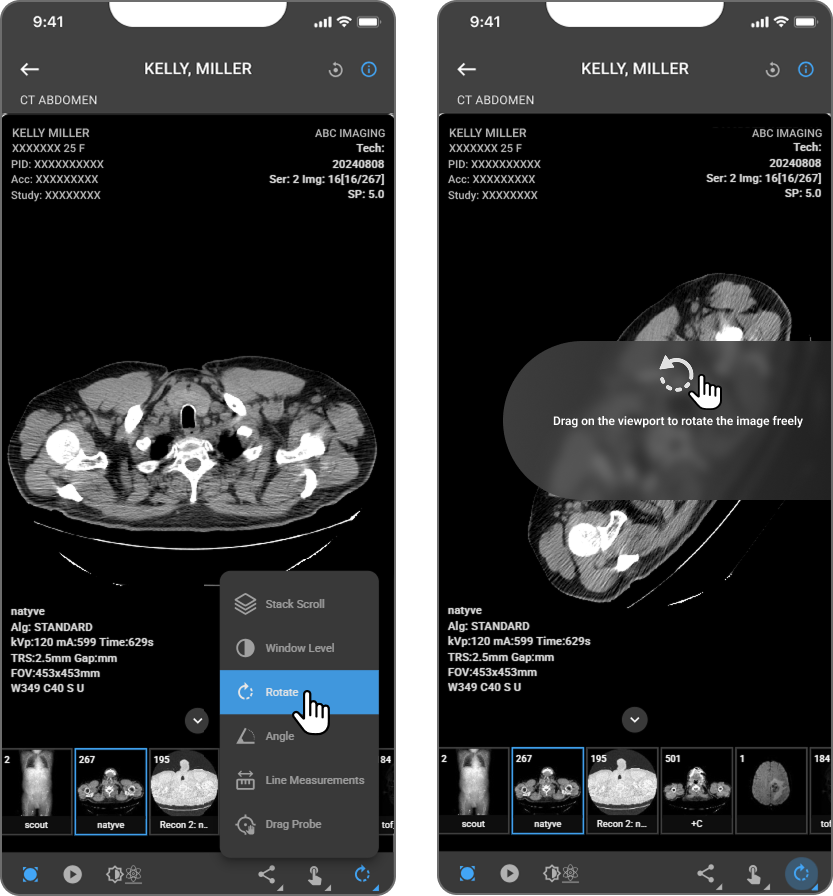
The Rotate tool enables free rotation of the rendered image within the viewport.
Operation
- Tap Rotate from the tools menu
- Drag on the viewport to rotate the image freely
Clinical Utility Useful for reorienting images to match anatomical reference planes or reviewer preference.
11.4 Angle
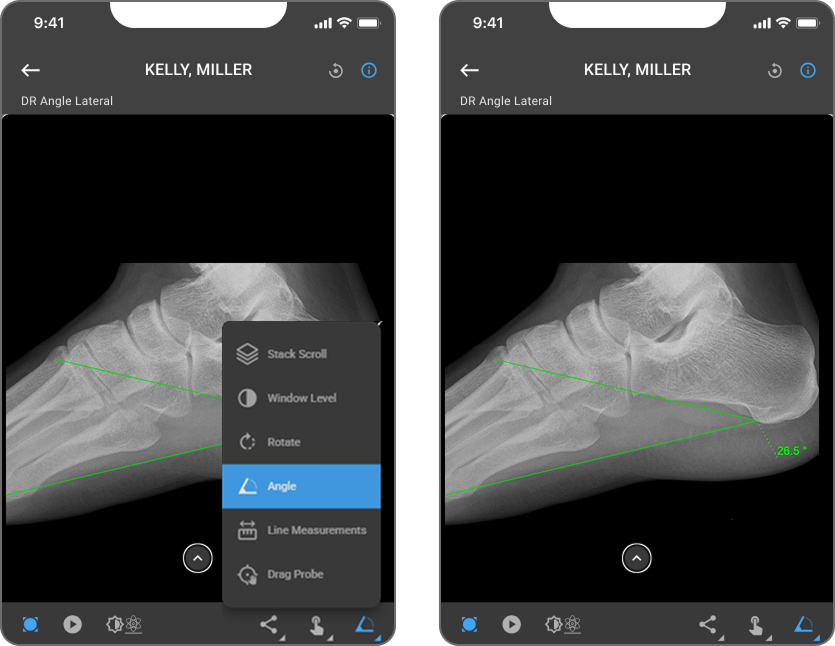
The Angle tool measures the angle subtended between two user-defined lines on the image.
Operation
- Tap Angle from the tools menu
- Tap and drag to draw the first line on the image
- From the terminal point of the first line, draw a second line
- The calculated angle is displayed on the image in degrees (e.g., 26.5°)
Clinical Utility Used for anatomical angle measurements such as joint angles, spinal curvature assessment, and structural alignment evaluation.
11.5 Line Measurements
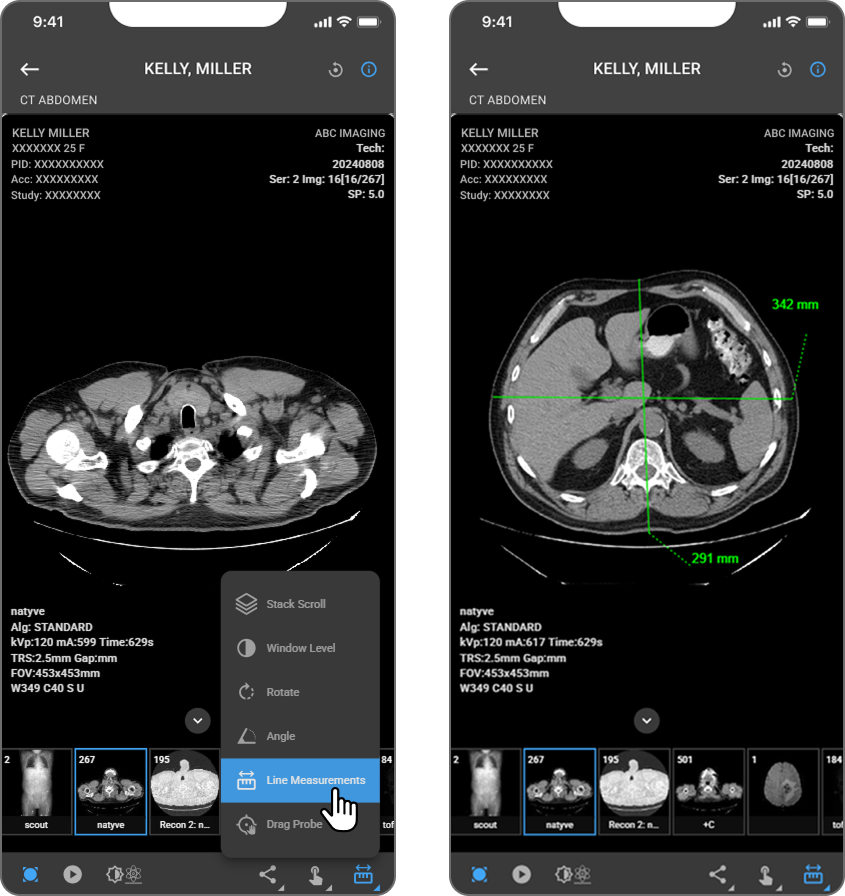
The Line Measurements tool calculates the linear distance between two points placed on the image. Multiple measurements can be placed on the same image simultaneously.
Operation
- Tap Line Measurements from the tools menu
- Tap and drag to draw a measurement line across the region of interest
- The calculated distance is displayed in millimeters
- Repeat to place additional measurements on the same image
Clinical Utility Used for measuring lesion dimensions, anatomical structures, and spatial relationships within the image plane.
11.6 Drag Probe
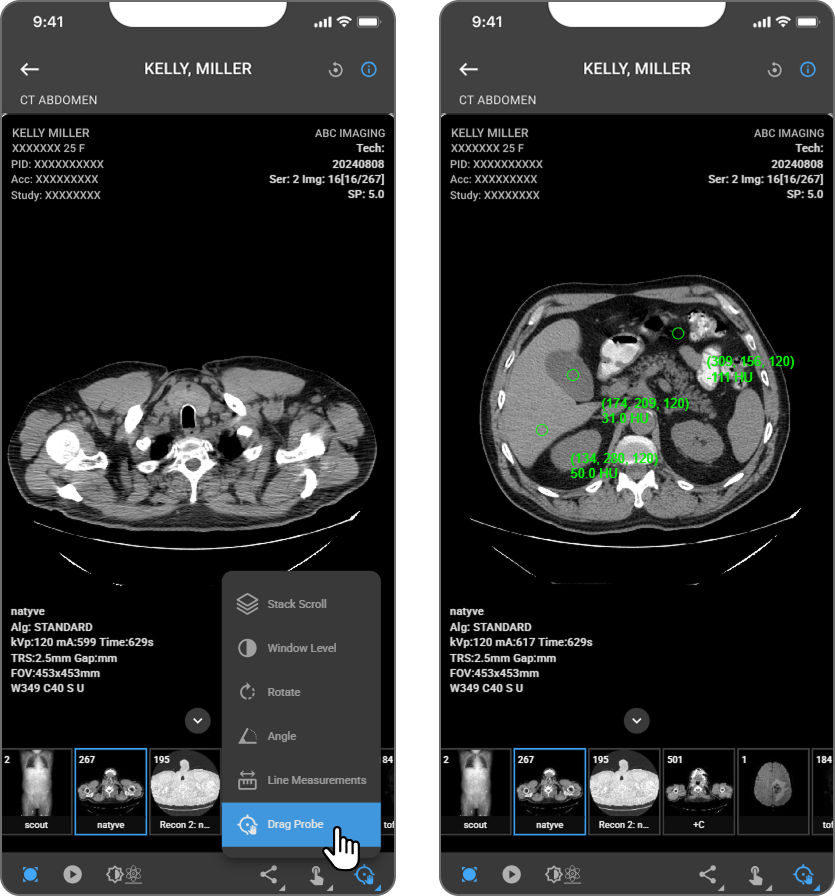
The Drag Probe tool enables dynamic pixel intensity sampling across the image surface. Multiple probe points can be placed on the same image simultaneously.
Operation
- Tap Drag Probe from the tools menu
- Tap on the image to place a probe point
- Drag the probe across the image to see pixel coordinates and HU values update in real time
- Release to fix the probe point at that location
- The pixel coordinates and HU value at each probe location are displayed in real time
- Repeat to place additional probe points across the image
Clinical Utility
- HU (Hounsfield Unit) values are used to characterize tissue density in CT imaging
- Reference HU ranges: air (−1000 HU), fat (−100 to −50 HU), soft tissue (20–80 HU), bone (400–1000 HU)
- Useful for tissue characterization and density measurement
Note: All tool adjustments including Window Level, rotation, zoom, flip, invert, measurements, and probe points can be reset at any time by tapping the Reset icon in the header bar.
12. Adjusting Image Orientation
Tap the Tap icon (5th from left in the toolbar) to open the image orientation menu:
| Control | Function |
|---|---|
| Flip Vertically | Reflects the image about the horizontal axis |
| Flip Horizontally | Reflects the image about the vertical axis |
| Rotation 90 deg CW | Rotates the image 90° clockwise |
| Invert | Inverts pixel intensity values (reverses grayscale) |
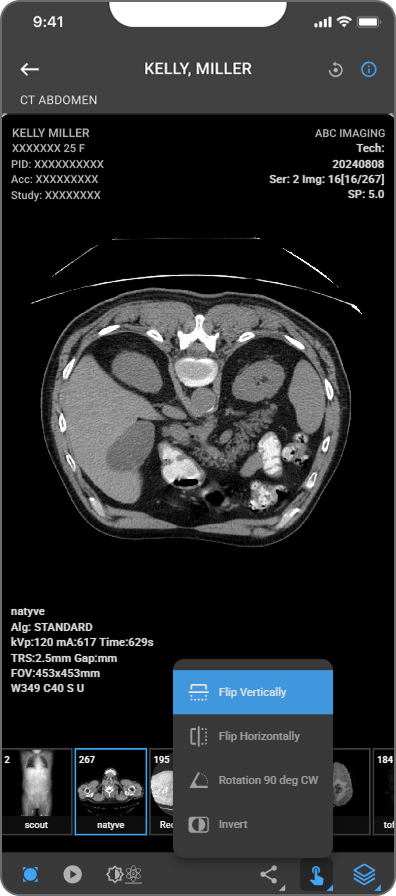
Note: Tap the same option again to revert the change. Alternatively, tap the Reset icon in the header bar to reset all adjustments to default.
13. Clamped Window Level
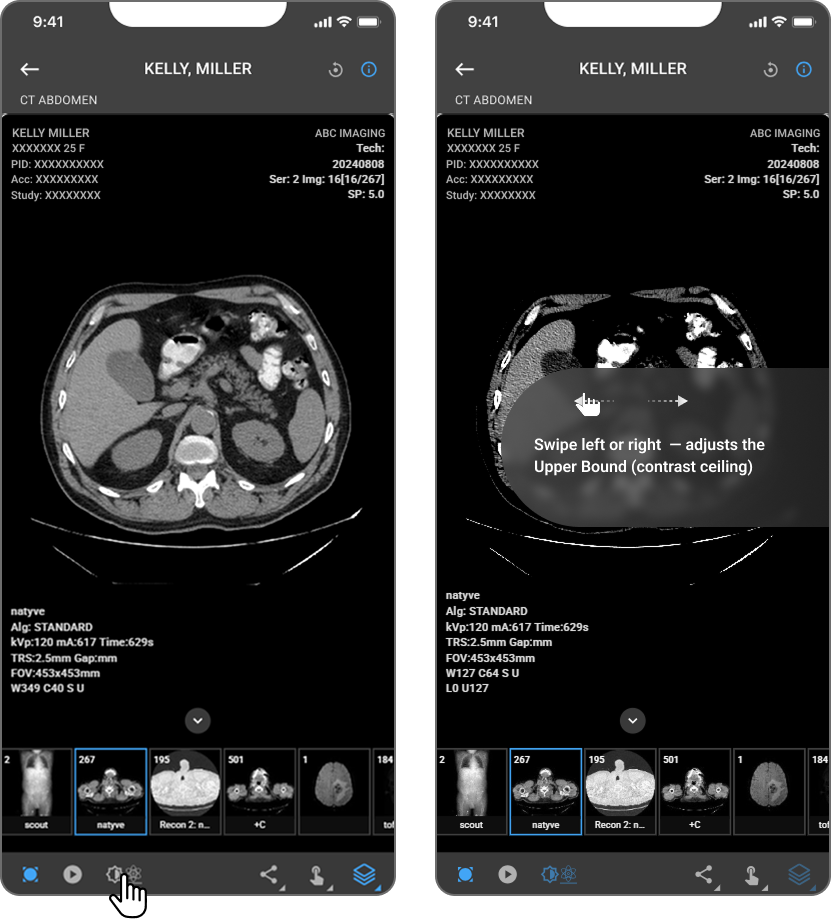
The Clamped Window Level tool provides constrained brightness and contrast adjustment with defined upper and lower intensity bounds. It is designed for modalities where unconstrained window level adjustment may cause diagnostic ambiguity.
Supported Modalities
- CT (Computed Tomography)
- NM (Nuclear Medicine)
- PET-CT (CT component only)
- PT (Positron Emission Tomography)
How to Access
- Open the image viewer by tapping View Images
- Select Clamped Window Level from the tools menu in the bottom toolbar
Operation
- Drag left or right — adjusts the Upper Bound (contrast ceiling)
Technical Specification
The Clamped Window Level applies fixed boundary constraints to the standard window level operation:
- Lower Bound (L): Fixed at 0
- Upper Bound (U): Calculated as WL + (WW / 2)
This clamping behavior prevents over-brightening of high-density structures and provides more clinically precise contrast control compared to standard windowing.
Clinical Utility
- Particularly effective for CT series with high tissue density variance such as contrast-enhanced (+C) series, bone reconstructions, and soft tissue/bone combined protocols
- Allows targeted visualization of dense structures without loss of detail in adjacent soft tissue
14. Resetting the View
The Reset icon is located in the header bar at the top-right of the image viewer. Tapping it resets all adjustments made during the current session back to the default state.
What Gets Reset
- Window Level and Clamped Window Level adjustments
- Image rotations
- Zoom level
- Panned images
- Flip (vertical and horizontal)
- Invert
- All annotations, measurements, and probe points
15. Downloading & Sharing Image
Tapping the Share icon exports a snapshot of the currently displayed image, including any annotations or measurements visible on the screen, in JPEG format. The exported image captures the viewport as displayed at the time of export, including any active annotations, measurements, probe points, and DICOM overlay.
Procedure
- Open the image viewer via View Images
- Tap the ↗ Share icon in the toolbar
- The native device share sheet is invoked
- Select Save to Files (iOS) or Save to Device (Android) to export locally — images saved this way are stored in the device's image gallery
- Select a messaging or email application to share directly