Worklist Send Options
Overview
The Send feature in the OmegaAI Worklist allows users to distribute finalized reports and imaging studies to referring physicians, imaging organizations, and external users. The Send panel is accessible directly from the Worklist and provides two functions: Send Reports and Send Study.
For full details on how to use Send Reports and Send Study, see Study/Report Share – OmegaAI in Advanced Topics.
Accessing the Send Panel
New Worklist
- Select a study from the worklist.
- Right-click on the row — a mini toolbar appears inline on the row.
- Click the Send icon (arrow icon) in the toolbar.
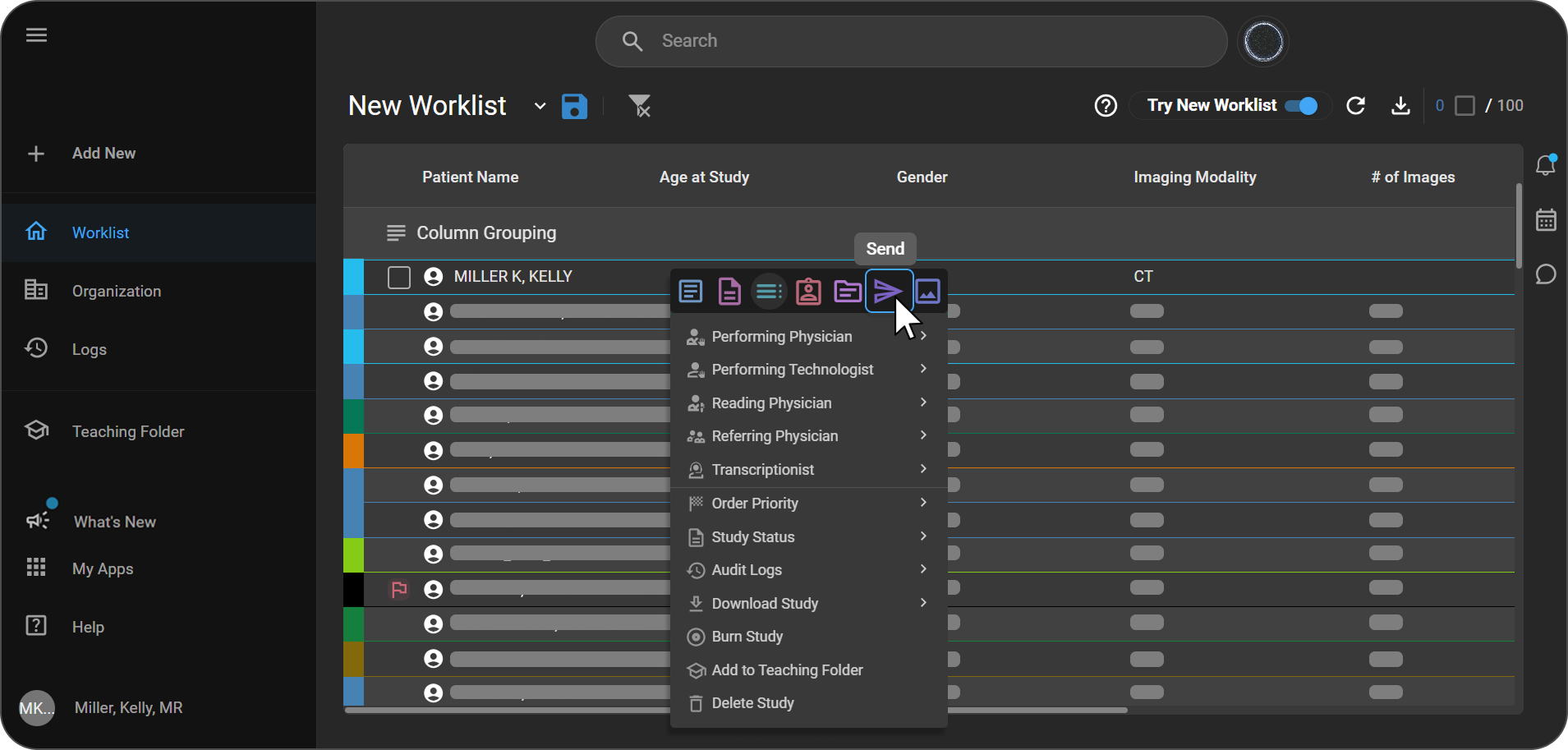
The Send panel opens on the right with two tabs: Send Reports and Send Study.
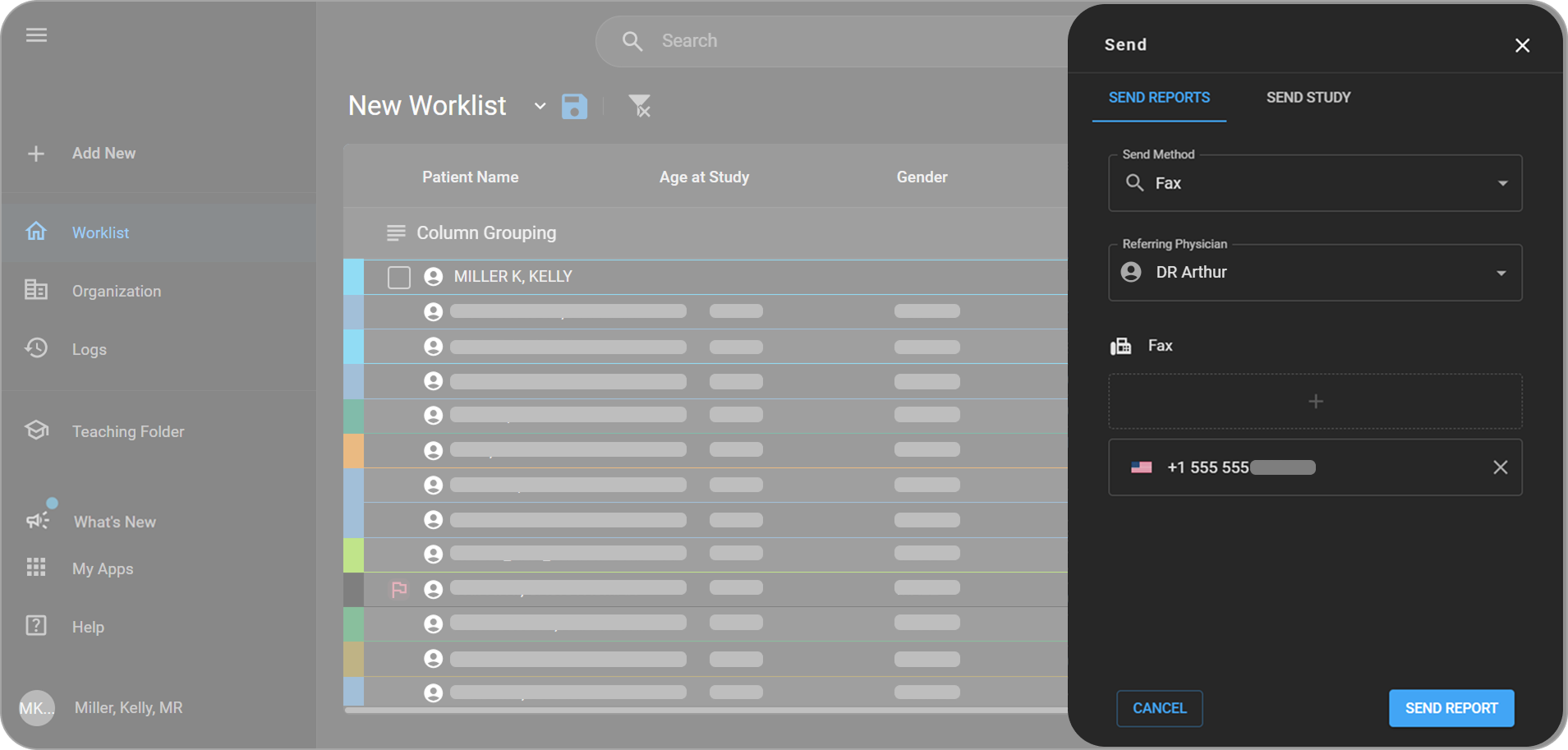
Send Reports
The Send Reports tab allows you to send a finalized report via Fax or HL7, or deliver it to the patient's Blume Patient Portal.
For step-by-step instructions, see Send Reports in Advanced Topics.
Send Study
The Send Study tab allows you to transmit imaging study data to an Imaging Organization via DICOM, or share a study link with an External User via email.
When a study is sent via DICOM, the sent data includes the study's final report (as a DICOM-encapsulated PDF). If the study has key images, a Key Object Selection (KO) DICOM object is generated when the study is sent to mark those images for the receiving system.
If the destination DICOM station has Send New Objects Only enabled, a manual send transmits only the objects that destination does not already hold, instead of the whole study. See Send New Objects Only.
For step-by-step instructions, see Send Study in Advanced Topics.