Block Time on the Calendar
Block time reserves a time slot for something other than an appointment, such as a meeting, a break, or administrative work. Appointments can't be scheduled during a blocked period, which helps you manage a healthcare service's availability.
This article shows you how to create a one-time or recurring block, and how to edit or delete it.
Before you begin
- Scheduler open: Click the Calendar icon on the right-side navigation bar. See Open the Scheduler.
- Healthcare service in your view: The service you want to block must appear as a column. See Choose Which Healthcare Services Appear in the Scheduler.
Create a block
-
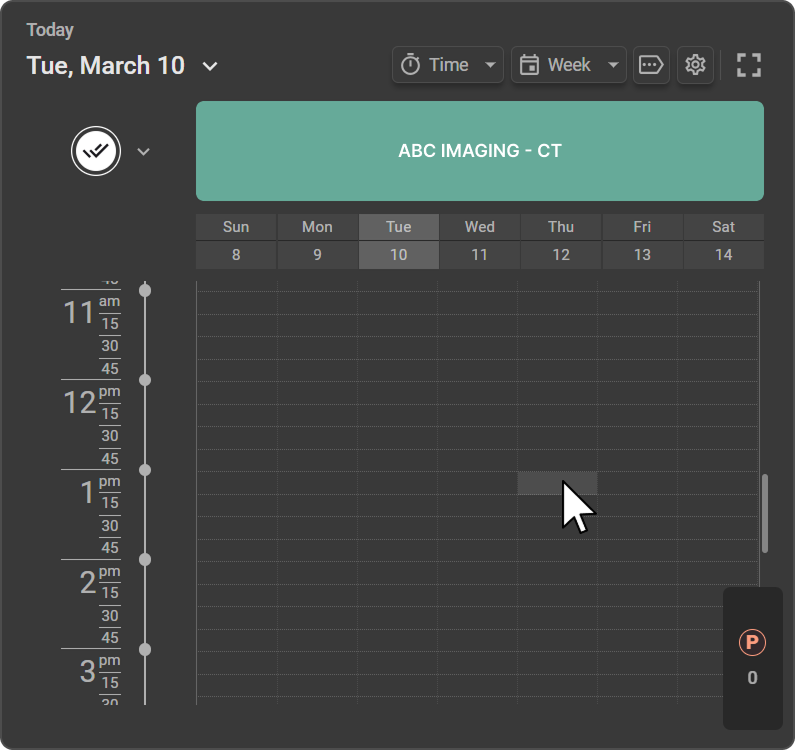
In the calendar grid, click the time slot you want to block. The New Appointment window opens.
|
|
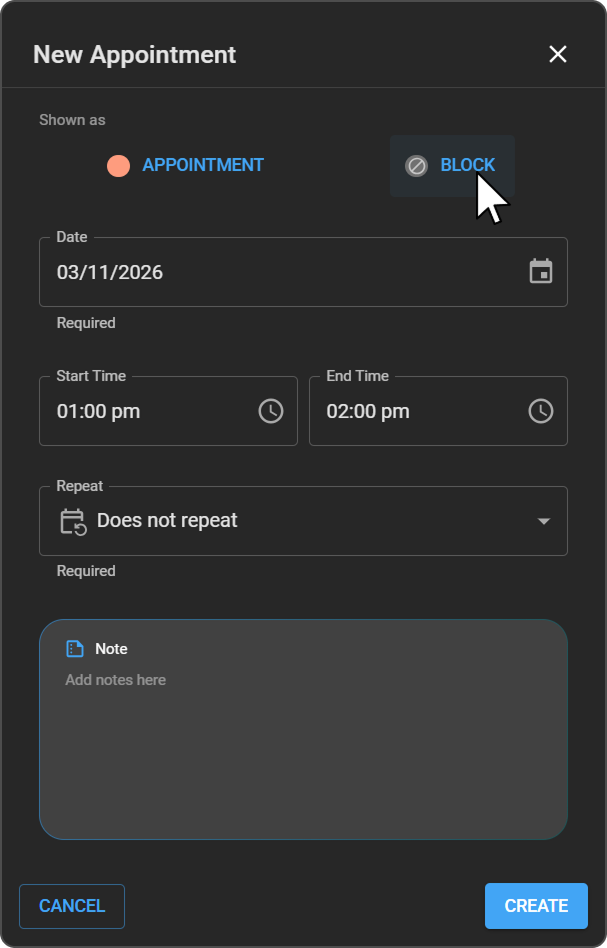
Expected result: The block appears on the calendar timeline for the selected date and time. It shows when appointments can't be scheduled.
Note: A block applies only to the healthcare service column you clicked. Other services stay available at that time.
Note: You can't drag a block to another healthcare service. To block time on another service, create a new block there.
Repeat options
| Option | What it does |
|---|---|
| Does not repeat | Creates a one-time block. |
| Daily | Repeats the block every day. Set how often it repeats. |
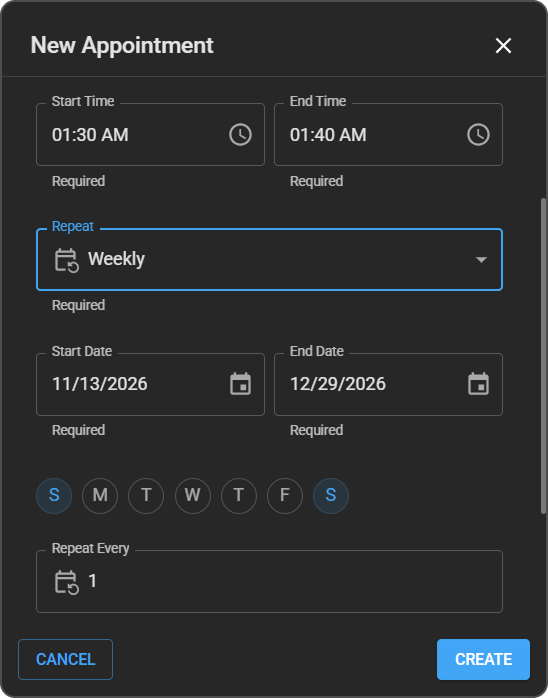
| Weekly | Repeats the block every week. Select or clear the days, Sunday to Saturday, and set how often it repeats. |
When you choose Daily, these fields appear. All of them are required:
A summary below the fields confirms your choices, for example: |
|
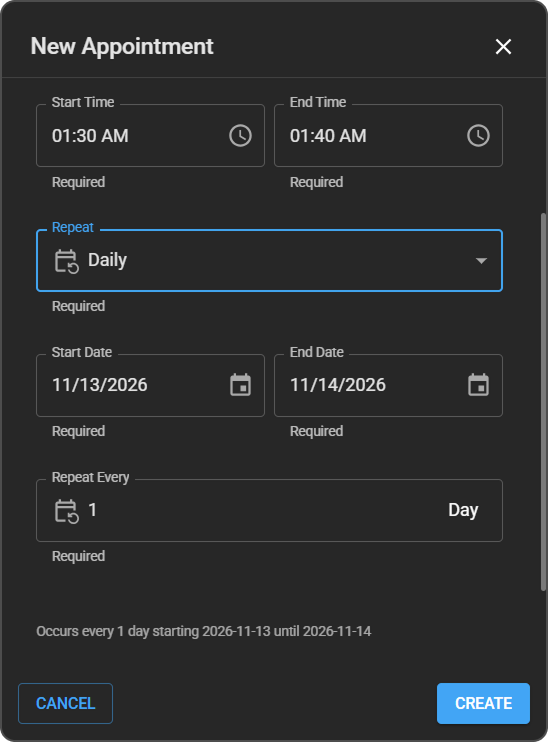
When you choose Weekly, these fields appear:
|
|
Edit or delete a block
|
|
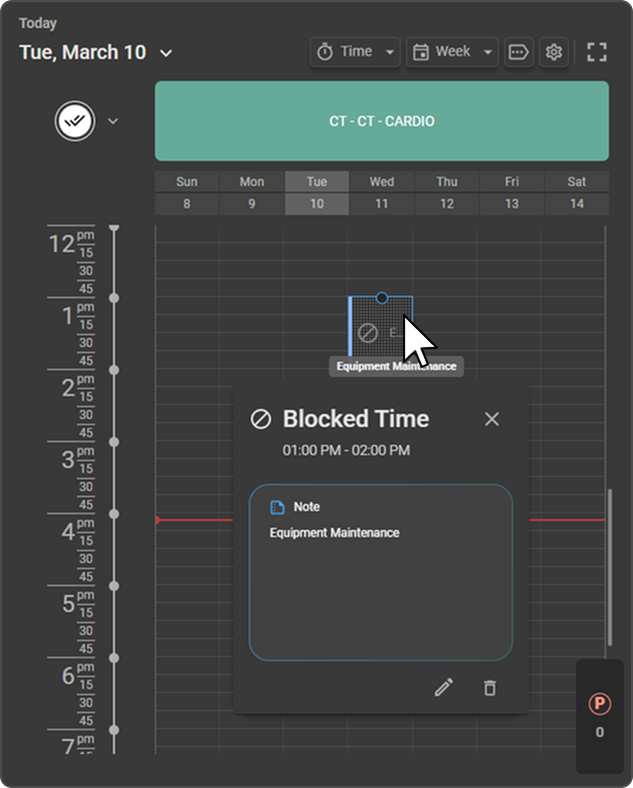
Expected result: Your changes appear on the calendar. If you deleted the block, the time slot is available for scheduling again.
For a recurring block, a message confirms the change, such as Successfully updated recurring block.
Note: You can't edit a block that's in the past. The Edit icon doesn't appear for past blocks.
Edit one occurrence or a whole series
When you edit a recurring block, the Edit Block Time panel asks what to change under Edit this:
Click Update to save your changes. |
|
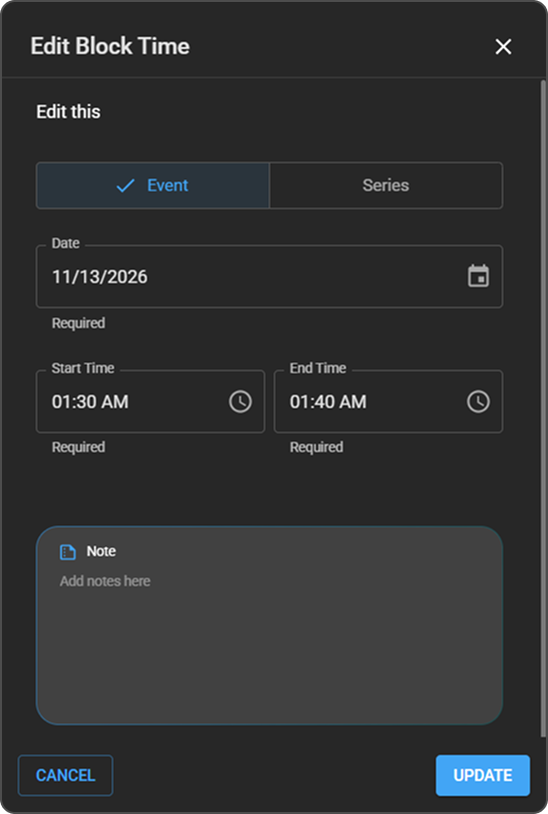
Delete one occurrence or a whole series
A recurring block has two delete icons in the bottom-right corner of the Blocked Time panel:
|
|
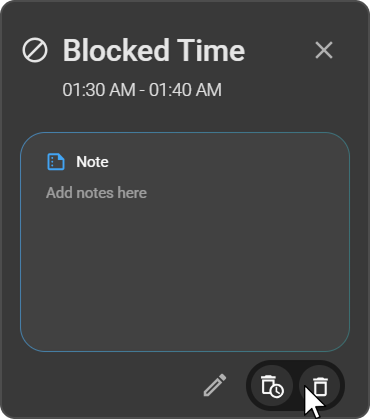
Expected result: The block is removed, and a message confirms it, such as Successfully deleted recurring block.
Troubleshooting
"You cannot move the block time between Healthcare Services"
- Cause: You dragged a block to a different healthcare service column.
- Fix: Move the block only within its own column, or create a new block on the other service.
You can't book an appointment in a time slot
- Cause: The time slot is blocked.
- Fix: Click the block to see its notes. If the block is no longer needed, edit or delete it.
"Repeat End Date must be at least 1 week from the Repeat Start Date"
- Cause: For a Weekly block, the End Date is less than a week after the Start Date.
- Fix: Choose an end date at least one week after the start date.
"Repeat Every must be a positive integer and greater than zero"
- Cause: The Repeat Every field is empty, zero, or not a whole number.
- Fix: Enter a whole number of 1 or more.
Related articles
- How the Scheduler Works: Learn the main parts of the Scheduler.
- Request an Appointment: Book appointments around blocked time.
- Create and Manage Healthcare Services: Set a service's regular working hours.