Use the Parking Bay
The Parking Bay is a temporary holding area for studies that need to be scheduled or rescheduled. You can park a study there and place it in the calendar when you're ready.
The Parking Bay is in the bottom-right corner of the Scheduler, behind the P icon. The number under the icon shows how many studies are parked.
Before you begin
- Ordered studies only: You can move a study to the Parking Bay only when its Workflow status is Ordered, or your organization's name for it, such as Ready to Be Scheduled. See Only ordered studies can be scheduled.
- Scheduler open: Click the Calendar icon on the right-side navigation bar.
Park a study
|
|
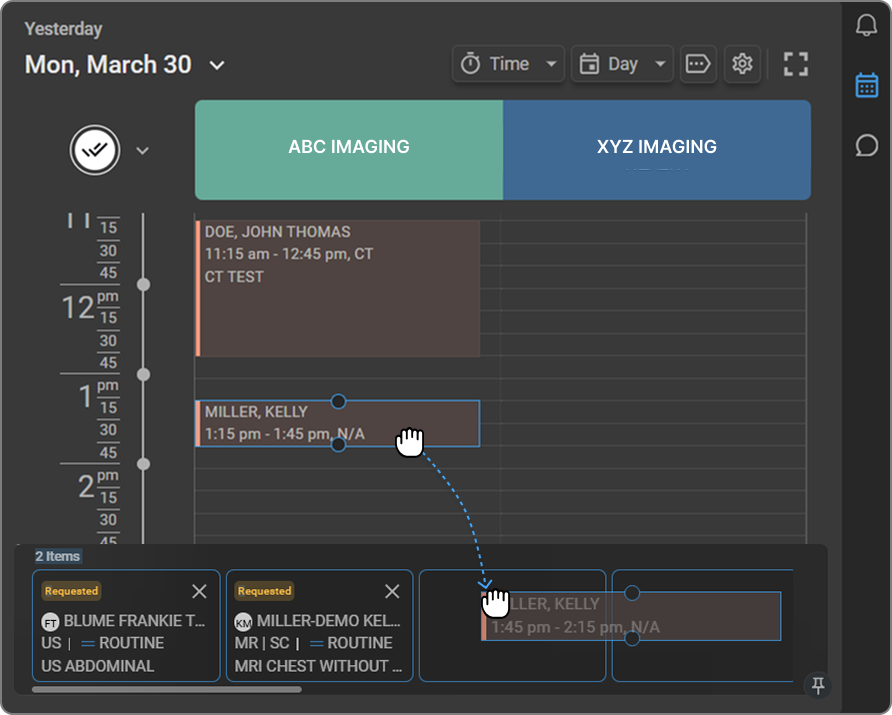
Expected result: The study appears as a card in the Parking Bay. The card shows a status badge, the patient name, modality, priority, and study description. The count on the P icon updates.
The badge shows the appointment's status, such as Requested or Cancelled. The panel's header shows how many items are parked, for example 2 Items.
Note: Appointments also move to the Parking Bay on their own when their status changes to No Show or Cancelled, or when the study is cancelled.
Schedule a parked study
- Hover over the P icon to expand the Parking Bay.
- Drag the study card onto the Scheduler.
- Drop it into the time slot you want, in the healthcare service column you want.
Expected result: The study is scheduled at that time and service.
Note: If you drop the card into a past time slot, the Appointment booking in the past dialog appears. It warns that notifications won't be sent to the patient. Click Book to continue, or Cancel to stop.
The Worklist row for the study also updates. To change it later, see Edit an appointment.
Manage the Parking Bay
- Remove a study: Click the X in the top-right corner of the study card.
- Scroll through cards: When there are more cards than fit, use the slider at the bottom of the Parking Bay to scroll sideways.
- Reorder cards: Drag a card to a new position in the Parking Bay. Use the order to prioritize which studies you schedule first.
- Pin the Parking Bay: Click the pin icon in the bottom-right corner of the Parking Bay. Its tooltip reads Pin. The Parking Bay stays visible while you scroll the Scheduler. Click the pin icon again to unpin it.
Note: Remove a study only if it has been canceled or handled elsewhere.
Troubleshooting
"Appointment cannot be moved to parking bay" message
- Message:
Appointment cannot be moved to parking bay for this study. Check its Workflow/Study status. - Cause: The study's Workflow status isn't Ordered, or your organization's name for it.
- Fix: Park only studies with a Workflow status of Ordered, or your organization's name for it.
The Parking Bay keeps collapsing
- Cause: The Parking Bay expands only while you hover over it.
- Fix: Click the pin icon to keep it open.
Related articles
- How the Scheduler Works: Learn the main parts of the Scheduler and its rules.
- Request an Appointment: Schedule a study directly from the Worklist.
- View, Edit, and Delete Appointments: Manage appointments that are already booked.