Install And Uninstall OmegaAI Link
OmegaAI Link runs as a Windows service on a dedicated computer at your site. You download the installer from your managing organization's Device settings in OmegaAI, and then run it on the Link computer.
This article covers the hardware Link needs, how to install it, and how to remove it.
Before You Begin
- Permission: To download the Link installer, you need permission to create devices in the organization. Without it, OmegaAI shows the message
You don't have access to download OmegaAILink installer.See User access control and roles. - Managing organization: You add Link from your managing organization. See Understanding your organization hierarchy.
- Administrator access: You need administrator rights on the Link computer to run the installer.
- Hardware: The Link computer must meet the requirements below.
Hardware Requirements
| Component | Minimum | Recommended |
|---|---|---|
| Operating system | Microsoft Windows 11 (64-bit) | Microsoft Windows Server 2016 or later (64-bit), Standard or Datacenter Edition |
| CPU | 4 cores | Intel Core i7 or better |
| RAM | 16 GB | 16 GB |
| Drives | 500 GB SSD (for the operating system and cache) | 1 TB NVMe |
| Network (LAN) | 1 Gbps, with a static IP address and an appropriate DNS record | 1 Gbps, with a static IP address and an appropriate DNS record |
Note: You can use full disk encryption, such as Windows BitLocker, on the Link computer. Your IT team manages it. Make sure the operating system drive unlocks when the computer starts, so that the Link service can start normally.
Important: Use the Link computer only for OmegaAI Link. Installing other software or using the computer for other purposes can have unforeseen effects. In that case, RamSoft can't guarantee that Link works as intended.
Install OmegaAI Link
Download The Installer
-
Sign in to OmegaAI.
-
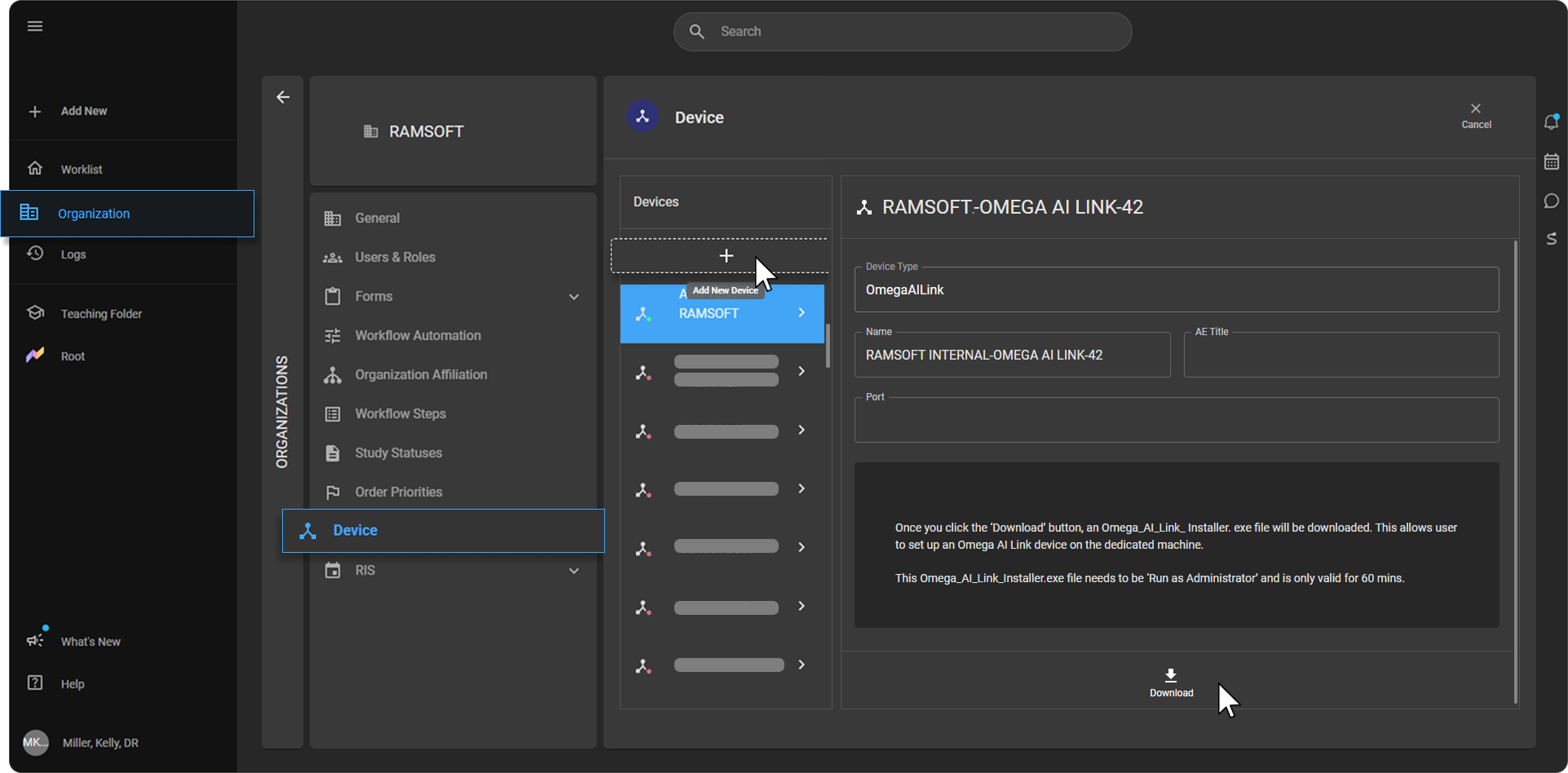
In the left navigation bar, click Organization.
-
Select your managing organization, and then click Details.
-
In the settings menu, click Device.
-
At the top of the Devices list, click + to add a new device.
-
Enter the device details:
- Device Type: OmegaAI Link is selected by default. You can't change it.
- Name: The name of the Link. It's filled in for you, and you can change it. The name must be unique in the managing organization.
- AE Title (required): The Application Entity (AE) Title that identifies Link. Up to 16 characters.
- Port (required): The port number Link listens on.
-
Click Download. The installer,
Omega_AI_Link_Installer.exe, is downloaded.
Important: The installer works for only 60 minutes after you download it. Run it right away.
Note: You can install more than one Link on the same computer, for example, one for each organization. Each Link needs its own port and AE Title.
For the full device setup, including TLS, outbound send, and monitoring settings, see Add and set up an OmegaAI Link device.
Run The Installer
- On the Link computer, right-click the downloaded
.exefile, and run it as an administrator. - Follow the installer as it runs.
Expected result: After Link signs in successfully, the device name appears in the Devices list on the managing organization's Device page.
Next, connect your modalities and archives to Link. See Add and set up a DICOM station.
What The Installer Does
The installer checks that it's running as an administrator and that the download is valid, and then installs Link. If installation doesn't succeed, it puts back the version that was there before. It records each step in the installer log, so you can check what happened. See Troubleshooting.
Note: After installation, OmegaAI Link updates automatically when a new version is available. You don't need to do anything. See What Is The OmegaAI Link Guardian?.
Uninstall OmegaAI Link
Removing OmegaAI Link takes out its Windows service, its firewall rules, and its install folder. Newer versions of Link also run the RamSoft Omega AI Link Guardian service, which restarts a stopped Link. So you stop the Guardian first, and then remove it or start it again at the end.
Important: Do all of these steps as an administrator on the Link computer.
Note: If the computer has more than one Link, each extra Link's service and folder have a number at the end, for example
"RamSoft Omega AI Link Service 2"andC:\Program Files\RamSoft.OmegaAILink_2. Use the names of the Link you want to remove in every step.
-
If the computer has the RamSoft Omega AI Link Guardian service, stop it:
sc.exe stop "RamSoft Omega AI Link Guardian"Once you stop the Guardian, it stays stopped, so it won't restart Link while you remove it.
-
Stop the Link service:
sc.exe stop "RamSoft Omega AI Link Service" -
Delete the Link service:
sc.exe delete "RamSoft Omega AI Link Service" -
Delete the Link's firewall rules. Their names start with
RamSoft.OmegaAILink.exeand include the Link's service name. -
Delete the Link's install folder,
C:\Program Files\RamSoft.OmegaAILink. -
Check whether any other OmegaAI Link services are left on the computer (services whose names start with RamSoft Omega AI Link Service):
-
None left: Delete the Guardian service, and then delete its folder,
C:\Program Files\RamSoft.OmegaAILink.Guardian\.sc.exe delete "RamSoft Omega AI Link Guardian" -
Other Links left: Start the Guardian again, so it keeps looking after those Links.
sc.exe start "RamSoft Omega AI Link Guardian"
-
Expected result: The Link service no longer appears in Windows Services, its firewall rules and install folder are gone, and any remaining Links on the computer are still supervised by the Guardian.
Troubleshooting
| Problem | What to do |
|---|---|
| The installer shows errors | Check the installer log, C:\OmegaAILink\OmegaAILinkInstaller.log. After installation, Link's own logs are in C:\Program Files\RamSoft.OmegaAILink\logs\. |
| The name is already in use | The message says the Link name Already Exists. Download the installer again with a unique name. |
| The installer exits right away or stops working | Make sure you ran it as an administrator. The installer also works for only 60 minutes after you download it, so download it again and run it right away. If it still exits, check the installer log. |
| Link won't install | The Link service may already exist on the computer. Uninstall OmegaAI Link first, and then run the installer again. |
For more, see OmegaAI Link is offline or studies aren't crossing.
Related Articles
- What Is OmegaAI Link?: How Link moves and protects your data.
- Add and set up an OmegaAI Link device: Set up the Link device in OmegaAI.
- Add and set up a DICOM station: Connect modalities and archives to Link.
- Set up OmegaAI for your organization: The order to set up OmegaAI as an administrator.
- Set Up OmegaAI Link Caching: How Link uses the cache drive.
- What Is The OmegaAI Link Guardian?: How Link stays running and updates safely.