Send Studies To A DICOM Device
You can send a study from OmegaAI to a DICOM station, such as a PACS or a modality, through OmegaAI Link. This is also called a DICOM Transmit or DICOM Store Push.
This article shows you how to send a study, what's sent with it, and how to check that the destination station is online.
Before You Begin
- Destination: The destination must be an active DICOM station under a Link device, with Send to DICOM Stations turned on in the station's Outbound Send section. Only these stations appear as destinations. See Add and set up a DICOM station.
- Station online: OmegaAI doesn't try to send to a station that's offline. See How The DICOM Heartbeat Affects Sending.
What's Sent With The Study
- Key images: If the study has key images, a Key Object Selection (KO) object is created and sent with the study, so the receiving system can find the key images. KO objects follow the DICOM C.17.6 Key Object Selection standard.
- Final report: The study's final report is sent as a DICOM-encapsulated PDF, so the destination system can receive and display it.
- Visit, order, and patient documents: If the destination station has Send Visit Documents or Send Patient Documents turned on in its Outbound Send section, those documents are also sent as encapsulated PDFs.
Send A Study
-
In the Worklist, right-click the study. A menu opens.
-
In the row of icons at the top of the menu, click Send.
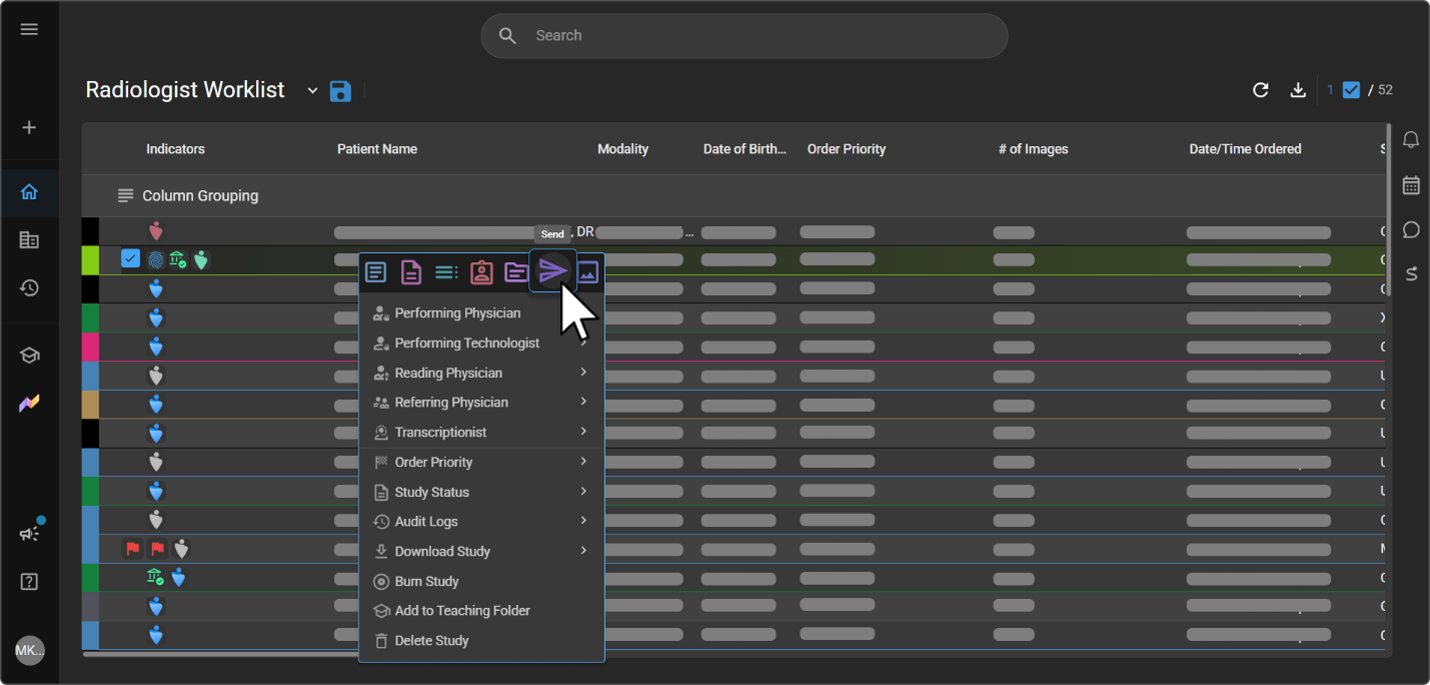
The Send panel opens. For all send options, see Worklist Send Options.
-
Click the SEND STUDY tab.
-
Enter the send details:
|
|

- Click SEND STUDY. To discard, click CANCEL.
Expected result: A message confirms that the transmission was successful, and the study is added to the send queue.
Note: To check the progress and status of the transmission, open the Task Log.
Note: If the destination DICOM station has Send New Objects Only turned on in its Outbound Send section, only the objects that station doesn't already hold are sent. Skipped objects are marked
Skipped: object already exists on destination. If OmegaAI can't check what the station holds, the whole study is sent. See Send New Objects Only in Add and set up a DICOM station.
How The DICOM Heartbeat Affects Sending
The DICOM heartbeat keeps OmegaAI from sending studies to a station that's offline.
When the heartbeat is turned on for a station, the station's Link sends it a DICOM echo (C-ECHO) once a minute. The station's status badge shows the result.
| Status | Indicator | Meaning |
|---|---|---|
| Online | Green | The heartbeat is on, and the station answers. |
| Offline | Red | The heartbeat is on, and the station doesn't answer. OmegaAI doesn't try to send to it. |
| Not updated | None | The heartbeat is off, so the badge isn't kept up to date. |
To see a station's status:
- In the left navigation bar, click Organization.
- Select your organization, and then click Details.
- In the settings menu, click Device.
- In the Devices list, select the OmegaAI Link that the station is connected to.
- In the Stations list, select the station.
Expected result: The status badge appears at the top of the station's General section, next to TEST CONNECTION.
Tip: To check a station right away instead of waiting for the next heartbeat, click TEST CONNECTION. See Query And Retrieve Studies From DICOM Devices.
To turn on the heartbeat, select Enable Heartbeat in the station's DICOM Station Features. See Add and set up a DICOM station.
Troubleshooting
| Problem | What to check |
|---|---|
| The destination device isn't listed | Check that you selected the right imaging organization. Only devices associated with it are listed. Also check that the station is active and has Send to DICOM Stations turned on. |
| The study isn't sent | Check the station's status. OmegaAI doesn't send to a station that's offline. |
| The send failed | Open the Task Log and check the task's status. A failed send isn't retried on its own, so retry it from there. After 10 failed tries, the task is rejected. |
| Only part of the study arrives | The station may have Send New Objects Only turned on, so objects it already holds aren't sent again. |
For more, see Transfers are slow, or studies arrive with missing images.
Related Articles
- Add and set up a DICOM station: Set up outbound send, heartbeat, and Send New Objects Only.
- Query And Retrieve Studies From DICOM Devices: Pull studies from other devices into OmegaAI.
- Preserve Study Instance UIDs From Trusted DICOM Sources: Make sure studies sent back to their source keep an identifier it recognizes.
- Worklist Send Options: Share reports and studies with people and send studies from the Worklist.
- Add and set up an OmegaAI Link device: Set up the Link that sends the study.