Customize Your Image Viewer Hotkeys
Hotkeys are keyboard shortcuts for Image Viewer functions, such as switching tools, moving between frames, or opening the Document Viewer. You can change any of them to a key or key combination that suits the way you work.
All the Image Viewer functions you can customize are listed in one place, the Hotkey Customizations panel. Your changes are saved to your own profile and apply in every organization you have access to.
Before You Begin
- Your hotkeys only: Hotkeys are user-specific. Your changes don't affect other users in your organization. They keep the default hotkeys or their own saved changes.
- Image Viewer only: This panel covers Image Viewer functions. Report-editing shortcuts in the Document Viewer are fixed. See OmegaAI Keyboard Navigation.
Open the Hotkey Customizations Panel
You can open the panel from your profile or from the Image Viewer.
From Your Profile
-
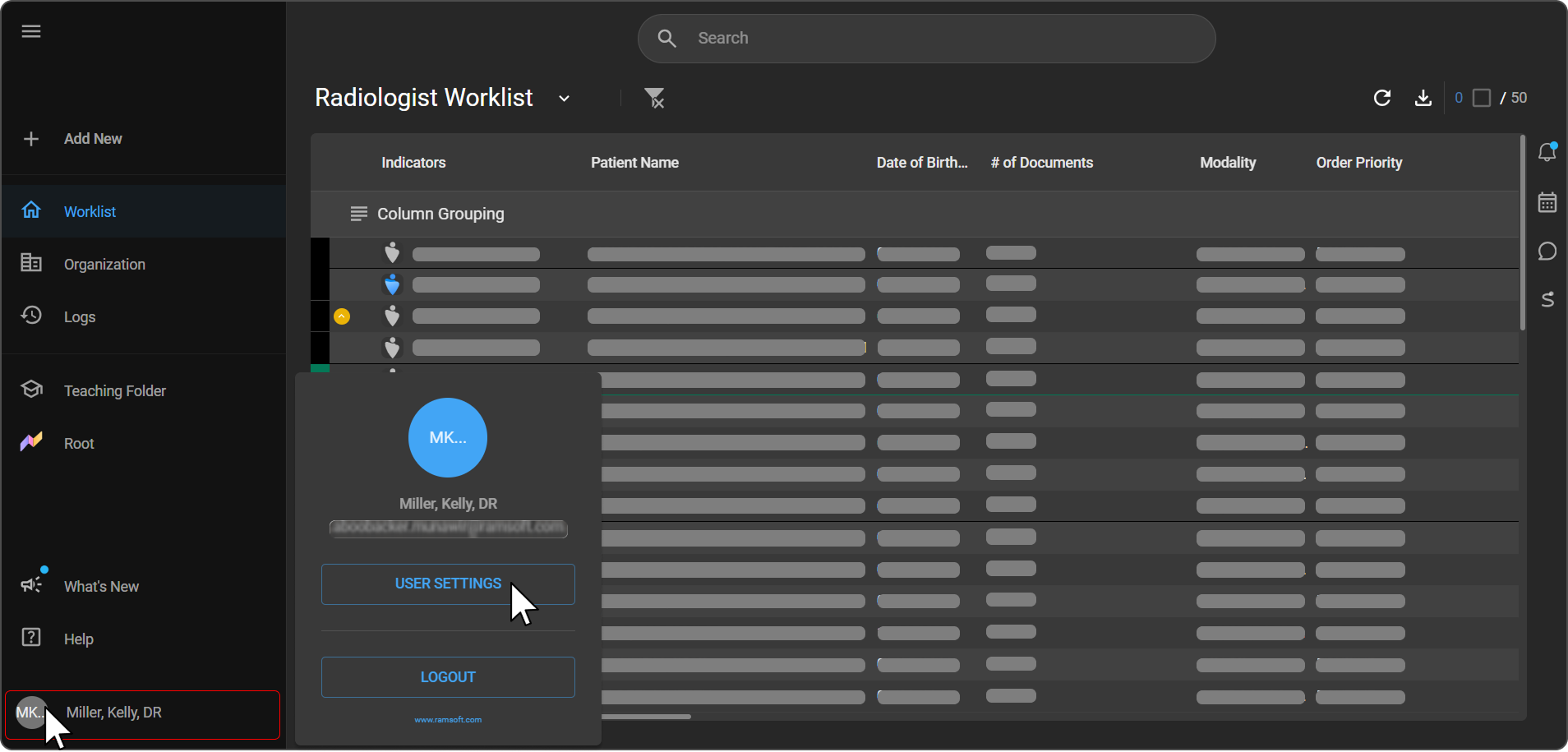
At the bottom of the left navigation panel, click your avatar (My Profile). For more about your profile page, see Manage Your Profile and User Settings.
-
Click User Settings.
-
In the settings toolbar, click Hotkey Customizations (keyboard icon, to the left of the microphone icon).
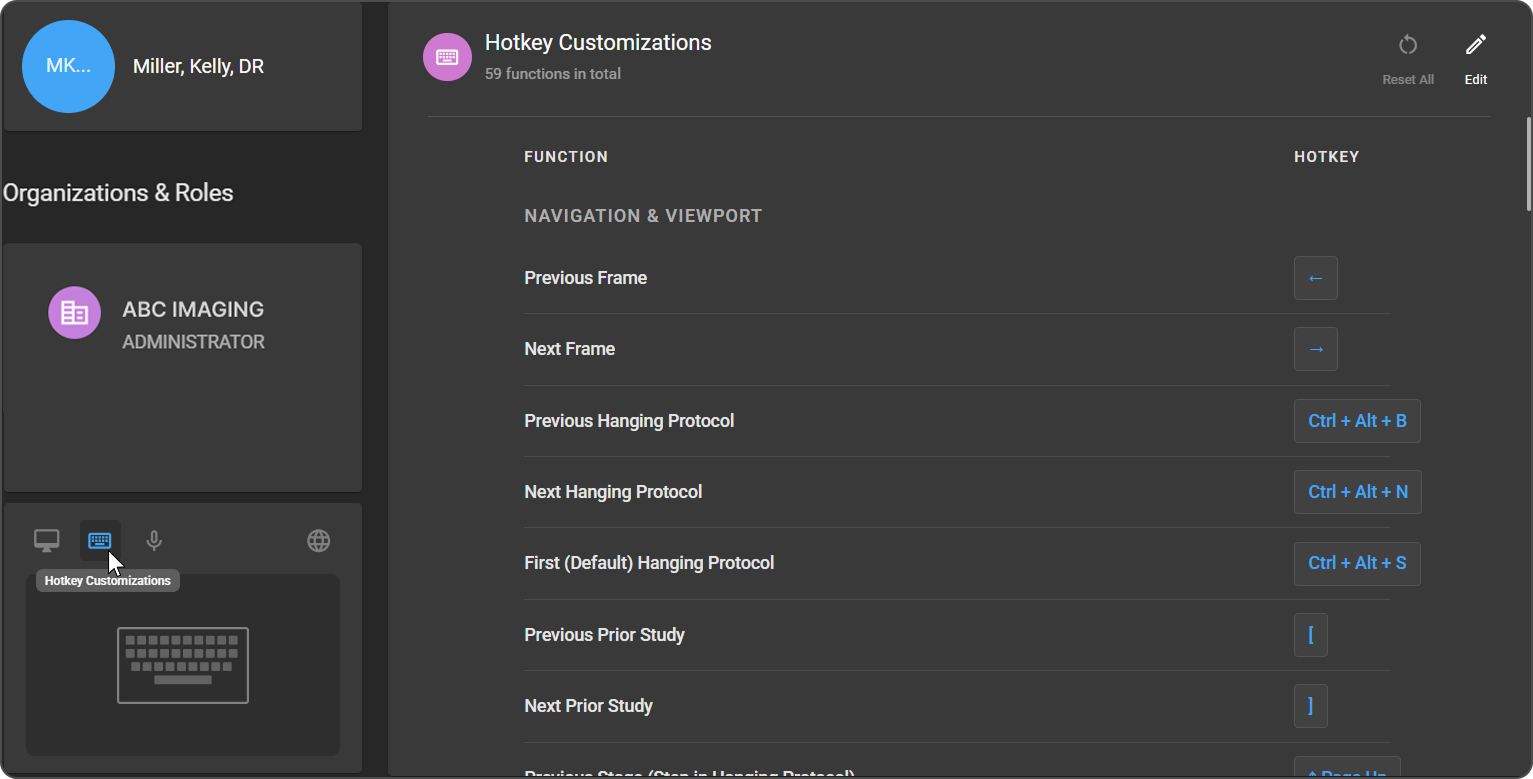
Expected result: The Hotkey Customizations panel opens.
From the Image Viewer
-
In the Image Viewer toolbar, click the three-dot menu (More Options).
-
Click Settings to expand it.
-
Select Customize Hotkeys.
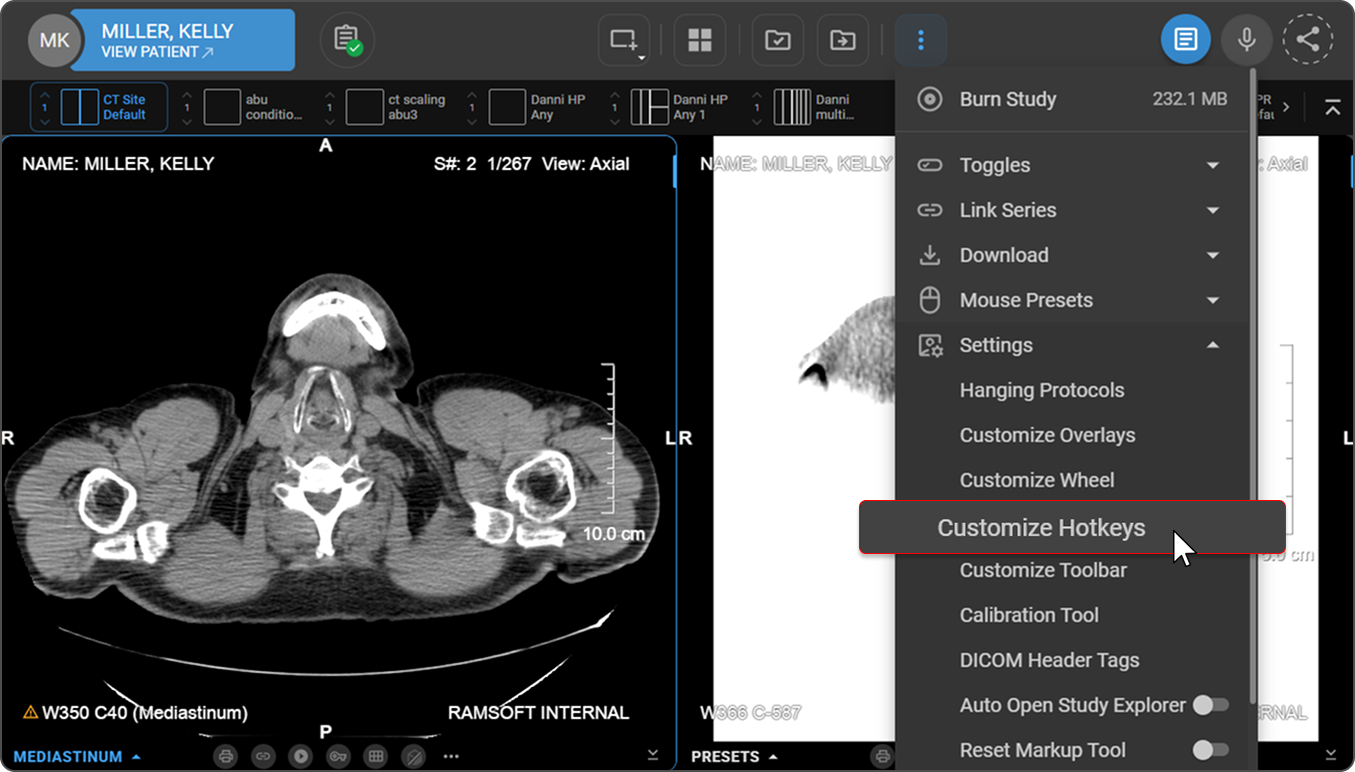
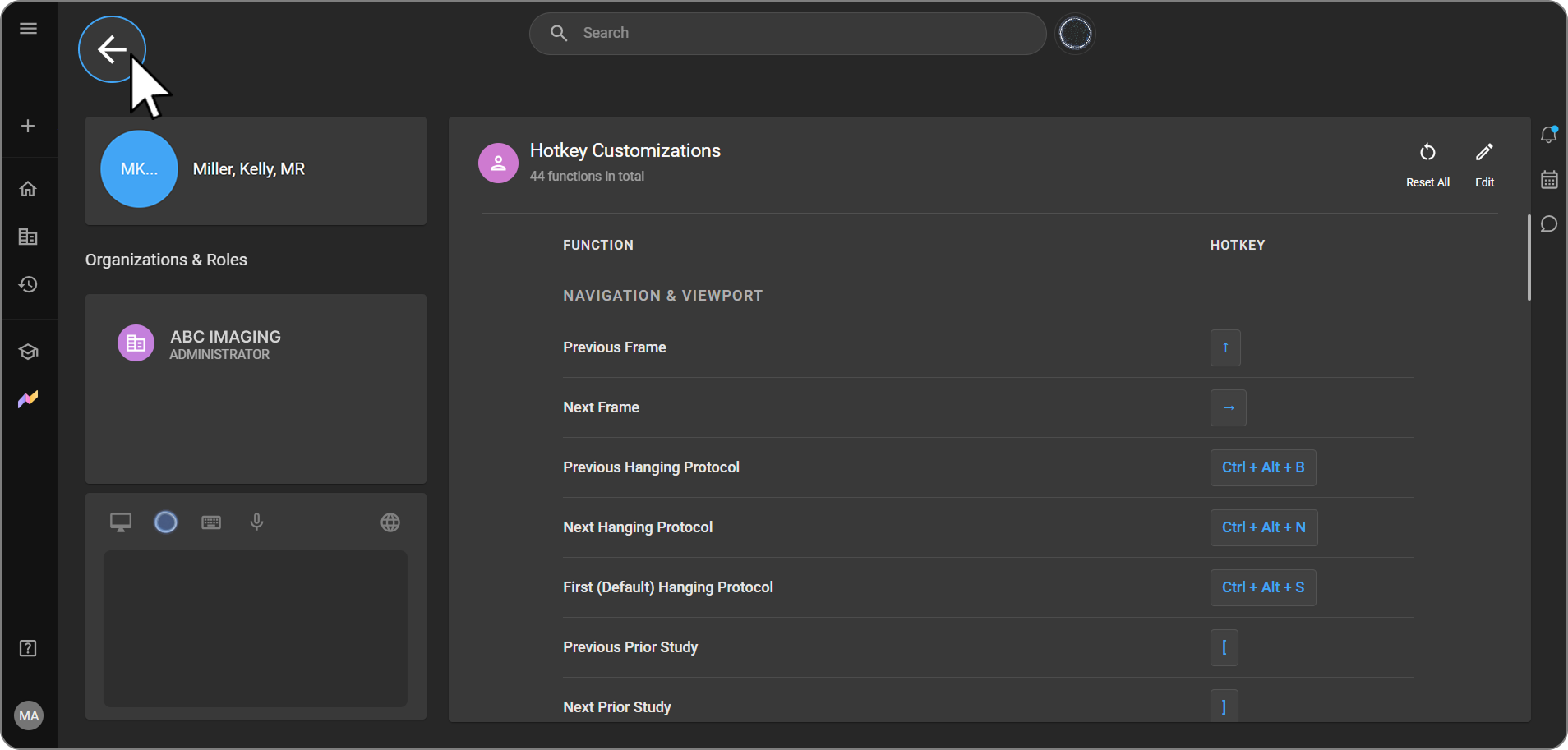
Expected result: The Hotkey Customizations panel opens on the User Settings page. A Back button (left arrow) appears at the top left of the page header. Click it to return to the Image Viewer.
Note: The Back button appears only when you open the panel from the Image Viewer. It's hidden while you're editing, and it reappears when you save or cancel your changes.
For the other options in this menu, see More Options Menu in the Image Viewer section.
Understand the Hotkey Customizations Panel
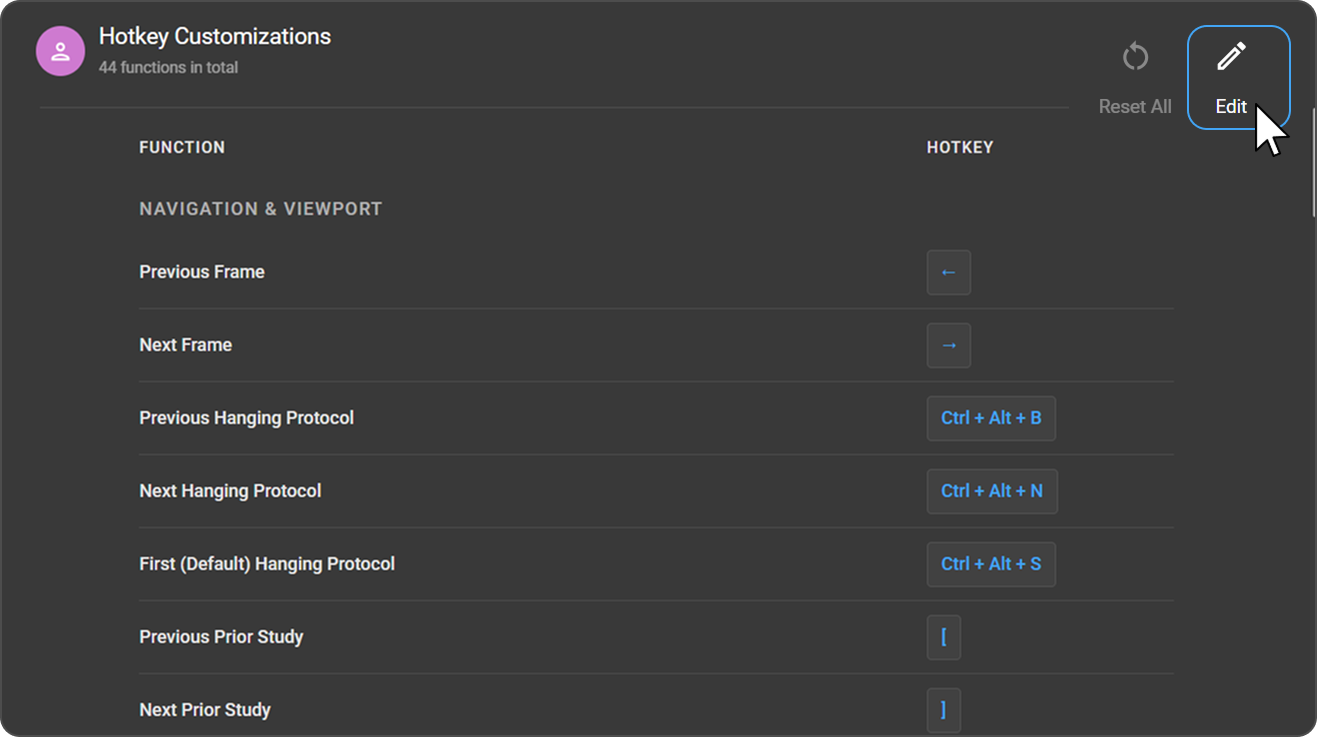
The panel header shows the total number of functions. The panel lists each Image Viewer function in a Function column, grouped by category, with its current key in a Hotkey column. A dash (—) means the function has no hotkey.
The panel has two modes:
- View mode: Shows every function and its current hotkey. You can't make changes in this mode.
- Edit mode: Turns each hotkey cell into a field that captures the key or key combination you press. To switch to edit mode, click Edit at the top right.
Change a Hotkey
-
Open the Hotkey Customizations panel.
-
Click Edit.
-
Click the hotkey cell for the function you want to change.
-
Press the key or key combination you want, for example
Ctrl + Shift + D.The field shows your new hotkey right away.
-
If the combination is already assigned to another function, resolve the conflict. See Fix a Hotkey Conflict.
-
Repeat steps 3–5 for any other hotkeys you want to change.
-
Click Save.
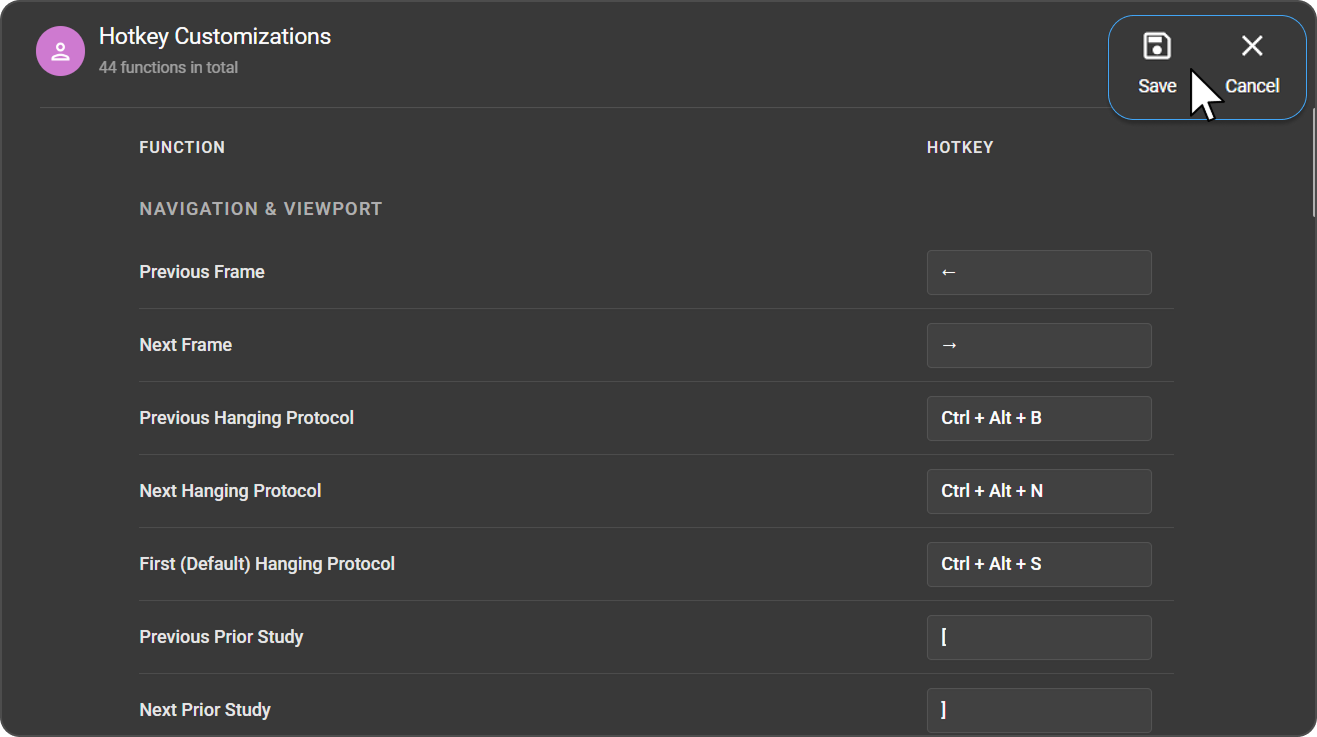
Expected result: Your new hotkeys take effect immediately in every Image Viewer you have open. You don't need to refresh the page.
To discard your changes instead, click Cancel. All unsaved changes are reverted, and the panel returns to view mode.
Note: A hotkey can be a single key, such as F, or a key with one or more modifiers, such as Ctrl + A or Shift + Alt + F. A modifier key on its own, such as Shift or Ctrl, isn't accepted. Mouse buttons (left, right, and middle) and the scroll wheel aren't valid inputs either.
Remove a Hotkey
- In edit mode, click the hotkey cell for the function.
- Press
Esc. - Click Save.
Expected result: The function no longer has a hotkey.
A cleared hotkey stays cleared. The function's old default key no longer triggers it. To get the default back, assign it again or reset all hotkeys.
Fix a Hotkey Conflict
If you press a combination that's already assigned to another function, the conflicting row is highlighted in red. A yellow warning triangle (⚠) appears in the cell, without a text message.
Conflicts are also checked against hotkeys you assigned in Customize Wheel (the Image Control Wheel) and to window level presets. To see which function or tool already uses the key, hover over the cell. See Image Control Wheel and Window Level and Display Presets in the Image Viewer section.
You can't save until you fix the conflict. Either:
- Reassign: Give one of the two functions a different hotkey.
- Clear: Remove the hotkey from one of the functions by pressing
Escin its cell.
Reset All Hotkeys to Their Defaults
-
Open the Hotkey Customizations panel.
-
Click Reset All, next to Edit at the top right.
The Reset all hotkeys to defaults? dialog opens.
-
Click Reset. To keep your hotkeys instead, click Cancel.
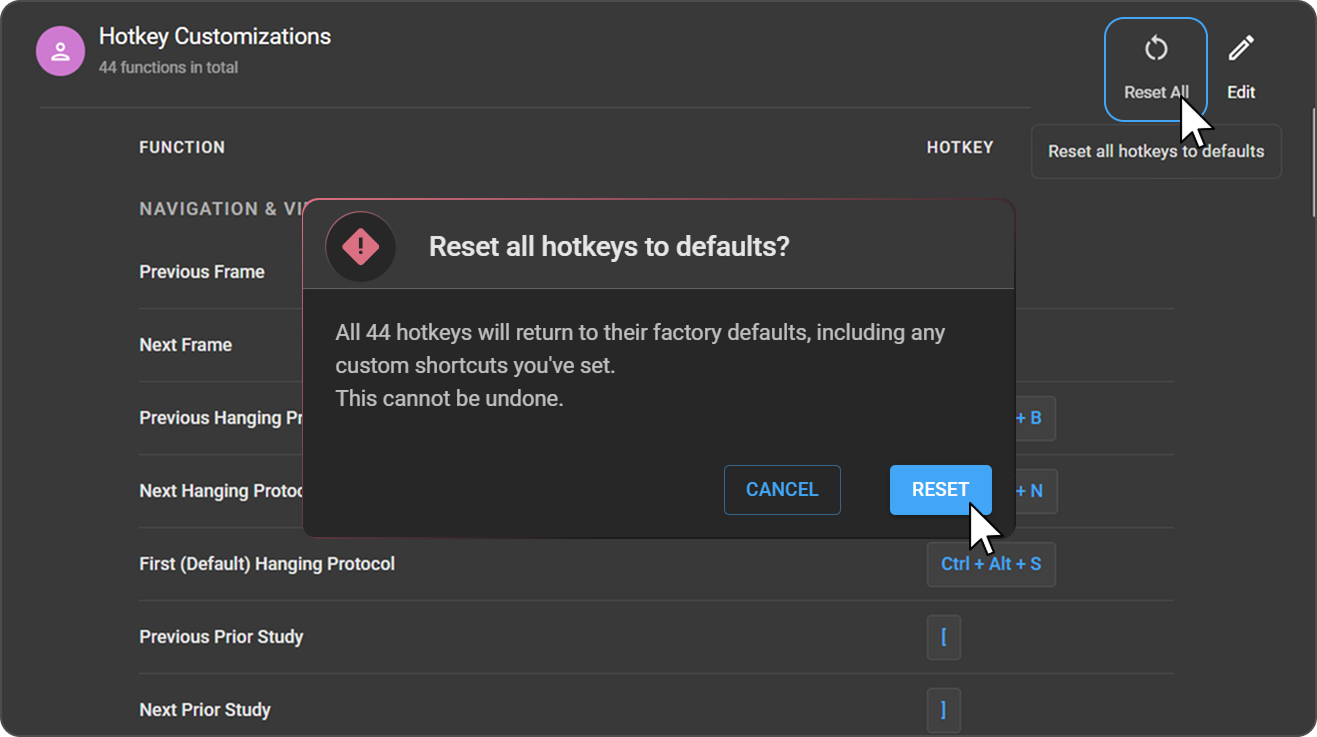
Expected result: All hotkeys return to their factory defaults, including any custom shortcuts you set.
Important: You can't undo a reset.
How Hotkeys Work
- Reserved keys: Some keys are reserved by the system and can't be reassigned. If you press one, this error appears in the cell:
This key is reserved and cannot be reassigned.The cell keeps its previous hotkey. - Examples of reserved keys: Browser keys such as
F5,F11,F12,Ctrl + R,Ctrl + T,Ctrl + W, andCtrl + N; keys the app uses, such asTabandEnter; and the clipboard shortcutsCtrl + C,Ctrl + V,Ctrl + X, andCtrl + Y. - Conflicts: You can't save while two functions share the same hotkey, including hotkeys set in Customize Wheel.
- Immediate effect: Saved changes apply right away in all your open Image Viewer sessions, without a page refresh.
Default Hotkeys
The tables list the configurable functions and their default hotkeys, in the order the panel shows them. You can customize all of them. Functions with a dash (—) have no default hotkey, but you can assign one.
To learn what each function does, see Adjustment and Markup Tools, Additional Tools, and Hanging Protocols in OmegaAI in the Image Viewer section.
Navigation and Viewport
| Function | Default hotkey |
|---|---|
| Previous Frame | Arrow Left |
| Next Frame | Arrow Right |
| Previous Hanging Protocol | Ctrl + Alt + B |
| Next Hanging Protocol | Ctrl + Alt + N |
| First (Default) Hanging Protocol | Ctrl + Alt + S |
| Previous Prior Study | [ |
| Next Prior Study | ] |
| Previous Stage (Step in Hanging Protocol) | Page Up |
| Next Stage (Step in Hanging Protocol) | Page Down |
Global Actions
| Function | Default hotkey |
|---|---|
| Delete Selected Measurement | Delete |
| Undo Viewport History | Ctrl + Z |
| Reset Viewport History | Ctrl + Shift + Z |
| Unlink Series | U |
| Plane Series Linking | Ctrl + L |
| Manual Series Linking | L |
Adjustment Tools
| Function | Default hotkey |
|---|---|
| Pan | T |
| Window Level | W |
| Stack Scroll | S |
| Zoom | Z |
| Magnify | M |
| Flip Vertically | F |
| Flip Horizontally | H |
| Invert | \ |
| Crosshairs (MPR/Fusion) | J |
| Quad Zoom Tool | K |
| Shutter Rectangle | F6 |
| Free Rotate | — |
| Crosshair Pointer | — |
| Clamped Window Level | — |
Markup and Measurement Tools
| Function | Default hotkey |
|---|---|
| Length | D |
| Angle | A |
| Cobb Angle | Ctrl + A |
| Cardiothoracic (CTR) | ; |
| Annotate (Arrow) | Numpad / |
| Probe | Q |
| Drag Probe | X |
| Rectangle ROI | G |
| Elliptical ROI | E |
| Bidirectional | B |
| Freehand ROI | — |
| Plumb Line | — |
| Spine Labeling | — |
Additional Tools
| Function | Default hotkey |
|---|---|
| Fusion | Shift + F |
| Toggle Scout Lines | O |
| Toggle Annotations | I |
| Start Cine Playback | C |
| Play/Pause Cine | Space |
| Print Current Frame | P |
| Open Document Viewer | R |
| Rotate Viewport CCW | , |
| Rotate Viewport CW | . |
| Cine | — |
| MPR | — |
| Create Key Image | — |
| Copy to Clipboard | — |
| Download Study/Image | — |
| Burn Study | — |
Troubleshooting
- You can't save your changes: Two functions share the same hotkey. Look for a row highlighted in red with a warning triangle (⚠), and fix the conflict.
- A key isn't accepted: It may be reserved by the system. Choose a different key or combination.
- A mouse button or the scroll wheel isn't accepted: Hotkeys must use the keyboard.
- You don't see the Back button: It appears only when you open the panel from the Image Viewer, and it's hidden while you're editing.
- A colleague still has the default hotkeys: Hotkeys are per user. Each user changes their own.
Related Articles
- Manage Your Profile and User Settings: Open User Settings and the settings toolbar.
- Set Up Multiple Monitors: Assign the Image Viewer and other views to your monitors.
- Navigate the OmegaAI Homepage: Find My Profile and the other options in the navigation panels.
- Image Control Wheel: Choose the tools on your wheel and set their hotkeys, in the Image Viewer section.
- Window Level and Display Presets: Set hotkeys for window level presets, in the Image Viewer section.
- Adjustment and Markup Tools and Additional Tools: What each function in the hotkey tables does, in the Image Viewer section.
- Hanging Protocols in OmegaAI: How hanging protocols and stages work, for the navigation hotkeys, in the Image Viewer section.
- More Options Menu: Other settings in the Image Viewer's three-dot menu, in the Image Viewer section.
- OmegaAI Keyboard Navigation: Fixed shortcuts for editing reports, which you can't customize.