Chat with Other OmegaAI Users
OmegaAI has a built-in chat, so you can message other OmegaAI users without leaving the platform. You can chat one-on-one or in groups.
Note: Chat is only between OmegaAI users. You can't chat with patients.
This article shows you how to open the chat, find a contact, start one-on-one and group chats, send text and voice messages, and manage your chats.
Before You Begin
- Where chat is available: You can open the chat from any OmegaAI page except Root.
- Permissions: Your role needs the Chat permission to use chat. To delete chats, it also needs the Delete Chat permission. Administrators set these in your role's permissions. See User Access Control, Roles, and Privileges.
Note: If you use multiple monitors, chat works only in your main OmegaAI window. The Image Viewer and Document Viewer windows on your other monitors don't connect to chat. To set up your monitors, see Set Up Multiple Monitors.
Open the Chat Panel
- In the right navigation panel, click Chat (speech bubble icon). It's the third icon from the top, after Notifications and Scheduler.
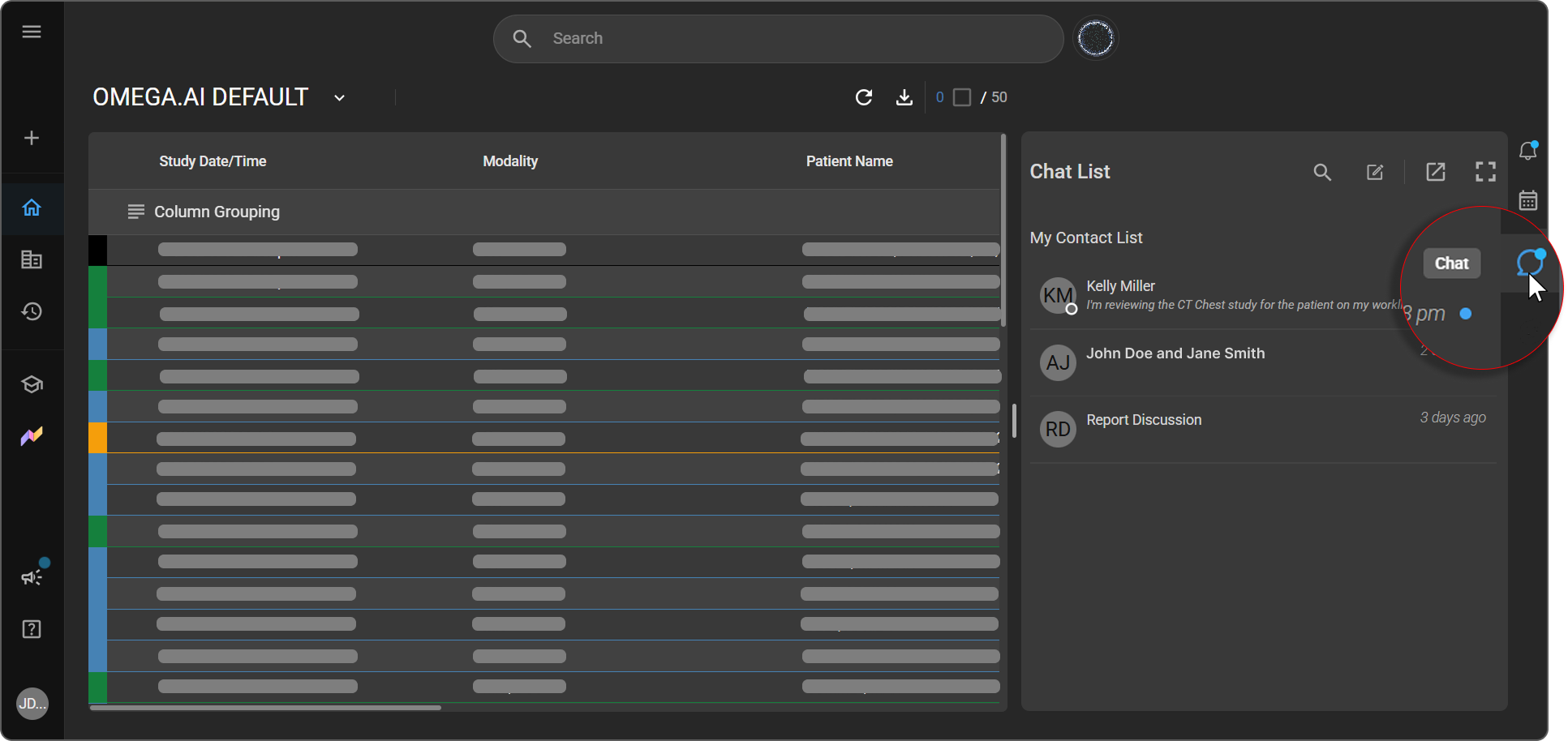
Expected result: The Chat List panel opens on the right side of the screen, next to the page you're working on. If you don't have any chats yet, the panel shows No chat in the list and Start a new chat.
Use the Chat Panel Controls
The top of the Chat List panel has four buttons, from left to right:
|
|
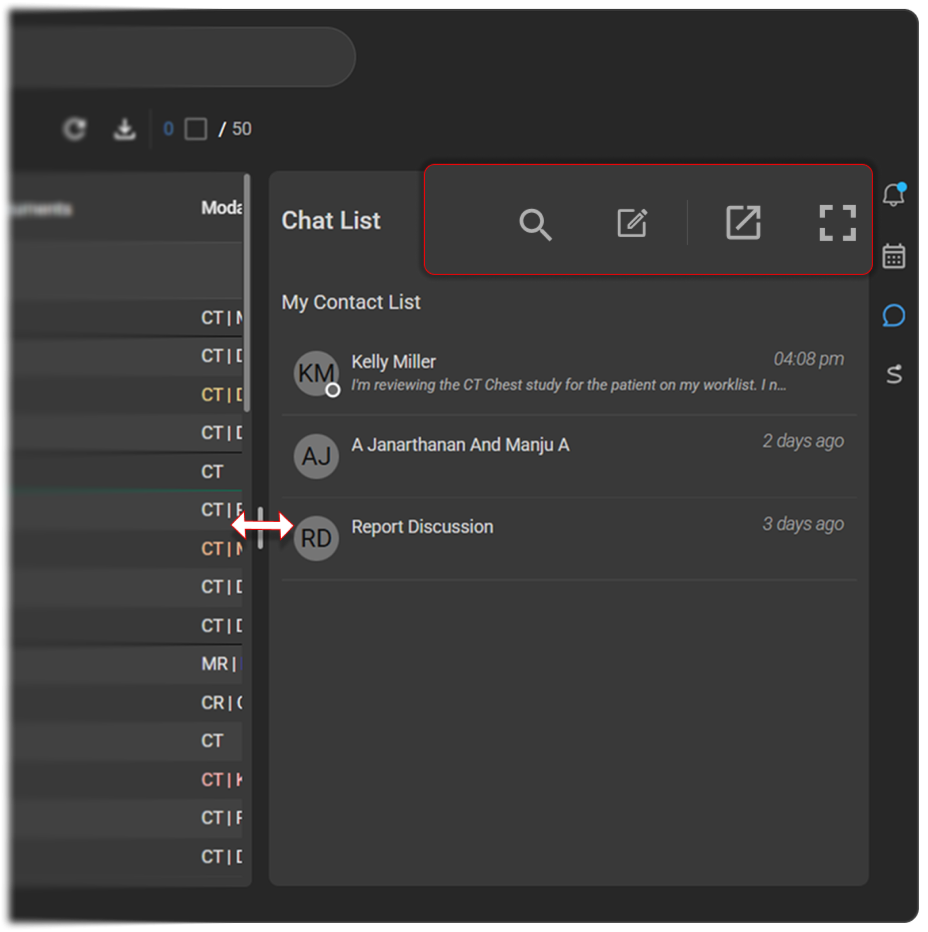
You can also resize the side panel and move the floating window:
- Widen the side panel: When the chat is in the side panel, drag the gray bar on its left edge to widen it, up to about halfway across the page.
- Move the floating window: When the chat is popped out, drag the move icon (four arrows) at the top of the floating window to move it left or right.
Each contact's picture in the Chat List shows whether they're online:
- Green dot: Online.
- Empty circle: Offline.
When you open a chat, the Chat With panel also shows the status in words, for example Offline.
Search for a Contact
|
|
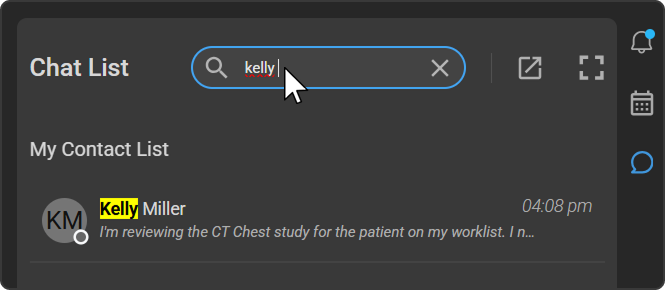
Expected result: Matching contacts appear under My Contact List.
Start a One-on-One Chat
|
|
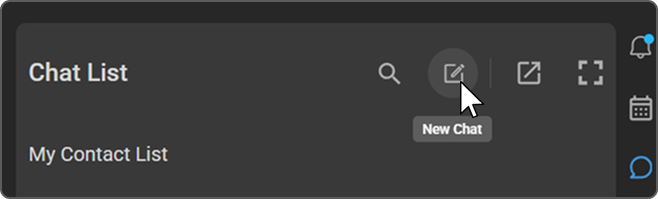
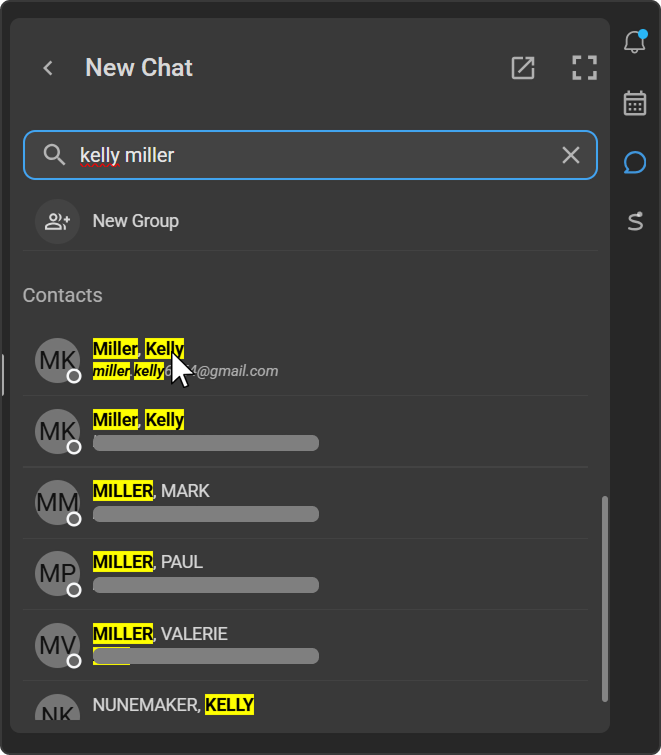
Expected result: The Chat With panel opens, showing the contact's name and status, for example Online or Offline. You can now send a message.
To go back to your chat list, click the back arrow at the top left of the panel.
Send Text and Voice Messages
First, open a chat from your Chat List, or start a new one. Then send a text message or a voice message from the message box at the bottom of the panel.
Send a Text Message
Expected result: Your message appears in the conversation, with the time it was sent. Send a Voice Message
|
|
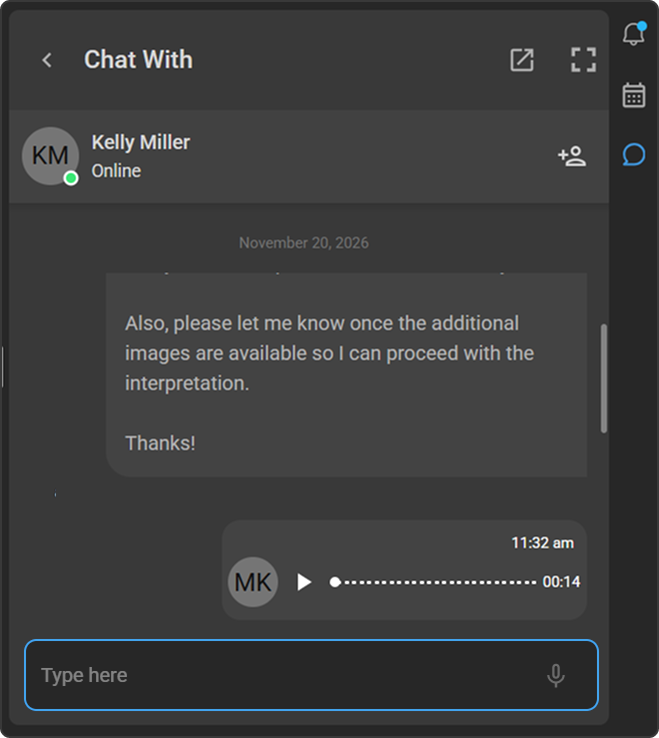
Expected result: The voice message appears in the conversation, with a play button, its length, and the time it was sent. To listen to a voice message, click its play button.
The conversation also shows activity notes, for example when someone joins the conversation or invites another person.
Start a Group Chat
|
|
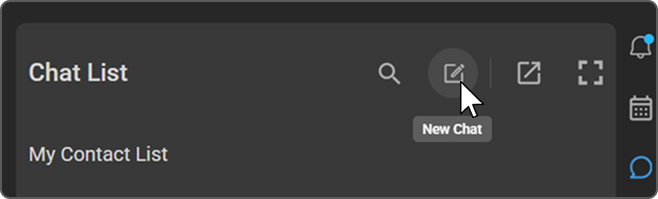
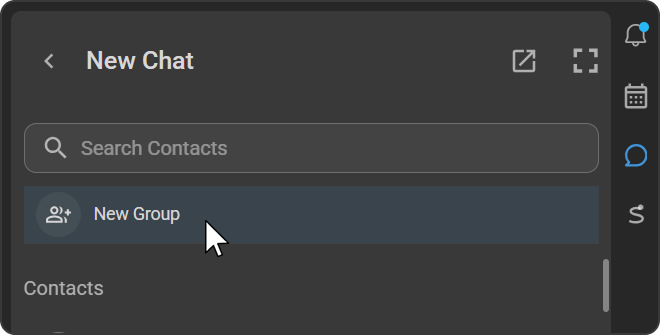
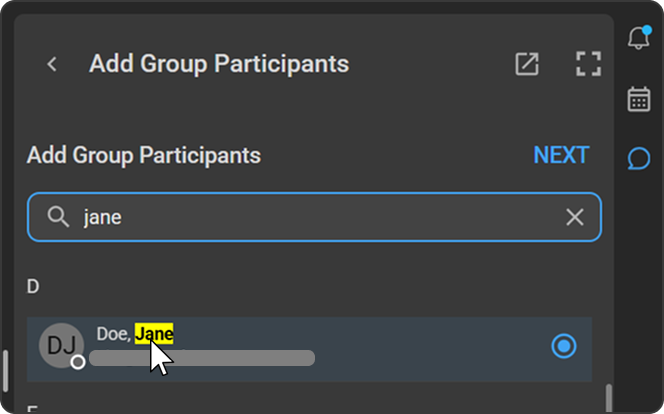
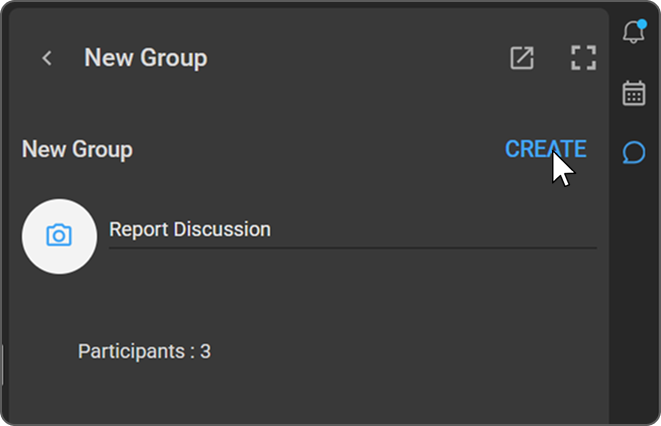
Expected result: The group chat opens. Its header shows the group name and the number of participants, and the conversation shows a note for each person who was invited and joined.
Add People to a Chat
You can add people to a group chat, or to a one-on-one chat. Adding people to a one-on-one chat doesn't turn it into a group chat.
|
|
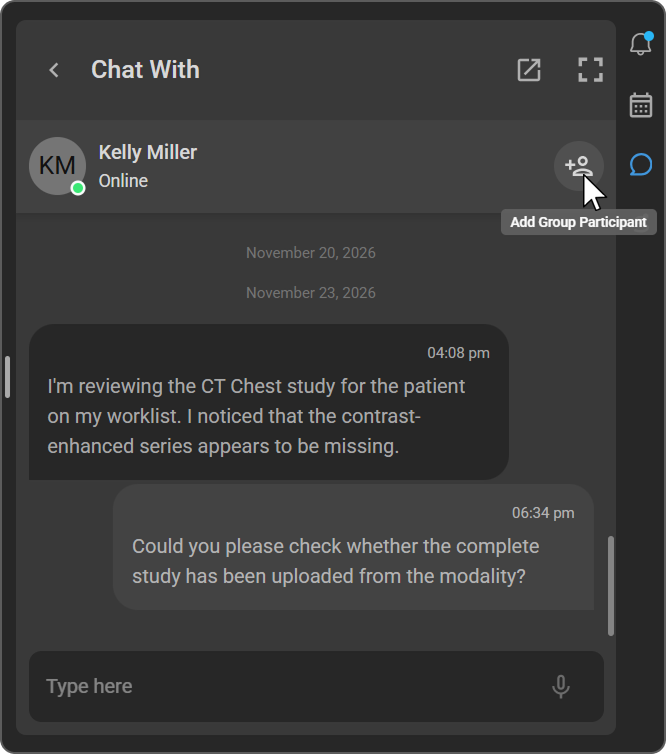
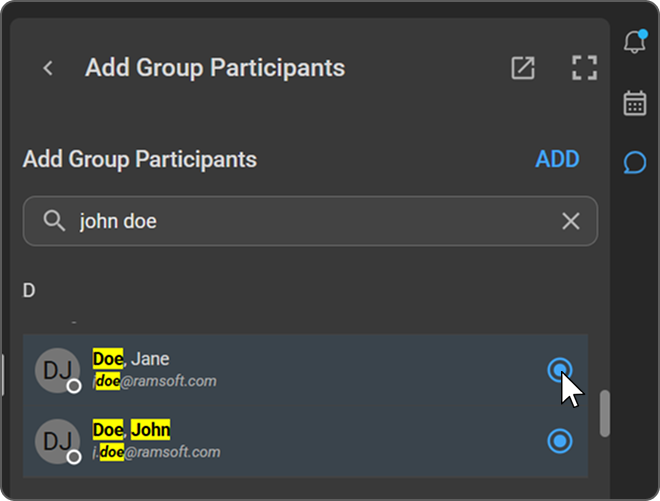
Expected result: The conversation shows a note that you invited each new participant, for example <your email> invited <their email>.
Manage Your Chats
Your chats are listed under My Contact List in the Chat List, with the time of the latest message.
- In My Contact List, hover over a chat.
- Click the down arrow that appears.
- Select an option:
- Delete chat: Removes the entire chat thread. You see this option only if your role has the Delete Chat permission.
- Mark as unread: Marks the conversation as unread. Unread chats show a blue icon.
Troubleshooting
- You can't find the Chat icon: Chat isn't available in Root. Go to another OmegaAI page, such as the worklist. If you still don't see it, your role may not have the Chat permission. Ask your administrator.
- You don't see Delete chat: Your role may not have the Delete Chat permission. Ask your administrator.
- Your chat list is empty: You haven't started or received any chats yet. To start one, see Start a One-on-One Chat.
- You can't find a contact: Check the spelling of the contact's name.
- Chat isn't available on another monitor: Chat works only in your main OmegaAI window. Use the chat there.
Related Articles
- View and Manage Notifications: See and clear the notifications you receive in OmegaAI.
- View and Monitor Logs: Check delivery records for emails, SMS messages, and notifications.
- Navigate the OmegaAI Homepage: Find the right navigation panel and its tools.
- Set Up Multiple Monitors: Set up OmegaAI on more than one monitor.
- User Access Control, Roles, and Privileges: Set the Chat and Delete Chat permissions for a role.