Manage Your Profile and User Settings
Your profile holds your personal and professional details, such as your name, National Provider Identifier (NPI), address, and contact information. From your profile, you can also open your user settings for displays, hotkeys, devices, and language.
This article shows you how to open your profile, review and edit your information, use the settings toolbar, and sign out.
Before You Begin
- Your own information: You can view and edit your own profile.
- Organizations and roles: Only an administrator can change which organizations you belong to or the roles you have in them.
Open Your Profile
-
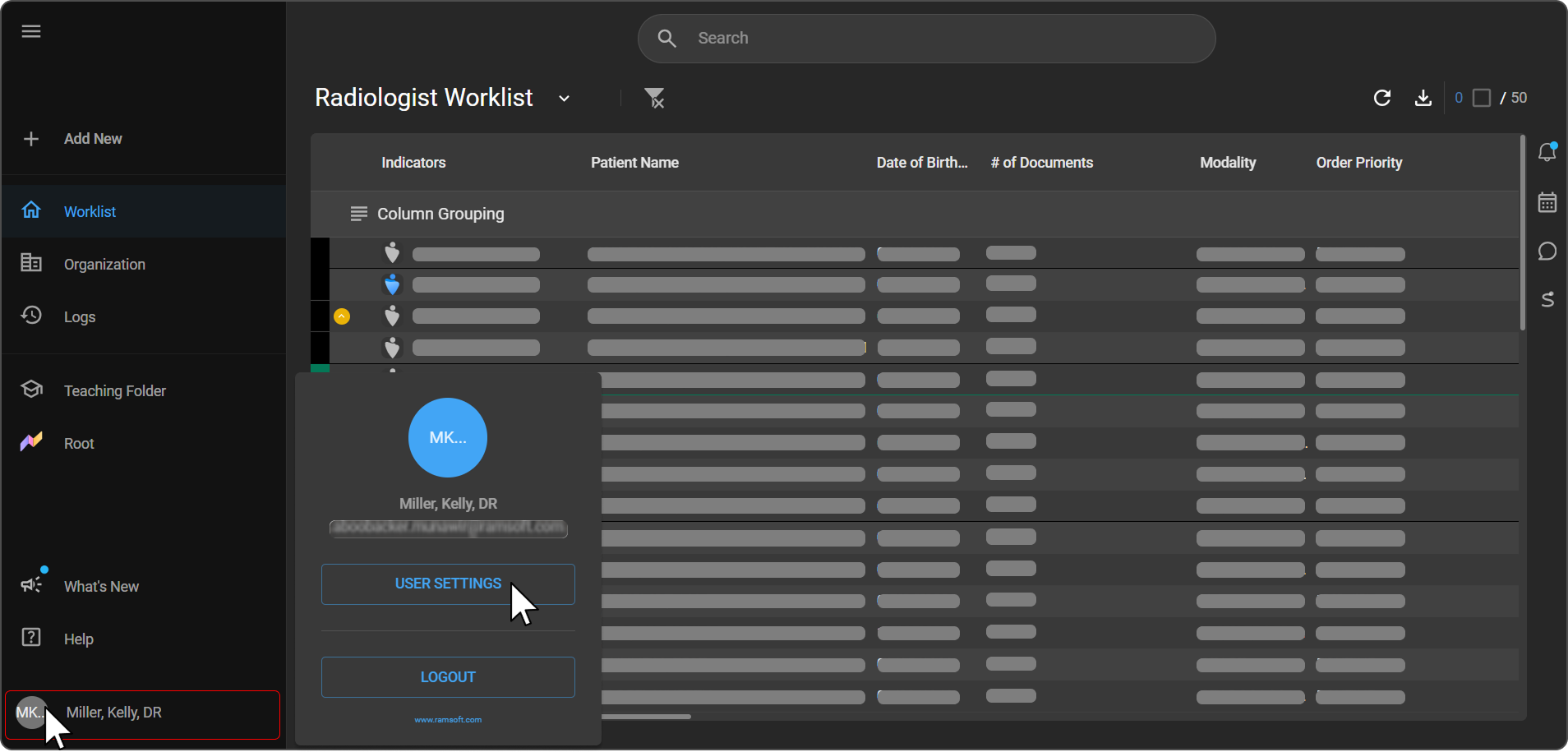
At the bottom of the left navigation panel, click your avatar, which shows your initials. Its tooltip is My Profile.
A pop-up shows your name, your email address, and two buttons: User Settings and Logout.
-
Click User Settings.
Expected result: The User Profile page opens. The left panel shows your name, your avatar, Organizations & Roles, and the settings toolbar. The right panel shows your User Information.
Review Your Information
The User Information panel shows your profile details in collapsible sections:
| Section | Fields |
|---|---|
| General | Family (Last) Name, Given (First & Middle) Names, Name Prefix, Name Suffix, NPI/ID, Specialty, and DEA |
| Address | Country, State/Province, Zip/Postal Code, City, and Address Line 1 |
| Contact Information | Email, Phone, and Fax. Each can have more than one entry. |
| Report Signature | Your report signature |
View Your Organizations and Roles
The Organizations & Roles section in the left panel lists each organization you belong to and your role in it.
Note: This section is read-only. Only an administrator can change your roles. See Add users and assign roles in the Getting Started section.
If you work in more than one organization, all of them share one profile. OmegaAI links your profile to each organization by your NPI or login email, so it doesn't create a duplicate profile for you.
Edit Your Information
-
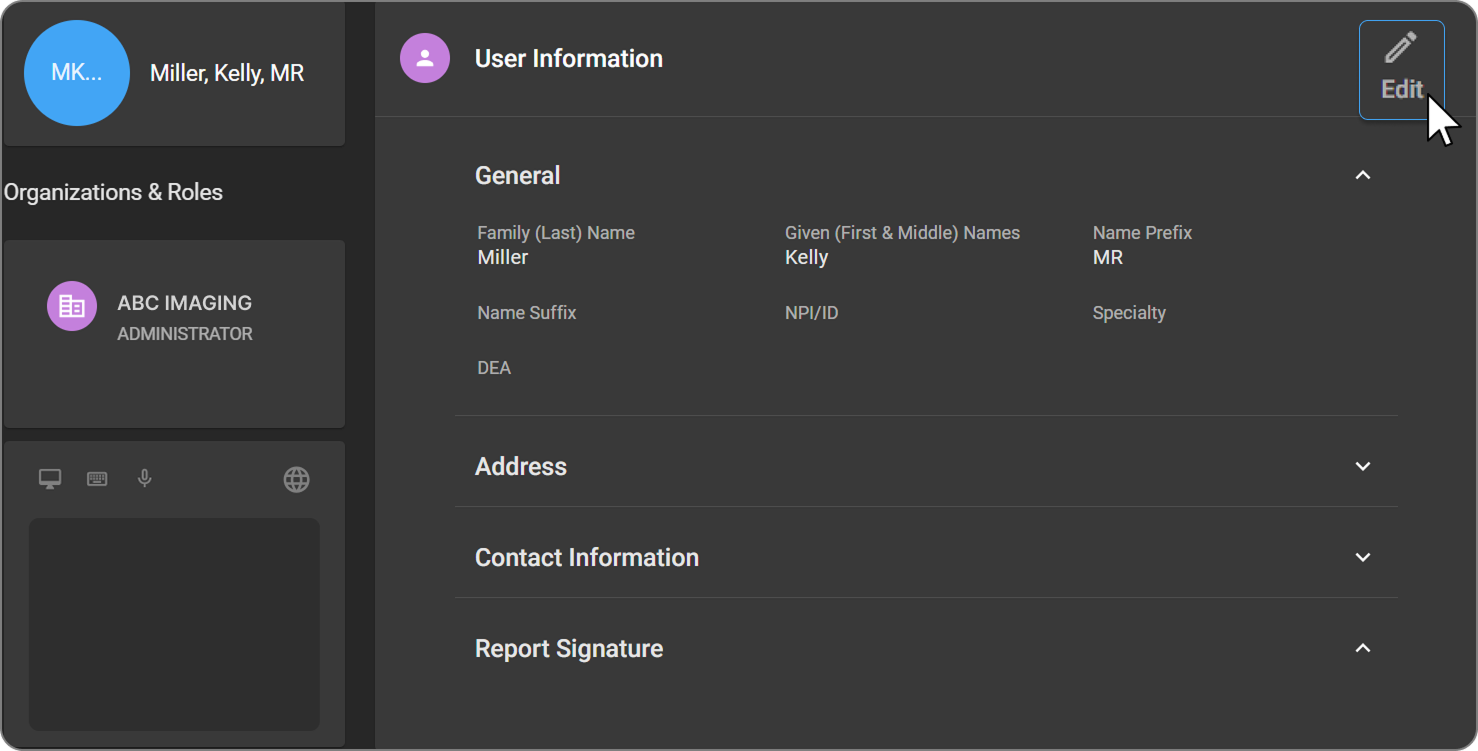
In the User Information panel, click Edit (pencil icon) at the top right.
All fields become editable, and Save and Cancel replace Edit at the top right.
-
Enter your updates in the fields you want to change. To fill in your address or add contact details, see the sections that follow.
-
Click Save.
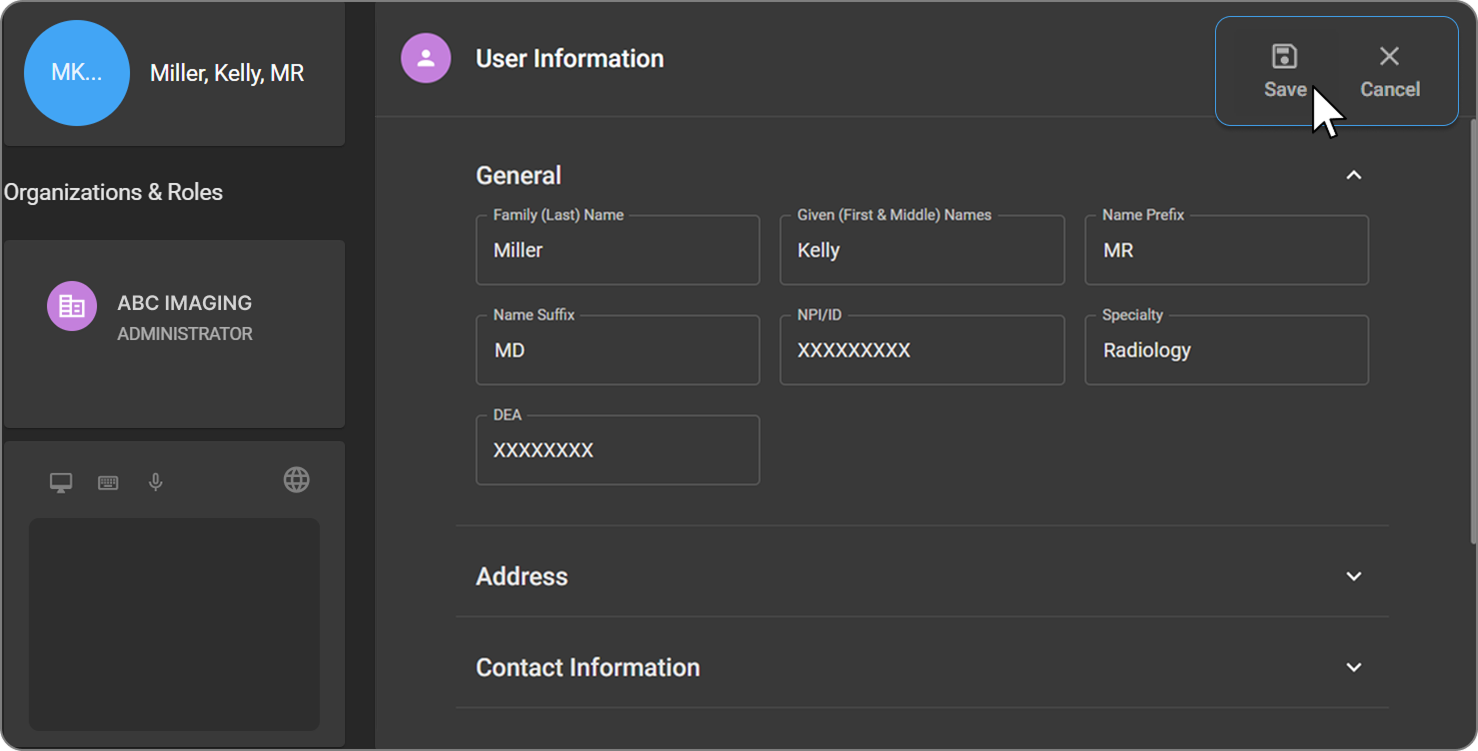
Expected result: Your profile is updated immediately.
To discard all your changes instead, click Cancel. The panel returns to view mode.
Fill In Your Address with Address Search
In edit mode, the Address section has an Address Search field above the address fields. Use it before you click Save.
- In Address Search, start typing your address.
- Select your address from the suggestions.
Expected result: The Country, State/Province, Zip/Postal Code, City, and Address Line 1 fields fill in automatically. You can still edit them before you save.
Add or Remove Contact Details
In edit mode, you can add more than one email address, phone number, or fax number. Make your changes before you click Save.
- Add an entry: Under Email, Phone, or Fax, click the box with the plus sign (+), and then enter the new value.
- Remove an entry: Click the X next to it.
- Phone and fax numbers: Each number shows a country flag for its country code.
Use the Settings Toolbar
The settings toolbar is at the bottom of the left panel. It has these settings, from left to right:
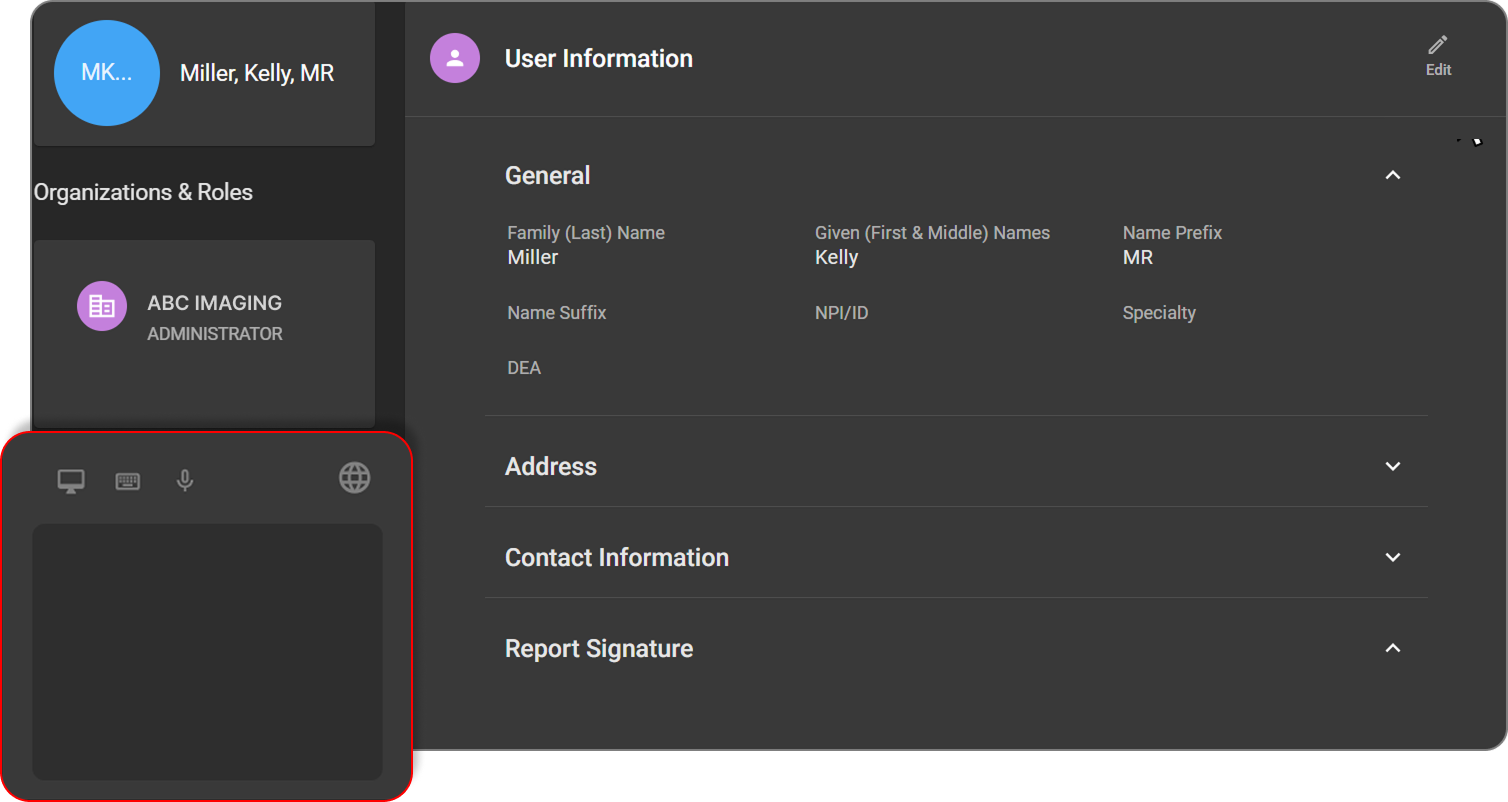
| Setting | Icon | What it does | Learn more |
|---|---|---|---|
| Display Settings | Monitor | Set your display preferences and monitor layout. | Set Up Multiple Monitors |
| Hotkey Customizations | Keyboard | Customize keyboard shortcuts for the Image Viewer. | Customize Your Image Viewer Hotkeys |
| Device Settings | Microphone | Choose the microphone and foot control you use for dictation. | Choose Your Microphone and Foot Control |
| Language | Globe | Change the interface language. Shows the language you're using now. | Change the Interface Language |
Display Settings, Hotkey Customizations, and Device Settings each open a panel on the right, in place of User Information.
Choose Your Microphone and Foot Control
-
In the settings toolbar, click Device Settings (microphone icon).
The Devices panel opens.
-
In the Microphone list, select your microphone. The default is Default System Microphone.
-
In the Foot Control list, select your foot control, if you use one.
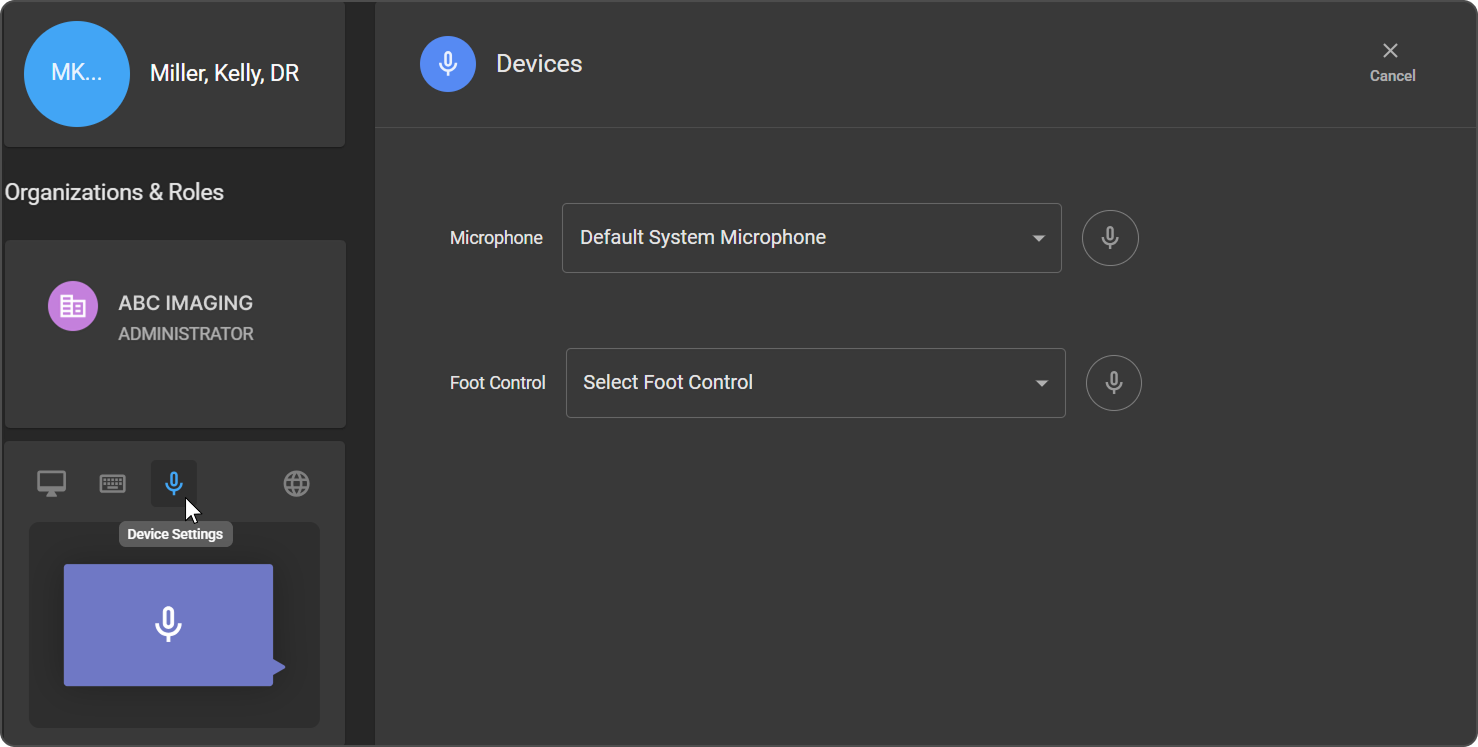
To close the Devices panel, click Cancel at the top right.
For supported devices, dictation, and voice commands, see Voice Recognition and Voice Command Features and Solventum™ Fluency Direct™ Voice Recognition in the Document Viewer section, and Study, Voice Notes, and Dictations in the Image Viewer section.
Change the Interface Language
- In the settings toolbar, click the language selector, which shows your current language.
|
|
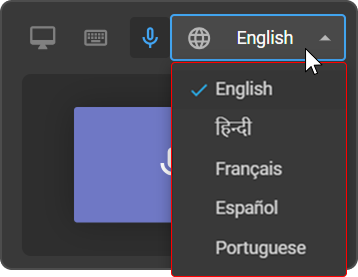
Expected result: The OmegaAI interface switches to the language you selected. A check mark shows the active language in the list.
Sign Out of OmegaAI
-
At the bottom of the left navigation panel, click your avatar.
-
In the pop-up, click Logout.
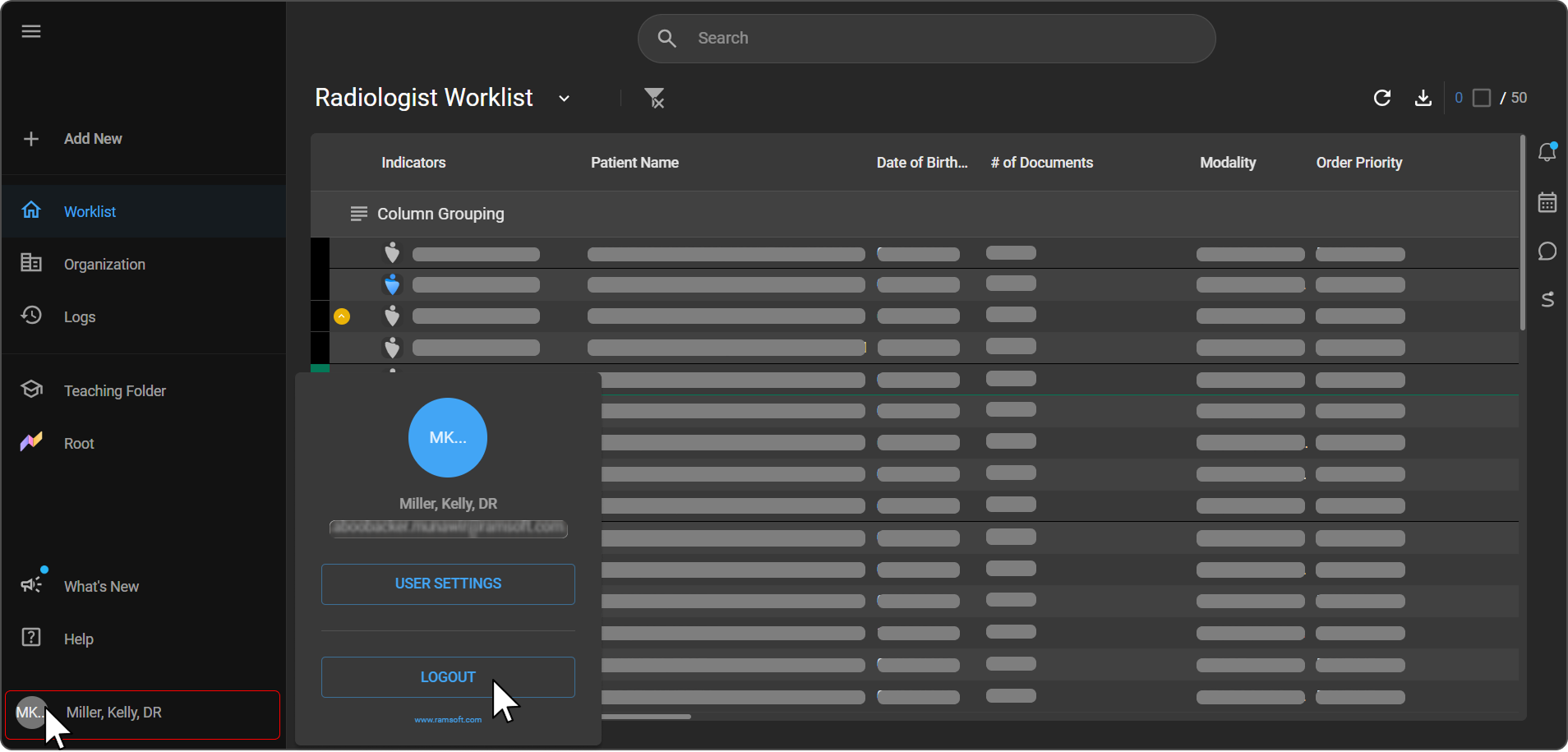
Expected result: You're signed out of OmegaAI securely.
To sign in again, or to change how you sign in, see Set up your account and sign in in the Getting Started section.
Troubleshooting
- You can't change your organization or role: The Organizations & Roles section is read-only. Ask your administrator to make the change.
- Your changes didn't save: Clicking Cancel discards every change you made since you clicked Edit. Click Edit, enter your changes again, and click Save.
Related Articles
- Navigate the OmegaAI Homepage: Find your way around the left and right navigation panels.
- Set Up Multiple Monitors: Use Display Settings to assign views to each monitor.
- Customize Your Image Viewer Hotkeys: Use Hotkey Customizations to change your Image Viewer shortcuts.
- Set up your account and sign in: Passwords, multi-factor authentication, and signing in, in the Getting Started section.
- Add users and assign roles: How administrators add users and assign roles, in the Getting Started section.
- User access control and roles: What each role can see and do, in the Advanced Topics section.
- Voice Recognition and Voice Command Features: Dictation, voice commands, and supported microphones and foot controls, in the Document Viewer section.