View and Manage Notifications
Notifications keep you up to date on activity in OmegaAI that's relevant to your role and tasks. For example, you're notified when a device goes offline, a fax arrives, a patient arrives for an appointment, or a study is marked for critical findings.
This article shows you how to open, read, and clear your notifications, and explains which events send them.
Before You Begin
- Permissions: Your role needs the Notification permission to use notifications. Administrators turn it on in the Main Level of your role's permissions. See User Access Control, Roles, and Privileges.
- Your role matters: The notifications you receive depend on your role. For example, front desk users get scheduling notifications, and radiologists get study notifications. See What Sends a Notification.
- Workflow automation: Some notifications are sent only if your organization has set them up in workflow automation. See Workflow Automation Notifications.
Open Your Notifications
- In the right navigation panel, find Notifications (bell icon) at the top. A blue dot on the bell means you have unread notifications.
- Click the bell icon.
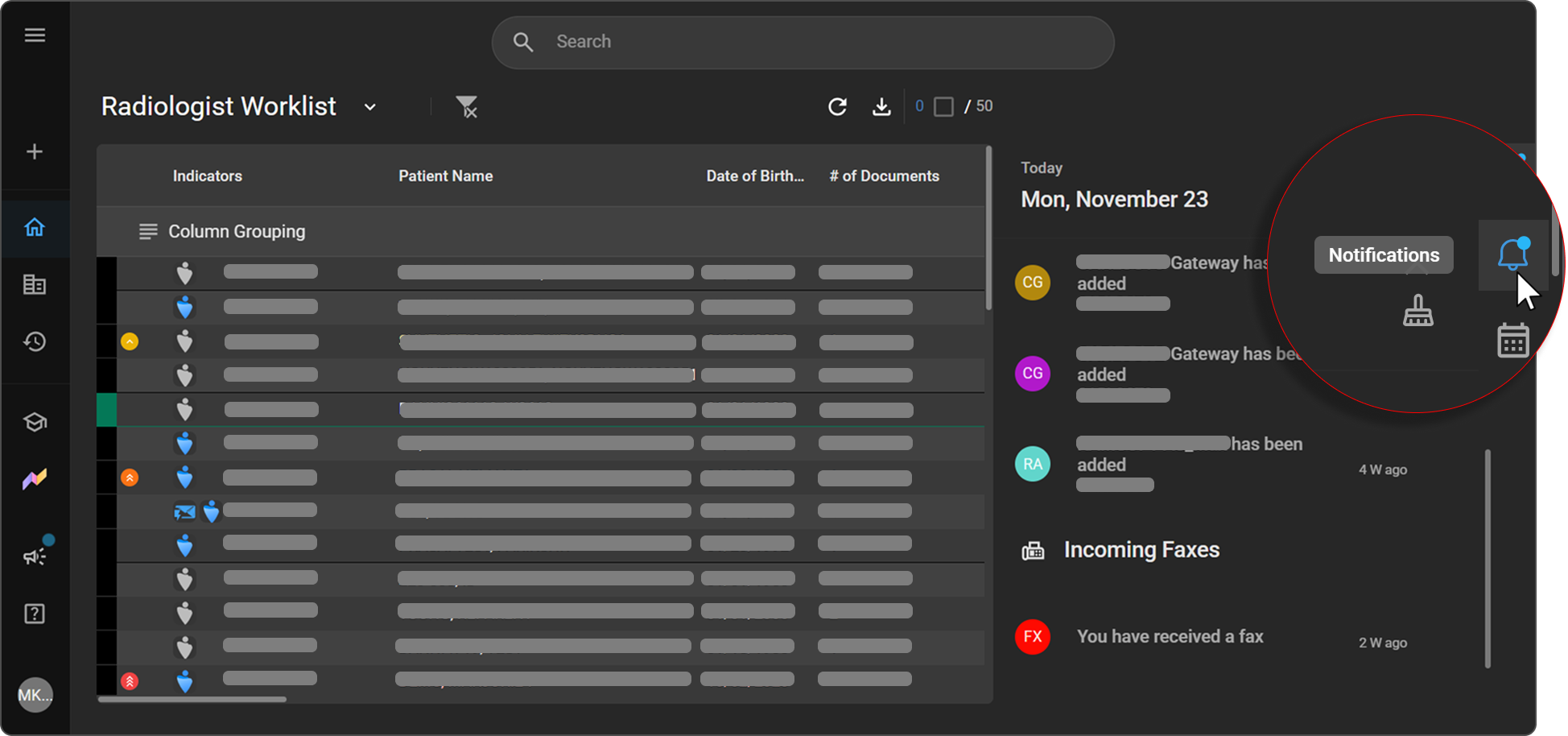
Expected result: The notifications drawer opens next to the right navigation panel. It shows today's date at the top and lists the notifications you've received, grouped by category.
Understand the Notifications Drawer
The drawer has these parts:
- Date header: Today and the current date, for example Fri, November 20. The drawer lists your notifications under this header, including older ones.
- Category headings: Notifications are grouped under a heading for their category, such as Organization for devices and Incoming Faxes for faxes. Scroll down the drawer to see more categories.
- Notifications: Each notification shows an icon with initials, a short message, the related name or number below it, and how long ago it was sent (for example 2 W ago).
- Unread marker: A blue dot next to the time means you haven't opened the notification yet.
For a fax, the number below the message is the sender's fax number.
The drawer shows notifications from the last 30 days. Notifications sent while you were signed out appear the next time you sign in.
Go to the Item a Notification Is About
- Click the notification.
Expected result: OmegaAI opens the page the notification is about, and marks the notification as read. For example, a device notification opens the organization's Device page, and a worklist notification opens that worklist. The notifications drawer stays open.
Clear or Remove Notifications
-
Close the drawer: Click the bell icon again, or click X.
-
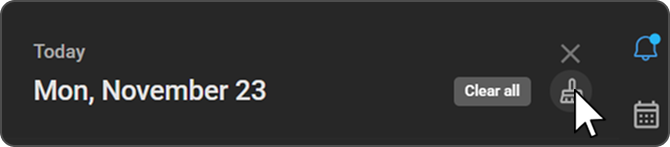
Clear all notifications: Click Clear all (brush icon), next to the date.
-
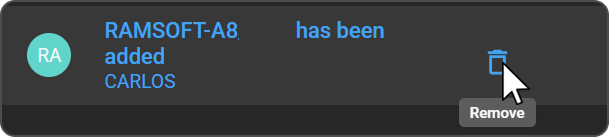
Remove one notification: Hover over the notification, and then click Remove (trash icon). The trash icon replaces the time while you hover.
What Sends a Notification
Notifications are grouped into categories. Each category is for the users who need it.
| Category | Who receives it | Events that send a notification |
|---|---|---|
| Organization (devices) | All users in the organization | A device is added; a device's status changes to active or inactive; a device goes online or offline |
| Incoming Faxes | All active users in the organization that received the fax | A fax arrives |
| Study | Radiologists | A file or study is shared |
| Scheduler | Front desk users | A patient books, cancels, or arrives for an appointment; a patient doesn't show up; a radiologist sets a busy or blocked reminder; a resource is added or updated |
| Worklist | Users who get a new worklist, and radiologists | A new worklist is created for you; a study is marked for critical findings (radiologists) |
To review faxes you've received, see Review and Manage Faxes. For more about the devices behind Organization notifications, see the OmegaAI Link section.
Workflow Automation Notifications
These notifications are sent only if your organization has set them up in workflow automation. They cover these events:
- Patient updates: A patient record is created in OmegaAI, or a patient's information is updated.
- Report status: A report is signed, or a report is flagged for critical findings.
- Appointment updates: An appointment's status changes.
Each workflow automation notification goes to the users of the role chosen in the rule.
To set up these notifications, see the Workflow Automation section.
Troubleshooting
-
You aren't getting a notification you expect: Check that the notification applies to your role. For workflow automation events, ask your administrator whether the notification is set up.
-
You can't see a category: Scroll down in the notifications drawer. Categories appear one below another.
-
You can't find an older notification: The drawer shows only the last 30 days. To check older notifications, use the Notification log. See View and Monitor Logs.
-
A fax arrived, but you didn't get a notification: Check the Fax Log. Faxes appear there even if a notification wasn't sent. See Review and Manage Faxes.
-
You want a record of past notifications: The Notification log keeps a record of every system notification, including its status and delivery time. See View and Monitor Logs.
Related Articles
- Review and Manage Faxes: Open and act on the faxes you receive.
- View and Monitor Logs: Check the delivery history of notifications, emails, and SMS messages.
- Chat with Other OmegaAI Users: Message other OmegaAI users from the right navigation panel.
- Workflow Automation: Set up automated notifications for patient, report, and appointment events.
- Navigate the OmegaAI Homepage: Find the right navigation panel, and the separate What's New panel for product updates.
- Add and set up an OmegaAI Link device and Add and set up a DICOM station: Add the devices and stations that send Organization notifications.
- User Access Control, Roles, and Privileges: Set the Notification permission for a role.