Scheduler Overview & Navigation
Overview
The Scheduler is OmegaAI's built-in appointment management tool. It integrates directly within the platform, allowing users to view, create, and manage patient appointments without leaving their workflow. Appointments are displayed on a calendar timeline organised by Healthcare Service (resource), giving a clear picture of availability at a glance.
Opening the Scheduler
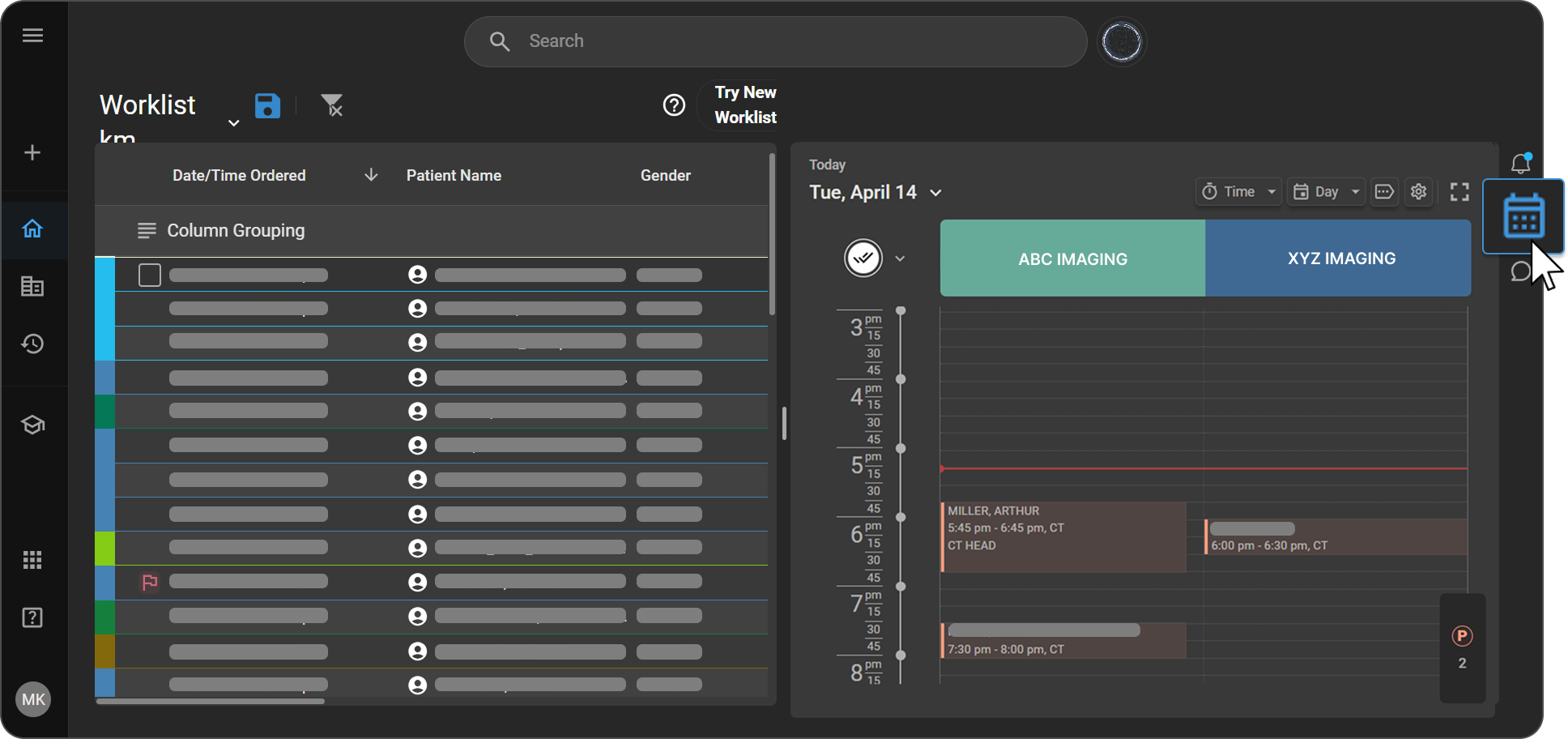
Click the Calendar icon on the right-side navigation bar. The in-grid calendar opens and displays today's appointments by default.
A red horizontal line across the calendar indicates the current time, giving you a quick reference for where you are in the day's schedule.
Choosing a Calendar View
The Scheduler supports multiple views depending on how much you need to see at once.
Switching between Day and Week views:
Click the Day button in the top-right of the Scheduler to open a dropdown with two options:
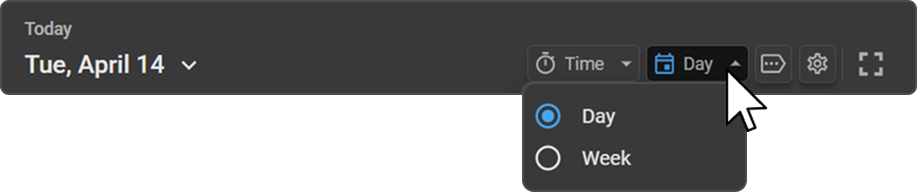
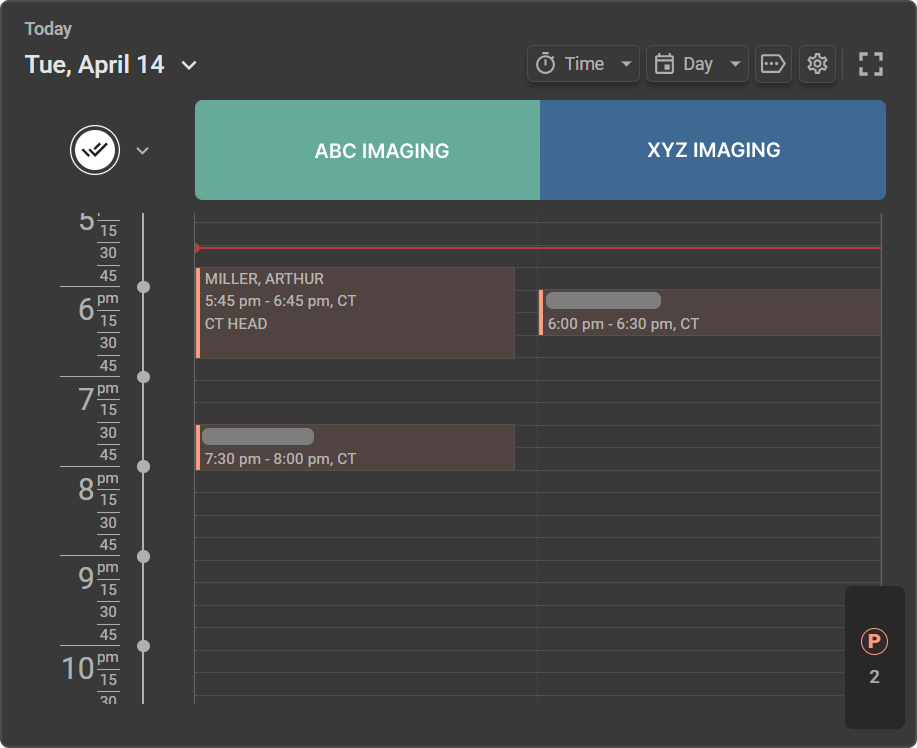
- Day — displays appointments for the selected day, with resources shown as columns across the top. When more resources are selected than can fit on screen, click the Next button on the right edge of the header to scroll through the remaining resources.
- Week — displays the full week (Sun–Sat) with dates shown as columns under each resource header. Use the Next button to navigate through additional resources when they extend beyond the visible area.
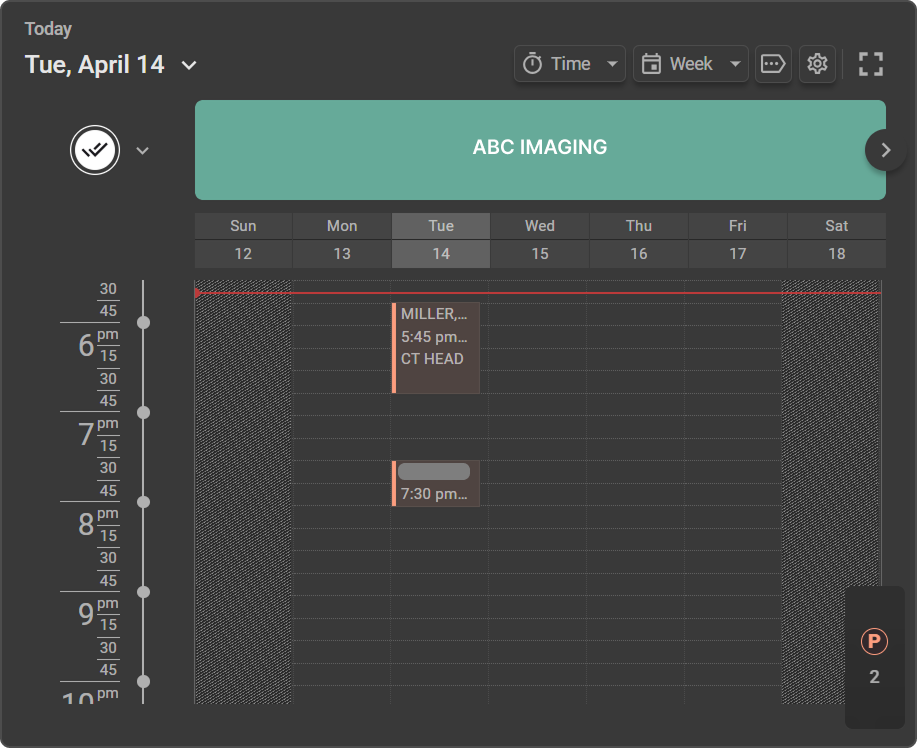
Navigating to a specific date:
Click the down arrow next to the current date to open a monthly mini-calendar. Select any date to jump to it directly. Use the « and » arrows to move between months.
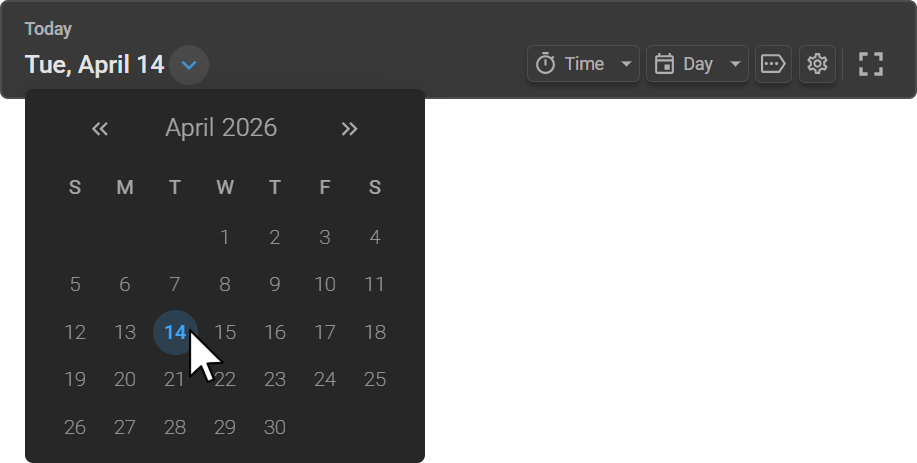
Expanded views:
Click the Expand icon (top-right corner of the Scheduler) to open the Scheduler in a larger panel. From here you can switch between Day, Week, and Month views using the view dropdown.
- Day and Week — behave the same as the in-grid views, with a Next button to scroll through additional resources.
- Month — displays one resource at a time across a full monthly calendar. Use the < and > arrows on either side of the resource header to navigate between resources. The date selector in this view shows two months at once for easier navigation.
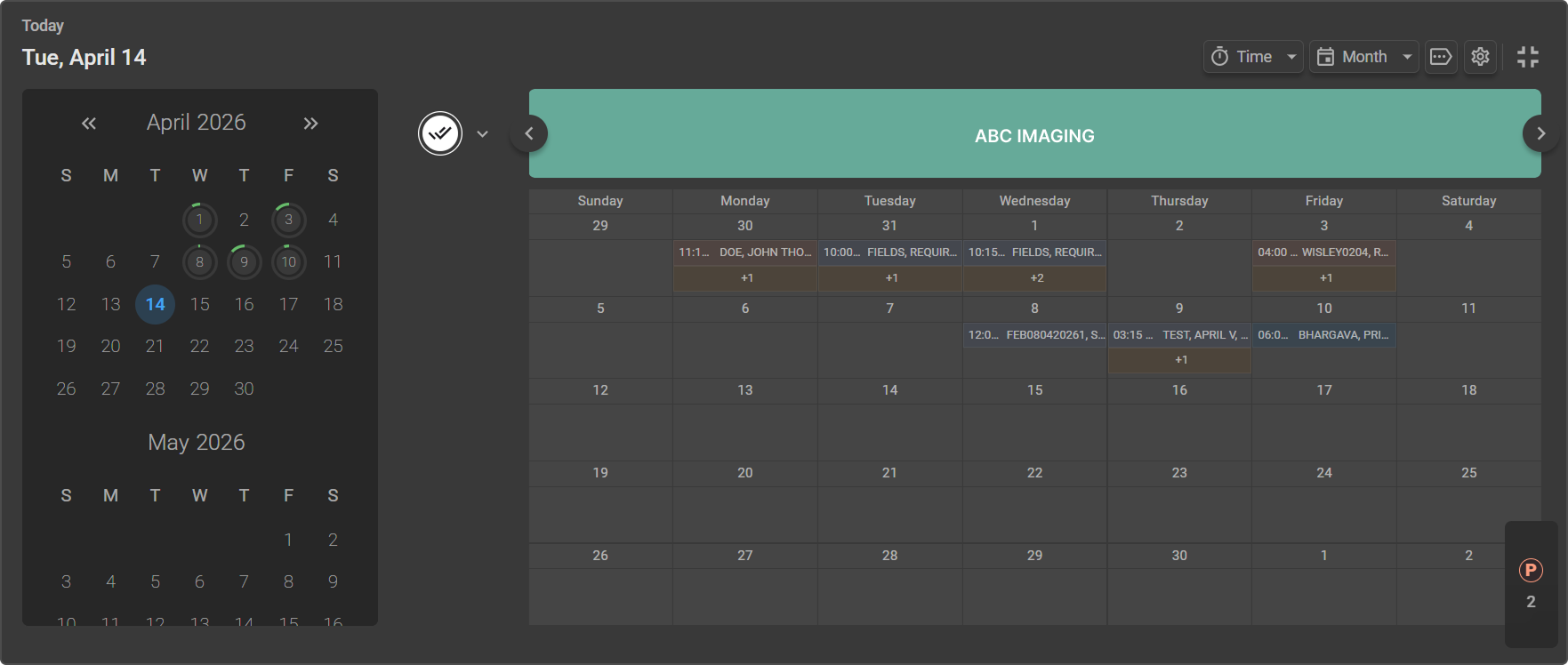
Managing Resources
Resources are the Healthcare Services displayed as columns in the Scheduler. You can control which resources are visible at any time using the Resource panel.
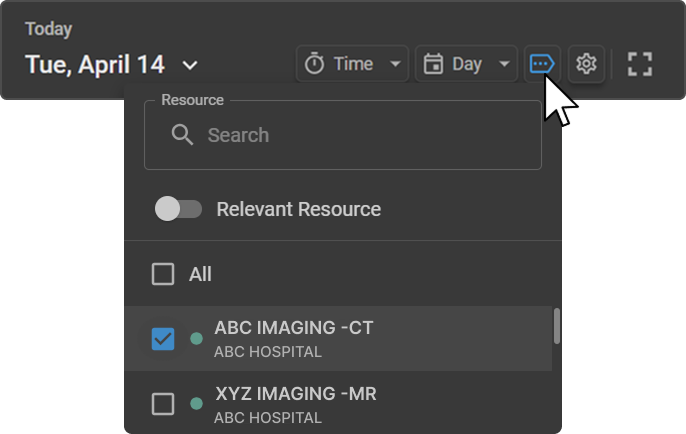
To open the Resource panel: Click the Resource icon in the top-right toolbar. A panel opens showing all available resources. If no resources are selected, the calendar displays a "No resources selected" message — select at least one resource to view the scheduling timeline.
To show or hide a resource: Check or uncheck the box next to a resource to add or remove it from the Scheduler view. Use the All checkbox at the top to select or deselect every resource at once.
To search for a resource: Type in the Search field at the top of the panel to filter the list by name, modality, or organization.
Relevant Resource toggle: Enable the Relevant Resource toggle to automatically filter the list to show only resources whose modality matches the studies currently in your Worklist.
Each resource in the list displays its name, modality code, and organization, along with a colored dot representing the resource's assigned calendar color.
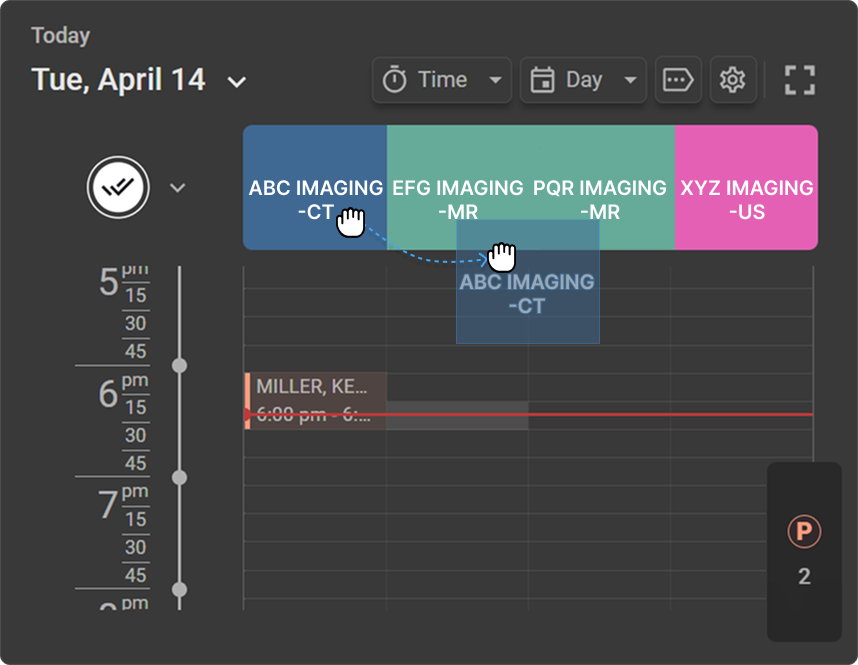
To reorder resource columns: Click and drag a Healthcare Service column header in the Scheduler to the desired position and release. While dragging, the selected column is highlighted with a blue border. The new order is saved for your view.
Adjusting the Time Interval
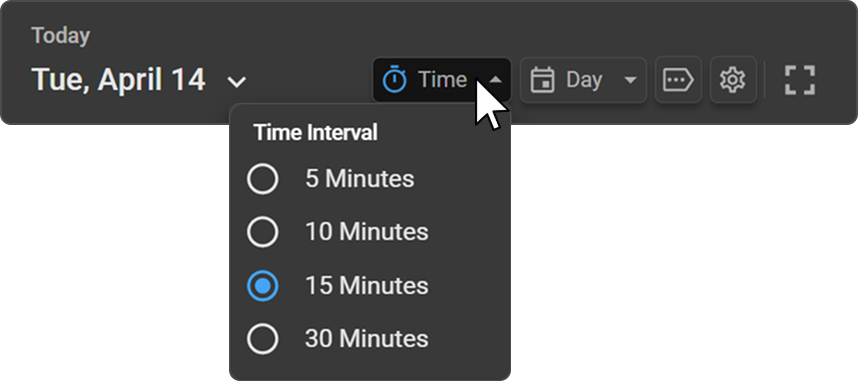
Click the Time button in the top-right toolbar to open the Time Interval dropdown. Select one of the following intervals:
- 5 Minutes
- 10 Minutes
- 15 Minutes
- 30 Minutes
The selected interval controls the granularity of the time slots displayed on the timeline. A shorter interval (e.g. 5 minutes) gives a more detailed view for precise scheduling, while a longer interval (e.g. 30 minutes) provides a broader overview of the day.
Filtering by Appointment Status
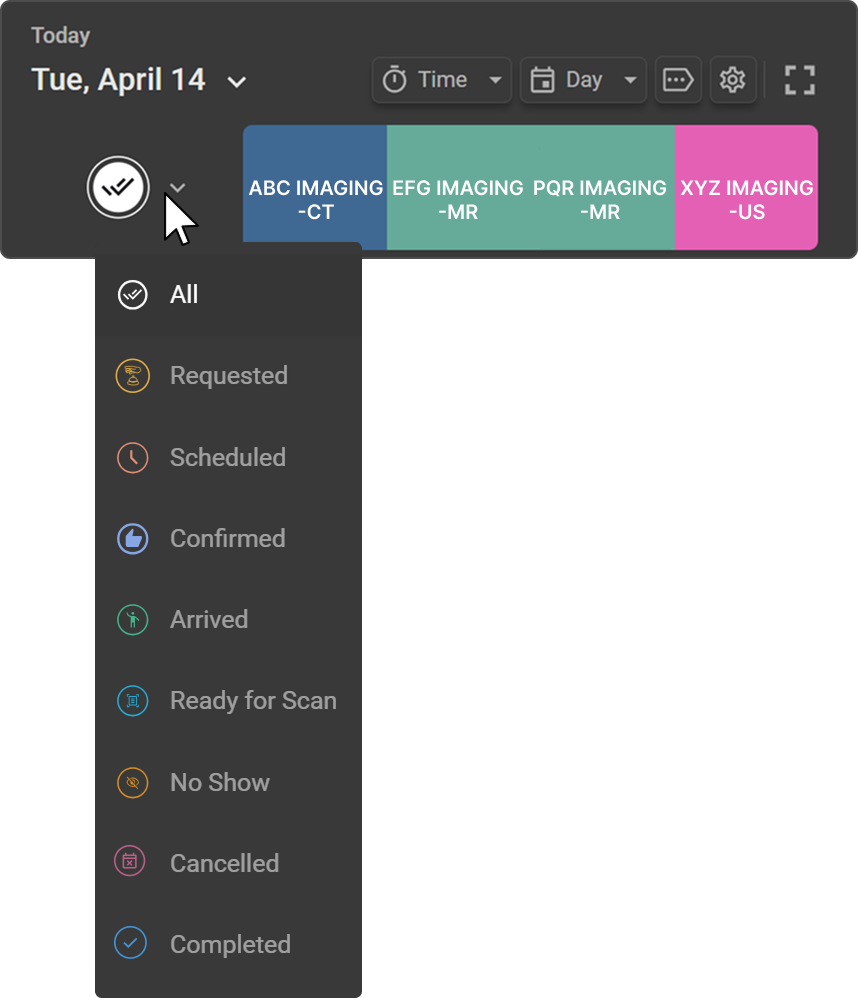
Click the status icon on the left side of the Scheduler to open the status filter dropdown. Select a status to filter the calendar to show only appointments matching that status. The available options are:
- All — shows every appointment regardless of status (default)
- Requested
- Scheduled
- Confirmed
- Arrived
- Ready for Scan
- No Show
- Canceled
- Completed
Each status has a distinct colored icon, making it easy to identify appointment types at a glance on the calendar.
Drag-and-Drop Visual Cues
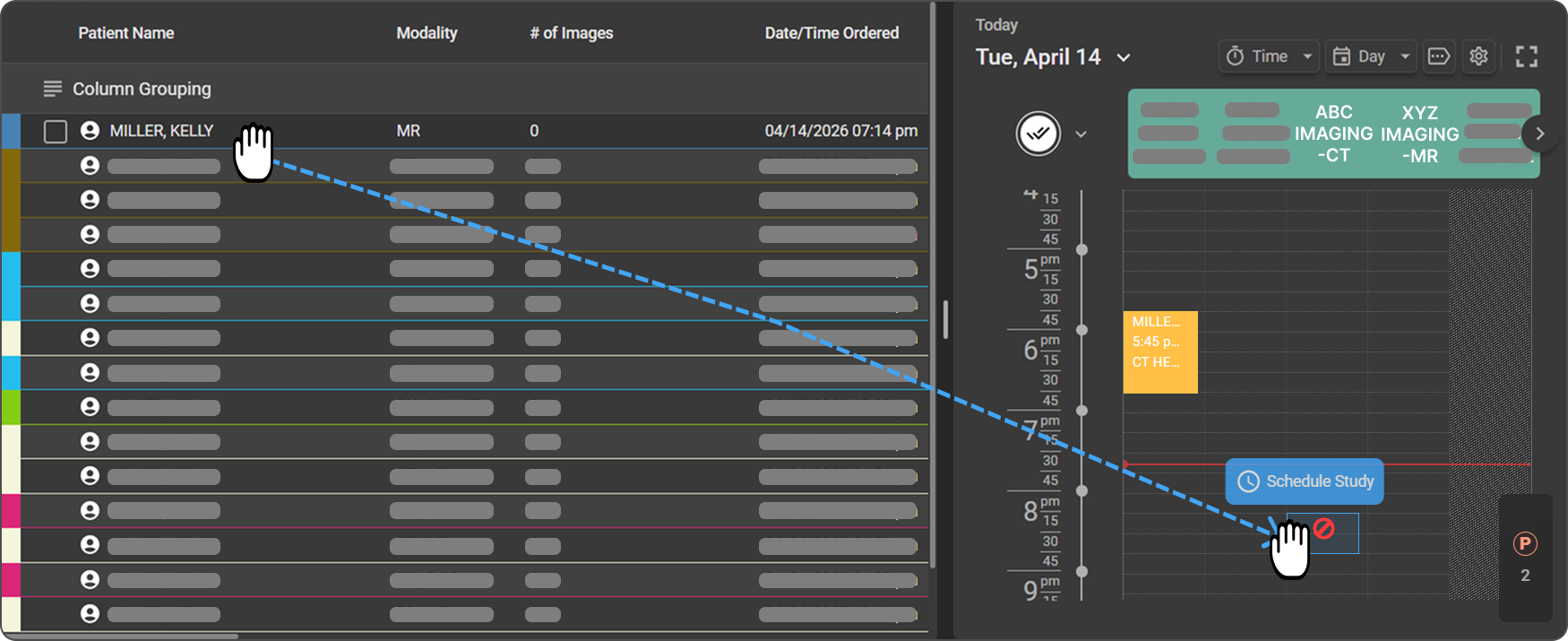
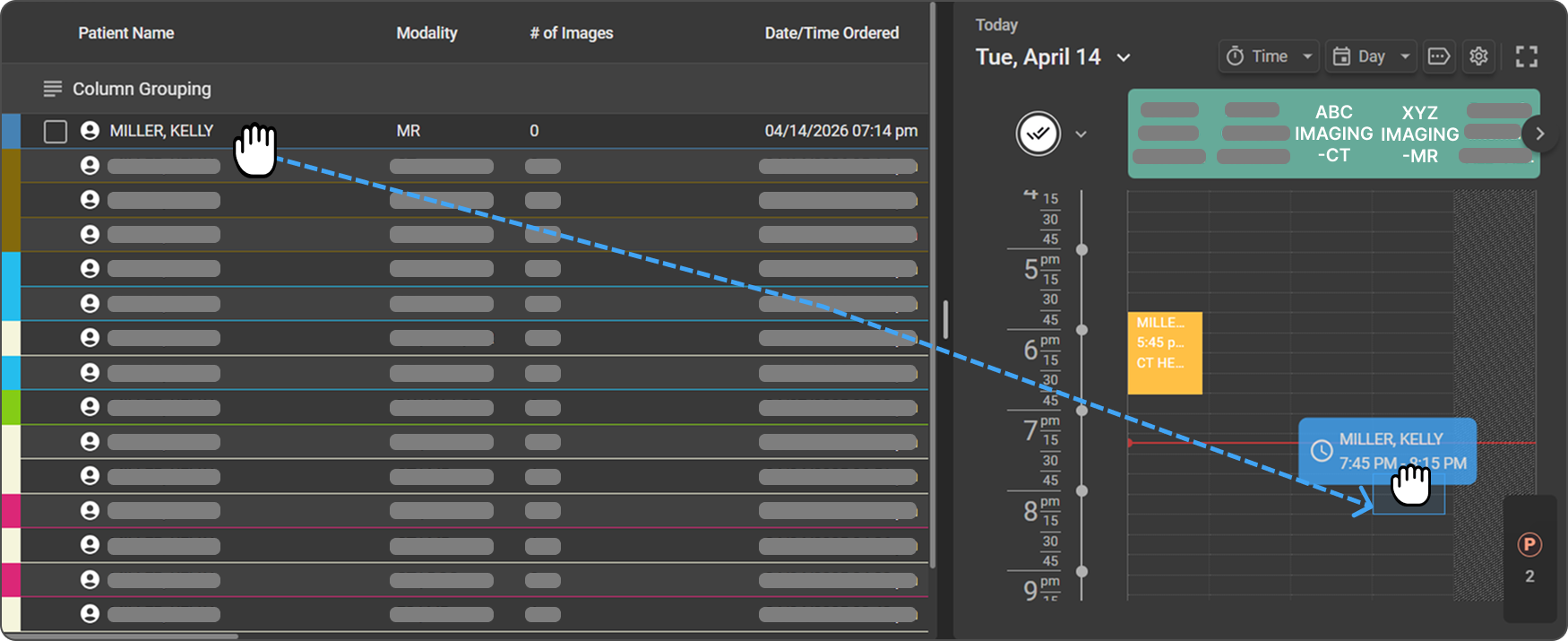
When dragging a study from the Worklist into the Scheduler, the following visual indicators help guide placement:
Appointment preview: When dragging a study over the Scheduler, the time is displayed on each cell so you can clearly identify which time slot you want to drop the appointment into.
Modality mismatch warning: If the study's modality does not match the Healthcare Service you are hovering over, a ban icon appears on the top-left corner of the appointment block. Do not drop the study onto a mismatched service.