Requesting and Managing Appointments
Overview
Appointments can be requested in two ways: by dragging a study directly from the Worklist into the Scheduler, or by creating a new appointment from scratch within the calendar. Once created, appointments can be viewed, edited, or deleted directly from the Scheduler.
Before you begin: Only studies with a Workflow status of Ordered can be scheduled. If a study has a different status, dragging it to the Scheduler will show: "Appointment cannot be scheduled for this study. Check its Workflow/Study status."
Method 1: Requesting from the Worklist
Use this method when a study already exists in the Worklist and needs to be scheduled.
- Locate the study in the Worklist table.
- Open the Scheduler by clicking the Calendar icon in the right-side navigation bar.
- Select the date using the date selector at the top left of the Scheduler and scroll to the desired time slot.
- Check out the resource columns. If the resource you need is not visible, click the Resource icon to open the Healthcare Services list and add it to your view. See Managing Resources for details.
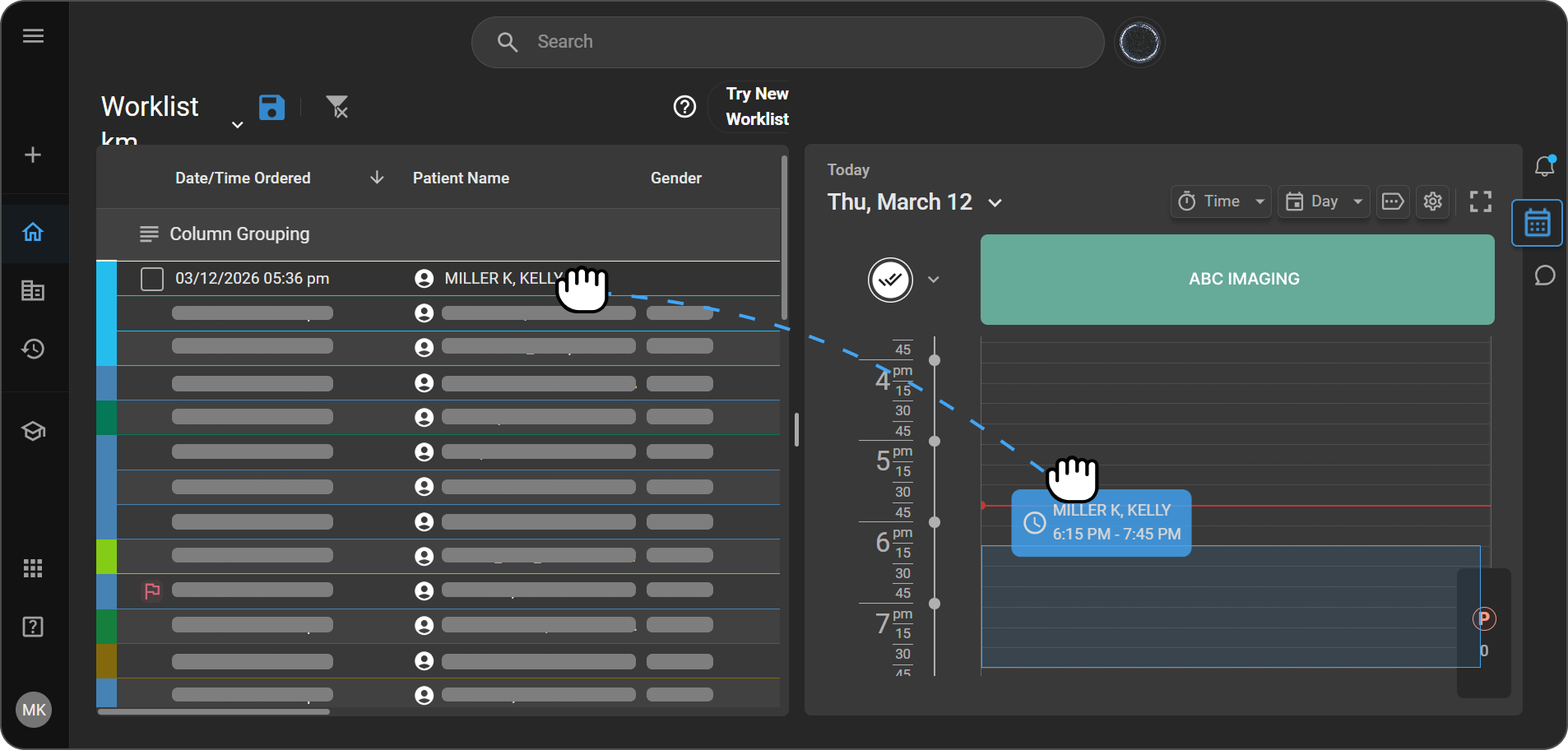
- Drag patient entry from the Worklist and hold it over the Scheduler panel.
- Each cell displays its time to help guide placement.
- A ban icon appears on the top-left corner of the appointment block if the study modality does not match the Healthcare Service — avoid dropping onto mismatched services.
- Drop the study onto the desired resource column at the preferred time slot.
- The appointment appears automatically on the calendar. To adjust the time, drag the appointment block up or down within the column.
How appointment duration is calculated:
The system determines appointment duration in the following order:
1. Order Set duration (default) The system uses the duration defined in the study's Order Set. Example: If the Order Set for a CT Head has a duration of 90 minutes, all appointments for that study will be scheduled for 90 minutes.
2. Healthcare Service default duration (fallback) If the Order Set has no duration set, or if the duration is under 10 minutes, the system uses the Healthcare Service's default duration instead. Example: If the Order Set for a CT Head has a duration of 9 minutes, the system will use the Healthcare Service's default duration for the appointment.
3. Minimum duration of 10 minutes (last resort) If neither the Order Set nor the Healthcare Service has a valid duration, or if both are under 10 minutes, the appointment is scheduled for a minimum of 10 minutes. Example: If the CT Head Order Set has no duration and the Healthcare Service default is also not set, the appointment will be scheduled for 10 minutes.
Method 2: Requesting from the Calendar
Use this method to create a new appointment directly within the Scheduler, without a pre-existing Worklist entry.
- Open the Scheduler by clicking the Calendar icon in the right-side navigation bar.
- Navigate to the desired date using the date selector.
- Check out the resource columns. If the resource you need is not visible, click the Resource icon to add it to your view.
- Click on the preferred time slot under the relevant resource column. The New Appointment panel opens.
- Fill in the appointment details:
| Field | Description |
|---|---|
| Appointment Date | Date of the appointment |
| Start Time / End Time | Appointment duration |
| Priority | STAT, ASAP, Urgent, or Routine |
| Patient Name | Search by name, phone number, or date of birth (MM/DD/YYYY). Click + Add New if no existing record is found. |
| Referring Physician | Search for and add the referring physician |
| Referring Organization | Select the referring organization |
| Consulting Physician | Search for and add the consulting physician |
| Order | Select an existing order, or create a new one by choosing a study set |
| Note | Any relevant notes for the appointment |
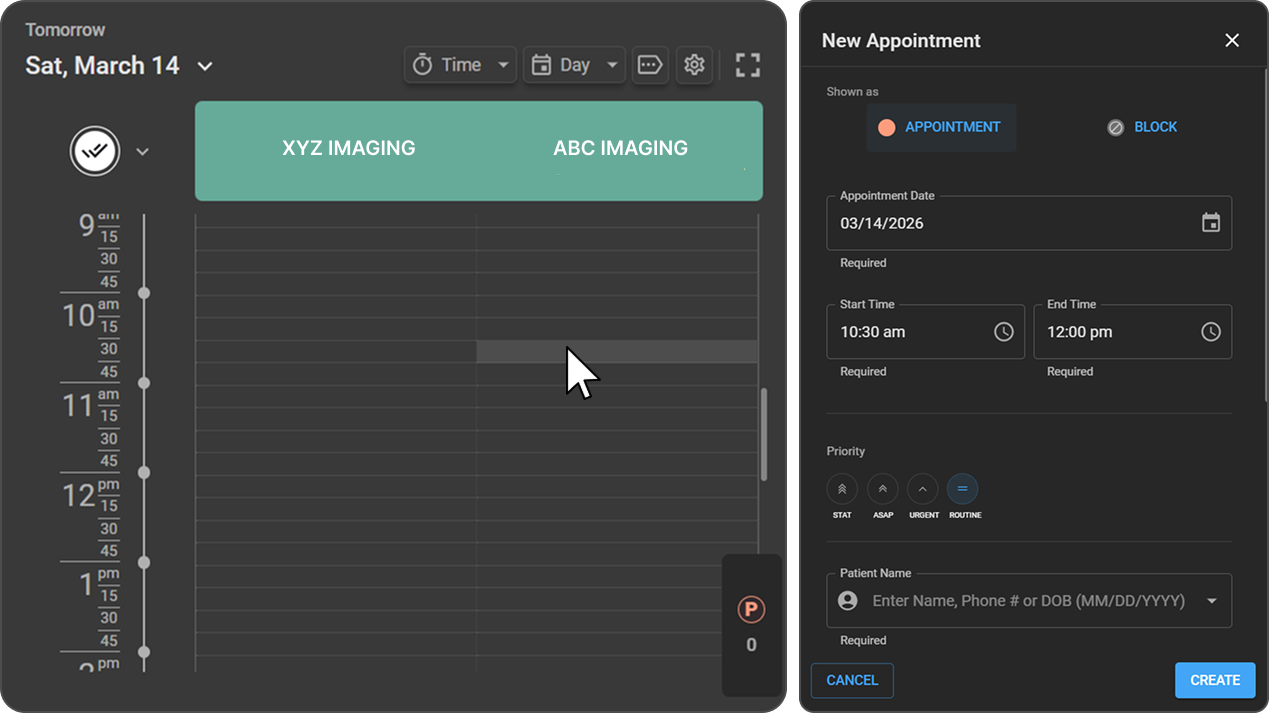
- Click Create to confirm or Cancel to discard. The appointment appears in the calendar at the selected time slot under the chosen resource column.
Managing an Appointment
Viewing Appointment Details
- Open the Scheduler and navigate to the date of the appointment.
- Click on the appointment block in the calendar.
- The Appointment Details panel opens on the right, displaying all information for that appointment.
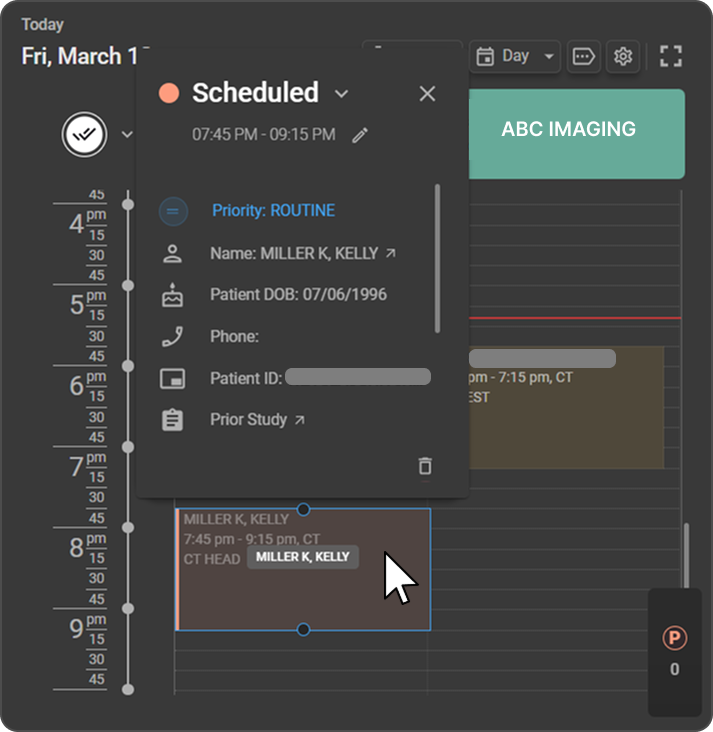
Tip: Double-clicking an appointment card opens the full Study page for that patient.
Editing an Appointment
- Open the Appointment Details panel for the appointment you want to update.
- Click the Edit (pencil) icon next to the appointment time.
- Update the required fields — such as time, priority, physician details, orders, or notes.
- Click Save to apply your changes.
Note: The Patient Name field is read-only on existing appointments and cannot be changed.
Deleting an Appointment
- Open the Appointment Details panel for the appointment you want to remove.
- Click and hold the Delete (trash) icon at the bottom of the panel.
- The appointment is removed from the calendar.
Appointment Status Behavior
Auto-completion: The appointment status is automatically set to Completed when the Workflow status is updated to any of the following — Completed, Verified, To be Amended, Dictated, Transcribed, Signed, or Faxed. No manual update is needed.
Requested status is locked: The appointment status cannot be manually changed back to Requested from the Scheduler. This option is intentionally hidden in the status dropdown.
Managing Past Appointment Requests
The Scheduler allows limited scheduling and editing of past appointments within a T - 2 day window, where T is the user's current system date. This means actions are permitted for yesterday and the day before yesterday.
| Action | From T - 2 window | Before T - 2 window |
|---|---|---|
| Request for a new appointment | ✅ Allowed | ❌ Not allowed |
| Edit an uncompleted appointment | ✅ Allowed | ❌ Not allowed |
| Edit a completed appointment | ✅ Allowed | ❌ Not allowed |
Requesting a new appointment: You can create an appointment for a past date, provided it falls within the T - 2-day window.
Example: If today is 3 Apr 2026, appointments can be requested from 1 Apr date. Appointments cannot be requested for 31 Mar or earlier.
Editing an uncompleted appointment: Any past appointment with a status other than completed can be edited and moved to a date within the T - 2-day window.
Example: If today is 3 Apr 2026, a 20 Mar 2026 appointment in Scheduled status can be edited to a date from 1 Apr.
Editing a completed appointment: Completed appointments can only be edited if they fall within the T - 2-day window.
Example: If today is 3 Apr 2026, a 1 Apr appointment in Completed status can be edited. However, a 31 Mar appointment in Completed status cannot be edited as it falls outside the T - 2-day window.