How to Access DICOM Files Exported from OmegaAI/Blume
This guide is for anyone with a study exported from OmegaAI or Blume, whether you downloaded it yourself or received it from someone else. It covers Windows and macOS.
DICOM is the standard file format used for medical images. Most diagnostic viewers can open DICOM files directly. This guide walks you through finding them and opening them on your computer.
Jump to your operating system: Windows · macOS
What's in the Export
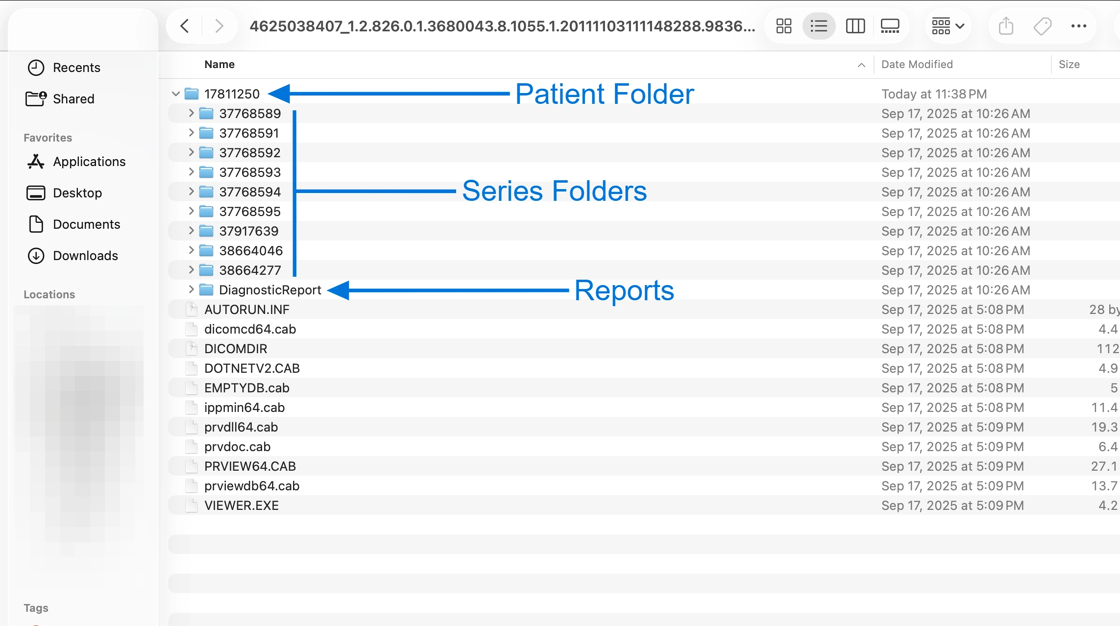
When you extract the downloaded ZIP, you'll see:
- One or more patient folders containing Series subfolders with the actual DICOM image files, plus a DiagnosticReport folder with PDF reports.
- (Windows only) A bundled VIEWER.EXE for opening the study without installing additional software.
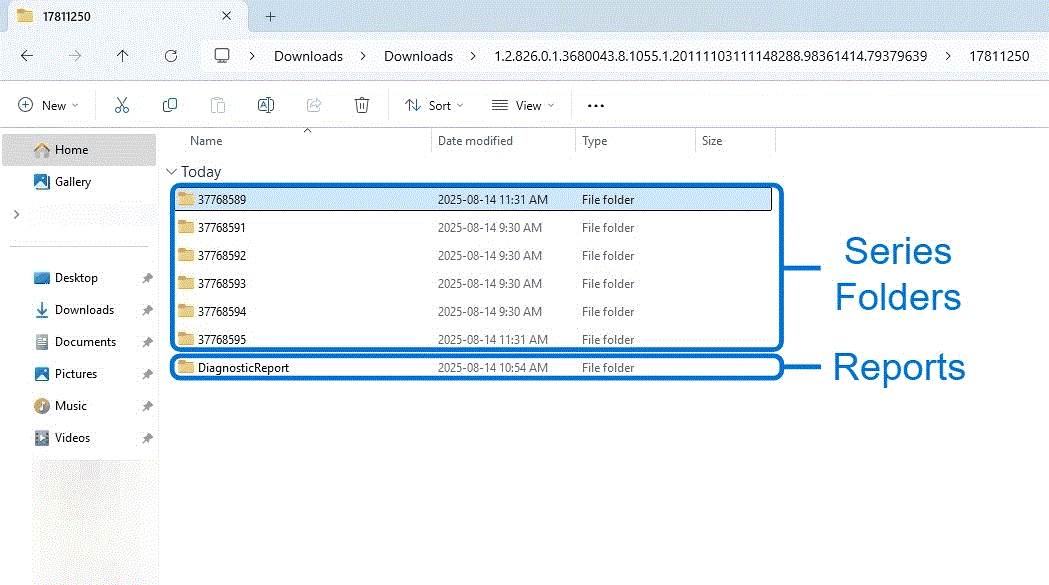
The DICOM image files inside the Series folders are usually numbered (e.g. 1, 2, 3) without a file extension. They are still valid DICOM images, and most diagnostic viewers can open them as-is.
Depending on the study, the patient folder may also contain:
- DocumentReference: referrals, prior reports, or other PDFs related to the study
- StructuredReport: DICOM-format reports (
.dcmfiles) such as structured findings or dose reports - KO: Key Object Selection objects, marking specific images of interest
These appear only when the study includes that type of data. Most diagnostic viewers handle them automatically when you open the patient folder.
This guide mentions MicroDicom, RadiAnt, and OsiriX Lite. These are third-party products and are not supported by RamSoft. They are listed for convenience only. Use at your discretion.
Windows
Quick Start: Use the Bundled VIEWER.EXE (Recommended)
If your export includes VIEWER.EXE at the top level of the extracted folder:
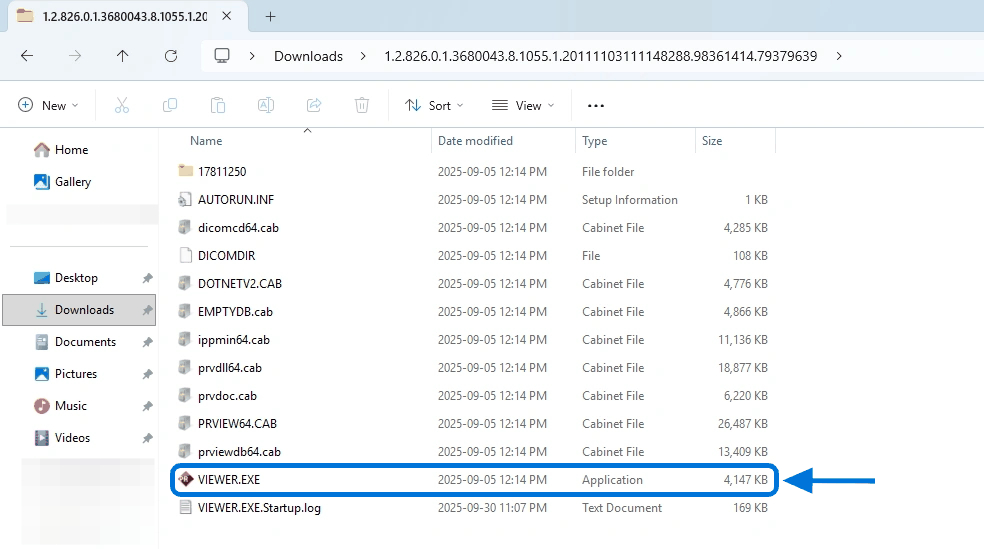
- Double-click
VIEWER.EXE. - The viewer launches and loads the study automatically. No rename or third-party install needed.
Once VIEWER.EXE is open, see Using the Bundled Viewer for a tour of the Study Desktop layout, scrolling, zoom, and image-review tools.
If VIEWER.EXE isn't in your export, see Using a third-party DICOM viewer below. You only need the Renaming files to .dcm section if your viewer specifically requires the .dcm extension.
Using a Third-Party DICOM Viewer
Most modern Windows DICOM viewers can open the patient folder directly without renaming any files.
- Install and launch your DICOM viewer.
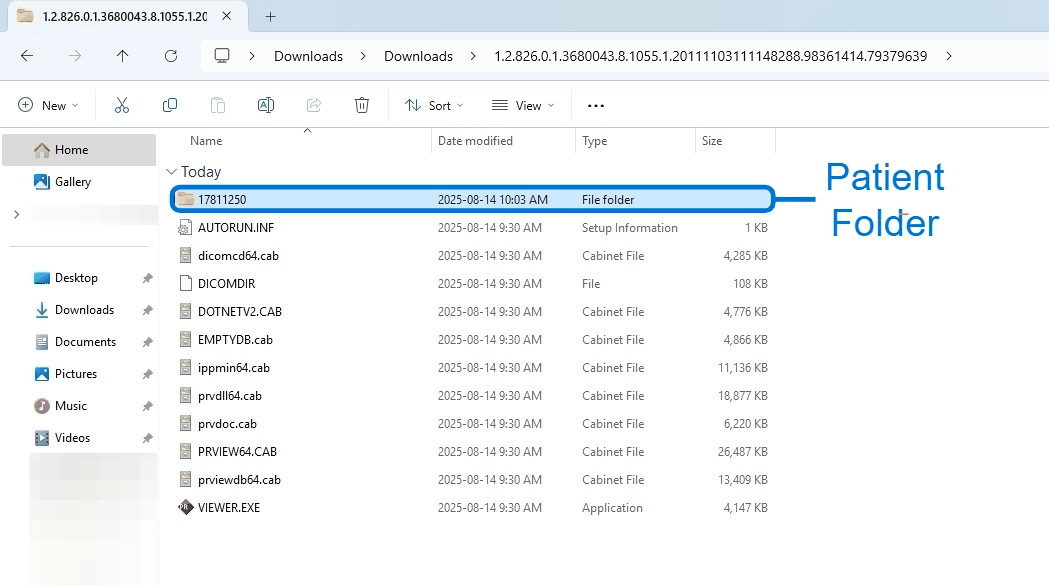
- In your viewer, open the patient folder (the numbered folder shown above), or the top-level
DICOMDIRfile if your viewer supports it. The exact menu varies by viewer; look for File → Open or a similar command.
If your viewer can only open files with a .dcm extension, see Renaming files to .dcm below.
macOS
The bundled VIEWER.EXE is Windows only and will not run on macOS. Use a macOS-compatible DICOM viewer such as OsiriX Lite (free).
Prefer a click-through version with annotated screenshots? Follow the Accessing DICOM Files (macOS) walkthrough.
Open the Study in a Viewer
-
In Finder, double-click the downloaded
.ZIPto extract it.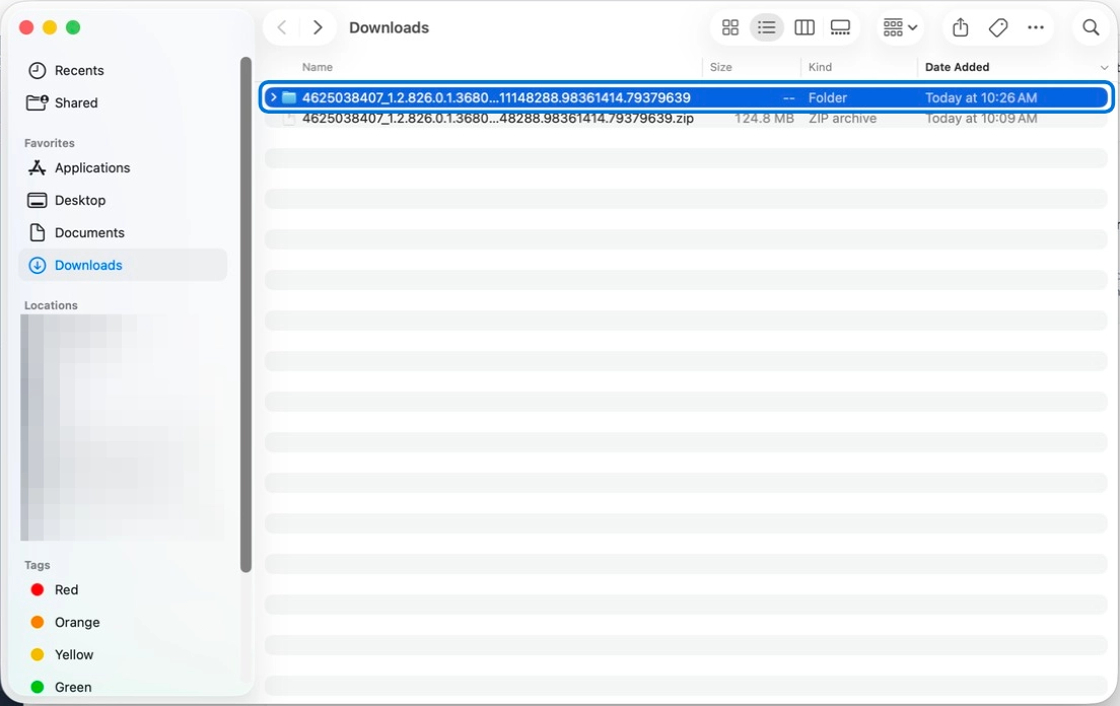
-
Open the extracted patient folder. Inside you'll see Series folders (DICOM images) and a DiagnosticReport folder (PDFs).
-
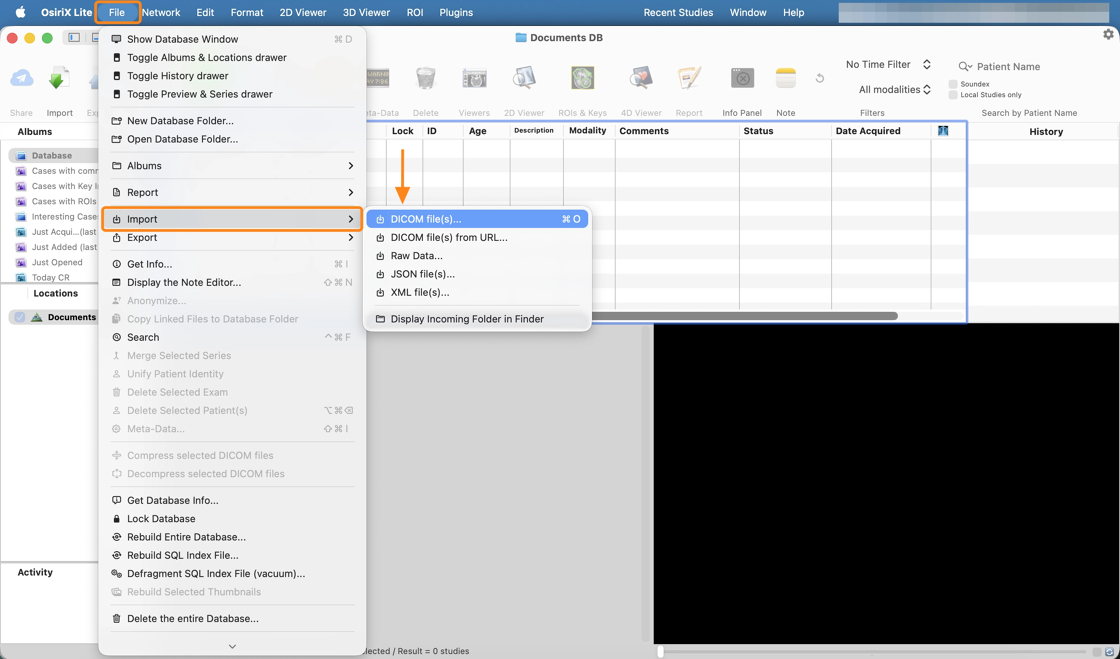
Launch OsiriX Lite and use File → Import → DICOM file(s)… or drag the patient folder onto the OsiriX database.
If your viewer cannot recognise the numbered files, see Renaming files to .dcm below.
Renaming Files to .dcm (Optional)
Renaming is only required if your DICOM viewer does not recognise the numbered files (e.g. 1, 2, 3) without a file extension. Try opening the patient folder or DICOMDIR directly in your viewer first. Most viewers handle extension-less DICOM files natively.
If renaming is needed, the steps below cover Windows and macOS.
On Windows
-
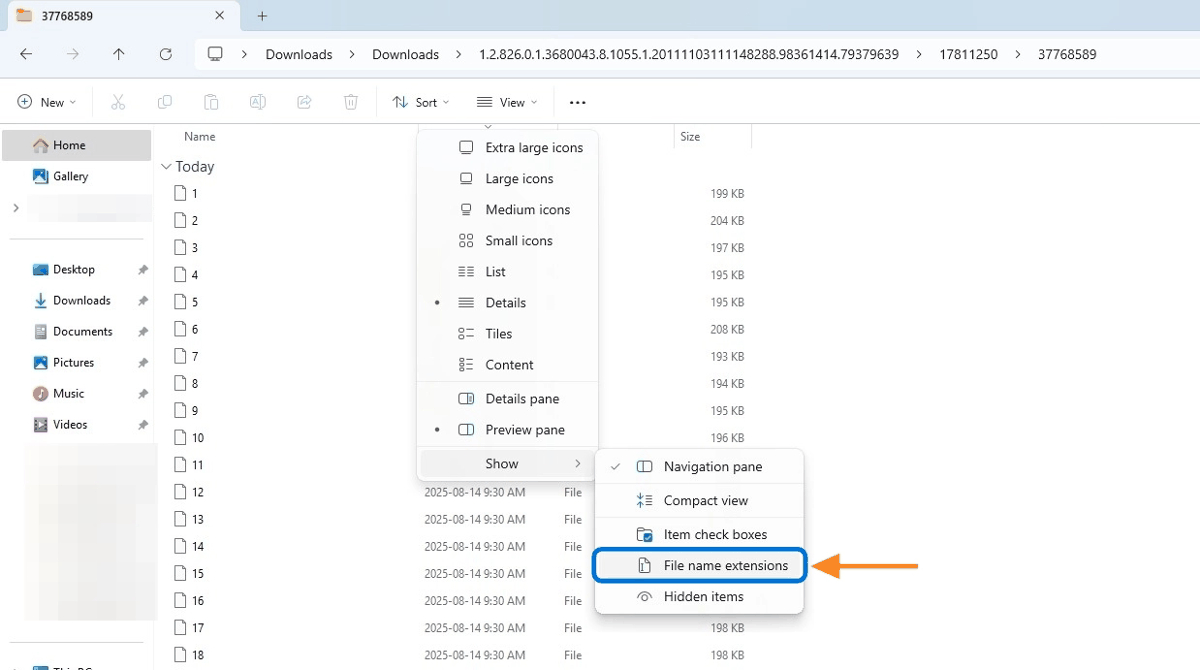
Make sure Windows is showing file extensions: open the folder, then in the toolbar choose View → Show → File name extensions.
-
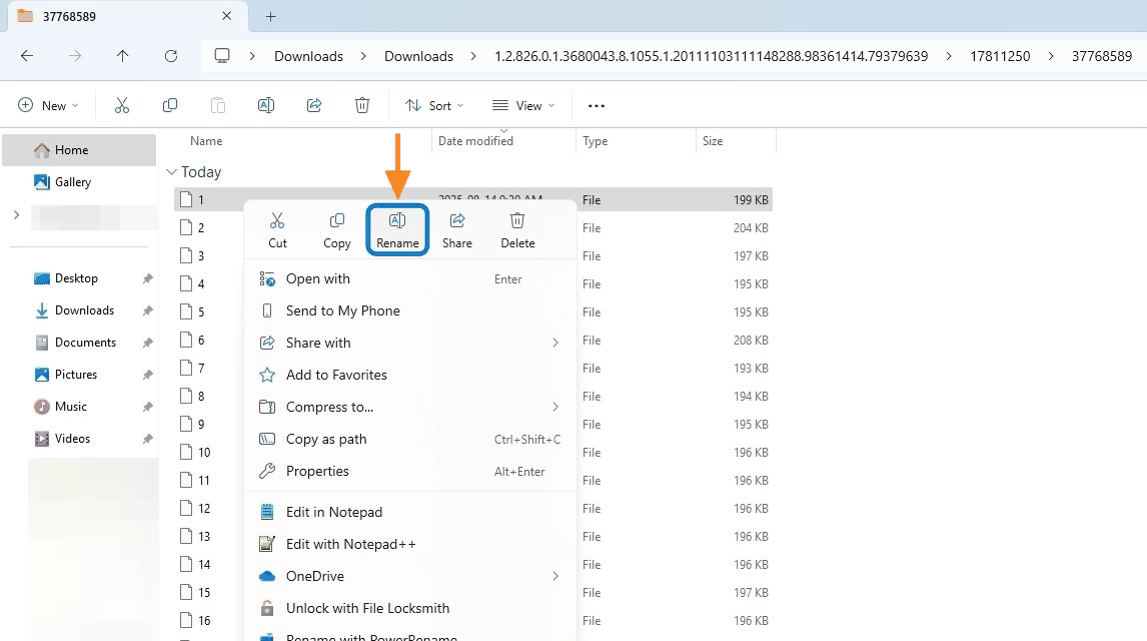
Open a Series folder, right-click a numbered file, and choose Rename.
-
Add
.dcmto the end of the filename (e.g.1→1.dcm). The file type updates to DCM File.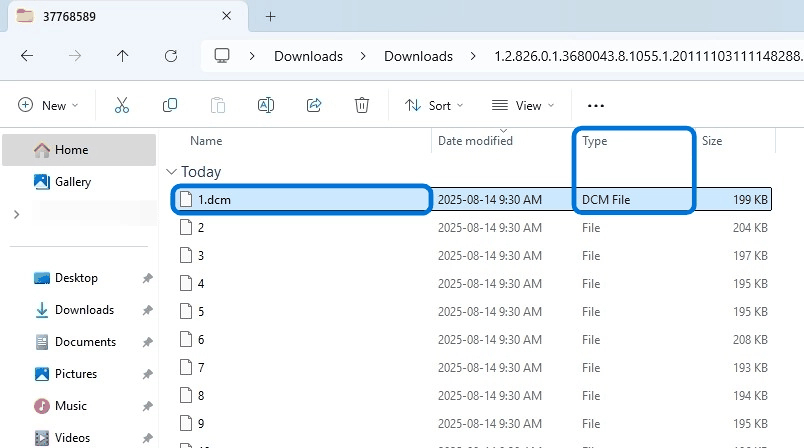
-
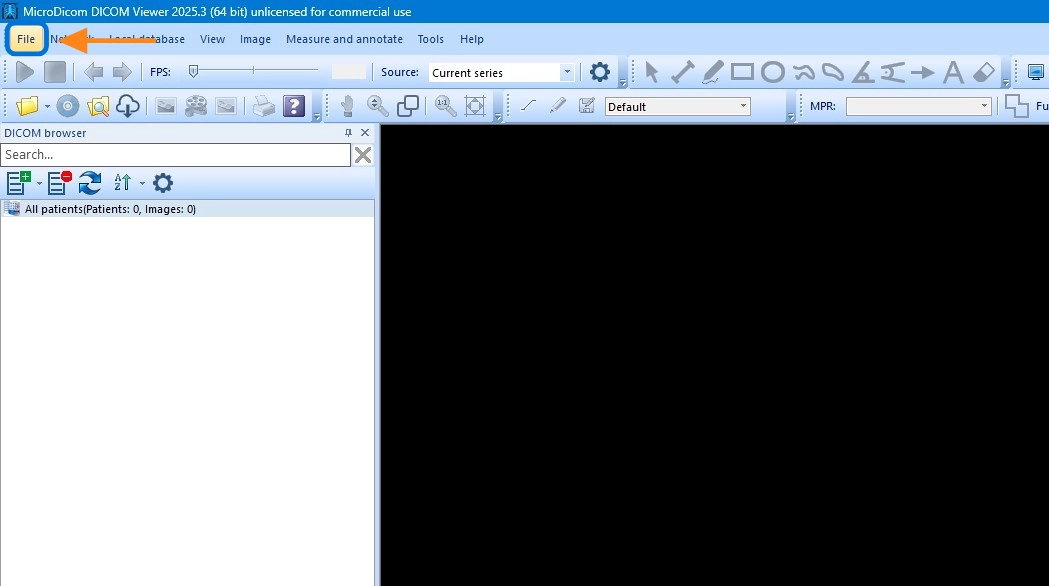
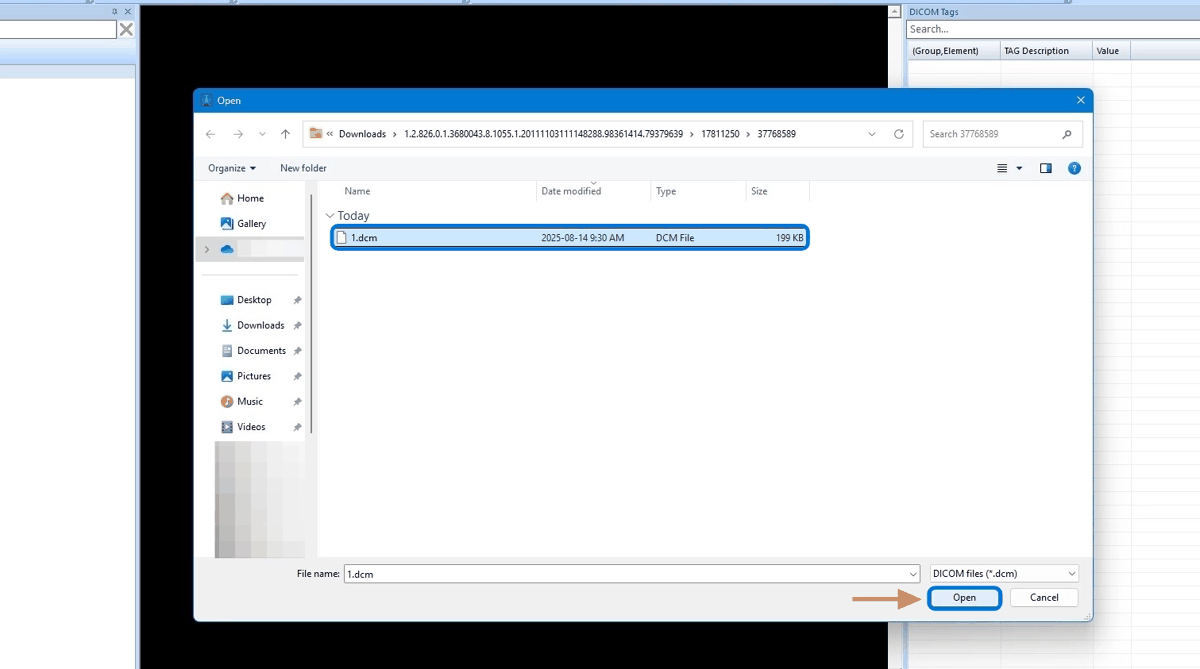
Open the renamed file in your DICOM viewer using its File → Open command (or equivalent). The screenshots below illustrate this in MicroDicom as an example; the workflow is similar in most viewers.
On macOS
-
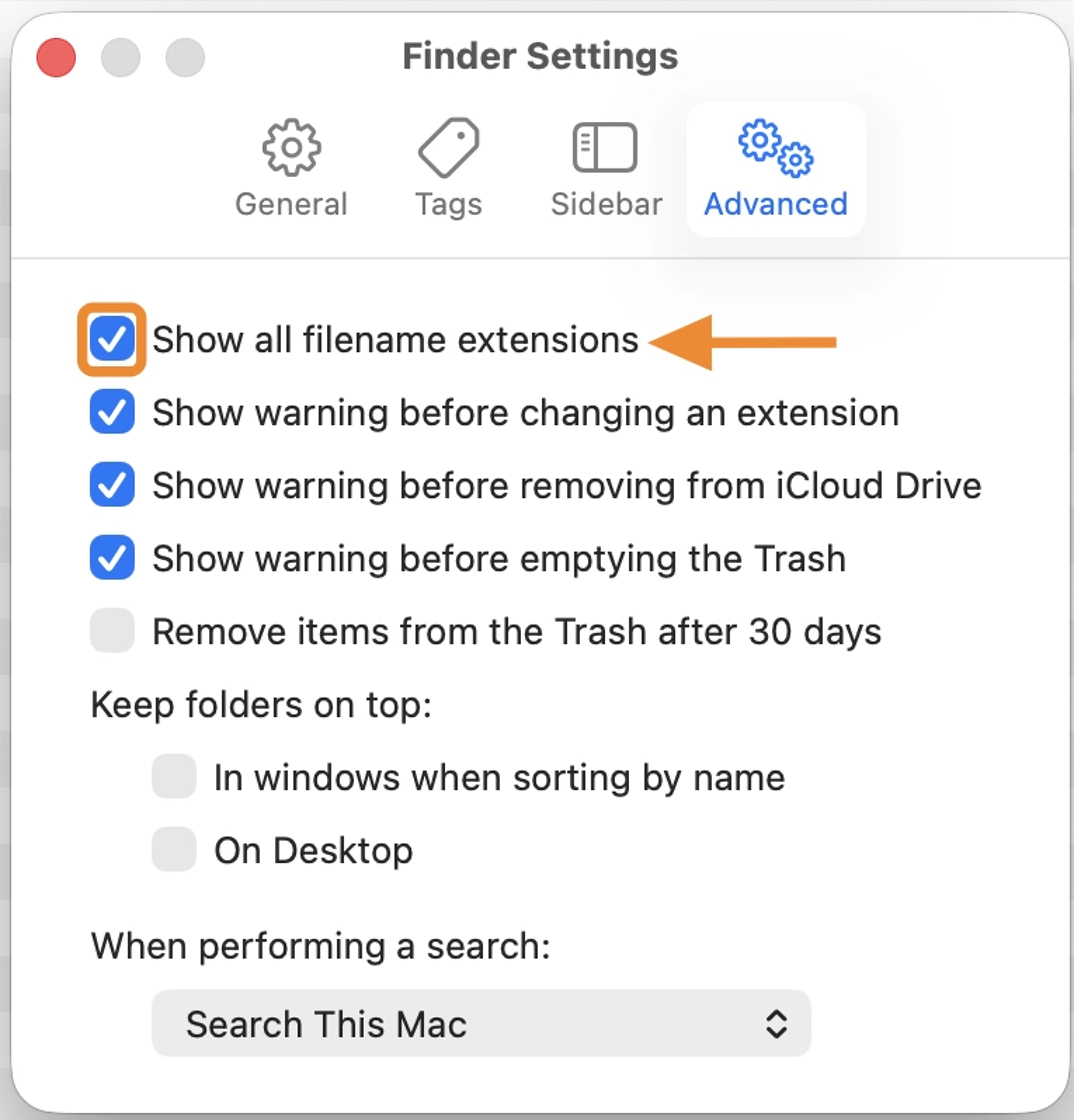
Make sure Finder is showing file extensions: choose Finder → Settings (or Preferences) → Advanced tab → check Show all filename extensions.
-
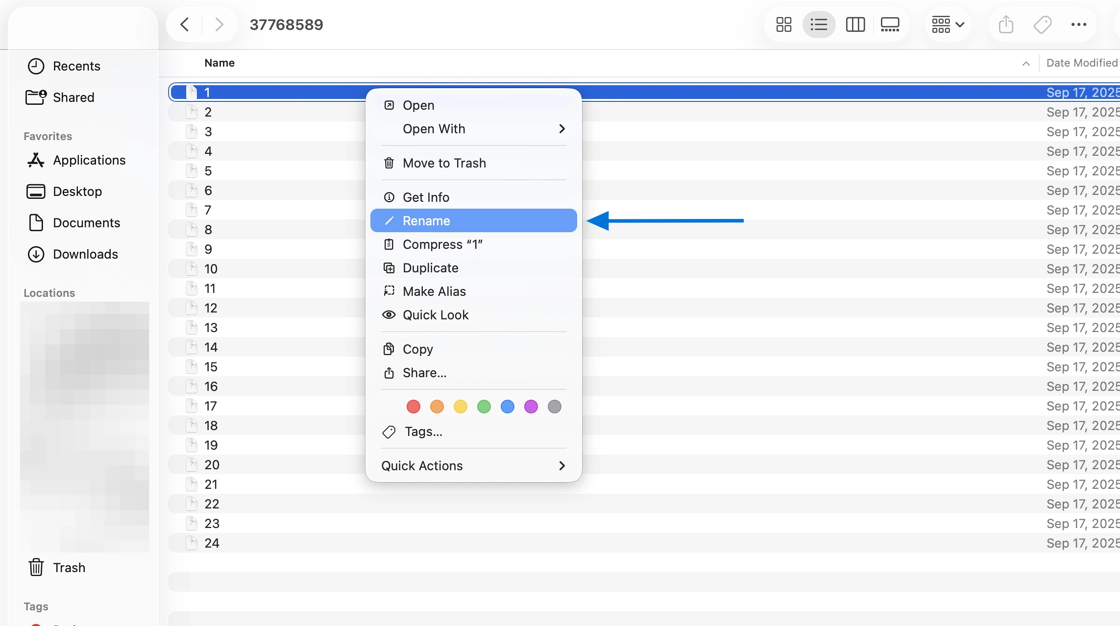
Open a Series folder, right-click a numbered file, and choose Rename (or select it and press Return).
-
Add
.dcmto the end of the filename (e.g.1→1.dcm). Finder will ask you to confirm changing the extension; click Add.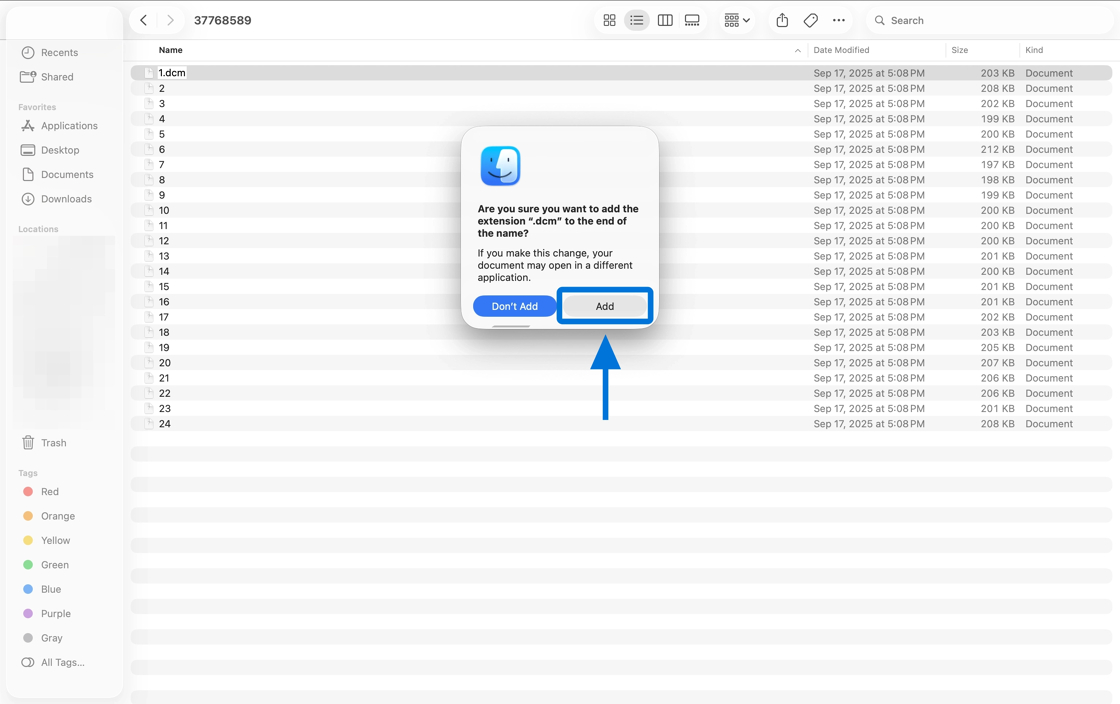
For OmegaAI Users (Sender Side)
If you're an OmegaAI user looking for documentation on exporting a study to send to a recipient, see:
- More Options Toolbar Menu: Burn Study and Download from the Image Viewer
- Sharing Studies: alternative ways to share a study with another organisation or external recipient
- Referring Physician Guide: overview for referring physicians, including a condensed version of these recipient instructions
See Also (Recipients)
- Using the Bundled Viewer: tour of the Study Desktop layout and tools, for users who launch
VIEWER.EXE