OmegaAI Referring Physician Guide
Introduction
Welcome to OmegaAI, a powerful and intuitive platform designed for referring physicians to manage patient studies seamlessly. This guide covers account setup, navigating the Worklist, searching for studies, using Emergency Access, and working with imaging tools.
Not an end user? If you're an administrator setting up referring physicians or referring organizations, use these instead:
1. Creating Your Account and Signing In
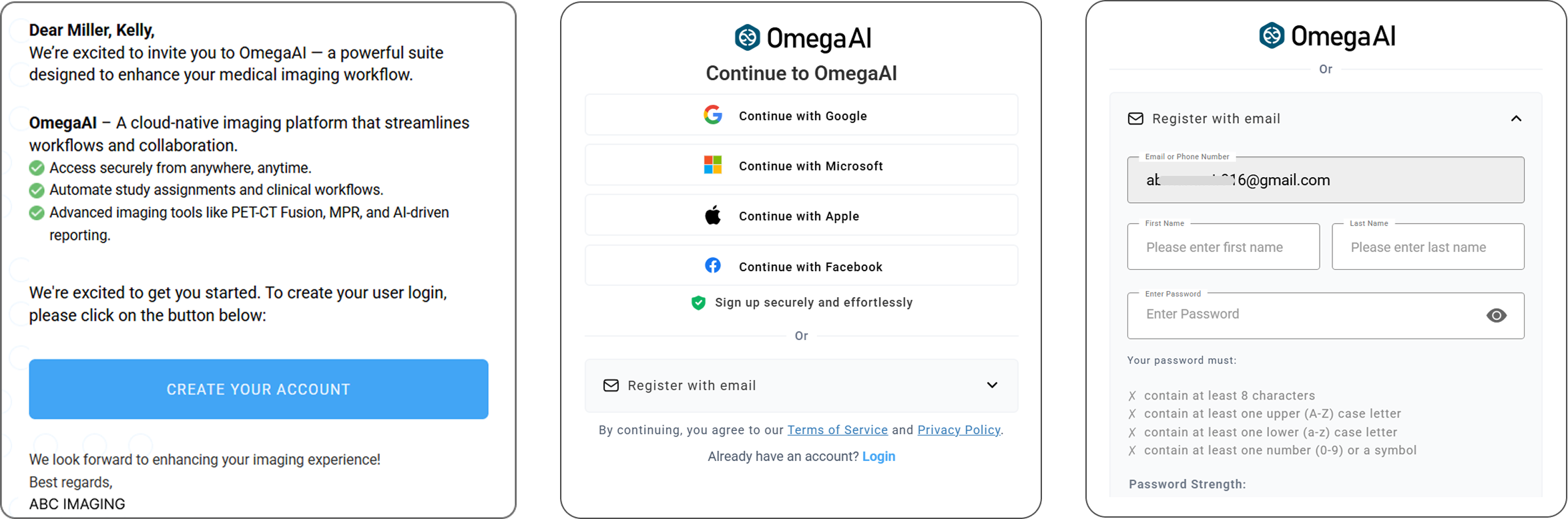
Getting registered:
- You'll receive an invitation email from your imaging organization.
- Register using the same email address the invitation was sent to — this is what links your account to the correct organization.
- Choose one of:
- Social/enterprise login — Google, Microsoft, Apple, or Facebook
- Email registration with a password
Signing in:
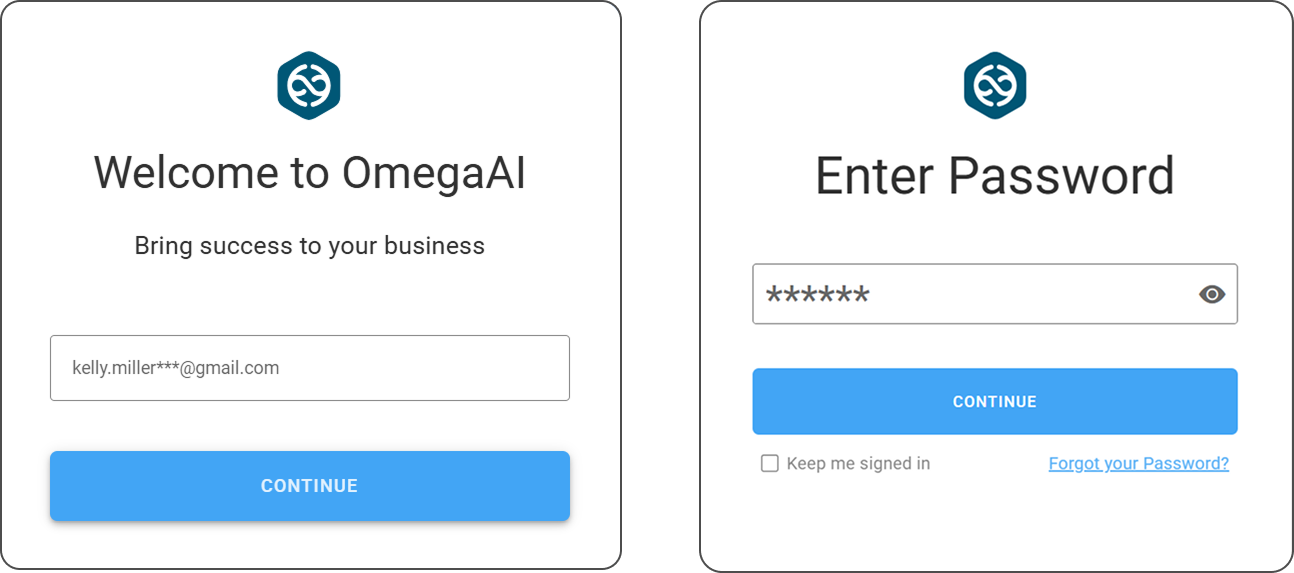
- New accounts use password-based sign-in.
- Existing users on a 6-digit PIN can keep using it, or upgrade to a password at any time.
- Every sign-in includes a one-time code sent to your email as a second factor (MFA).
For full detail, see:
- Login Process and MFA — password requirements, PIN-to-password migration, password recovery, avoiding repeated MFA prompts
- New Signup and Sign-in Guide
- System Requirements — Google Chrome or Microsoft Edge recommended
2. Your Worklist
After signing in, you land on your default Worklist — the list of studies currently assigned to you.
- You can have multiple worklists: your own, plus any Role Worklists your organization has configured.
- Switch between them by clicking the chevron (˄) next to the worklist name at the top of the page — this opens a panel where you can search by worklist name, user, or role, and select from your User Worklists or your organization's Role Worklists.
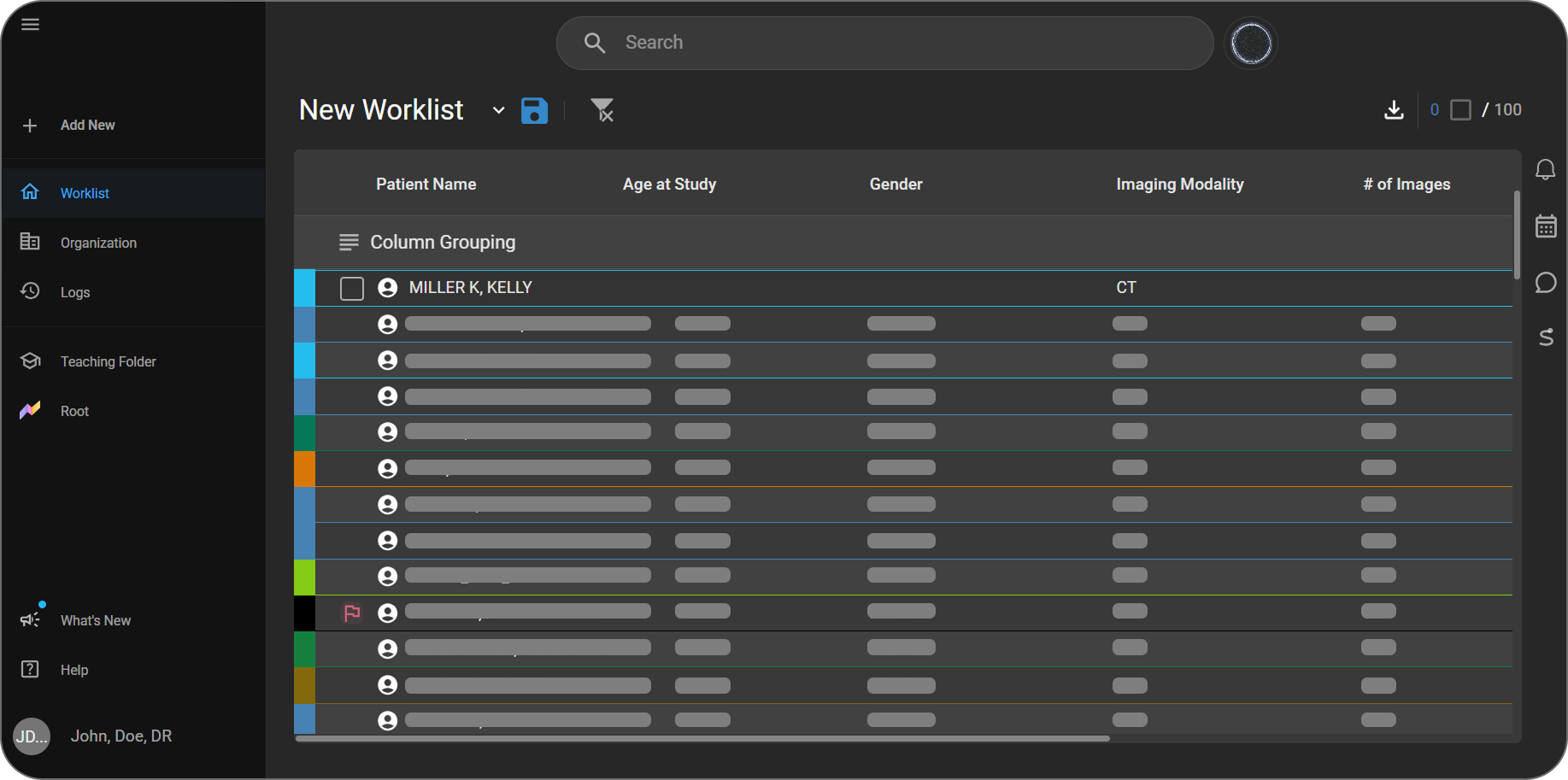
A study appears in your Worklist if any of the following is true:
- You're the study's Referring Physician.
- You're the study's Consulting Physician.
- You're a member of the same referring organization as the assigned referring physician — this includes organizations formally linked to yours as well as organizations affiliated with yours (see Organization Affiliation).
For the full worklist reference, see:
- Table of Worklist Fields — every available column
- Worklist Customization Guide — adding, removing, reordering columns; filters and sorting
- Introduction to OmegaAI Worklists
How studies get assigned to you
The Referring Physician on a study is set one of two ways:
- Manually, when the order is created in OmegaAI — see Create New Order
- Automatically, read from the study's DICOM data when the exam is registered at the imaging modality
The rest of this section covers the automatic case, since it's the one that occasionally needs a manual fix.
When a study arrives from the modality, OmegaAI tries to match the referring physician information in this order:
- By physician ID information (such as an NPI), when it's included with the modality-assigned study — the most reliable match, since an ID uniquely identifies the physician.
- By physician name alone, when no ID information was sent, or the modality doesn't support it.
If OmegaAI finds one clear, confident match:
- The study links automatically.
- It appears correctly in your Worklist right away.
- No action is needed from you or the imaging facility.
If OmegaAI can't confidently match the name — for example:
- You don't have an OmegaAI account yet
- The name on the study is formatted differently than your account (missing middle initial, different suffix, a nickname)
- No ID was sent and more than one physician has a similar name
then:
- Your name still shows on the study as plain text, but the study isn't linked to your account yet.
- The study will not automatically appear in your Worklist.
- Staff at the imaging facility need to manually assign you as the referring physician before it shows up.
What this means for you:
- If you expect to see a study and it isn't in your Worklist, it may be in this unlinked state — contact the imaging facility so they can assign it to you directly.
- Making sure the facility has your full, correct name (and NPI, if they use one) on file helps future studies match automatically.
- If matching still doesn't work even though your NPI is correct, you may have two accounts under the same NPI (for example, one created automatically and one created manually) — see NPI Duplication Issues in Troubleshooting.
- It's also possible the study is correctly assigned, but to a physician outside your organization's linked or affiliated network — in that case the study was never expected to appear in your Worklist. Check with your administrator if you believe your organization's affiliations need updating (see Organization Affiliation).
Note: This behavior is the same as OmegaAI's previous platform, PowerServer — a name that doesn't resolve to a known physician can't become a linked reference automatically there either. The difference is that an unmatched study needs a manual assignment step in OmegaAI.
Managing studies from the Worklist
- Click a study row to select it (or select multiple).
- Use the action bar at the bottom of the Worklist to download, send, or request studies.
|
|
For full detail on every action (including anonymized downloads and burning studies to disk), see:
3. Finding a Specific Study
Use Global Search (the search bar at the top of the screen) to look up a study by:
|
|
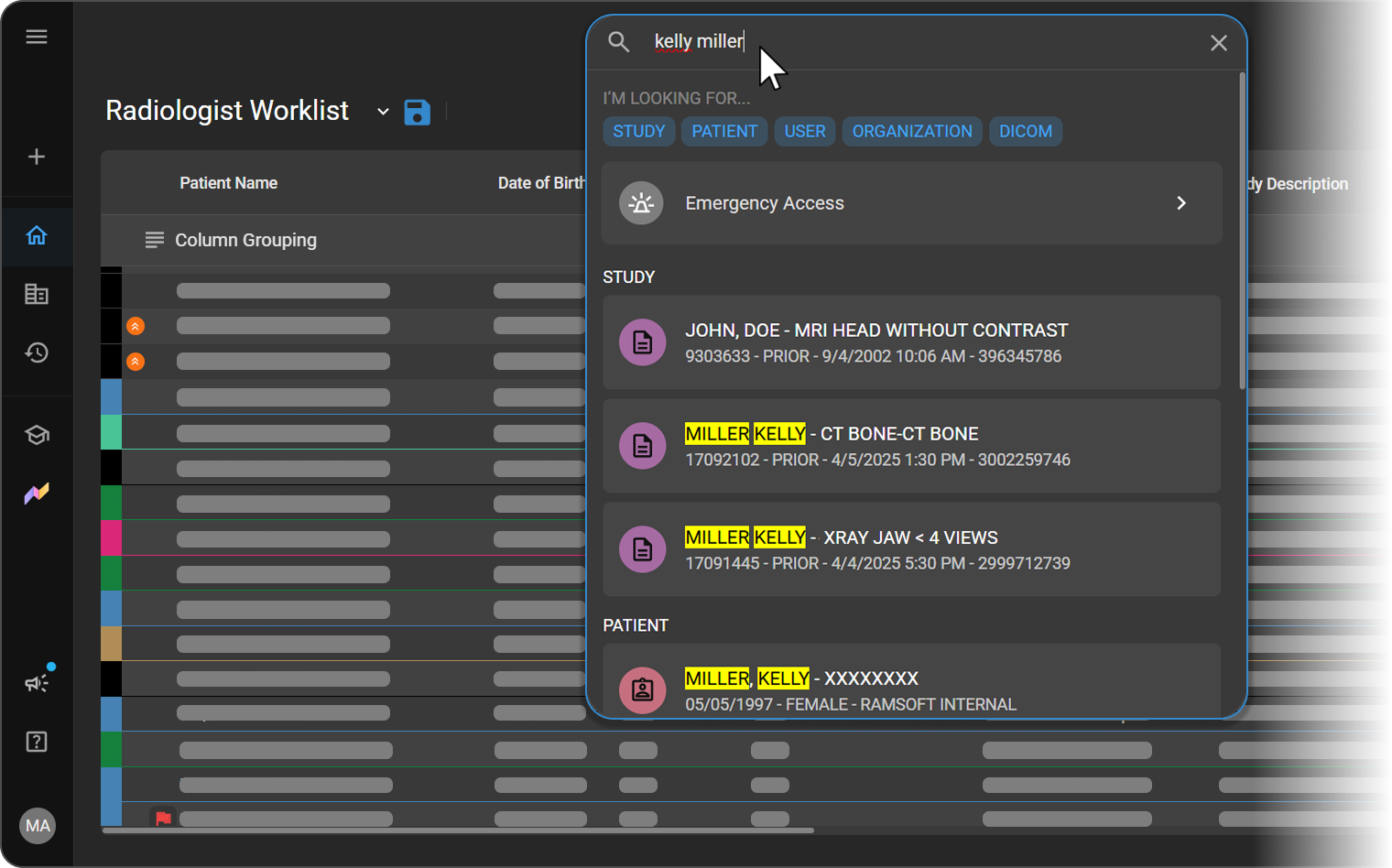
How results work:
- As you type, a dropdown below the search bar fills in with matching studies in real time — no need to press Enter or click a button.
- If there are more than a couple of matches, click View More for the full results page.
For full detail on every search type (Global, Study, Patient, DICOM, Organization, User, and Emergency Access), see Using Global Search.
4. Emergency Access
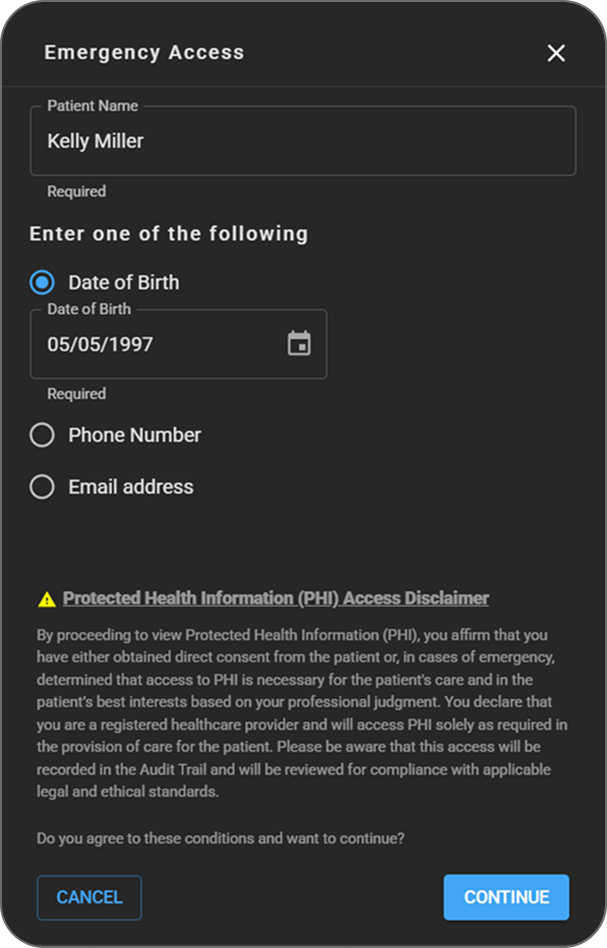
Emergency Access lets you retrieve a patient's studies and records in urgent, time-sensitive situations — even when normal access rules would otherwise restrict you (for example, a study that hasn't been linked to your account yet; see How studies get assigned to you).
- Referring Physicians have this enabled by default.
To use it:
-
Click the search bar.
-
Select Emergency Access.
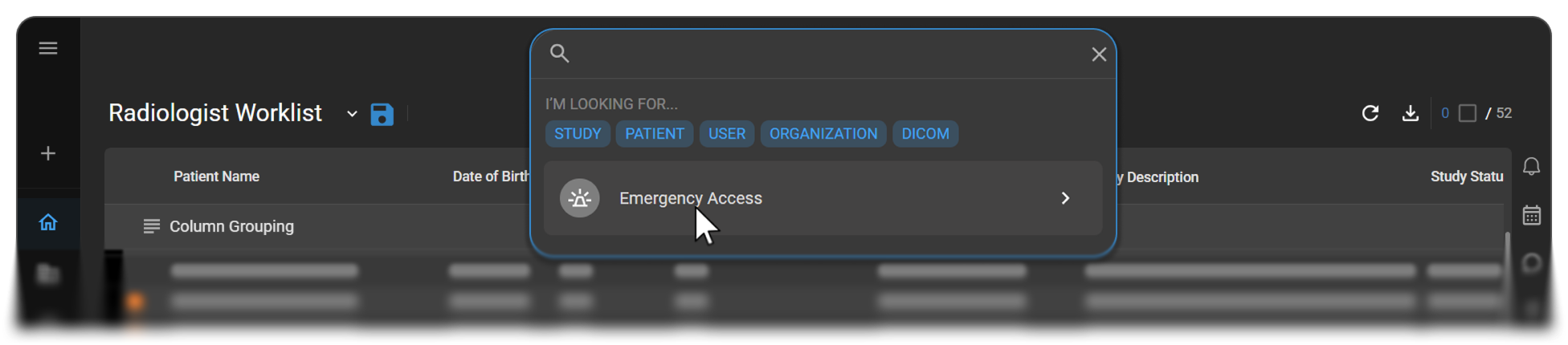
Full detail: Emergency Access |
|
5. Viewing Images
Open the Image Viewer for a study:
- Double-click the desired study in the Worklist. The study opens directly in the Image Viewer.
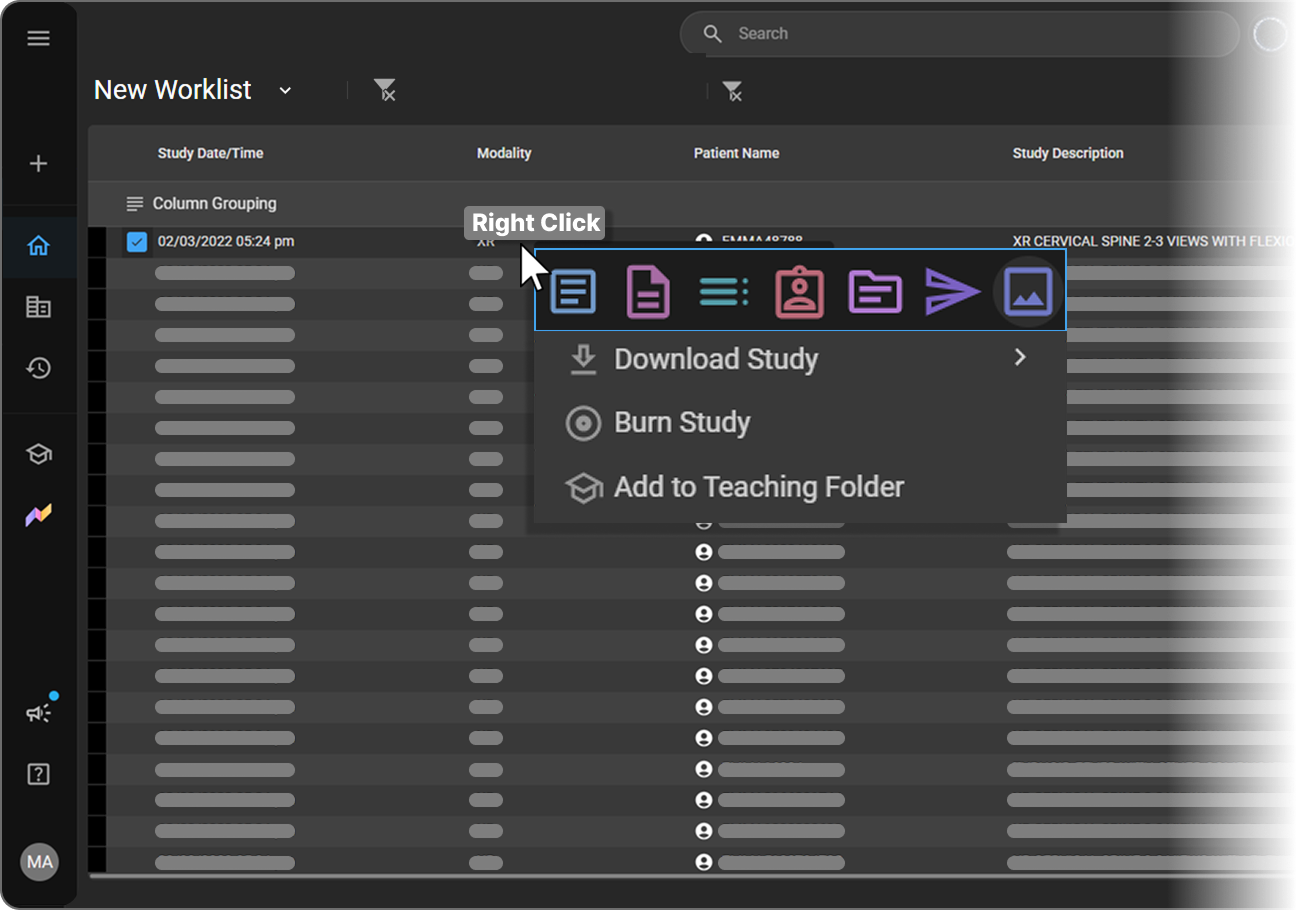
- Right-click the study you wish to view from the Worklist. From the context menu that appears, select Image Viewer.
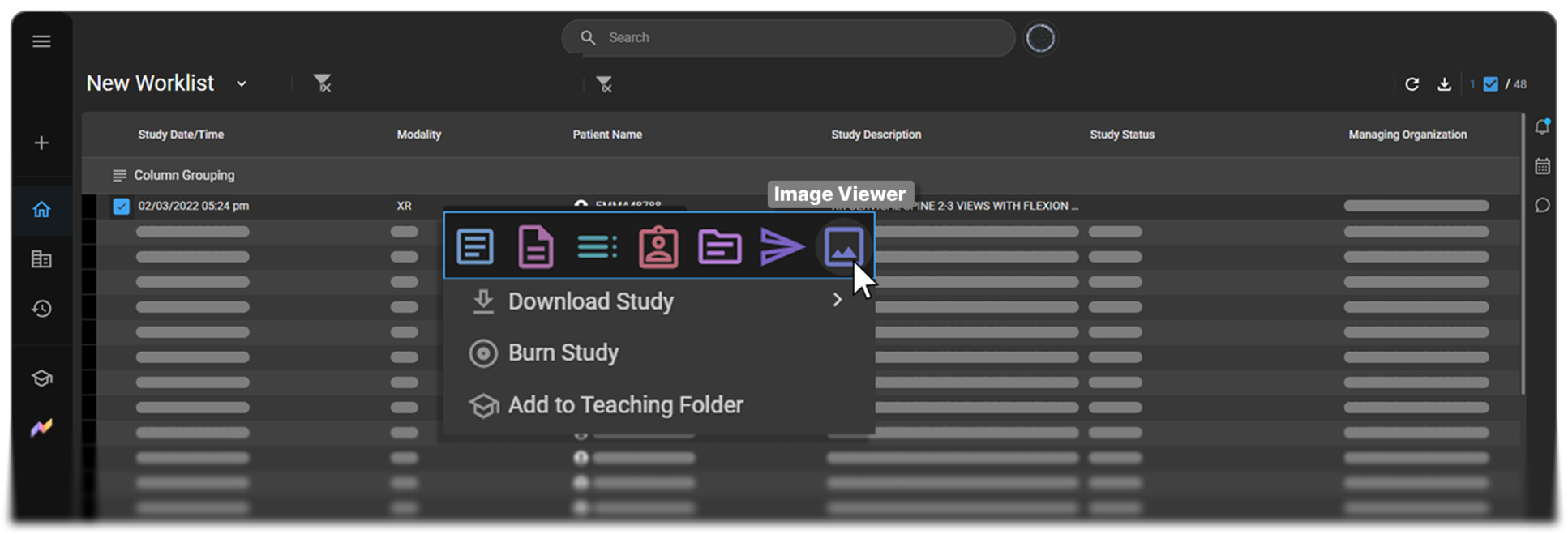
What you'll see:
- The Study Explorer panel on the left shows patient demographics, current and prior studies, and series thumbnails you can drag into the main viewing area.
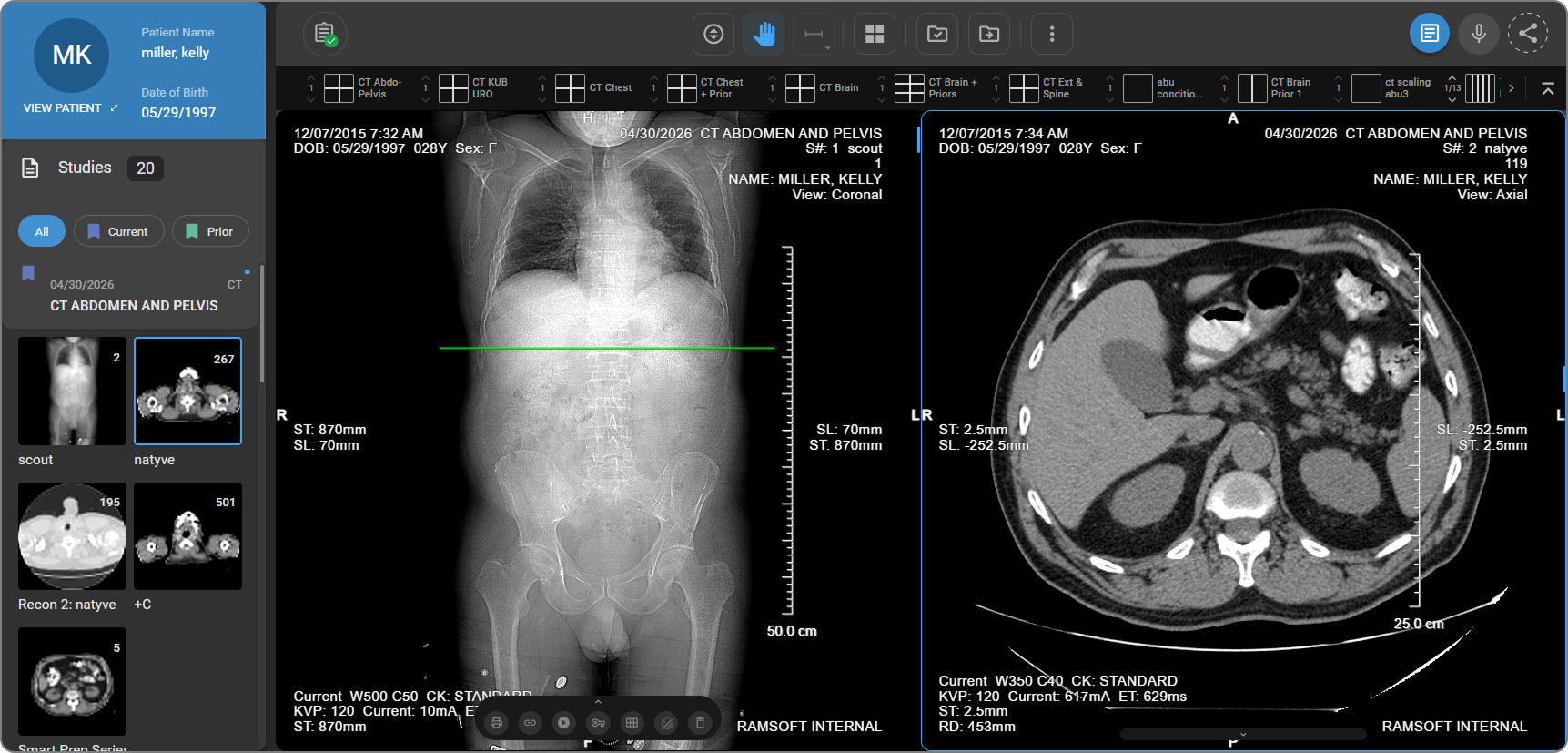
This guide covers only what a referring physician typically needs. For the full image-viewing toolset (measurement tools, hanging protocols, MPR, mammography display modes, annotation, and more — mostly relevant to radiologists and technologists), see the Image Viewer section, starting with:
Downloading a study
|
|
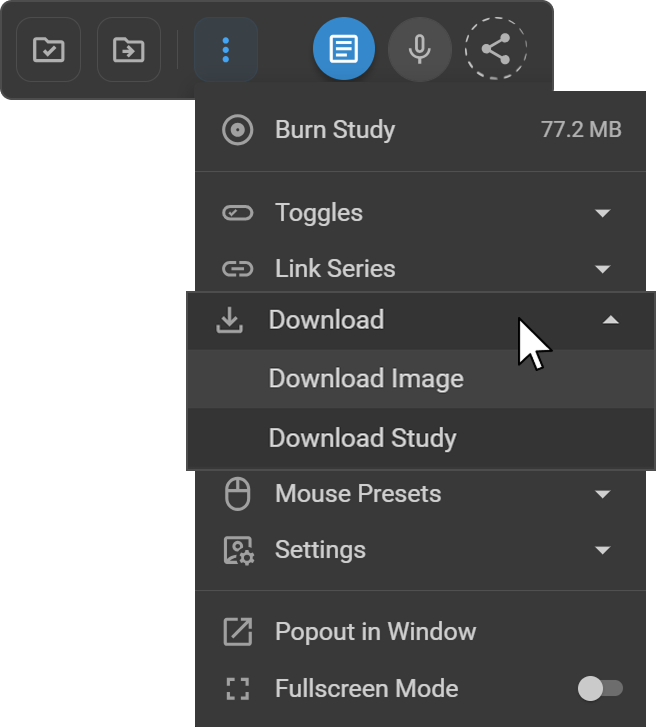
Downloaded studies arrive as a ZIP file containing patient folders of DICOM images plus a PDF reports folder.
Opening the download:
- Windows — if the download includes
VIEWER.EXE, double-click it to view the study with no install required. See Using the Bundled Viewer (Windows). - macOS — the bundled viewer isn't supported; use a third-party DICOM viewer.
- Full step-by-step instructions for both platforms, including optional file renaming: How to Access DICOM Files Exported from OmegaAI/Blume
Sharing a study
The Share feature lets you send a study or its report to referring physicians, imaging organizations, or external users — from the Worklist, Document Viewer, or Image Viewer.
To open it:
- Worklist — right-click a study, then click the Send icon.
- Document Viewer — select the Final Report in the left panel, then click the Share icon in the top-right corner.
- Image Viewer — click the Share icon in the top-right corner of the toolbar.
Send Study (available from all three surfaces): choose a recipient type from the Send to dropdown.
- Imaging Organization — sent via DICOM Send. Set a priority (Low, Medium, High, or Highest), then choose the destination organization and target device.
- External User — sent via a secure email link (up to 2 email addresses). Anyone with the link also needs the patient's birthdate or patient ID to open the study.
Send Reports (Worklist and Document Viewer only — not available from the Image Viewer):
- Send to Blume — delivers the report directly to the patient's Blume Patient Portal account.
- Fax — select a referring physician; their fax number auto-fills if one's on file, or enter one manually.
- HL7 — transmits the report to an integrated system.
Full detail: Study/Report Share – OmegaAI. For how the image's visual state (zoom, window/level, annotations) is preserved when a study is shared from the Image Viewer, see Sharing Studies.
6. Viewing Reports
Open the Document Viewer to read, download (as PDF), or print a study's report alongside its images:
- From the Worklist action toolbar, or
- From within the Image Viewer
For the full reading experience, see:
If a report isn't available:
- Confirm you've opened the correct study.
- Confirm its status shows SIGNED in the Worklist — unsigned reports aren't available for download.
- Still missing? Contact the imaging center.
7. Your Access as a Referring Physician
Your account is scoped to keep your view focused on your own patients. A few things work differently than they would for imaging-center staff — this isn't a bug, it's by design:
You can:
- View, download, and share studies where you're the Referring or Consulting Physician, or that belong to a referring organization you're part of (see How studies get assigned to you)
- View and download final reports, and acknowledge critical findings
- Create or import new orders for organizations you're linked to
- Use Global Search and Emergency Access for studies you're authorized to see
You won't see or have access to:
- Other users' or organizations' studies through Global Search — search only covers studies you're already authorized to see, plus Emergency Access
- Voice dictation, report signing, amendments, or notes in the Document Viewer — once a report is signed, it's read-only for you
- Organization settings, audit logs, the Scheduler, RIS configuration, or billing/invoicing
- Multi-select actions in the Worklist (bulk merge, send, delete, or reassign) or editing worklists other than your own
If something you expect to see or do seems to be missing, it's most likely one of these scope limits rather than an error. Contact your organization's administrator if you believe your role should include something on this list.
8. Getting Help
- Manage your account and notification preferences:
- General troubleshooting: Troubleshooting
- Anything else: contact your imaging organization's administrator, or RamSoft Support
Related Articles
Account & Sign-In
Organizations
Worklist
- Introduction to OmegaAI Worklists
- Table of Worklist Fields
- Worklist Customization Guide
- Creating and Modifying Role Worklists
- Managing Study Selection and Actions
- Worklist Send Options
- Visit/Order/Study Page
- Study Status
Search
Image Viewer
- Accessing the Image Viewer
- Study Explorer and Image QC
- More Options Menu
- Sharing Studies
- Mobile Image Viewer
Sharing
Document Viewer
Downloading & Third-Party Viewing
Account Management