Device Setup
This section of your organization setup allows you to view a list of DICOM Web and DICOM proxies connected to the organization. Adding a new device is a simple two-step process: first, add the device itself, and then add a DICOM station to link it to OmegaAI.
This process involves setting up a virtual router through OmegaAI-LINK, which acts as a supercharged router for medical images and seamlessly connects devices and clinics. There are no extra fees, regardless of whether you have one or ten locations. The LINK ensures an uninterrupted flow of studies, even if a machine is turned off, owing to its failover queue feature. In addition, it offers caching for fast access to the images.
The installation is straightforward, with approximately 60 minutes from download to installation. You can download it yourself as an executable file. RamSoft support is available if assistance is needed.
It is crucial to ensure that the LINK is on the same network as your devices or where images come from, whether it is your modality or an external facility. Once set up, LINK efficiently routes images, enabling seamless communication between medical equipment and the OmegaAI platform.
Adding a New Device and Sending an OmegaAI-LINK
-
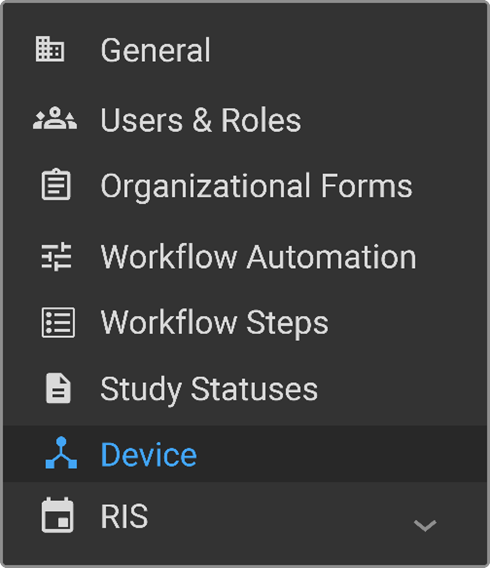
On your organization details page, select Device. The device page will open.
-
The details are as follows:
-
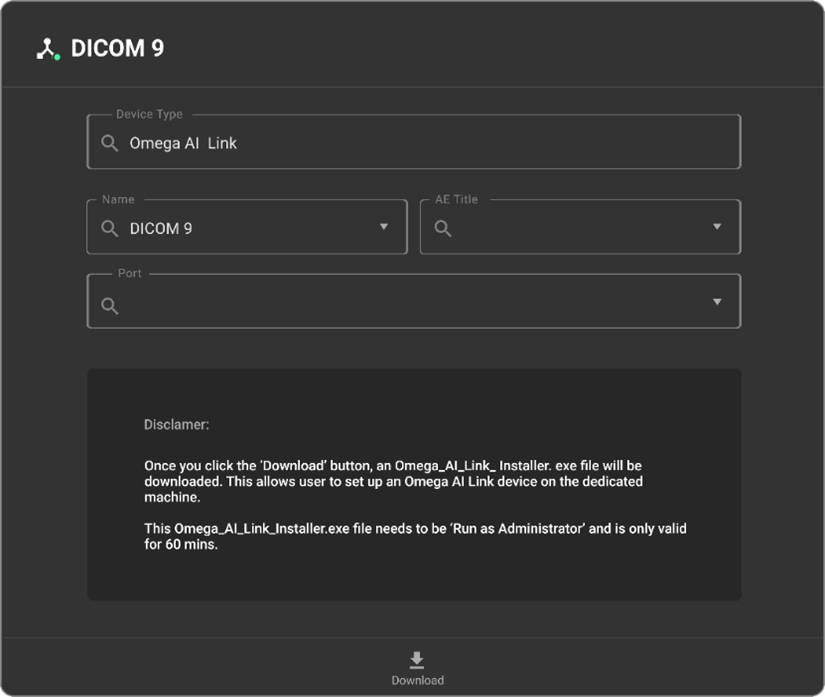
Device Type: By default, the device type is OmegaAI-LINK. This field cannot be modified.
-
Name: A default name will be provided, but you have the option of creating a unique name for your workstation.
-
AE Title: This serves as a distinct identifier, comparable to your Mac or Windows address, or even akin to a street name or house number. It is specifically assigned to the DICOM devices for identification within the network.
-
Port Number: Specific entry points for data on devices, allowing them to exchange imaging information efficiently. Typically, 105 for OmegaAI, and 104 for PowerServer.
-
Select Download from the bottom of the page to download the installation file. If you need to send the OmegaAI-LINK installation file to someone, please send the zip file with password protection or via the company's OneDrive or SharePoint, to ensure safety.
Note: You have 60 minutes to install the installation link.
OmegaAI Link: Dual-Port DICOM Support (TLS and Non-TLS)
OmegaAI Link can now accept DICOM connections through both TLS and Non-TLS ports simultaneously, allowing organizations to support a mix of secure and non-secure DICOM modalities using the same Link instance.
Non-TLS Port
- The Non-TLS Port remains mandatory.
- Accepts standard, non-encrypted DICOM connections.
- Existing single-port configurations continue to work as before.
Enable TLS
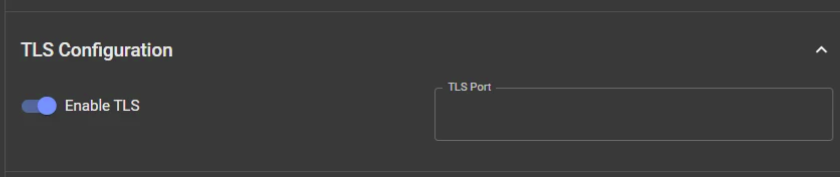
Enable TLS to accept secure TLS-encrypted DICOM connections. When enabled, the TLS Port field becomes available, and OmegaAI Link listens on both the Non-TLS and TLS ports.
How to Configure Dual-Port Mode
Follow these steps to configure OmegaAI Link for both TLS and non-TLS DICOM communication:
-
Configure the Non-TLS Port
Enter the required Non-TLS Port.
Note: The Non-TLS Port is mandatory.
-
Enable TLS
Turn Enable TLS ON.
The TLS configuration fields become available.
-
Configure the TLS Port
Enter the port number that OmegaAI Link will use for incoming TLS DICOM connections.
Note: The TLS Port and Non-TLS Port must be different.
-
Save the Configuration
Save the configuration. OmegaAI Link will listen on both configured ports and accept the appropriate type of DICOM connection on each port.
Note: Studies received through either port follow the same OmegaAI Link routing, workflow, and transmission processing.
Adding DICOM Station
-
As soon as a device is created, the panel opens adjacent to the list of devices. Select + in the panel.
-
Perform the following in the General section:
-
DICOM Stations: Enter the name of the DICOM station you want to add.
-
AE Title (mandatory field): Enter the title of the Application Entity (AE).
-
IP Address/Hostname: Enter the IP Address of the station that will be used for DICOM communication. If the IP Address is dynamic, enter the name of the machine.
-
Port (mandatory for DICOM send and optional for receive): Enter the port number of the station that will be used for DICOM communication.
-
Receive Timeout (s):
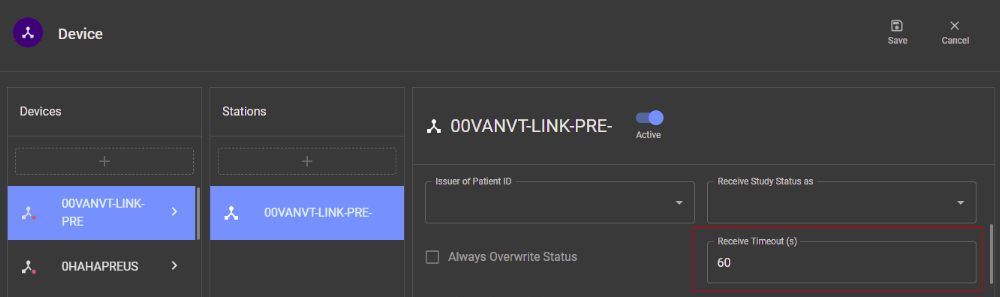
OmegaAI provides a station-level Receive Timeout setting to control how long the system waits after the last DICOM object is received before finalizing the study status.
Configuration
- The Receive Timeout (seconds) setting is available as a text input field within the station configuration.
- It defaults to 60 seconds, can be edited by users with device privileges, and any updates take effect immediately without requiring a system restart.
Behaviour
- The Receive Timeout timer starts after the last DICOM object of a study is received.
- During the configured timeout period, the study remains in the IN PROGRESS state.
- Once the timeout expires, the study transitions to its final receive status, such as Received or Complete.
- If no value is specified, the system automatically applies the default value of 60 seconds.
Note: Configuration changes take effect immediately without requiring a system restart. If the field is left blank, the system applies the default value of 60 seconds.
-
Enable TLS: This checkbox is selected to encrypt the DICOM communication.
-
Is Archive Server: Select this checkbox if it is an archive server.
-
Need IOCM Notification: Select this if Imaging Object Change Management (IOCM) notification is required.
-
Export: Click to export the DICOM station configuration to JSON format. The exported configuration can then be updated or edited.
-
Import: After modifying the configuration details, click on Import to upload it.
-
Active: Click Active to set the DICOM station to active.
-
Character Set: Select a preferred character set from the dropdown. The character set is associated with the station for processing incoming DICOM requests.
-
Test Connection: After you have completed all the details for the DICOM station, click this button to test the connection.
-
Status: This field is automatically populated. It indicates the status of the DICOM status based on the heartbeat. Depending on the status, this field displays the following values:
-
Active: Indicates that the DICOM station is active. If the DICOM heartbeat is enabled, and the station is up and responding to the pings, then the status of the station appears as Online and a green indicator is displayed.
-
Unknown: Indicates that the DICOM station is unknown. If the DICOM heartbeat is enabled, and the station is up and responding to the pings, then the status of the station appears as Online, and a green indicator is displayed.
-
Offline: Indicates that the DICOM station is offline. If the DICOM station is offline, the system will not try to actively perform DICOM-send. If the DICOM heartbeat is enabled, and the station is up and responding to the pings, then the status of the station appears as Online and a green indicator is displayed.
-
-
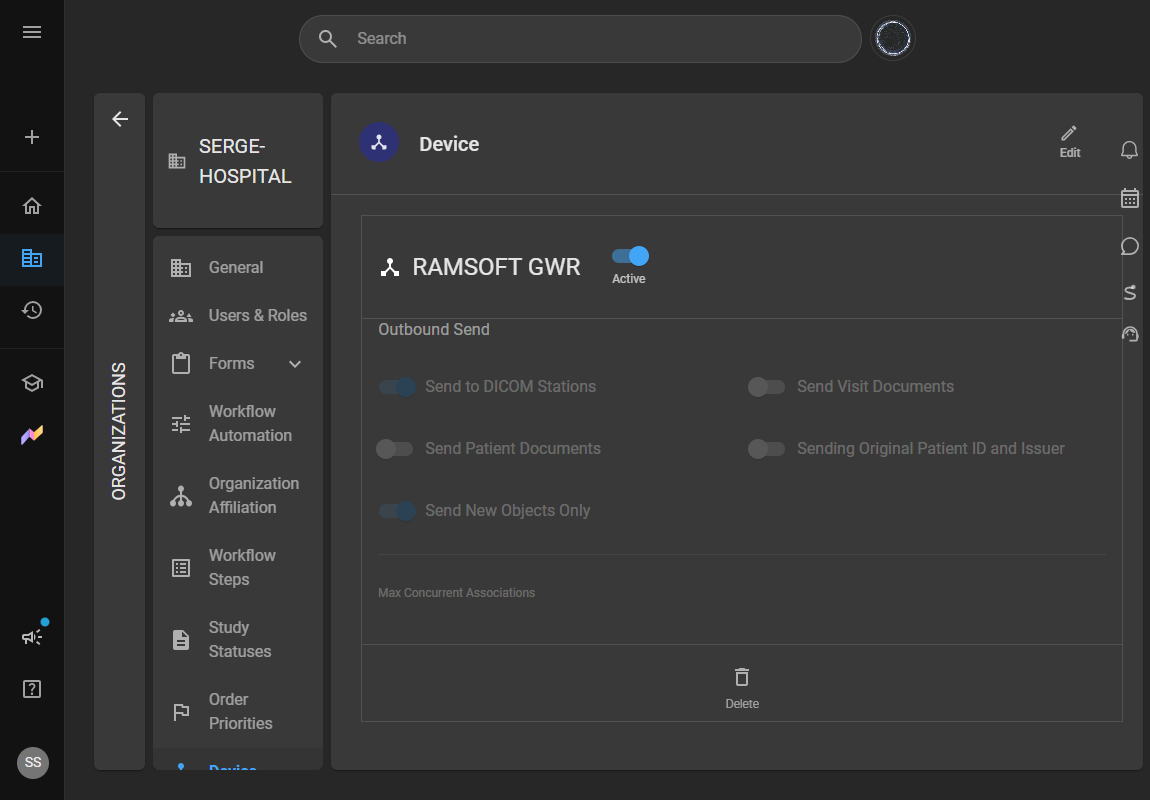
Set the following options in the Outbound Send subsection of the General section, as required. These control what OmegaAI transmits to the DICOM station.
-
Send to DICOM Stations: Enable this toggle to allow OmegaAI to send studies to the DICOM station.
-
Send Visit Documents:
The Send Visit Documents setting allows OmegaAI to include visit-level and order-level documents when sending studies to an external DICOM destination.
Associated documents are automatically converted into DICOM document objects and transmitted together with the study images in a single DICOM send operation.
This feature applies to all DICOM send methods, including Manual Send, Routing, Export, and Automated/Scripted Send.
-
Sends images and associated documents together in a single DICOM transmission.
-
Reduces duplicate document instances during repeat sends.
-
Automatically delivers the latest version of updated documents.
-
Preserves existing DICOM send behavior when the feature is disabled.
When Send Visit Documents is enabled:
-
Visit-level and order-level documents associated with the study are automatically converted into DICOM document objects.
-
Documents are sent together with the study images as part of the same DICOM transmission.
-
Existing document instances are reused when unchanged to prevent duplicates.
-
Updated documents are automatically sent as new versions, while deleted or replaced documents are excluded from future transmissions.
When Send Visit Documents is disabled
If Send Visit Documents is OFF, OmegaAI sends only study images and existing supported reports (such as final reports). Visit-level and order-level documents are not included.
-
-
Send Patient Documents:
The Send Patient Documents setting allows OmegaAI to include patient-level documents — such as historical records and consent forms — when sending studies to an external DICOM destination.
Documents are dynamically converted into DICOM document objects and transmitted with the study images.
Configuration
The setting is configured independently at the station level and applies to:
- Manual Send
- Routing
- Export
- Automated/Scripted Send
Key Capabilities
- Supports sharing of patient-level records with external DICOM destinations.
- Reuses existing document instances when unchanged to prevent unnecessary duplicates.
- Preserves existing DICOM send behaviour when disabled.
When Send Patient Documents is enabled
- Patient-level documents are included in the DICOM send and transmitted with the study images.
- Unchanged documents are not duplicated when already sent.
- Updated documents are sent as new versions.
When Send Patient Documents is disabled
If Send Patient Documents is OFF, OmegaAI sends only study images and existing supported reports (such as final reports). Patient-level documents are not included.
-
Sending Original Patient ID and Issuer: Enable this toggle to preserve and send the original Patient ID and Issuer of Patient ID DICOM tag.
Note: This refers to the information that was originally received.
-
Send New Objects Only: Enable this toggle to send only the objects the destination does not already hold, instead of re-transmitting the whole study. Before each send, OmegaAI Link asks the destination which of the queued objects it already has, and transmits only the missing ones.
This option is off by default, and existing DICOM stations keep behaving exactly as before until you switch it on.
See Send New Objects Only for how it works and when to use it.
-
-
Select the following options in the DICOM Station Features section, as required:
-
DICOM Station Description: Enter a description of the DICOM station.
-
Enable Heartbeat: Select this button to enable heartbeat.
-
Query/Retrieve Select this checkbox to allow the DICOM station to service DICOM queries or retrieve studies.
-
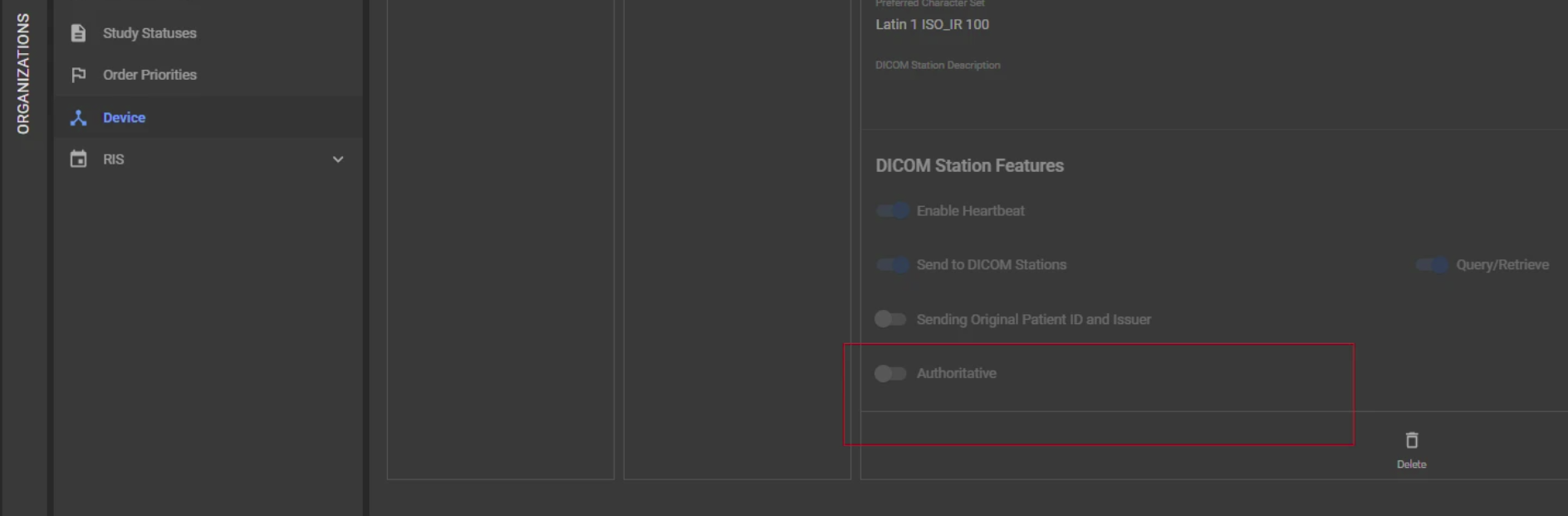
Authoritative: The Authoritative setting allows administrators to identify whether a DICOM Station is a trusted source of patient and study information.
-
When enabled, OmegaAI treats data received from this DICOM Station as the source of truth and allows incoming information to update existing patient and study records based on the conflict resolution rules.
-
When disabled, OmegaAI considers the DICOM Station as a non-authoritative source and only uses incoming information to populate missing or empty fields without overwriting existing data.
-
The Authoritative setting is configured at the DICOM Station device level.
Note: The Authoritative setting also impacts patient matching behaviour. OmegaAI allows trusted source data to participate in patient identity updates.
For example, Patient identifiers can be updated based on incoming trusted data. Study identifiers received from the authoritative source can replace system-generated placeholders when applicable.
-
-
Testing Connection of OmegaAI LINK
Select Test Connection, a status update will appear on the bottom left-hand corner of your OmegaAI platform screen indicating results.
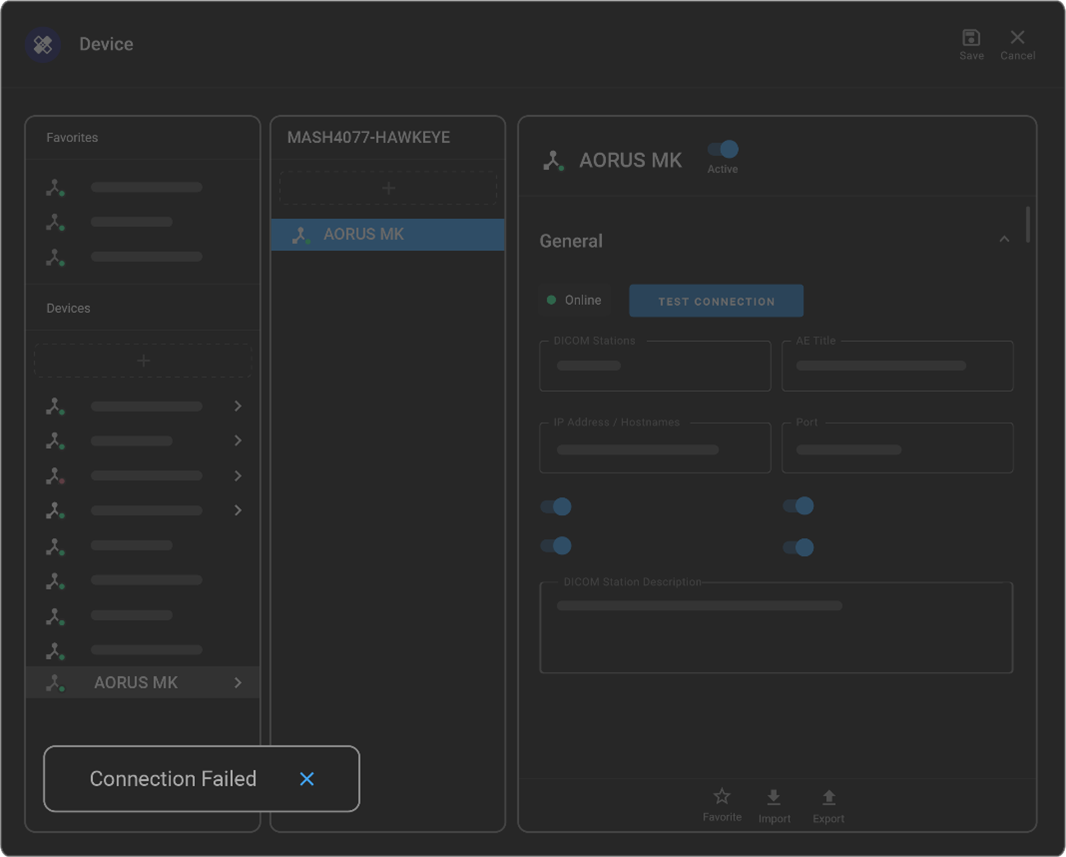
In the above example, the connection failed. As the administrator, you need to ensure the OmegaAI-LINK and device are both online at the same time for connection to be successful.
Note: If the connection fails even when both OmegaAI-LINK and the device are online, it's best to reach out to your local IT department, as it is likely a network issue. Make sure to verify that you have the correct IP address, AE title, and port number, and ensure that the other side is set up to accept the linked AE title.
Storage Commitment SCU
What is Storage Commitment?
Storage Commitment is a DICOM service where OmegaAI confirms whether a destination system has permanently stored received images.
After images are transmitted successfully (C-STORE), OmegaAI sends a Storage Commitment request asking the destination system to confirm safe archival.
The destination responds with:
- Confirmation of successful storage
- Partial success (some images stored)
- Failure (images not stored)
This ensures images are not only delivered but also diligently archived.
Purpose
Image transmission alone does not guarantee long-term storage. Failures such as network issues or destination storage errors may go unnoticed.
Storage Commitment provides:
- Verification: Confirms images are permanently stored
- Auditability: Full transaction tracking in logs
- Reliability: Automatic retry and resend mechanisms
- Compliance Support: Helps meet medical imaging retention requirements
When You’ll find SCU Useful
Enable Storage Commitment SCU when:
- Destination supports DICOM Storage Commitment
- Verified archiving is required
- You want audit-level confirmation of storage
- You have experienced silent image loss
Note: If the destination does not support Storage Commitment, OmegaAI automatically marks the request as “Rejected” without disrupting workflows.
Enabling Storage Commitment for a Station
Storage Commitment is disabled by default.
Steps:
- Go to Settings → Organizations
- Select the organization
- Open Device / Station Configuration
- Select the station
- Enable Support Storage Commitment
- Save configuration
Important Notes:
- Applies only to future transmissions
- Does not affect previously sent studies
Station Configuration Settings
Support Storage Commitment
Enables Storage Commitment SCU for the station.
- Default: OFF
- If OFF → standard DICOM send only
Storage Commitment Batch Size
Controls number of images per request.
- Default: 300 images
- Large studies are split into multiple requests
- Improves compatibility with destination systems
Auto Resend Failed Objects
Controls automatic recovery of failed image storage.
| Setting | Behavior |
|---|---|
| ON | Automatically resends failed images and re-initiates commitment |
| OFF (default) | Marks transaction failed; manual intervention required |
- Maximum: 3 resend cycles per failure set
(Reference image: image-20260618-195725.png)
Workflow Overview
Once enabled, workflow is fully automated:
-
Image Transmission (C-STORE)
Images are sent to destination station -
Commitment Request Sent
OmegaAI sends Storage Commitment request with Transaction ID -
Destination Response
- Committed
- Partially Committed
- Failed / No response
-
Logging
Transaction recorded in Storage Commitment Log -
Retry / Resend (if needed)
Based on system rules
Storage Commitment Log
Accessible via:
DICOM Log → Status Reason: DicomStorageCommit
Logs track:
- Retry attempts
- Response details
- Timeout events
- Final outcome
Retry & Failure Handling
Temporary Failures (Retry Enabled)
Triggers retry when:
- Network timeout
- Destination unavailable
- Temporary processing failure
Behaviour:
- Exponential backoff between retries
- OmegaAI waits up to 24 hours before retry logic is triggered
- Auto recovery after system restart
Permanent Failures (No Retry)
No retry occurs when:
- Storage Commitment not supported
- Invalid destination configuration
- Unsupported operation
Auto Resend of Failed Images
Triggered when destination confirms partial failure.
If enabled:
- Only failed images are resent
- New Storage Commitment request is issued
- Original transaction updated
- Up to 3 resend cycles
Purpose: Ensures delayed or incomplete destination processing does not result in data loss.
Common Usage Questions
Does this change image sending behaviour?
No. Only adds post-send verification.
Is historical data included?
No. Only new sends after enabling.
Does restart affect transactions?
No. Pending transactions resume automatically.
Can this be enabled per station?
Yes.
What is Partial Commitment?
Some images stored, others failed or unconfirmed.
Can batch size be changed?
Yes. Default is recommended for most systems.
Timeout behaviour?
OmegaAI waits up to 24 hours before retry logic is triggered.
Send New Objects Only
Send New Objects Only is a per-station option that sends only the objects a destination does not already hold, instead of re-transmitting the entire study.
It is useful whenever a study is sent to the same destination more than once — for example when additional objects arrive for a study that was already routed, or when a study is re-sent after a correction. Without this option, every send transmits the whole study again, including the objects the destination received the first time.
How it works
Before transmitting, OmegaAI Link asks the destination which of the queued objects it already has, using an instance-level DICOM query (C-FIND):
-
A study-level query first checks whether the destination holds the study at all. If it does not, the whole study is sent and no further queries are made.
-
If the destination does hold the study, OmegaAI Link issues one exact-match, instance-level query per queued object and transmits only the objects the destination does not report back.
Because the answer comes from the destination at the moment of sending, there is no stored history that can drift out of date, and no time limit on how long after an earlier send the new objects can arrive.
The option covers every DICOM object in a study — not only images. Structured reports, key object selections, presentation states and encapsulated PDFs are all diffed the same way.
If the destination cannot be queried
If the destination does not support instance-level queries, rejects the association, or the query times out, the full study is sent. Objects are never skipped when the result is uncertain — over-sending is safe, missing objects is not.
Where the option applies
Send New Objects Only is set per DICOM station and applies to sends made to that station by:
- automatic routing of a study to the destination
- the Workflow Automation Send Study action
- a manual Send Study from the worklist
Note: The option applies to study sends. Targeted object pushes generated by IOCM are never diffed against the destination, so an IOCM notification is always delivered.
Things to know
-
The option is off by default. Existing DICOM stations behave exactly as they did before until it is switched on.
-
It is available on DICOM stations only. It does not apply to DICOM Web destinations, which are configured under DICOM Web Features and have no equivalent option.
-
The destination must be able to answer instance-level DICOM queries. If it cannot, the option has no practical effect — every send falls back to a full study send.
-
The DICOM Log reports a send at the study level. Objects skipped because the destination already held them are counted the same as objects that were transmitted, so the log does not show a separate skipped count.
-
This is a different mechanism from Auto Resend of Failed Images, which resends objects a destination reported as failed during Storage Commitment. Send New Objects Only decides what to send in the first place; Auto Resend reacts to a failure after sending.
Where to find it
Organizations → organization → Device → OmegaAI Link device → DICOM station → General → Outbound Send → Send New Objects Only
See Adding DICOM Station for the full station setup steps.
What is IOCM?
Imaging Object Change Management (IOCM) is a DICOM/IHE standard that allows imaging systems to communicate image rejection and deletion events across connected systems.
When an image, series, study, document, or report is deleted or rejected in OmegaAI, IOCM automatically notifies configured external PACS, VNAs, archives, and imaging systems so they can update their records accordingly.
IOCM supports both:
- Outbound Notifications – OmegaAI sends rejection notices to external systems
- Inbound Notifications – OmegaAI receives rejection notices from external systems and updates affected objects within OmegaAI
Benefits of IOCM
IOCM helps maintain consistency across connected imaging systems by:
- Preventing use of rejected or invalid images
- Synchronizing image deletion and rejection decisions across systems
- Supporting patient safety initiatives
- Maintaining audit and compliance records
- Eliminating manual communication between systems
Typical Workflow
Outbound IOCM
- User deletes or rejects an image, series, study, document, or report
- A rejection reason is selected
- OmegaAI generates a DICOM Rejection Note
- The rejection note is sent to all configured IOCM destinations
- Receiving systems mark referenced objects as rejected or unavailable
- Delivery activity is recorded in logs and audit records
Inbound IOCM
- OmegaAI receives a DICOM Rejection Note from an external system
- Referenced images are identified
- Images are marked unavailable within OmegaAI
Configuring IOCM
Enable IOCM Notifications
To configure a station to receive IOCM notifications:
- Navigate to Settings → Organizations
- Open the desired organization
- Select the appropriate Device/Station
- Enable Need IOCM Notification
- Save changes
Note: IOCM notifications are disabled by default for all stations.
Station Configuration
Need IOCM Notification
| Setting | Default |
|---|---|
| Need IOCM Notification | OFF |
Default Rejection / Deletion Reason
| Setting | Default |
|---|---|
| Default Rejection / Deletion Reason | Rejected for Quality Reasons |
This value is automatically selected when enabling IOCM and can be changed during configuration.
Rejection Reasons
| Reason | Description |
|---|---|
| Rejected for Quality Reasons | Image quality is insufficient for diagnostic use |
| Rejected for Patient Safety Reasons | Incorrect patient association or safety concern |
| Incorrect Modality Worklist Entry | Study acquired using incorrect worklist information |
| Data Retention Policy Expired | Automated system deletion due to retention policy |
IOCM Notification Triggers
OmegaAI automatically generates IOCM notifications when the following actions occur:
| Action | Result |
|---|---|
| Delete Image | Notification sent for the image |
| Delete Series | Notification sent for all images in series |
| Delete Study | Notification sent for all images in study |
| Delete Document | Notification sent for the document |
| Delete Report | Notification sent for the report |
| Move/Re-parent Series | Notification sent for moved images |
Multiple Destinations
A separate rejection note is generated and sent to each station configured for IOCM notifications.
No Configured Destinations
If no stations are configured for IOCM notifications:
- The deletion still completes successfully
- No rejection note is generated
Deleted Image Processing
When an object is deleted:
- The object is marked deleted in OmegaAI
- A rejection note is generated
- The rejection note is queued and delivered
- Delivery status is tracked
Common Usage Questions
Does IOCM change the deletion process?
No. Users continue deleting images as usual. IOCM processing occurs automatically in the background.
Can users change the rejection reason?
Yes. The configured default reason is pre-selected but can be modified before confirming the deletion.
Can IOCM be enabled for specific stations only?
Yes. IOCM is configured independently for each station.
Is every IOCM transaction audited?
Yes. All delivery attempts, whether successful or unsuccessful, are recorded in the audit log.
Does moving a series trigger IOCM?
Yes. OmegaAI generates IOCM notifications for the moved series.