Setting Up Scheduler
OmegaAI's Scheduler is an essential tool that integrates seamlessly within the workflow, displaying appointments directly within the software.
Steps to Access and Use the In-Grid Calendar:
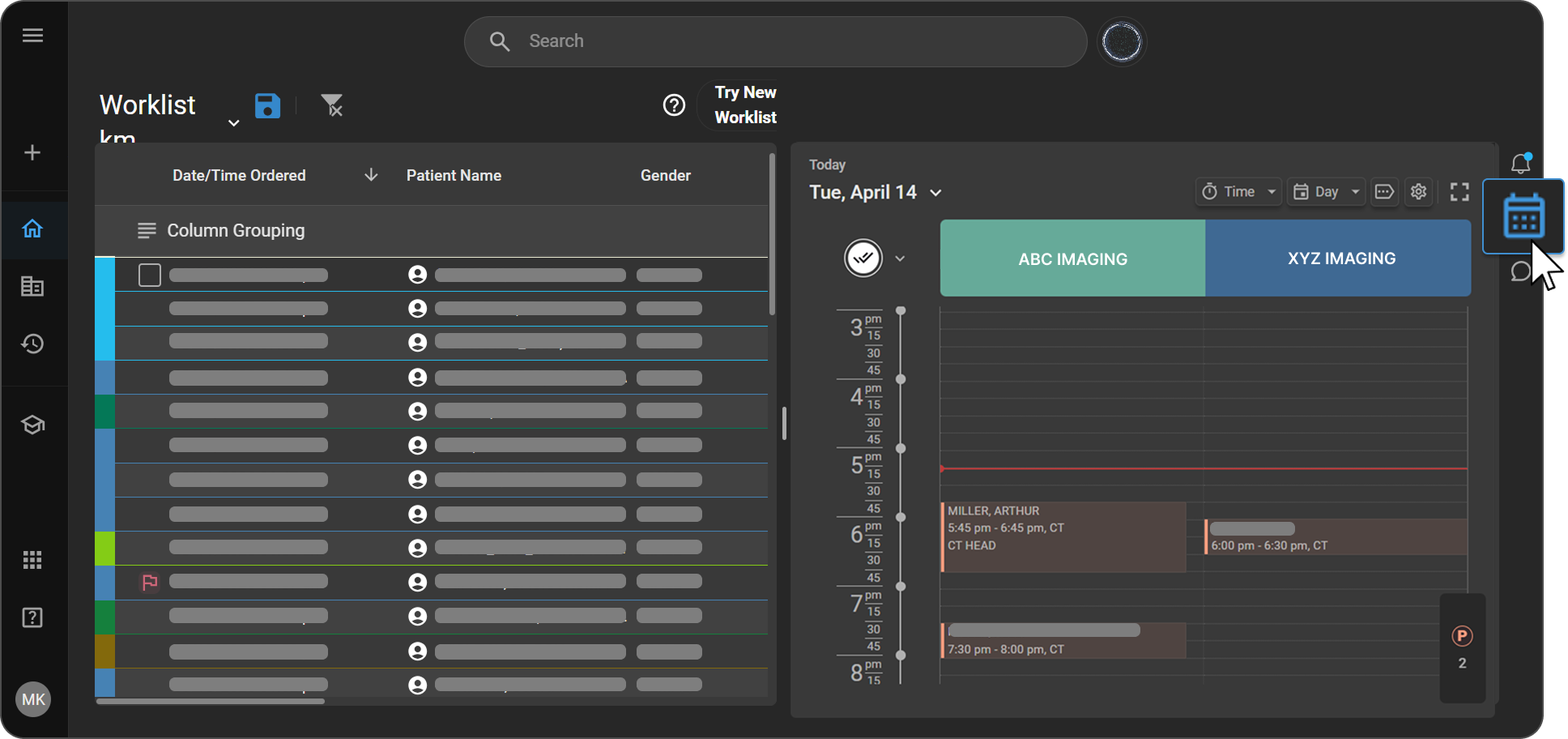
- Access the Calendar: Click on the Calendar icon located on the right-side navigation bar to open the in-grid calendar.

-
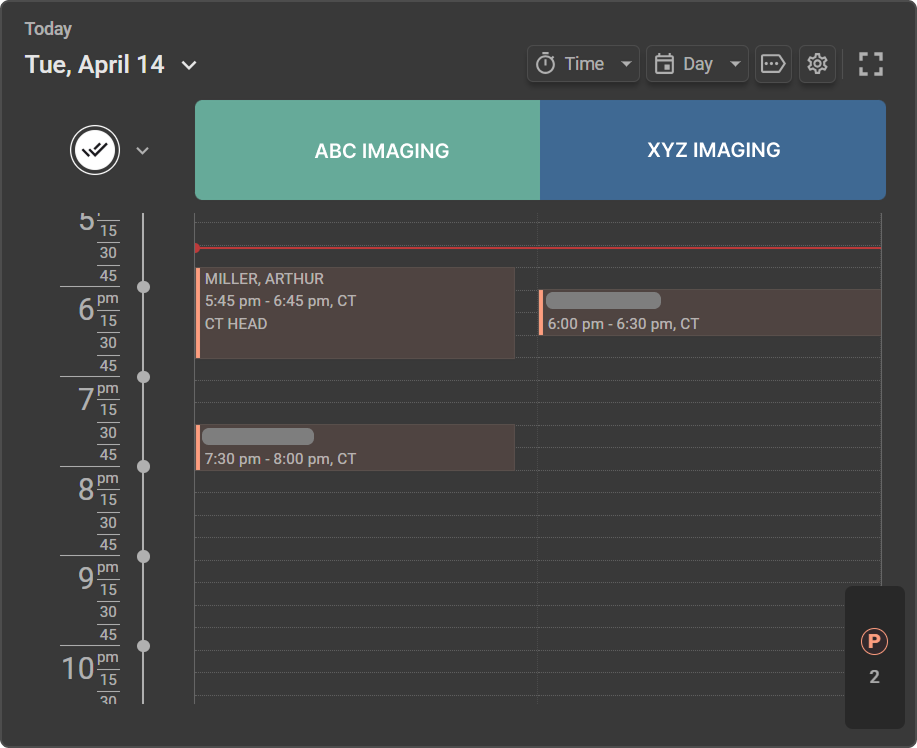
View Appointments: By default, the calendar displays the appointments for the current day.
-
Navigate to a Specific Date: Click the down arrow next to the date to open the monthly calendar, then select the desired date.

- Change Calendar View: Click on the Day icon next to the Resource icon to choose between today's view or weekly view.

- Filter by Appointment Status: Click the dropdown menu next to the 'double click Status' icon, which is right under date and day (default set to All) to filter appointments by statuses such as Requested, Scheduled, Confirmed, Arrived, Ready for Scan, and No Show.

-
Expand the Calendar: Use the expand button to access expanded calendar views including Today, Weekly, and Monthly options.

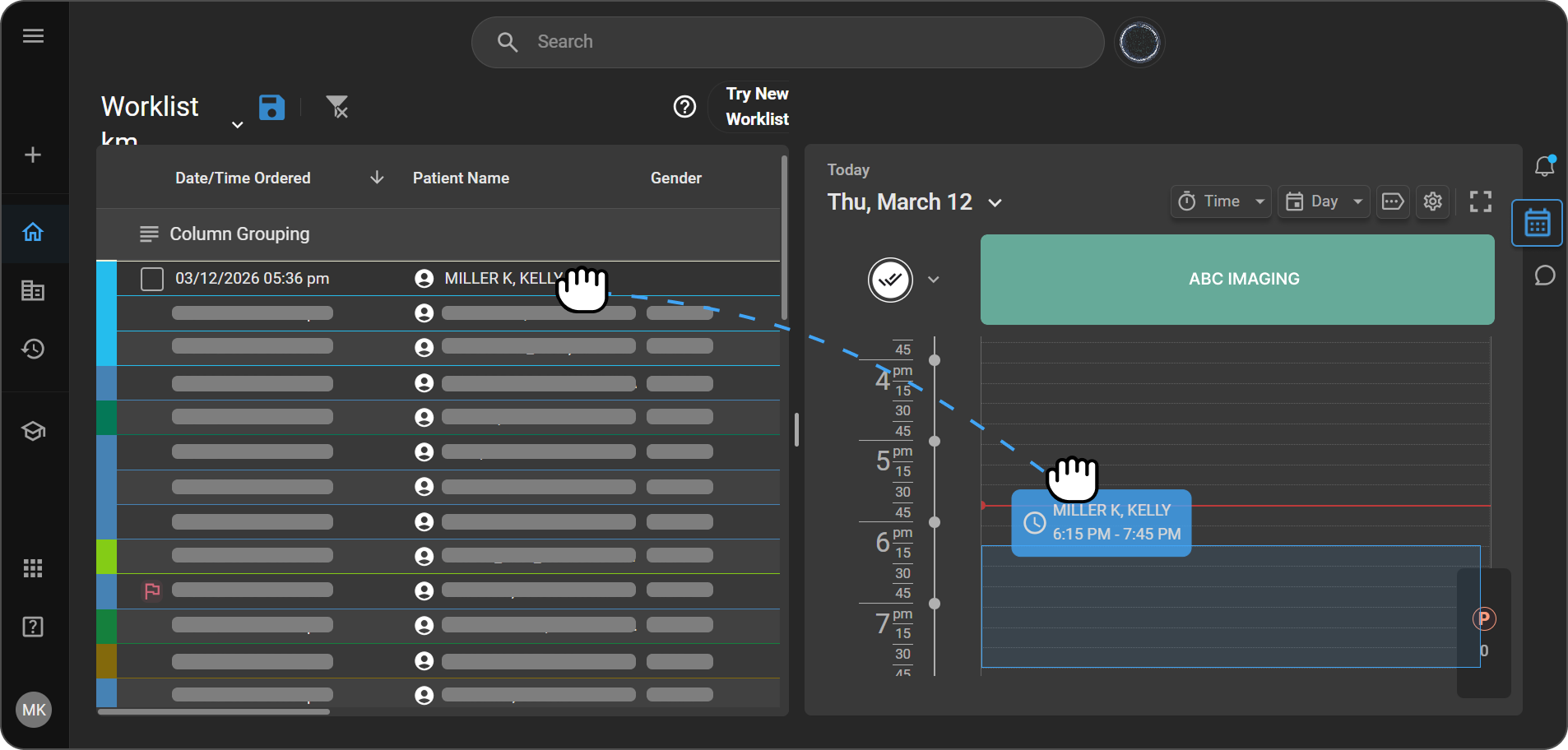
- Display of the Time on top of the cell while drag and drop: When a study is dragged from the worklist and dropped into the Scheduler, it will now display the time of each cell so that the user can be clear in terms of which cell/time slot they want to drop the appointment

- Display of the Modality Mismatch while drag and drop: When a study is dragged from the worklist and dropped into the Scheduler, if the Modality of the Healthcare Service and the Modality of the Study is having a mis-match, it will show a ban icon indicating the mismatch in the modality and user don’t have to drop over that Healthcare Service

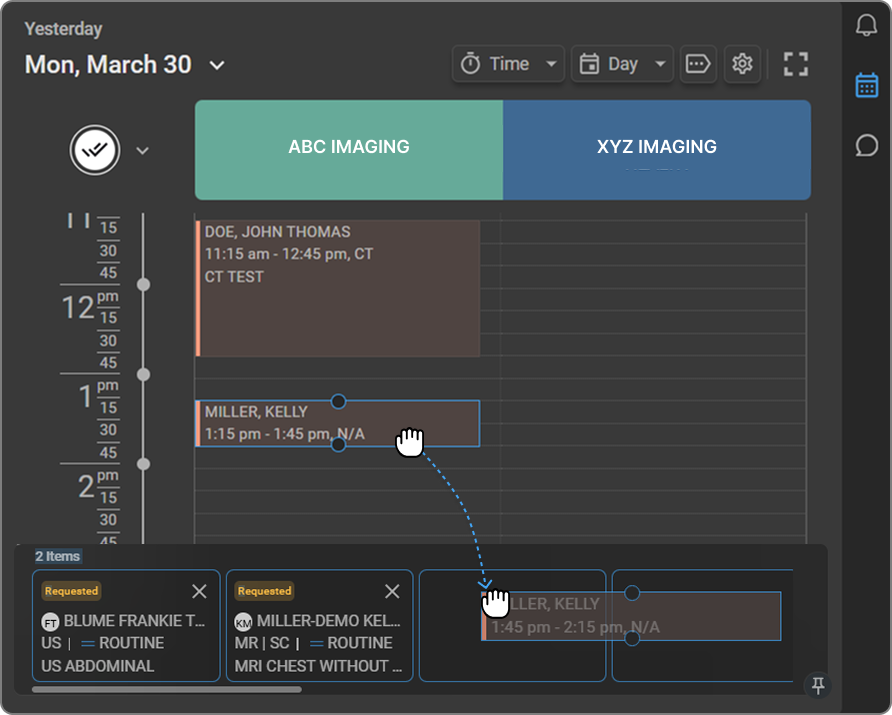
- Drag and Drop Healthcare Services to reorder: Users can now drag and drop Healthcare Services on the Scheduler, so that they can rearrange the order of the Healthcare Services available on their Scheduler


NOTE:
1. You can schedule only those order sets that match the modality of the selected resource.
2. Whenever an appointment is created in the Scheduler, the duration for the appointment would be defaulted to the Study’s Order set duration. If the Study’s Order set duration is empty or the Study doesn’t have an Order Set, then the appointment would be scheduled for the Healthcare Service’s default duration. If the Study’s Order set duration is less than 10 minutes, then the appointment would be scheduled for the minimum duration which is 10 minutes.
Customizing Calendar Settings
-
Adjust Time Interval:
- Click on the Time icon next to the Day Icon to select the Time interval on the Scheduler.
- You can choose between 5/10/15/30 minutes as the time interval on the Scheduler


-
Manage Resources:
-
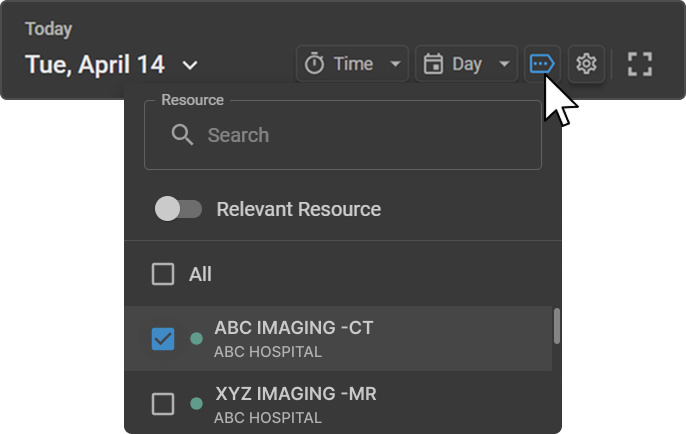
Select Resource next to the gear icon to open the Healthcare Services list.
-
Here, you can search for and select the services that should be displayed in your Scheduler.

-
-
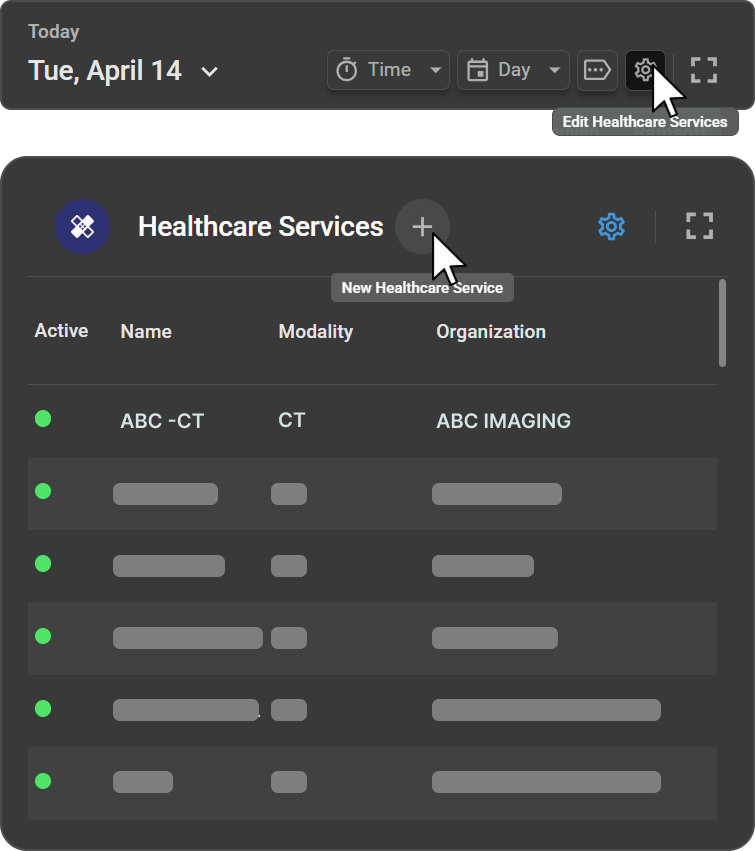
Edit Healthcare Services:
- Click Edit Healthcare Services to access and modify the list of all healthcare services available within the system.

-
Delete Healthcare Services:
- Click Edit Healthcare Services to access and modify the list of all healthcare services available within the system.

- Hover over the desired Healthcare Service name to view the Delete icon.

-
When you click on the Delete icon, if the Healthcare Service does not have any future appointments, it will allow you to proceed with deleting the Healthcare Service
-
If the Healthcare Service does have any future appointments, then it will throw a warning pop-up, which will not allow you to delete the Healthcare Service until all the future appointments are moved out

Setting Up Healthcare Services
This section provides a step-by-step guide on how to set up new healthcare services in OmegaAI. You will learn how to access the healthcare services settings, create a new service, configure its properties, and manage its availability and booking options.
Steps to Set Up a New Healthcare Service
-
Accessing Healthcare Services Settings
-
Navigate to the main dashboard of OmegaAI.
-
Click the Edit Healthcare Services button to open the list of all healthcare services available within the system.
-
-
Creating a New Healthcare Service
-
Click the + icon to start creating a new Healthcare Service.

-
-
Selecting the Organization
-
In the Organization field, select the organization under which the new Healthcare Service is to be listed. This ensures the service is categorized correctly within the system.

-
-
Naming the Healthcare Service
- Enter the desired name for the Healthcare Service in the field labelled Resource Name.
-
Choosing the Display Colour
- Select the colour for the Healthcare Service from the dropdown menu near the Resource Name field. This colour will represent the service in the system's calendar.
-
Selecting the Modality
- Choose the appropriate modality of the Healthcare Service from the Modality dropdown menu. This helps categorize the service based on the type of medical equipment or procedure used.
-
Setting the Default Duration
- In the Default Duration field, enter the duration each appointment should last, shown in hours and minutes. For example, to set a 30-minute duration, enter 00:30.
-
Configuring Working Hours
-
In the working hours section, configure the following:
-
Specify the days the Healthcare Service will operate by clicking the days displayed; they will highlight in blue.
-
Set the start and end time for each operational day.
-
Days that turn grey upon clicking indicate that the Healthcare Service will not operate on those days, and you cannot set working times for these.
-
-
-
Enabling Overbooking
- If you wish to allow more than one booking for the same time slot, enable the Overbook toggle next to the Working Hours section.
-
Saving or Discarding Changes
-
Click Save to create the new Healthcare Service with the specified settings.
-
Click Close if you wish to discard the changes made.
-
-
Activating/Deactivating a Healthcare Service
- Use the Active toggle to activate or deactivate the Healthcare Service at any time, making it available or unavailable for booking.
Setting New Block Time from Calendar
The block time functionality in OmegaAI allows for efficient management of healthcare service availability by reserving specific times for certain activities or needs.
Steps to Set New Block Time
-
Initiate Block Time Setup:
-
Click on the desired timeslot within the Healthcare Service calendar.

-
-
Configure Block Time:
-
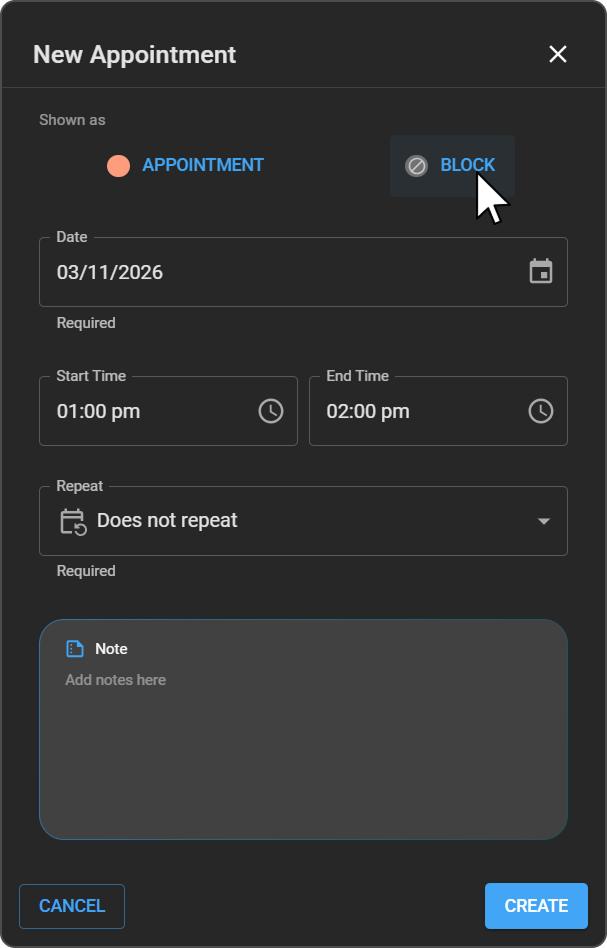
The New Appointment drawer opens. Navigate to the Block section to fill in the required details.
-
Choose whether to create a single event or a recurring event.
-
-
Setting Recurrence Options:
-
Does not repeat: Select this option for a single block time event.
-
Daily: Set as a daily recurring event. Specify the Repeat Frequency.
-
Weekly: Opt for a weekly recurring event. Select/unselect the weekdays (Sunday to Saturday) for the event and specify the Repeat Frequency.
-
-
Finalize Block Time Event:
-
Click Create to establish the block time event or Cancel to discard the changes.

-