Setting Up Workflow
Setting up Report Templates
The Document Manager Report Template Setup feature in OmegaAI simplifies the creation of patient reports for radiologists and reading physicians. This feature offers tools for manually creating reports using a bookmarks editor and expedites the process using predefined templates. This guide provides detailed steps on how to use this feature effectively.
Using Predefined Templates
Predefined templates are designed to standardize the formatting and content of reports, reducing the need for manual input, and ensuring consistency across documents.
How to Use Predefined Templates:
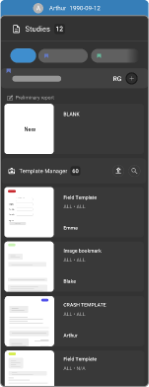
Goal is to allow users to create a report when templates are available. When radiologist opens the Document Viewer, the best matched template is loaded with a cursor in it.
The best matched template in the browser is created as a preliminary report which has the yellow icon signifying the icon for template.
If user deletes the best matched template, system loads the blank report, and all the templates will be available in the templates drawer. In the browser, beneath the open reports, there are reports and documents with a separator. User can add at the maximum three open reports.
-
Go to Document Viewer.
-
Click on the three dots on top of the window to open the menu dropdown.
-
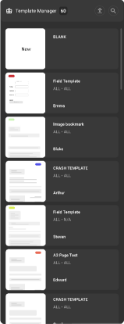
Select Template Manager from the list.
-
All the templates appear in the thumbnail navigation.
-
Select the template.
-
The selected template displays blue dot in thumbnail.
-
Preview and Edit icons show up on top of the window.
-
Click on Edit icon to edit the template.
-
Click on Publish icon to Publish the Template.

If template name is not changed it will save under existing template, if name is changed it can be published as a new template.
While applying templates in drawer, only the best matched templates in decreasing order of match points of the same modality, as study will be shown.
Templates are arranged based on most recent publication. Time stamps are displayed in report card, template card, version history and amendment history in EST.
Unique name is given for reports including reportname and timestamp.
The Report Name Format is Final Report Month Date Year hh:mm:ss.
Partial search capability is functional in Template Manager.
Creating and Editing Templates
Create or modify templates to meet specific reporting needs with customizable elements such as bookmarks, signatures, and more.
Steps to Create/Edit a Template:
-
Open Template Manager: Upload an existing template or create a new one.
-
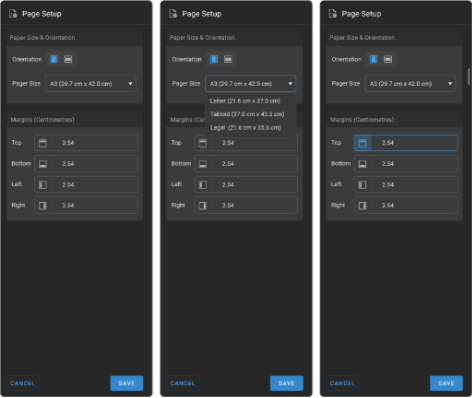
Define Page Setup: Choose the appropriate page size (e.g., A4, A3, A5, Letter, Tabloid, Legal).
-
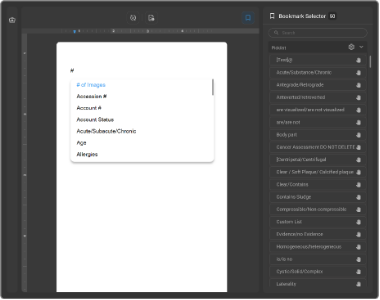
Use Bookmark Selector:
-
Picklist: Set up customizable drop-down lists for selecting specific options.
-
Fields: Define parts of the document like Title, Body Part, Patient Name, etc.
-
Categories: Organize documents by criteria like Date of Birth, Order Time, etc.
-
-
Insert Bookmarks: Place bookmarks in the template for quick access to information based on the defined fields and categories.
Adding Text and Formatting in Templates
Enhance the visual appeal and clarity of templates using text formatting tools.
Select a word or letter of the text to find formatting template to choose from.
Formatting Tools Available:
-
Bold, Italics, Underline, Align text
-
Highlight, Bullet points, and other text enhancements

Preview and Publish:
-
Preview the template in real-time to ensure it meets the desired standards.
-
Once finalized, publish the template to make it available for organizational use.
Best Match Template Selection Criteria for Prelim Reports
The Best Match Template algorithm auto-applies a reporting template based on the highest matching score between study metadata and available templates.
Matching Flow:
- Filtering Criteria (Pre-scoring stage):
Before any scoring happens, templates are filtered based on the following exact match conditions:
-
Imaging Organization / Managing Organization
-
Modality
-
Laterality
-
Sex
-
Procedure Code
-
Study Status
Templates that do not match these filters are not considered for scoring.
- Scoring Criteria (Post-filter stage):
Each remaining template is scored based on how well it matches the study's metadata. Points are assigned.
The total score is calculated for each template. The template with the highest score is auto applied to the report.
Scoring System
Each published template carries matchable criteria, and each criterion has an associated score. The total score determines the best match.
| Criteria | Points |
|---|---|
| Modality | 10 |
| Procedure Code | 10 |
| Laterality | 10 |
| Body Part | 10 |
| Sex | 10 |
| Reading Physician | 70 |
| "All" Option (e.g., All Modalities or All Body Parts) | 9 |
For Example: If a template has All Modalities, it earns 9 points instead of 10 for that criterion.
Template Selection Order:
-
The best match is auto applied to the report.
-
The remaining best match templates (with descending scores) are also shown in a list for the user to choose from if needed.
Total Matching Process
-
Each available template is compared against the study metadata.
-
The total matching score is calculated.
-
The template with the highest total score is automatically applied to the report.
-
In case of multiple templates with similar matches, the one higher in the hierarchy and published most recently will be selected.
For Example: Template Matching in Action
A radiologist opens a Chest X-Ray study with the following metadata:
| Field | Value |
|---|---|
| Modality | CR |
| Procedure Code | CXR01 |
| Laterality | None |
| Body Part | Chest |
| Set | Default |
| Reading Physician | Dr. Jane Smith |
Consider the following template published by Organization:
| Template Criteria | Value in Template | Match Result | Points Awarded |
|---|---|---|---|
| Modality | CR | ✅ Match | 10 |
| Procedure Code | CXR01 | ✅ Match | 10 |
| Laterality | All | ✅ Match | 10 |
| Body Part | Chest | ✅ Broad Match | 9 |
| Sex | Default | ✅ Match | 10 |
| Reading Physician | Dr. Jane Smith | ✅ Match | 70 |
Total Score = 10 + 10 + 9 + 10 + 10 + 70 = 119
This template will be auto applied because it has the highest score among all evaluated templates.
Template Management:
-
Multiple templates can be created and published to cater to various reporting needs and preferences.
-
Organizations can maintain a library of templates, allowing users to select the most suitable one for their reports.