Setting Up Forms in OmegaAI
OmegaAI provides a built-in form management system that allows healthcare organizations to create, publish, and manage forms across patient and study workflows. Forms can be built from scratch using a question card editor or uploaded as fillable PDFs with mapped data fields.
Two categories of forms are supported — Organizational Forms, used internally by service providers, technologists, front desk staff, and physicians, and Blume Forms, which are patient-facing forms completed through the Blume application. Both are managed from the same location within an organization's settings.
This guide walks through the complete process of setting up forms in OmegaAI, from understanding form types to creating, publishing, and viewing issued forms.
1. Overview of Form Types
OmegaAI supports two categories of forms:
- Organizational Forms — Internal forms used by service providers, technologists, front desk staff, and physicians within OmegaAI.
- Blume Forms — External forms created by service providers and filled out by patients through the Blume application.
Organizational Forms support 4 form types, while Blume Forms support 2:
| Form Type | Available In | Scope | Issued When | Template Sourced From |
|---|---|---|---|---|
| Registration Form | Organizational Forms, Blume Forms | Patient-level | A new patient is added to OmegaAI | Patient's managing organization |
| Clinical Form | Organizational Forms, Blume Forms | Study-level | A relevant study is scheduled | Imaging organization for that study |
| Technologist Form | Organizational Forms only | Study-level | Before images are viewed in the Image Viewer | Imaging organization for that study |
| Order Form | Organizational Forms only | Study-level | During the creation of a new order | Imaging organization where the order is placed |
Note: Each form type uses a template sourced from the relevant organization. Make sure the correct organization is selected before creating or publishing a form.
2. Accessing Forms
Both Organizational Forms and Blume Forms are accessed from the same location within an organization:
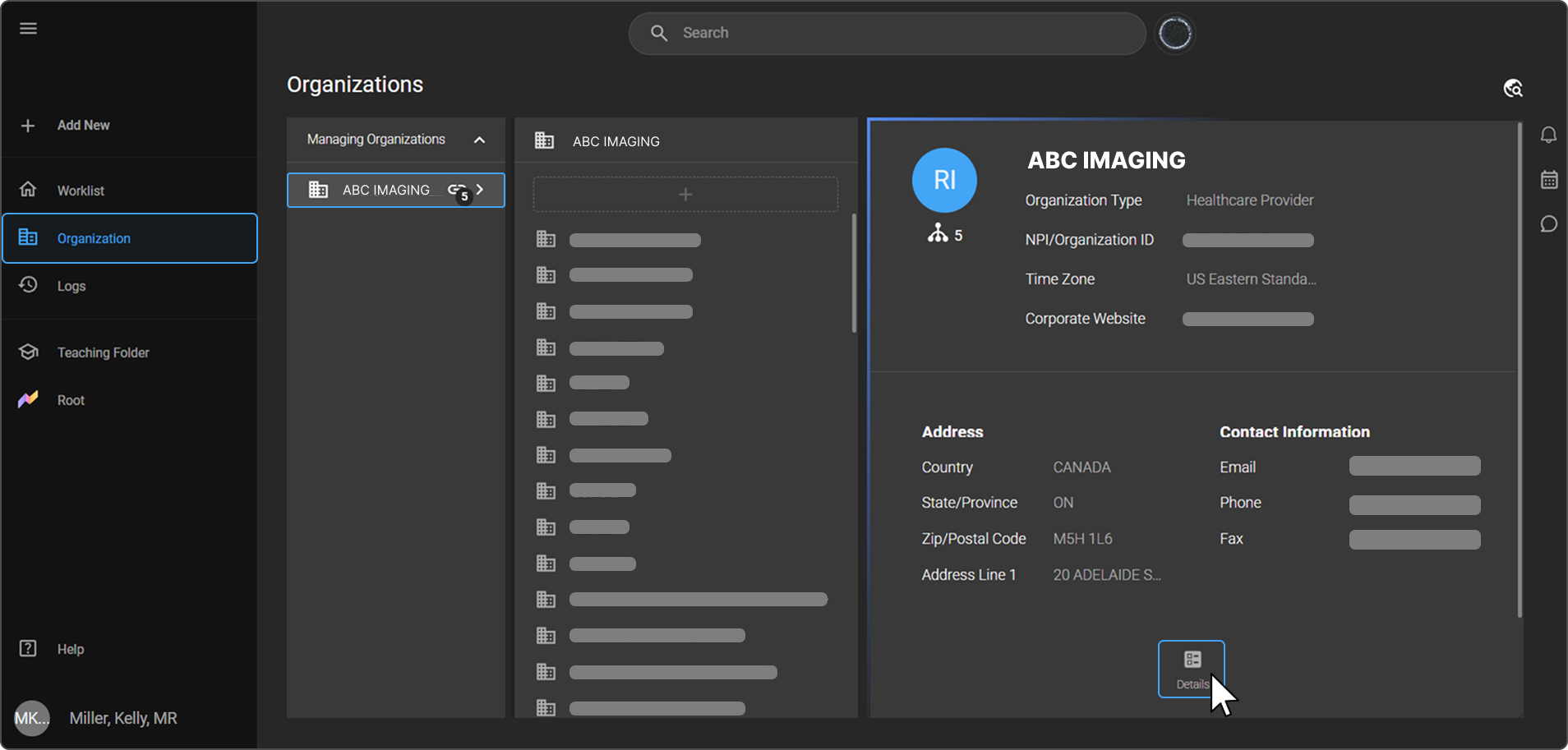
- Click Organization in the left navigation menu.
- Select the organization you want to manage forms for. A summary panel opens on the right showing the organization's details. Click the Details button at the bottom right of the panel to open the full organization view.
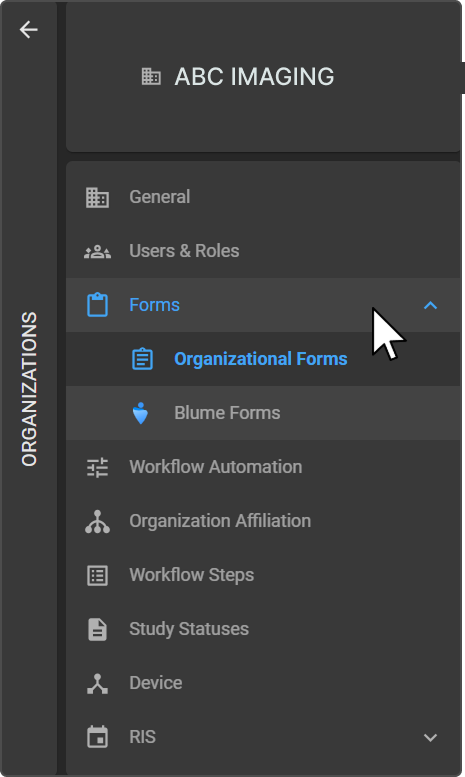
- In the left panel, click Forms to expand the sub-menu.
- Select either Organizational Forms or Blume Forms.
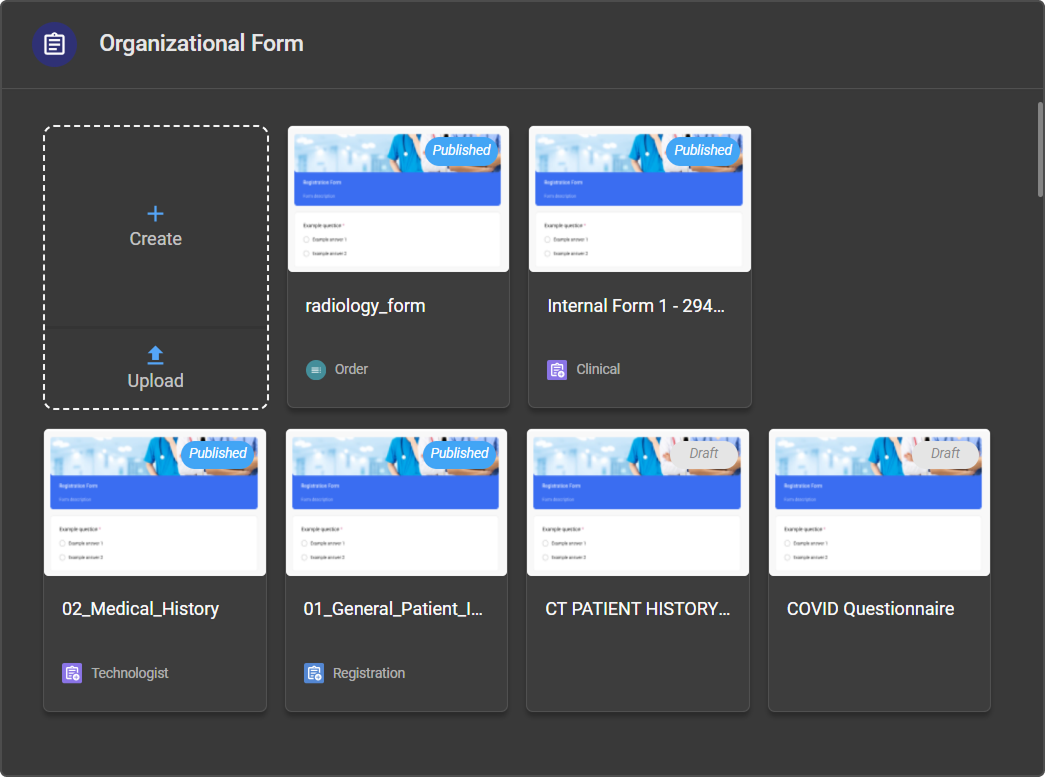
Tip: Each form card displays a Published or Draft badge on its thumbnail, so you can see the status of all forms at a glance.
3. Creating a Form
In the Organizational Forms or Blume Forms panel, hover over the + (dashed card) tile. Two options appear:
| Option | Icon | Description | |
|---|---|---|---|
| Create | + | Build a new form from scratch using the form editor |  |
| Upload | ↑ | Upload an existing fillable PDF |
Option A — Create a Form from Scratch
Step 1 — Start a New Form
- Click Create on the dashed card tile.
- An Untitled Form is created and opened in the form editor.
Note: The form type (e.g. Registration Form, Clinical Form) is selected later when publishing — not at this stage.
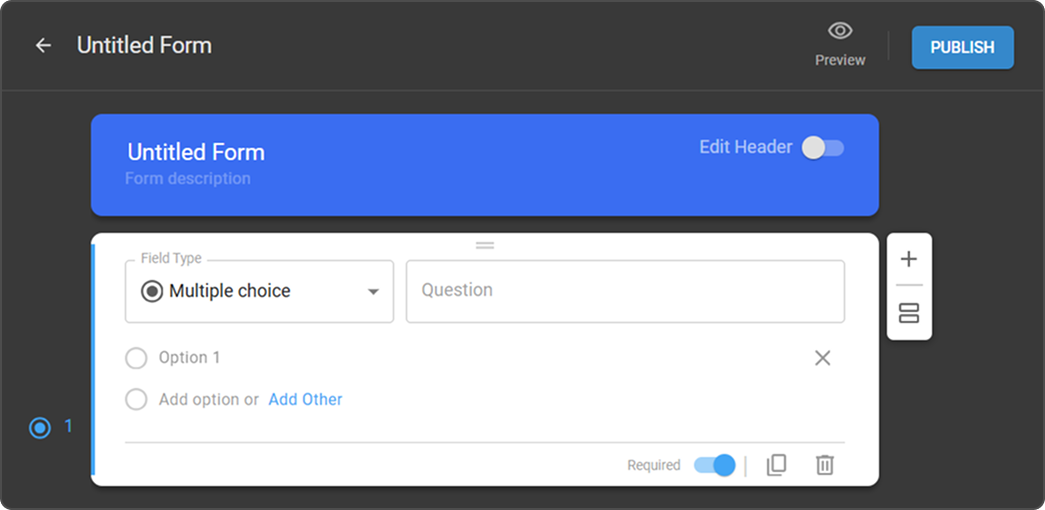
Step 2 — Set Up the Form Header
- Toggle the Edit Header switch in the top right of the header area. An Edit Header panel appears below the header.
- Click Add Logo to upload your organization's logo, or Add Banner to upload a banner image.
- Select a header color from the preset color swatches. Click the + swatch to use a custom color.
- Enter a Title and Description directly in the header area.
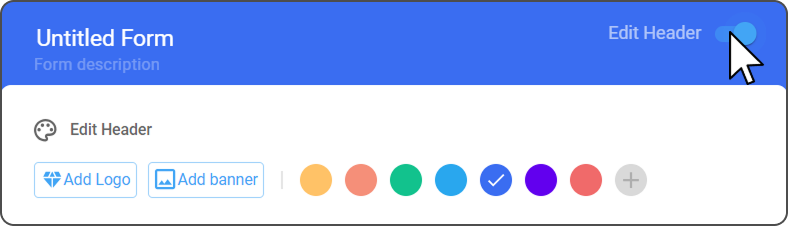
Step 3 — Add Questions
Each question in a form is built using a question card — a self-contained input element with its own field type, question text, answer options, and settings.
3.1 Select a Question Card Type
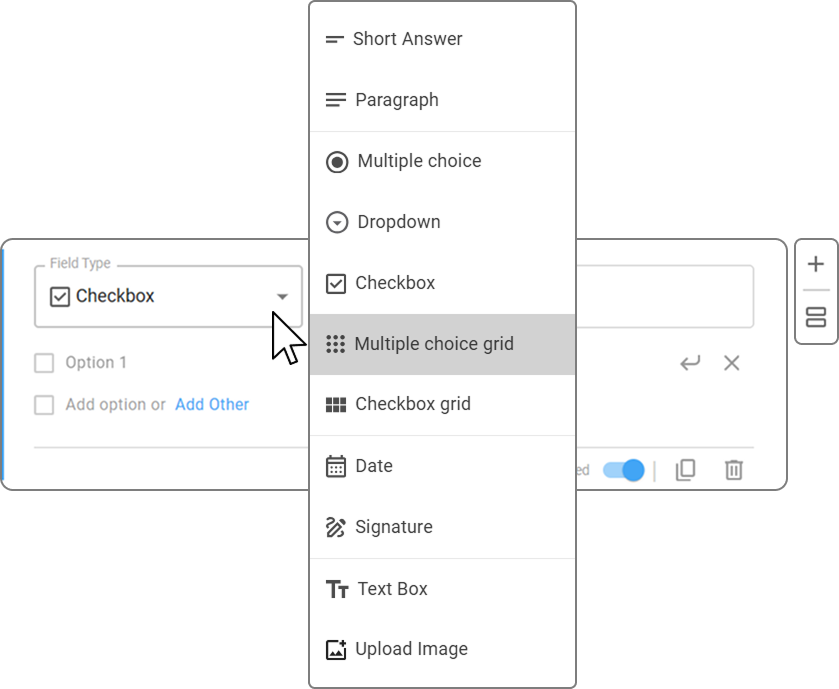
Click the Add Question (+) icon on the right side panel to add a new question card, then choose a type from the Field Type dropdown. The following types are available:
| Card Type | Description |
|---|---|
| Short Answer | Single-line text input for brief responses |
| Paragraph | Multi-line text input for longer written answers |
| Multiple Choice | Patient selects one option from a list; supports an "Other" free-text option |
| Dropdown | Patient selects one option from a numbered collapsed menu |
| Checkbox | Patient selects one or more options from a list |
| Multiple Choice Grid | Multiple-choice questions arranged in a row-and-column grid |
| Checkbox Grid | Checkbox questions arranged in a row-and-column grid |
| Date | Calendar input for selecting a date |
| Signature | Captures a patient or user signature |
| Text Box | Displays non-editable text or instructions on the form |
| Upload Image | Allows the patient to attach a file or image |
3.2 Configure the Card
-
Enter the question text in the Question field.
-
Add answer options based on the field type selected:
- Multiple Choice — Use Add option to add choices, or Add Other to include a free-text option.
- Dropdown — Use the numbered Add Option field to add choices.
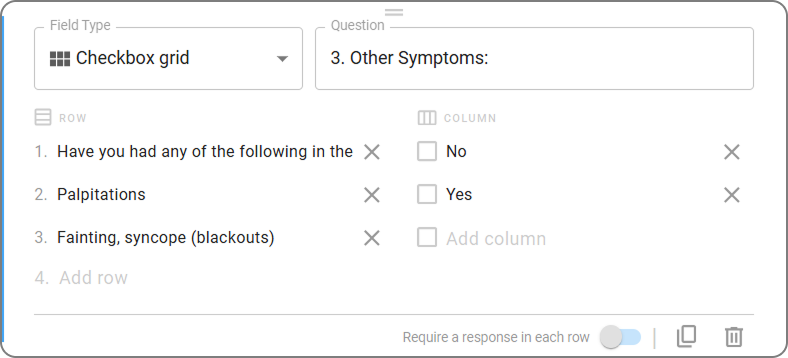
- Row-based types (e.g. Short Answer, Checkbox Grid) — Use Add question within the card to add additional rows, one per sub-question.
- All other types (Paragraph, Date, Signature, etc.) do not require answer options.
-
At the bottom of the card, set the response requirement:
- For standard cards, toggle Required to make the question mandatory.
- For row-based cards, toggle Require a response in each row to make all rows mandatory.
3.3 Manage Cards
Use the controls below to organize and edit question cards as you build the form:
Right side panel:
| Action | Icon | Description | |
|---|---|---|---|
| Add Question | + | Adds a new question card to the form |  |
| Add Section | Stacked pages icon | Inserts a new section (Section 1, Section 2, etc.) to group related questions |
On each question card (bottom toolbar):
| Action | How |
|---|---|
| Duplicate a card | Click the Duplicate icon |
| Delete a card | Click the Delete (trash) icon |
 | |
Adding Sub-Questions within a Card
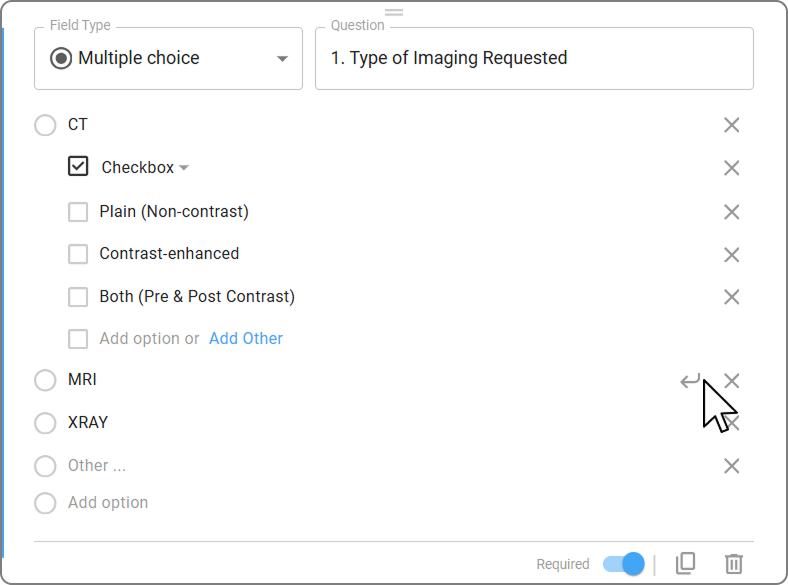
The sub-question feature allows you to create nested questions under a main option, capturing more detailed and structured information based on a user's selection.
To add a sub-question, click the ↩ (arrow) icon next to an option. This creates a nested input directly under that option. Sub-questions can be configured in three formats:
- Checkbox — allows multiple selections
- Multiple Choice — single selection only
- Short Answer — free text input
Tip: The mini-map on the left side of the editor shows each section, question number, and field type icon — use it to navigate and track the structure of your form as you build it.
Step 4 — Preview the Form
Before publishing, click the Preview button (eye icon) at the top right of the form editor to review how the form will appear to users.

Option B — Upload a Fillable PDF
Step 1 — Upload the PDF
- Click Upload on the dashed card tile.
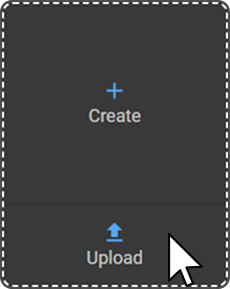
- Select the fillable PDF file from your device. The PDF opens in a dedicated editor with the Bookmark Selector panel on the right.
- The form name is automatically taken from the PDF filename. To rename it, click the pencil (edit) icon next to the form name in the top bar.
Step 2 — Map Bookmarks to the PDF
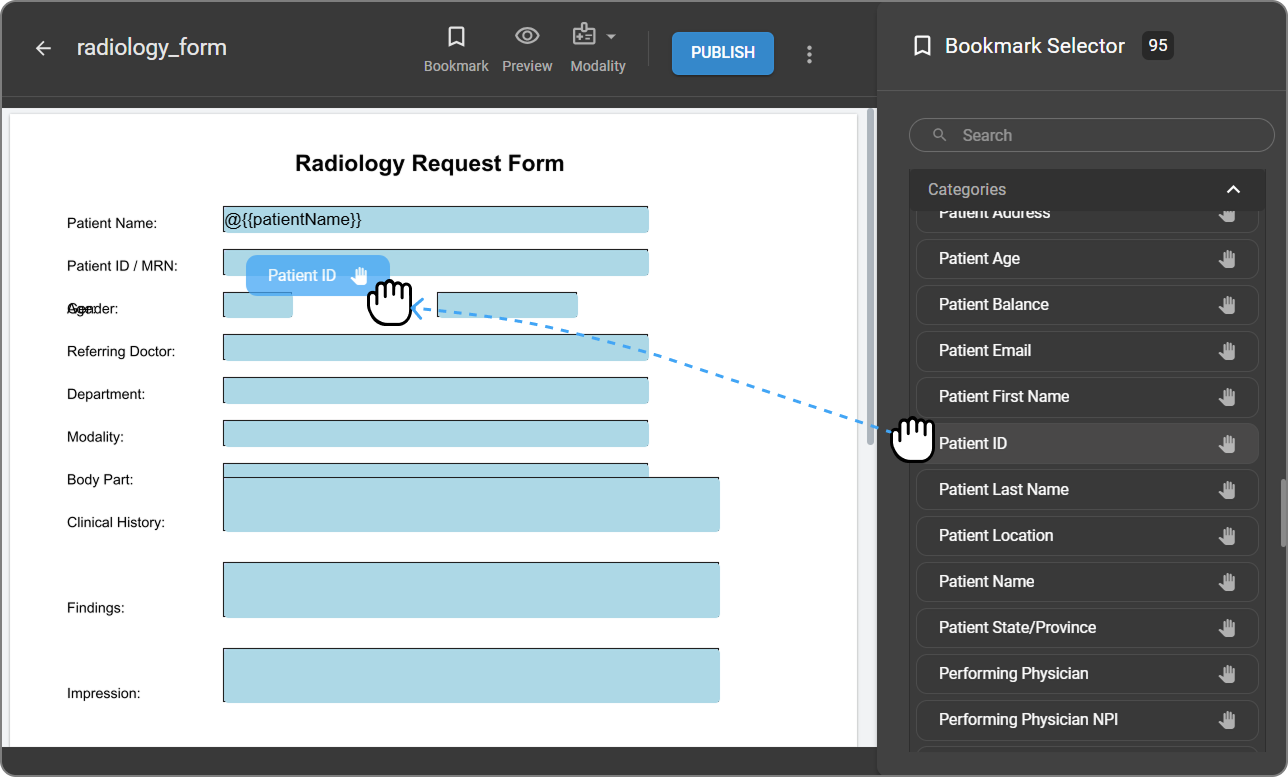
The Bookmark Selector contains a searchable list of fields organized into categories such as Picklists, Fields, and Categories. Each field has a drag handle icon.
- Browse or use the Search bar to find the fields you want to map.
- Drag a bookmark from the Bookmark Selector onto the corresponding field in the PDF.
- Repeat for each field you want to map.
Step 3 — Preview and Publish
- Click Preview (eye icon) in the top bar to review the mapped form.
- Click PUBLISH to publish the form.
4. Publishing a Form
Once your form is complete, publish it to make it active:
- Click the Publish button in the form editor. A Publish Form panel opens.
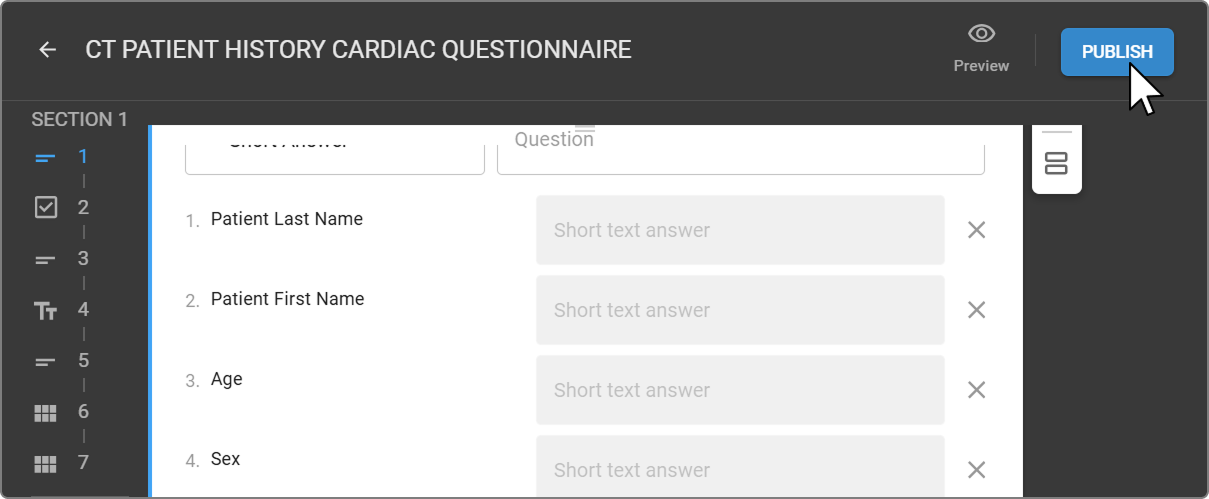
- In the Select Form Type dropdown, choose the appropriate form type.
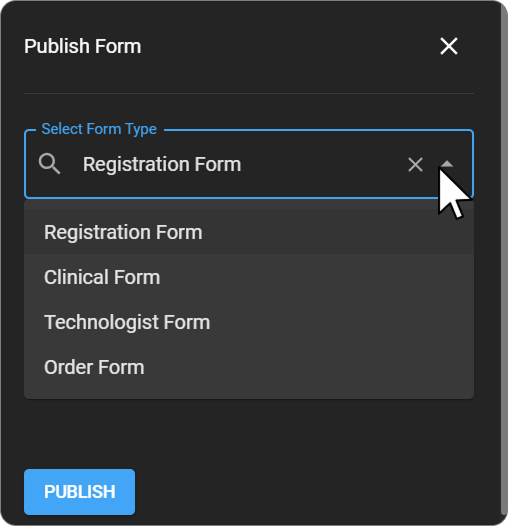
- Complete any additional fields that appear based on the selected form type.
- Click PUBLISH to confirm.
Note: The PUBLISH button remains inactive until all required fields are completed.
Important: Forms must be published before they can be issued or completed. Unpublished forms remain as drafts and are not visible to staff or patients.
Form Type Publishing Options
The fields shown in the Publish Form panel vary depending on the form type selected. Available form types also differ by form location:
| Form Location | Available Form Types |
|---|---|
| Organizational Forms | Registration Form, Clinical Form, Technologist Form, Order Form |
| Blume Forms | Registration Form, Clinical Form |
Registration Form
No additional fields are required. Select the form type and click PUBLISH.
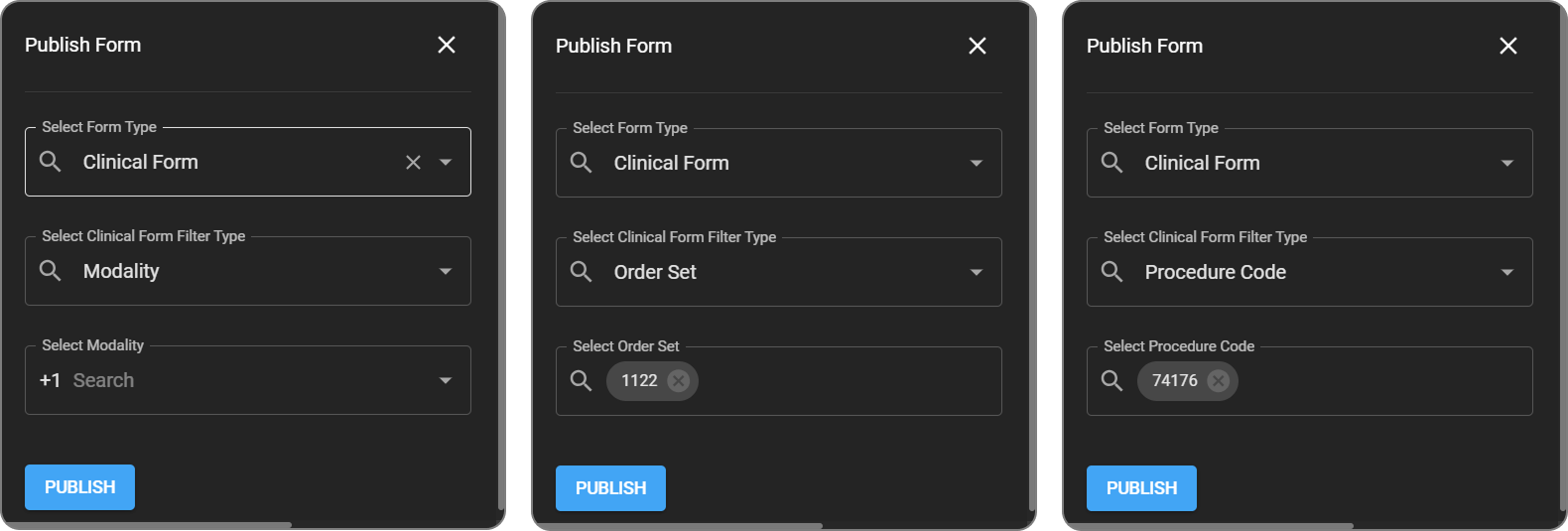
Clinical Form
Selecting Clinical Form reveals one additional field:
Select Clinical Form Filter Type — Select a filter type to determine when the form is issued. A corresponding selector appears based on your choice:
| Filter Type | Additional Field |
|---|---|
| Modality | Select Modality — searchable list of modalities |
| Order Set | Select Order Set — searchable list of order sets |
| Procedure Code | Select Procedure Code — searchable list of procedure codes |
Technologist Form
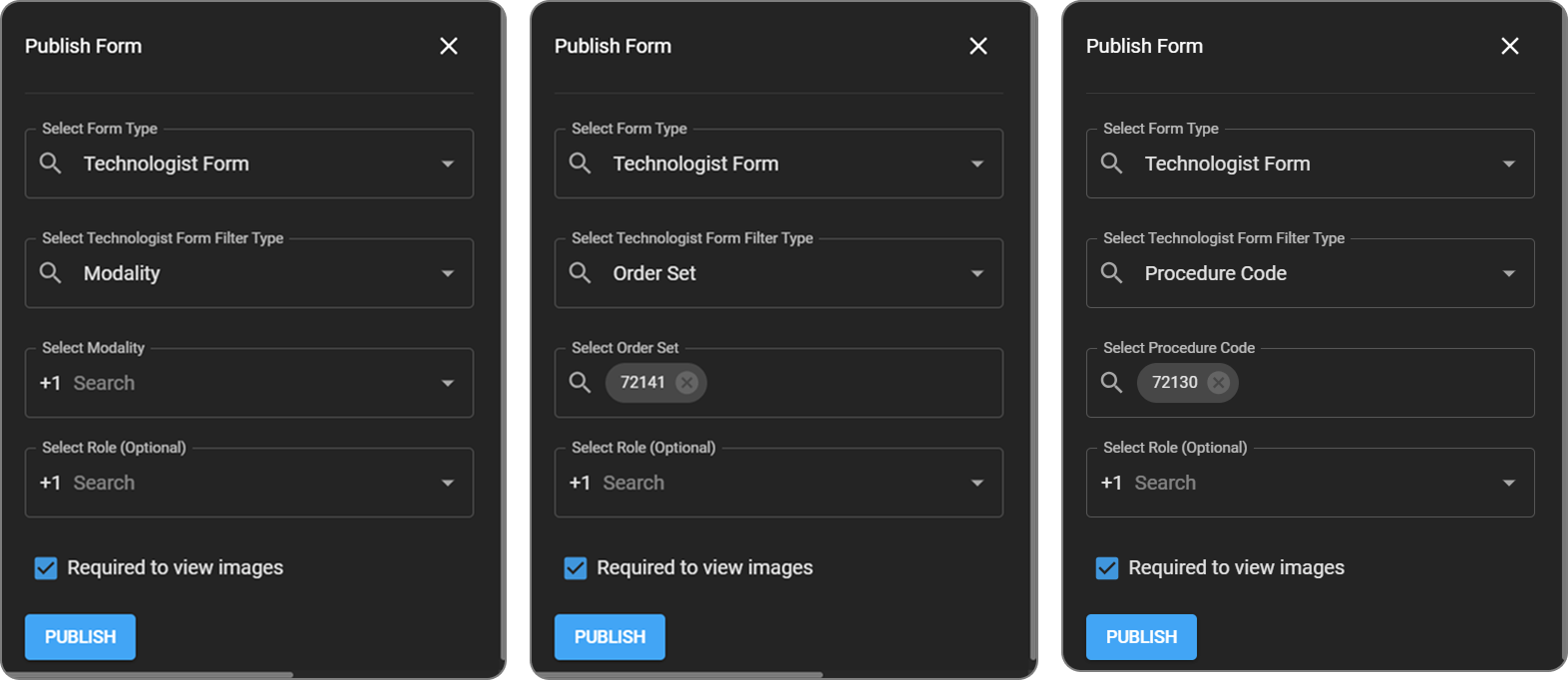
Selecting Technologist Form reveals the following fields:
Select Technologist Form Filter Type — Select a filter type. A corresponding selector appears based on your choice:
| Filter Type | Additional Field |
|---|---|
| Modality | Select Modality — searchable list of modalities |
| Order Set | Select Order Set — searchable list of order sets |
| Procedure Code | Select Procedure Code — searchable list of procedure codes |
Select Role (Optional) — Restrict the form to a specific user role.
Required to view images — Check this box to make the form mandatory before images can be viewed in the Image Viewer.
Order Form
Selecting Order Form reveals one additional field:
Select Order Form Filter Type — Select a filter type. A corresponding selector appears based on your choice:
| Filter Type | Additional Field |
|---|---|
| Modality | Select Modality — searchable list of modalities |
| Order Set | Select Order Set — searchable list of order sets |
| Procedure Code | Select Procedure Code — searchable list of procedure codes |
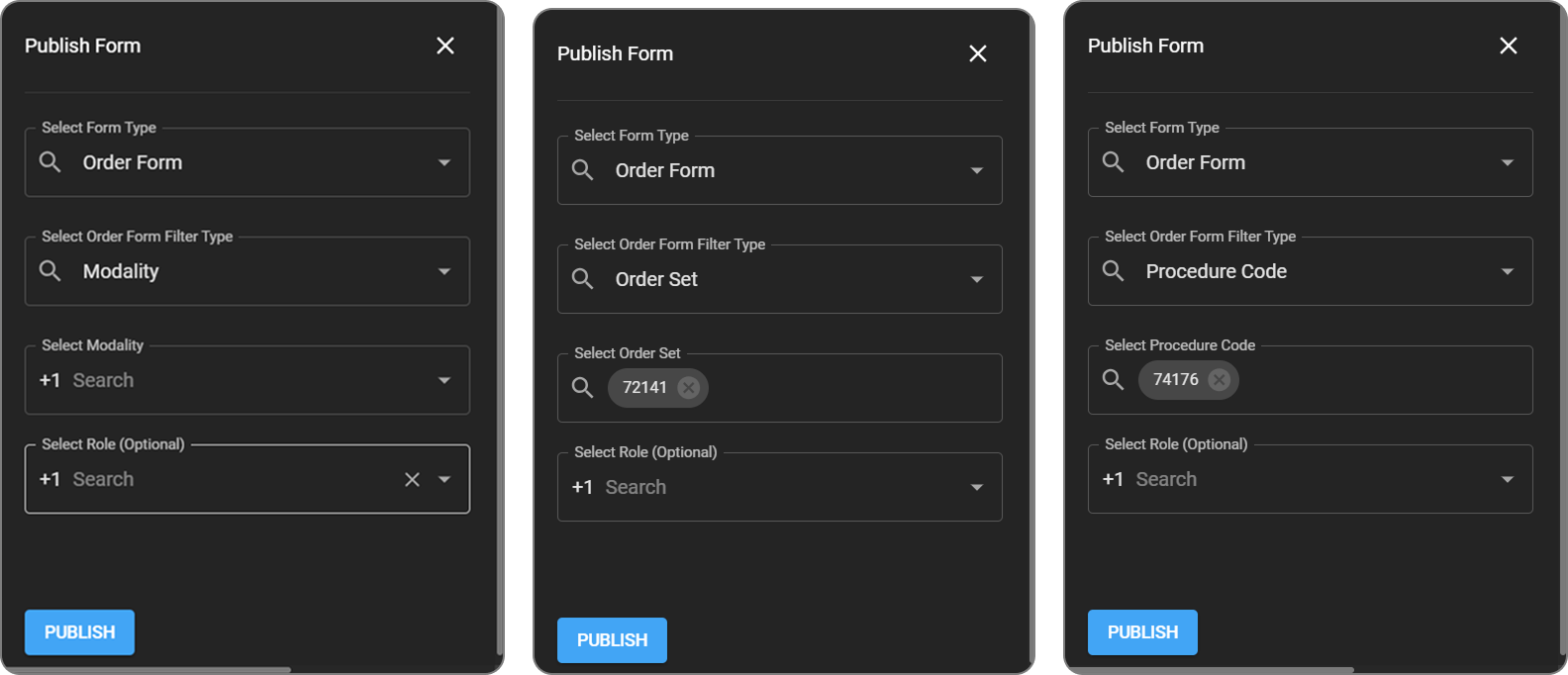
Once published, Organizational Forms are issued automatically to new patients or studies; Blume Forms become available to patients in the Blume application.
Unpublishing a Form
- Locate the form card in the Organizational Forms or Blume Forms panel.
- Click the three-dot menu (⋯) on the form card.
- Select Unpublish. The form is immediately taken offline.

5. Viewing Issued Forms
Issued forms can be accessed from three locations in OmegaAI — the Document Viewer, Study History, and Patient Documents.
From the Document Viewer
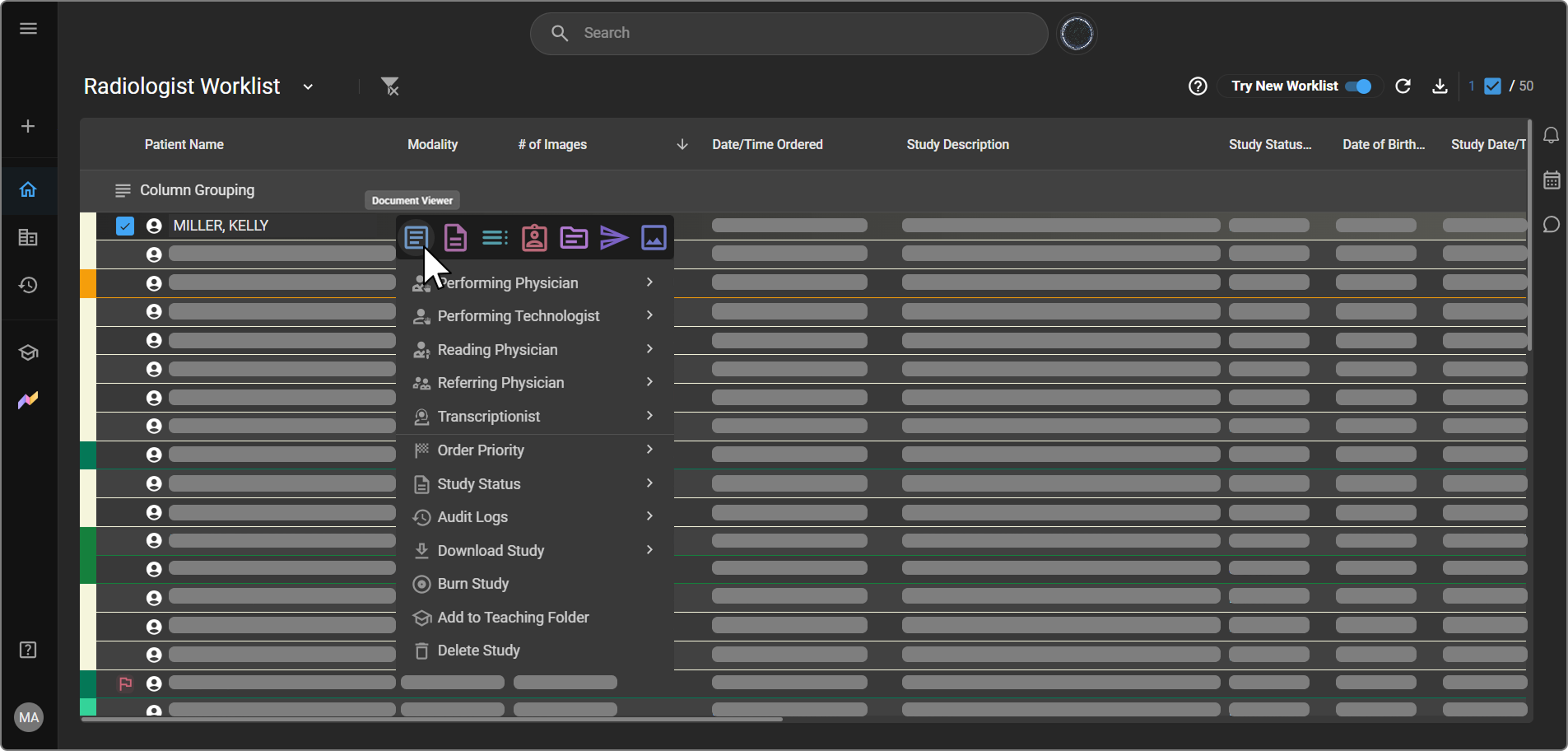
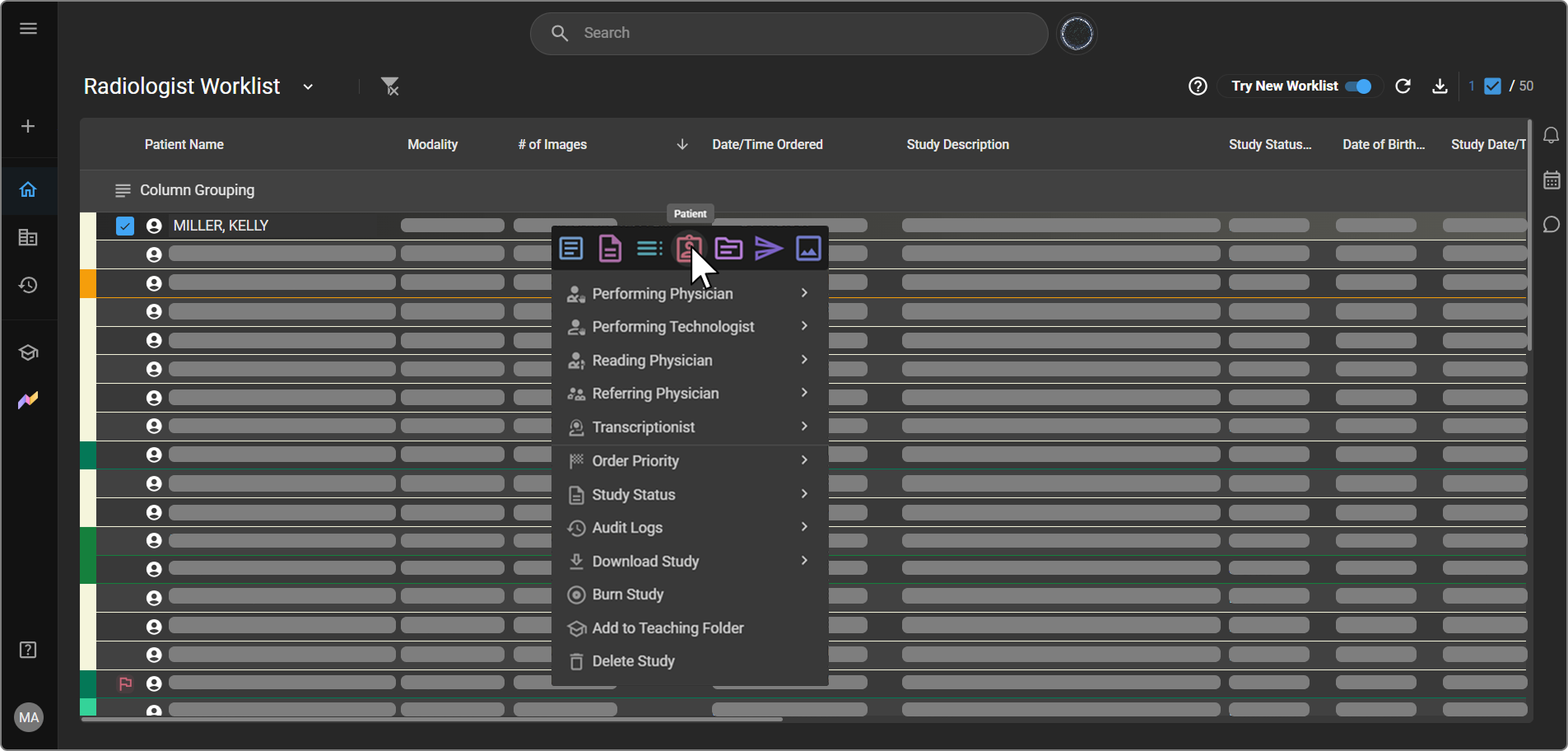
- In the Worklist, right-click a study row. A toolbar appears.
- Click the Document Viewer icon (first icon in the toolbar).
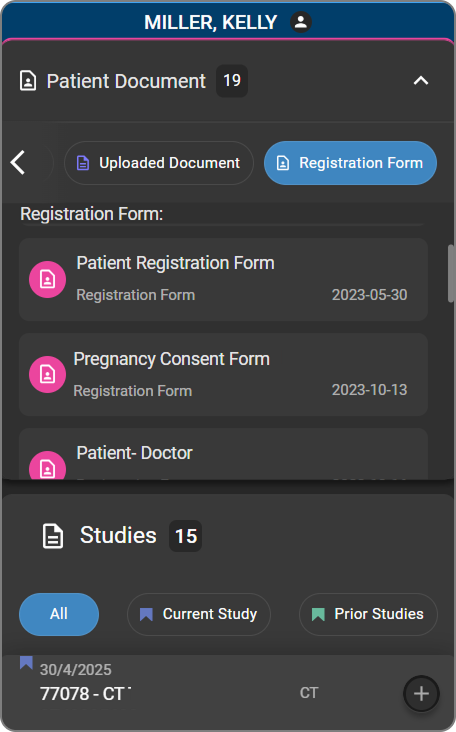
- The Document Viewer opens with a left panel showing:
- Patient Documents — total document count for the patient
- Studies — list of studies, filterable by All, Current Study, or Prior Studies
- Visit Documents — forms attached to the selected study, listed by name and date
- Click any document in the left panel to open it in Read-only mode in the main panel.
From Study History
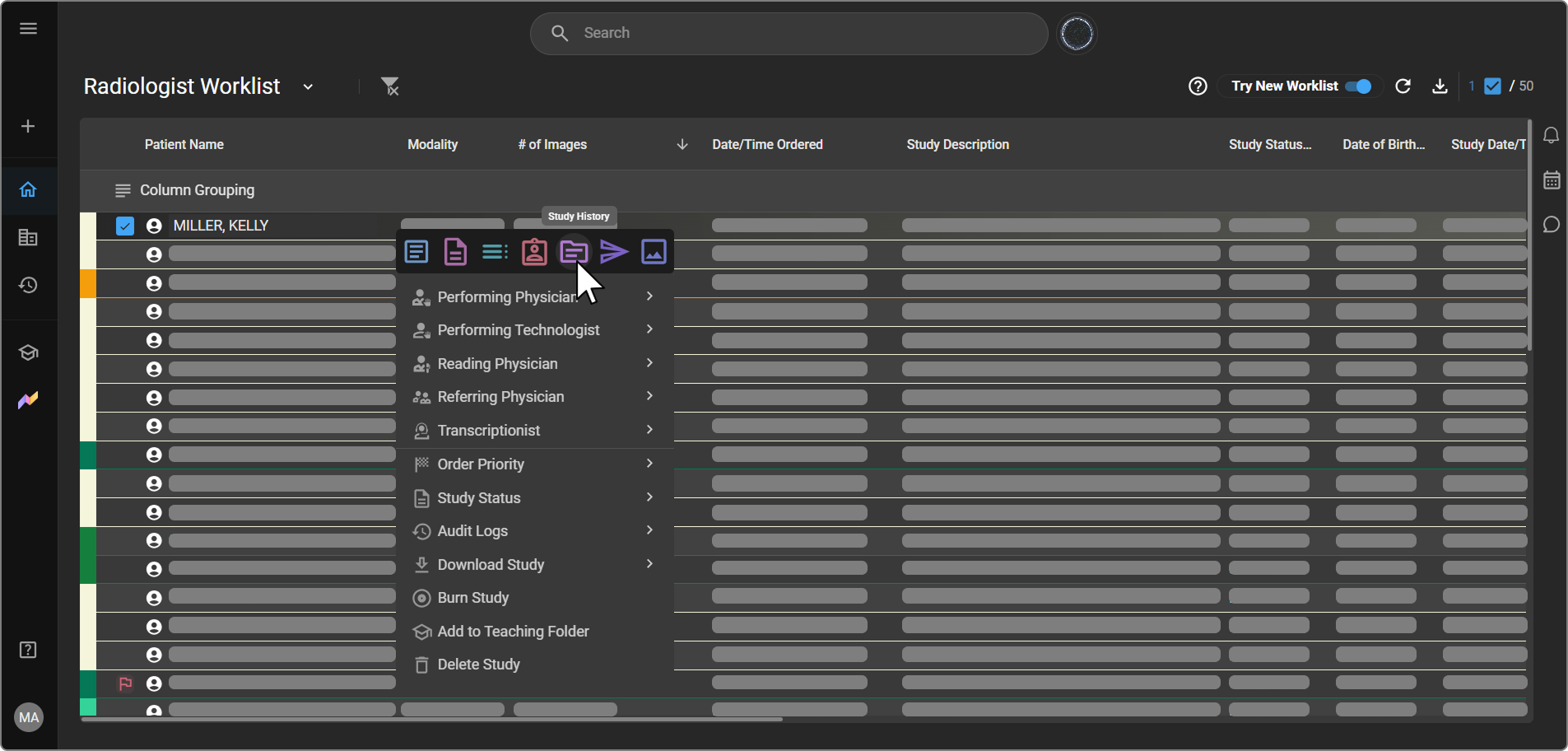
- In the Worklist, right-click a study row. A toolbar appears.
- Click the Study History icon in the toolbar. The Study History page opens listing all studies for that patient.
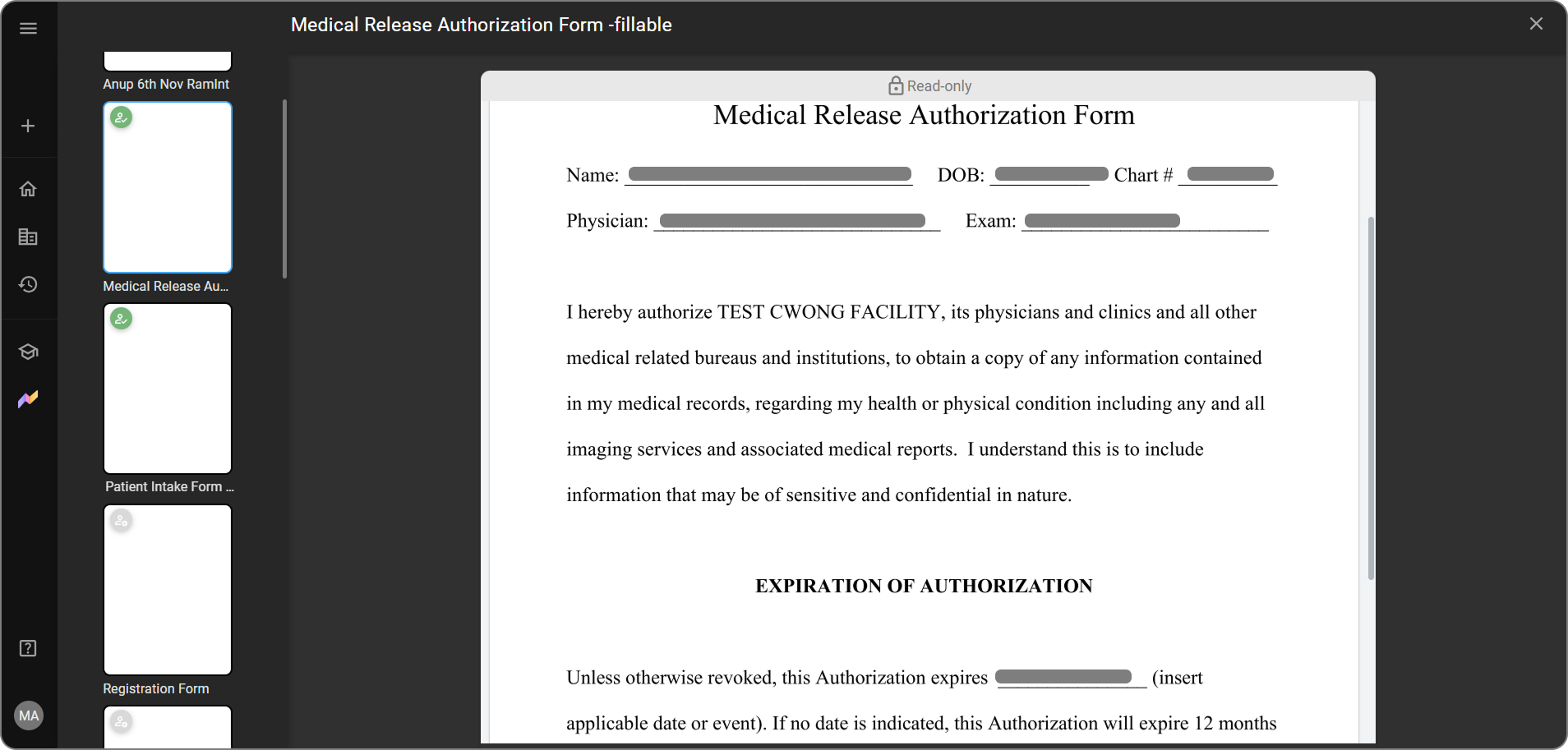
- Hover over a study row. A Forms button appears on the right side of the row.

- Click Forms to open the form viewer for that study. The viewer opens in Read-only mode with a left panel listing all associated forms.
Note: You can also click the Patient Form icon at the top right of the Study History page to view all patient-level forms directly.
From Patient Documents
- In the Worklist, right-click a study row. A toolbar appears.
- Click the Patient icon in the toolbar to open the patient profile.
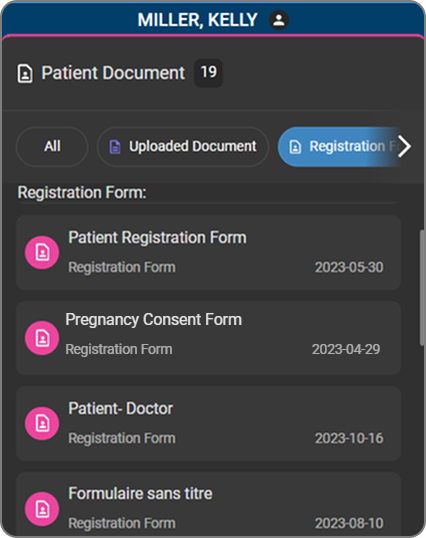
- The Patient Documents panel appears on the left, showing a count of all documents on file.
- Use the filter tabs to browse documents by category:
| Tab | Shows |
|---|---|
| All | All documents across all categories |
| Uploaded Document | Manually uploaded files |
| Registration Form | Submitted registration forms |
- Click any document in the list to open and view it.