Login Process and Multi-factor Authentication (MFA)
RamSoft’s OmegaAI offers heightened account security measures through its Multi-factor Authentication (MFA) procedure ensuring information confidentiality and safety for all users.
The section in subject will provide you with a walk through of the Login and Account Creation for RamSoft’s OmegaAI as well as the MFA process applied to several scenarios:
- Login from Regular Browser
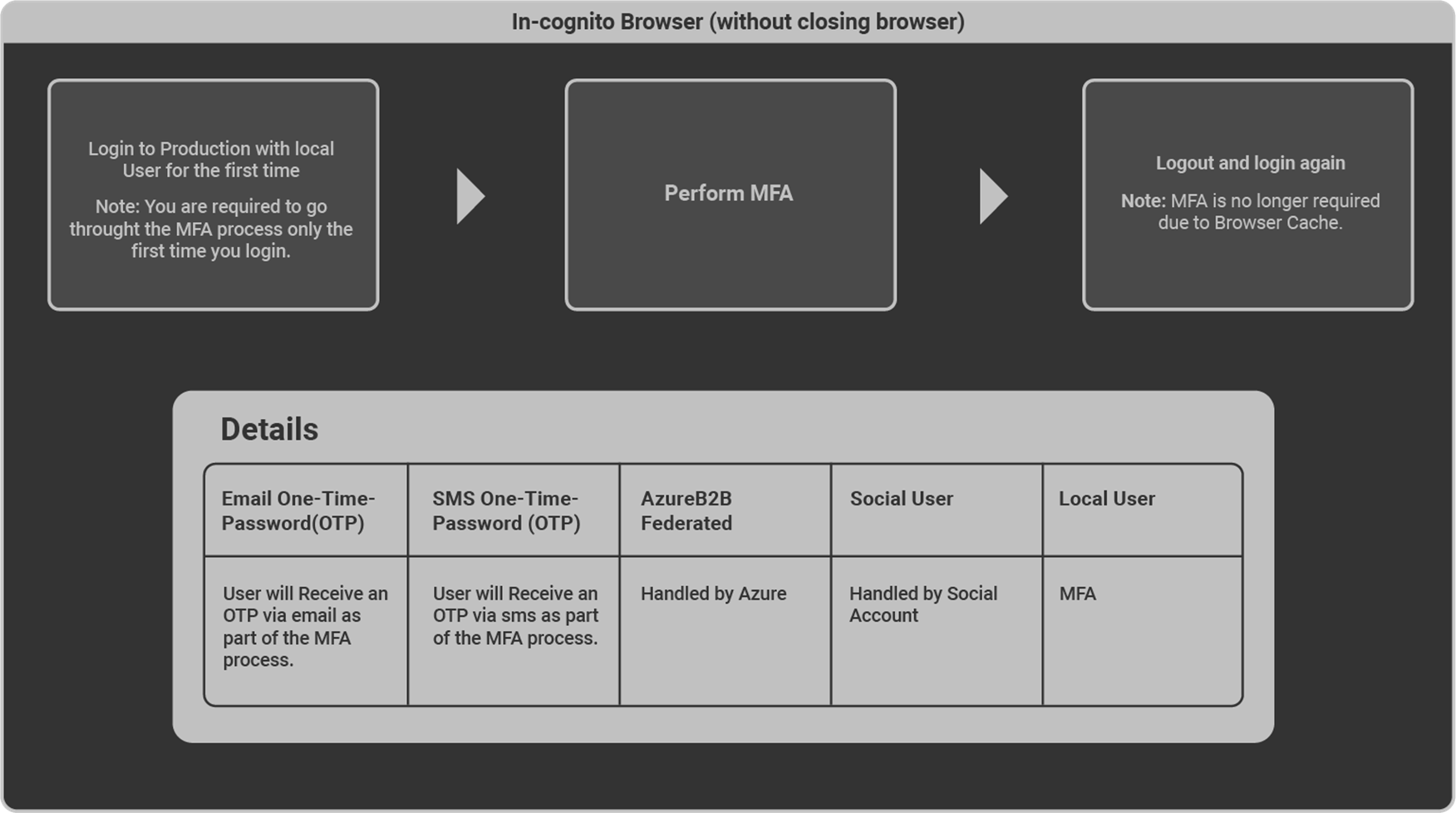
- Incognito Browser (without closing browser)
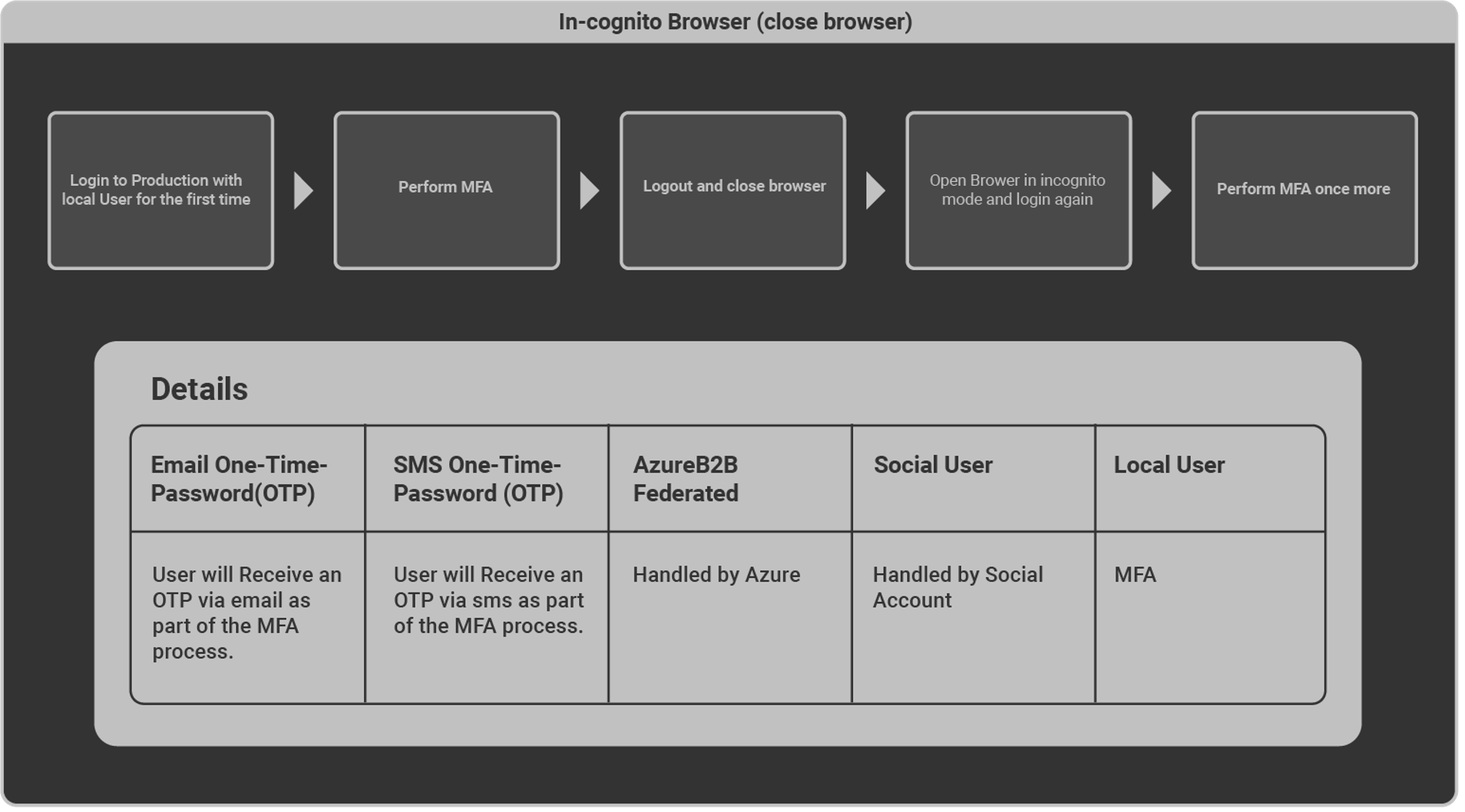
- Incognito Browser (close browser)
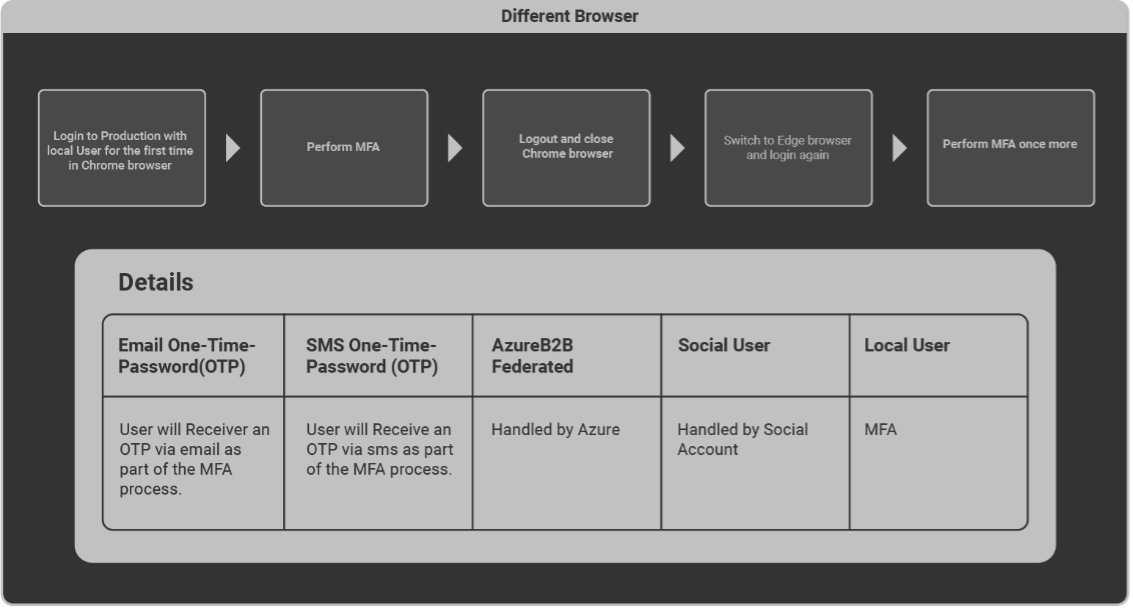
- Different Browser
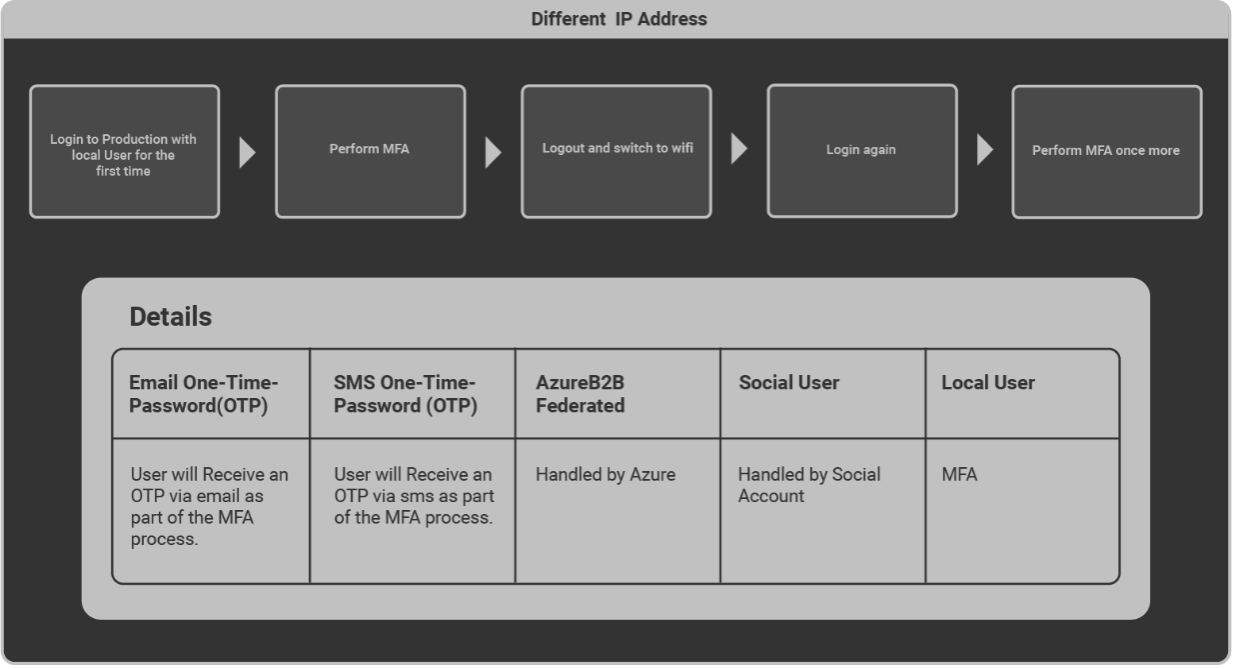
- Different IP Address
- Different Device and OTP Fingerprinting
Updated Authentication Process – Introducing Password-Based Login
OmegaAI has introduced a new password-based authentication system, replacing the previous 6-digit PIN login method.
This enhancement follows HITRUST-compliant password security standards, offering stronger protection for user accounts and sensitive clinical data.
1. New User Signup (Password-Based Login)
Page: OmegaAI Signup Page
During signup, the PIN field has been replaced with a Password field.
All new users must create a secure password that meets the following rules:
Password Criteria
-
Minimum 8 characters
-
Includes at least one uppercase and one lowercase letter
-
Contains at least one number or special character (e.g.,
!,@,#,$)
Examples
-
Acceptable:
Health@radio123,SecureLogin#2025 -
Not Acceptable:
abcdef,12345678
A password strength indicator will appear as you type, helping you create a stronger password.
After entering and confirming your password, click Continue to complete your signup.
Signup cannot proceed unless all requirements are met.
2. Sign-In Flow for New Users
Page: OmegaAI Sign-In Page
New users can now log in using their email/username and password.
Once a password is created, it becomes the only valid credential for future sign-ins.
3. Legacy PIN-Based Login (For Existing Users)
Existing users who originally created their accounts using a 6-digit PIN can continue logging in as before.
However, for enhanced account protection, users are encouraged to upgrade to password-based login at their convenience.
4. Forgot or Reset Password
a. Navigate to Login Page.
b. Enter your registered Email address.
c. Click Continue.
d. Click on the Forget Password option on the Enter PIN page.
e. You will need to enter the code received on your registered email address to Verify your account.
f. Click Verify.
g. You will be redirected to the Reset Password page.
h. Create a new alphanumeric password following the password criteria listed above.
i. Re-enter the password
j. Click Continue.
k. Both the passwords must match for you to continue with the process.
Note:
-
Once updated, your PIN will be replaced by the new password, which will be required for all future logins.
-
Password strength is validated in real-time to help ensure compliance and security.
5. User Access Summary
| User Type | Login Method | Next Steps |
|---|---|---|
| New Users | Password | Create a secure password during signup |
| Existing Users (PIN-based) | PIN | Continue using PIN or upgrade to password anytime |
Note:
Both authentication methods are supported during this transition phase.
However, the password-based login is the recommended and more secure approach going forward.
Existing User Login Process
Access https://www.omegaai.com/. Once you are on the Log in page follow the steps below to access your account:
Click OmegaAI.
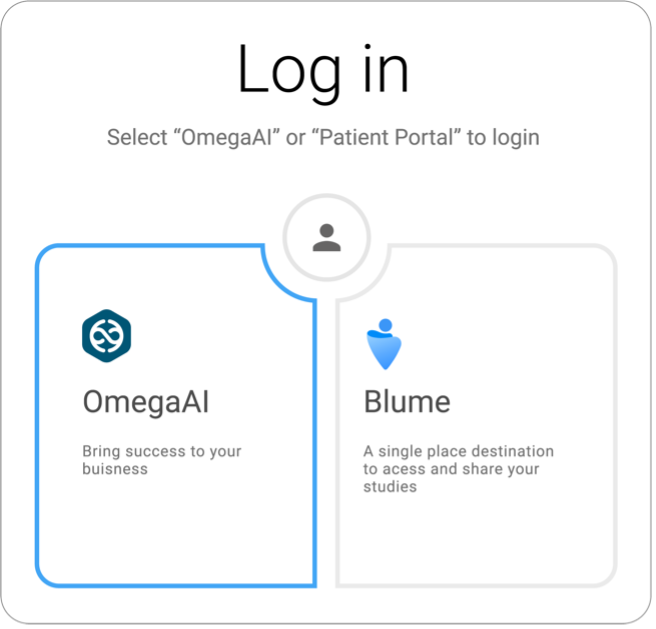
You will now see the Welcome to OmegaAI section.

Enter your email address. Click “Continue”. You will now see the Enter PIN section. Enter your pin.
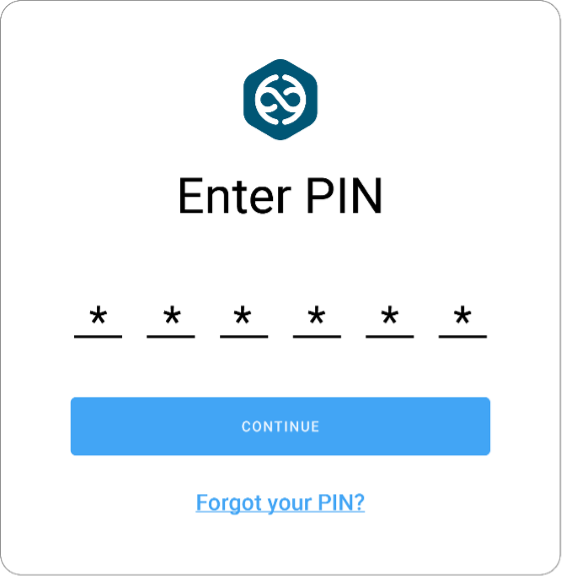
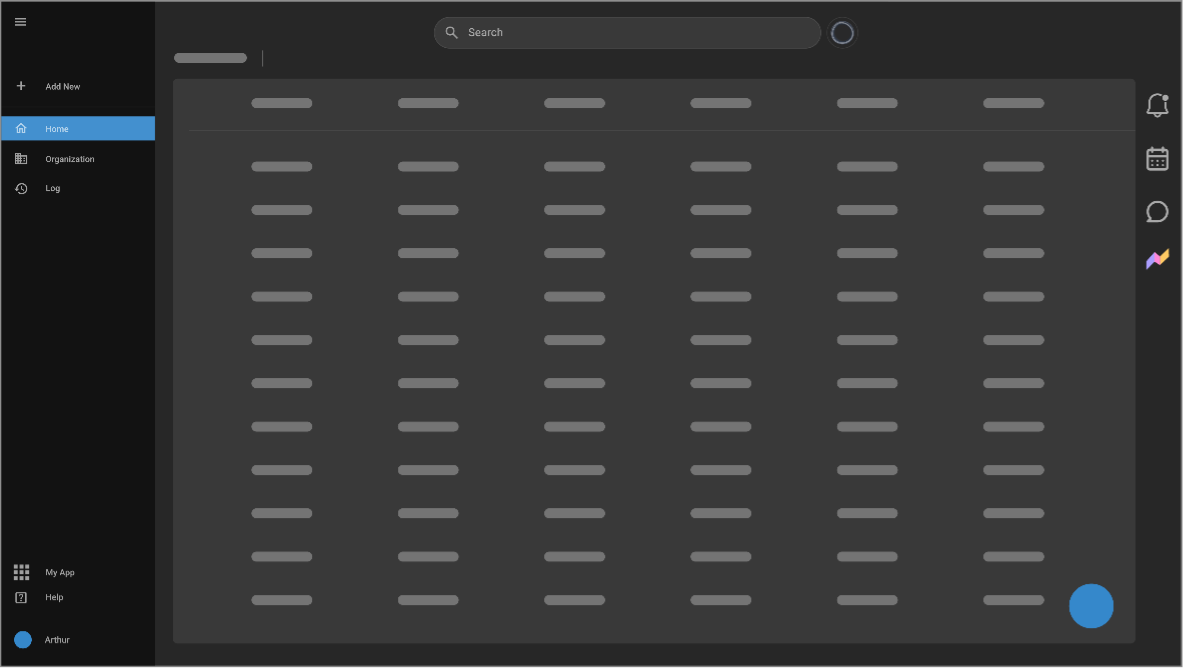
Click “Continue”. You have now successfully logged into OmegaAI and you will be directed to the OmegaAI Home page.
MFA Procedure Applied to Multiple Login Scenarios
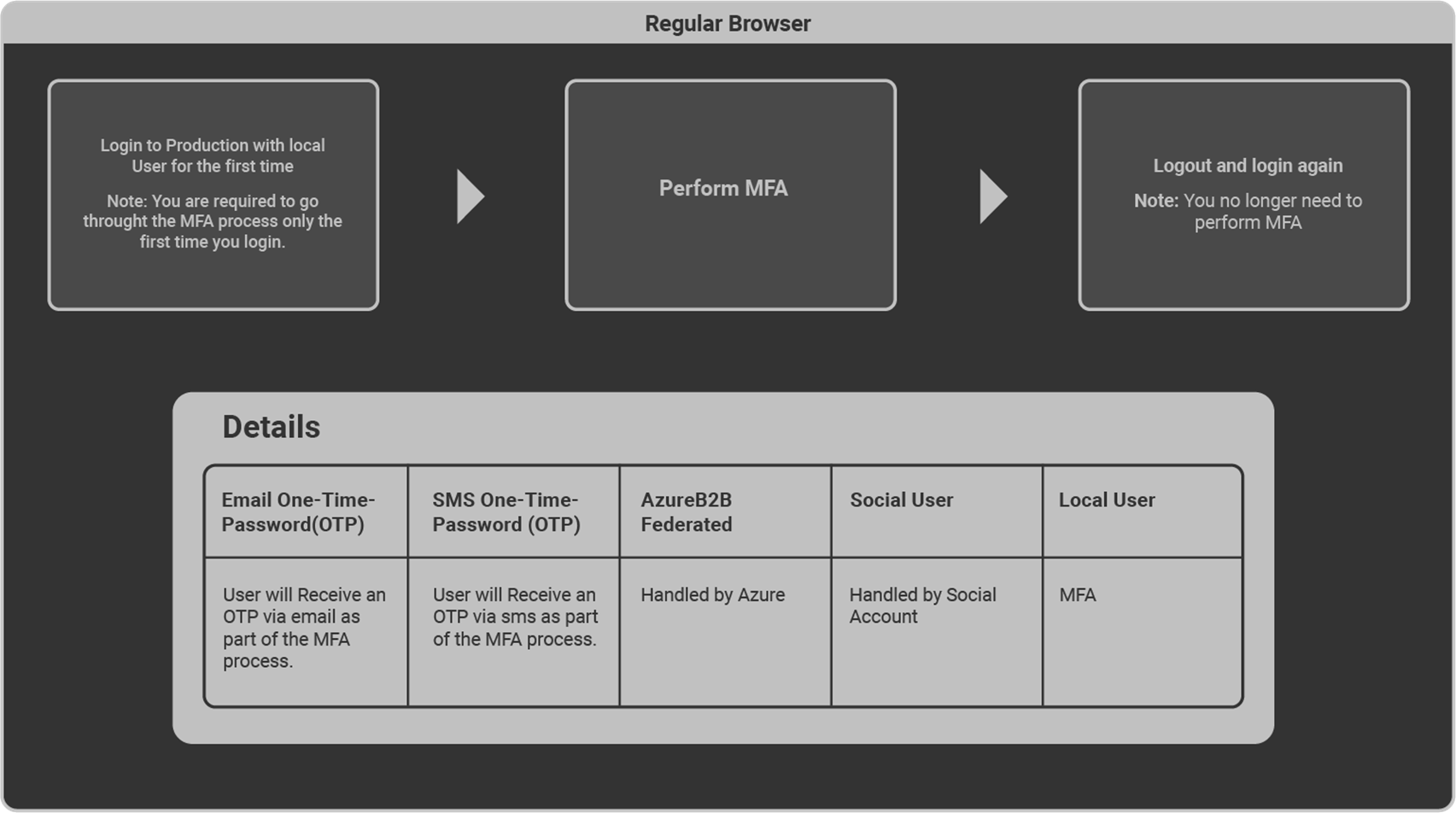
MFA login flow differs as per scenarios displayed in the below diagrams.
- Login via Regular Browser
- Login via Incognito Browser (without closing browser)
- Login via Incognito Browser (close browser)
- Login with Different Browser
- Login with Different IP Address
- Login with Different Device
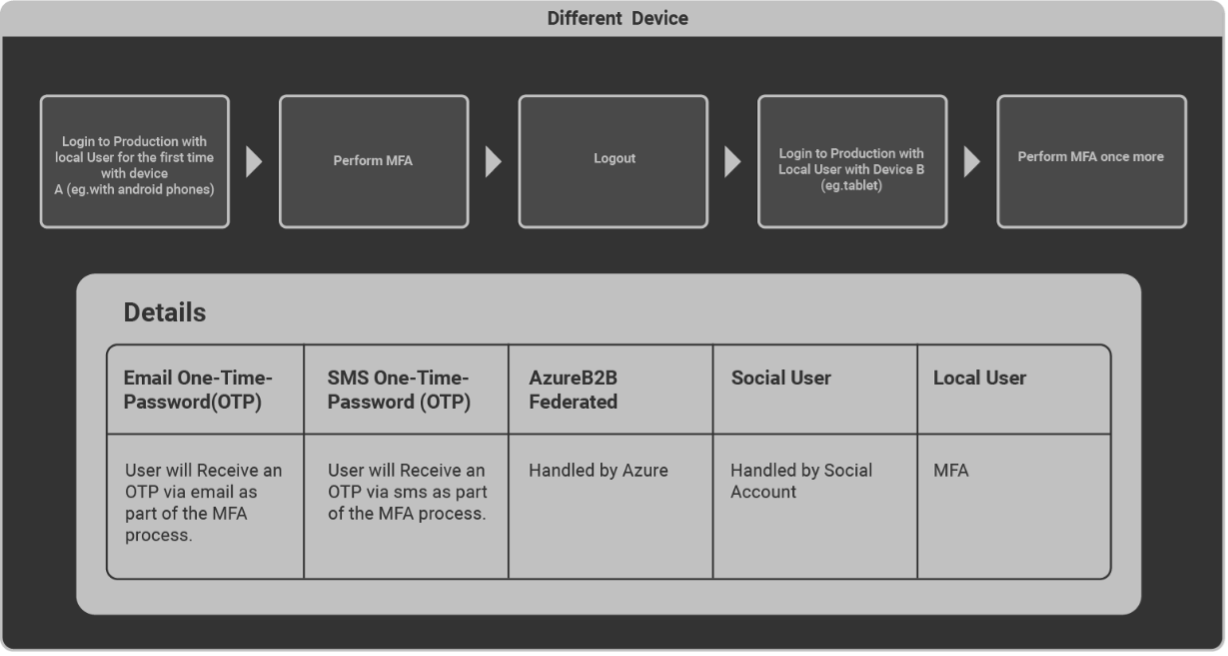
- Login via OTP Fingerprinting
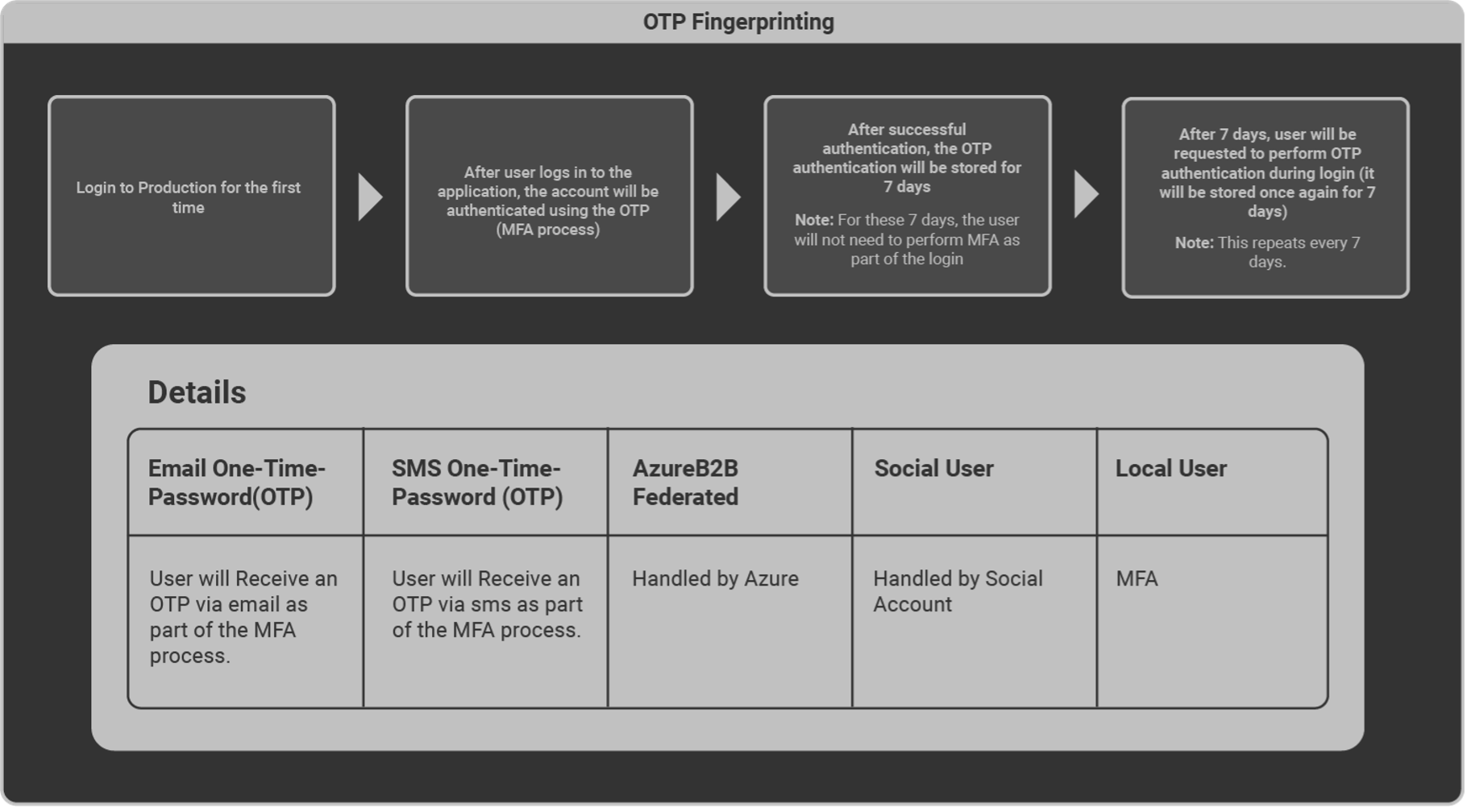
How to prevent having to perform MFA every single time you login
Note: MFA triggers are tracked by the browser's local storage.
However, in some cases, browser security settings are set up to delete data stored in the browser’s local storage (as shown below) requiring the user to perform MFA every time they log in to OmegaAI.
Solution
Access your respective browser settings (for example Chrome) and follow the below steps:
- Select Privacy and Security from the left navigation menu.
- Select Site settings.
- Select the third-last option from the list On-device site data.
- Select the first option Allow sites to save data on the device.
Your login details will now be stored in the browser’s local storage thus no longer triggering an MFA request.
PHI Access and Use Disclaimer
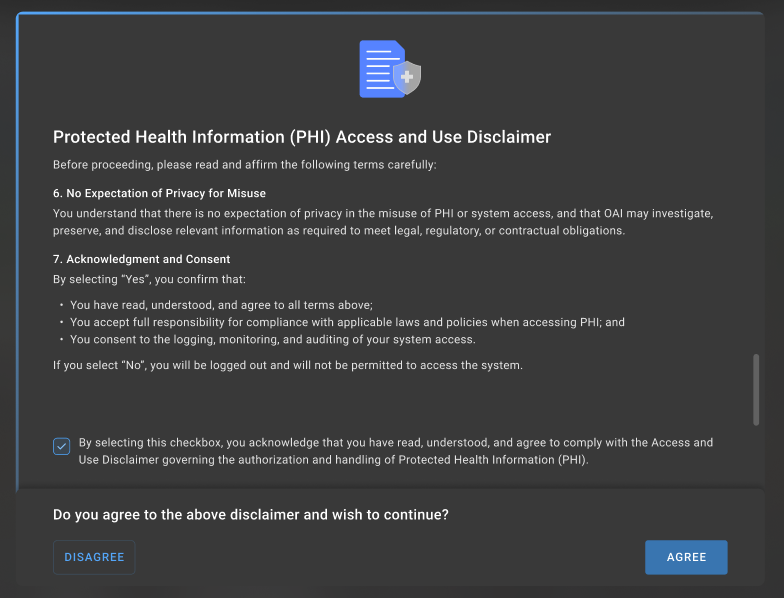
The Protected Health Information (PHI) Access and Use Disclaimer is a compliance feature implemented in OmegaAI (OAI) to ensure that users explicitly acknowledge their legal and professional responsibilities before accessing patient information.
This feature requires users to review and accept a legal disclaimer confirming that they have a valid authorization or lawful basis to access PHI.
The disclaimer helps organizations maintain compliance with healthcare privacy regulations such as HIPAA (Health Insurance Portability and Accountability Act), while also strengthening system auditing and monitoring capabilities.
Purpose
The PHI Access Disclaimer ensures that users:
-
Explicitly confirm their authorization to access PHI
-
Acknowledge their professional responsibility when handling patient data
-
Accept monitoring, auditing, and compliance enforcement policies
-
Provide recorded consent prior to accessing PHI within the system
Note: Without accepting the disclaimer, users will not be allowed to access PHI or interact with the application.
Scope
The PHI Access Disclaimer applies to all new and existing non-federated users, including:
-
Local users
-
Social Identity Provider (IDP) users
Additional implementation details include:
-
Recording the IDP type in the User table
-
Displaying the disclaimer through the frontend
-
Blocking PHI access until user consent is captured
-
Storing user consent through backend services
-
Logging consent actions for audit and compliance purposes
Note: This feature does not apply to federated users authenticated through external enterprise identity providers.
Disclaimer Displayed
The disclaimer is displayed under the following conditions:
-
When a non-federated user logs in for the first time,
or
-
When the user first attempts to access PHI
Behaviour after User Interaction
| Scenario | System Behavior |
|---|---|
| User clicks Agree | Access to PHI is granted and consent is recorded |
| User clicks Disagree | User is immediately logged out |
| User closes the window without responding | Disclaimer appears again on next login |
| User previously accepted disclaimer | Disclaimer will not appear again |
Notes:
-
The disclaimer will continue to appear until the user explicitly accepts it.
-
The disclaimer is designed to ensure users cannot bypass compliance confirmation.
Key Restrictions Include:
-
The disclaimer blocks all PHI visibility
-
Users cannot dismiss or bypass the dialog
-
Application access remains restricted until a response is recorded
User Actions
Agree
When the user selects Agree:
-
User consent is captured and stored in the backend.
-
Consent details are persisted through an API call.
-
Consent status is stored in the EXT.JSON structure.
-
The user gains access to PHI and the application.
Note: Once accepted, the disclaimer will not be displayed again for that user.
Disagree
When the user selects Disagree:
-
User is immediately logged out
-
System redirects the user to the login page
-
No consent data is written to EXT.JSON
Audit Logging
All user interactions with the disclaimer are logged for compliance and auditing purposes.
The audit logs capture:
-
User action (Agree / Disagree)
-
Timestamp
-
User location
-
Time zone information
These logs support compliance investigations and regulatory audits.