Adding Users & Roles
Adding Users & Roles
After setting up or modifying an organization in OmegaAI, it is important to manage users by adding individuals and assigning them specific roles and responsibilities within the organization.
Accessing User Management Features
Edit Organization:
Begin by navigating to the organization detail page. Click the 'Edit' option in the top right corner to enter edit mode.
Navigation Tabs: Upon entering edit mode, several new tabs will appear on the left, including General, Users and Roles, Organization Forms, Workflow Automation, Devices, and RIS Settings. The presence of the General tab indicates you are on the correct page for editing.
Adding Users to an Organization
-
Selecting 'Users and Roles' Tab: Click on the 'Users and Roles' tab to access the list of current users.
-
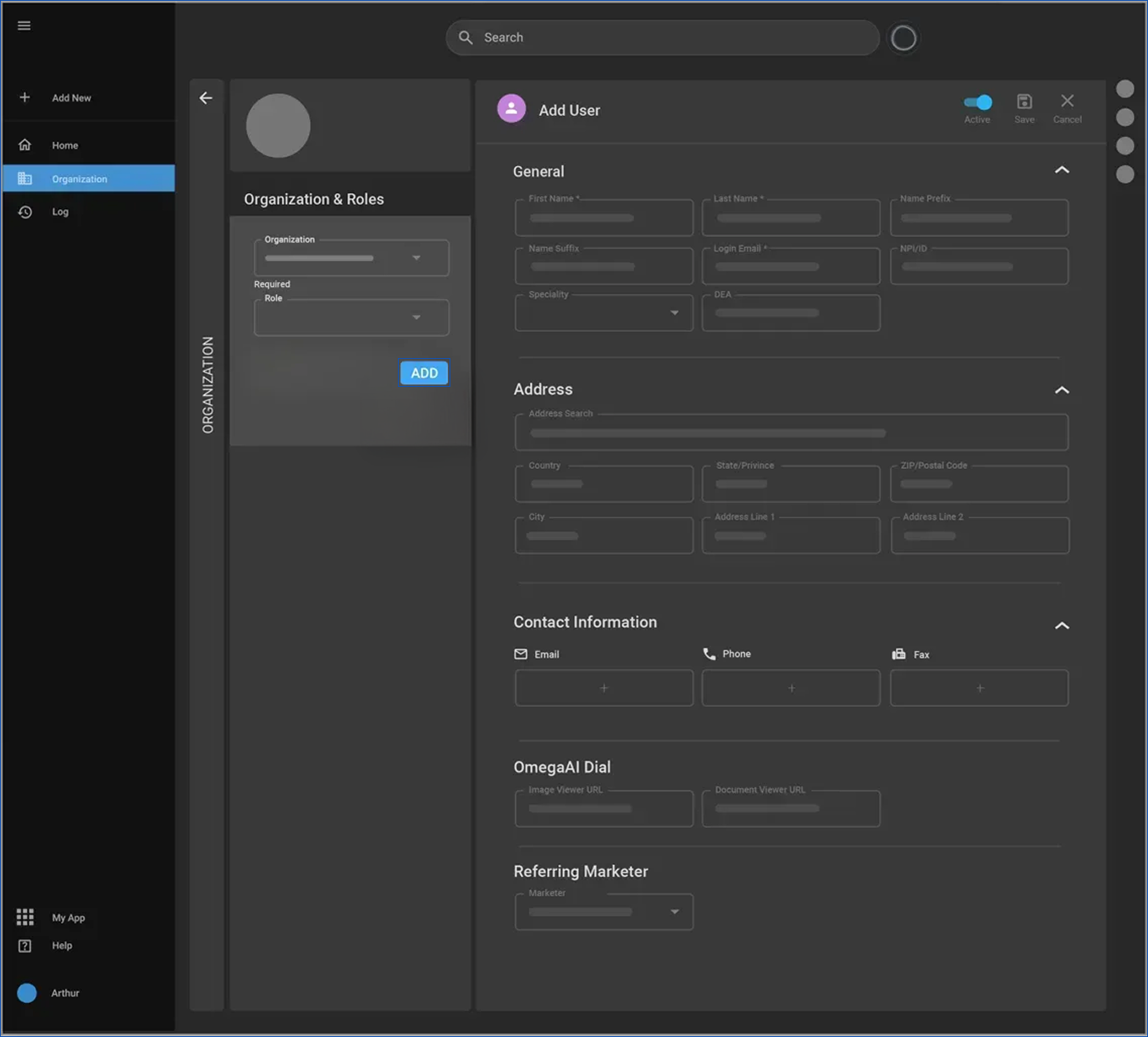
Adding a New User: To add a user, click the '+' icon. This action takes you to the 'Add User' page.
-
User Status: By default, the 'Active' toggle for new users is set to 'On'. This setting can be adjusted to 'Off' if you need to deactivate a user temporarily or permanently.
-
Entering User Details:
-
Personal Information: This includes the user's first name, last name, and login email, which links to an identity provider.
Note: The Login Email field becomes non-editable once a user has logged in at least once, ensuring account ownership remains secure. Administrators can edit the Login Email only for invited users who have not yet completed signup.
-
Optional Details: You may also add a name prefix, suffix, National Provider Identifier (NPI), Drug Enforcement Administration (DEA) number, and specialty.
-
Address: Use the address search feature to automatically fill in address fields.
-
Contact Information: Provide email, phone, and fax. You can enter multiple contacts for each type.
-
-
Integration Settings: Adjust settings to integrate third-party images or document viewers. Contact RAM software was used for the setup assistance.
-
Assigning Organization and Role:
-
Organization Tab: This is pre-filled with your current organization but can be changed if necessary.
-
Role Selection: Choose an appropriate role from predefined options available within the master’s organization.
-
Multiple Organizations: You have the option to add the user to more than one organization on this screen.
-
-
Finalizing Changes:
-
Save: Click 'Save' to confirm all the entered details and add the user to the system.
-
Cancel: Click 'Cancel' if you wish to exit without saving any changes.
-
Last Updated User Information
The User Information page now displays who last updated the user profile and when the update occurred. The update time is automatically shown in your browser’s local time zone.
Note: Effective user management in OmegaAI is essential for maintaining structured access and defining responsibilities in healthcare environments. Each user's role and access privileges were carefully calibrated to ensure operational efficiency and security.