Visit / Order / Study Page
Overview
The Visit / Order / Study page is the central hub for reviewing and managing patient encounter information. It brings together three interconnected levels of patient data:
| Level | Description |
|---|---|
| Visit | The patient's overall encounter or appointment |
| Order | A diagnostic or imaging request made within a Visit |
| Study | The specific imaging exam performed under an Order |
How they relate: A single Visit can contain multiple Orders, and each Order can have one or more Studies associated with it.
Accessing the Page
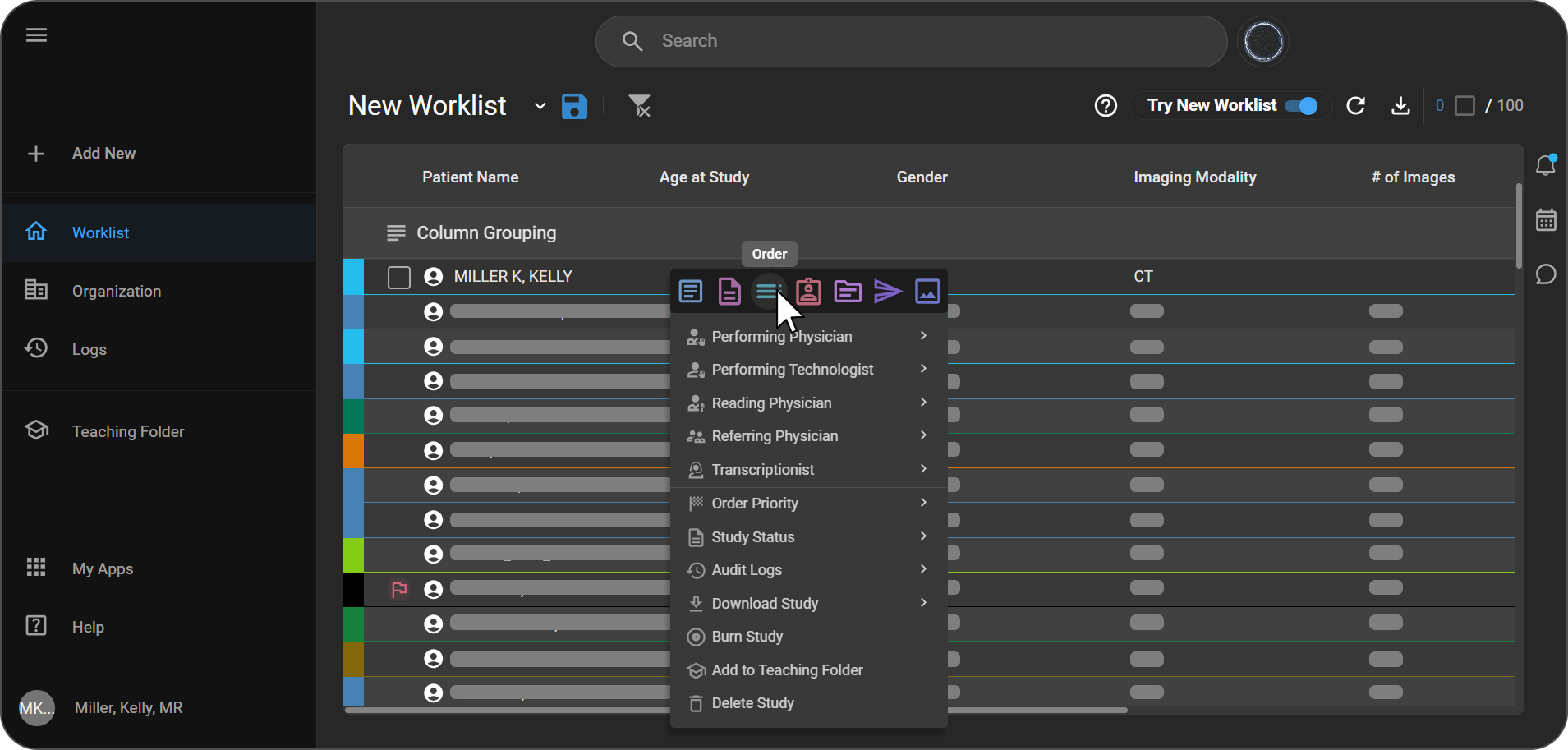
You can access the Visit / Order / Study page directly from the Worklist.
- Open the Worklist and locate the patient or study you need.
- Right-click on the study row to open the context menu.
- Select Order from the menu.
The Visit / Order / Study page will open.
The Visit/Order/Study details page displays:
- Key Indicators & Visit Details: Patient key indicators including vitals and visit information.
- Care & Notes: Summary of care and accident notes.
- Order Details: Accession number, date/time, priority, and status.
- Studies & Notes: List of associated studies and order notes.
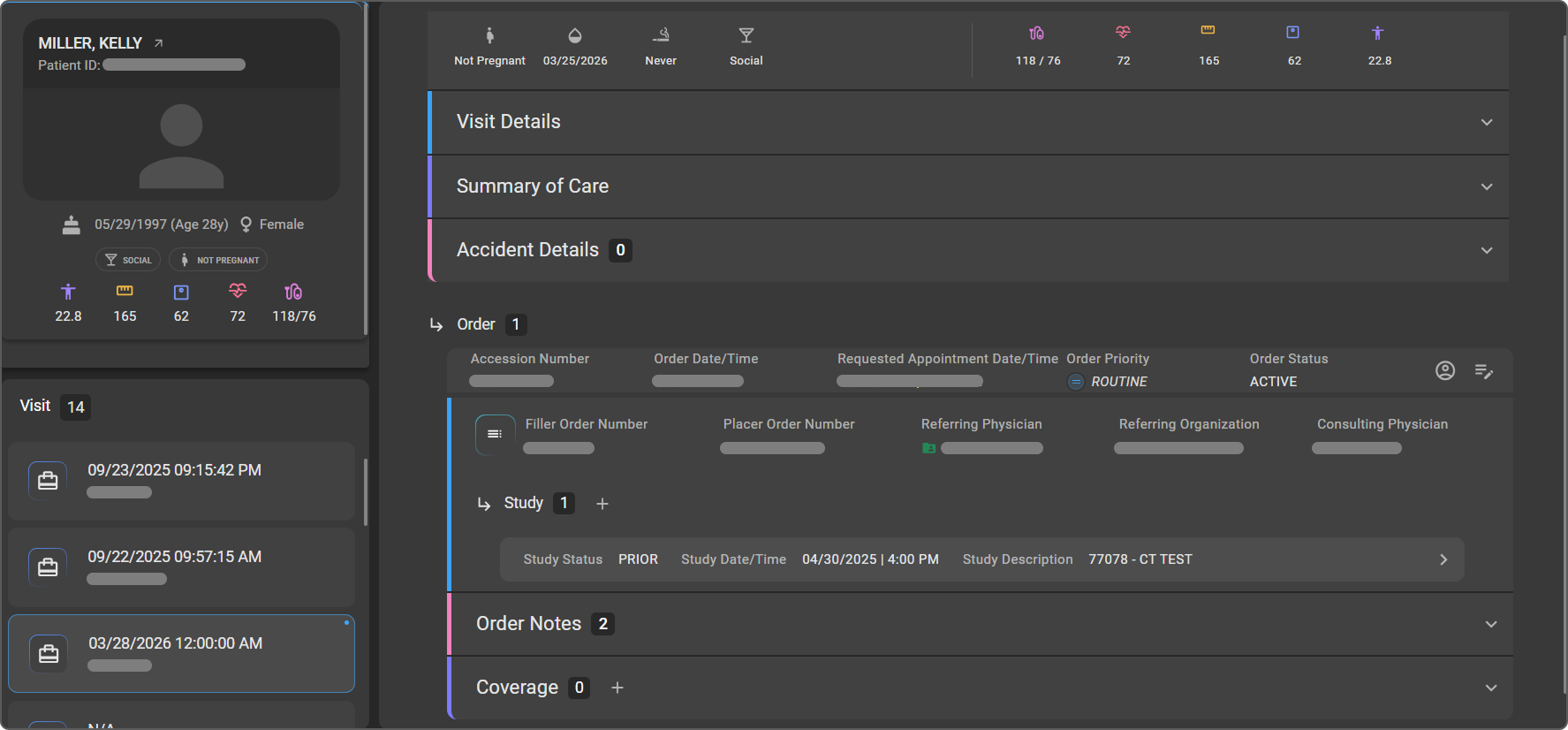
Tip: Click anywhere on a section header to expand or collapse it. The count shown next to a section title indicates the number of records in that section.
Visit List (Left Panel)
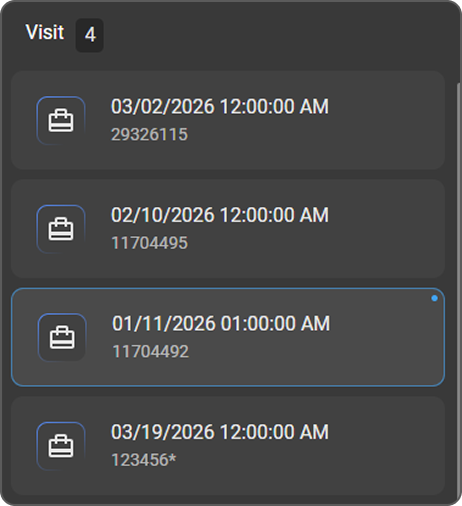
The left panel displays all Visits linked to the patient. The total number of visits is shown at the top.
- Click on any Visit entry in the list to load its details in the main area.
- The currently active Visit is highlighted in the list.
- Switching Visits will reload the Visit Details, Orders, and Studies in the main content area.
Patient Key Indicators
The Patient Key Indicators Strip runs across the top of the page and provides a quick snapshot of the patient's key health indicators including vitals.
Includes:
- Pregnancy Status
- Last Menstrual Period (LMP)
- Smoking Habit
- Drinking Habit
- Blood Pressure
- Heart Rate
- Height
- Weight
- BMI

Editing Patient Key Indicators
Key Indicators can be updated directly from the strip.
- Click on the field you want to update — the field will switch to edit mode, displaying an input box with the current value.
- Enter the new value.
- Click the Save button that appears in the top-right corner of the vitals strip to apply your changes.
- Click the ✖ (Cancel) button next to Save to discard any unsaved changes.
Note: BMI is automatically calculated based on the patient's Height and Weight values.
Visit Details
The Visit Details section displays full information about the selected Visit. It appears below the Patient's Key health Indicators Strip.
Fields Displayed
| Field | Description |
|---|---|
| Visit Number | Unique system-generated identifier for the Visit |
| Visit Date/Time | Date and time the Visit was created or scheduled |
| Encounter Type | Describes the nature and setting of the patient's visit |
| Encounter Status | Current status of the encounter: Arrived, Cancelled, etc. |
| Attending Physician/Nurse | Clinician responsible for the Visit |
| Location of Encounter | Facility or room where the Visit takes place |
| Visit Reason/History | Clinical reason or background for the Visit |
| Visit Class | Classification of the Visit: Outpatient, Emergency, Home Health, Inpatient, Observation, Virtual |
| Special Courtesy | Any special handling designation: Extended, Normal, Professional, Staff, Unknown, VIP |

Editing Visit Details
Authorized users can update Visit Details directly from this section using inline editing.
- Hover over the field you want to edit — the field will become editable.
- Click on the field and enter the updated information.
- Click Save (right side of the section) to apply your changes.
- Click Cancel to discard any unsaved changes.
Note: Fields shown as N/A indicate that no value has been recorded yet. These fields can be updated using the edit steps above.
Summary of Care Section
The Summary of Care section allows clinical staff to document and review patient care plans and follow-up instructions for the Visit. Click anywhere on the section header to expand or collapse it.
Fields
| Field | Description |
|---|---|
| Plan of Care | The patient's intended treatment or care plan for this Visit |
| Follow-Up Instructions | Instructions given to the patient for follow-up care after the Visit |

Editing Summary of Care
Both fields are displayed as text input areas side by side. Each field shows a placeholder (e.g., Enter plan of care for the patient) when no content has been added yet.
- Click directly on the Plan of Care or Follow-Up Instructions text area.
- Enter or update the required information.
- Click Save to apply your changes.
- Click Cancel to discard any unsaved changes.
Accident Details
The Accident Details section allows clinical staff to record, review, and manage accident-related information for a Visit. Click anywhere on the section header to expand or collapse it.
Viewing Accident Details
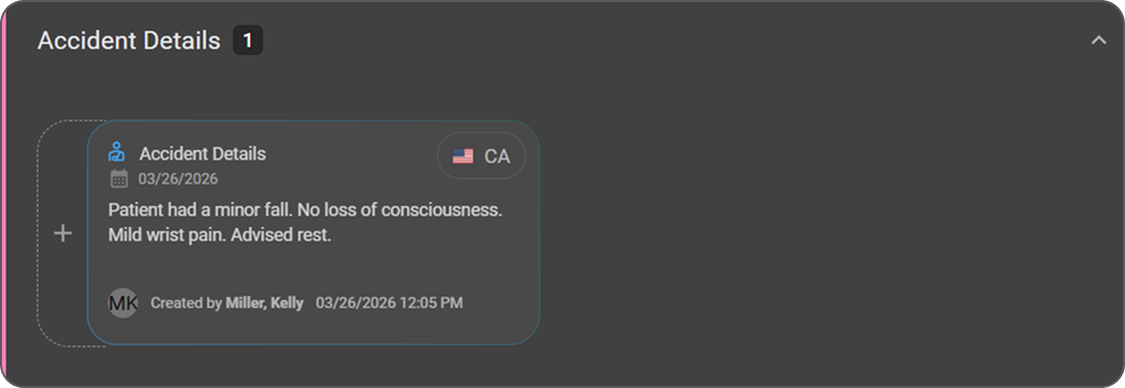
Existing notes are displayed as individual cards. Each card shows:
- Accident details as the Note Title
- State/Province (displayed with corresponding flag and state code)
- Accident Date
- Description
- Created by (username and timestamp)
Adding an Accident Note
- Click the + (Add) icon in the section header.
- Enter the required details in the note entry form.
- Click the ✔ (Save) icon to save the note.
- Click the ✖ (Cancel) icon to discard without saving.
Editing an Accident Note
- Hover over the note card to reveal the action icons.
- Click the Pencil (Edit) icon on the note card.
- Update the required information.
- Click the ✔ (Save) icon to apply changes.
- Click the ✖ (Cancel) icon to discard changes.
Deleting an Accident Note
- Hover over the note card to reveal the action icons.
- Click and hold the Trash can (Delete) icon on the note card.
Order Section
An Order represents a diagnostic or imaging request placed within a Visit. A single Visit can have one or more Orders. Each Order displays its key details, associated Studies, and any related notes.
Order Overview
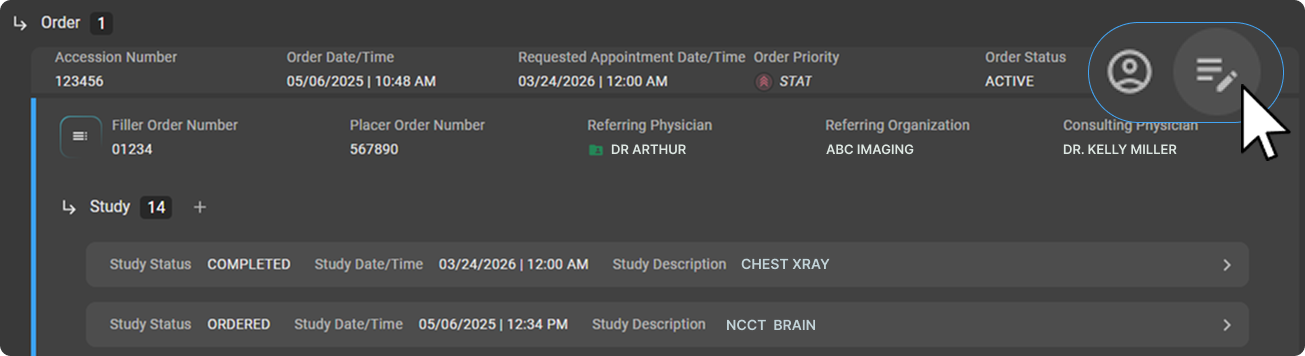
The Order panel displays the following details at a glance:
| Field | Description |
|---|---|
| Accession Number | Unique system-generated identifier for the Order |
| Order Date/Time | Date and time the Order was created |
| Requested Appointment Date/Time | Scheduled date and time for the exam |
| Order Priority | Urgency level of the Order (e.g., Routine, STAT, Urgent) |
| Order Status | Current state of the Order, shown here in upper case (for example ACTIVE, ON-HOLD, COMPLETED, or REVOKED). Derived automatically from the studies on the Order — see How Order Status is Derived |
| Filler Order Number | System-generated identifier assigned by the performing system |
| Placer Order Number | System-generated identifier assigned by the requesting system |
| Referring Physician | Doctor who requested the study |
| Referring Organization | Facility or organization associated with the referring physician |
| Consulting Physician | Physician assigned to consult on the Order |

Editing an Order
-
Click the Edit Order icon on the top-right corner of the Order panel.
-
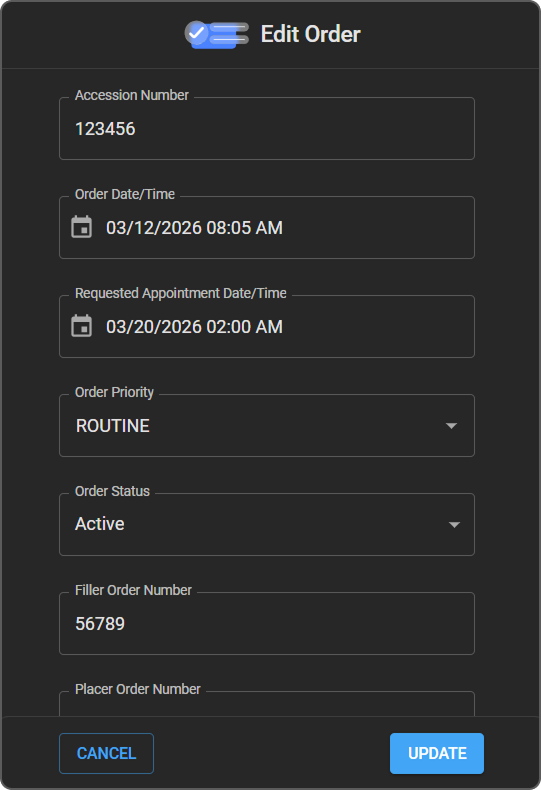
The Edit Order side drawer will open on the left side of the screen.
-
Update the required fields.
-
Click Update to apply changes.
-
Click Cancel to discard changes.
Tip: Multiple Consulting Physicians can be assigned to a single Order.
Searching for a Physician
-
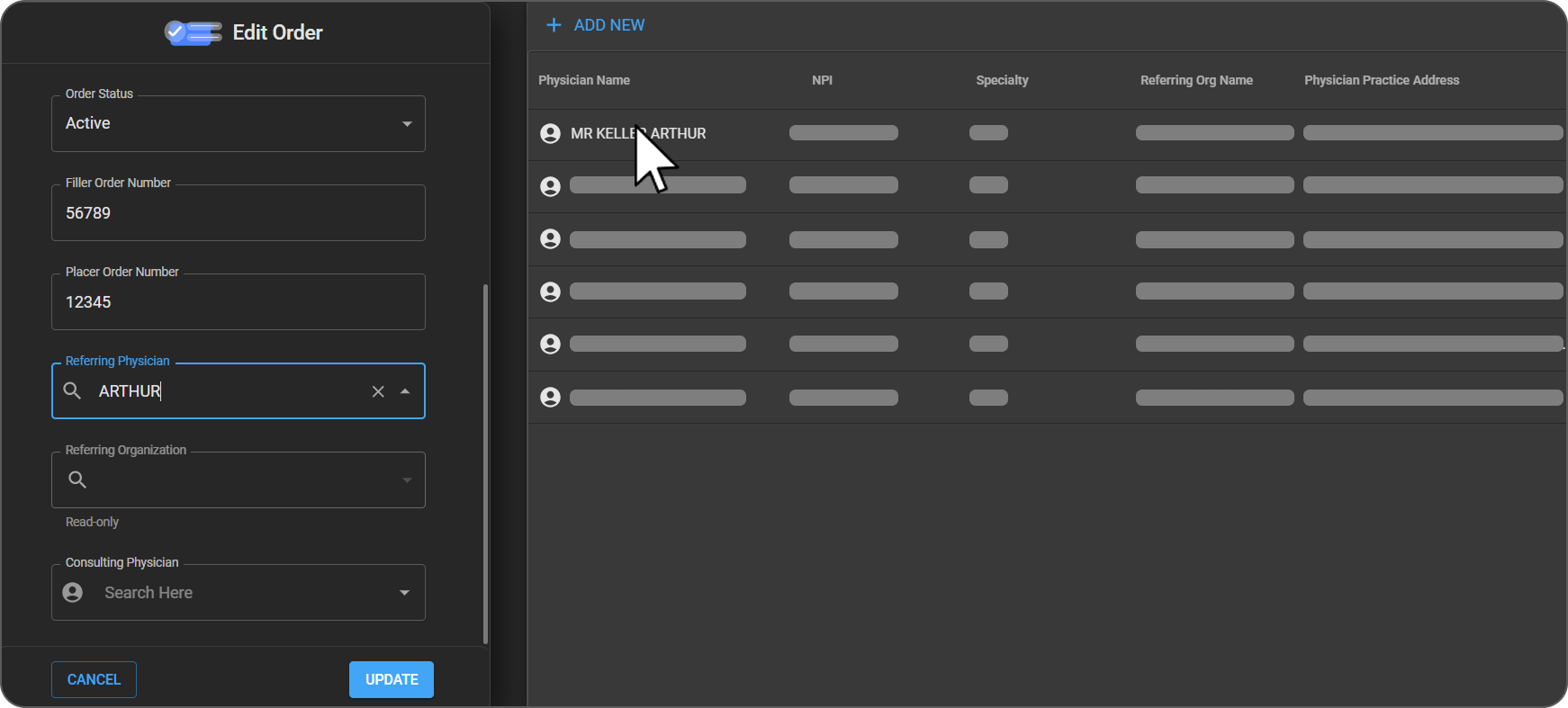
Use the search field to find a Referring or Consulting Physician.
-
Search results display: Physician Name, NPI, Specialty, Referring Organization, and Practice Address.
Creating a New Referring Physician
If the desired physician is not found in the search results, you can create a new Referring Physician record directly from the drawer.
Reassigning an Order
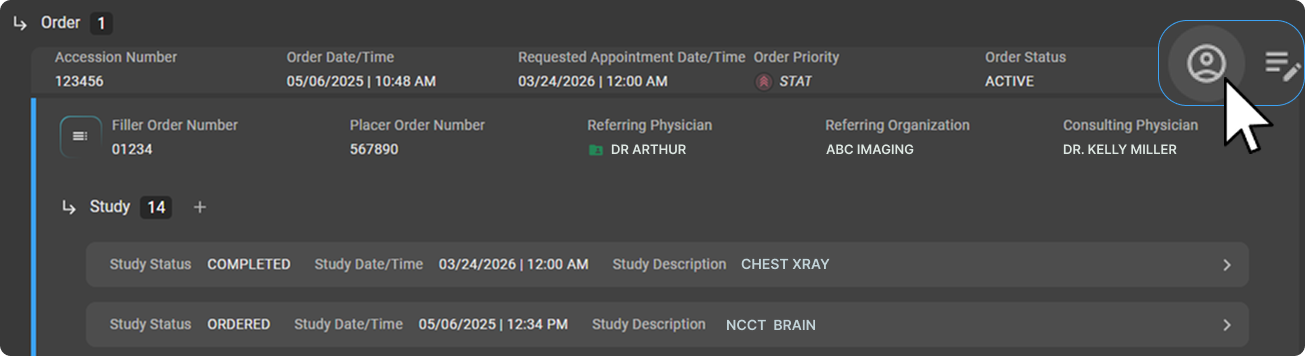
The Reassign Order feature allows users to move an Order to a different patient when it has been created under the wrong patient record — without needing to delete and re-import the data.
Steps to Reassign
-
Click the Reassign Order icon on the top-right corner of the Order panel.
-
The Reassign Order To popup will appear at the bottom-right of the screen.
-
Type the patient's name in the Patient Name search field — results will appear as you type.
-
A results list will load above the popup displaying matching patients. Each result shows:
| Column | Description |
|---|---|
| Patient Name | Full name of the patient |
| Gender | Patient's gender |
| DOB | Date of birth (truncated — hover to see full date) |
| Mobile Phone | Contact number |
| SSN | Social Security Number |
| PID | Unique patient identifier (truncated — hover to see full value) |
| Managing Org | Organization responsible for the patient (truncated — hover to see full name) |
| Address | Patient's registered address |
-
Review the results carefully to identify the correct patient.
-
Click on the correct patient row to select them.
-
Click Save to reassign the Order, or Cancel to discard.
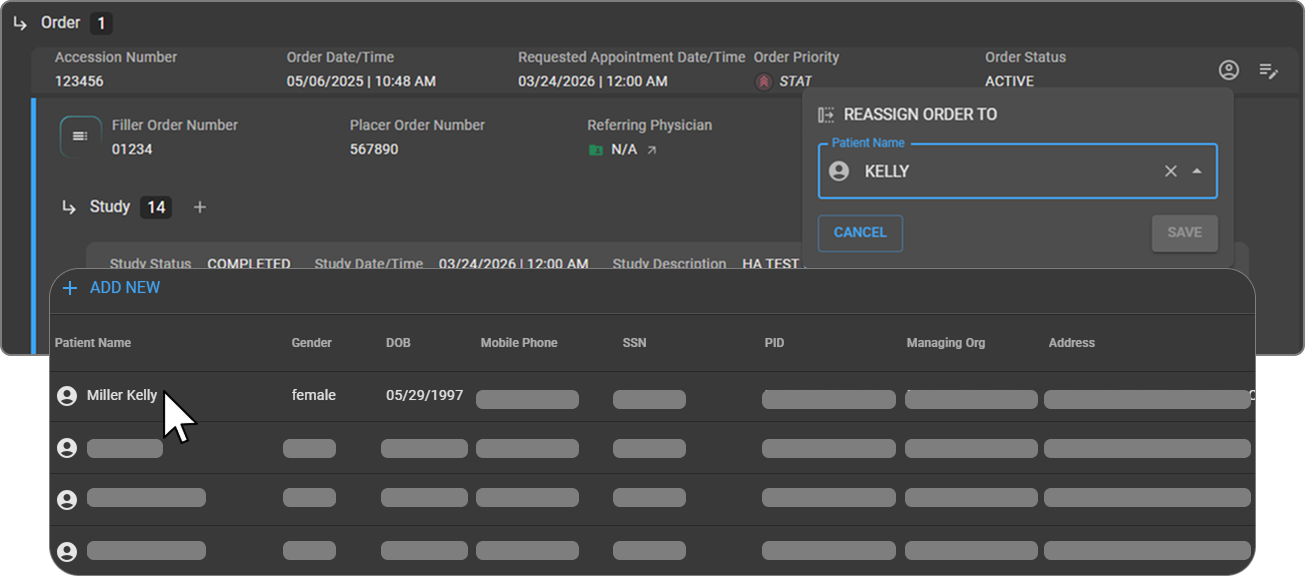
Tip: If the correct patient does not appear in the results, click + Add New at the top of the results list to create a new patient record.
⚠️ Warning: Review all patient details carefully before saving. This action moves the Order and all its associated data to the selected patient and cannot be undone.
Order Notes
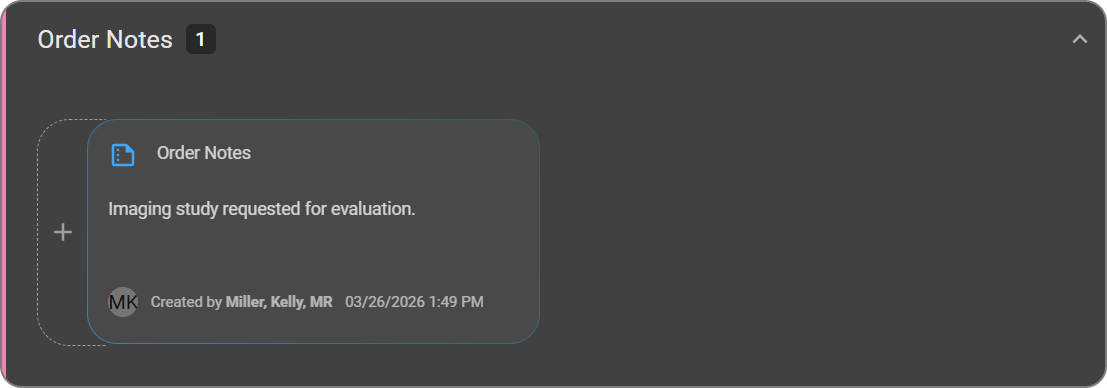
The Order Notes section allows users to add and manage notes specific to an Order. It is located below the Study panel within the Order section. Click anywhere on the section header to expand or collapse it.
Viewing Order Notes
All notes are displayed as cards. Each card shows:
- Note content
- Created by (username)
- Date and time
Adding an Order Note
- Click the + (Add) icon or Add New Order Note.
- Enter the note details in the entry card.
- Click ✔ (Save) to save the note.
- Click ✖ (Cancel) to discard.
Editing an Order Note
- Hover over the note card to reveal the action icons.
- Click the Pencil (Edit) icon.
- Make the required changes.
- Click ✔ (Save) to apply changes.
- Click ✖ (Cancel) to discard.
Deleting an Order Note
- Hover over the note card to reveal the action icons.
- Click and hold the Trashcan (Delete) icon.
- The note will be deleted immediately.
⚠️ Warning: Deleted Order Notes cannot be recovered.
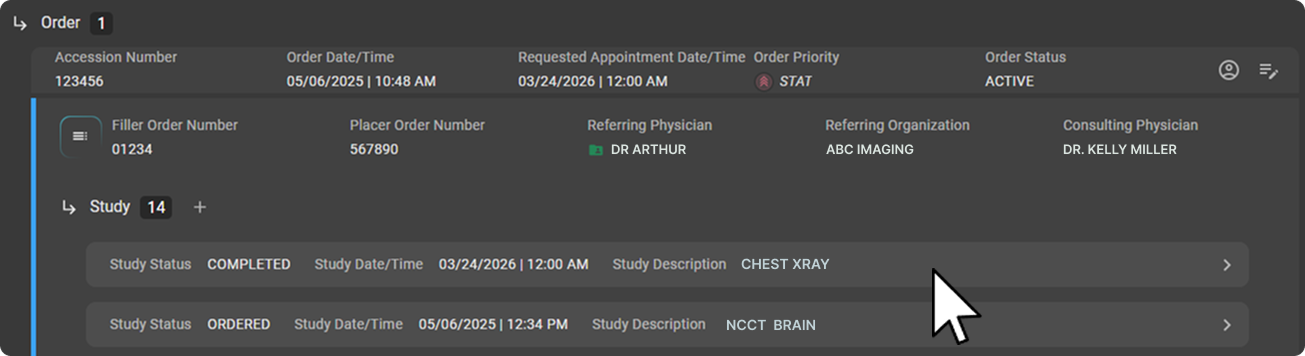
Studies Under an Order
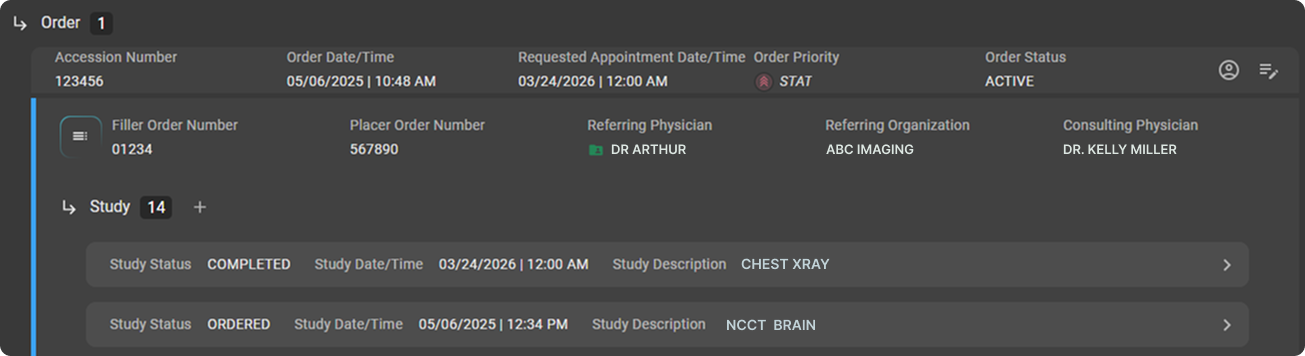
An Order can have one or more Studies associated with it. All linked Studies are displayed as individual rows within the Order panel.
Each Study row displays:
- Study Status (e.g., Ordered, Confirmed)
- Study Date/Time
- Study Description
Click on a Study row to open the full Study Details page for that Study.
Tip: The Study panel header shows the total count of Studies under the Order. Click the + icon next to the count to add a new Study to the Order.
Study Page
The Study Page is the primary page for viewing and managing the details of a specific imaging exam. Each Study is linked to an Order and represents a single imaging procedure performed on the patient.
Accessing the Study Page
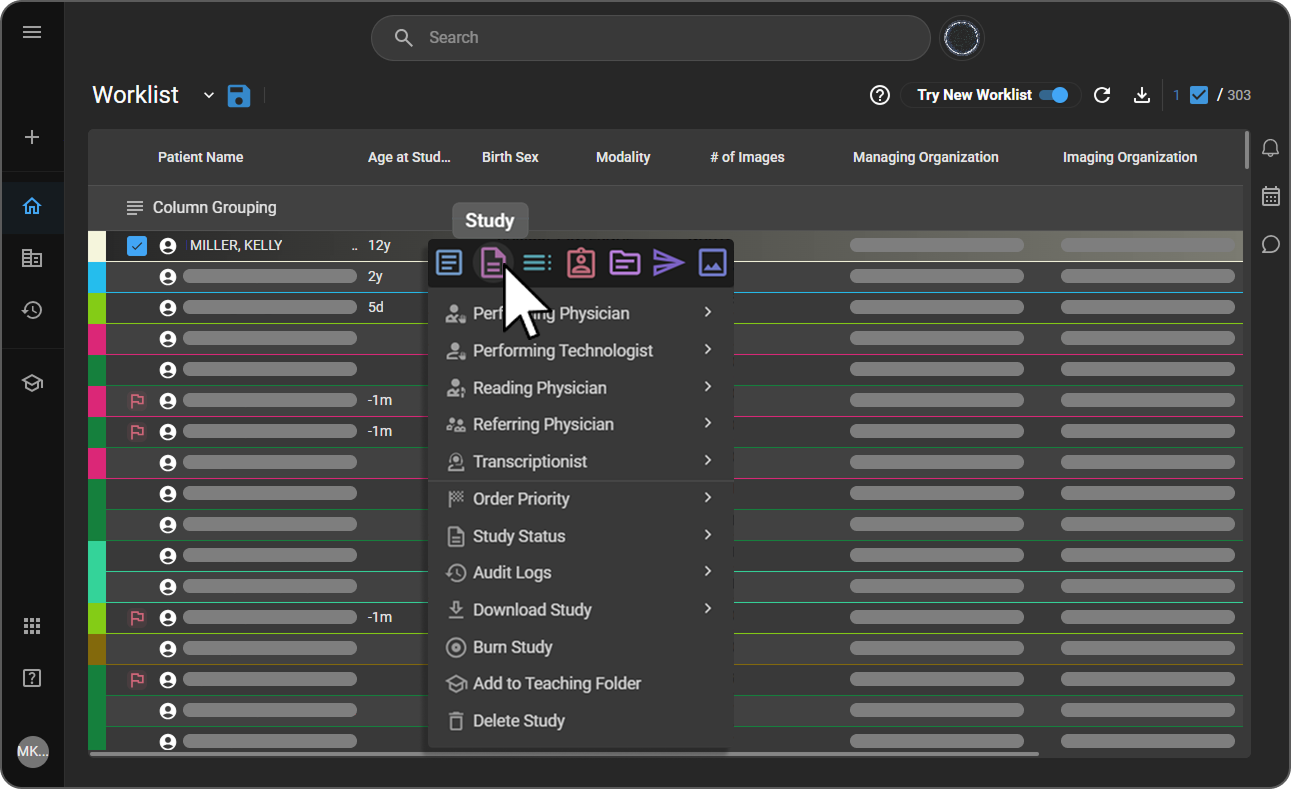
From the Worklist:
- Open the Worklist and locate the desired study.
- Right-click on the study row to open the context menu.
- Select Study from the menu.
From the Order Page:
- Navigate to the Order section of the Visit/Order/Study page.
- Locate the Study panel under the Order.
- Click on the desired Study row to open its Study Page.
Study Header
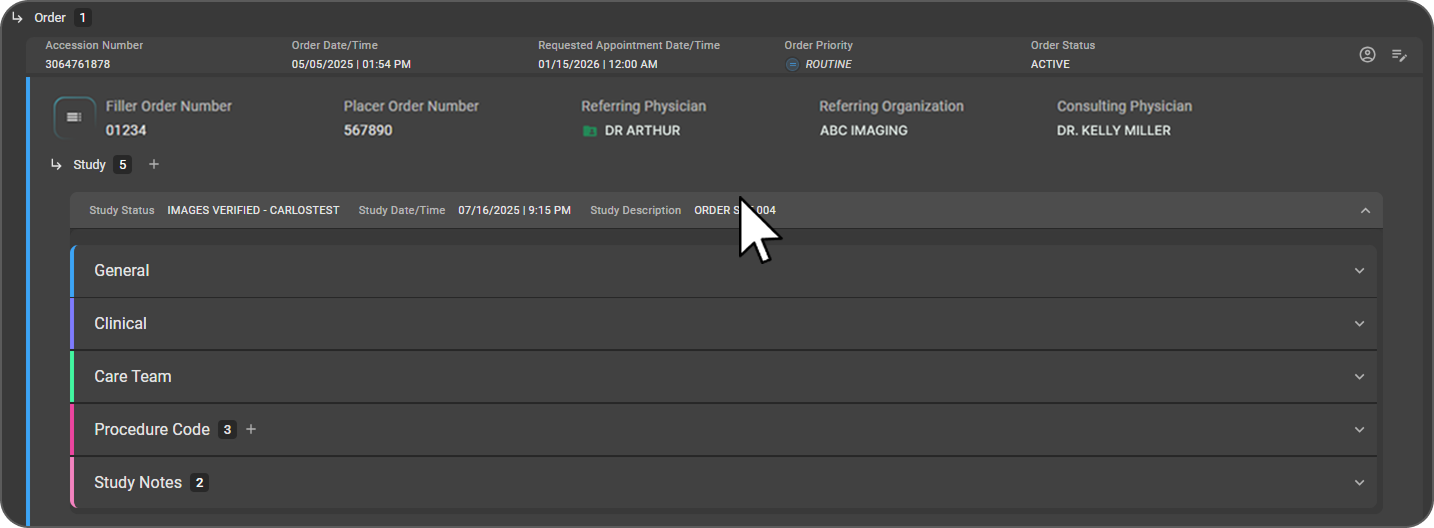
At the top of the Study Page, the header displays a quick summary of the study:
| Field | Description |
|---|---|
| Study Status | Current state of the study (e.g., Scheduled, Ordered, Confirmed, Signed, Arrived, Images Verified) |
| Study Date/Time | Date and time the study was performed |
| Study Description | Brief description of the imaging exam |
Tip: Click anywhere on the study header to expand or collapse the full study details below.
Page Layout
The Study Page is organized into the following collapsible sections, each marked with a colored left border for easy identification.
| Section | Description |
|---|---|
| General | Core administrative and logistical details of the study |
| Clinical | Pharmaceutical, scan, and clinical information |
| Care Team | Healthcare professionals involved in the study |
| Procedure Code | Billing and diagnosis codes linked to the study |
| Study Notes | Notes specific to the study |
General Section
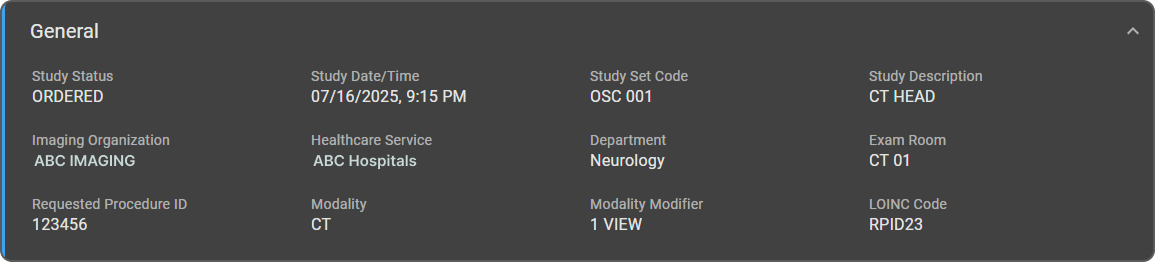
The General section provides the core administrative and logistical details of the study.
| Field | Description |
|---|---|
| Study Status | Current state of the study |
| Study Date/Time | Date and time of the study |
| Study Set Code | Identifier for the study grouping or protocol |
| Study Description | Description of the imaging exam |
| Imaging Organization | Facility where the study is performed |
| Healthcare Service | Associated service or system |
| Department | Department responsible for the study |
| Exam Room | Room where the study is conducted |
| Requested Procedure ID | Linked procedure identifier |
| Modality | Type of imaging (e.g., CT, MR, X-Ray) |
| Modality Modifier | Additional modality-specific details |
| LOINC Code | Standardized medical code for the procedure |
Clinical Section
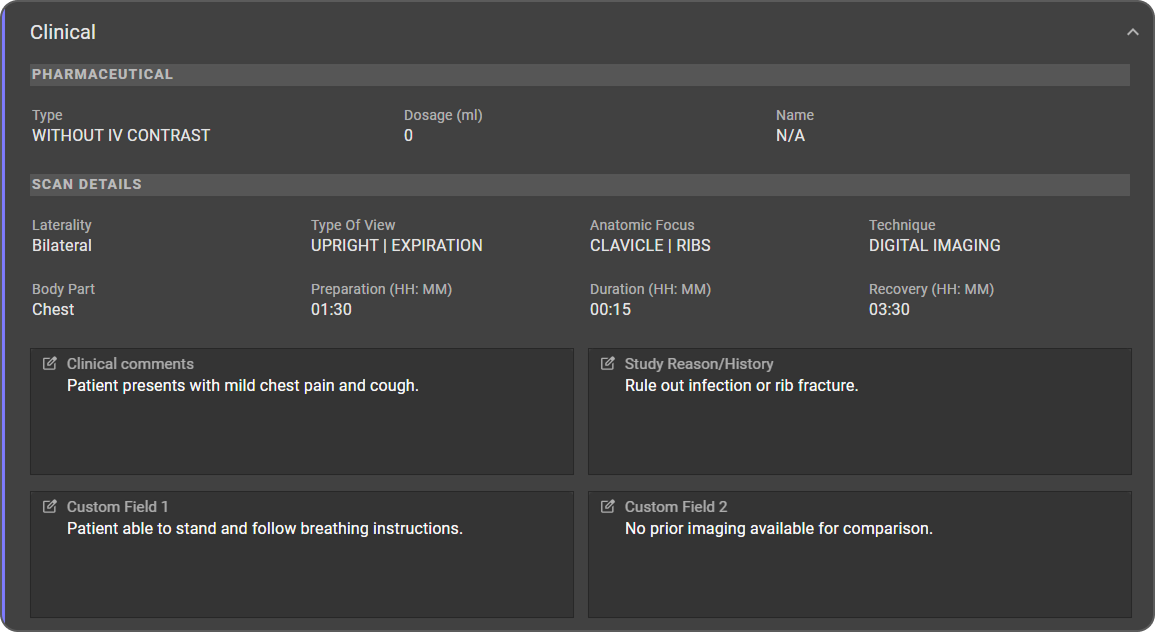
The Clinical section captures clinical and scan-related information. It is divided into three parts:
Pharmaceutical
Records details about any substances administered during the study (e.g., contrast agents).
| Field | Description |
|---|---|
| Type | Type of pharmaceutical (e.g., With IV Contrast, Without IV Contrast) |
| Dosage (ml) | Amount of pharmaceutical administered (e.g., 100) |
| Name | Name of the contrast agent or radiopharmaceutical |
Scan Details
| Field | Description |
|---|---|
| Laterality | Side of the body examined |
| Type of View | Imaging view — multiple values separated by pipe |
| Anatomic Focus | Specific area of focus — multiple values separated by pipe |
| Technique | Imaging technique applied |
| Body Part | Body part examined — multiple values separated by pipe |
| Preparation (HH:MM) | Time required for patient preparation |
| Duration (HH:MM) | Duration of the scan |
| Recovery (HH:MM) | Patient recovery time post-scan |
Additional Information
These fields are displayed as editable text area boxes. Click the Pencil (Edit) icon on a field to enter or update information.
| Field | Description |
|---|---|
| Clinical Comments | Free-text notes or remarks related to the study |
| Study Reason/History | Clinical indication or patient history relevant to the study |
| Custom Field 1 | Configurable field for additional information |
| Custom Field 2 | Configurable field for additional information |
Care Team Section
The Care Team section lists the healthcare professionals involved in the study. Fields can be edited inline.
| Role | Description |
|---|---|
| Performing Technologist | Technologist who conducted the study |
| Performing Physician | Physician responsible for performing the study |
| Reading Physician | Physician who interprets the study results |
| Reading Organization | Organization associated with the reading physician |
| Transcriptionist | Person responsible for transcribing the study report |
| Transcription Organization | Searchable dropdown — select the organization handling transcription |

Procedure Codes Section
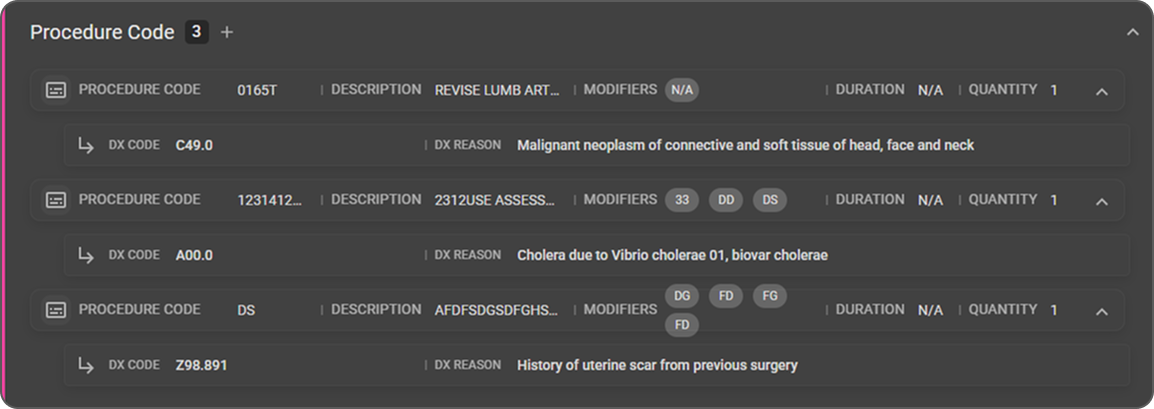
The Procedure Codes section displays and manages the billing and diagnostic codes linked to the study. The count badge on the section header shows the total number of procedure codes.
Each procedure code entry displays:
| Field | Description |
|---|---|
| Procedure Code | Billing code for the imaging procedure |
| Description | Auto-filled description of procedure |
| Modifiers | Billing modifiers displayed as individual chips |
| Duration | Duration associated with the procedure |
| Quantity | Number of times the procedure is performed |
| DX Code | Diagnosis code linked to the procedure |
| DX Reason | Auto-filled reason based on the selected DX code |
Adding a Procedure Code
- Click the + icon next to the Procedure Code section header.
- An empty row will appear.
- Search and select the Procedure Code from the dropdown — the Description will auto-fill.
- Search and select the DX Code — the DX Reason will auto-fill.
- Click ✔ (Save) to save, or ✖ (Cancel) to discard.

Click the + icon in the section header again to add another Procedure Code row.
Adding Multiple DX Codes to a Procedure
- Click the + icon on the DX row to add additional DX Codes under the same Procedure Code.
- Click the Trashcan (Delete) icon on a DX row to remove it.

Note: Multiple Modifiers can be assigned to a single Procedure Code and are displayed as individual chips. Multiple DX Codes can also be linked to a single Procedure Code.
Study Notes
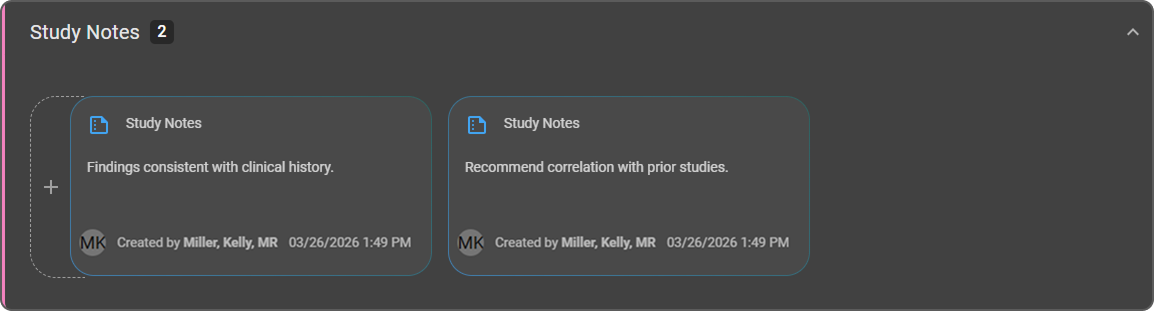
The Study Notes section allows users to add and manage notes specific to the study. Notes are displayed as individual cards side by side. The count badge on the section header shows the total number of notes.
Each note card displays:
-
Note title (Study Notes)
-
Note content
-
Created by (user avatar, name, and timestamp)
Adding a Study Note
- Click the + (Add) card (shown as a dashed outline on the left side of the notes area).
- Enter the note details.
- Click ✔ (Save) to save, or ✖ (Cancel) to discard.
Editing a Study Note
- Hover over the note card to reveal the action icons.
- Click the Pencil (Edit) icon.
- Update the required information.
- Click ✔ (Save) to apply changes, or ✖ (Cancel) to discard.
Deleting a Study Note
- Hover over the note card to reveal the action icons.
- Click and hold the Trashcan (Delete) icon.
⚠️ Warning: Deleted Study Notes cannot be recovered.
Study Actions
When you hover over a study row, four quick action icons appear on the right-hand side of that row. These icons are only visible on the hovered row and provide fast access to commonly used features without navigating away from the page.
| Position | Action | Description |
|---|---|---|
| 1st | Image Viewer | Opens the Image Viewer for the selected study |
| 2nd | Document Viewer | Opens the Document Viewer for the selected study |
| 3rd | Prior Authorization | Opens the Prior Authorization drawer for the selected study |
| 4th | Post Charge | Posts charges for the study |

Tip: Action icons are only visible in the row you are hovering over. Rows without a hover state will not display these icons.
Prior Authorization
Clicking the Prior Authorization icon opens the Prior Authorization side drawer. The drawer displays all insurance coverages associated with the patient, each shown as a tab at the top. Click a coverage tab to manage its authorization details.
Coverage Summary Card — At the top of each coverage tab, a summary card displays the read-only insurance details.
Setting the Authorization Status
| Status | Description |
|---|---|
| Unknown | Authorization status has not yet been determined |
| Not Required | Authorization is not required for this study |
| Pending | Authorization request has been submitted and is awaiting a decision |
| Approved | Authorization has been approved |
| Denied | Authorization has been denied |
Authorization Details
| Field | Description |
|---|---|
| Authorization Number | Reference number assigned by the payer |
| Authorization Start Date | Date the authorization becomes valid |
| Authorization End Date | Date the authorization expires |
| Total Amount Due | Total authorized amount |
| Prior Authorization Notes | Additional notes related to the authorization |
Post Charge
- Click the Post Charge icon to post charges for the study.
- A confirmation message "Charges Posted Successfully" will appear once charges are posted.
- After posting, hovering over the icon will display the tooltip "Repost Charges", indicating charges have already been posted and can be reposted if needed.