Using the Bundled Viewer (Windows)
This guide is for recipients of a study exported from OmegaAI or Blume on a Windows computer. It walks you through the bundled DICOM viewer (VIEWER.EXE) included in your study download: how to open it, what you'll see, and how to navigate the images.
If you haven't extracted the downloaded study yet, start with How to Access DICOM Files Exported from OmegaAI/Blume. This guide assumes you've already extracted the ZIP and found VIEWER.EXE.
The bundled viewer gives you a Study Desktop where you can scroll through image series, zoom, adjust window/level, and take basic measurements, all without installing any third-party software.
The bundled VIEWER.EXE is Windows only. macOS users should use a third-party DICOM viewer such as OsiriX Lite (free). See the macOS section of the access guide.
Locating and Opening the Viewer
-
Open the extracted folder of the study downloaded from Blume or OmegaAI.
-
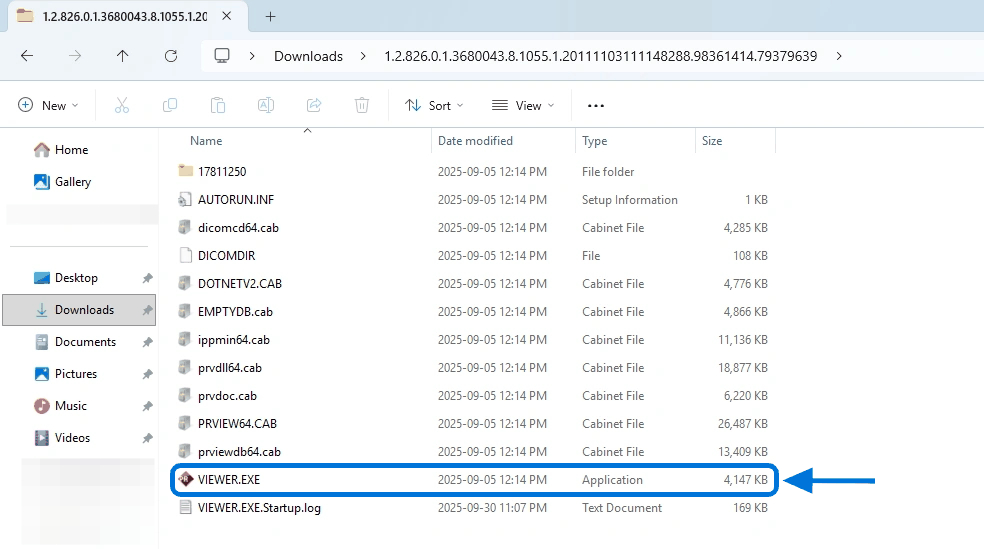
Locate the VIEWER.EXE program at the top level.
-
Double-click
VIEWER.EXEto launch it.
The viewer launches and loads your study automatically. There is no install step.
The 3 Main Areas of the Study Desktop
When the viewer opens, the Study Desktop is divided into three areas:
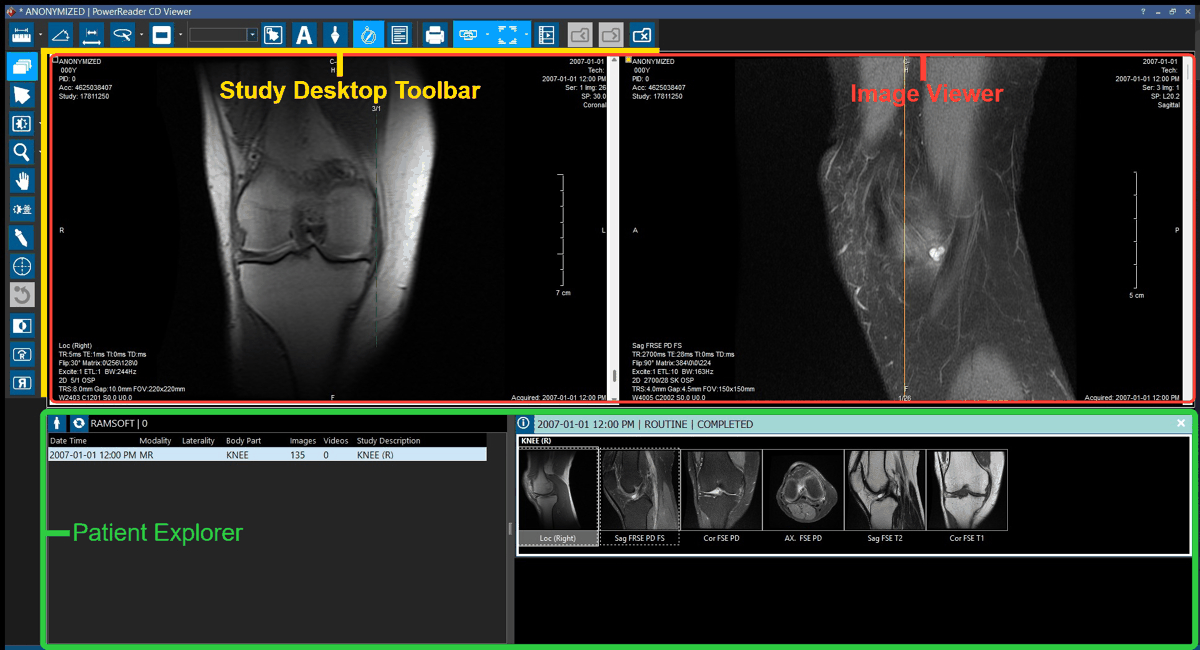
- Study Desktop Toolbar: displays tools alongside the Image Viewer, including Window/Level and Cobb Angle.
- Image Viewer: the Image Display Area is composed of viewports. Each viewport holds one series of images.
- Patient Explorer: on the left, you can view study details. On the right, you can see thumbnail previews of the images.
Getting Started with the Study Desktop
Once your study is loaded, here are some common ways to navigate. For more tools and their keyboard shortcuts, see the Tool reference below.
-
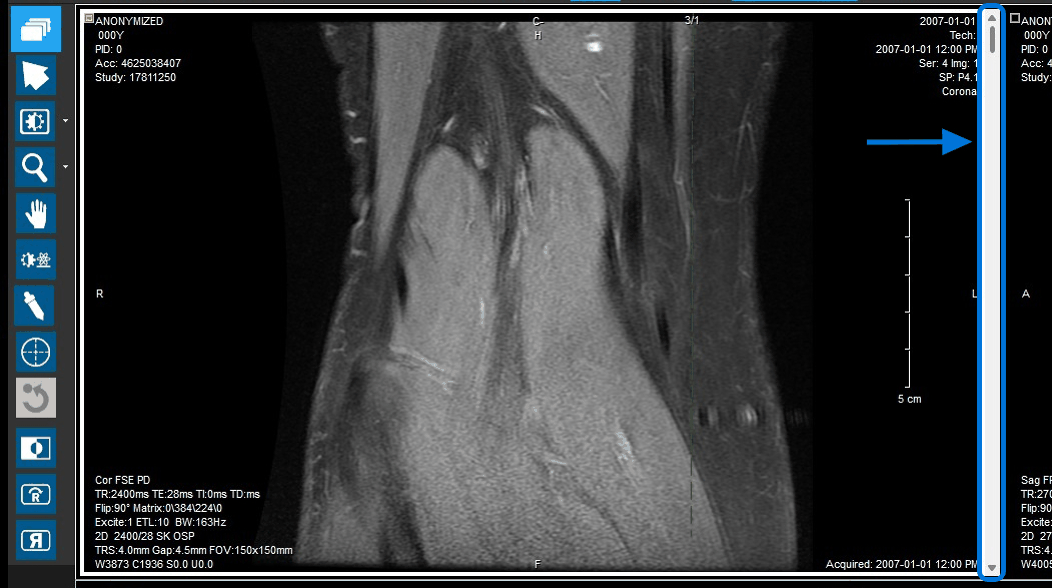
Scroll through a series. Use the slider on the right of a viewport, or roll your mouse scroll wheel.
-
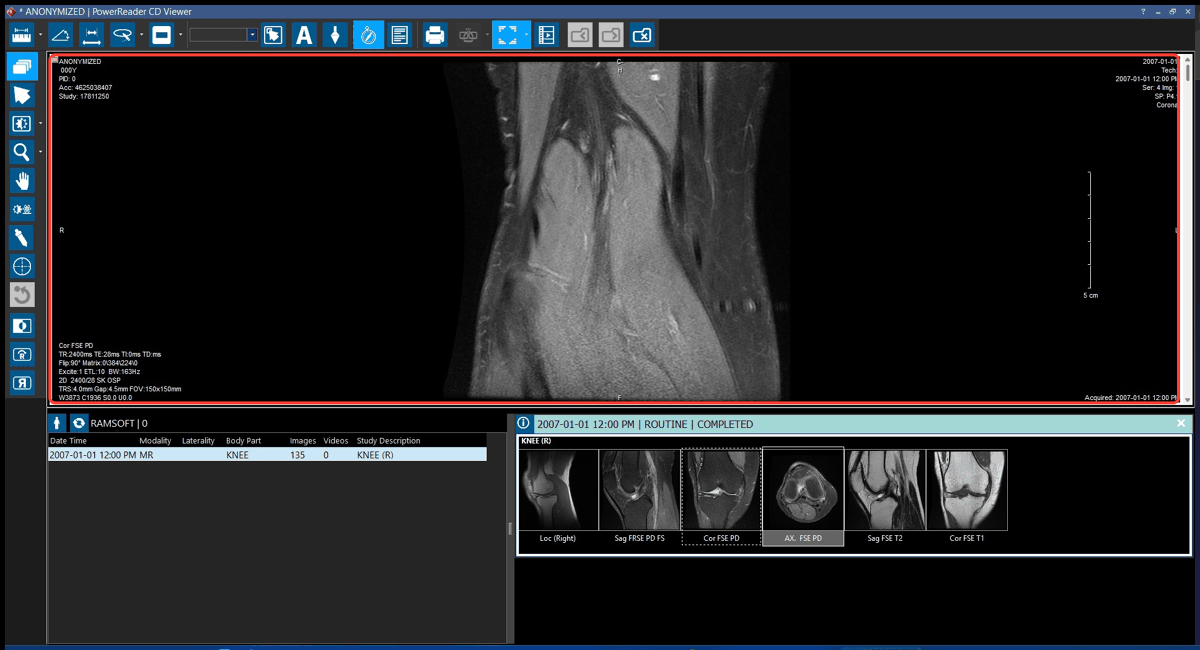
Enlarge an image. Double-click any image in a viewport to enlarge it. Double-click again to return it to default size.
-
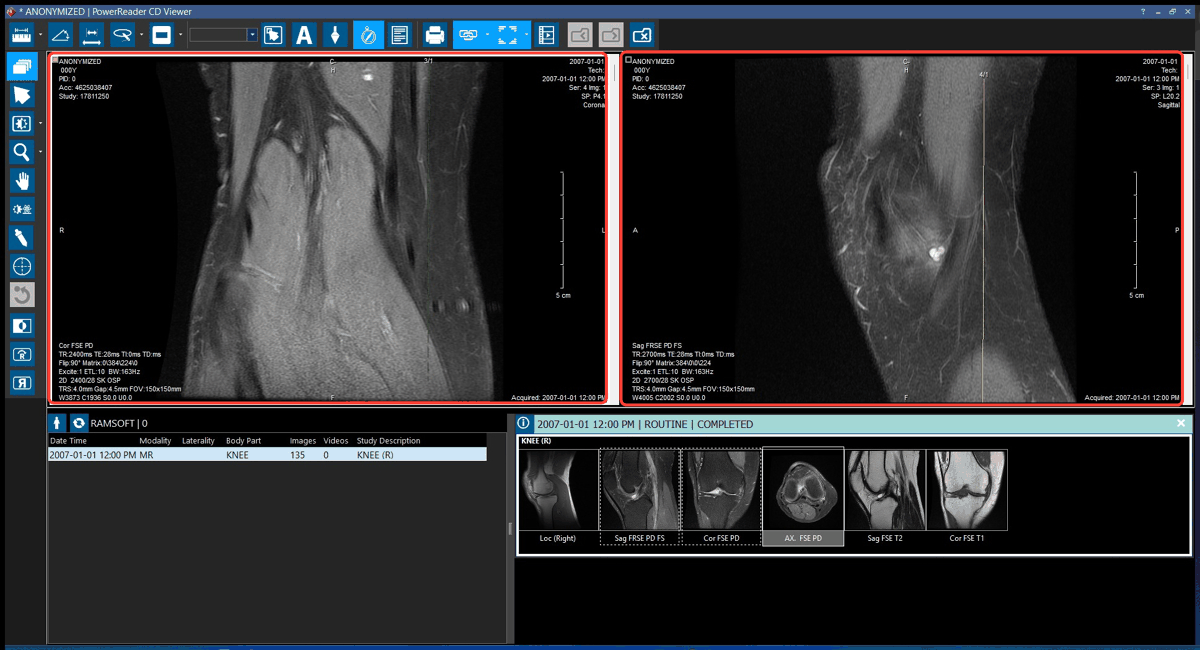
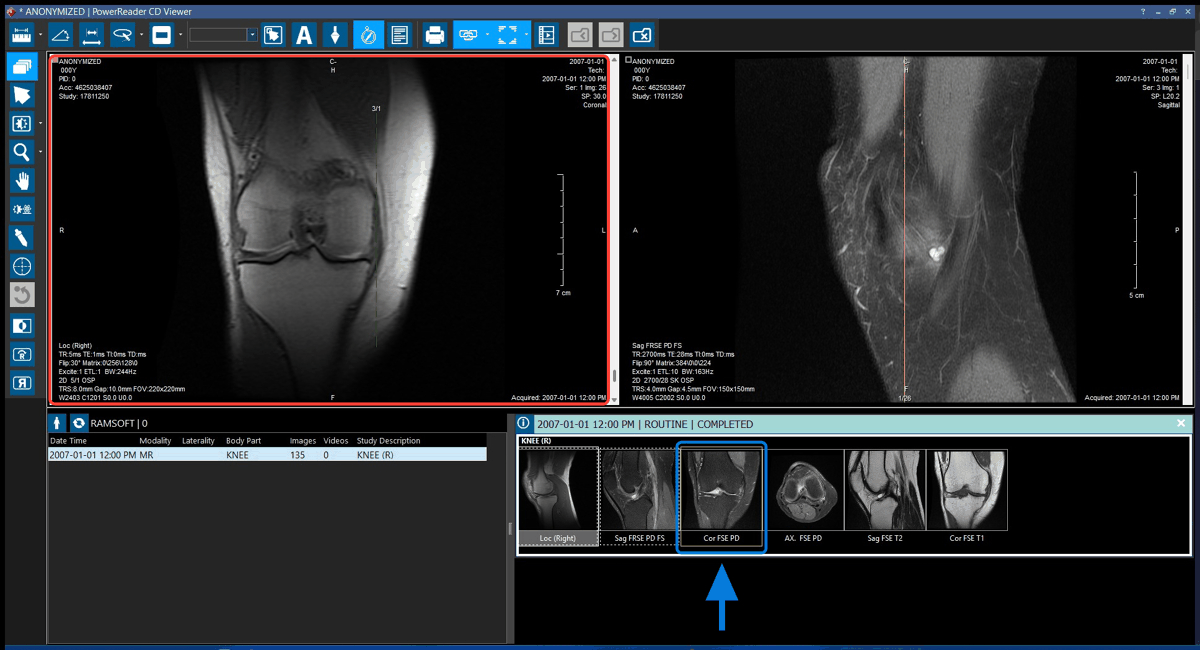
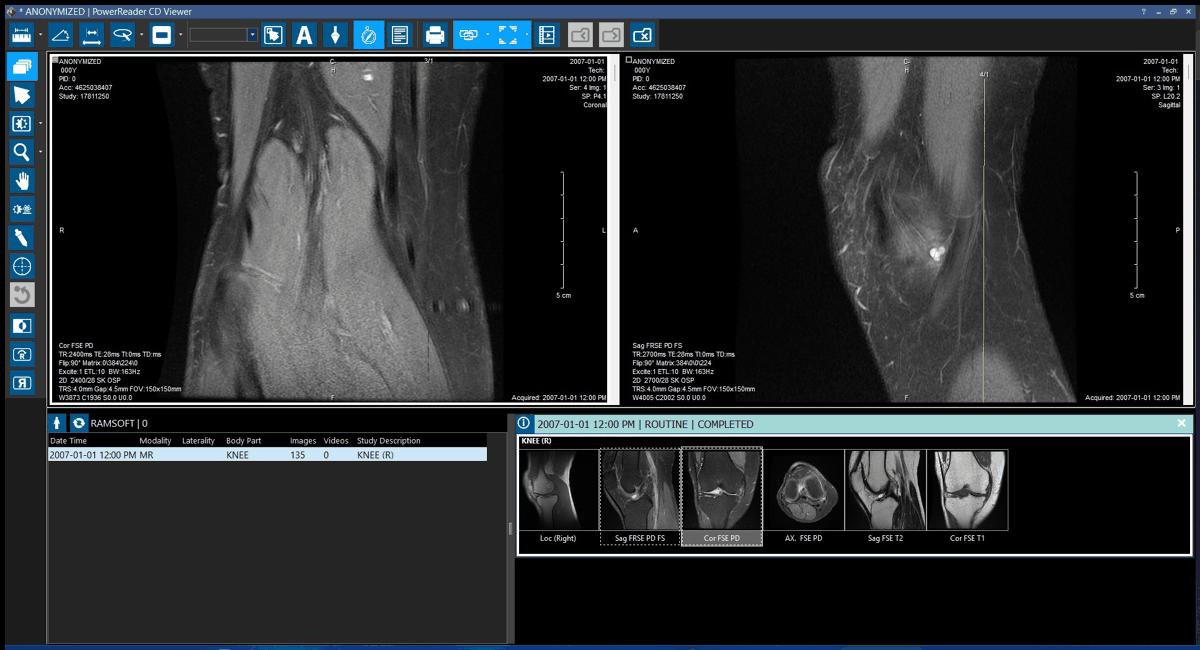
Replace an image in a viewport. Click once on the viewport you want to change, then double-click a thumbnail in Patient Explorer. The viewport updates to show the new series.
Study Desktop Tools
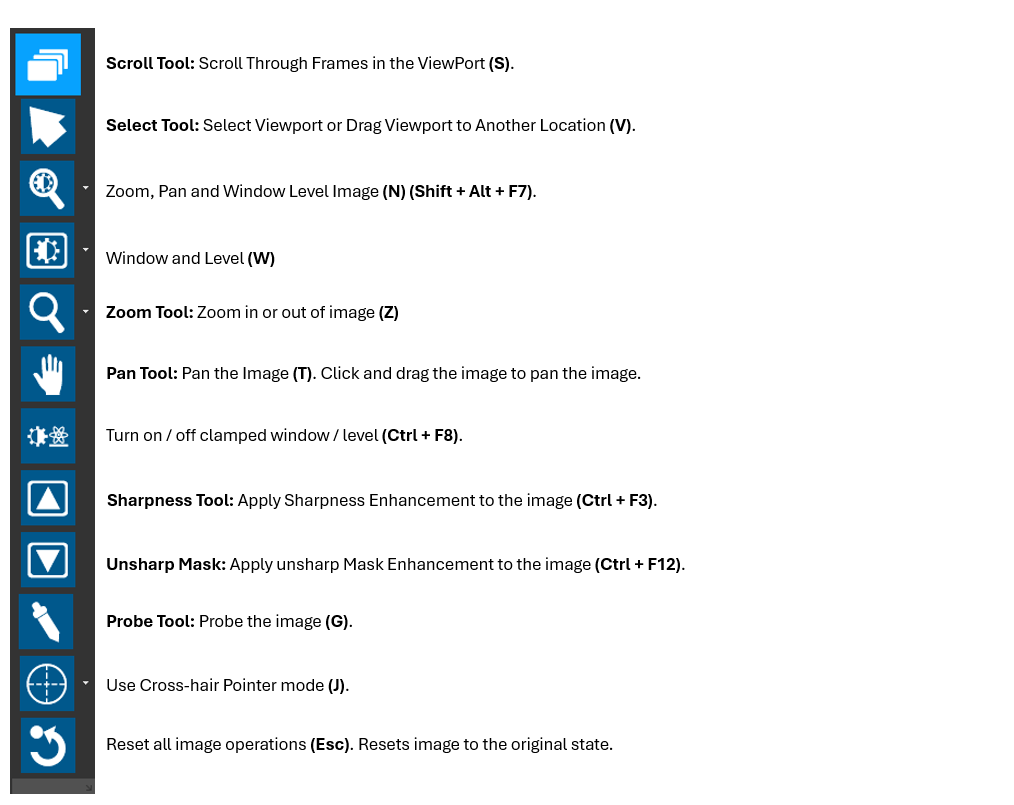
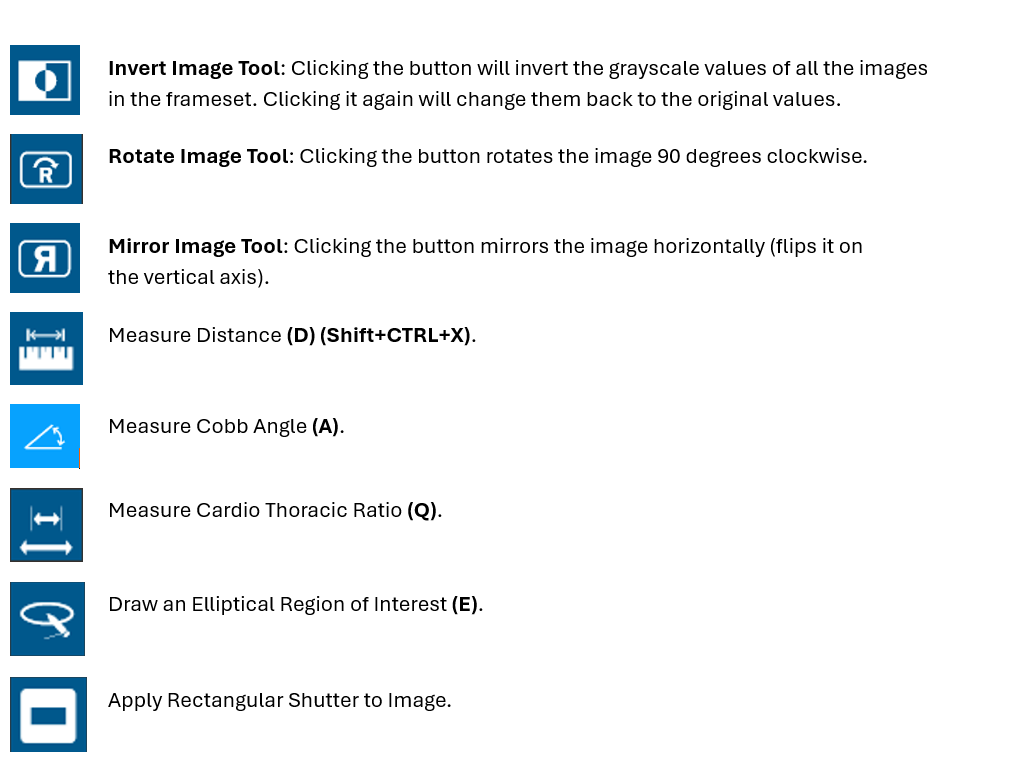
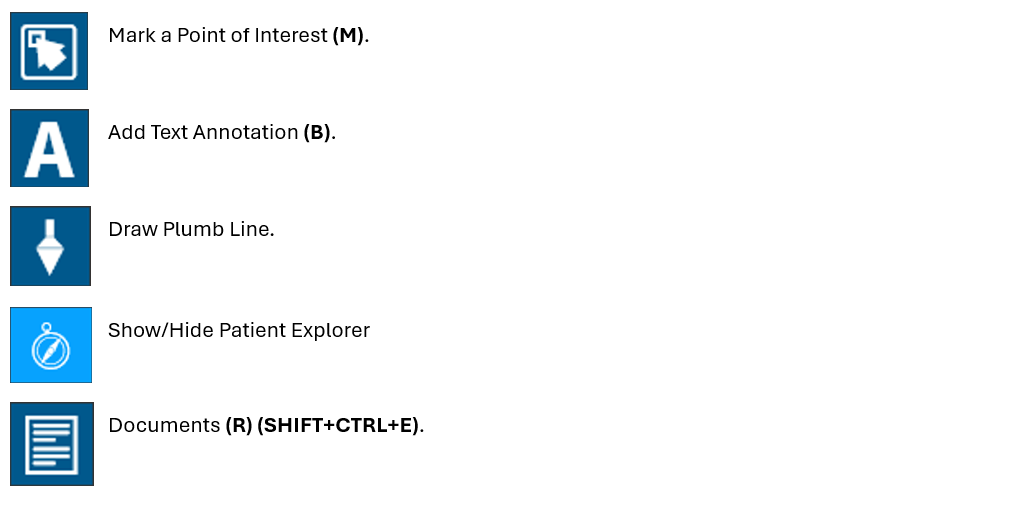
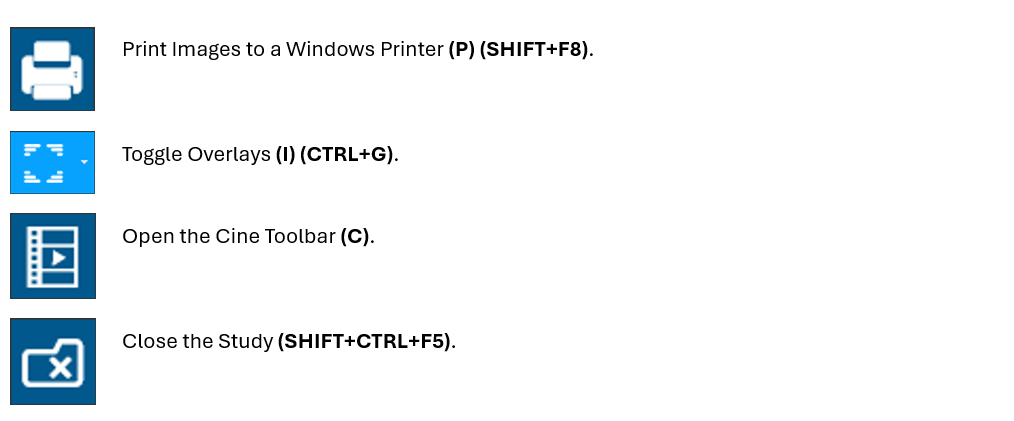
The Study Desktop Toolbar exposes a range of image-review tools. Hover over any toolbar icon to see its name. Click an icon to activate the tool, then use it on a viewport.
Different tools work differently. Many use click-and-drag on the image (e.g. Window/Level, Zoom, Pan); others use multiple clicks for measurements (e.g. Measure Distance, Cobb Angle). To switch tools, click a different one in the toolbar.
Tool Reference
The icons below cover many of the tools available in the toolbar, along with their keyboard shortcuts where applicable.
Related
- How to Access DICOM Files Exported from OmegaAI/Blume: find, extract, and open files on Windows and macOS
- Referring Physician Guide: overview for referring physicians using OmegaAI directly