
2 posts tagged with "OmegaAI"

View all tags

Product Update: Scheduler Enhancements

· 2 min read

Overview

This release introduces enhancements to the OmegaAI Scheduler, focused on improving scheduling accuracy, usability, and workflow efficiency.

What’s New

1. Time Display During Drag and Drop

What changed:

When dragging a study from the worklist to the scheduler, the exact time slot is displayed within each cell.

Benefit:

This provides clearer visibility when selecting appointment times and reduces scheduling errors.

2. Modality Mismatch Indicator

What changed:

A validation indicator appears when there is a mismatch between the study modality and the healthcare service modality.

Benefit:

This helps prevent incorrect scheduling and ensures studies are assigned to appropriate services.

3. Customizable Scheduler Time Intervals

What changed:

Scheduler intervals can now be configured to 5, 10, 15, or 30 minutes, providing greater flexibility to match scheduling needs.

Benefit:

Administrators can adjust scheduling intervals to match clinical workflow requirements.

4. Quick View Options

What changed:

Users can quickly switch between Day, Week, and Month views directly from the scheduler interface.

Benefit:

This improves visibility and allows faster navigation between scheduling views.

5. Reorder Healthcare Services with Drag and Drop

What changed:

Healthcare services can now be reordered using drag-and-drop within the scheduler.

Benefit:

Users can personalize the scheduler layout for easier access to frequently used services.

Important Notes

  • These enhancements will be rolled out within one week of the release.

Where to Find It

Main Navigation → Calendar (right-side navigation bar)

Click the Calendar icon to open the Scheduler, where you can view and manage appointments, resources, and healthcare services.
Updated Help Articles

log in here

Product Update: 'Signed Report' Trigger in Workflow Automation (WFA)

· 2 min read

Overview

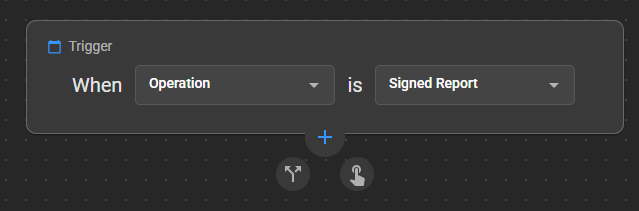
We are pleased to announce the Signed Report Trigger under the Operations Trigger Type in Workflow Automation (WFA). This new trigger automates post-report actions (e.g., distribution, notifications) immediately after a diagnostic report is finalized, effectively eliminating delays caused by asynchronous DICOM processing. This mainly improves support for customers who are using external reporting solutions, while adding more granular control over other report creation scenarios.

Signed Trigger

What's New

Trigger Activation Scenarios

What changed:

The Signed Report Trigger could be activated when any of the following occurs:

  1. A diagnostic report is uploaded as a final report via the Document Viewer (DV) GUI.
  2. A report is received in OmegaAI through HL7 or FHIR integrations.
  3. A Structured Report is ingested via DICOM ingestion through OmegaAI Link.
  4. A final report (DICOM encapsulated) imported using the Import Feature.
  5. A final report is created or saved in OmegaAI’s Document Viewer (DV), including Signed Amendments.

Note: Ensure that you add the appropriate conditions after the trigger to prevent the final sign-off from being activated when not required.

Benefit:

Workflow Automation allows you to automate processes and tasks, increasing efficiency and reducing manual intervention. With the Signed Report Trigger, we’re taking another step toward streamlining your reporting workflow.

Important Notes

• It is recommended to configure appropriate conditions with the trigger to avoid unintended execution • Original workflow execution depends on report finalization events across supported ingestion methods • Particularly beneficial for environments using external reporting solutions • Ensure conditions are configured to prevent unnecessary trigger activation

Where to Find It

Navigation path in the application:

Organization → Details → Workflow Automation → Create/Edit Workflow → Trigger Type: Operations → Signed Report

Updated Help Articles

Workflow Automation.