Product Update: Create New Order — Redesigned Experience
Overview
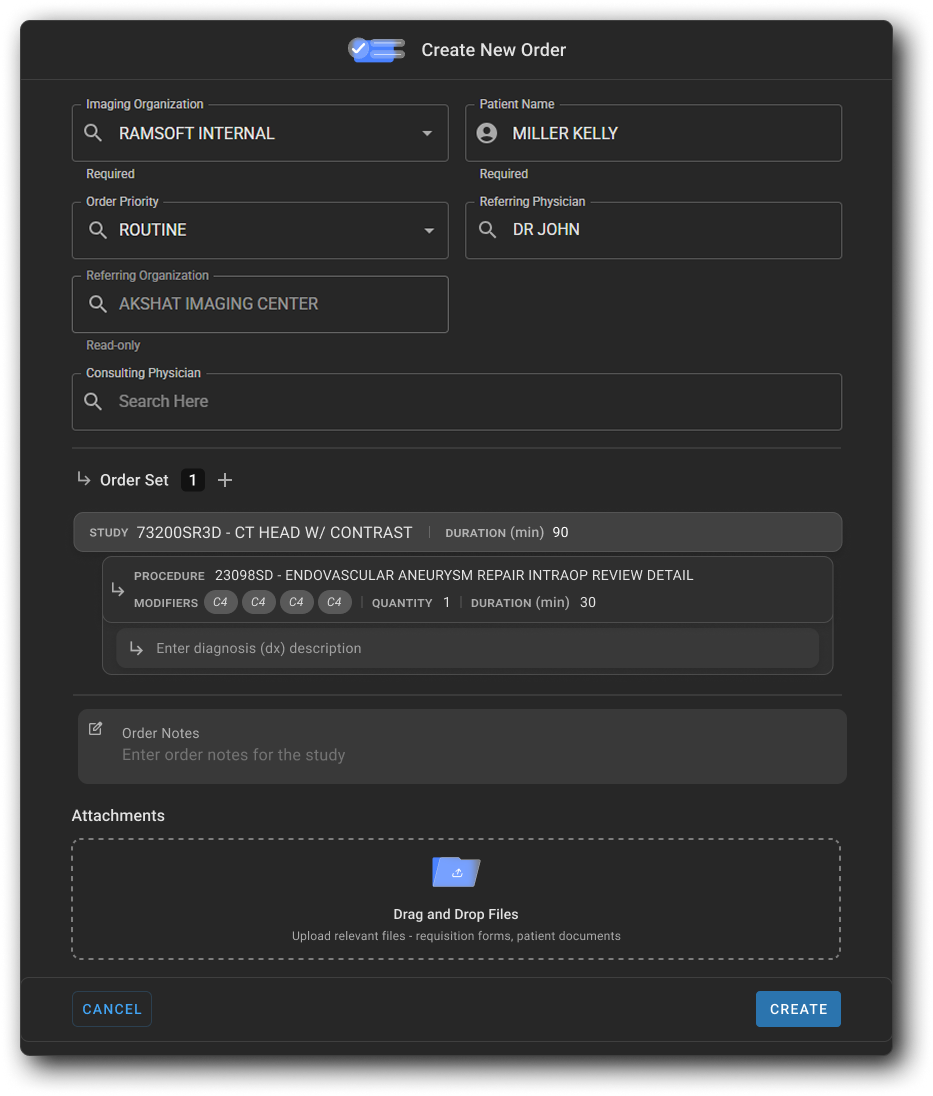
The Create New Order experience has been redesigned with a new full-page drawer that brings all order details — patient, physician, coverage, order sets, notes, and attachments — into a single, structured workflow, replacing the previous narrow side panel.
Note: This feature is currently available to Canadian users at omegaai.ca.
What's New
1. Full-Page Order Drawer
What changed:
The Create New Order screen now opens as a full-page drawer, replacing the previous narrow side panel. The expanded layout provides more space to complete all order details without scrolling through a compressed view.
Benefit:
A more organized, spacious layout makes it easier to review and complete all order details in a single screen.
2. Improved Patient Search
What changed:
The Patient Name field now displays a detailed search results table showing Patient Name, Gender, DOB, Phone Number, SSN, PID, Managing Org, and Address for each matching patient. From the search results, you can edit a patient's details inline using the pencil icon, or create a new patient directly using + Add New — all without leaving the order workflow.
Benefit:
Faster, more accurate patient identification at the point of order creation, with no need to navigate away to update or create patient records.
3. Improved Physician Search
What changed:
The Referring Physician and Consulting Physician fields now display a detailed results table showing Physician Name, NPI, Specialty, Referring Org Name, and Physician Practice Address. If a physician does not exist, you can create a new record using + Add New without navigating away. Multiple consulting physicians can be added to a single order.
Benefit:
Physicians can be found, verified, and added to the order in fewer steps, with the option to create new records on the spot.
4. Order Sets with Diagnosis Search
What changed:
The Order Set section (previously called Study Sets) allows you to search for predefined order sets by code or description. Each procedure within an order set now includes a Diagnosis field where you can search and assign ICD diagnosis codes directly. A notification appears if an identical order set was already placed for the same patient earlier that day.
Benefit:
Diagnoses can be assigned at the time of ordering, and the duplicate order alert helps prevent accidental repeat orders.
5. Attachments
What changed:
A new Attachments section allows you to upload supporting documents — PDF, DOC, DOCX, TXT, JPEG, PNG, and more — directly when creating the order. Each file can be classified as a Visit document (linked to the current visit, default) or a Patient document (linked to the patient record and reusable for future visits). Files can be previewed within the drawer, and duplicate uploads are automatically rejected.
Benefit:
Relevant documents such as requisition forms and referral letters can be attached at the time of order creation, eliminating a separate upload step later.
6. Order Notes
What changed:
The Order Notes section (previously called Note) provides a dedicated text area for entering clinical notes, instructions, or special considerations at the time of order creation.
Benefit:
Clinical context can be captured and communicated to the imaging team as part of the order, without relying on separate communications.
Where to Find It
Main sidebar menu → + Add New → Order