Pular para o conteúdo principal

7 postagens marcadas com "New Release"

Ver todas os Marcadores

Product: Blume – Version 2.0

· Leitura de 2 minutos

Overview​

Blume has been rebuilt to deliver a faster, more reliable experience for viewing studies, scheduling appointments, and sharing results.

The updated platform improves overall speed and reliability. The login and onboarding screens have been refreshed, so they may look different when you first open the updated app.

All existing features—including viewing studies, scheduling appointments, and sharing results—remain available, with improved performance and a smoother overall experience.

What's New​

1. One-Time Sign-In Required​

What changed:​

After installing the update, existing users will be prompted to sign in even if you were signed in before updating the app. Use your current account details; you do not need to create a new account.

Benefit:​

This one-time sign-in enables a smooth move to the rebuilt platform while keeping your account secure and unchanged.

2. Password-Based Login​

What changed:​

Blume will continue to use password-based authentication, and the existing sign-in methods remain unchanged.

Benefit:​

You can continue to sign in with your existing credentials using the same process as before. Onboarding Guide

Important Notes for Existing Users​

  • Sign In vs. Sign Up: After updating Blume, sign in with your existing account. You don't need to create a new account.
  • New Visual Design: The login and onboarding screens now have an updated appearance. Your existing data and settings are not affected and will remain available.
  • No Feature Changes: All core functionality remains the same. This release is focused on performance and reliability improvements.

Where to Find It​

Blume 2.0 is available for download from the App Store and Google Play. Update the mobile app, to use the latest version.
Product Update: Preserve Study Instance UIDs from Trusted DICOM Sources

· Leitura de 5 minutos

Overview​

OmegaAI now enables DICOM Stations to be marked as authoritative sources of study identity. When enabled, a study created from an HL7 order that receives images from an authoritative station will use the station's Study Instance UID (0020,000D) as the canonical identifier, replacing OmegaAI's placeholder UID. This resolves bidirectional workflow issues where annotations and reports sent back to source systems could not be matched due to UID mismatches.

What's New​

1. Authoritative DICOM Station Setting​

What changed:​
  • New toggle added to DICOM Station device configuration (Organization > Device > DICOM Station Features > Authoritative). Defaults to OFF for all new stations.
Benefit:​
  • Administrators can explicitly trust specific PACS and gateways as authoritative sources of study identity, enabling automatic reconciliation of annotations and reports sent back to the source system.

2. Study Instance UID Preservation and Coercion Warnings​

What changed:​
  • When Authoritative is enabled and a source UID differs from OmegaAI's order-generated placeholder, the source UID becomes canonical. The placeholder UID is retained in a merged-UID reference table. A C-STORE Warning (0xB000) is returned to the sending system, and the object records an Original Attributes Sequence (0400,0561) with the original UID, modification datetime, modifying system, and COERCE reason code.
Benefit:​
  • UID changes are now transparent and auditable. All previous UIDs remain discoverable through QIDO-RS, WADO-RS, C-FIND, and C-MOVE. Existing external references (worklist IDs, prior queries, links in reports) that stored the old UID continue to work.

3. Per-Station Trust Configuration​

What changed:​
  • Authoritative setting is configured per DICOM Station device, not globally. Each station is independently marked as trusted or untrusted.
Benefit:​
  • A single well-behaved gateway can be marked as authoritative without changing how any other station is treated. Gives administrators fine-grained control over which sources are trusted.

Important Notes​

  • Default Behavior: Authoritative is OFF by default for all DICOM Station devices, including newly created ones. No existing configurations change behavior on upgrade.

  • When This Setting Takes Effect: The setting only takes effect when a study was created by an HL7 order (placeholder UID) and the DICOM object then matches it by accession. Where studies are created by the DICOM object itself, it never comes into play.

  • Bidirectional Workflows Only: Enable Authoritative only for sources where you expect to send annotations, reports, or other derived content back to the source system and require automatic UID-based matching.

  • DICOM Station vs Connection Setting: This is a DICOM Station setting, not a connection setting. Ingest reads the receiving station by AE Title, so each station is ticked separately.

  • UI Is Not a Safety Boundary: A FHIR PUT /Device sets the value whether or not the toggle switch is visible in the UI.

  • Supported Workflows: Re-sending the same study under a different UID is supported. Every superseded UID is kept as an alias, allowing external systems holding an older UID to resolve via the alias.

  • Not Recommended For:

    • Sources with UIDs that aren't globally unique (reusing one UID across different studies mis-identifies studies)
    • Unidirectional workflows where there's no risk, just no benefit
  • Testing Required: Before enabling Authoritative for a production PACS or gateway, test the bidirectional workflow (send and return annotations) in a non-production environment to verify correct reconciliation at the source.

  • Configuration Examples:

    • CSH Compass PACS (Bidirectional Workflow): Navigate to Organization > Device > CSH Compass PACS > DICOM Station Features > Toggle Authoritative ON. Compass UIDs are now canonical; returned annotations carry the original UID and match automatically at CSH.

    • Ultrasound Modality (Unidirectional Workflow): Leave Authoritative OFF. OmegaAI uses the order-generated UID. If the ultrasound re-sends the same exam with a different UID, both sets of objects are stored under the order UID with no UID conflicts.

  • DICOM Compliance:

    • C-STORE Warning (0xB000): Returned when Study Instance UID is coerced (per DICOM PS3.4 §B.4)

    • Original Attributes Sequence (0400,0561): Object records original UID, modification datetime, modifying system, and COERCE reason (per DICOM PS3.3 §C.12.1.1.9)

    • Benefits

      1. Bidirectional Reconciliation — Annotations and reports match at the source system without manual intervention or worklist reconciliation.

      2. No Data Loss — All superseded UIDs are retained in the merged-UID reference table and remain queryable and accessible through QIDO-RS, WADO-RS, C-FIND, and C-MOVE.

      3. Transparency and Auditability — C-STORE Warning (0xB000) is returned to the sending system and Original Attributes Sequence (0400,0561) records the original UID and reason code.

      4. Per-Station Configuration — Each DICOM Station is independently marked as trusted or untrusted. One gateway can be authoritative without affecting others.

      5. Safe by Default — OFF by default for all stations. No existing configurations change behavior on upgrade.

Where to Find It​

Location in OmegaAI:

Organization
└─ Device
└─ [Select DICOM Station Device]
└─ Device Details Form
└─ DICOM Station Features
└─ Authoritative ← Toggle is here (last item)

Available On: DICOM Station devices only (not on OmegaAI Link or API devices)

Permission: Read-only when the Device form is in view mode; editable in edit mode, the same as every other field in the DICOM Station Features group. No separate permission applies to this field.

Programmatic access: Can be queried and set through the FHIR Device API (device.extension[where(url='authoritative')].valueBoolean)

Updated Help Articles​

Preserve Study Instance UIDs from Trusted DICOM Sources

Product: Order Status Now Follows Study Progress

· Leitura de 3 minutos

Overview​

An Order's status now updates on its own as its studies progress. Sign every study on an Order and the Order moves to completed by itself — no manual step, and no finished work still sitting at active.

What's New​

1. Orders reach a status that matches their studies​

What changed:​

When every active study on an Order reaches SIGNED, the Order moves to completed. The same applies across the rest of the workflow: all studies on HOLD moves the Order to on-hold, all studies CANCELLED moves it to revoked, and the first study to reach PATIENT ARRIVED moves a draft Order to active. If work is still outstanding, the Order is left alone.

Benefit:​

Order status is now a dependable signal of where the work actually stands, so worklists, filters and reporting reflect reality without anyone maintaining it by hand.

2. Cancelled and prior studies no longer hold an Order open​

What changed:​

A CANCELLED study stays on its Order but no longer counts as outstanding work, so an Order with one signed study and one cancelled study now reaches completed. Studies at PRIOR — the status a signed study moves to — behave the same way.

Benefit:​

Orders finish when the remaining work finishes, instead of being held open by a study nobody is waiting on.

3. Signing a study no longer re-opens the Order it just finished​

What changed:​

Previously any update to a study moved an on-hold or completed Order back to active — including the very update that should have completed it. Now a study reaching SIGNED or CANCELLED leaves the Order's status alone. Moving a study back to an in-progress status still returns the Order to active, which is intended: the work really has resumed.

Benefit:​

Orders settle instead of oscillating, and there are fewer "Another User has updated this record" conflicts while images are still landing.

Important Notes​

  • Existing Orders are not updated retroactively. An Order whose studies were all signed before this release keeps its current status until one of its studies is updated again. This is expected, not a fault.

  • Taking an Order off hold does not move its studies back. The studies stay at HOLD and are updated individually.

  • Workflow step names matter. These rules are resolved by workflow step name for each organization. An organization with no SIGNED workflow step will never complete Orders — worth checking first if Orders are not completing as expected. Note the step is named PATIENT ARRIVED, even though the study status is displayed as ARRIVED.

  • Coverage on a finished Order is now fixed in place. Once an Order reaches completed, revoked or entered-in-error, later changes to patient-level coverage no longer flow down to it. Coverage already recorded on the Order is unchanged.

Where to Find It​

Worklist → right-click a study row → Order → Order panel → Order Status

Order Status is also available as a Worklist column.

Updated Help Articles​

Product Update: Create New Order — Redesigned Experience

· Leitura de 3 minutos

Overview​

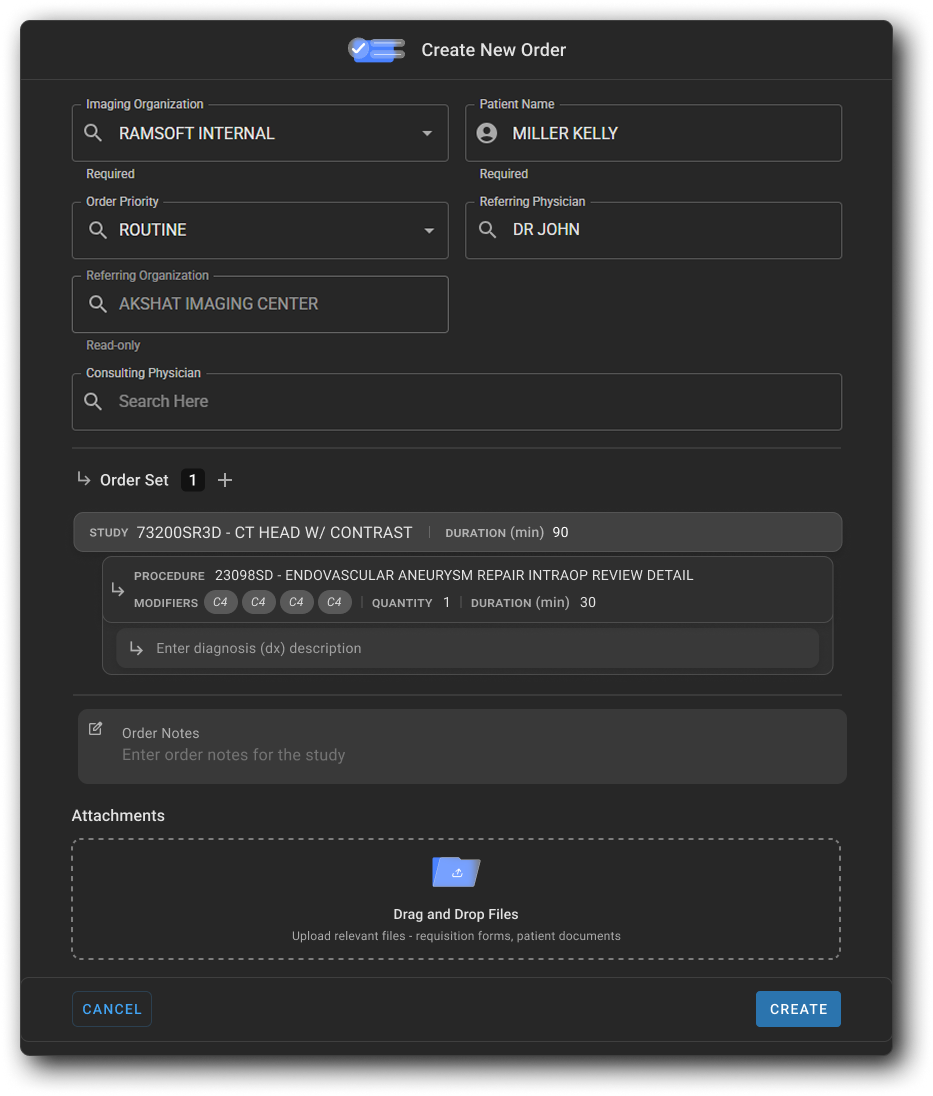
The Create New Order experience has been redesigned with a new full-page drawer that brings all order details — patient, physician, coverage, order sets, notes, and attachments — into a single, structured workflow, replacing the previous narrow side panel.

Note: This feature is currently available to Canadian users at omegaai.ca.

description

Product: Image Viewer & Mobile Image Viewer Enhancements

· Leitura de 3 minutos

Overview​

This release brings a set of improvements across the OmegaAI Image Viewer, Hanging Protocols, and the Mobile Image Viewer — including a new stage-navigation option for Hanging Protocols, modality-aware display presets, persistent Cine playback preferences, a refined viewport scrollbar, and improved landscape mode on mobile.