Pular para o conteúdo principal

5 postagens marcadas com "dicom"

Ver todas os Marcadores

Coming Soon: Modality-Aware Window Level Presets

· Leitura de 2 minutos

Overview

Window Level presets in the OmegaAI Image Viewer are now tailored to the modality you're actually viewing, replacing the old CT-centric preset list that used to appear on every study type regardless of modality.

What's New

1. Presets Filtered by Modality

What changed:

The Window Level preset list is now filtered to the modality being viewed — CT, MR, US, PT, NM, and more each get their own relevant list, instead of a single generic CT-centric list showing up everywhere.

Benefit:

Every modality gets presets that are actually clinically relevant to it, so you're never scrolling past irrelevant CT presets on an MR or ultrasound study.


2. Corrected CT Presets & Auto-Windowing for Other Modalities

What changed:

CT presets like Brain, Stroke, Mediastinum, Soft Tissue, and Abdomen now use corrected clinical values, with a new Subdural preset added. Modalities where a fixed window doesn't make sense — MR, US, CR/DX, and NM — now default to auto-windowing strategies instead, calculated from the image data itself.

Benefit:

Presets reflect current clinical standards, and modalities that never suited fixed numeric values now window correctly by default.


3. Compound Presets for PET & Nuclear Medicine, Mammography Support

What changed:

PET and Nuclear Medicine presets now apply window level and color map together in a single selection (Hot Iron, Hot Metal Blue, PET Rainbow, Cool, Inverted Gray), with correct SUV-unit windowing. Mammography gains sigmoid VOI LUT support, with correct handling of "For Presentation" vs. "For Processing" images.

Benefit:

One click gets you the correct look for PET/NM studies, and mammography windowing now matches how those images are meant to be displayed.


4. Three-Tier Preset Configuration

What changed:

Presets now resolve through three tiers — System defaults, Organization overrides, and User overrides — so administrators and individual radiologists can customize presets without losing the underlying system defaults.

Benefit:

Organizations and individual readers can fine-tune presets to their own preferences without breaking the baseline for everyone else.


Important Notes

  • Backward compatible: All original CT preset names are preserved, so existing Hanging Protocols referencing them by name continue to work unchanged.

Where to Find It

  • Window Level Presets: Image Viewer → Window Level tool → preset dropdown (filtered to the active viewport's modality)
Product Update: Preserve Study Instance UIDs from Trusted DICOM Sources

· Leitura de 5 minutos

Overview

OmegaAI now enables DICOM Stations to be marked as authoritative sources of study identity. When enabled, a study created from an HL7 order that receives images from an authoritative station will use the station's Study Instance UID (0020,000D) as the canonical identifier, replacing OmegaAI's placeholder UID. This resolves bidirectional workflow issues where annotations and reports sent back to source systems could not be matched due to UID mismatches.

What's New

1. Authoritative DICOM Station Setting

What changed:
  • New toggle added to DICOM Station device configuration (Organization > Device > DICOM Station Features > Authoritative). Defaults to OFF for all new stations.
Benefit:
  • Administrators can explicitly trust specific PACS and gateways as authoritative sources of study identity, enabling automatic reconciliation of annotations and reports sent back to the source system.

2. Study Instance UID Preservation and Coercion Warnings

What changed:
  • When Authoritative is enabled and a source UID differs from OmegaAI's order-generated placeholder, the source UID becomes canonical. The placeholder UID is retained in a merged-UID reference table. A C-STORE Warning (0xB000) is returned to the sending system, and the object records an Original Attributes Sequence (0400,0561) with the original UID, modification datetime, modifying system, and COERCE reason code.
Benefit:
  • UID changes are now transparent and auditable. All previous UIDs remain discoverable through QIDO-RS, WADO-RS, C-FIND, and C-MOVE. Existing external references (worklist IDs, prior queries, links in reports) that stored the old UID continue to work.

3. Per-Station Trust Configuration

What changed:
  • Authoritative setting is configured per DICOM Station device, not globally. Each station is independently marked as trusted or untrusted.
Benefit:
  • A single well-behaved gateway can be marked as authoritative without changing how any other station is treated. Gives administrators fine-grained control over which sources are trusted.

Important Notes

  • Default Behavior: Authoritative is OFF by default for all DICOM Station devices, including newly created ones. No existing configurations change behavior on upgrade.

  • When This Setting Takes Effect: The setting only takes effect when a study was created by an HL7 order (placeholder UID) and the DICOM object then matches it by accession. Where studies are created by the DICOM object itself, it never comes into play.

  • Bidirectional Workflows Only: Enable Authoritative only for sources where you expect to send annotations, reports, or other derived content back to the source system and require automatic UID-based matching.

  • DICOM Station vs Connection Setting: This is a DICOM Station setting, not a connection setting. Ingest reads the receiving station by AE Title, so each station is ticked separately.

  • UI Is Not a Safety Boundary: A FHIR PUT /Device sets the value whether or not the toggle switch is visible in the UI.

  • Supported Workflows: Re-sending the same study under a different UID is supported. Every superseded UID is kept as an alias, allowing external systems holding an older UID to resolve via the alias.

  • Not Recommended For:

    • Sources with UIDs that aren't globally unique (reusing one UID across different studies mis-identifies studies)
    • Unidirectional workflows where there's no risk, just no benefit
  • Testing Required: Before enabling Authoritative for a production PACS or gateway, test the bidirectional workflow (send and return annotations) in a non-production environment to verify correct reconciliation at the source.

  • Configuration Examples:

    • CSH Compass PACS (Bidirectional Workflow): Navigate to Organization > Device > CSH Compass PACS > DICOM Station Features > Toggle Authoritative ON. Compass UIDs are now canonical; returned annotations carry the original UID and match automatically at CSH.

    • Ultrasound Modality (Unidirectional Workflow): Leave Authoritative OFF. OmegaAI uses the order-generated UID. If the ultrasound re-sends the same exam with a different UID, both sets of objects are stored under the order UID with no UID conflicts.

  • DICOM Compliance:

    • C-STORE Warning (0xB000): Returned when Study Instance UID is coerced (per DICOM PS3.4 §B.4)

    • Original Attributes Sequence (0400,0561): Object records original UID, modification datetime, modifying system, and COERCE reason (per DICOM PS3.3 §C.12.1.1.9)

    • Benefits

      1. Bidirectional Reconciliation — Annotations and reports match at the source system without manual intervention or worklist reconciliation.

      2. No Data Loss — All superseded UIDs are retained in the merged-UID reference table and remain queryable and accessible through QIDO-RS, WADO-RS, C-FIND, and C-MOVE.

      3. Transparency and Auditability — C-STORE Warning (0xB000) is returned to the sending system and Original Attributes Sequence (0400,0561) records the original UID and reason code.

      4. Per-Station Configuration — Each DICOM Station is independently marked as trusted or untrusted. One gateway can be authoritative without affecting others.

      5. Safe by Default — OFF by default for all stations. No existing configurations change behavior on upgrade.

Where to Find It

Location in OmegaAI:

Organization
└─ Device
└─ [Select DICOM Station Device]
└─ Device Details Form
└─ DICOM Station Features
└─ Authoritative ← Toggle is here (last item)

Available On: DICOM Station devices only (not on OmegaAI Link or API devices)

Permission: Read-only when the Device form is in view mode; editable in edit mode, the same as every other field in the DICOM Station Features group. No separate permission applies to this field.

Programmatic access: Can be queried and set through the FHIR Device API (device.extension[where(url='authoritative')].valueBoolean)

Updated Help Articles

Preserve Study Instance UIDs from Trusted DICOM Sources

Product: Image Viewer Enhancements & Blume Mobile Image Viewer

· Leitura de 5 minutos

Overview

This release introduces the Blume Mobile Image Viewer, a new M-Mode measurement tool for ultrasound, and enhancements to the OmegaAI Image Viewer.

What's New

1. Blume Mobile Image Viewer

What changed:

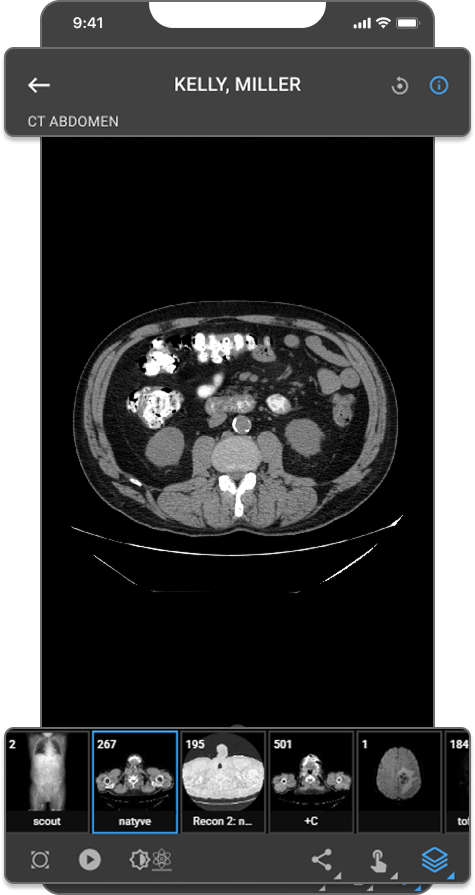
The Blume Mobile Image Viewer is now available in the Blume Patient Portal app on iOS and Android. Patients can view DICOM studies on any touchscreen device with support for stack scroll, Cine playback, window leveling, measurements, Drag Probe, image orientation controls, landscape mode, and JPEG sharing via the native share sheet.

Benefit:

Patients can securely review their imaging studies from a mobile device with tools consistent with the desktop Image Viewer experience.

Mobile IV


2. M-Mode Measurement Tools for Ultrasound

What changed:

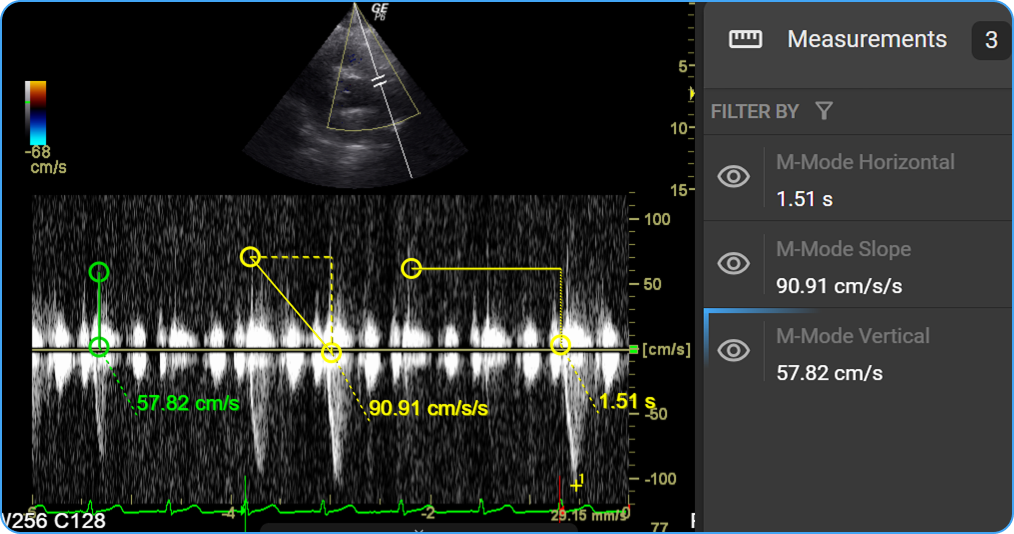
Three measurement tools are now available when an M-Mode ultrasound series is active — auto-detected on load. Slope (cm/s), Horizontal (s), and Vertical (cm/s) measurements are placed by click and drag, calibrated to DICOM metadata, and saved as annotations for structured reporting.

Benefit:

Precise in-viewer cardiac quantification on M-Mode ultrasound without switching tools or workflows.

Mobile IV


3. New Cine Tool on Viewport

What changed:

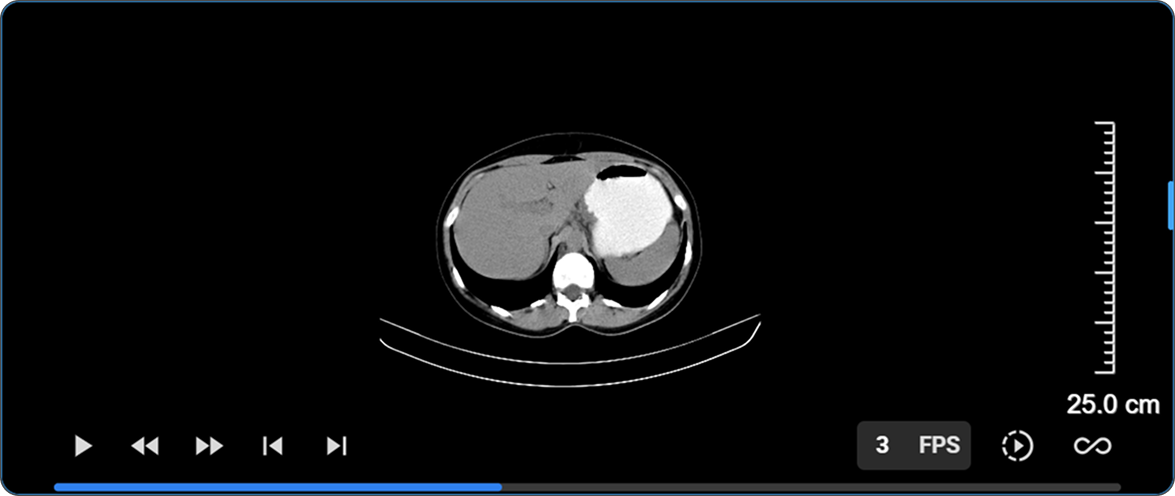
The Cine playback toolbar has been redesigned with a full-width progress bar at the bottom of the viewport. Left-side controls include play/pause, first frame, last frame, previous frame, and next frame. Right-side controls include an FPS display, playback speed, and playback method.

Benefit:

Full frame-level control over cine playback directly within the viewport.

Mobile IV


4. Hotkey Customization

What changed:

All configurable Image Viewer key bindings are now surfaced in a dedicated Hotkey Customization panel within the User Settings page. The panel is also accessible directly from the Image Viewer via Settings → Customize Hotkeys, with a Back to IV button to return without losing context.

Benefit:

Radiologists can tailor keyboard shortcuts to match their reading preferences, with changes persisted to their profile and applied consistently across all organizations they have access to.


5. Browser-Locale Date & Time Format in Overlay Annotations

What changed:

Date and time values in Image Viewer overlay annotations — including study, series, acquisition, and content date/time, and date of birth — now automatically follow the user's browser locale (navigator.language).

Benefit:

Date and time stamps display in the format most familiar to each user with no manual configuration required.


6. Annotations Included in Export (Download, Print, Copy to Clipboard)

What changed:

Visible annotations and measurements are now included when downloading, printing, or copying an image to clipboard — the export captures the viewport exactly as displayed.

Benefit:

Toggle annotation visibility before exporting to control what is included — no extra steps required.


7. CAD Toggle for Mammography Studies

What changed:

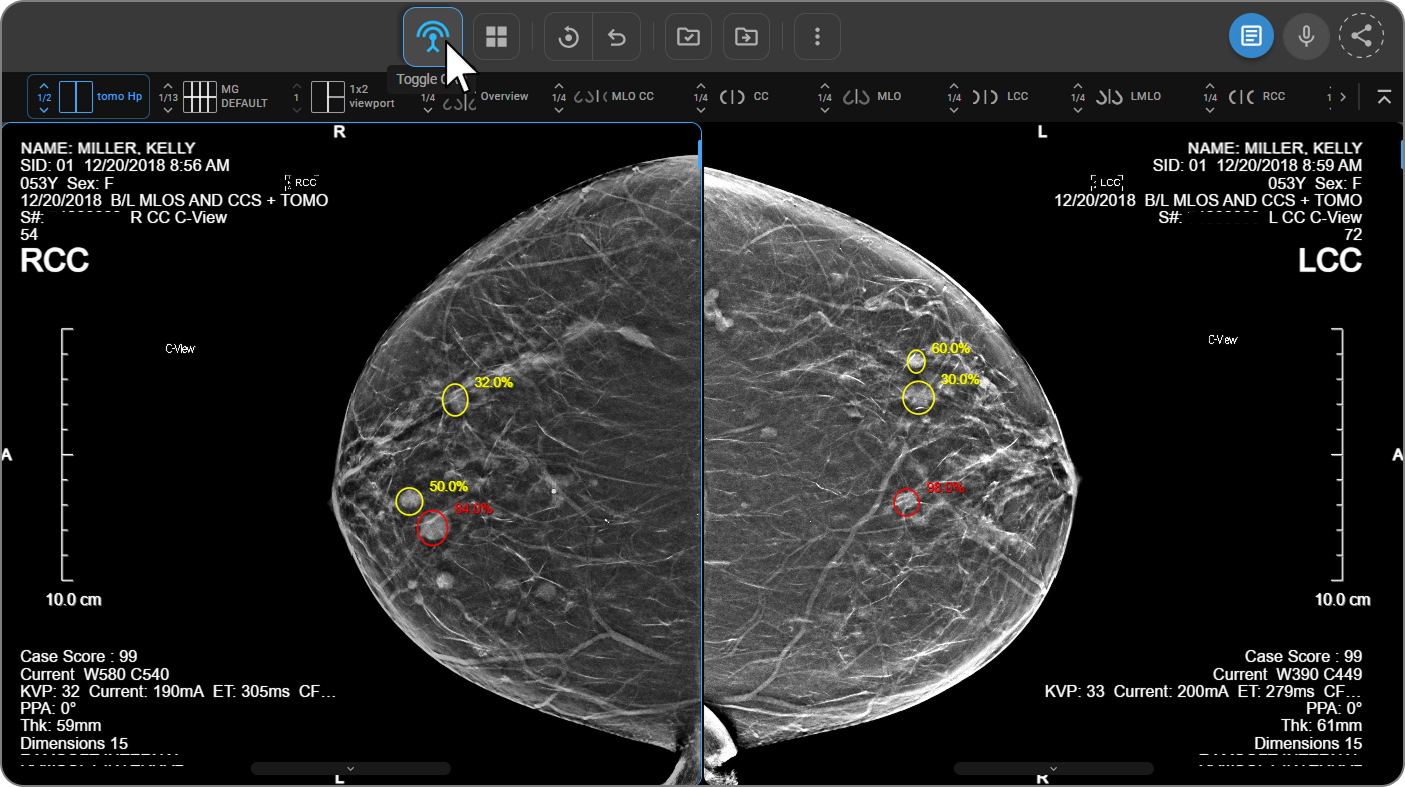
A Toggle CAD button now appears in the toolbar when a mammography study with CAD SR objects is loaded, globally showing or hiding all CAD markers across every viewport in one click. When active, the viewport overlay displays the iCAD case score and, for Tomo series, clickable slice hyperlinks that navigate directly to flagged frames.

Benefit:

Instantly compare images with and without CAD overlays and jump to flagged slices without disrupting the reading workflow.

Mobile IV


Important Notes

  • Blume Mobile Image Viewer: For non-diagnostic patient review only.
  • M-Mode Tools: Only available when an M-Mode ultrasound series is active in the viewport.
  • Cine Controls: Progress bar is only visible when Cine mode is active. FPS is adjusted by hovering over the FPS display and swiping left or right.
  • Hotkey Customization: Mouse buttons and scroll wheel are not valid inputs. System-reserved keys cannot be reassigned. The Back button is hidden during Edit Mode.
  • Time Format: Automatic — no configuration required.
  • Export with Annotations: Only currently visible annotations are captured; hidden annotations are excluded.
  • CAD Toggle: Only appears on mammography studies with CADSR objects. Does not affect user-drawn annotations. Default state is off unless a preference is saved.

Where to Find It

  • Blume Mobile Image Viewer: Blume app → Completed → View Results → View Images
  • M-Mode Tools: Image Viewer → Customize Toolbar → M-Mode → load an M-Mode ultrasound series
  • Cine Controls: Image Viewer → activate Cine mode → progress bar appears at viewport bottom
  • Hotkey Customization: User Profile → User Settings → keyboard icon; or Image Viewer → More options (⋮) → Customize Hotkeys
  • Time Format: Automatic — no action required
  • Export with Annotations: Image Viewer → toggle annotation visibility → Download / Print / Copy to Clipboard
  • CAD Toggle: Image Viewer → Tools menu → CAD icon (leftmost); mammography studies with CAD objects only

Updated Help Articles

Product: Study Downloads & CD/Disc Burner

· Leitura de 2 minutos

Overview

This release introduces significant updates to Study Downloads and CD/Disc Burner in OmegaAI, focused on improving speed, reliability, and resilience during large study exports.

What's New

1. Faster Study Downloads

What changed:

Large study exports are now dramatically faster due to connection reuse optimization. A 1.3 GB study that previously took ~30 minutes now completes in ~6 minutes.

Benefit:

Clinicians and staff spend less time waiting for large imaging studies to download, improving turnaround time for patient care.

2. Automatic Download Resume

What changed:

Study downloads now use the browser's native download system with range request support. If a network connection drops mid-download, the browser automatically resumes from exactly where it left off.

Benefit:

Users no longer need to restart large downloads from scratch after a connection interruption — especially critical for large MRI and CT studies.

3. CD/Disc Burner — Resumable Burns & Token Refresh

What changed:

CD/Disc burn sessions now automatically resume if the connection is interrupted mid-burn. Additionally, authentication tokens are refreshed automatically in the background during long burn sessions, preventing silent failures.

Benefit:

Long burn sessions complete reliably without requiring users to restart or re-authenticate, even on slow or unstable connections.

Important Notes

  • These improvements apply to all study sizes, but are most impactful for large studies (500+ images / 1 GB+).
  • Download progress is now shown accurately in real time within the Downloads drawer.
  • The CD Burner improvements are included in this same release.

Where to Find It

Study Downloads: Worklist → Study → Download CD/Disc Burner: Worklist → Study → Burn to CD

Updated Help Articles

OmegaAI Export Featureshttps://help.omegaai.com/docs/Worklist/worklist_omegaai_export