Product: Image Viewer & Mobile Image Viewer Enhancements
Overview
This release brings a set of improvements across the OmegaAI Image Viewer, Hanging Protocols, and the Mobile Image Viewer — including a new stage-navigation option for Hanging Protocols, modality-aware display presets, persistent Cine playback preferences, a refined viewport scrollbar, and improved landscape mode on mobile.
What's New
1. Scroll Between Stages (Hanging Protocols)
What changed:
A new Scroll between Stages toggle is available in Hanging Protocol viewport settings. When enabled, scrolling past the last frame in a viewport advances to the next stage, and scrolling back past the first frame returns to the previous stage. This takes precedence over Scroll Between Series when both are enabled on the same viewport.
Benefit:
Faster navigation through multi-stage hanging protocols without leaving the viewport or reaching for separate controls.
2. Modality-Aware Display Presets
What changed:
Window Level presets are now tailored to the modality being viewed, with dedicated preset sets for CT, MR, MG, CR/DX, US, PT, and NM — including SUV-aware presets and color maps for PT/NM studies. A warning indicator flags studies where DICOM windowing values look unusual.
Benefit:
Users get relevant, ready-to-use presets for the modality in front of them instead of a single CT-oriented list.
3. Persistent Cine Settings
What changed:
Cine playback mode (Loop, Bounce, Play Once) and speed (FPS) are now remembered per user and per modality. The saved setting is applied automatically the next time a study of that modality is opened.
Benefit:
Radiologists no longer need to reconfigure Cine playback for every study — their preferred settings carry over automatically.
4. Scroll Bar Hover Improvement
What changed:
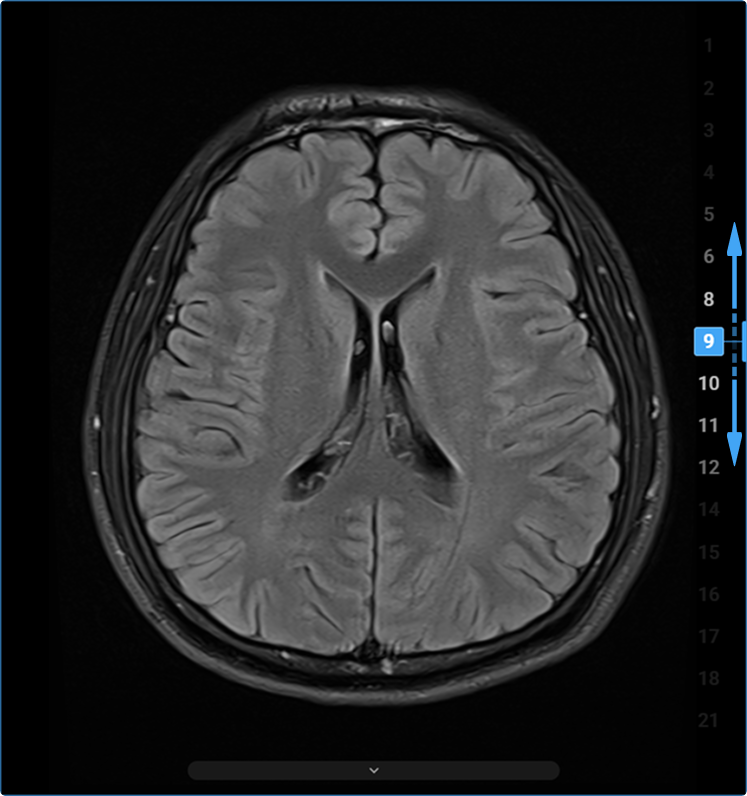
The viewport scroll bar now stays tucked into a slim strip along the right edge and only expands after a brief hover. A blue position marker remains visible at all times, even while the scroll bar is collapsed.
Benefit:
Less visual clutter during normal review, while still showing your position in the image stack at a glance.
5. Mobile Image Viewer Landscape Mode
What changed:
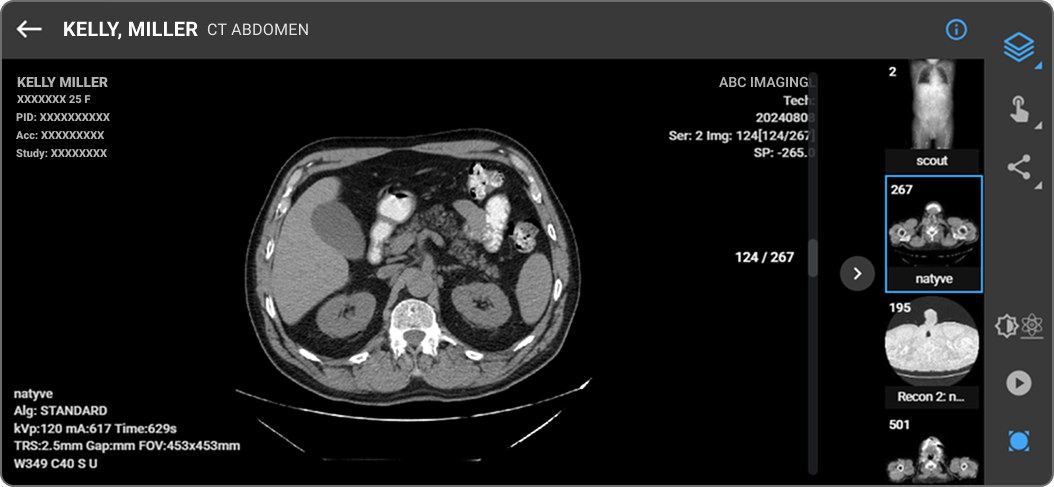
The Mobile Image Viewer now adjusts automatically when you rotate your device to landscape orientation. The scan viewing area expands to use the wider screen, the thumbnail strip moves to a collapsible panel on the right, and the toolbar and stack position indicator shift to the right edge. No extra steps are needed — all tools and gestures work the same as in portrait mode.
Benefit:
Landscape mode gives you a wider view of the anatomy, which is especially useful for wide structures like chest CT or abdominal scans.
Where to Find It
| Feature | Navigation Path |
|---|---|
| Scroll Between Stages | Image Viewer → More Options (⋯) → Settings → Hanging Protocols → HP Rules → Toggles |
| Modality-Aware Display Presets | Image Viewer → Viewport → Window Level → Presets |
| Persistent Cine Settings | Image Viewer → Viewport → Cine |
| Scroll Bar Hover Improvement | Image Viewer → Viewport → Scroll Bar |
| Mobile Image Viewer Landscape Mode | Mobile Image Viewer → Rotate device to landscape |