Mastering Hanging Protocols
Overview
The Hanging Protocols Configuration Screen in OmegaAI is a comprehensive interface designed to help users configure and customize how medical imaging studies are displayed. It enables radiologists and technologists to create tailored viewing layouts that align with clinical workflows and preferences. The screen is organized into a top toolbar with tabs plus three workspace sections — Viewport Setup, View Codes and Modifiers, and Hanging Protocol Rules — each supporting a different part of the configuration process.
Refer to Hanging Protocols in OmegaAI for the basic guide to accessing and applying protocols.
Configuration Screen Layout
The Configuration Screen Layout provides a visual workspace where you define how images are arranged, assigned, and displayed within the viewer. This screen is divided into intuitive panels that guide you through setting up viewports, assigning view codes and modifiers, and managing rules for each viewport.
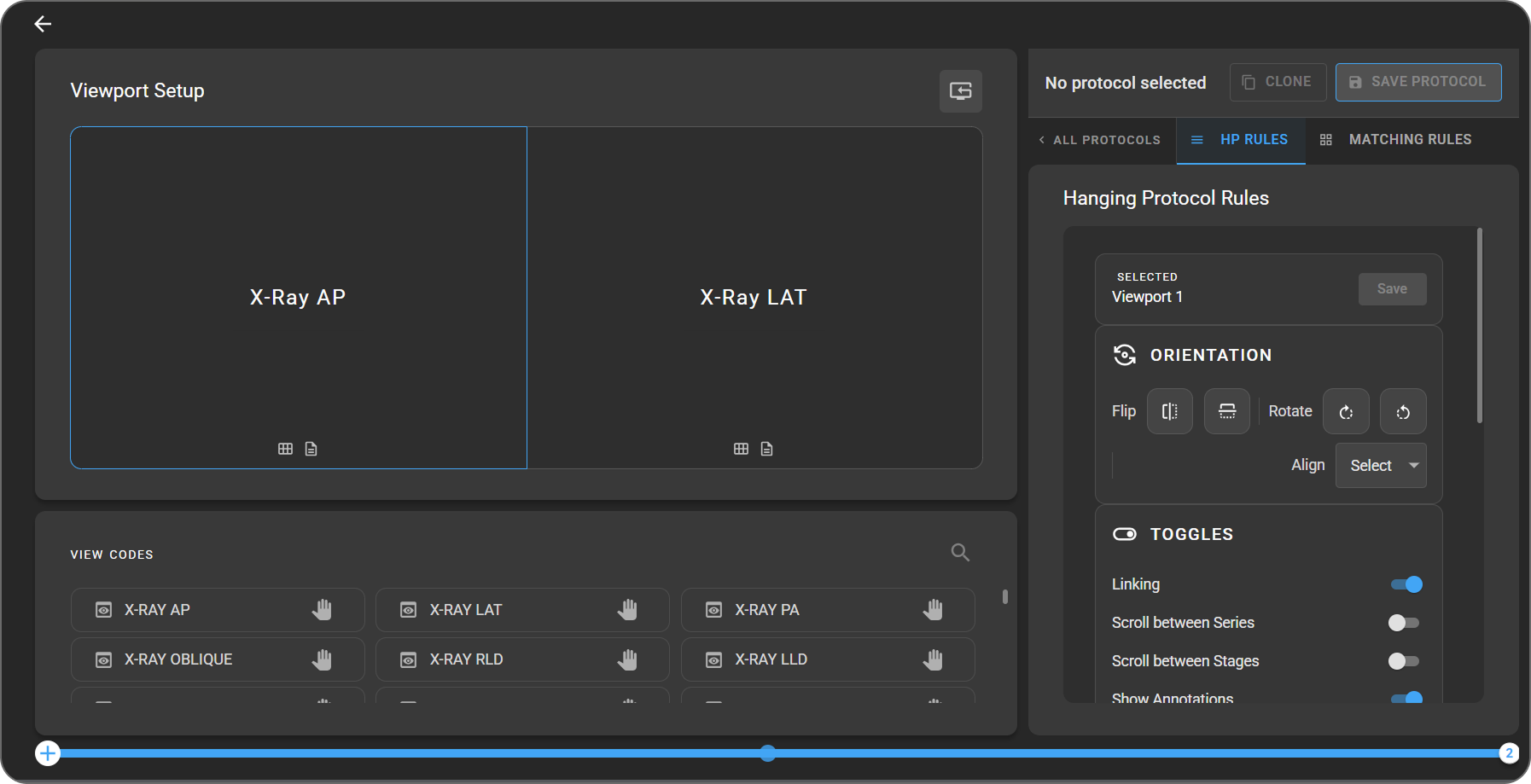
A persistent toolbar at the top of the screen surfaces the most common actions and a tab bar for switching between the parts of the configuration workflow. The workspace below the toolbar holds the layout designer on the left and the active tab's content on the right.
1. Toolbar and Tabs
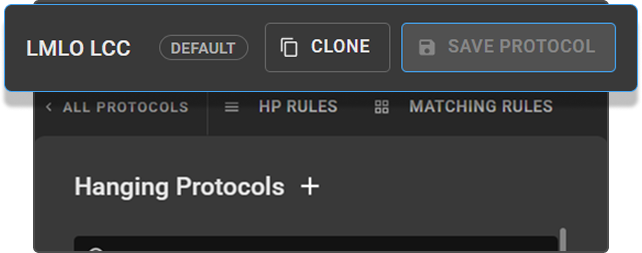
Spanning the full width at the top of the configuration screen, the toolbar gives you quick access to global protocol actions and switches what the right panel shows.
The toolbar surfaces the following elements:
- Protocol name — The name of the protocol currently loaded. New, unsaved protocols show a placeholder until you save.
- Default badge — A small Default label appears next to the name when the active protocol is one of OmegaAI's built-in Default Hanging Protocols. Default protocols are read-only — clone them before editing.
- Clone Current — Select a protocol tile on the All Protocols tab (it highlights blue and its name appears in the toolbar), then click Clone to create an editable copy. Use this to tailor a Default protocol or create a variant of a saved one.
- Save Protocol — Opens the Save Protocol dialog. The button is enabled when you have unsaved changes, are creating a new protocol, or are working on a clone, and disabled otherwise.
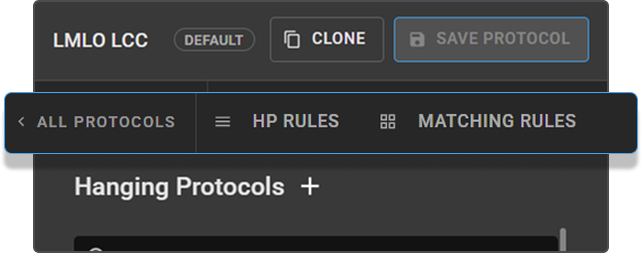
The tab bar immediately below the toolbar controls what the right panel displays:
| Tab | Right-panel content | When to use |
|---|---|---|
| All Protocols | Saved Protocols and Default Hanging Protocols lists, plus search | Browse, search, or open a protocol for editing |
| HP Rules | Rules editor for the currently selected viewport | Configure orientation, toggles, scaling, conditions, and window presets |
| Matching Rules | Save Protocol form (name, organizations, modality, body part, etc.) | Define how and where the protocol applies |
Tip: Selecting a viewport in the layout area automatically switches the right panel to the HP Rules tab, so you can edit rules without an extra click. If you open a stage that already has a layout, the first viewport is auto-selected so the rules panel is immediately useful. The "Nothing Here Yet" placeholder only appears for genuinely empty stages.
Unsaved Changes Guard
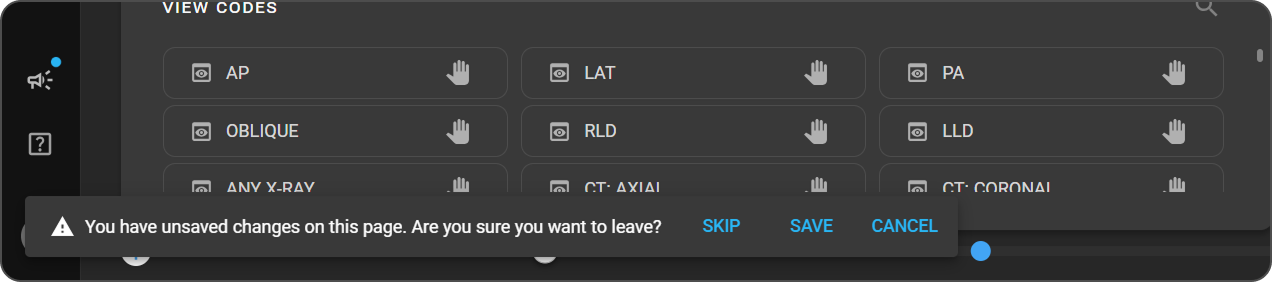
If you switch protocols, clone, navigate away from the screen, or close the browser tab while you have unsaved edits, OmegaAI prompts you to confirm. The prompt offers:
- Skip — Discard the changes and continue.
- Save — Save the current changes, then continue.
- Cancel — Stay where you are with your edits intact.
This prompt reads "You have unsaved changes on this page. Are you sure you want to leave?" and only appears when there are real edits to lose — loading a protocol or moving between stages does not trigger it.
Searching the Protocol List
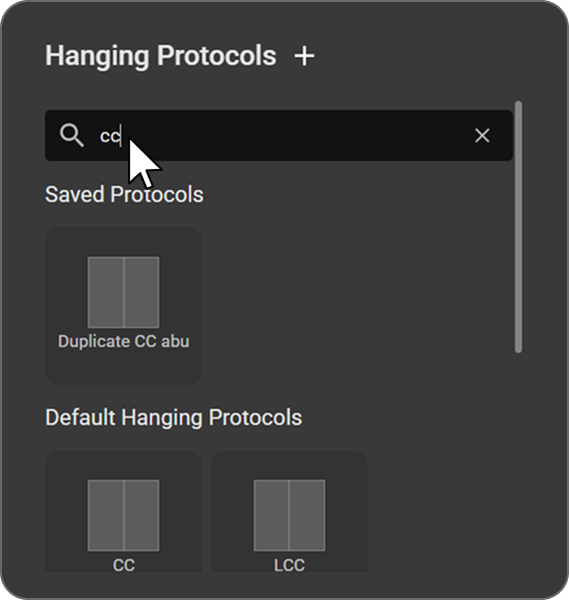
See All Protocols Tab in the basic guide — the search bar there filters by name, modality, or body part.
2. Viewport Setup
Located in the top-left panel, this is where you configure the structure and arrangement of viewports within the imaging viewer.
- The Viewport Setup area displays the grid where you can define the number and arrangement of viewports (e.g., 1×1, 2×2, 3×1).
- A single left-click on the Viewport Setup area opens the Select a layout option, where you can choose your preferred viewport grid.
- Click on the grid cells to assign active viewports (highlighted in blue).
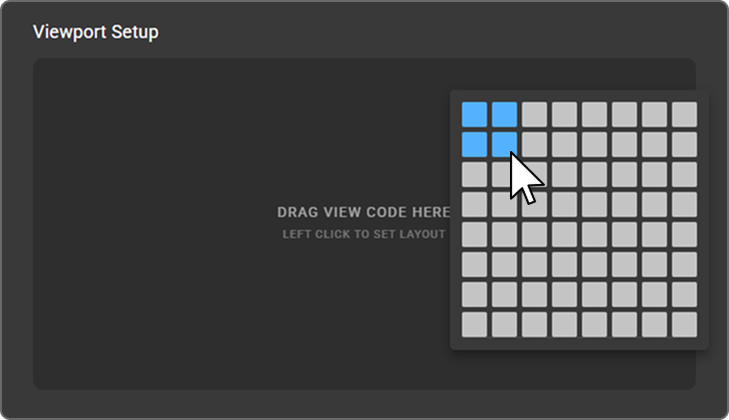
Tip: When the layout area is empty, a LEFT CLICK TO SET LAYOUT hint appears to remind you how to begin.
Per-Viewport Quick Icons
Once a view code has been assigned to a viewport (see View Codes and Modifiers Panel), that cell shows two always-visible icons at the bottom — no need to open a menu first:
- Tile Layout (grid icon) — Opens the layout picker to subdivide that viewport into a nested grid.
- Prior Selection (document icon) — Opens the study-matching dropdown to choose which study (Current or a preceding prior) loads into the viewport. See Prior Matching Model Configuration for the full dropdown and advanced matching options.
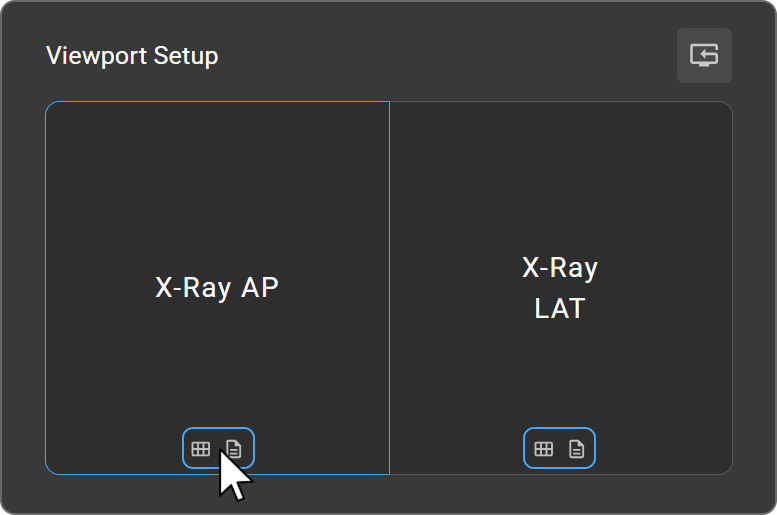
Hover over either icon to see its tooltip. On read-only Default protocols, these icons are not shown.
Resetting the Layout
Click the Reset button in the top-right corner of the Viewport Setup panel to open the dropdown. The Reset button is available on both single-monitor and multi-monitor protocols.
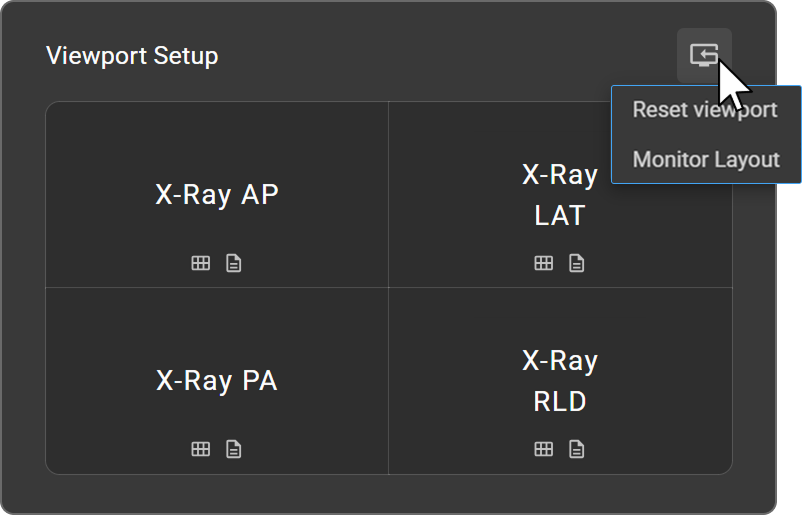
Reset Viewport
Select Reset viewport to clear all assigned layouts and configurations and return the workspace to the default single-viewport setup.
Monitor Layout
Select Monitor Layout to label your existing layout with Monitor 1, Monitor 2, and so on, and add a dashed divider showing where each configured Image Viewer monitor's section falls — see Configuring Hanging Protocols for Multi-Monitor Setups below for the full workflow.
Configuring Hanging Protocols for Multi-Monitor Setups
If your workstation has multiple Image Viewer monitors set up, you can align your Hanging Protocol layout to them:
- Open the Hanging Protocol Configuration screen and build your viewport layout as usual.
- Click the Reset icon in the top-right of the Viewport Setup area, then select Monitor Layout (see Monitor Layout above).
- Each of your configured Image Viewer monitors is now labeled (Monitor 1, Monitor 2, and so on), with a dashed divider showing where each monitor's section falls across your existing layout. Your view code assignments are preserved.
- Continue assigning view codes, rules, and stages as usual (see Create a Hanging Protocol in the basic guide).
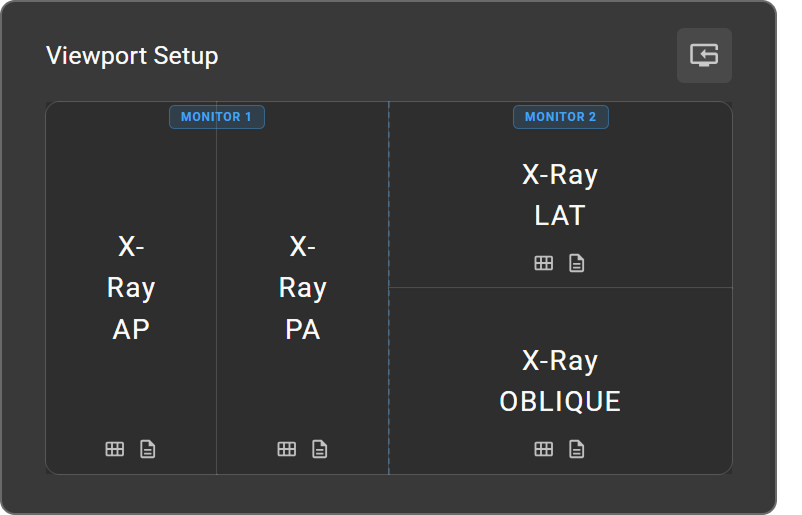
If multi-monitor isn't active and you select Monitor Layout, OmegaAI shows this message instead:
"Multimonitor is not active. To configure your monitor layout, enable it from User Profile → User Settings → Display Settings."
There, you assign a role — including Image Viewer (IV) — to each detected monitor. See the Multi-Monitor Setup Guide for the full steps.
3. View Codes and Modifiers Panel
Located in the bottom-left panel, this section provides a searchable list of predefined View Codes and MG Modifiers, so you can accurately assign images to the correct viewports.
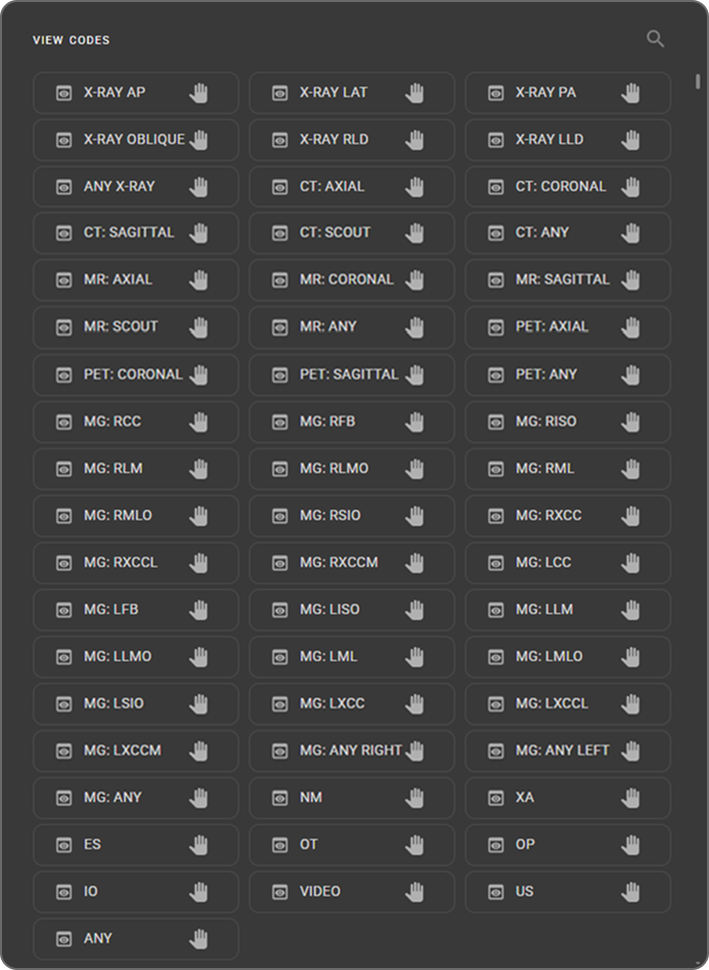
View Codes
View codes represent specific imaging orientations, projections, or series types. They help the system determine which images should be placed into each viewport when a hanging protocol is executed. By selecting the appropriate View Code, you ensure that the correct image type populates the corresponding viewport during protocol setup.
Examples include:
|
|
MG Modifiers
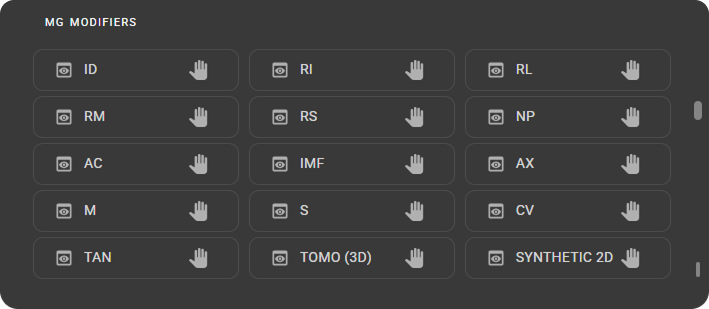
Modifiers provide additional descriptors specific to mammography, capturing variations in breast positioning, orientation, or specialized imaging techniques. These are essential for exams involving modified projections.
Examples include:
|
|
How View Codes and MG Modifiers Are Used
- Users drag and drop View Codes or MG Modifiers into the desired viewport within the layout.
- The system then uses these assignments to automatically load the correct image series or orientation when a study is opened.
- This ensures consistent, accurate, and predictable image placement according to modality, orientation, and exam type.
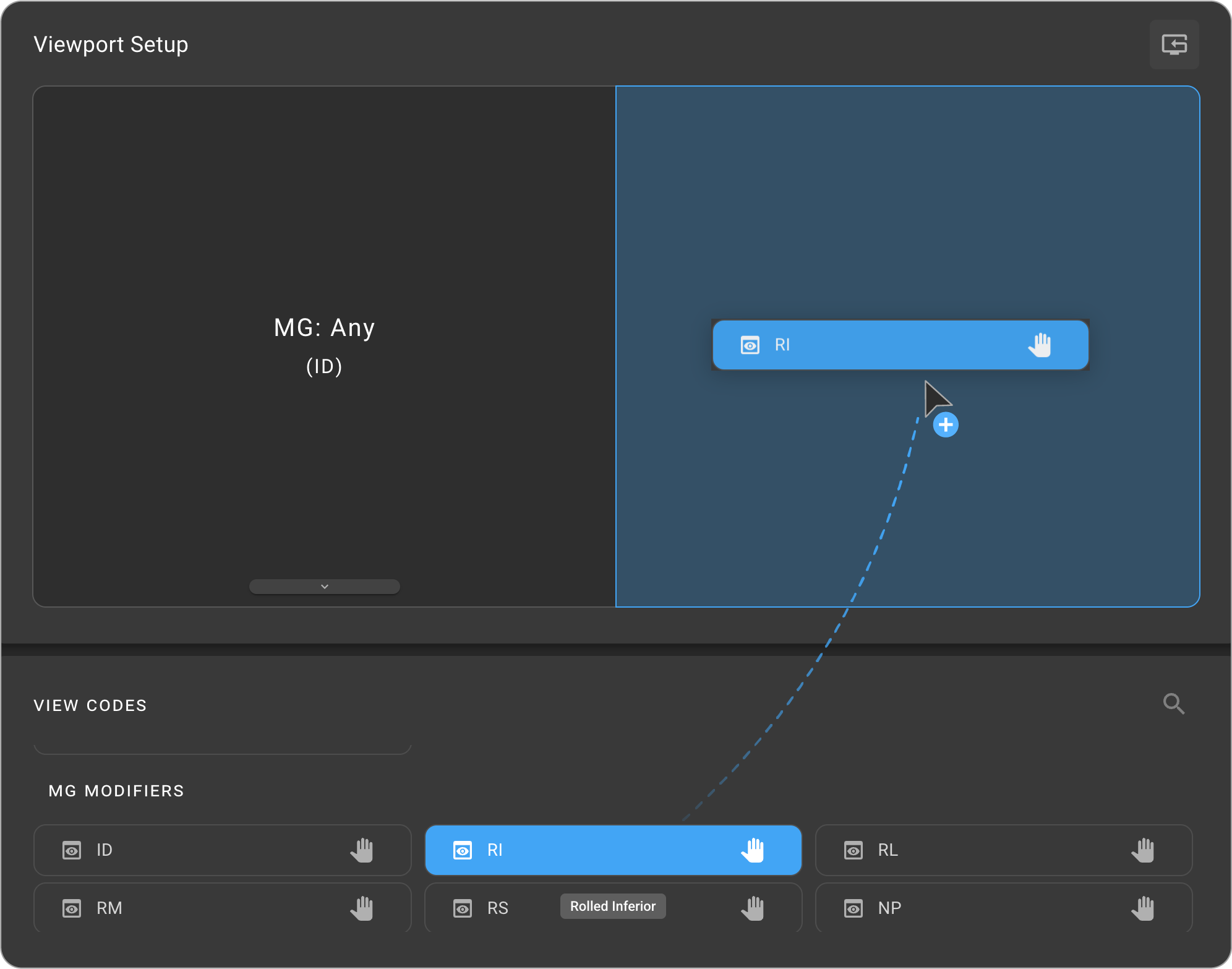
Search Functionality
- A search icon is available in the top-right corner of the View Codes panel.
- It allows you to quickly find specific View Codes or MG Modifiers by typing relevant keywords or abbreviations.

4. Hanging Protocol Rules Panel
Located on the right side of the configuration screen, this panel defines how each viewport behaves when a hanging protocol is applied.
The Hanging Protocol Rules Panel provides a comprehensive set of configuration options that control how images behave, appear, and are selected within each viewport when a hanging protocol is executed. These rules allow you to fine-tune the viewing experience, ensuring that images are displayed consistently and in alignment with clinical workflow requirements.
Each rule applies specifically to the selected viewport, and together they determine everything from visual behavior and image sizing to windowing, orientation, and metadata-driven image selection.
To configure rules, click on the desired viewport in the Viewport Setup area to select it (the selected viewport is highlighted in blue). All five sections below appear immediately, ready to edit:
- a. Orientation
- b. Toggles
- c. Window Presets
- d. Scaling
- e. Conditions
A Save button appears on the right side of the Selected Viewport [n] title bar, so you can save without leaving the panel. For an existing (already saved) protocol it writes your changes immediately; for a new (unsaved) protocol it opens the Save Protocol form first so you can provide the protocol name, organizations, and matching criteria. The button is disabled when there are no unsaved changes and briefly shows a loading indicator while saving. On a read-only Default protocol, every section is shown in read-only mode and the Save button is hidden.
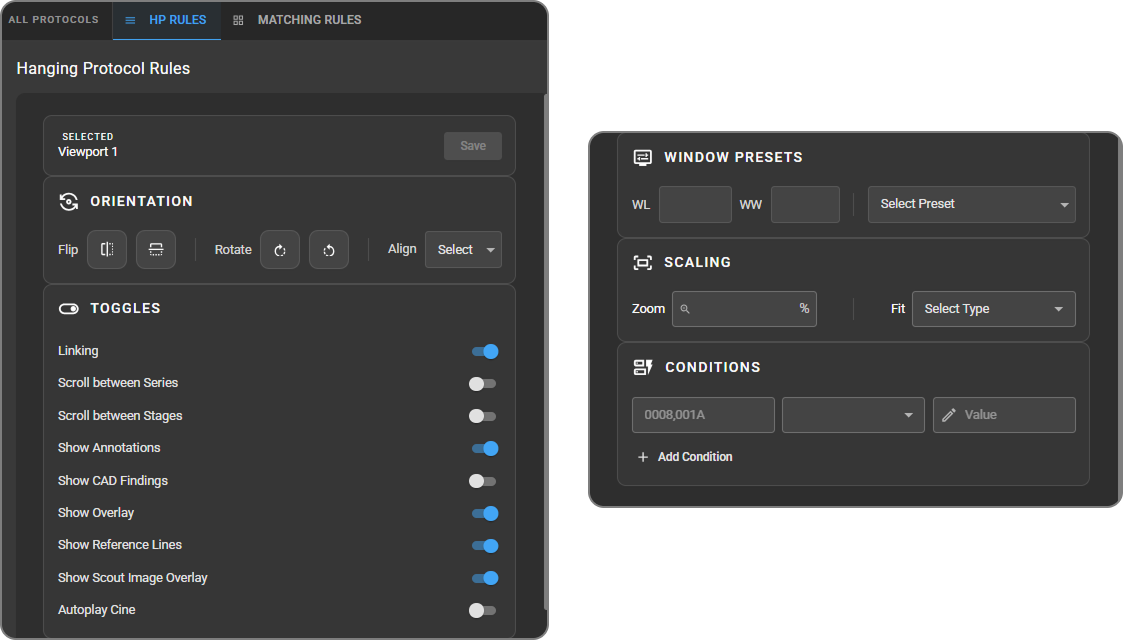
a. Orientation
The Orientation section allows you to control how images are flipped, rotated, or aligned within the selected viewport when the hanging protocol is applied. These settings ensure that images always appear in a consistent and clinically appropriate orientation.
You can configure:
|
|
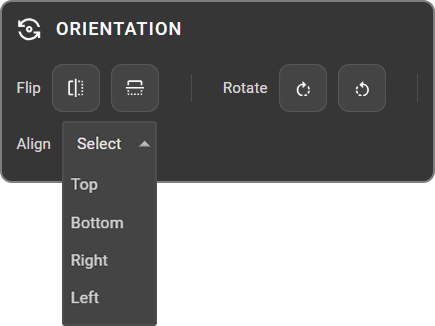
Orientation rules help standardize image presentation across different studies and modalities.
b. Toggles
The Toggles section allows you to enable or disable specific viewing features for the selected viewport. These settings define which tools, visual elements, and interaction behaviors are active when the hanging protocol loads.
Each toggle can be set to Active (blue) or Inactive, giving you complete control over what is displayed and how the viewport behaves.
Available toggles include:
|
|
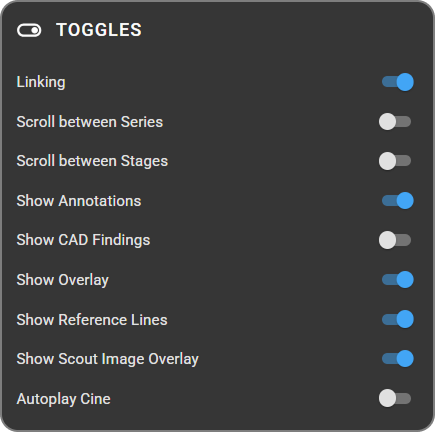
c. Window Presets
The Window Presets section lets you set the window level (WL) and window width (WW) applied to the selected viewport when the hanging protocol is loaded, controlling the image's brightness, contrast, and — for supported modalities — color mapping.
|
|
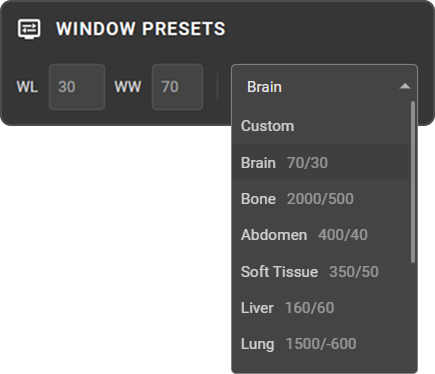
d. Scaling
The Scaling section defines how images are sized and displayed within the selected viewport when the hanging protocol is applied. These settings ensure consistent zoom behavior and image fit across different studies and series.
You can configure:
|
|
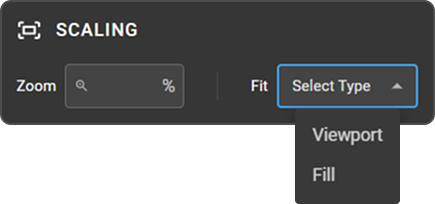
Use scaling settings to maintain a uniform viewing experience, particularly when comparing multiple series, modalities, or orientations.
e. Conditions
The Conditions section lets you set rules that determine when a viewport configuration should be applied. These rules are based on DICOM tags, enabling the system to match images using specific metadata.
Each condition includes:
|
|
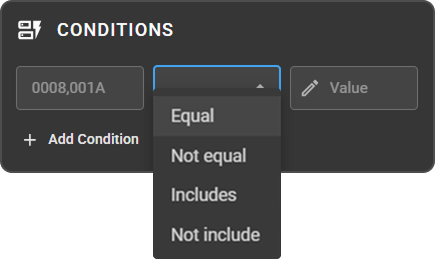
The section starts with a single condition row. Click + Add Condition to add additional matching rules to the viewport — up to 5 conditions — and remove any extra row with its delete icon.
Conditions help the system automatically select the correct images for each viewport based on modality, series description, body part, or any other DICOM header tag.
Default Hanging Protocol Catalog
OmegaAI ships a curated set of 17 Default Hanging Protocols, each clinically reviewed to match the typical reading workflow for its modality. Default protocols cannot be edited directly — clone one to create an editable variant (see Default Hanging Protocols in the main guide).
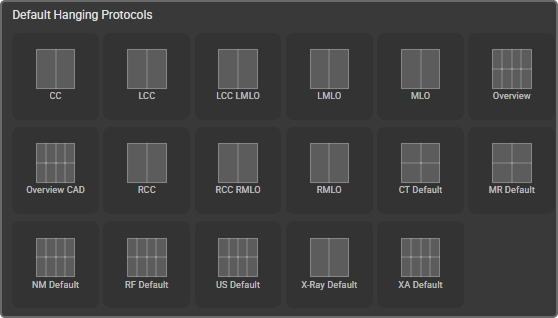
General-Purpose Defaults
Each of the following modalities ships one multi-stage "Modality Default" protocol:
- X-Ray Default (7 stages) — Steps through PA, lateral, AP, and oblique views (each paired with its matching prior), followed by an any-view prior-comparison stage, then two catch-all stages for anything left over. Covers CR, DX, RG, and XR studies.
- CT Default (4 stages) — An axial series stage, then a coronal/sagittal MPR stage plus a catch-all reconstruction stage, then a prior comparison stage (with a Soft Tissue window applied), then a final catch-all pair.
- MR Default (6 stages) — A core overview stage, then a sequence matrix covering T1, T2, FLAIR, DWI, ADC, and post-contrast T1, then a plane-focus stage, then a contrast/diffusion stage, then a 3D/MPR stage, then a prior stage.
- US Default (5 stages)
- RF Default and XA Default (5 stages each) — Both ship with the cine (multi-frame playback) toggle on by default.
- NM Default (5 stages)
Mammography View Set
Mammography ships as 10 view-specific protocols rather than one general-purpose default:
| Protocol | Stages | What it covers |
|---|---|---|
| Overview | 4 | A prior-and-current comparison view, then a current-only view, applied across the standard mammography view types |
| Overview CAD | 4 | The same layout as Overview, but with CAD Findings turned on for every viewport |
| CC | 4 | Craniocaudal views only |
| MLO | 4 | Mediolateral Oblique views only |
| LCC, LMLO, RCC, RMLO | 6 each | Two current-only stages (standard 2D and tomosynthesis), followed by four stages comparing against priors |
| LCC/LMLO (combined) and RCC/RMLO (combined) | 4 each | Same-side view pairs, one stage per view-type combination |
Every mammography stage is built around one of four series-type combinations — standard 2D vs. tomosynthesis, and with or without implant displacement — so these series types are never mixed together within the same stage. This keeps tomosynthesis and implant series organized correctly, and ensures the final bilateral tomosynthesis stage stays readable even for patients with implants.
Left- and right-side protocols apply the correct chest-wall orientation, and the CAD Findings toggle is enabled on the RCC/RMLO stages and throughout Overview CAD.
Body-part-specific mammography protocols were deliberately not included — each view ships one strong default, and organization- or user-level protocols can layer additional customization on top.
How Series Are Matched to Viewports
When a Default protocol is applied, OmegaAI's series-matching engine decides which series from the study binds to each viewport:
- Modifier matching — When a viewport asks for more than one mammography modifier (for example, Tomosynthesis and Implant Displaced), a series must carry all of them to match, not just one. A wildcard option is available to skip a specific modifier requirement where needed.
- Hard exclusions — Secondary Capture series and raw ("for processing") mammography images are automatically excluded from Default protocol matching, so they never bind to a diagnostic viewport.
- Projection matching — OmegaAI identifies each image's projection (view) by checking, in order: the study's procedure code, then the equipment's recorded view position, then a text match against the series description. This layered approach keeps projection matching consistent even when different equipment vendors label studies differently.
- Laterality matching — Right and left side matching does not depend on the Body Part Examined field, which can be unreliable across studies and equipment. A vendor-specific fallback (for Hologic equipment) is used when needed to determine laterality accurately.
- Synthetic 2D recognition — Hologic's C-View synthetic 2D images are automatically recognized and matched as standard 2D series, so they populate 2D viewports correctly rather than being treated as a separate series type.
- Consistent hanging — When more than one series could fill a viewport, OmegaAI sorts them the same way every time (by acquisition time, then series number as a tiebreaker), so the same study always hangs the same way no matter how many times it's reopened.
- If no series matches a viewport's assigned view code, the viewport displays "No matching series was found" along with the expected view code, rather than appearing blank.
- Prior-comparison stages only appear if a matching prior can actually be found — a stage that can't bind a prior is skipped when the protocol is applied, and the viewer opens on the first stage that has content, so navigation stays predictable.
- Scroll Between Series is off by default on all Default protocol viewports, except the final catch-all viewport in the X-Ray Default protocol, which allows series scrolling to accommodate studies with more series than the protocol has slots for.
Note: When Modality-Aware Display Presets (see Window Presets) is enabled for your organization, Default protocols also apply the correct window level and colormap for each viewport automatically, based on the matched series.
Hanging Protocol Stages Management
Hanging Protocol Stages Management allows you to organize and control how images are displayed across multiple stages within a hanging protocol. Each stage represents a specific viewing layout or configuration tailored for different parts of the interpretation workflow — such as localizer views, core series review, or comparison studies.
The Hanging Protocol Stages Management panel is located along the bottom border of the Hanging Protocol Configuration screen. It appears as a horizontal slider track below the Viewport Setup and View Codes sections, with a numbered handle for each stage connected along the same line.
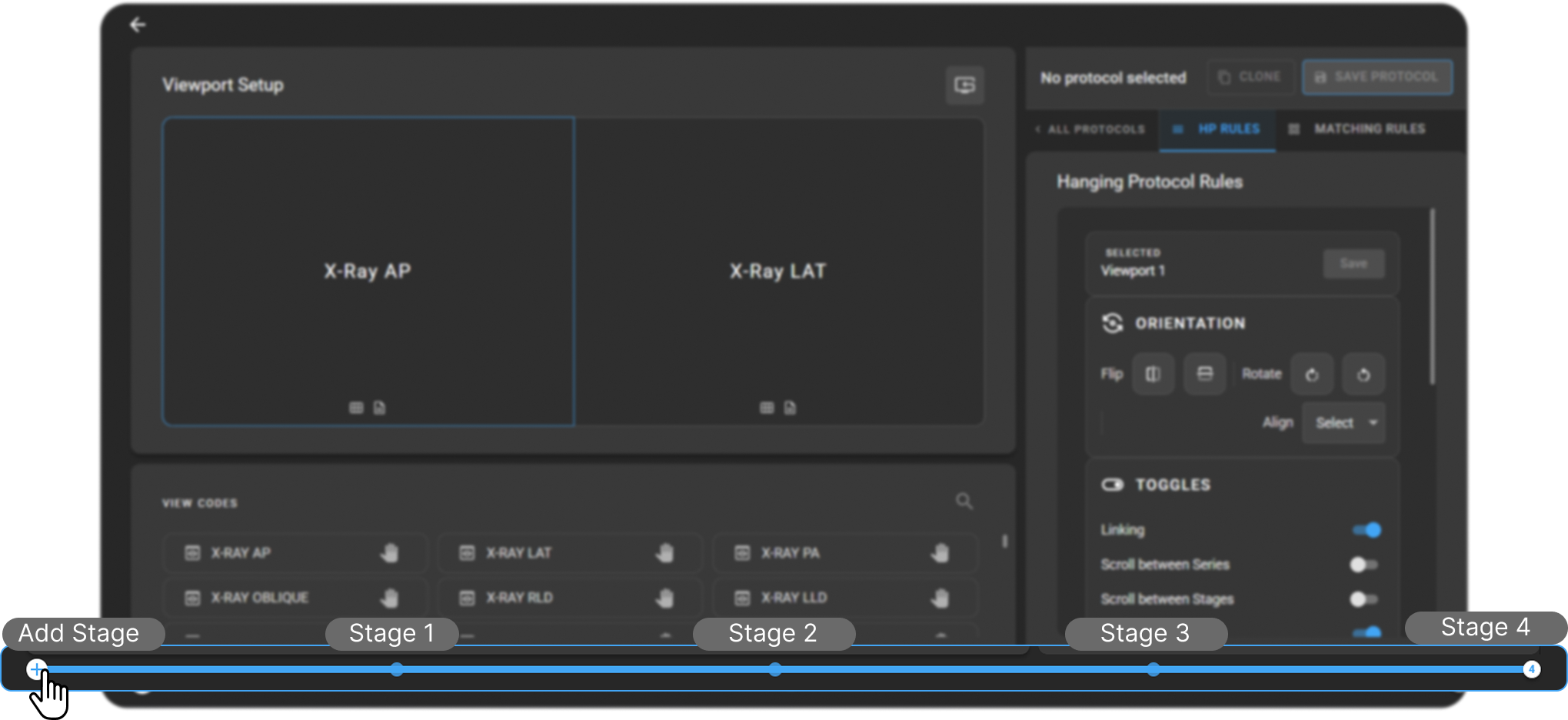
Creating a Stage
- Click the "+" (Add Stage) icon located at the left end of the stage track.

- The new stage is created as a duplicate of the currently active stage — its monitors, view codes, layout, and rules are copied — so you can build a variation without reconfiguring everything from scratch. The copy is independent: editing it does not change the original. (If the active stage is empty, you simply get another empty stage.)
- The newly created stage becomes the active stage automatically.
- You can create as many stages as required, depending on your workflow or multi-step reading process.
- Each stage appears as a numbered handle along the track. Click directly on any stage's handle to jump to it, review its layout, and configure or switch between stages.
Deleting a Stage
- Click on the handle for the stage you want to delete. This reveals a small icon cluster above the handle — Move Left, Delete, and Move Right (see Reordering Stages below).
- Click and hold the trash can icon in the cluster to delete the stage.
- The stage is removed, and the remaining stages are automatically renumbered.
Reordering Stages
You can change the order in which stages are presented during reading without recreating them.
- Selecting a stage's handle on the track reveals an icon cluster above it: a Move Left (
‹) arrow, the Delete (trash) icon, and a Move Right (›) arrow, grouped together. - Click Move Left or Move Right to swap the stage with its neighbor. The active selection follows the stage as it moves, so the stage you moved stays selected.
- The Move Left arrow is hidden on the first stage and the Move Right arrow on the last stage. Move arrows are not shown on read-only Default protocols or when the protocol has only one stage.

Stage Navigation in the Image Viewer
Stage navigation in the OmegaAI Image Viewer allows you to move between different stages defined within a Hanging Protocol. Each stage represents a unique layout or configuration designed to guide the reading workflow.
- In a multi-stage protocol, use the Page Up and Page Down keyboard shortcuts to move to the previous or next stage.
- The Quick Access Strip's stage indicator (see Method 1: Quick Access Strip in the basic guide) also has up/down chevron arrows for stepping through stages without using the keyboard.
- In a single-stage protocol, Page Up/Page Down loads the next series instead of switching stages.
- Empty stages (stages with no matching images) are automatically skipped during navigation.
- If the Scroll between Stages toggle (see Toggles) is enabled on a viewport, mouse-wheel scrolling past that viewport's last or first series also moves between stages, in addition to the Page Up/Page Down shortcuts.
Prior Matching Model Configuration in OmegaAI
The Prior Matching Model Configuration in OmegaAI enables you to define how previous imaging studies are matched to the current study based on specific criteria, ensuring accurate and relevant prior retrieval for diagnostic review.
Accessing the Prior Matching Model
To open the Prior Matching Configuration panel:
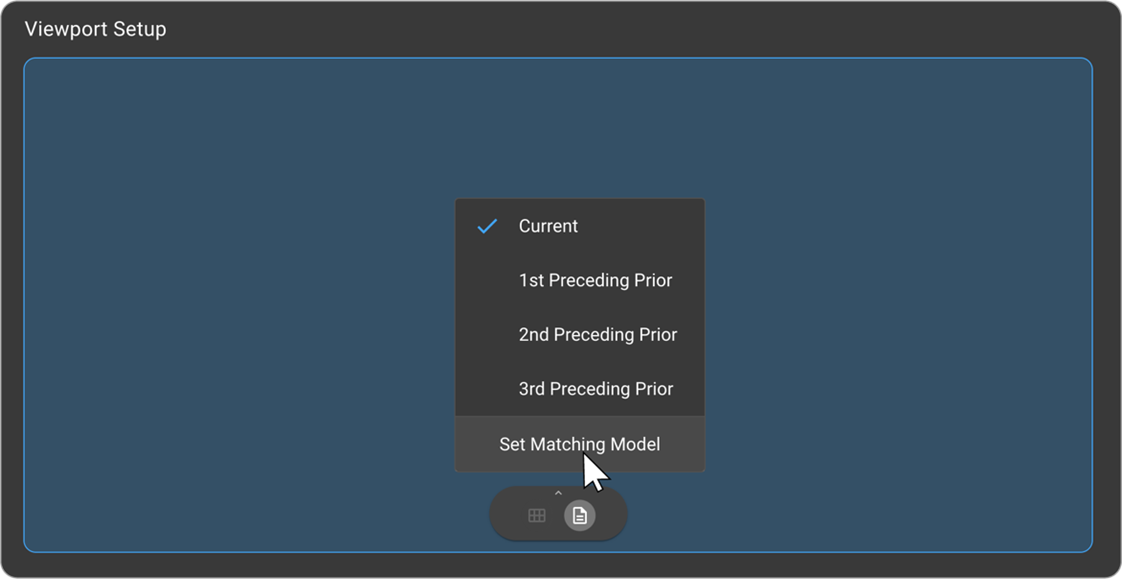
- Click a viewport to select it, then click its Prior Selection (document icon) at the bottom of the cell (see Per-Viewport Quick Icons).
- From the dropdown — Current, 1st/2nd/3rd Preceding Prior, and Set Matching Model — select Set Matching Model.
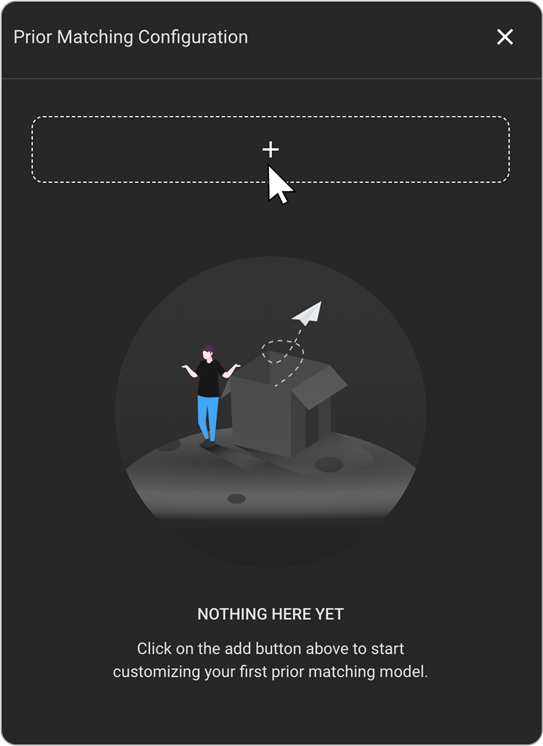
- The Prior Matching Configuration panel opens, displaying all created matching models, with the active model for the current hanging protocol highlighted.
- The panel also identifies the Default Model — the matching model automatically applied across all hanging protocols.
Creating and Managing Matching Models
Adding a New Model
|
|
Managing Existing Models
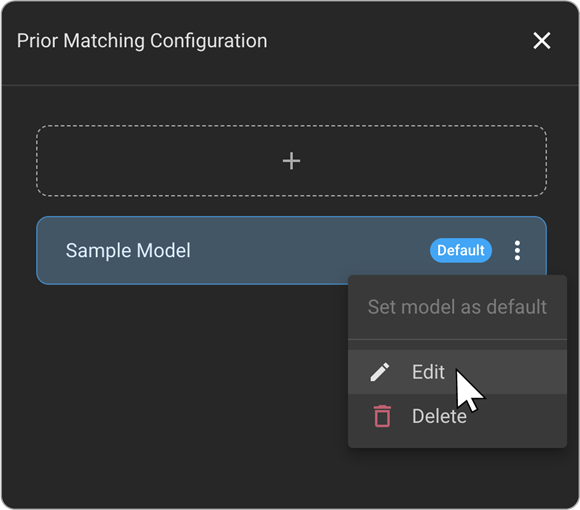
Each model in the list has a three-dot menu with the following options:
|
|
Configuration Options
Each criterion has its own checkbox in the Add new form — check it to include that criterion in the matching model, or leave it unchecked to skip it entirely. Several criteria start with a removable "Same as current" label: leave the label in place to automatically match the current study's value, or click its × to clear it and specify your own custom value(s) instead.
|
|
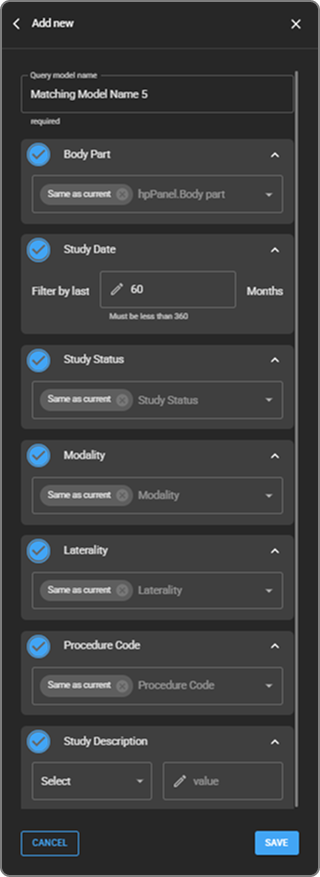
Saving the Matching Model
- Review all configured criteria for accuracy.
- Click Save to store the newly created or updated matching model.
- The saved model appears in the list and can be assigned to viewports during Hanging Protocol configuration.
Managing Organizations in Hanging Protocols
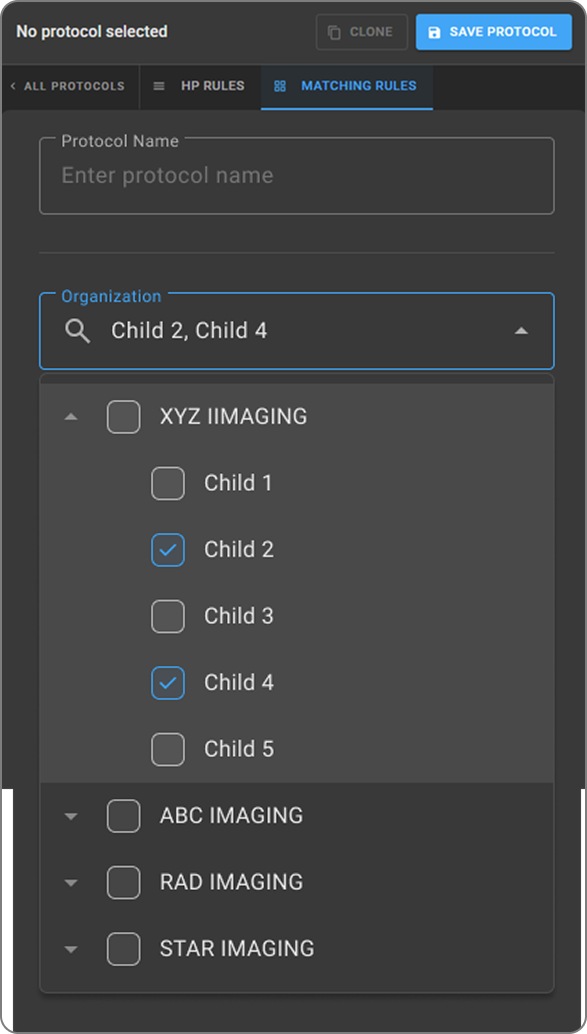
|
|
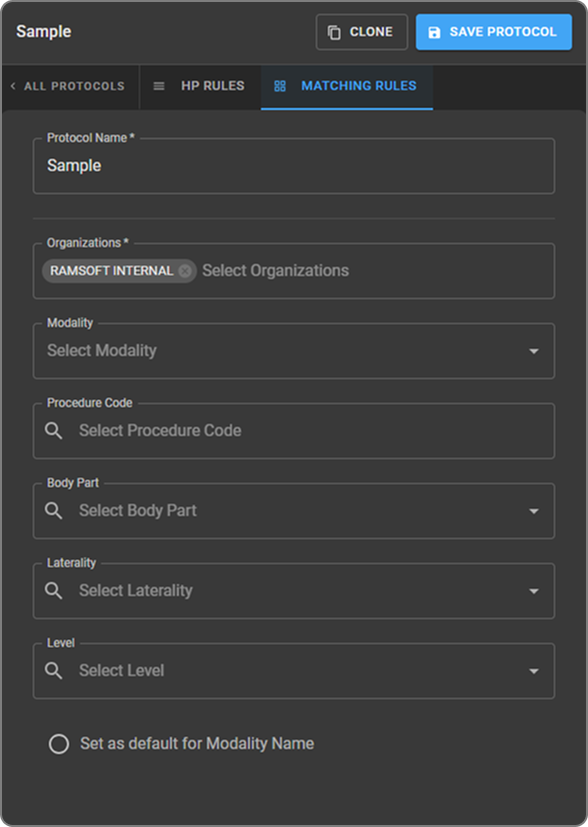
Organization Selection
You can select organizations in different ways based on your requirements:
Default Behavior: If no organization is selected, the organization of the study currently being viewed is automatically applied by default. |
|