Overview
The Image Quality Control (QC) module in OmegaAI allows users to manage, organize, and validate medical imaging studies directly from the Study Explorer. It provides a comprehensive set of tools for series and study-level actions to support efficient and accurate quality control workflows.
To access the QC module, open the Image Viewer and click the Study Explorer icon in the top-left corner to expand the panel.
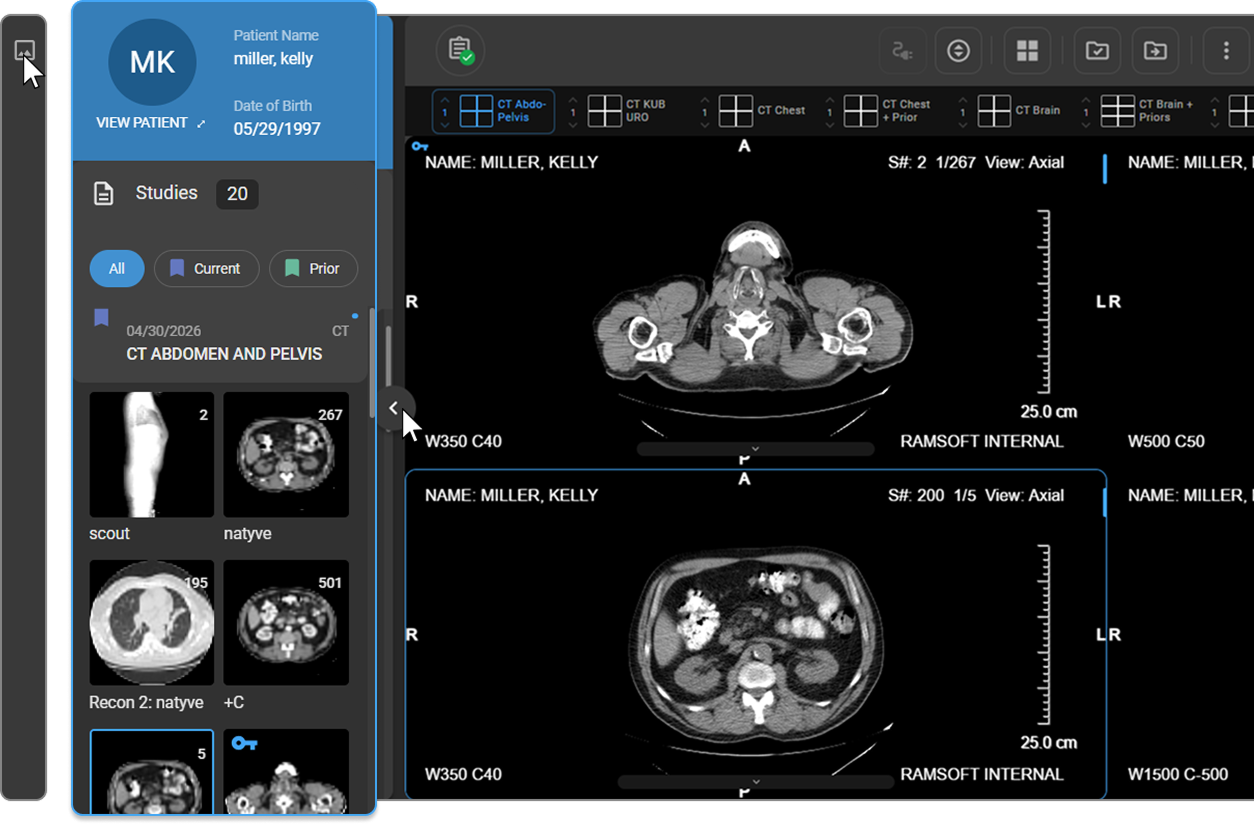
For an overview of the Study Explorer interface, see Study Explorer and Image QC.
Delete Series
One or more image series can be deleted using either of the following methods.
Method 1 — Hover and Hold (single series)
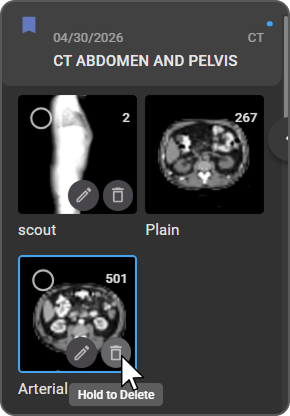
- Hover your cursor over the series thumbnail — a Rename (pencil) and Delete (trash) icon appear.
- Hover over the Delete (trash) icon — a "Hold to Delete" tooltip appears. Click and hold to delete the series.
- A confirmation message appears in the lower-left corner with a 10-second undo option.
| 
|
Method 2 — Select and Delete (multiple series)
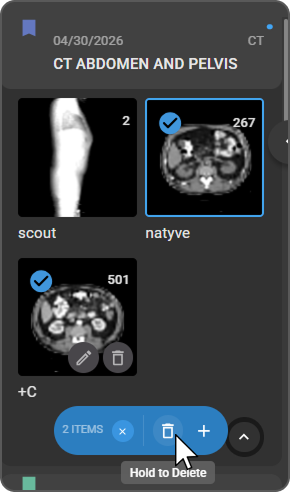
- Click the circular checkbox on each thumbnail you want to delete. Selected thumbnails display a blue checkmark, and a bottom action bar appears showing the number of selected items (e.g., 8 ITEMS).
- Hover over the Delete (trash) icon in the action bar — a "Hold to Delete" tooltip appears. Click and hold to delete the selected series.
- A confirmation message appears in the lower-left corner with a 10-second undo option.
| 
|
Rename Series
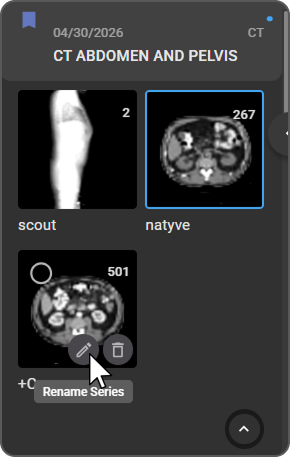
- Hover over the series thumbnail.
- Click the Rename (pencil) icon.
- Enter the new name and press Enter to save.
| 
|
Move Series Between Studies
Series, frames, or frame sets can be moved between studies for the same patient within the Study Explorer.
- In the Study Explorer, click the study card to expand it and view its series thumbnails.
- Locate the series, frame, or frame set you want to move. To move multiple items, click the circular checkbox on each thumbnail to select them.
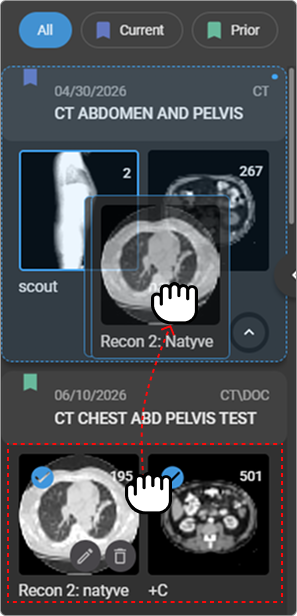
- Click and drag the selected item(s) toward the target study card in the Study Explorer.
- Drop the item(s) onto the target study card.
- A circular "Moving" loading indicator appears on the selected thumbnails, confirming the transfer is in progress.
- Once complete, the item(s) appear in the target study.
| 
|
Note: To move a single item without using the checkbox, drag it directly onto the target study card.
Create a New Study from Selected Series
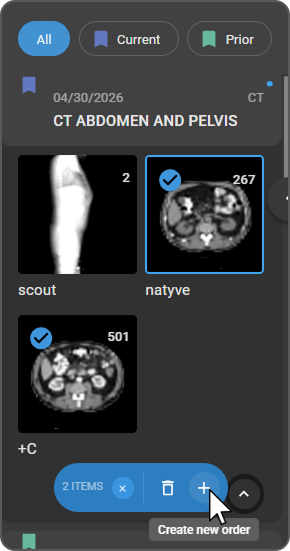
- Select the series you want to move to a new study using the checkbox selection method.
- Click the + icon (Create new order) in the bottom action bar. The New Study panel opens.
| 
|
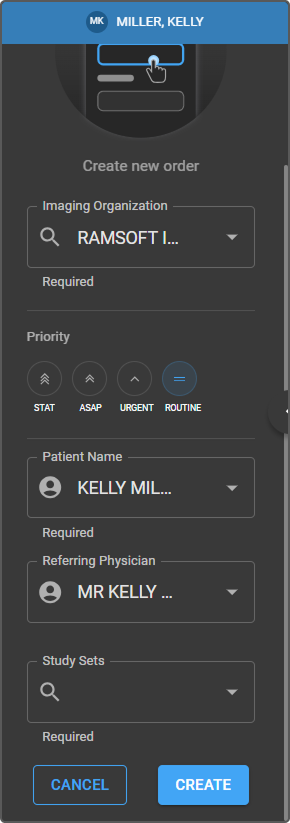
- Verify or change the Imaging Organization for the new study. This field is required and pre-populated from the source study.
- Select a Priority: STAT, ASAP, URGENT, or ROUTINE.
- Confirm the Patient Name. This field is required and pre-populated from the current study.
- Optionally select a Referring Physician and Study Sets.
- Click Create.
| 
|
Merge Studies
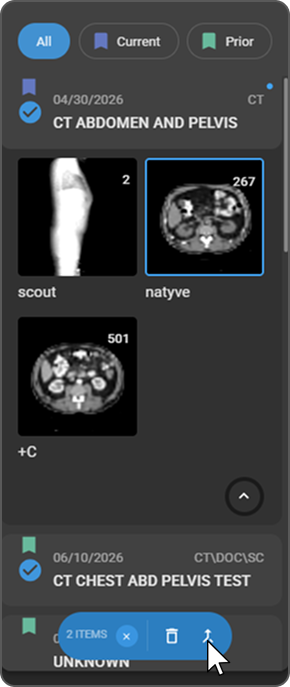
- Click the checkbox on a study card to select it — studies must belong to the same patient. A blue checkmark appears on the card.
- Select any additional studies you want to merge using the same method. The bottom action bar appears showing the number of selected items.
- Click the Merge (branching arrows) icon in the action bar.
- The Select merge destination modal appears — select the destination study from the list.
- Click Merge to combine the selected studies.
- A circular loading indicator appears on the thumbnails while the merge is in progress. Once complete, the studies are combined into the destination study.
| 
|
Note: If the source and destination studies contain series with the same Series UID, those series are merged rather than duplicated — the destination series retains only unique instances from both. If no Series UID conflict exists, the series is moved to the destination study as-is.
Unmerge Studies
- In the Study Explorer, click the merged study card to expand it.
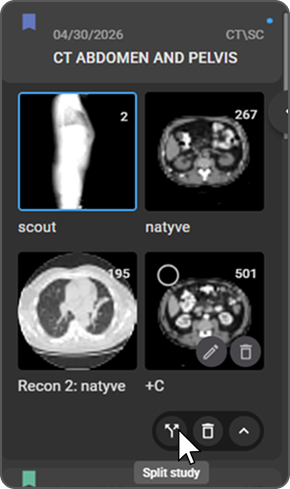
- Hover over the Collapse section (^) button in the lower-right corner of the study card. The action bar expands to reveal Delete and Split study options.
- Click Split study.
- A circular loading indicator appears on the thumbnails while the split is in progress. Once complete, the study is reverted to its original components.
| 
|
Delete Studies
Method 1 — Single study
- Click the study card to expand it.
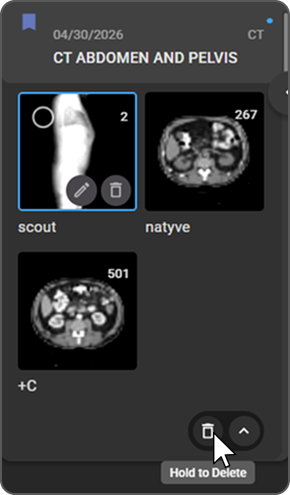
- Hover over the Collapse section (^) button in the lower-right corner. The action bar expands to reveal Delete and Split study options.
- Hover over the Delete (trash) icon — a "Hold to Delete" tooltip appears. Click and hold to delete the study.
| 
|
Method 2 — Multiple studies
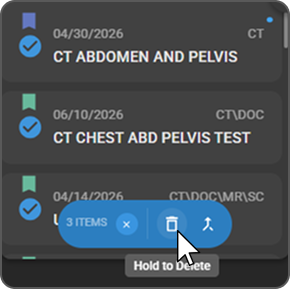
- Click the checkbox on each study card you want to delete. The bottom action bar appears showing the number of selected items (e.g., 5 ITEMS).
- Hover over the Delete (trash) icon in the action bar — a "Hold to Delete" tooltip appears. Click and hold to delete the selected studies.
| 
|