Blume Share
Overview
Blume Share provides a secure and convenient way for users to share imaging studies with external recipients or with patients who access their information through the Blume Patient Portal. The feature offers two sharing paths—one for sending studies to non-patient recipients through a secure OmegaAI link and another for making studies available directly to patients in Blume.
Both options follow OmegaAI's privacy, authentication, and audit-logging standards to ensure data is protected at every step.
1. Share Study via Secure Email Link
Purpose
This method allows users to quickly send a study to referring providers or other authorized individuals using a secure web-based sharing page. The page opens with study details already filled in, making the sharing process faster and reducing the chance of errors.
How to Use
- Open the study you want to share.
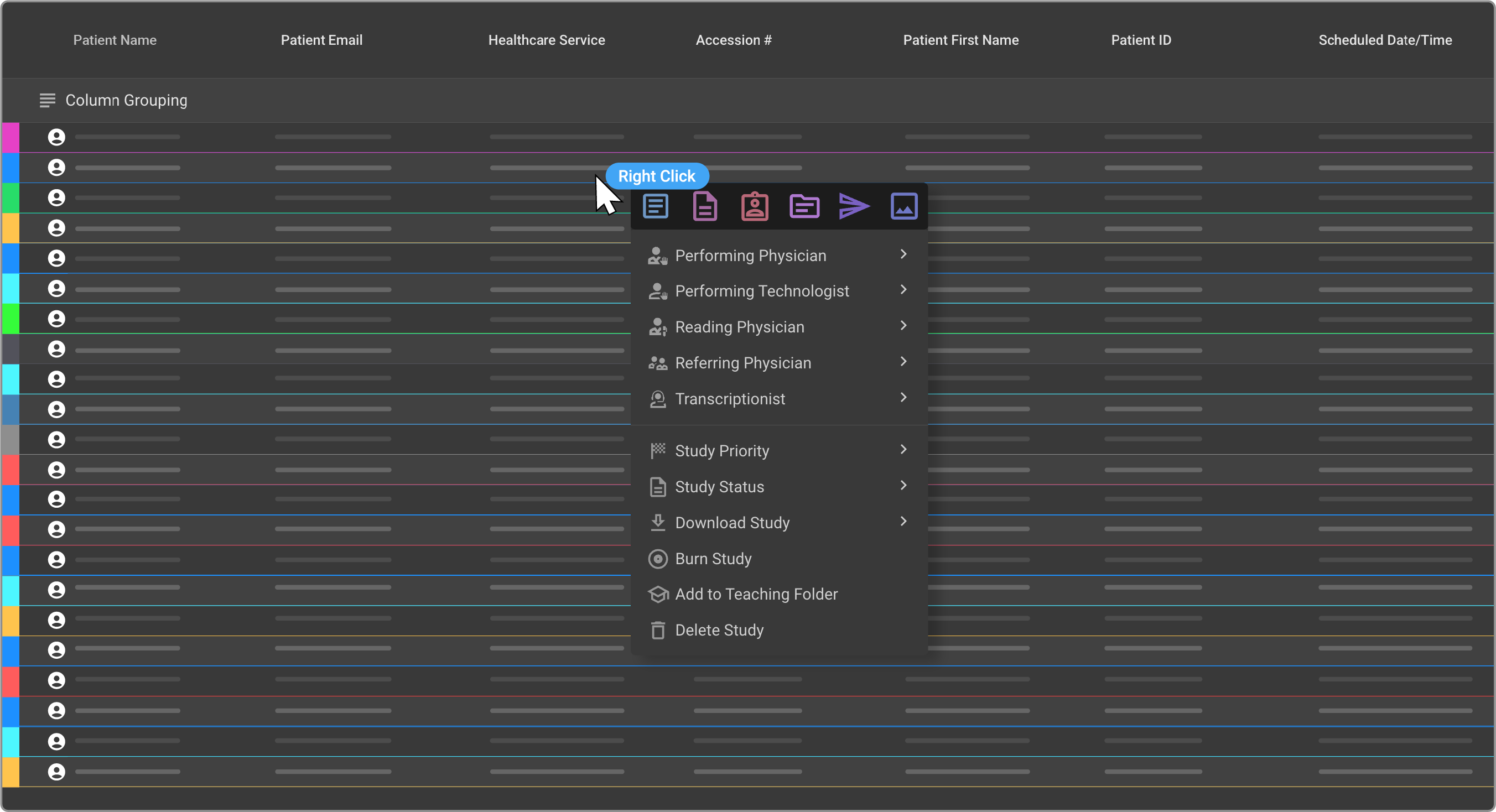
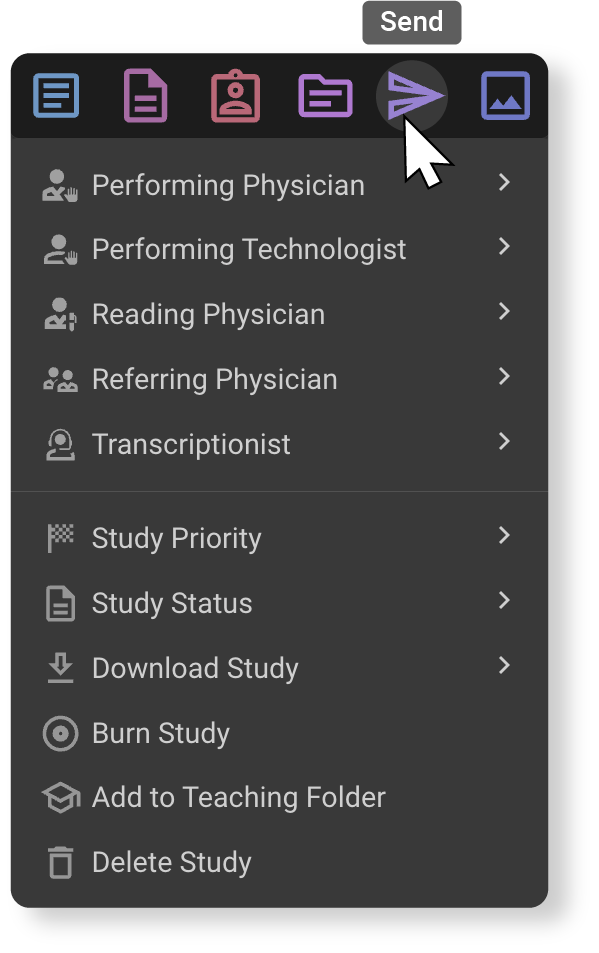
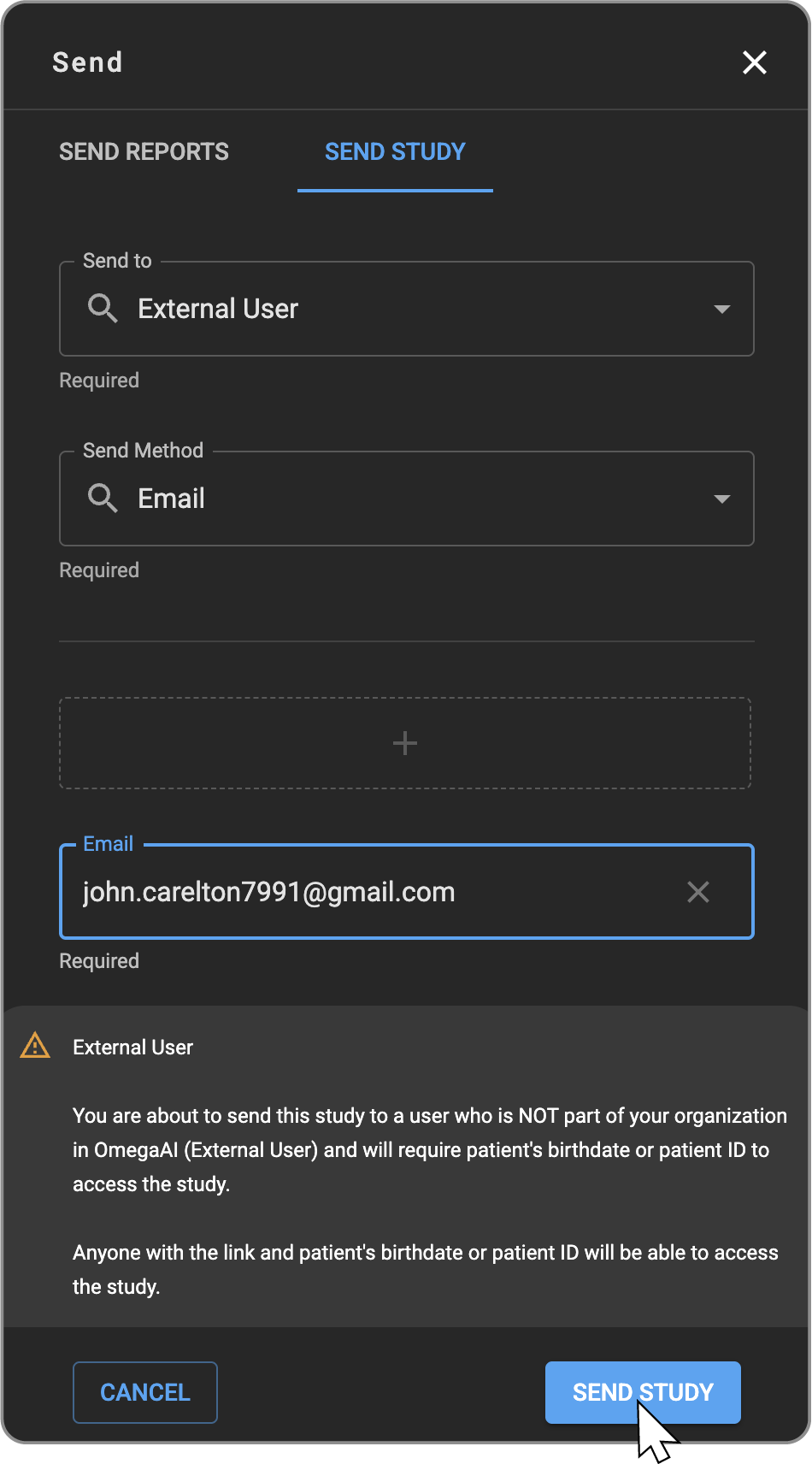
- Right click on the study and select "send".
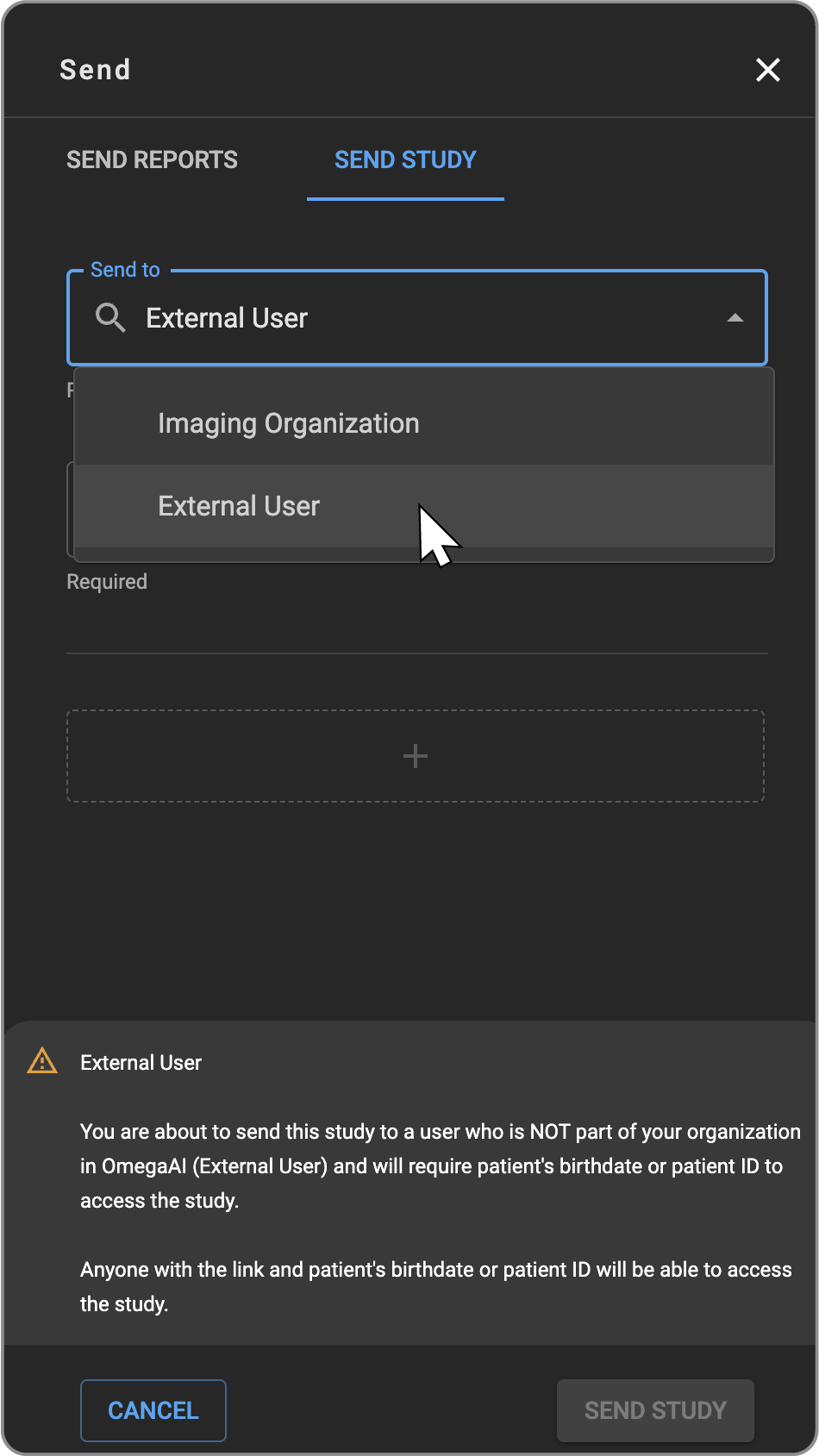
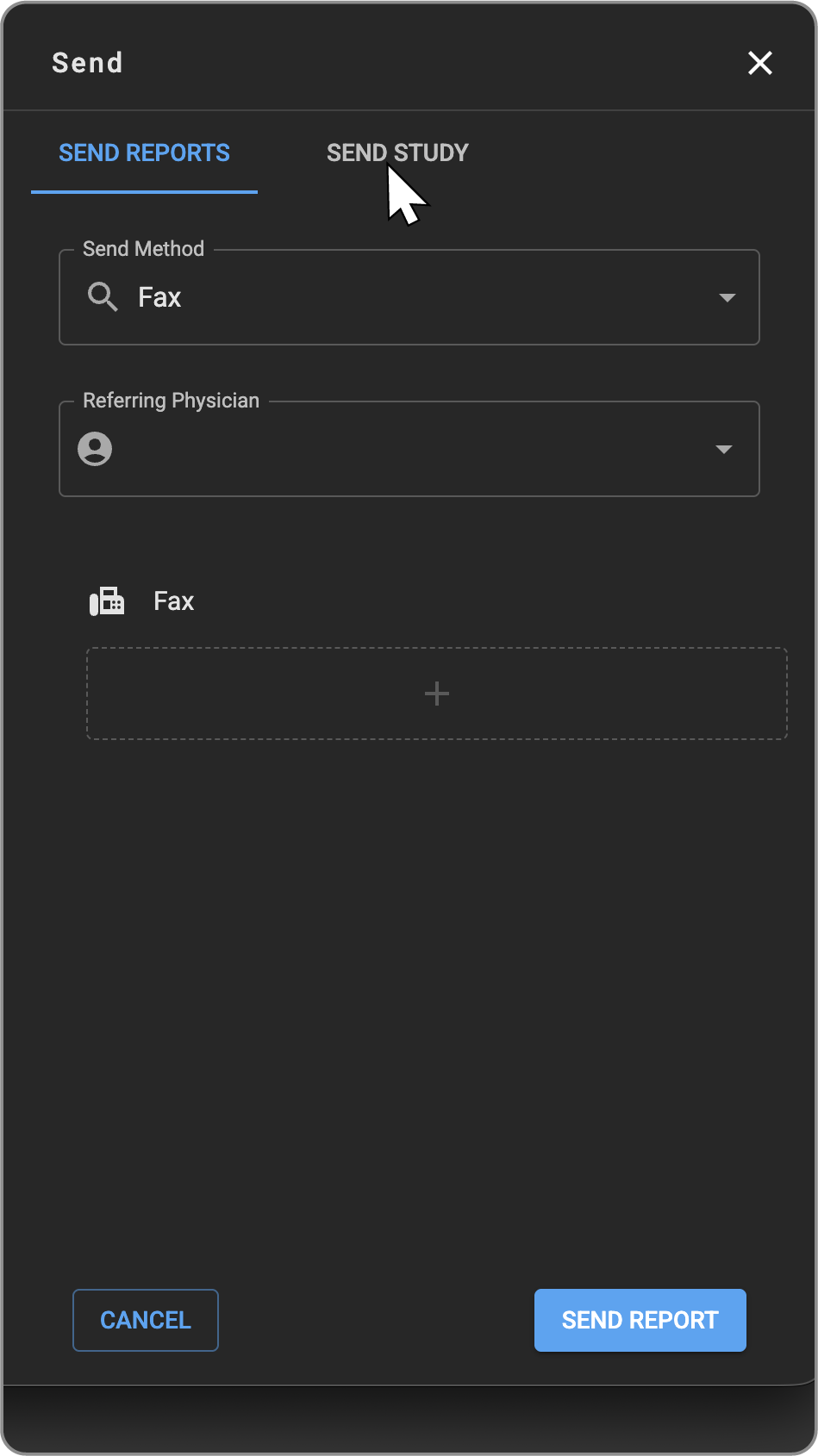
- Send drawer opens and then select "Send Study". Choose "Send to External User" and share the study via a secure email link.
- A stand-alone OmegaAI sharing page opens in a new window.
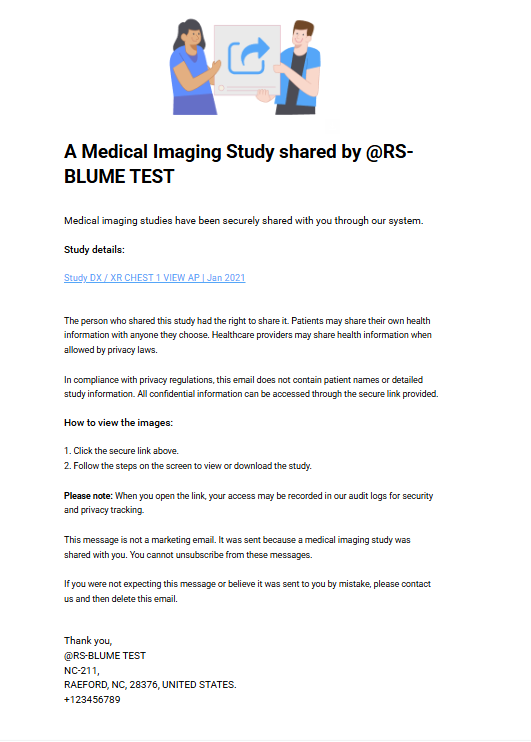
- Enter the recipient's information and send the secure access link.
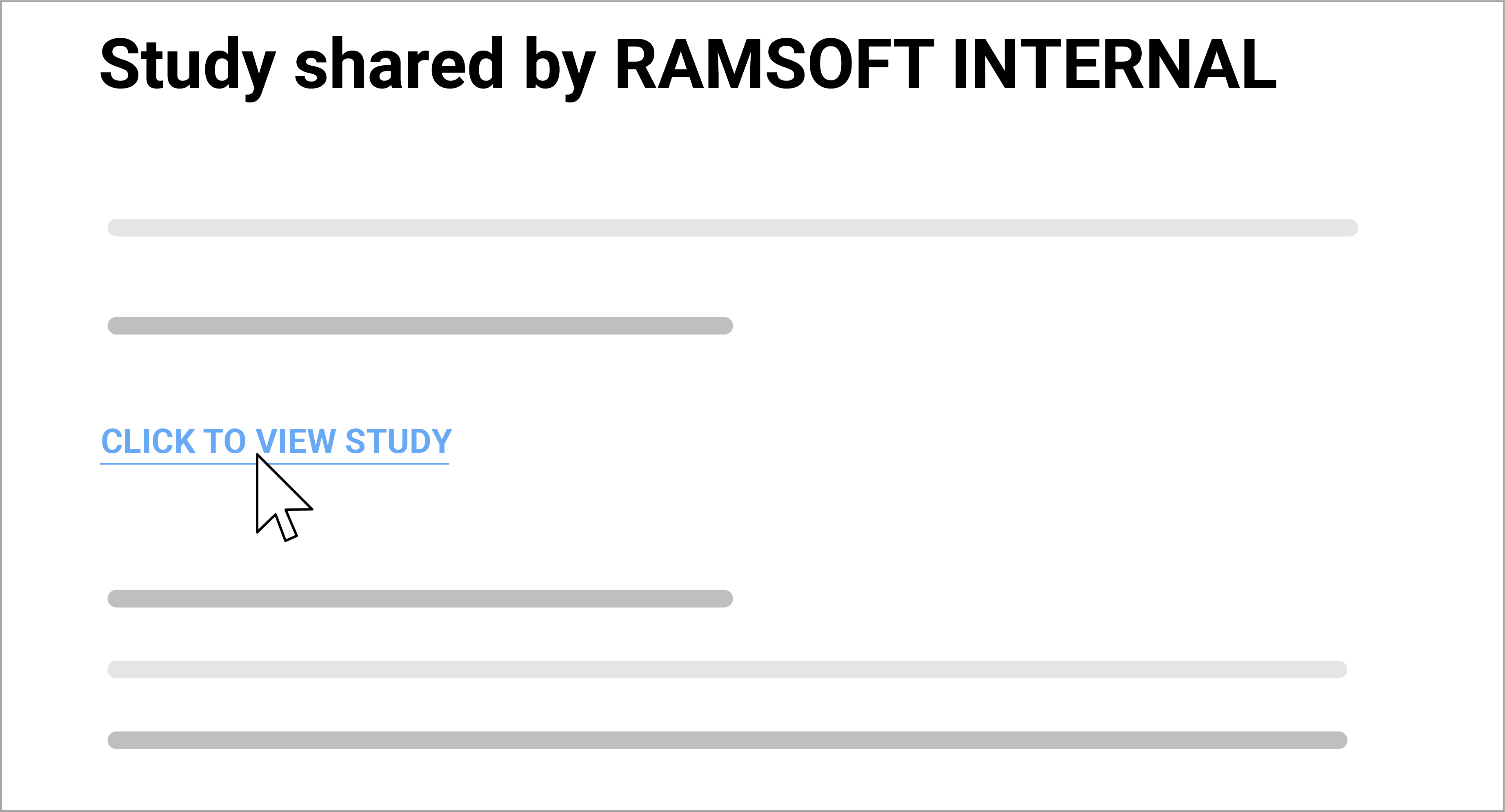
Recipient Experience
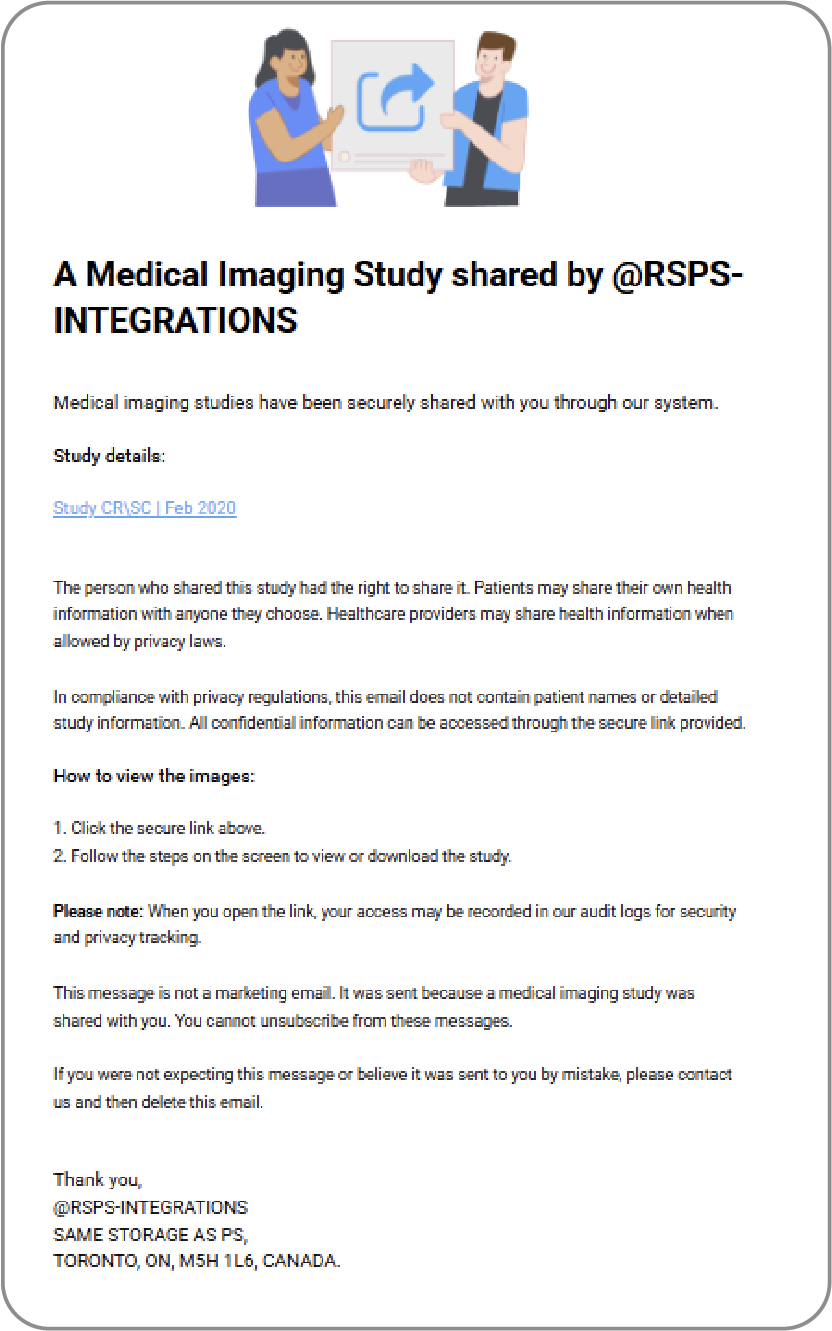
- Recipients get an email with a secure link.
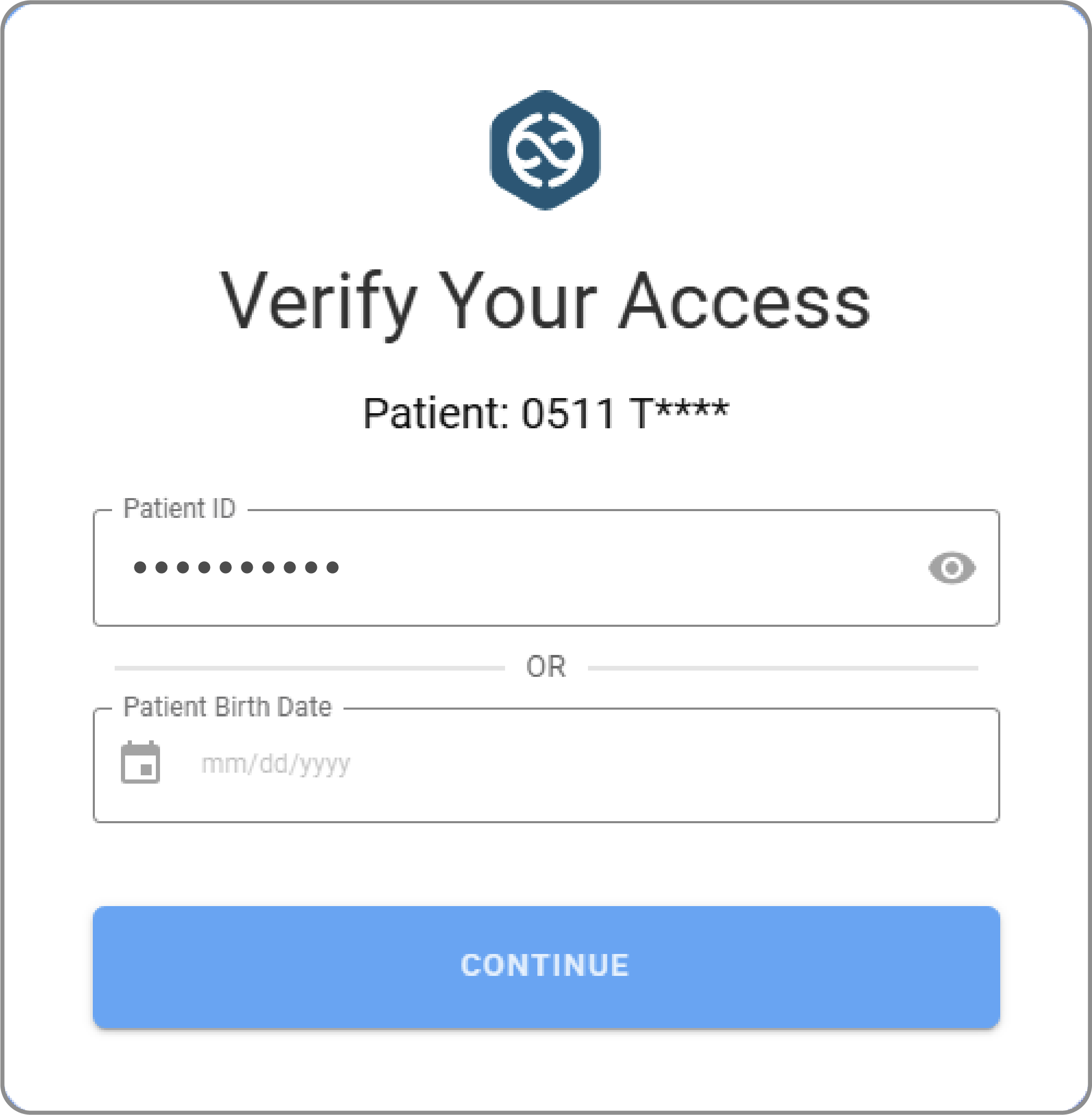
- Depending on your organization's setup, they may be prompted to authenticate.
- Access is time-bound and fully tracked for auditing.
Key Functional Behaviour
When the Share option is selected, the system automatically opens a new browser window containing the OmegaAI sharing page.
This window uses the default system browser and loads the page with all required study information already applied, so the user can begin sharing immediately without additional setup.
Security Notes
- No PHI is included in the URL
- Authentication follows your SSO/security configuration
All access and sharing activity is traceable
2. Send to Blume (Share with Patients)
Purpose
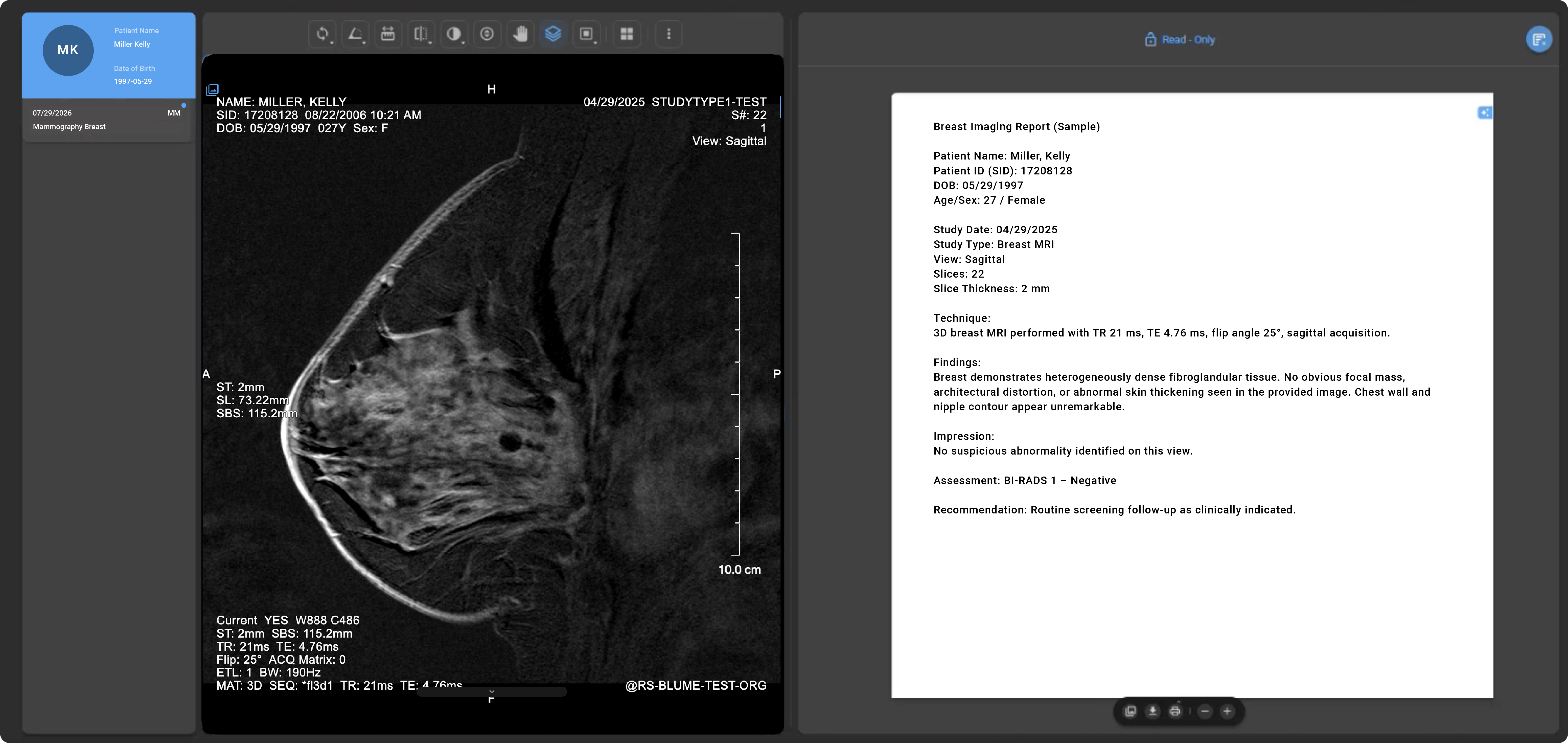
This option makes the study available to patients directly inside their Blume account. Once shared, the study becomes part of the patient's secure digital health record within the portal.
How to Use
- Open the study you intend to share.
- Select Send.
- Choose Send to Blume as the sharing method.
- The patient receives an email guiding them to Blume to view the study.
What Patients See
- The email contains a Step into Blume button.
- Logged-in patients are taken straight to the shared study.
- If sign-in is required, Blume redirects them back to the study after authentication.
Security Notes
- Access to studies requires a Blume login.
- Patient privacy settings are strictly followed.
- Every share and view action is recorded for compliance.
3. Shared Security Principles
Regardless of the sharing method used, both pathways follow the same core protections:
- Strong Authentication: SSO is used wherever supported.
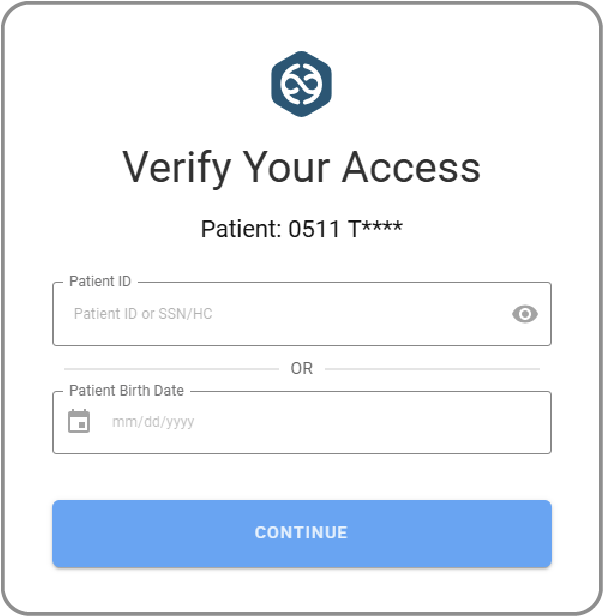
- Privacy Protection: No sensitive information is included in shared URLs.
- Compliance: Workflows follow HIPAA, PHIPA, and related privacy regulations.
- Auditability: All access and share actions are logged.
Note : Quick Access to Help Using F1
Like all other OmegaAI Help Manual sections, you can press F1 from any supported page in the system to open the relevant Help article.
For example: If you are viewing Logs in OmegaAI and press F1, you will be taken directly to the Logs Help Manual section.
Blume Share and its related topics should also function the same way—pressing F1 from the page (once enabled in your environment) will open the corresponding help documentation automatically, ensuring quick reference without manual navigation.