Study/Report Share – OmegaAI
Overview
The Share feature in OmegaAI enables users to distribute radiology reports and imaging studies to referring physicians, imaging organizations, and external users directly from the Worklist, Document Viewer, and Image Viewer. Depending on the surface you are working on, the Share panel provides access to one or both of the following functions:
- Send Reports — Send a finalized report via Fax or HL7, or deliver it to the patient's Blume Patient Portal. Available from the Worklist and Document Viewer only.
- Send Study — Send imaging study data to an Imaging Organization via DICOM, or share a study link with an External User via email. Available from the Worklist, Document Viewer, and Image Viewer.
Accessing the Share Panel
The Share panel is accessible from three surfaces in OmegaAI. Each surface opens the same panel but with different available tabs based on context.
From the Worklist
New Worklist:
- Select a study from the worklist.
- Right-click on the row — a mini toolbar appears inline on the row.
- Click the Send icon (arrow icon) in the toolbar.
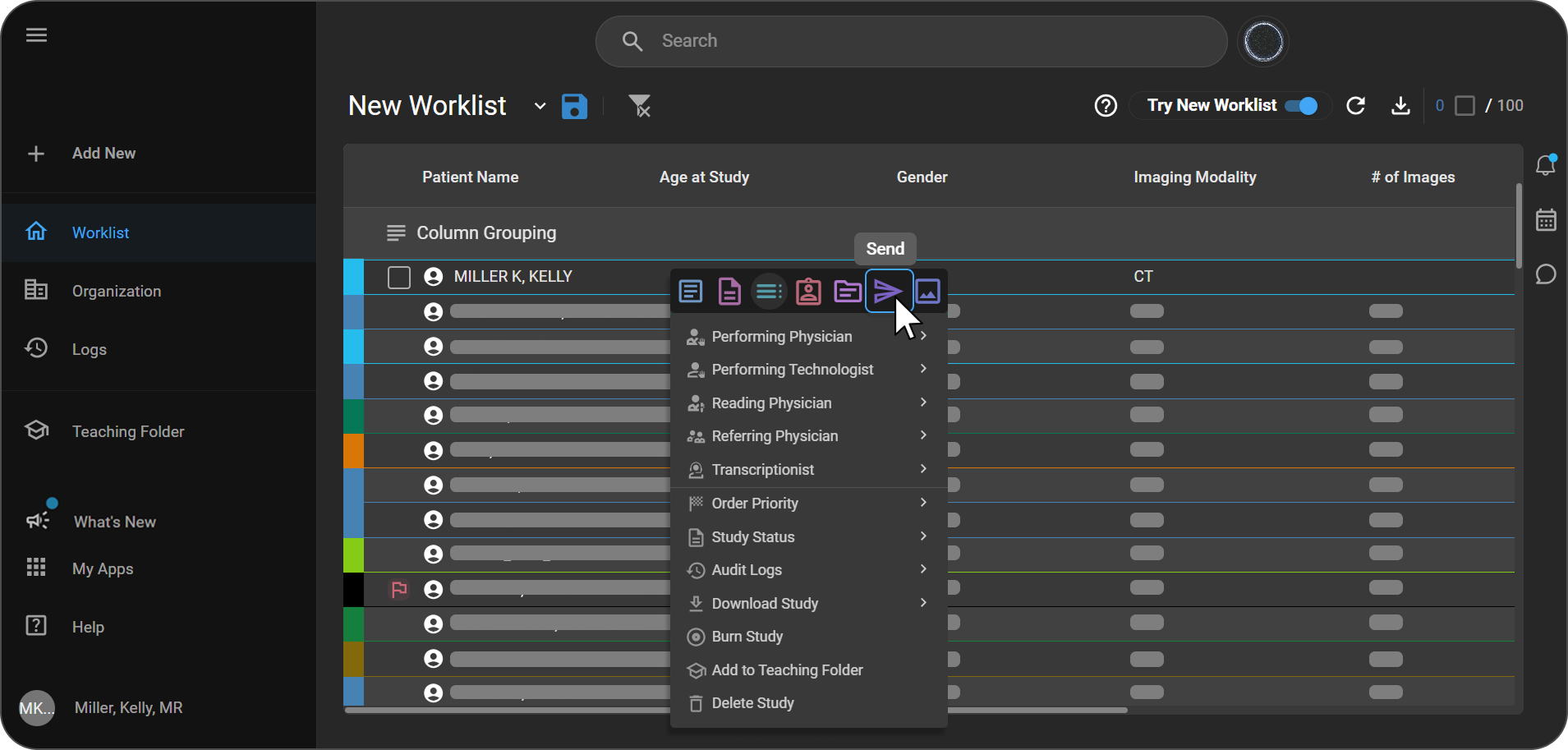
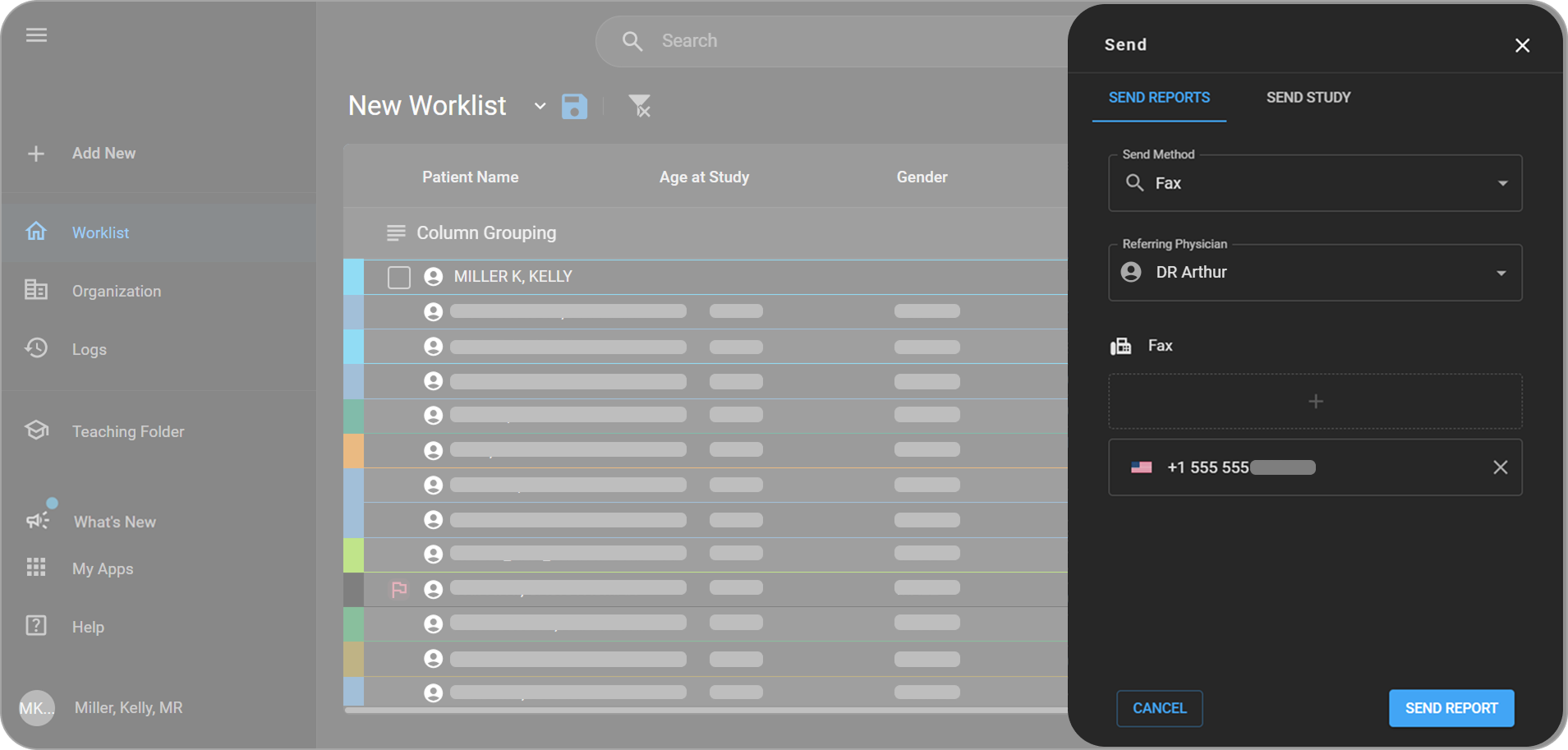
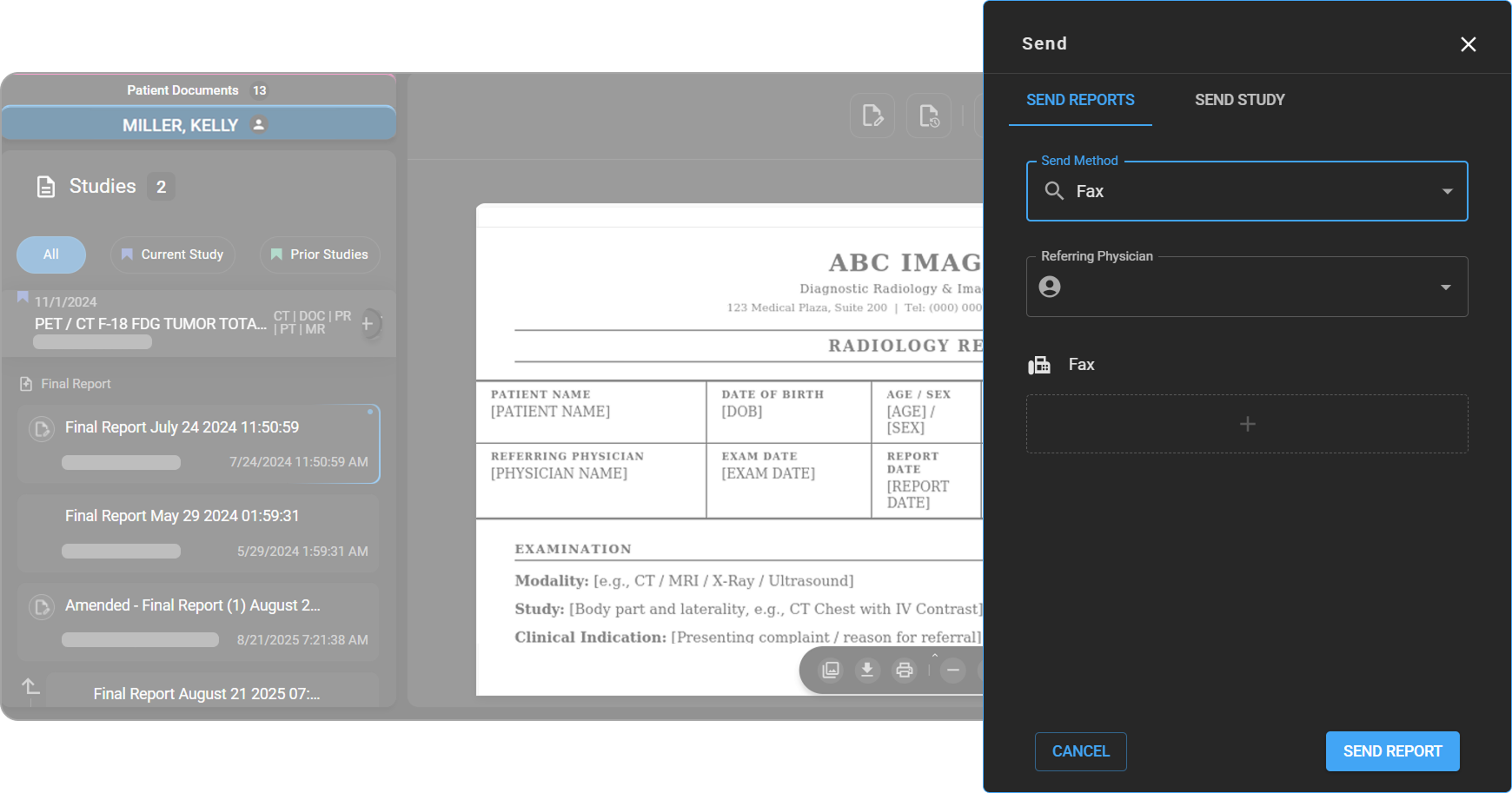
The Send panel opens on the right with two tabs: Send Reports and Send Study.
From the Document Viewer
- Open the Document Viewer from the Worklist.
- Select the Final Report from the left panel — a Share icon will appear in the top-right corner of the page.
- Click the Share icon.
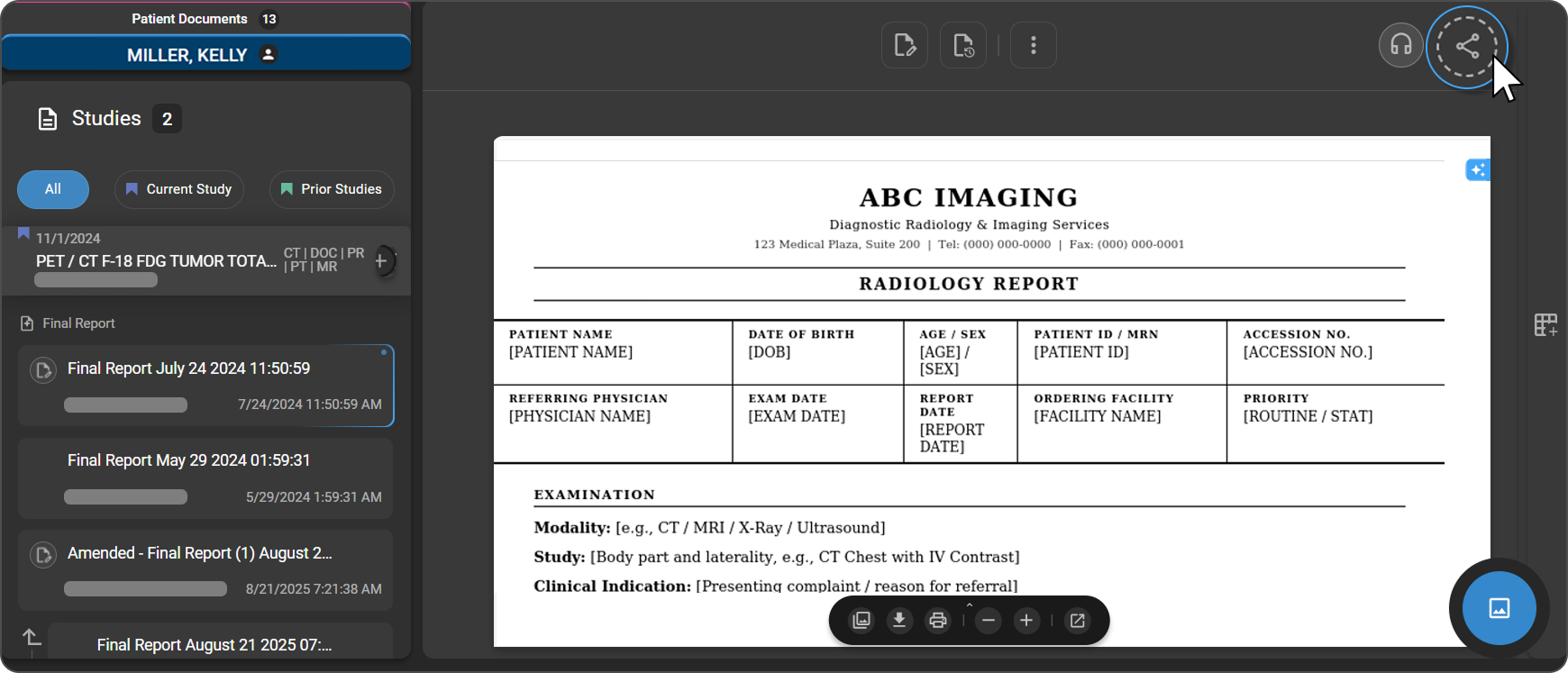
The Send panel opens on the right with two tabs: Send Reports and Send Study.
From the Image Viewer
- Open the Image Viewer for the study you want to share.
- Click the Share icon in the top-right corner of the toolbar.
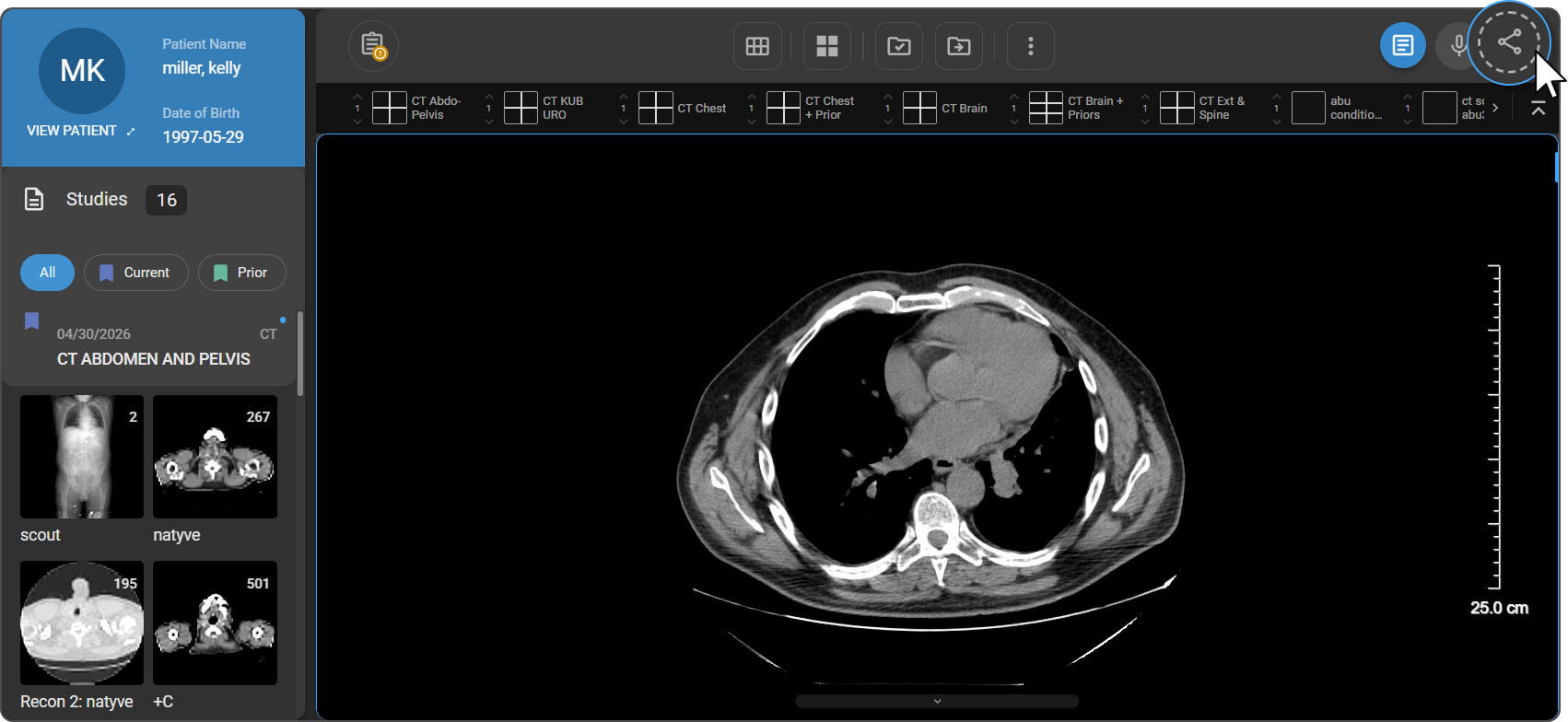
The Send panel opens on the right with one tab: Send Study.
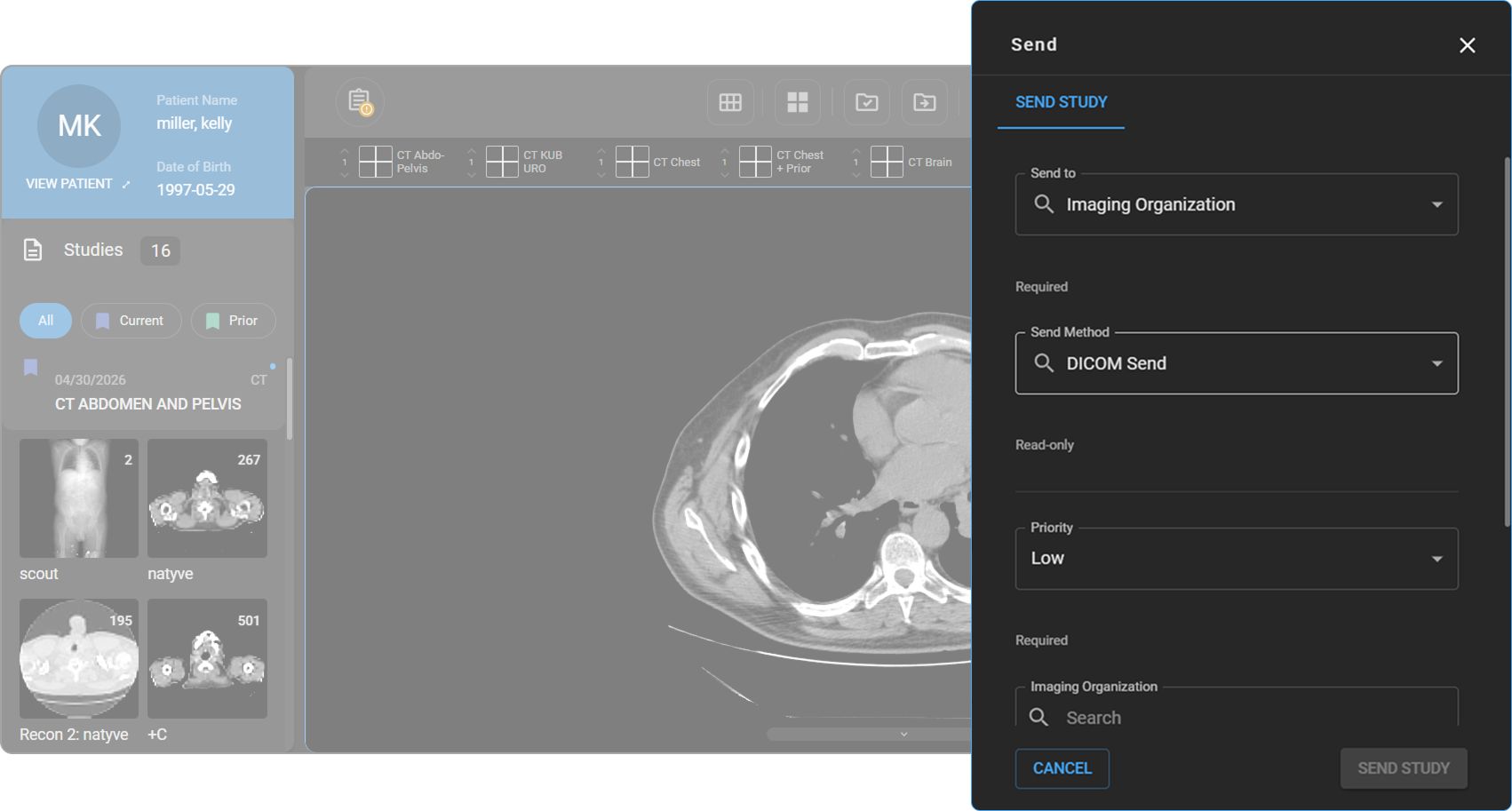
Note: Send Reports is not available from the Image Viewer. To send a finalized report, access the Share panel from the Worklist or Document Viewer.
Send Reports
The Send Reports tab is available from the Worklist and Document Viewer. It provides three options for distributing a finalized report.
Send to Blume
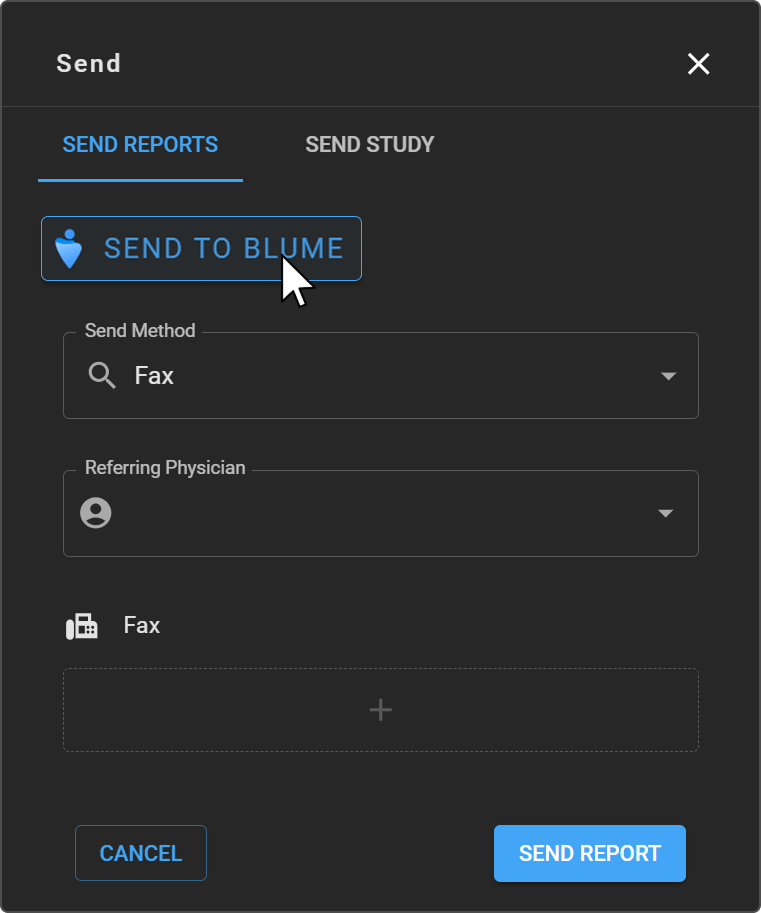
Clicking Send to Blume at the top of the Send Reports tab delivers the report directly to the patient's Blume Patient Portal account.
Send Methods
Use the Send Method dropdown to choose a delivery method.
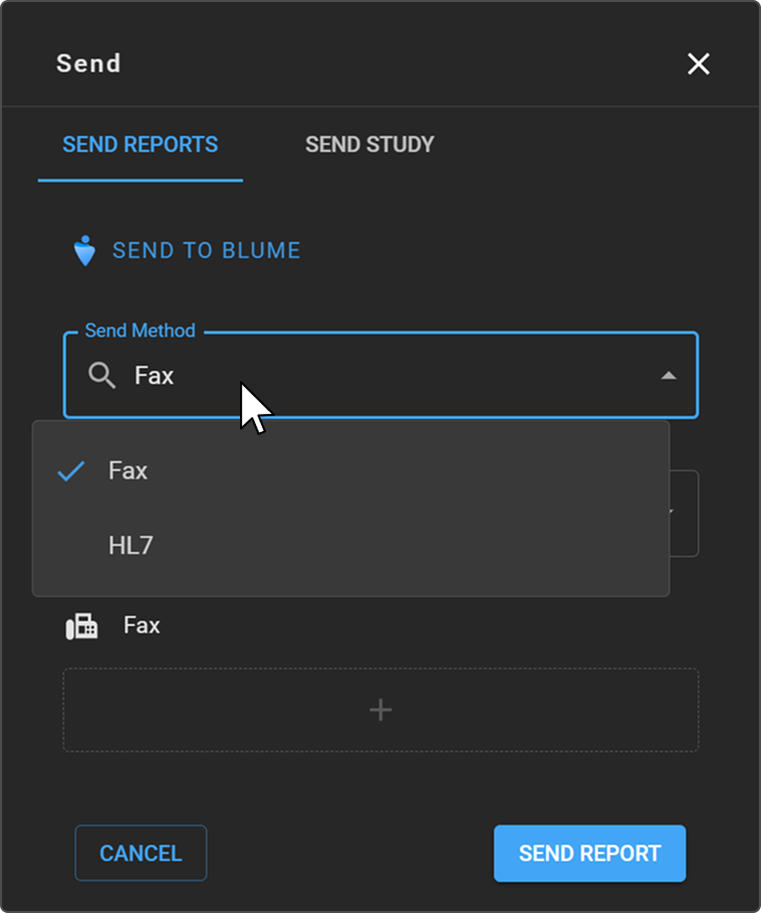
1. Fax
Use this option to send the report to a referring physician via fax.
- Select Fax from the Send Method dropdown.
- In the Referring Physician field, search for and select the intended recipient. If a fax number is associated with the selected physician's profile, it will auto-populate in the Fax field.
- If no fax number auto-populates, click the + button to enter the number manually.
- Click Send Report.
Note: If the selected Referring Physician does not have a fax number on file, an error message will appear. In this case, enter the fax number manually using the + button to proceed.
2. HL7
Use this option to transmit the report to an integrated system via the HL7 messaging standard.
- Select HL7 from the Send Method dropdown.
- Click Send Report.
No additional fields are required for HL7 transmission.
Send Study
The Send Study tab is available from the Worklist, Document Viewer, and Image Viewer. It supports two recipient types: an Imaging Organization (via DICOM) or an External User (via email link).
Step 1 — Open the Send Study tab
Click the Send Study tab at the top of the Send panel.
Step 2 — Select a recipient type
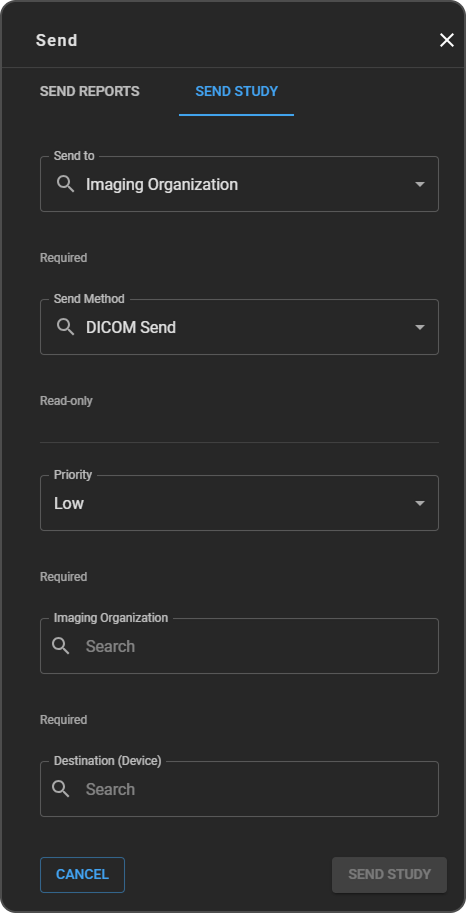
Click the Send to dropdown and choose one of the following:
- Imaging Organization — Send the study via DICOM to another imaging facility or device.
- External User — Share the study via a secure email link with a user outside your organization.
Imaging Organization
Imaging Organization
Use this option to transmit the study to another imaging organization via DICOM Send.
|
|
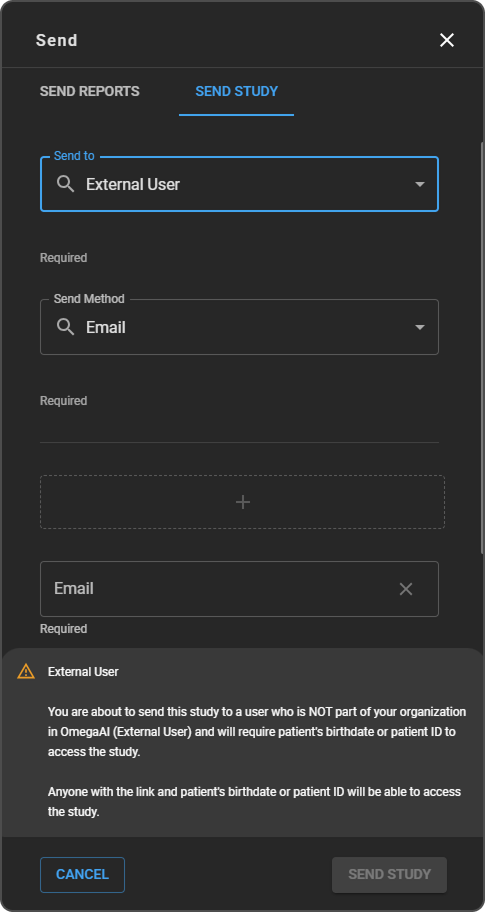
External User
Use this option to share the study with a user outside your OmegaAI organization via a secure email link.
|
|