Hanging Protocols in OmegaAI
Overview
Hanging Protocols control how medical images are arranged and displayed in the OmegaAI Image Viewer. They define the layout, sequence, and display behavior for a study based on its modality and other attributes, so images appear the way you need them every time a study is opened.
Layouts adapt automatically to your monitor setup — viewports display on a single screen when you're on one monitor, and expand across all available screens when you're on multiple monitors.
This guide covers how to:
- Access Hanging Protocols in the Image Viewer
- Use default and saved protocol configurations
- Create and customize protocols to fit your reading workflow
Accessing Hanging Protocols
There are two ways to quickly access and apply Hanging Protocols directly from the OmegaAI Image Viewer.
Method 1: Quick Access Strip
The Quick Access Strip is a horizontal bar positioned immediately below the main toolbar, spanning the full width of the viewer window. It provides one-click access to all Hanging Protocols available for the active study, without opening any menus or panels.
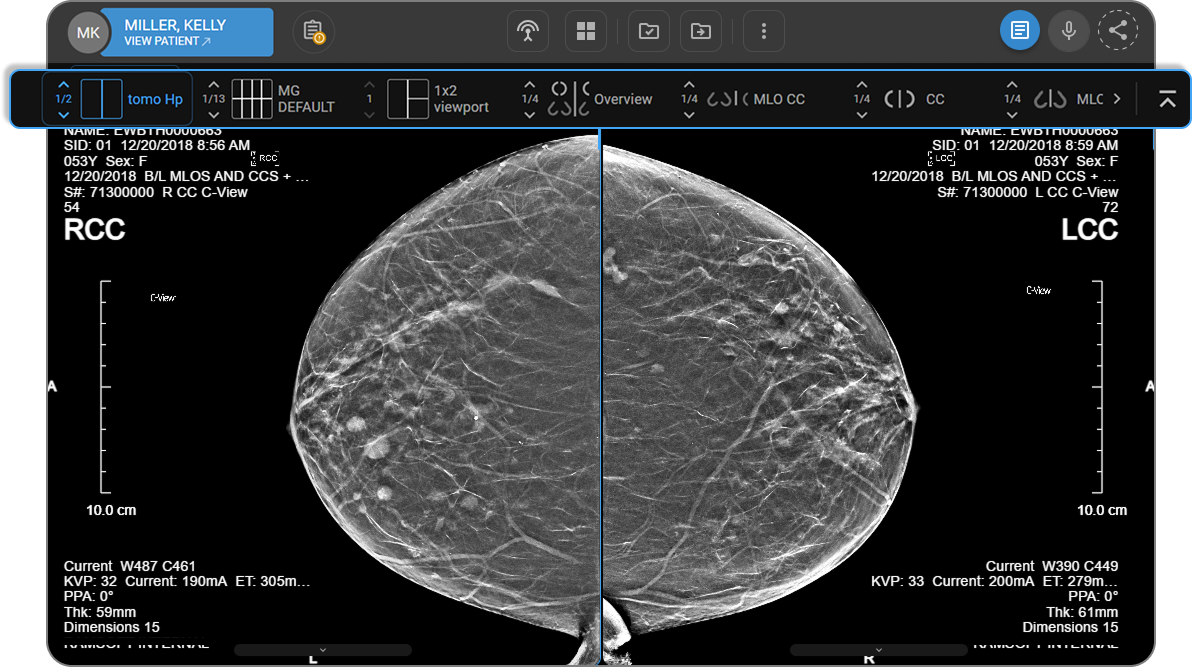
Each item in the strip displays:
- A miniature layout preview of the protocol's viewport configuration
- The protocol name, left-aligned and truncated to two lines if necessary — hover to see the full name in a tooltip
- A stage indicator showing the current and total stages (e.g., 2/3), with up/down chevron arrows to navigate between stages — hover over the arrows to see Page Up / Page Down tooltips. Single-stage protocols display "1" with no arrows.
- A blue background and blue text when the protocol is active
To use the strip:
| Action | Image |
|---|---|
| Apply a protocol — Click any item to instantly apply it to the active study. | 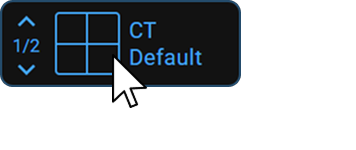 |
| Switch protocols — Click a different item at any time to switch layouts without reloading the study. | |
| Navigate stages — Use the up/down chevron arrows to step through multi-stage protocols. | 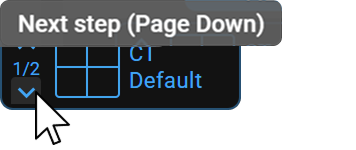 |
| Scroll through protocols — If the list exceeds the toolbar width, use the chevron arrows (< >) or drag the strip left or right to access additional protocols. |  |
| Hide the strip temporarily — Click the chevron-up button at the right end of the strip to collapse it. This hide is in-memory only — the strip reappears the next time you open a study, switch modality, or refresh the page. To hide the strip persistently, use the Hanging Protocols Bar toggle in the Layout Selector (see below), which saves your choice per modality in this browser. | 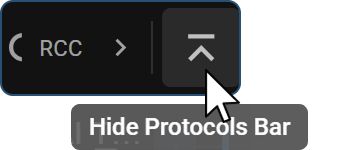 |
Note: If no protocol is active (e.g., a manual layout is in use), no item appears highlighted. The strip is automatically filtered to show only protocols relevant to the active study's modality.
Note: The Quick Access Strip is available in the desktop Image Viewer only. It does not appear in the Blume Patient Portal viewer, the shared-study viewer, or Focus/mobile view.
Tip: On multi-monitor setups, the chevron-up hide affects only the monitor where it was clicked. Each monitor session manages its own temporary hide state.
Show or Hide the Hanging Protocols Bar by Modality
The Layout Selector (see Method 2) lets you control whether the Quick Access Strip appears at all for the modality you are currently reading.
- At the top of the Layout Selector panel, locate the Hanging Protocols Bar row with an on/off switch.
- Switch ON — The strip is visible whenever you open a study in that modality.
- Switch OFF — The strip is hidden for that modality and stays hidden across sessions.
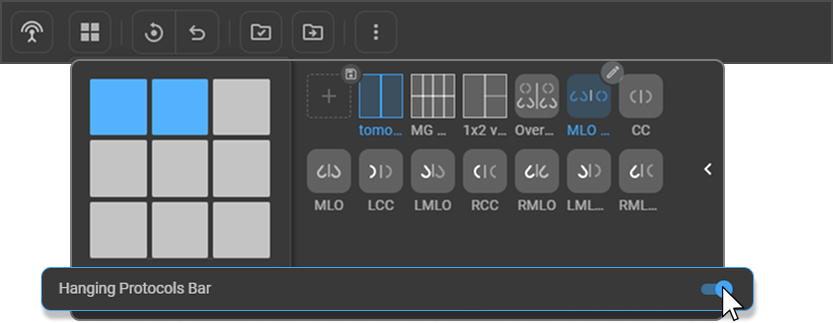
Note: The preference is saved per modality in your browser, so you can hide the strip for modalities where you rarely use protocols (e.g., XR) while keeping it visible for modalities where you rely on it (e.g., CT, MR). The setting also syncs across open browser tabs — toggling it in one tab updates the others immediately.
Tip: Use the chevron-up button on the strip itself for a quick, one-session hide. Use the toggle here when you want the preference to persist.
Method 2: Quick Access via Layout Panel
The Layout Panel provides a quick way to both select a viewport layout and apply or manage Hanging Protocols from within the viewer.
To open and use the panel:
-
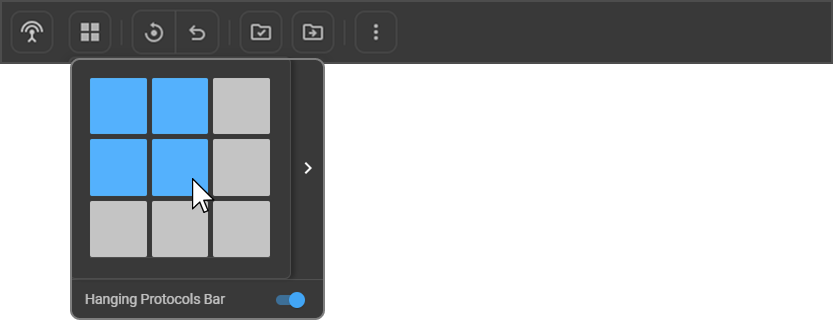
Open the panel — Click the Change Layout (grid icon) in the top toolbar. A layout selector grid appears.
-
Set a layout — Click the grid cells to define your preferred viewport layout — selected cells are highlighted in blue (e.g., selecting the top two cells sets a 1x2 layout).
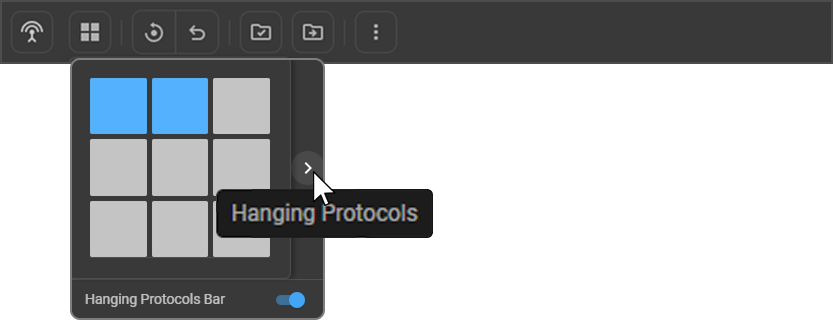
- Expand the panel — Click the Right Arrow (
>) to reveal available protocol tiles alongside the layout selector.
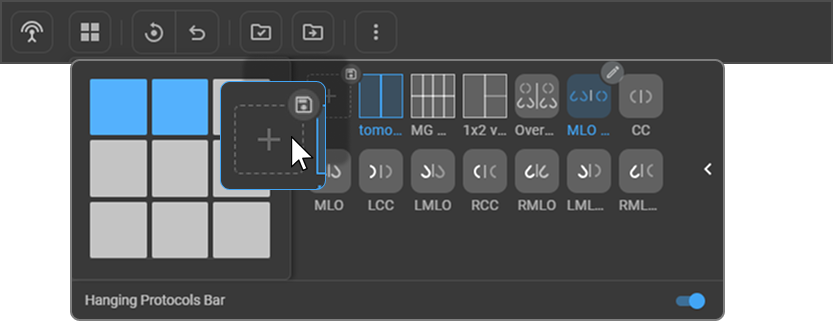
- Apply a protocol — Click any protocol tile to instantly apply it to the active study.
- Collapse the panel — Click the Left Arrow (
<) to return to the layout selector view only.
From the expanded panel, you can also:
- Click the + icon to create a new Hanging Protocol from scratch.
- Click the Save icon to save the current viewport layout as a new protocol.
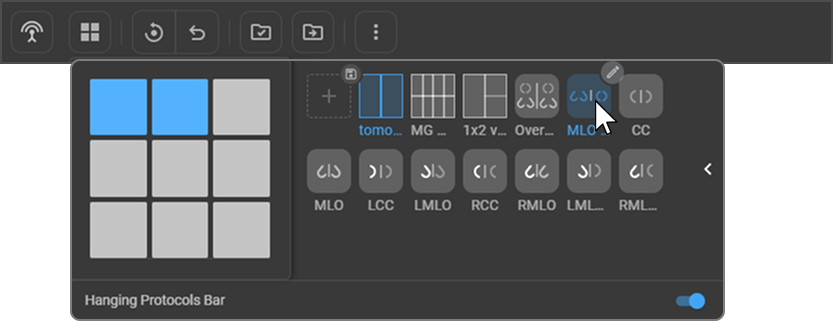
Note: The Layout Selector panel also contains the Hanging Protocols Bar toggle, which controls whether the Quick Access Strip appears at all — see Show or Hide the Hanging Protocols Bar by Modality under Method 1.
Note: Protocol names are truncated in the panel — hover over a tile to see the full name. The currently active protocol is highlighted in blue.
Hanging Protocol Matching Criteria
When a study is opened, OmegaAI automatically matches and applies the most appropriate Hanging Protocol based on the following study attributes:
- Modality — The imaging modality of the study (e.g., CT, MR, XR).
- Body Part — The body part(s) present in the study.
Note: If multiple protocols match the same criteria, the protocol set as default is applied automatically.
Hanging Protocol Cycling Shortcuts
OmegaAI supports keyboard shortcuts for navigating between Hanging Protocols without interrupting the reading workflow.
Shortcuts
| Shortcut | Action |
|---|---|
Ctrl + Alt + N | Apply the next hanging protocol |
Ctrl + Alt + B | Apply the previous hanging protocol |
Ctrl + Alt + S | Apply the first (default) hanging protocol |
Behavior
- Protocols cycle in the same order they're listed on screen (in the Quick Access Strip or Layout Panel), wrapping around from the last one back to the first (and vice versa) as you keep pressing the shortcut.
- Each protocol applies the moment you select it — no need to reload the study.
- Cycling only moves through protocols that are actually available for the current study, so you won't land on one that doesn't apply.
- Opening a new study resets cycling to the start. If you're on a custom layout instead of a protocol, the first shortcut press picks up from whichever protocol you had active last.
Stage Navigation in the Image Viewer
Multi-stage Hanging Protocols split a study into several viewing steps — for example, an overview stage followed by focused comparison stages. You can move between stages using:
- The Page Up/Page Down keyboard shortcuts
- The Quick Access Strip's stage chevrons (see Method 1)
- The Scroll between Stages toggle, if it's enabled on a viewport
See Stage Navigation in the Image Viewer in Mastering Hanging Protocols for full behavior, including single-stage and empty-stage handling.
Default Hanging Protocols
Default Hanging Protocols are pre-configured, clinically reviewed layouts built into OmegaAI, ready to use without any setup. They provide a reliable starting point for new users and a consistent baseline for experienced readers across standard diagnostic workflows.
Note: Default Hanging Protocols cannot be edited. To customize a default protocol, click the Clone button to create a copy, then modify and save it under a new name.
OmegaAI includes 17 default protocols across the following modalities:
|
|
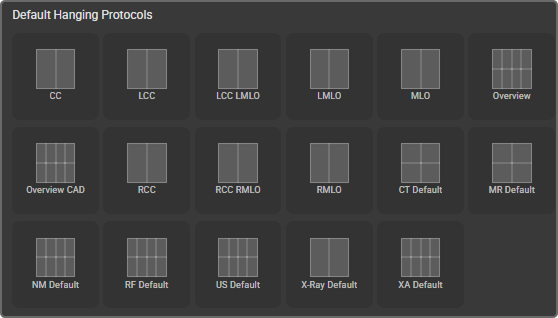
Each Default protocol (other than Mammography) is a single, multi-stage protocol tailored to that modality's typical reading workflow — for example, the CT Default steps through axial images, a coronal/sagittal reconstruction stage, and a prior comparison stage in sequence. Mammography instead ships as a set of 10 view-specific protocols (Overview, CC, MLO, and their left/right and CAD variants), since mammography reading is organized around individual views rather than one general sequence.
Note: The list is automatically filtered to show only protocols relevant to the active study's modality.
For a full breakdown of every stage in each Default protocol, see Default Hanging Protocol Catalog in Mastering Hanging Protocols.
Hanging Protocol Configuration
The Hanging Protocol configuration screen is where you build, edit, and manage protocols outside of the reading workflow.
Accessing Hanging Protocol Configuration via Settings
To open the configuration screen:
|
|
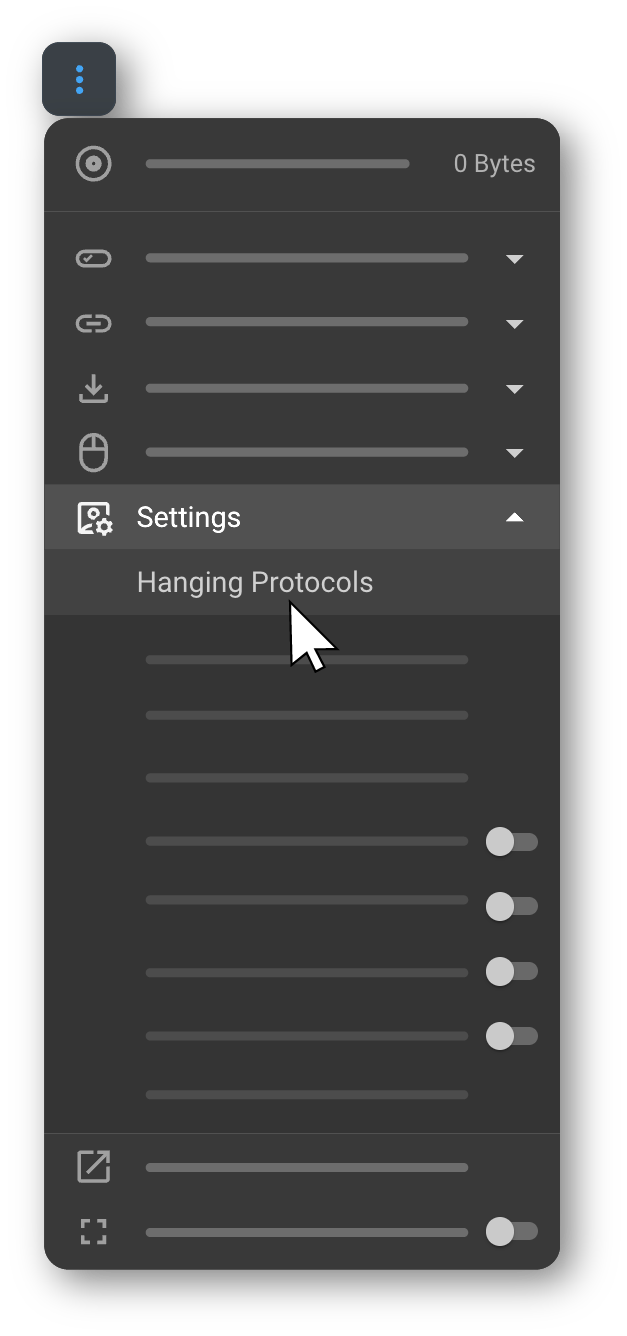
The screen is divided into four main areas:
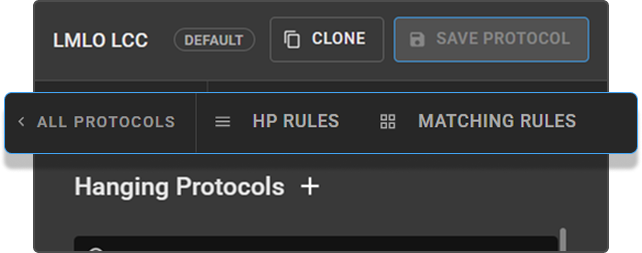
- Top toolbar — Shows the active protocol name, a Default badge when applicable, and the Clone and Save Protocol actions. A tab bar below it switches between All Protocols, HP Rules, and Matching Rules (see Toolbar and Tabs).
- Left panel — Contains the Viewport Setup area where you design the layout, and the View Codes panel below it for assigning image orientations to viewports.
- Right panel — Displays the protocol list or the rules editor, depending on which tab is active.
- Bottom stage track — A horizontal slider spanning the width of the screen, with a numbered handle for each stage in the protocol. Use it to add, select, reorder, or delete stages (see Step 6: Add Additional Stages).
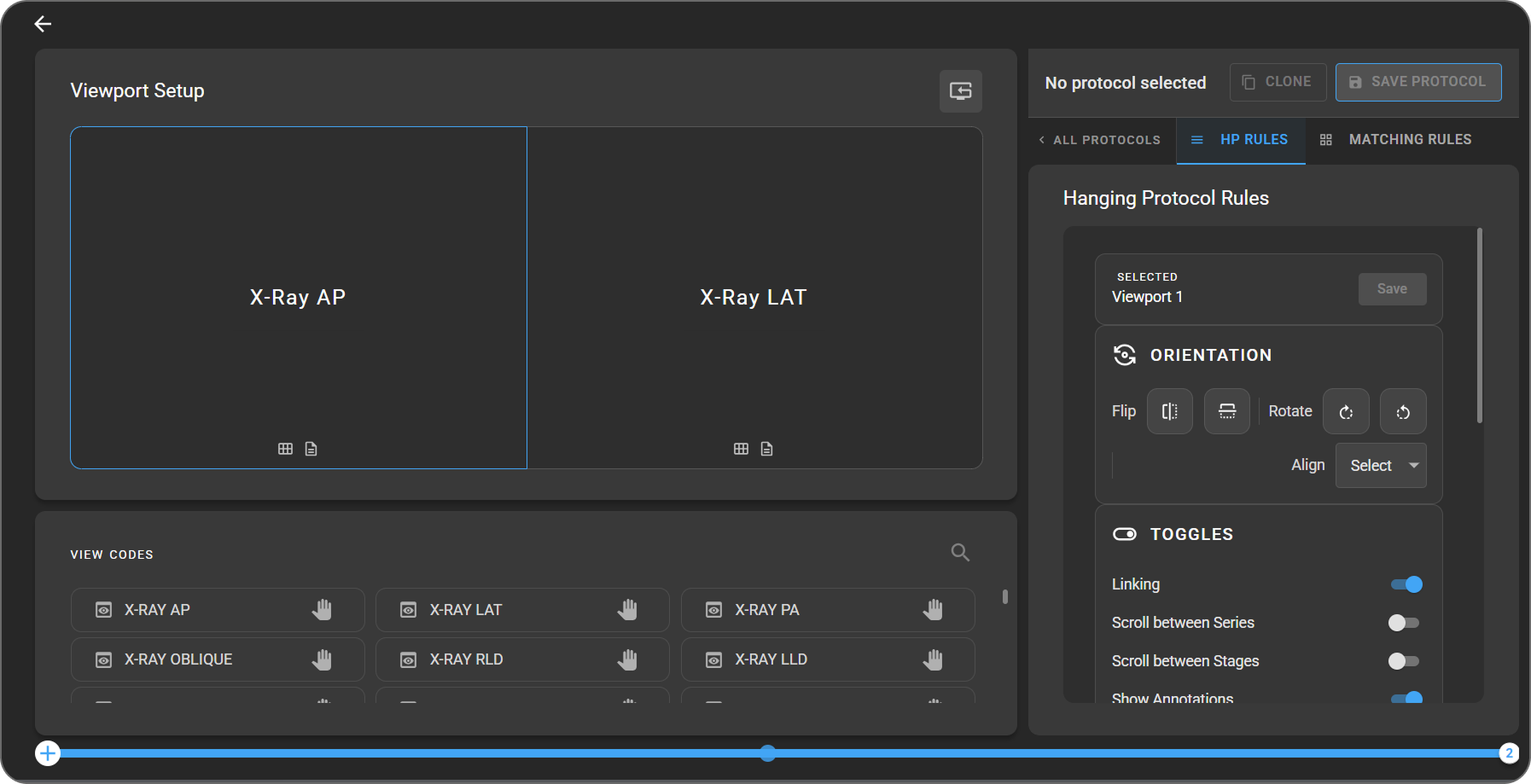
For a full breakdown of every panel and rule option, see Mastering Hanging Protocols.
Toolbar and Tabs
The toolbar shows the protocol name plus Clone and Save Protocol actions, with a tab bar below it — All Protocols, HP Rules, and Matching Rules — referenced throughout the steps below. See Toolbar and Tabs in Mastering Hanging Protocols for what each toolbar element and tab does in full.
All Protocols Tab
The All Protocols tab displays every protocol available to you in a single scrollable list, grouped under two labeled sections — Saved Protocols and Default Hanging Protocols.
Actions available on this tab:
|
|
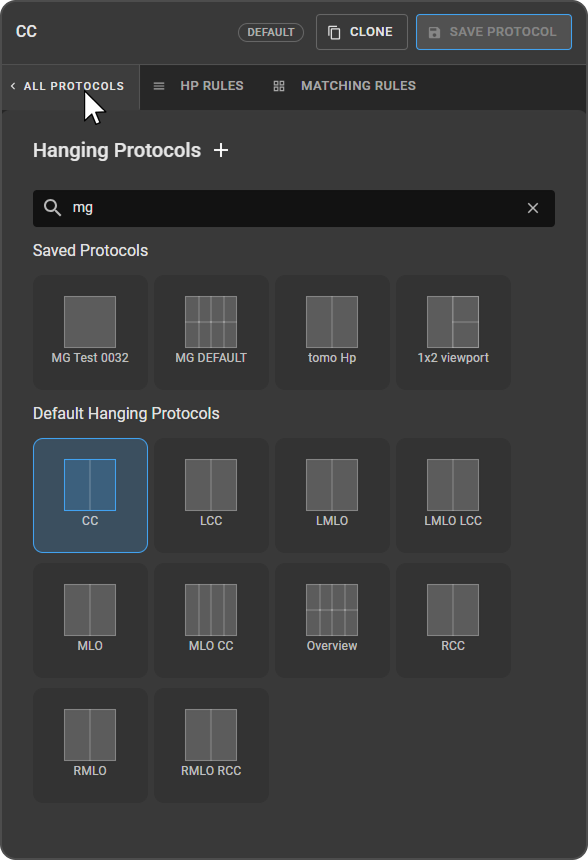
Note: Protocol names are truncated to two lines in the tile view — hover over a tile to see the full name.
Create a Hanging Protocol
Follow the steps below to create a new Hanging Protocol and define the desired image layout and display rules. Each step links to the relevant section of Mastering Hanging Protocols for full configuration detail.
Step 1: Open the Configuration Screen
- Access Hanging Protocol Configuration via Settings.
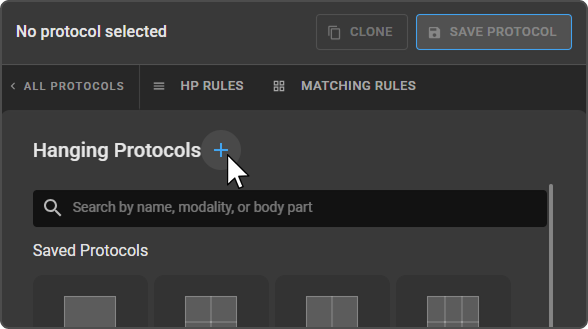
- Click the + next to the panel title to start a new protocol.
Step 2: Select a Layout
-
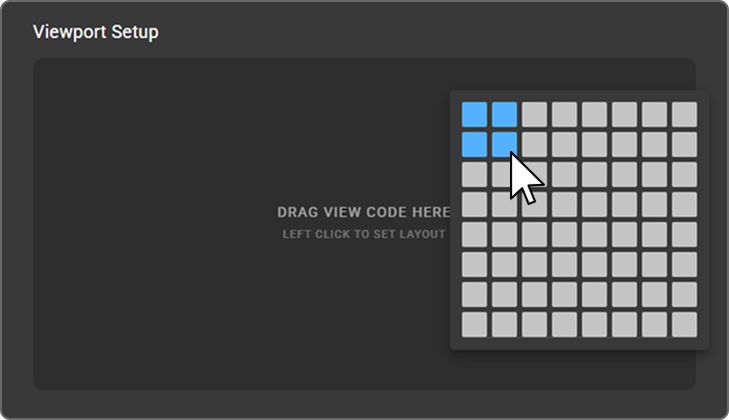
Left-click inside the Viewport Setup area. An 8x8 layout selector grid appears.
-
Click a cell to define the number and arrangement of viewports. Selected cells are highlighted in blue.
-
To further subdivide a viewport, right-click inside any selected viewport to define a nested layout within it.
-
Once confirmed, the grid closes and the selected viewports appear in the Viewport Setup area, ready for view codes to be assigned.
Note: Click the Reset Viewport icon in the top-right corner of the Viewport Setup area to reset the current viewport layout — see Resetting the Layout in Mastering Hanging Protocols for all reset options.
Learn more about Viewport Setup
Step 3: Assign View Codes
- The View Codes panel below the Viewport Setup area displays available view codes and modifiers organized by modality. Use the search icon in the top-right corner to filter codes quickly.
- Drag and drop a view code into an active viewport — a "+" indicator appears as you drag to confirm placement.
- The assigned code defines which image orientation or series type appears in that viewport.
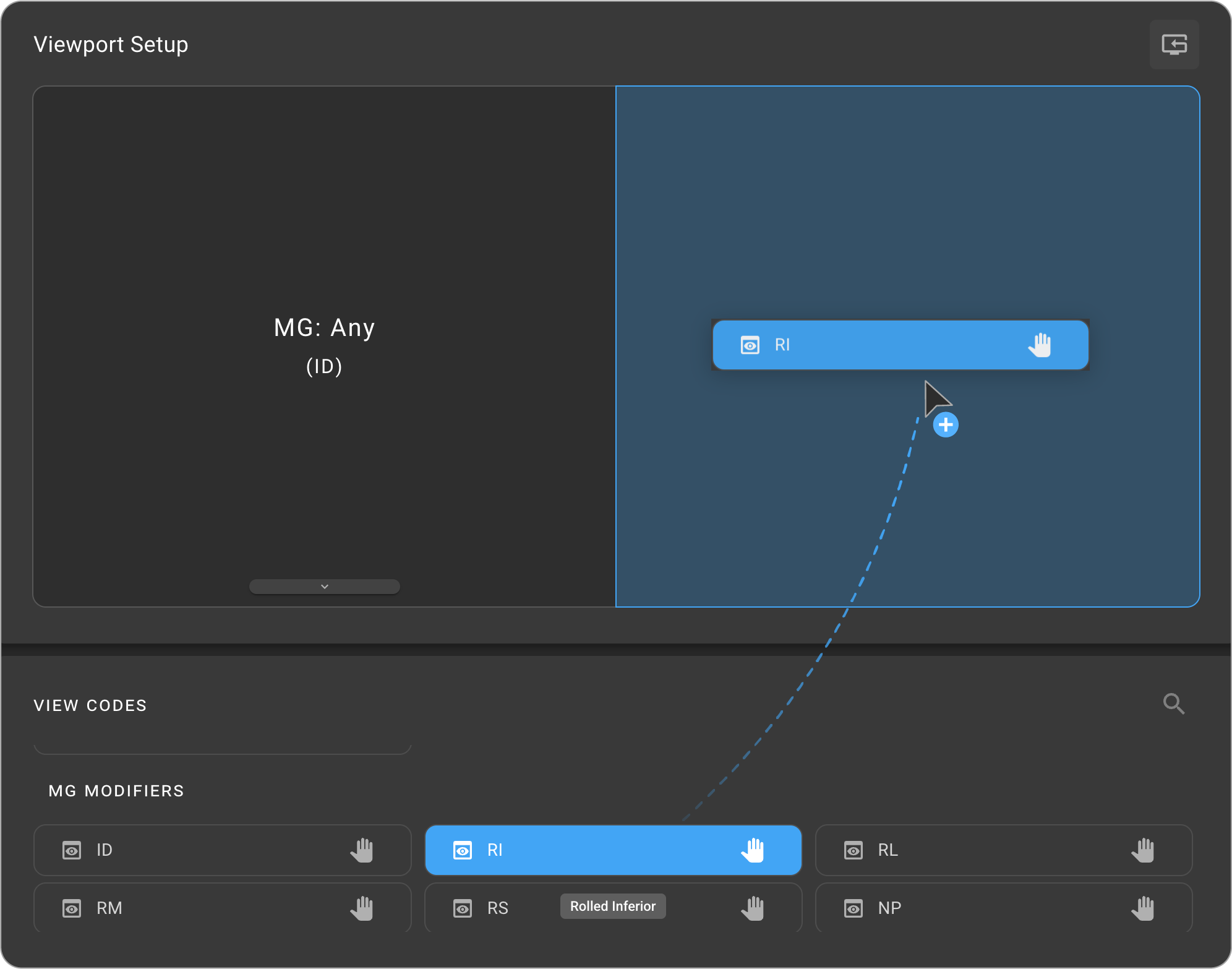
Learn more about View Codes and Modifiers
Step 4: Configure Hanging Protocol Rules
- Click a viewport to select it — a blue border indicates it is active, and the right panel automatically switches to the HP Rules tab.
- Five rule sections appear at once, ready to edit: Orientation, Toggles, Window Presets, Scaling, and Conditions.
- Edit any section directly. To save without leaving the panel, click Save on the right side of the Selected Viewport [n] header — for an existing protocol it saves immediately, and for a new protocol it opens the Save Protocol form.
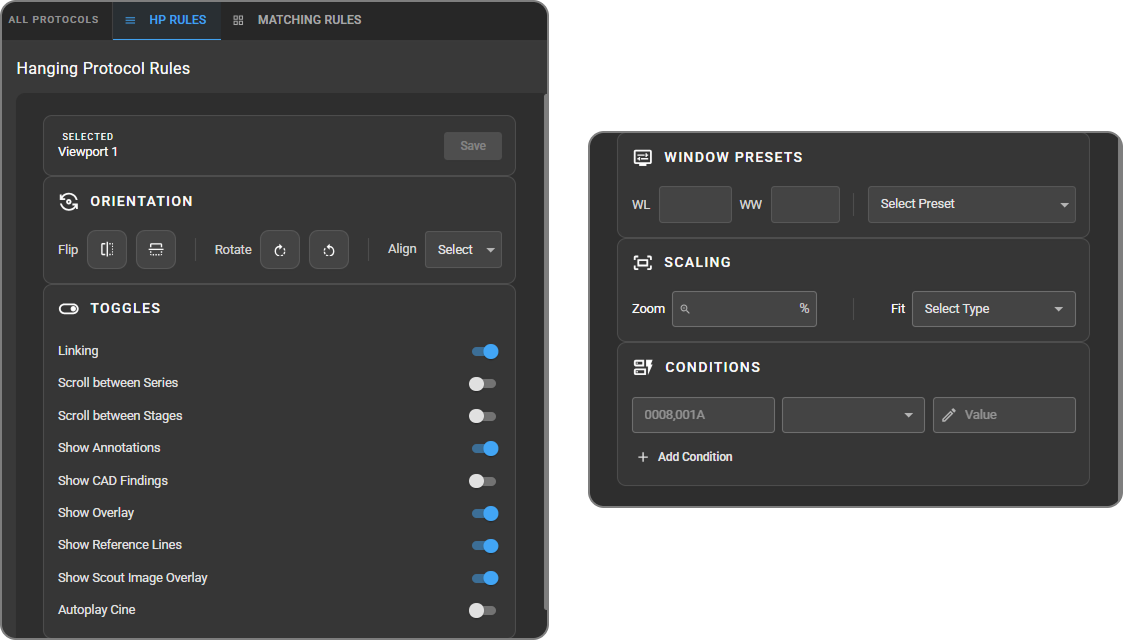
Tip: When you open a stage that already has a layout, OmegaAI automatically selects the first viewport so you can start configuring rules right away. The "Nothing Here Yet" placeholder only appears for genuinely empty stages.
Window/level presets are preserved when hanging protocols are applied — see Window Level and Display Presets for the full list of modality-specific presets.
Learn more about Hanging Protocol Rules
Step 5: Select a Prior Matching Model
This setting controls which study (current or prior) is loaded into the selected viewport based on the assigned view code.
- Click a viewport to select it, then click the Prior Selection (document icon) at the bottom of the cell to open the prior matching dropdown.
- Select one of the following — Current is selected by default:
- Current — Loads the active study
- 1st Preceding Prior — The most recent prior matching the view code
- 2nd Preceding Prior — The prior before the 1st matching prior
- 3rd Preceding Prior — The prior before the 2nd matching prior
- Set Matching Model — Advanced prior selection based on criteria such as body part, modality, study date, or procedure code
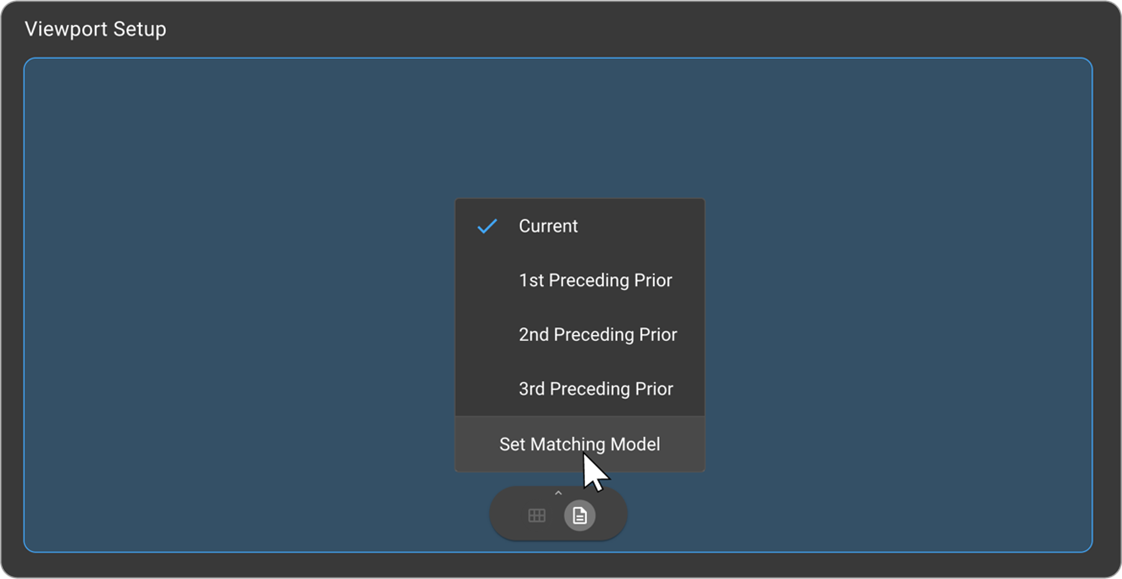
Learn more about Prior Matching Model Configuration
Learn more about Prior Study Navigation
Step 6: Add Additional Stages
- A horizontal slider track at the bottom of the screen displays all stages, each shown as a numbered handle along the track. The active stage's number appears in a badge on its handle. Click any handle to jump to that stage.
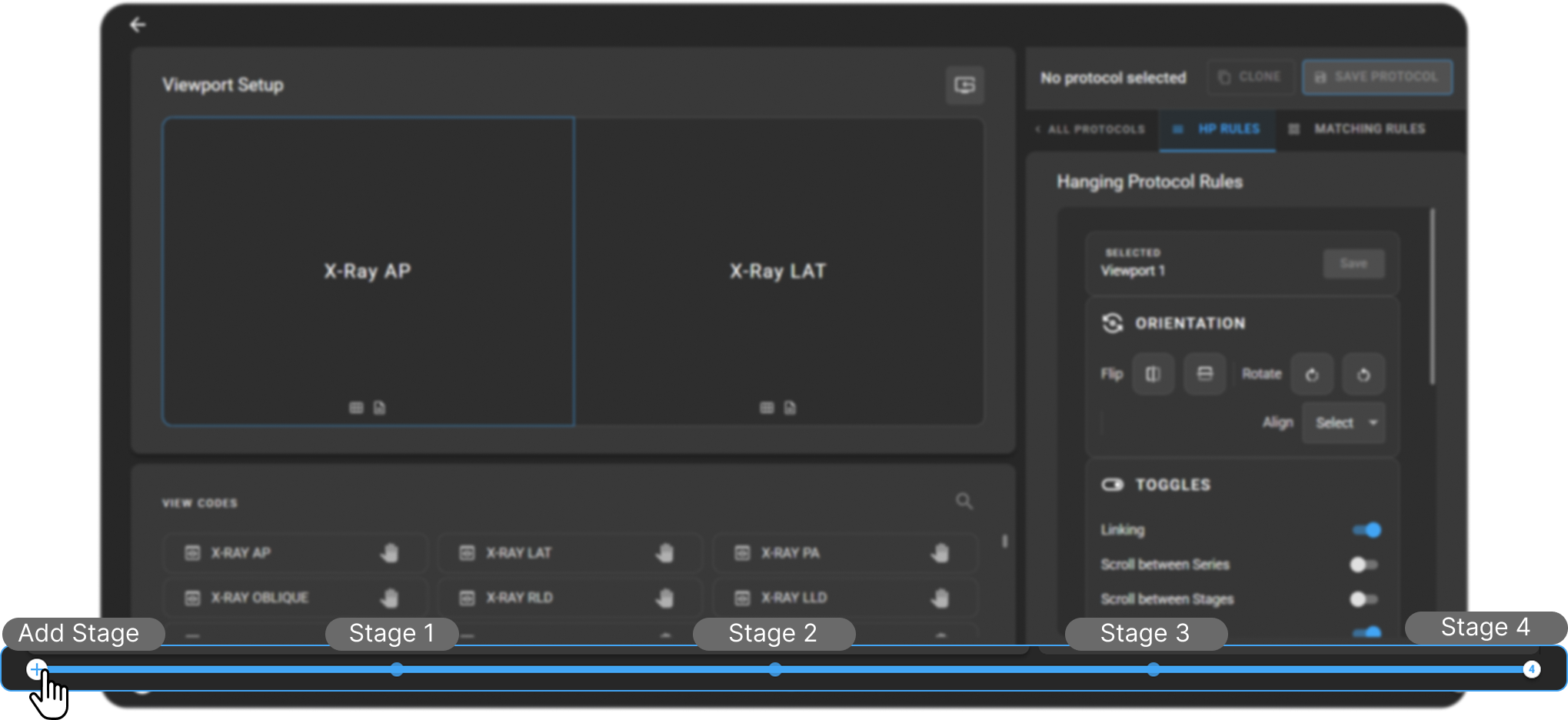
- Click the "+" circle at the left end of the track to add a new stage. The new stage duplicates the active stage's layout, view codes, and rules, giving you a quick starting point for a variation — editing the copy does not affect the original.

- Selecting a stage's handle reveals a small icon cluster above it — Move Left (
‹), Delete (trash can), and Move Right (›) — grouped together:

- Reorder stages — Click Move Left or Move Right to swap the stage with its neighbor. Move Left is hidden on the first stage and Move Right on the last, since there's nowhere further to move.
- Delete a stage — Click and hold the trash can icon to confirm deletion.
Learn more about Hanging Protocol Stages Management
Step 7: Save the Protocol
|
|
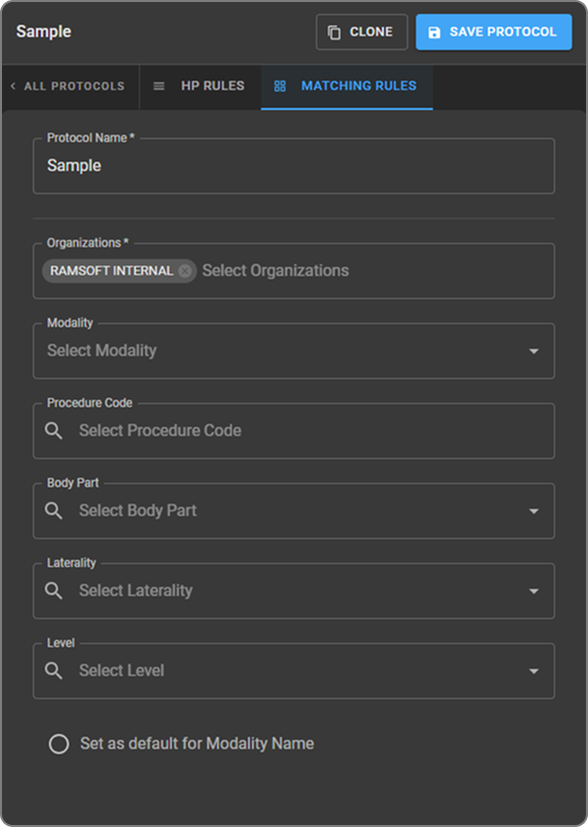
Note: The Save Protocol button is disabled until you make a change worth saving — for example, after creating a new protocol, cloning a Default protocol, or editing an existing protocol's rules or matching criteria.
Learn more about Managing Organizations in Hanging Protocols
For advanced configuration topics, see Mastering Hanging Protocols.