Accessing the Image Viewer in OmegaAI
Overview
The OmegaAI Image Viewer is a comprehensive diagnostic imaging workspace designed to provide fast, secure, and high-quality visualization of medical studies. It supports efficient clinical workflows through advanced viewing tools, customizable layouts, measurement capabilities, and seamless study management.
Built for radiologists, physicians, and imaging professionals, the Image Viewer enables users to analyze studies with precision while maintaining compliance, security, and role-based access control across the organization.
Accessing the Image Viewer
You can open the Image Viewer from the OmegaAI Worklist using either of the following methods.
-
Double-click method — Navigate to the Worklist on the OmegaAI dashboard and double-click the desired study. The study opens directly in the Image Viewer.
-
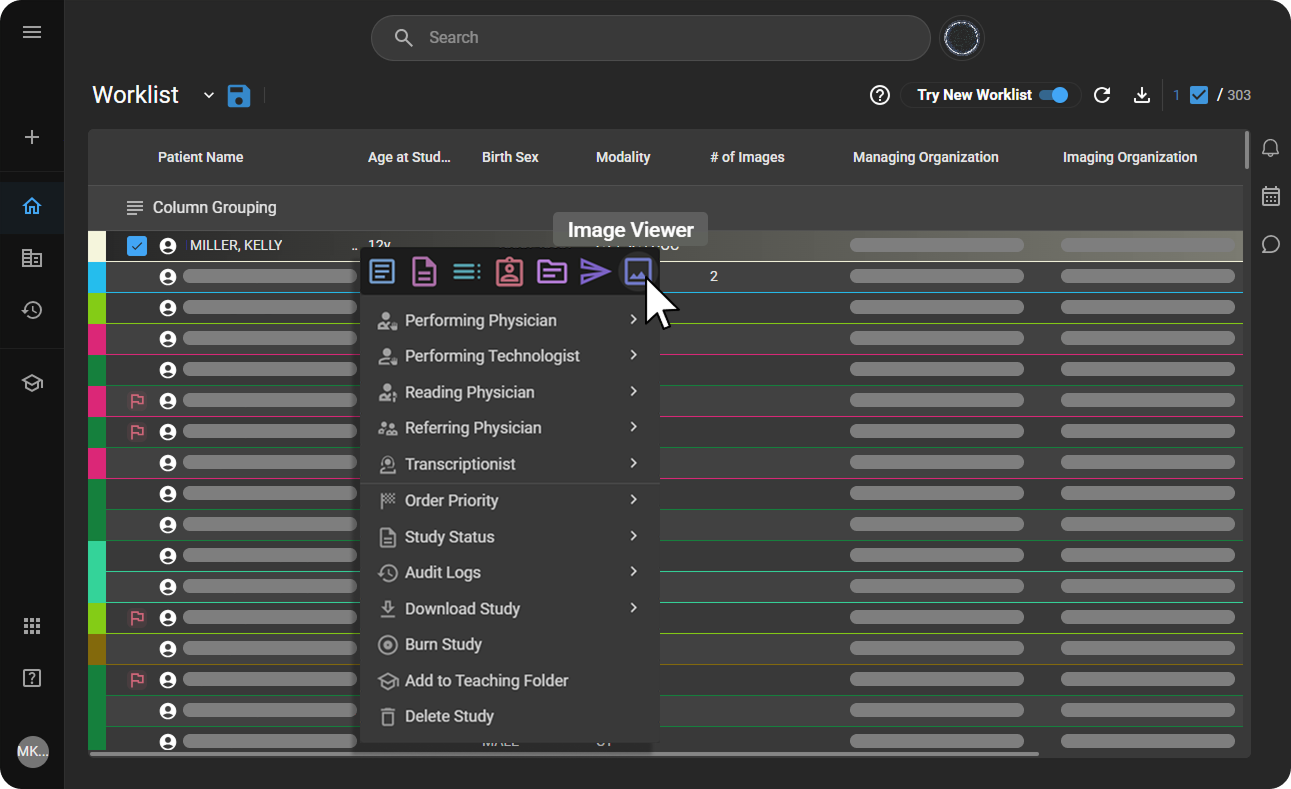
Right-click menu method — Right-click the study you wish to view from the Worklist. From the context menu that appears, select Image Viewer.
Configuring Monitor Settings
OmegaAI allows you to customize display settings to enhance the image viewing experience, particularly in multi-monitor setups.
Single monitor mode
The Image Viewer opens in the default monitor setup. To enable full-screen mode manually:
|
|

Multi-monitor mode
The Image Viewer can be configured to open in full-screen mode across multiple monitors automatically. By default, in a multi-monitor setup, the Image Viewer launches in full-screen mode, providing a broader view for detailed medical image analysis.
For setup instructions, see the Multi-Monitor Settings Guide.
User Access Control (UAC)
User Access Control (UAC) for the Image Viewer ensures that access to image viewing and image-related actions is managed securely and consistently across the organization.
Using role-based permissions, administrators can control who can perform the following actions based on each user's responsibilities:
- Configure viewer settings
- Mark key images
- Download or share studies
- Create notes and dictations
- Perform annotations and measurements
- Manage series and studies
- Access document review tools
Configuring Image Viewer Access
-
Open Organizations from the left navigation panel and select the required top-level organization.
-
Navigate to Users and Roles from the organization dashboard.
-
Click the Roles icon at the top-right corner to open role configuration.
-
Hover over the required role and click Edit.
-
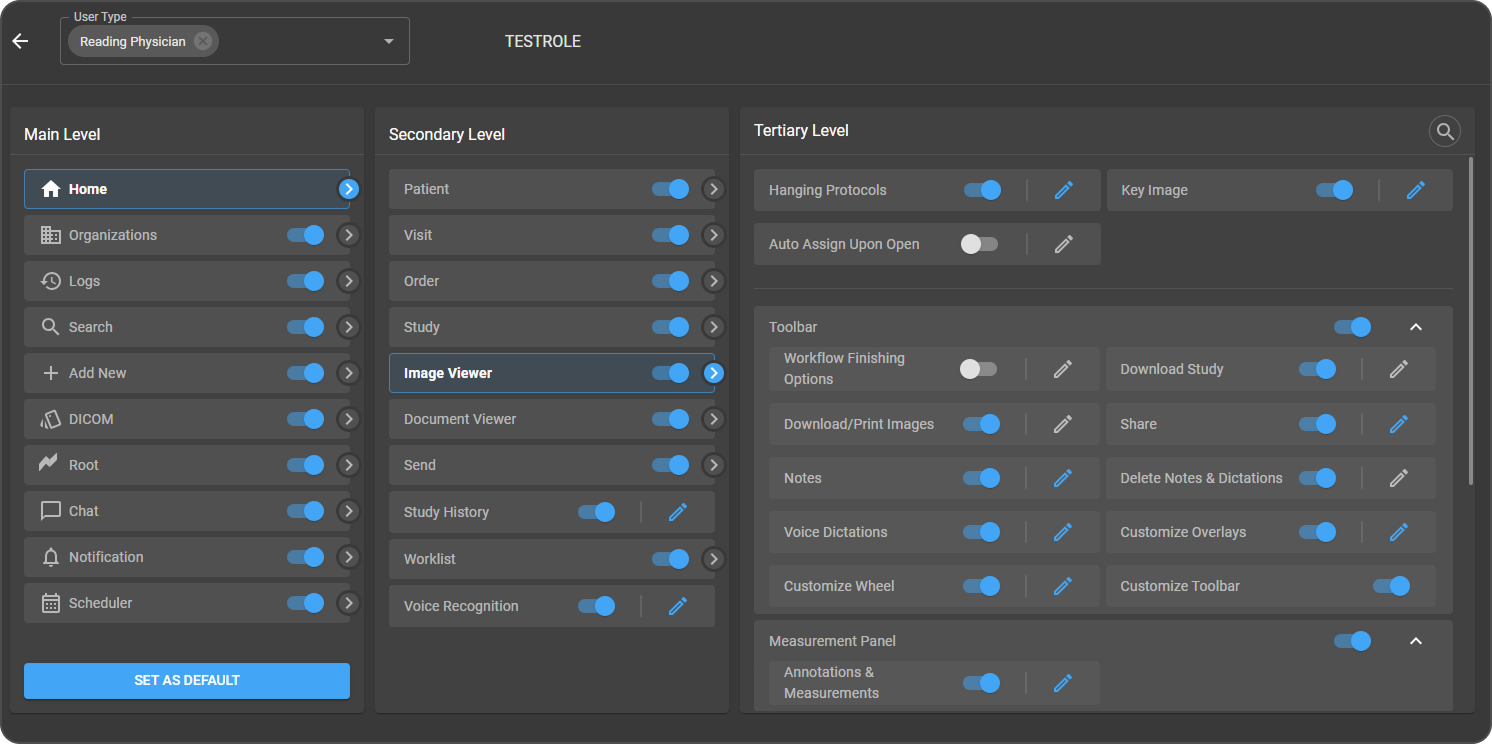
From the Main Level, select Home.
-
Under the Secondary Level, select Image Viewer.
-
In the Tertiary Level, enable or disable the required permissions.
-
Click Save to apply the changes.
To learn more, see User Access Control.
Troubleshooting
These guides cover the most common Image Viewer issues:
- Images load slowly or the viewer feels sluggish
- The viewer shows a black viewport or images never appear
- MPR or PET-CT Fusion mode is unavailable
Browse all entries in Troubleshooting & FAQs.