Measurement Panel
Overview
The Measurement Panel in OmegaAI is a dedicated interface for managing and reviewing measurements and annotations created within the Image Viewer. Located on the right side of the Image Viewer, it remains collapsed by default. Click the Measurement Panel icon on the right side of the viewer to expand it. The panel header displays the total count of measurements in the active study.
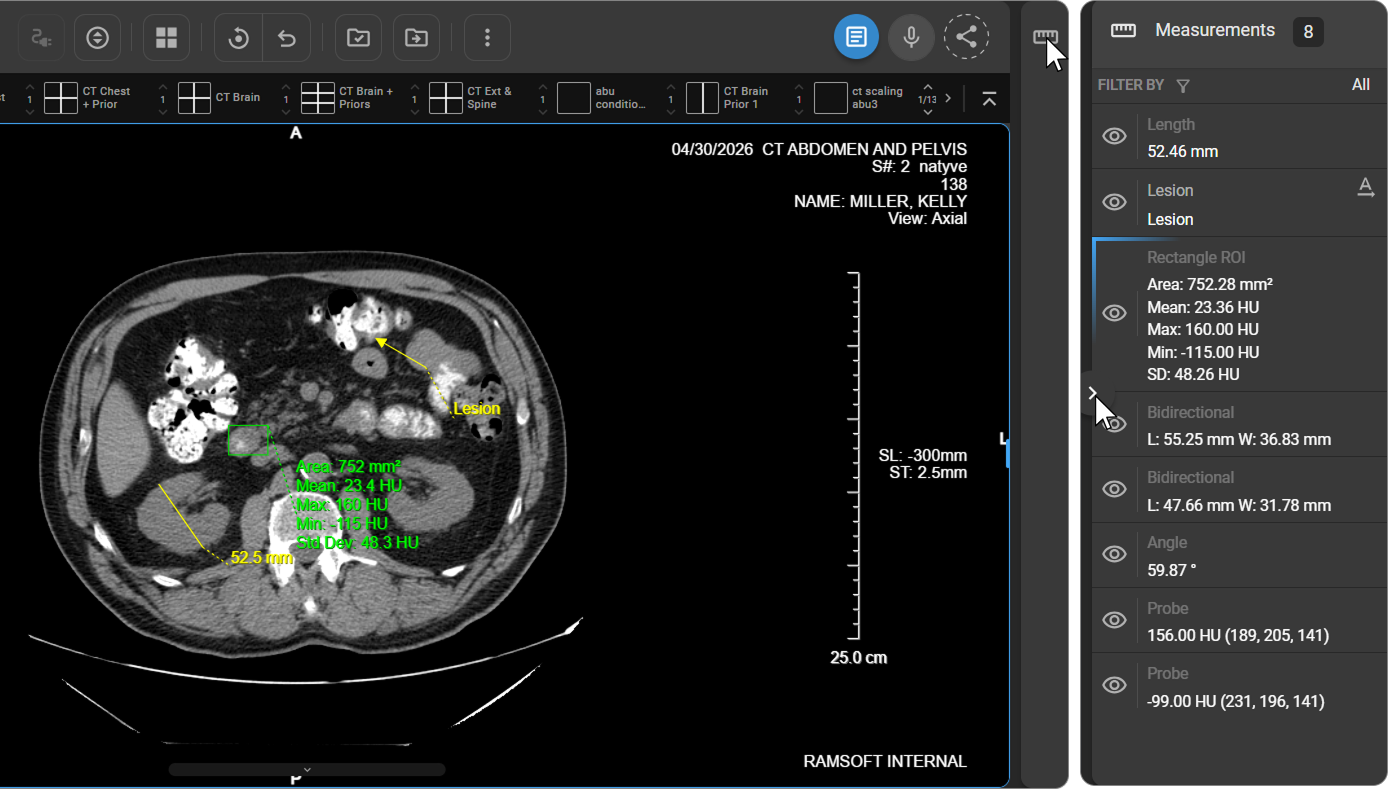
Filter Measurements
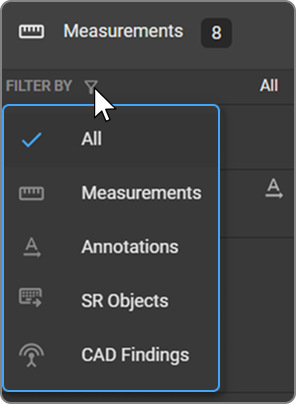
Use the Filter By dropdown at the top of the panel to filter measurement items by type. The default selection is All.
|
|
Navigate to Measurement
Click on any measurement entry to jump directly to the exact frame or slice where the selected measurement appears in the viewport.
Visibility Toggle
Each measurement entry includes an eye icon on the left. Click it to show or hide that specific measurement in the viewport.
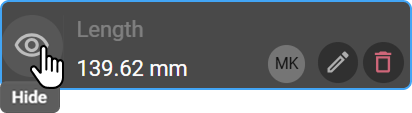
- Visibility changes are temporary — after refreshing the browser or logging in again, all measurements become visible by default.
- Visibility choices do not affect other users.
Edit Annotations and Measurement Labels
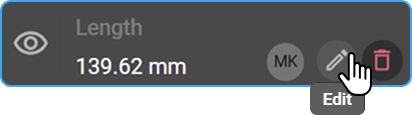
Hover over any measurement entry to reveal the pen icon. Click it to rename the measurement label or modify the annotation text.
User Identification
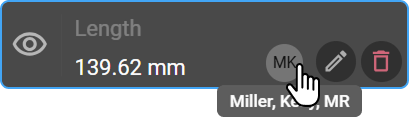
A circular badge displaying the initials of the user who created the measurement appears beside each entry. Hover over the badge to see the user's full name for reference and audit clarity.
Delete Measurements
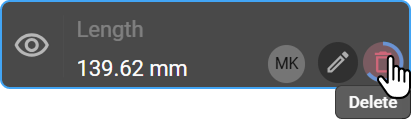
Hover over a measurement entry to reveal the trash icon. Click and hold to remove the measurement from both the viewport and the panel.
To delete without opening the panel, press the Delete key on the keyboard — this removes the most recently created measurement or the currently selected one.
Save Bookmarks
When the Save Bookmarks toggle is enabled, all markups and measurements (e.g., lengths, angles, labels, and annotations) are automatically saved in the Measurement Panel and persist across future viewing sessions.
To learn more, see Save Bookmarks.
Note: OmegaAI supports DICOM 6K annotations; however, these annotations do not appear in the Measurement Panel.