DICOM Tag Browser
Overview
The DICOM Tag Browser is an integrated feature within the OmegaAI Image Viewer that provides direct access to the metadata embedded in DICOM images. It allows users to inspect, search, and navigate DICOM tags for any series or image instance in the active study — supporting clinical validation, image quality review, and diagnostic troubleshooting.
Accessing the DICOM Tag Browser
|
|
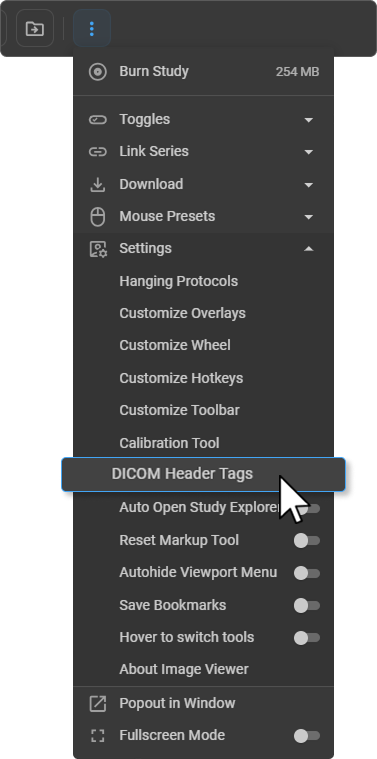
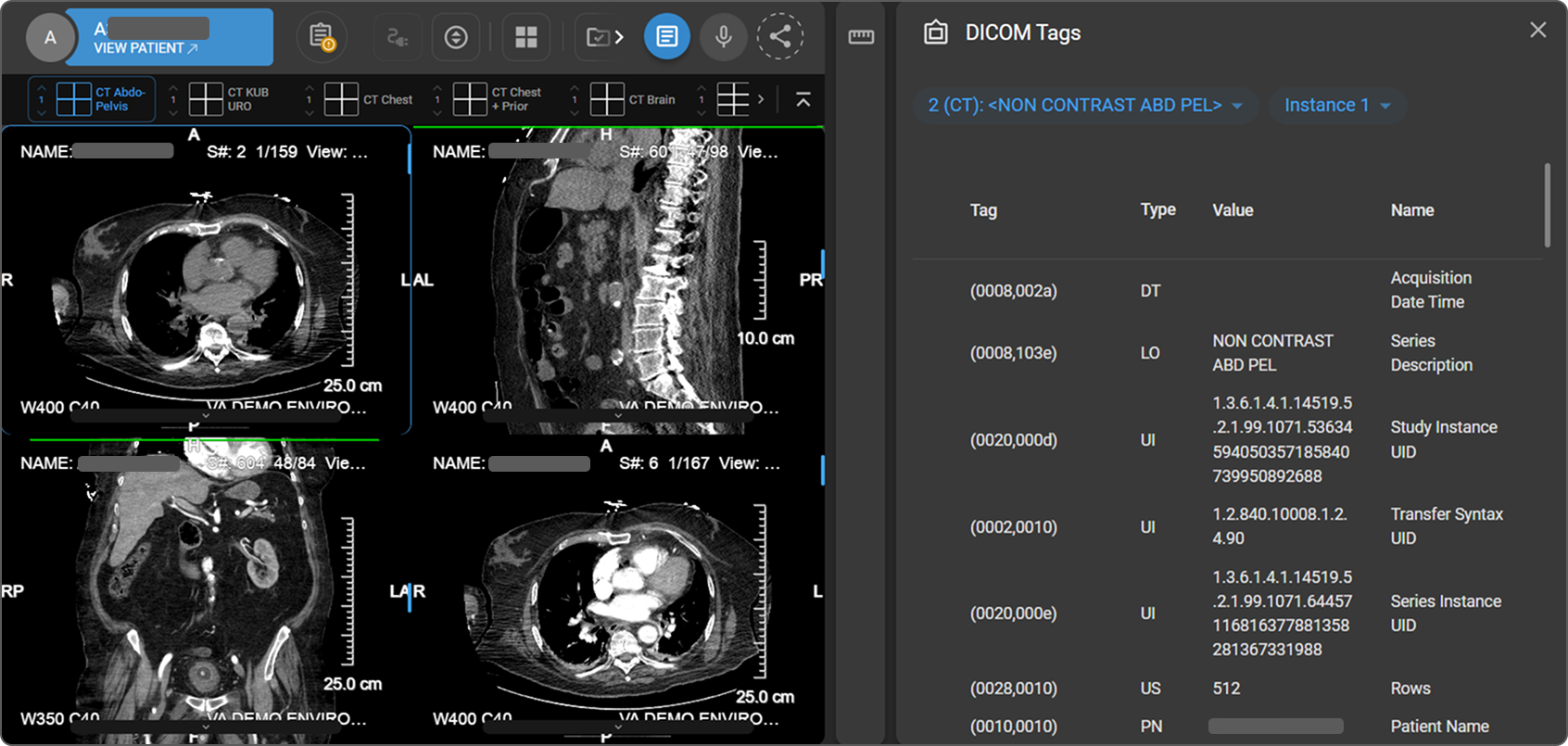
The DICOM Tags panel opens on the right side of the screen.
Series and Instance Selection
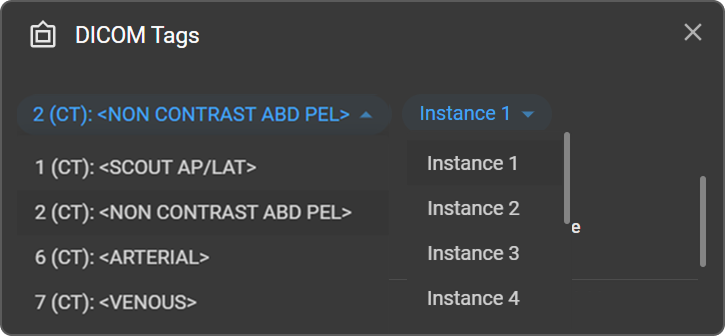
Two dropdown menus at the top of the panel control which image's metadata is displayed.
| Dropdown | Description |
|---|---|
| Series (left) | Lists all series in the study, each identified by its number, modality, and description — e.g. 10 (MR): <SAG T1 PIT +C>. Select a series to load its tags. |
| Instance (right) | Lists all image instances within the selected series — e.g. Instance 1, Instance 2. Select a specific instance to view its individual tag values. |
Clicking on any viewport automatically updates both dropdowns to reflect the series and instance of the active image, ensuring the displayed metadata always reflects the active viewport.
Tag Table
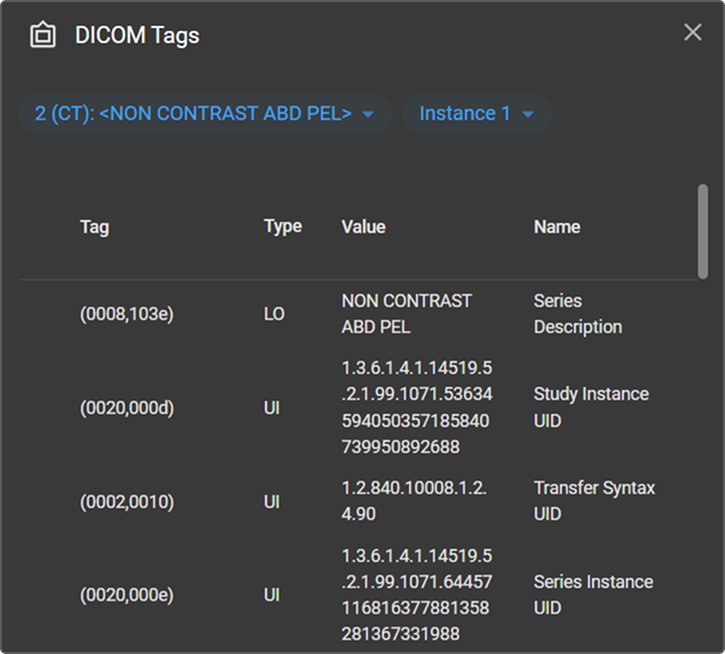
All DICOM tags for the selected series and instance are displayed in a four-column table.
| Column | Description |
|---|---|
| Tag | DICOM tag number in group, element format — e.g. (0010,0010) |
| Type | Value representation / data type — e.g. UI, CS, DA, SQ |
| Value | The value stored in the tag for the selected instance |
| Name | Human-readable description of the tag |
Searching Tags
To locate a specific tag:
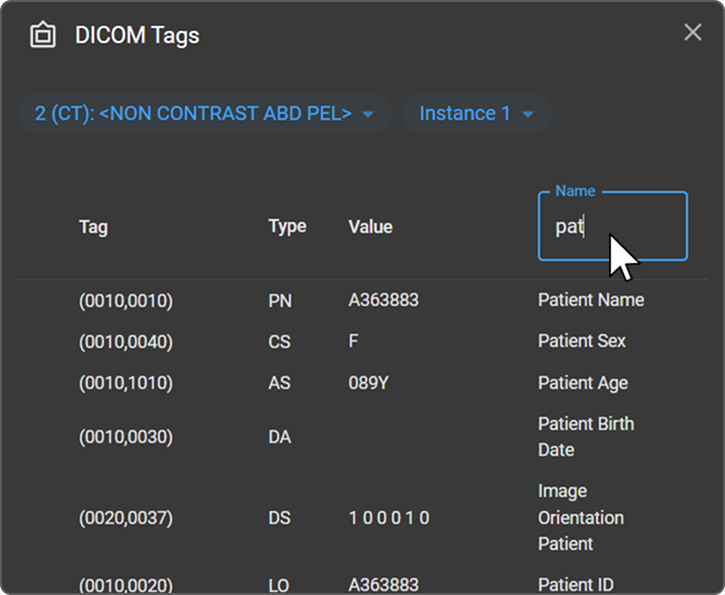
- Hover over any column header — a Search input field appears above that column.
- Click the field to activate it (the border highlights in blue).
- Type a search term to filter the tag list by that column's values.
Sequence (SQ) Tags
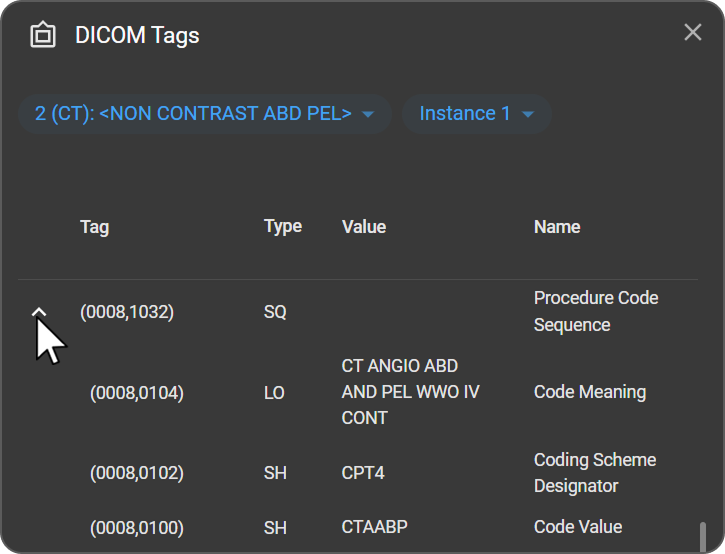
Tags of type SQ (Sequence) contain nested child tags and are identified by an expand arrow on the left side of the row. Click the arrow to expand the sequence and view its child tags in an indented hierarchy beneath the parent tag. Click the arrow again to collapse and hide the child tags.
Tag Visibility
To maintain Image Viewer performance, not all DICOM headers present in the image file are shown in the Tag Browser. To access the complete set of headers:
- Download the study to your local machine.
- Open the downloaded study in a dedicated third-party DICOM browser.
To learn more, see Download.
To see how the Window Width/Window Center tags viewable here affect on-screen display, see Window Level and Display Presets.