Navegador de etiquetas DICOM
Descripción general
El navegador de etiquetas DICOM es una función integrada en el visor de imágenes de OmegaAI que proporciona acceso directo a los metadatos incrustados en las imágenes DICOM. Permite a los usuarios examinar, buscar y navegar por las etiquetas DICOM de cualquier serie o instancia de imagen del estudio activo, lo que facilita la validación clínica, la revisión de la calidad de la imagen y la resolución de problemas de diagnóstico.
Acceso al navegador de etiquetas DICOM
- Abra el estudio en el Visor de imágenes.
- Haga clic en Más opciones (⋯) en la barra de herramientas superior.
- Seleccione Configuración → Etiquetas de encabezado DICOM.
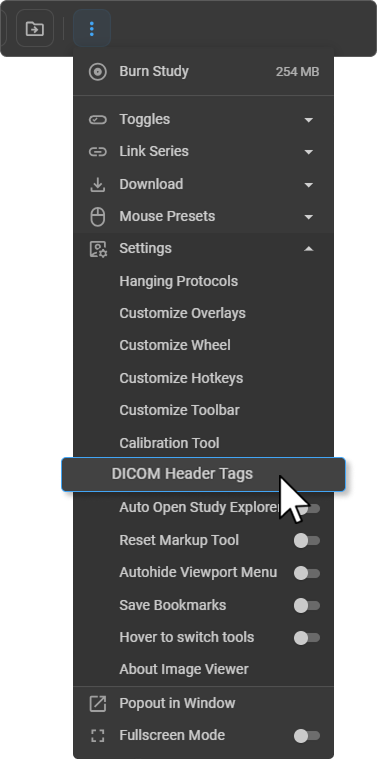
Se abre el panel Etiquetas DICOM en la parte derecha de la pantalla.
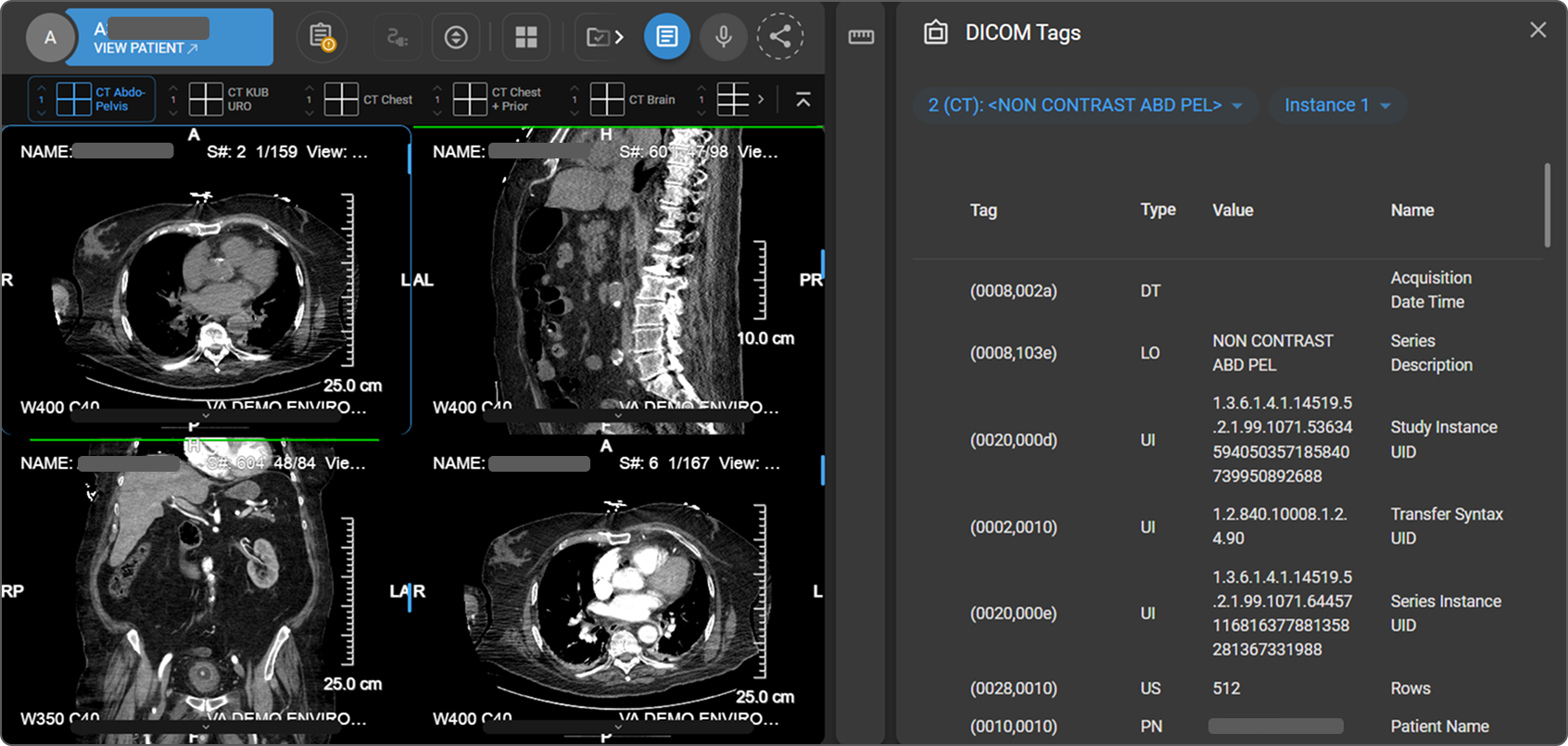
Selección de series e instancias
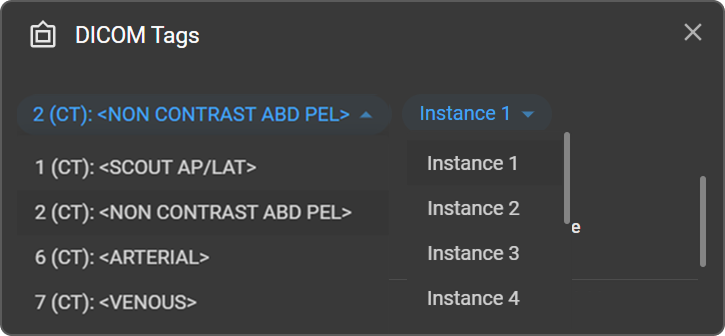
Dos menús desplegables situados en la parte superior del panel controlan qué metadatos de las imágenes se muestran.
| Menú desplegable | Descripción |
|---|---|
| Serie (izquierda) | Muestra todas las series del estudio, cada una identificada por su número, modalidad y descripción; p. ej., **10 (RM): <SAG T1 PIT +C>. Seleccione una serie para cargar sus etiquetas. |
| Instancia (derecha) | Muestra todas las instancias de imagen dentro de la serie seleccionada; p. ej., Instancia 1, Instancia 2. Seleccione una instancia concreta para ver los valores de sus etiquetas individuales. |
Al hacer clic en cualquier ventana de visualización, ambos menús desplegables se actualizan automáticamente para reflejar la serie y la instancia de la imagen activa, lo que garantiza que los metadatos mostrados reflejen siempre la ventana de visualización activa.
Tabla de etiquetas
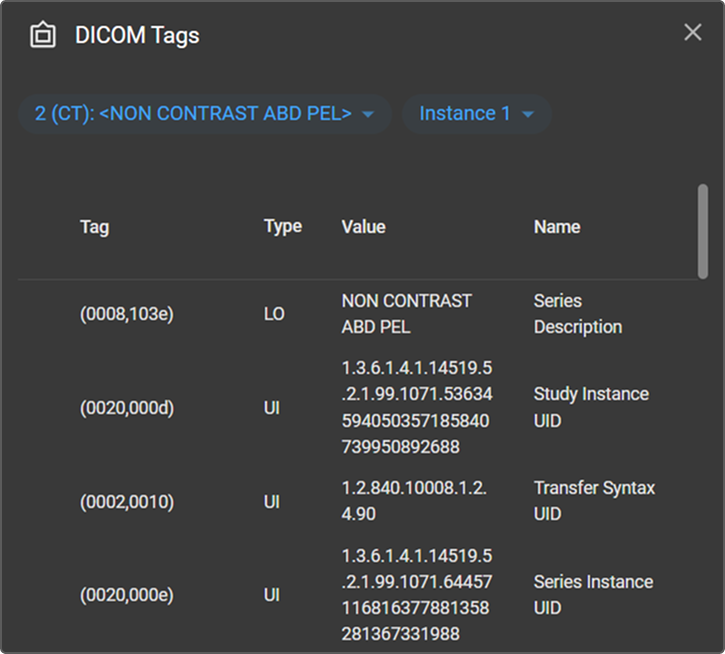
Todas las etiquetas DICOM de la serie y la instancia seleccionadas se muestran en una tabla de cuatro columnas.
| Columna | Descripción |
|---|---|
| Etiqueta | Número de etiqueta DICOM en formato de grupo y elemento — p. ej., (0010,0010) |
| Tipo | Representación del valor / tipo de datos — p. ej., UI, CS, DA, SQ |
| Valor | El valor almacenado en la etiqueta para la instancia seleccionada |
| Nombre | Descripción legible para el usuario de la etiqueta |
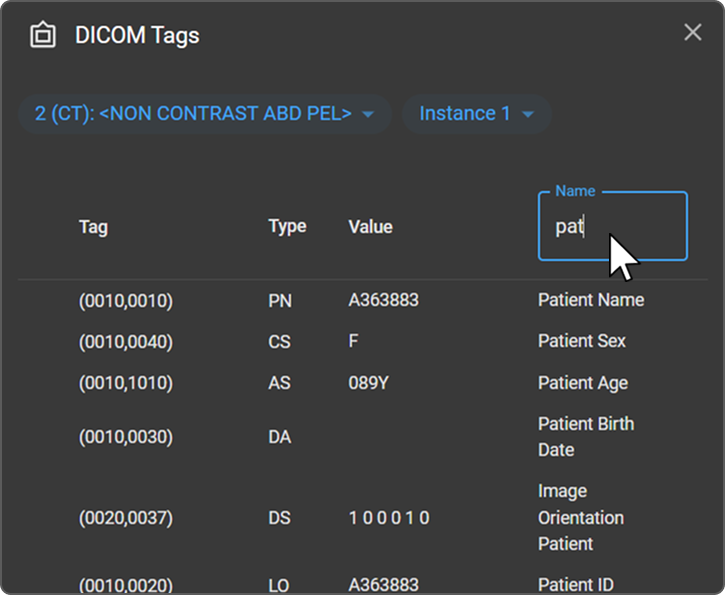
Búsqueda de etiquetas
Para localizar una etiqueta específica:
- Pase el cursor por encima de cualquier encabezado de columna; aparecerá un campo de entrada de Búsqueda encima de dicha columna.
- Haga clic en el campo para activarlo (el borde se resalta en azul).
- Escriba un término de búsqueda para filtrar la lista de etiquetas según los valores de esa columna.
Etiquetas de secuencia (SQ)
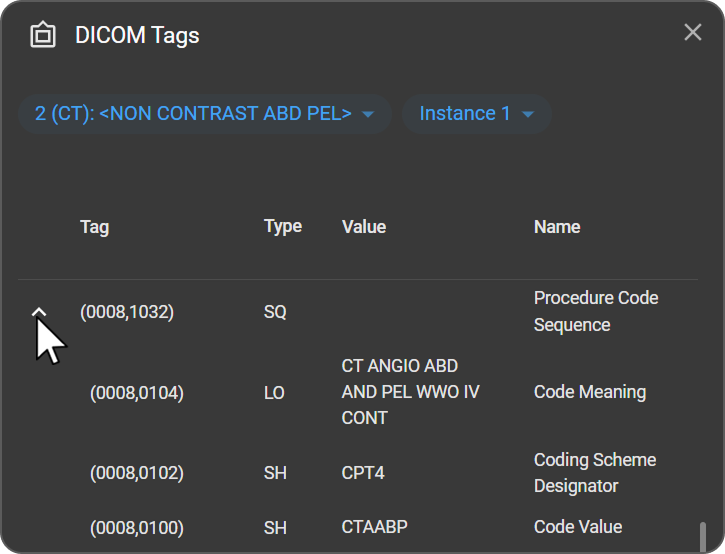
Las etiquetas de tipo SQ (Secuencia) contienen etiquetas secundarias anidadas y se identifican mediante una flecha de expansión situada a la izquierda de la fila. Haga clic en la flecha para expandir la secuencia y ver sus etiquetas secundarias en una jerarquía sangrada debajo de la etiqueta principal. Vuelva a hacer clic en la flecha para contraer y ocultar las etiquetas secundarias.
Visibilidad de las etiquetas
Para mantener el rendimiento del visor de imágenes, no todas las cabeceras DICOM presentes en el archivo de imagen se muestran en el navegador de etiquetas. Para acceder al conjunto completo de cabeceras:
- Descargue el estudio en su equipo local.
- Abra el estudio descargado en un navegador DICOM de terceros específico.
> Para obtener más información, consulte Descarga.
> Para ver cómo las etiquetas «Ancho de ventana» y «Centro de ventana», visibles aquí, afectan a la visualización en pantalla, consulte Nivel de ventana y ajustes preestablecidos de visualización.