Menú «Más opciones» en el visor de imágenes de OmegaAI
Descripción general
El menú «Más opciones» (⋯) de la barra de herramientas del visor de imágenes de OmegaAI permite acceder a una serie de herramientas y ajustes para descargar estudios, gestionar la configuración de visualización, vincular series, configurar las preferencias de visualización y personalizar el entorno del visor.
Cómo acceder al menú «Más opciones»
- Abra un estudio en el Visor de imágenes.
- Localice el icono ⋯ (tres puntos) en la barra de herramientas superior.
- Haga clic en el icono para desplegar el menú desplegable Más opciones.
- Seleccione la herramienta o el ajuste deseado de la lista.
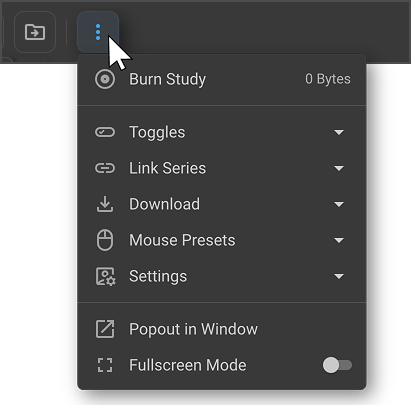
1. Grabar estudio
> Cómo acceder: Más opciones (⋯) → Grabar estudio
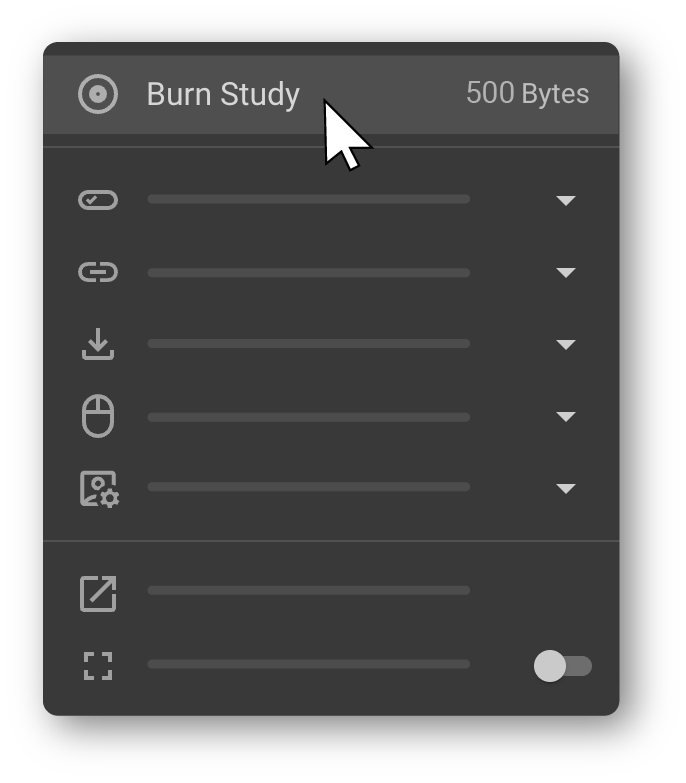
La función «Grabar estudio» le permite grabar el estudio actual en un CD o DVD. Al seleccionarla, se muestra el tamaño del estudio que se va a grabar en el disco, lo que le ayuda a confirmar que el contenido cabrá en el soporte seleccionado.
Si el estudio no contiene documentos ni imágenes, el tamaño se mostrará como 0 MB.
Proceso de grabación
Si el estudio seleccionado contiene imágenes válidas, se lleva a cabo automáticamente la siguiente secuencia:
- Se descarga en su equipo un pequeño archivo ejecutable —RamSoft.DiscImageBurner.exe—. Este archivo es necesario para facilitar el proceso de grabación de la imagen de disco.
- Una vez que se inicia el ejecutable, se abre una ventana de la línea de comandos y el sistema comienza a preparar la grabación. La ventana muestra el progreso en tiempo real, incluyendo el porcentaje completado, los datos transferidos y el tiempo transcurrido.
- Se abre el cuadro de diálogo Windows Disc Image Burner. Seleccione la grabadora de discos adecuada en el menú desplegable y, a continuación, haga clic en Grabar para comenzar a escribir el estudio en el disco.
> La función «Grabar estudio» también permite a los usuarios grabar uno o más estudios directamente desde la lista de trabajo. Obtenga más información sobre «Grabar estudio» en la lista de trabajo. > > Obtenga más información sobre cómo acceder a los archivos DICOM exportados desde OmegaAI.
2. Conmutadores
> Cómo acceder: Más opciones (⋯) → Conmutadores
El submenú «Conmutadores» ofrece controles rápidos de activación y desactivación para los elementos de visualización de uso habitual. Haga clic en cualquier conmutador para activarlo o desactivarlo. Una marca de verificación azul (✓) indica que la opción está activa.
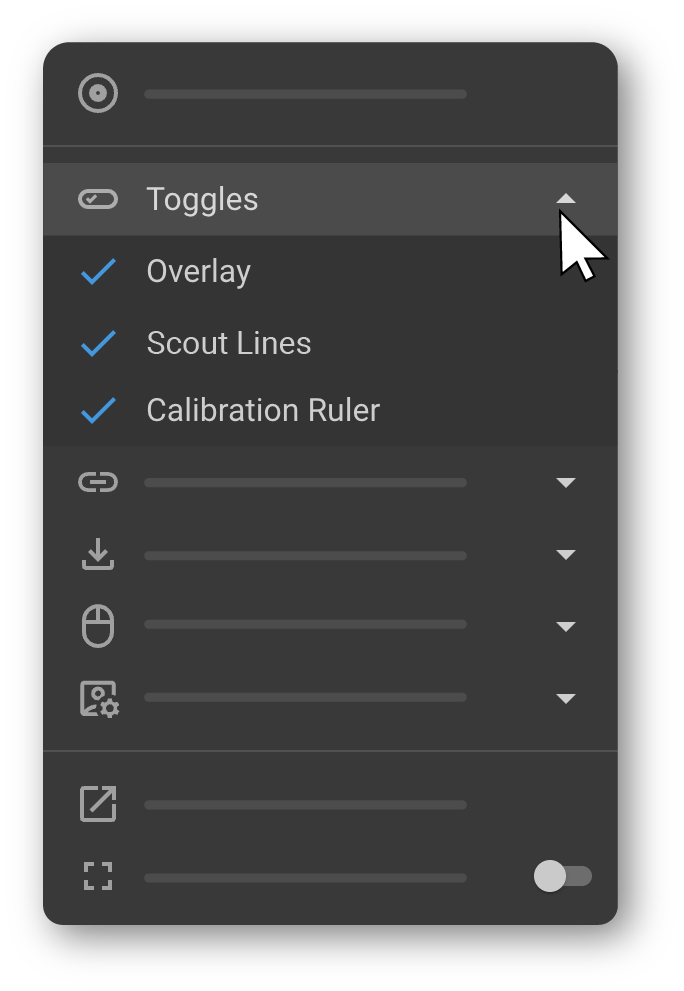
2.1 Superposición
> Cómo acceder: Más opciones (⋯) → Conmutadores → Superposición
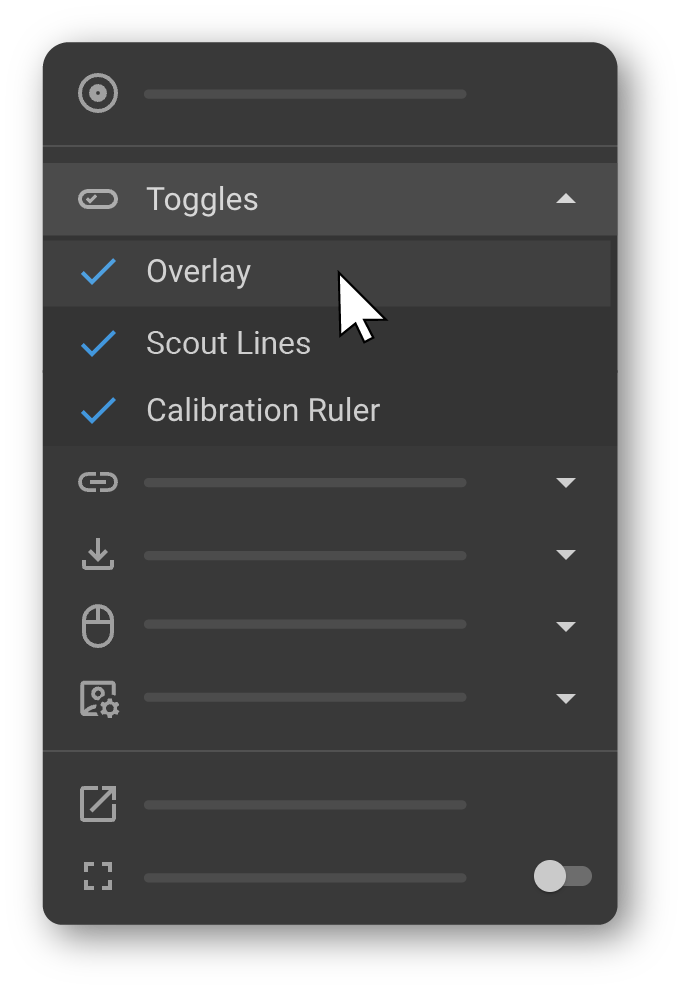
Muestra u oculta la superposición informativa que aparece en las imágenes, incluidos los datos del paciente, los metadatos del estudio, la orientación de la imagen, el número de corte, el nivel de zoom y otra información contextual.
- Active las superposiciones para realizar una revisión detallada y obtener orientación sobre la orientación.
- Desactive las superposiciones para presentaciones, capturas de pantalla o una experiencia de visualización sin obstrucciones.
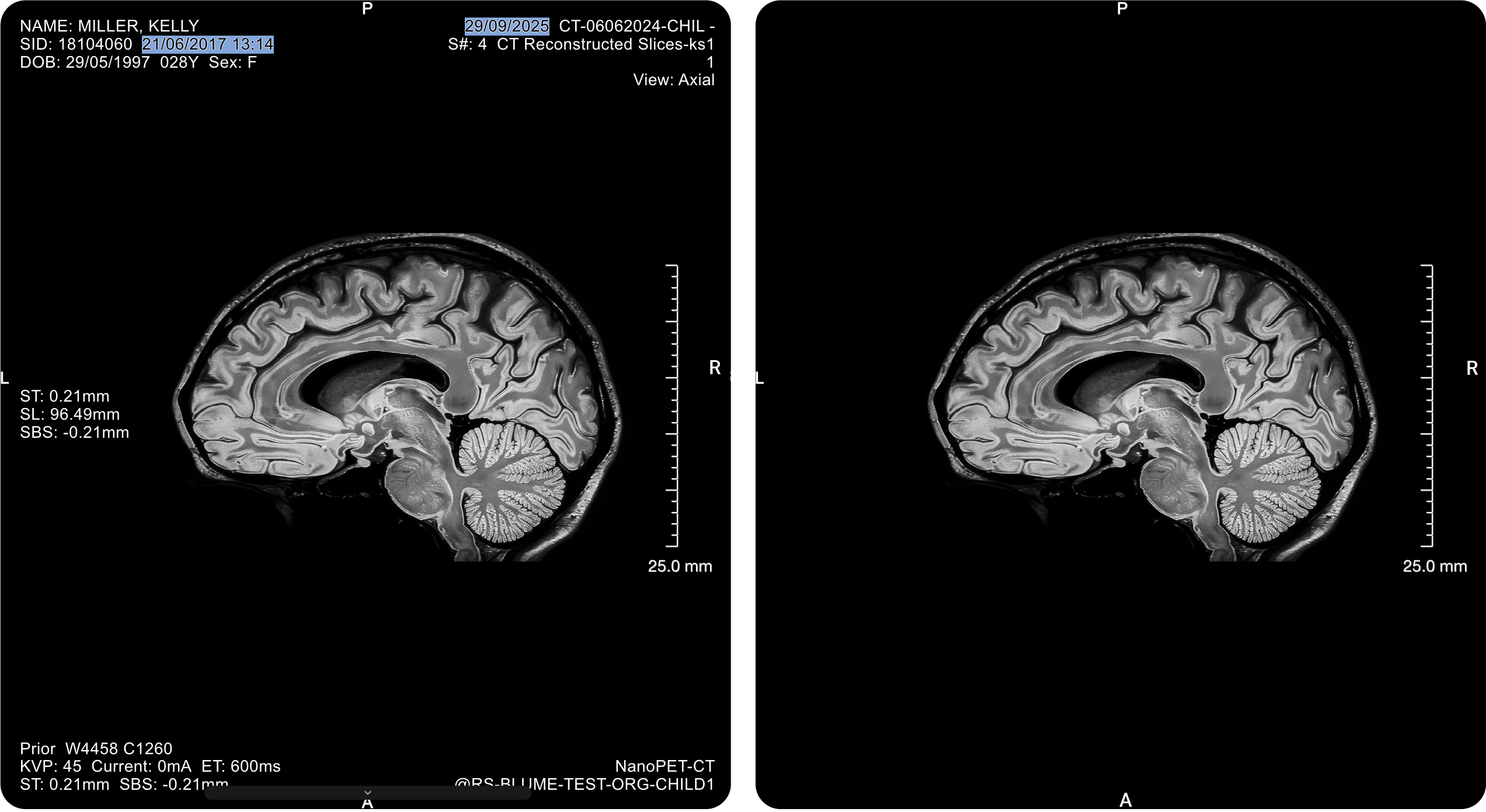
> Para obtener más información, consulte Personalizar anotaciones de superposición.
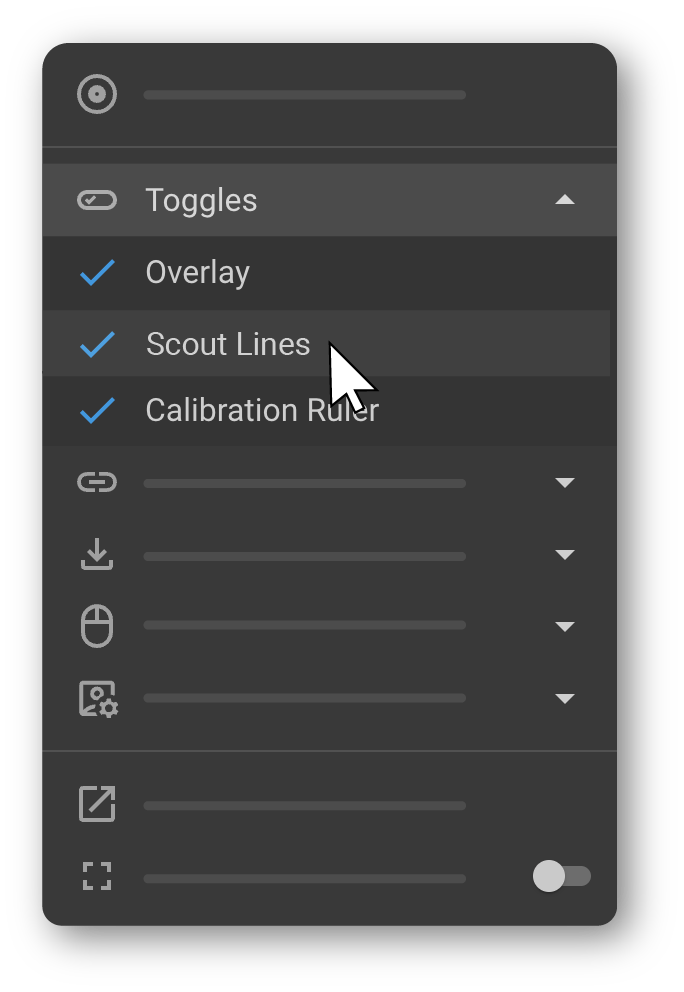
2.2 Líneas de exploración
> Cómo acceder: Más opciones (⋯) → Conmutadores → Líneas de exploración
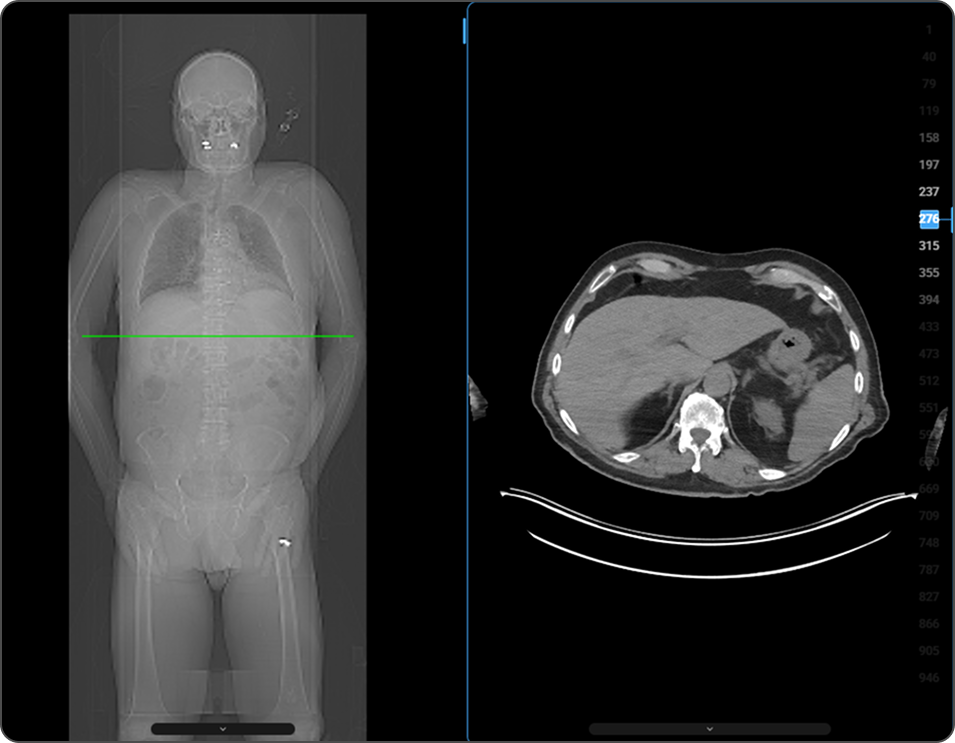
La función «Línea de exploración» vincula visualmente la imagen de exploración (localizadora) con las imágenes transversales correspondientes (cortes de TC, PT o RM). Cuando está activada, aparece una línea de referencia horizontal o vertical en la imagen de exploración, que indica la posición anatómica exacta del corte que se muestra en ese momento. La línea se actualiza dinámicamente a medida que se desplaza, lo que proporciona información espacial en tiempo real.
Útil para:
- Comprender rápidamente la ubicación del corte dentro de la anatomía del paciente
- Correlacionar imágenes axiales, sagitales o coronales con la imagen de orientación
- Navegar por grandes series de imágenes con mayor seguridad
- Mejorar la orientación anatómica durante la revisión
2.3 Regla de calibración
> Cómo acceder: Más opciones (⋯) → Alternar → Regla de calibración
Muestra u oculta una regla de calibración en pantalla que representa unidades de medida del mundo real (cm o mm). La regla proporciona una escala de referencia visual junto a la imagen para interpretar el tamaño y las proporciones anatómicas.
- Actívela para flujos de trabajo relacionados con la medición, como la evaluación de lesiones, la planificación o el control de calidad.
- Desactívela al generar capturas de pantalla limpias, exportar imágenes o preparar materiales didácticos.
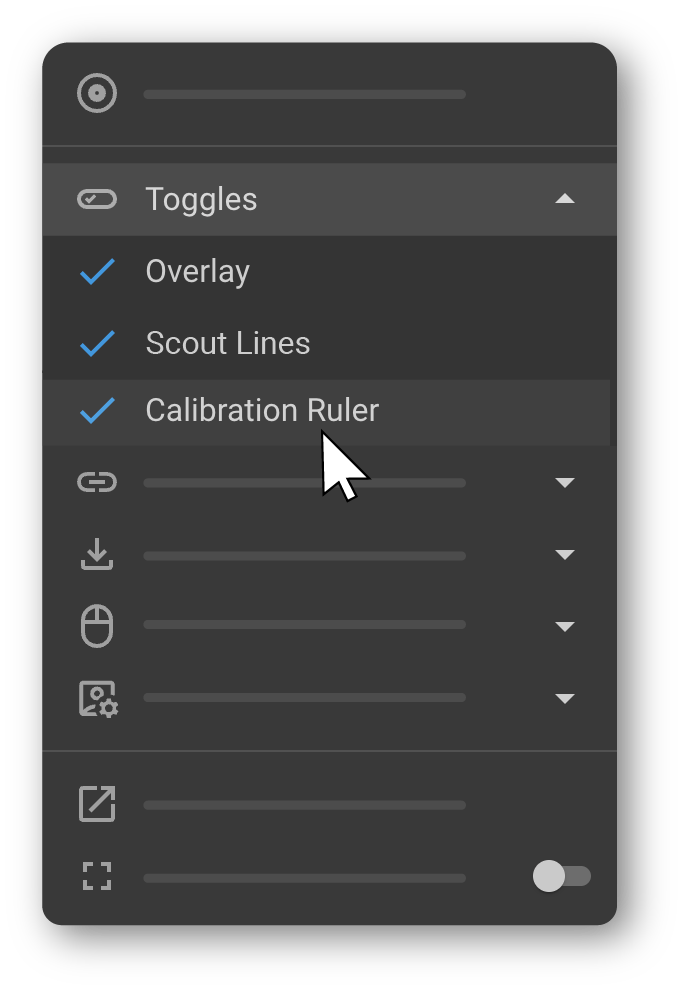
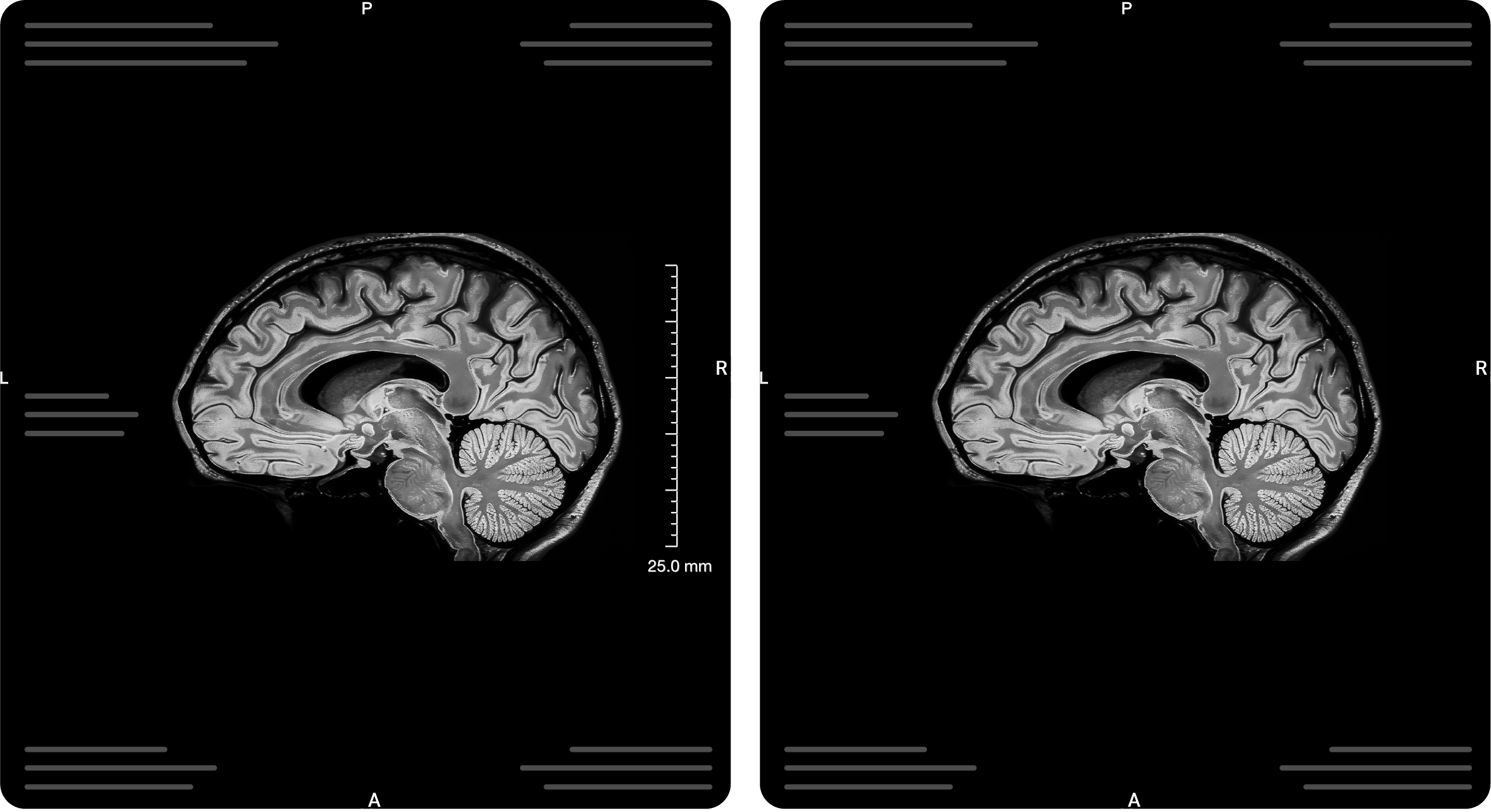
> Para establecer una escala de medición personalizada, consulte la Herramienta de calibración en la sección «Configuración».
3. Vincular series
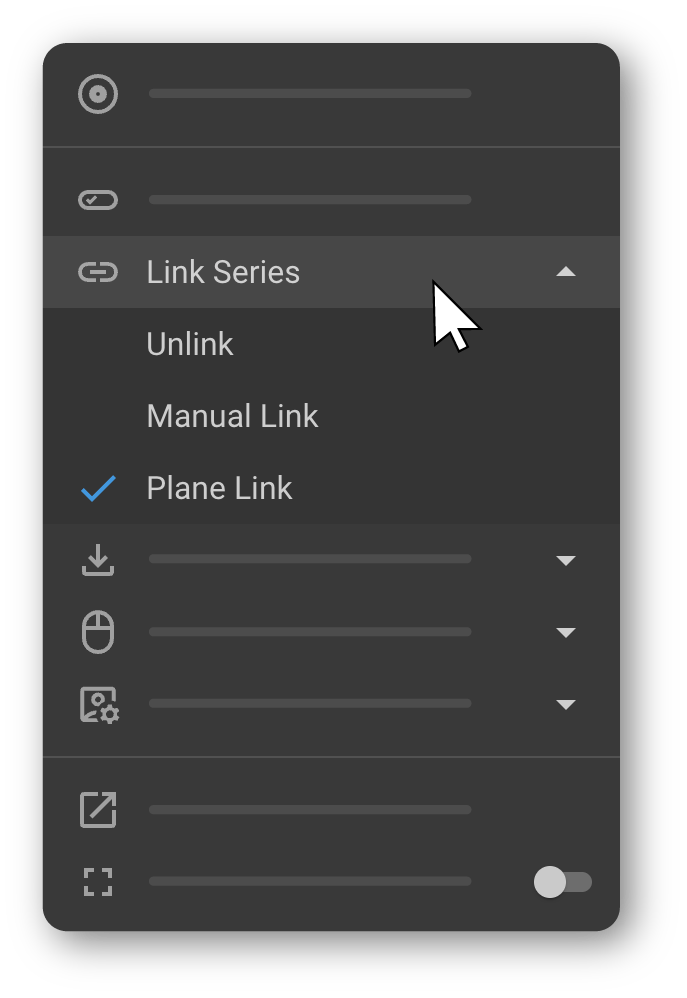
> Cómo acceder: Más opciones (⋯) → Vincular series
La herramienta «Vincular» sincroniza varias imágenes o series entre ventanas de visualización. Cuando la función de vinculación está activada, las interacciones como el desplazamiento, el zoom y el paneo se replican en todas las ventanas de visualización vinculadas, lo cual resulta útil para comparar imágenes de diferentes momentos, modalidades o regiones anatómicas.
| Modo | Descripción |
|---|---|
| Desvincular | Desactiva la sincronización entre ventanas de visualización. |
| Vinculación manual | Vincula manualmente las ventanas de visualización seleccionadas para una visualización sincronizada. |
| Vinculación por planos | Vincula las ventanas de visualización en función de los planos anatómicos (axial, sagital, coronal) para una navegación coordinada en múltiples planos. |
4. Descargar
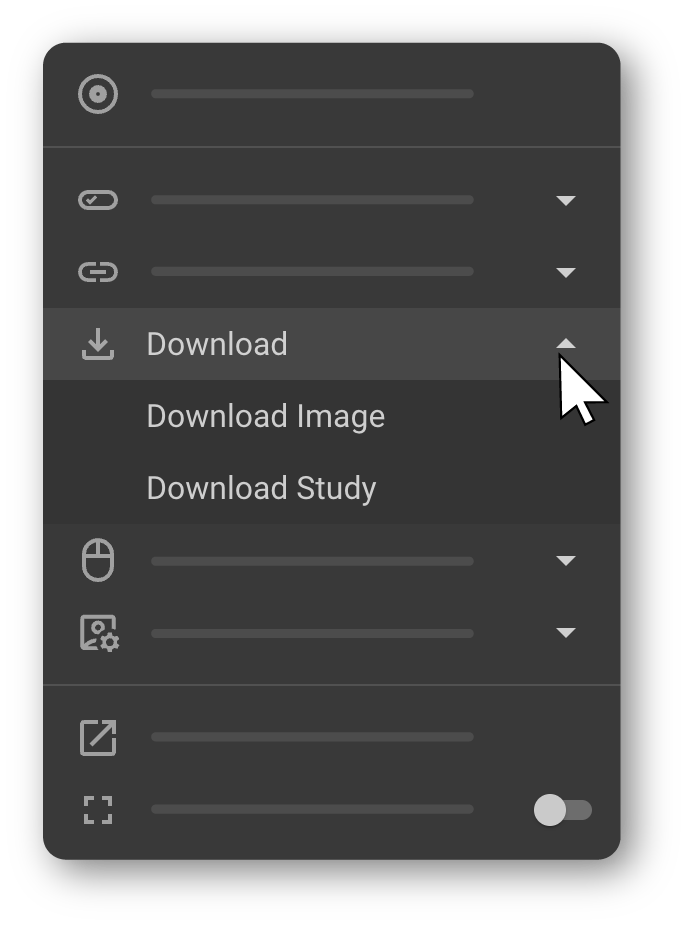
> Cómo acceder: Más opciones (⋯) → Descargar → Descargar imagen / Descargar estudio
La herramienta «Descargar» le permite exportar contenido de imágenes directamente desde el visor de imágenes para compartirlo, incluirlo en informes o consultarlo sin conexión. Al hacer clic en «Descargar», se despliegan dos opciones:
Descargar imagen
Exporta únicamente la imagen que se muestra actualmente en la ventana de visualización activa, junto con sus anotaciones. Al seleccionarla, aparece el cuadro de diálogo «Descargar imagen» con opciones para establecer el nombre del archivo, la anchura de la imagen (px) y la altura de la imagen (px). Se muestra una vista previa de la imagen seleccionada antes de la descarga.
Descargar estudio
Descarga el estudio completo —incluidas todas las series e imágenes— en formato DICOM. Resulta útil para compartir el conjunto de datos completo o crear archivos sin conexión.
> Obtenga más información sobre cómo acceder a los archivos DICOM exportados desde OmegaAI.
5. Ajustes predefinidos del ratón
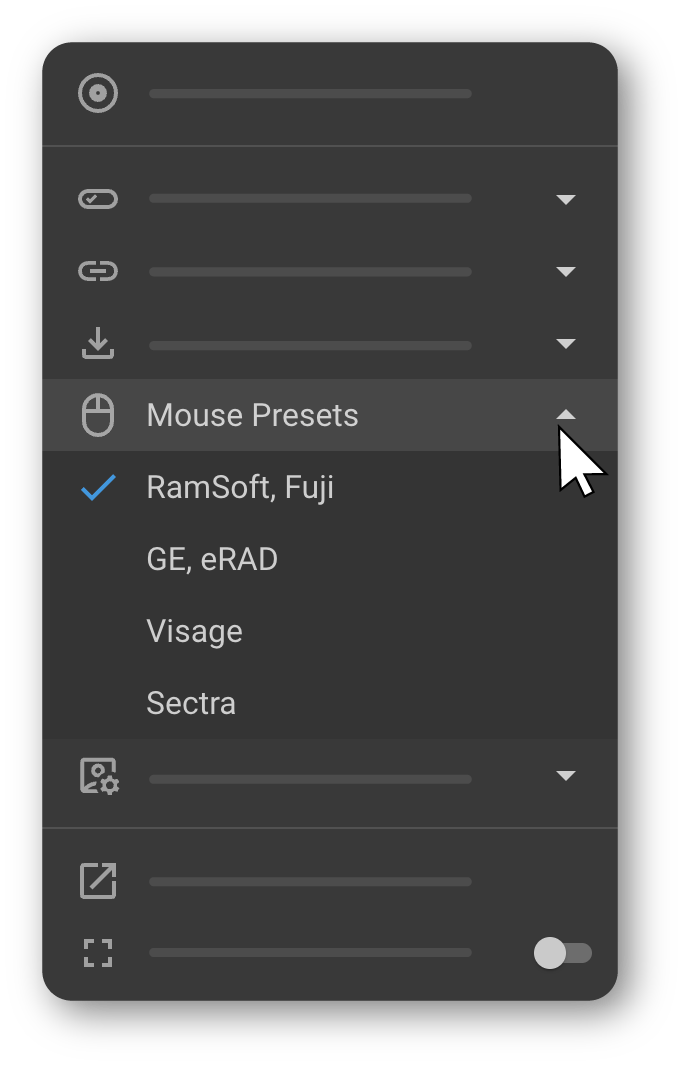
> Cómo acceder: Más opciones (⋯) → Configuraciones predeterminadas del ratón
Las configuraciones predeterminadas del ratón definen cómo se comportan los botones del ratón y la rueda de desplazamiento en el visor de imágenes. Estas configuraciones se basan en los proveedores de PACS de radiología más habituales, lo que le permite trabajar con controles familiares para el ajuste de ventanas y niveles, el desplazamiento, el zoom, las mediciones y el desplazamiento por la pantalla. La configuración predeterminada seleccionada se aplica de inmediato y permanece activa hasta que se modifique.
Referencia de configuraciones predefinidas
| Proveedor | Clic izquierdo | Clic derecho | Clic central | Mantener pulsados L+R y arrastrar | Rueda de desplazamiento |
|---|---|---|---|---|---|
| RamSoft, Fuji | Desplazamiento (o herramienta seleccionada) | Ventana/Nivel | Zoom | Desplazamiento horizontal | Desplazamiento de imagen, desplazamiento de serie |
| GE, eRAD | Desplazamiento horizontal (o herramienta seleccionada) | Ventana/Nivel | — | Zoom | Desplazamiento de imagen, desplazamiento de serie |
| Visage | Desplazamiento (o herramienta seleccionada) | Desplazamiento horizontal | Zoom | Ventana/Nivel | Desplazamiento de imagen, desplazamiento de serie |
| Sectra | Desplazamiento horizontal (o herramienta seleccionada) | Ventana/Nivel | Zoom | Desplazamiento vertical | Desplazamiento de imagen, Desplazamiento de serie |
6. Opciones de visualización y visualización
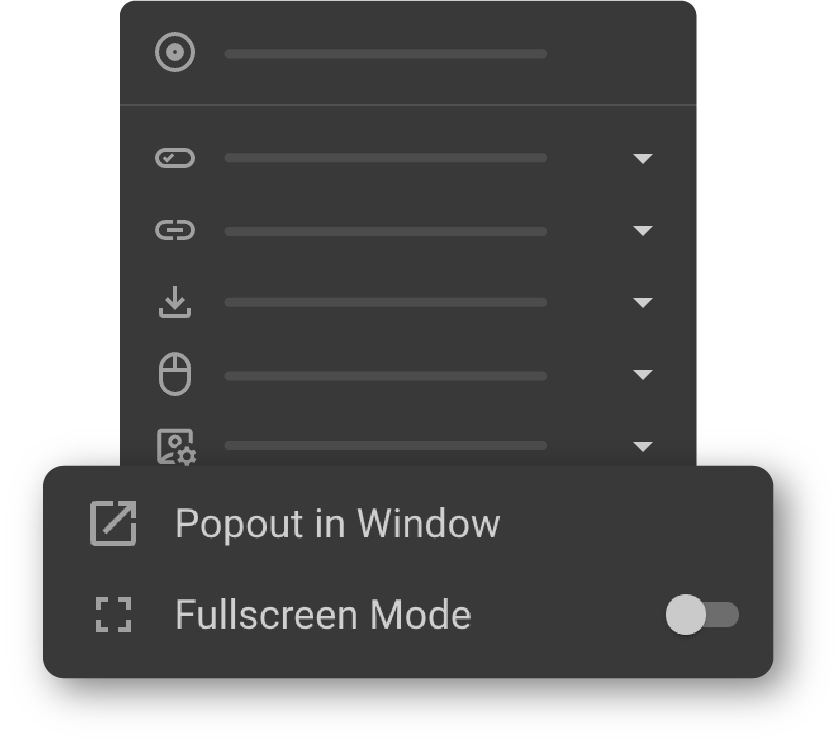
| Opción | Cómo acceder | Descripción |
|---|---|---|
| Abrir en ventana | Más opciones (⋯) → Abrir en ventana | Abre la imagen actual en una ventana independiente. |
| Modo de pantalla completa | Más opciones (⋯) → Modo de pantalla completa | Activa o desactiva la visualización a pantalla completa para disfrutar de una experiencia de visualización sin distracciones. Haga clic de nuevo para salir y volver al diseño estándar del visor. |
> Para obtener más información, consulte Acceso al visor de imágenes.
7. Ajustes
> Cómo acceder: Más opciones (⋯) → Ajustes
El submenú «Configuración» permite acceder a las opciones de configuración y personalización del visor de imágenes, incluyendo el comportamiento de la visualización, la personalización de superposiciones y de la barra de herramientas, la calibración, los metadatos DICOM y las preferencias de flujo de trabajo.
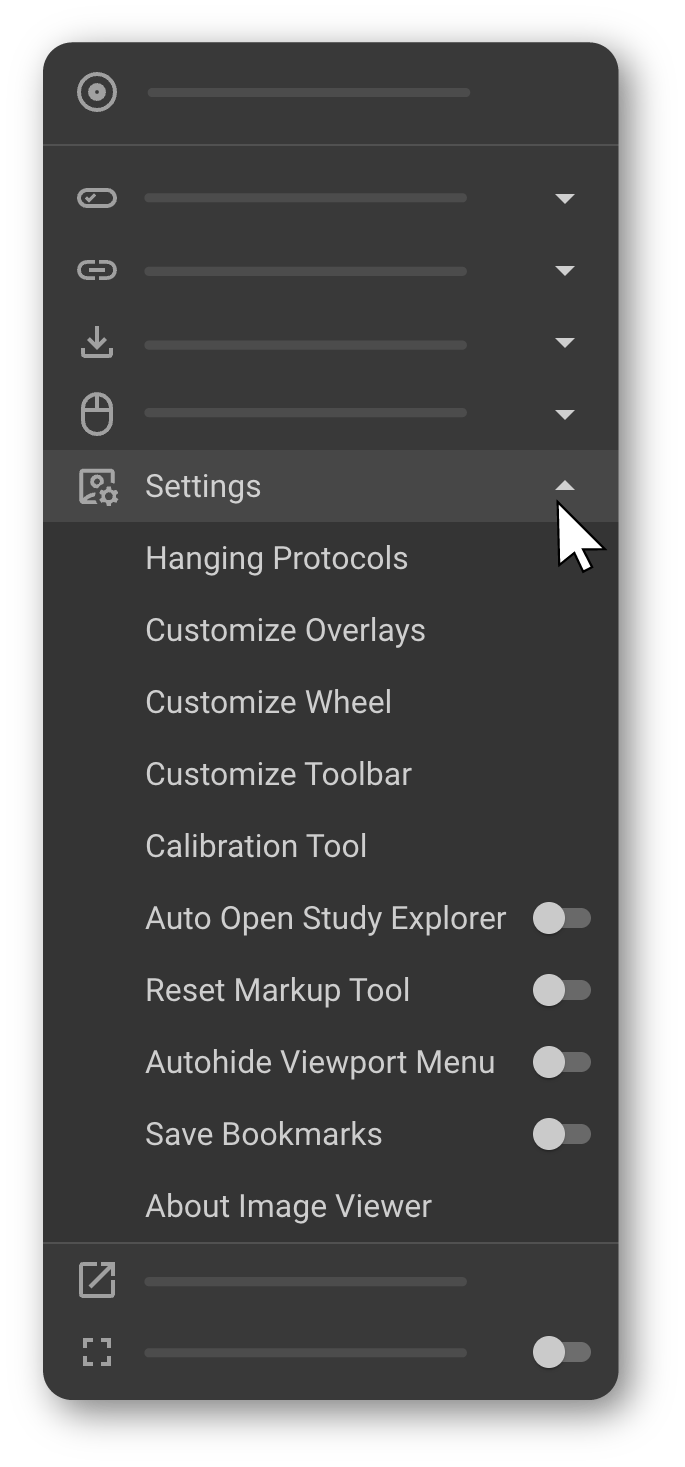
7.1 Protocolos de presentación
> Cómo acceder: Más opciones (⋯) → Ajustes → Protocolos de visualización
Personalice los protocolos de visualización existentes o cree otros nuevos. Ajuste el diseño, la secuencia y las preferencias de visualización en función de los detalles del estudio para optimizar la revisión de modalidades o tipos de estudio específicos.
> Para obtener más información, consulte Protocolos de visualización.
7.2 Personalizar superposiciones
> Cómo acceder: Más opciones (⋯) → Ajustes → Personalizar superposiciones
Elija qué datos del paciente, información del estudio y anotaciones aparecen directamente en las ventanas de visualización de imágenes —como el nombre del paciente, la fecha del estudio y la hora de adquisición— para que la visualización se centre en los datos relevantes.
> Para obtener más información, consulte Personalizar anotaciones superpuestas.
7.3 Personalizar la rueda de control
> Cómo acceder: Más opciones (⋯) → Ajustes → Personalizar la rueda de control
Organice y actualice las herramientas de la rueda de control de imágenes para acceder a ellas más rápidamente, colocando las herramientas de uso más frecuente en primer plano.
> Para obtener más información, consulte Rueda de control de imágenes.
7.4 Personalizar teclas de acceso rápido
> Cómo acceder: Más opciones (⋯) → Ajustes → Personalizar teclas de acceso rápido
Asigne o modifique atajos de teclado para las herramientas y acciones del visor de imágenes. Las teclas de acceso rápido personalizadas permiten un acceso más rápido a las herramientas de uso frecuente sin necesidad de navegar por los menús.
> Para obtener más información, consulte Herramientas de ajuste y anotación.
7.5 Personalizar la barra de herramientas
> Cómo acceder: Más opciones (⋯) → Configuración → Personalizar barra de herramientas
Añada, elimine o reorganice las herramientas de la barra de herramientas para adaptarlas a su flujo de trabajo, incluidas herramientas como Zoom, Medir, Anotar y los ajustes preestablecidos de Nivel de ventana.
> Para obtener más información, consulte Barra de herramientas del visor de imágenes.
7.6 Herramienta de calibración
> Cómo acceder: Más opciones (⋯) → Ajustes → Herramienta de calibración
La herramienta de calibración le permite definir una escala de medición personalizada para la ventana de visualización activa.
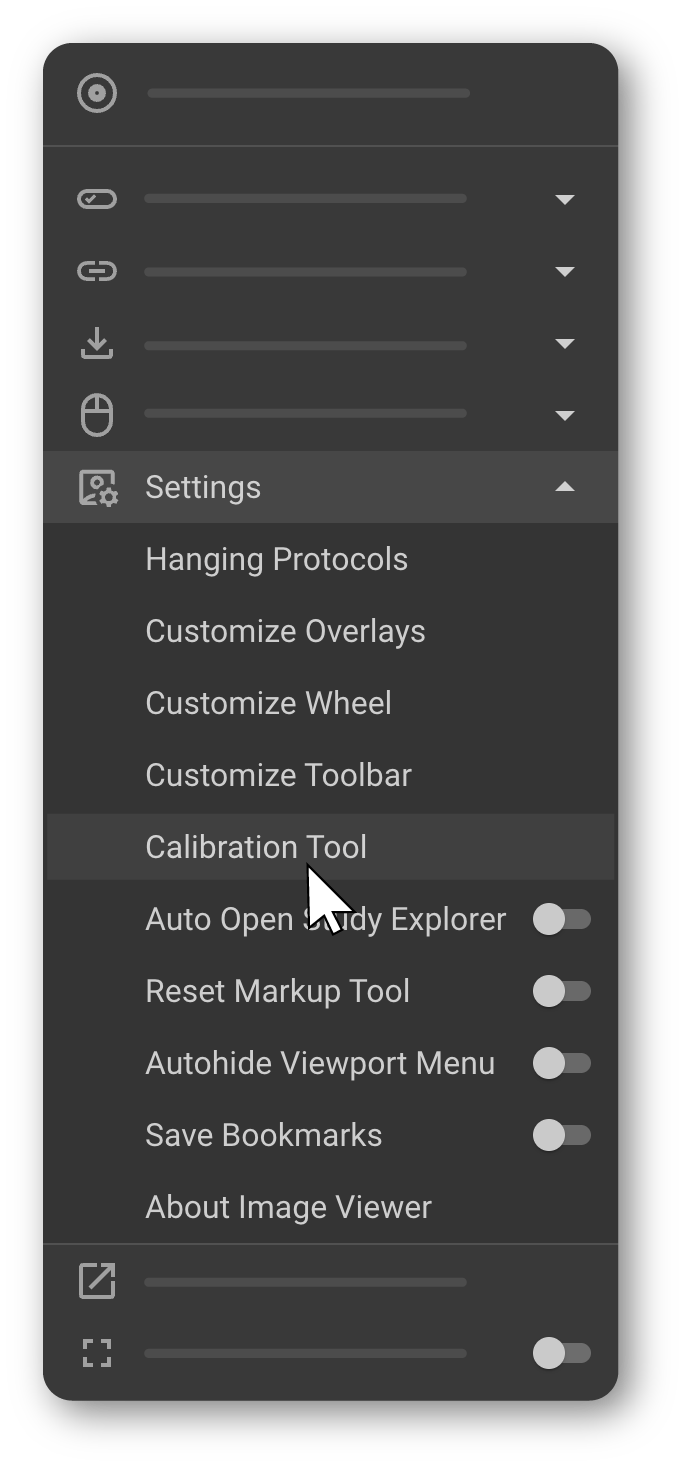
-
El cursor cambia a un icono de línea, lo que indica que el modo de calibración está activo.
-
Trace una línea recta de referencia sobre la imagen dentro de la ventana de visualización activa para definir la escala de medición.
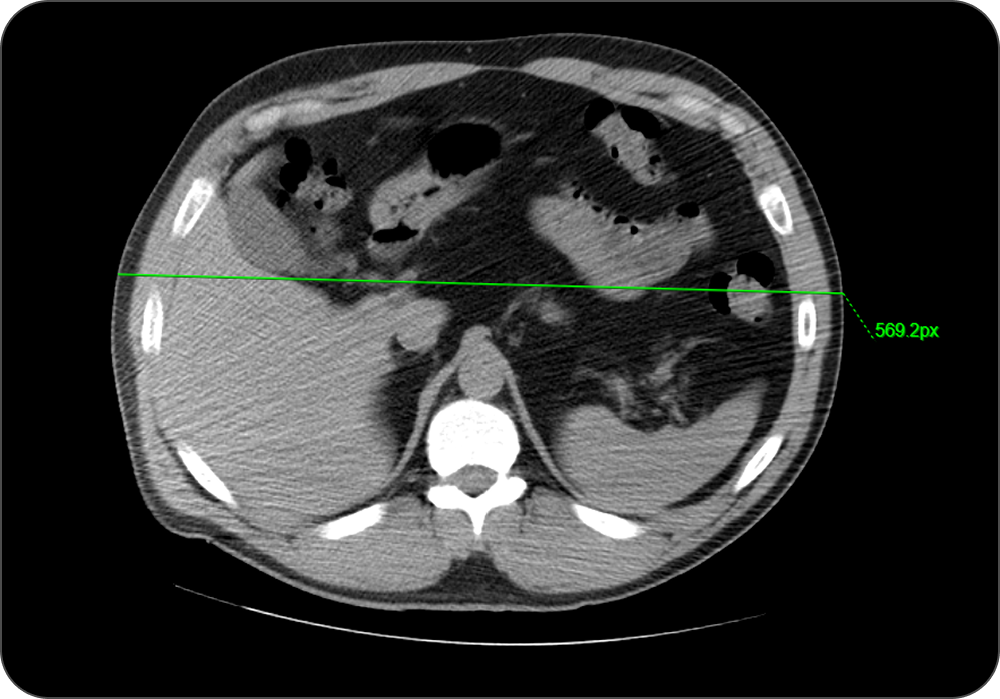
-
Aparece automáticamente el cuadro de diálogo Calibrar regla.
-
Introduzca la medida real correspondiente a la línea trazada.
-
Seleccione la unidad: mm, cm o pulgadas.
-
Haga clic en Guardar para aplicar la calibración.
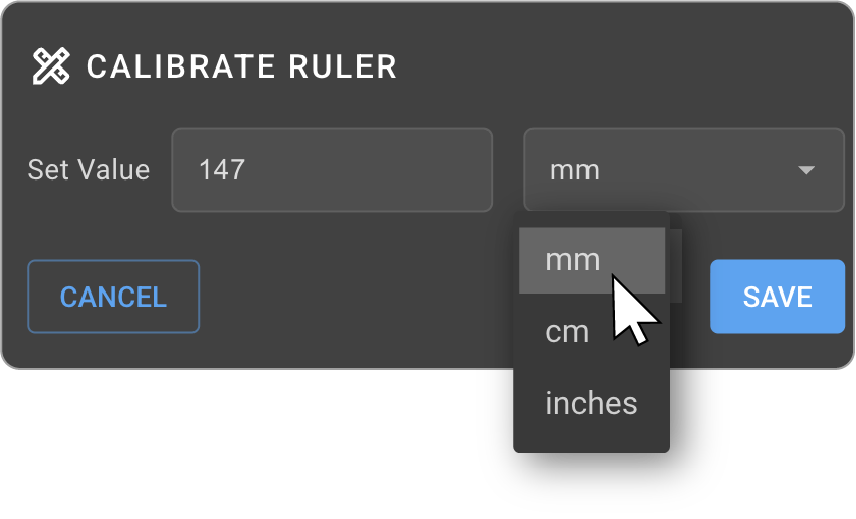
Una vez completada la calibración, todas las mediciones posteriores en la ventana de visualización utilizarán la escala calibrada.
7.7 Etiquetas de encabezado DICOM
> Cómo acceder: Más opciones (⋯) → Configuración → Etiquetas de encabezado DICOM
Muestra los metadatos del encabezado DICOM de la imagen activa, esenciales para la interpretación y validación clínicas de la imagen.
> Para obtener más información, consulte Navegador de etiquetas DICOM.
7.8 Apertura automática del Explorador de estudios
> Cómo acceder: Más opciones (⋯) → Ajustes → Apertura automática del Explorador de estudios
Controla si el Explorador de estudios se abre automáticamente al iniciar el visor de imágenes. Actívelo para que siempre se inicie con el Explorador de estudios expandido, o desactívelo para iniciar directamente en el visor principal.
> Para obtener más información, consulte Explorador de estudios y control de calidad de imágenes.
7.9 Restablecer la herramienta de anotación
> Cómo acceder: Más opciones (⋯) → Ajustes → Restablecer la herramienta de anotación
Cuando está activada, las herramientas de anotación se restablecen automáticamente a la herramienta de puntero tras cada uso, lo que le permite volver a un estado neutro sin necesidad de clics adicionales.
> Para obtener más información, consulte Herramientas de ajuste y anotación.
7.10 Ocultar automáticamente el menú de la ventana de visualización
> Cómo acceder: Más opciones (⋯) → Ajustes → Ocultar automáticamente el menú de la ventana de visualización
Cuando está activada, el menú de la ventana de visualización permanece oculto hasta que interactúe activamente con él, lo que proporciona un espacio de trabajo más ordenado.
> Para obtener más información, consulte Orientación del visor de imágenes.
7.11 Guardar marcadores
> Cómo acceder: Más opciones (⋯) → Configuración → Guardar marcadores
La función «Guardar marcadores» controla si los cambios en el diseño y las herramientas realizados durante una sesión de visualización se conservan o se descartan al finalizar la sesión. Cada usuario puede ver y gestionar únicamente su propio estado guardado del visor.
| Estado | Comportamiento |
|---|---|
| Habilitado | Todos los cambios en el diseño y las herramientas del visor se guardan automáticamente y se conservan en sesiones futuras. |
| Deshabilitado | Los cambios son temporales y se revierten al finalizar la sesión, restaurando el estado predeterminado de los marcadores. |
- Configuraciones guardadas con los marcadores:
- Diseño y ubicación de la ventana de visualización
- Protocolo de visualización
- Visualización de la línea de exploración
- Orientación y altura del Explorador de estudios
- Estado de maximización/restauración de la ventana de visualización
- Herramientas de ajuste: todos los ajustes de las herramientas de ajuste (por ejemplo, zoom, desplazamiento, rotación, nivel de ventana, volteo, inversión) se guardan y se aplican en sesiones futuras.
- Herramientas de anotación: todas las anotaciones y mediciones (por ejemplo, longitudes, ángulos, etiquetas, comentarios) se guardan en el panel de mediciones y permanecen disponibles en sesiones futuras.
Uso recomendado:
- Actívelo si personaliza con frecuencia el diseño de su visor y desea que esos ajustes se mantengan entre sesiones.
- Desactívelo si prefiere comenzar con un diseño predeterminado cada vez o si está mostrando configuraciones temporales.
7.12 Cambiar de herramienta al pasar el cursor
> Cómo acceder: Más opciones (⋯) → Ajustes → Cambiar de herramienta al pasar el cursor
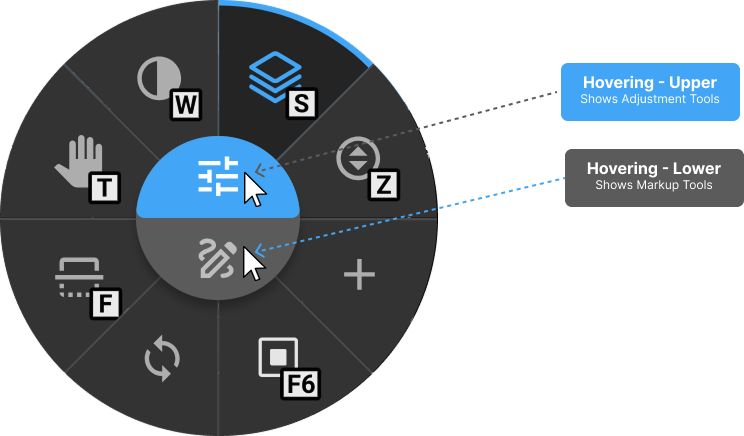
Permite cambiar rápidamente entre las herramientas de ajuste y las herramientas de anotación dentro de la rueda de control de imagen sin necesidad de clics adicionales.
La rueda de control de imagen se divide en dos secciones:
- Sección superior: herramientas de ajuste (p. ej., Ventana/Nivel, Zoom, Girar)
- Sección inferior: herramientas de anotación (p. ej., anotaciones, mediciones, herramientas de dibujo)
| Estado | Comportamiento |
|---|---|
| Habilitada | Al pasar el cursor por encima de la sección superior o inferior, se muestra al instante el conjunto de herramientas correspondiente sin necesidad de hacer clic. |
| Deshabilitada (por defecto) | El conjunto de herramientas permanece fijo a menos que se modifique manualmente haciendo clic. |
> Para obtener más información, consulte Rueda de control de imágenes.
7.13 Acerca del visor de imágenes
> Cómo acceder: Más opciones (⋯) → Configuración → Acerca del visor de imágenes
Abre la página «Acerca de nosotros», que muestra información sobre la empresa, datos de contacto e información normativa de OmegaAI, incluida la autorización CE, el registro en la ANVISA y los detalles de la autorización 510(k) de la FDA de EE. UU.
Para obtener la información más reciente, visite www.ramsoft.com.