Rueda de control de imágenes
Descripción general
La rueda de control de imágenes es un menú radial de acceso rápido que proporciona un acceso rápido y centralizado a las herramientas de ajuste y anotación más utilizadas en el visor de imágenes de OmegaAI. Permite a los usuarios trabajar de forma eficiente sin tener que navegar por múltiples menús. Haga clic con el botón derecho del ratón sobre cualquier imagen del visor de imágenes para abrir la rueda al instante.
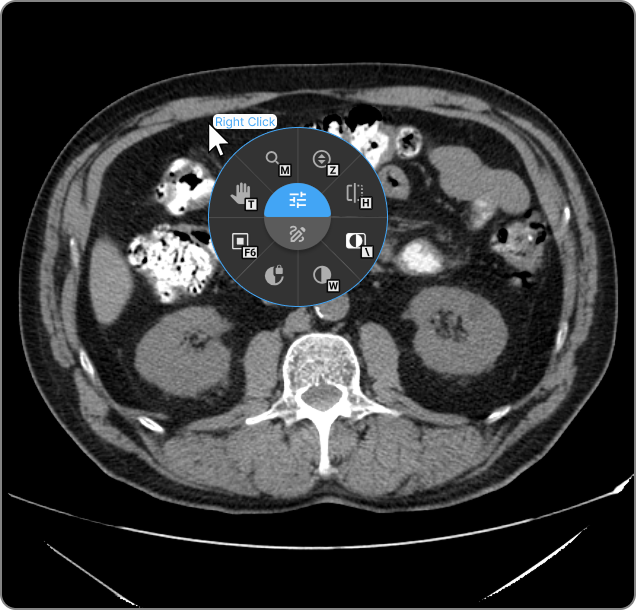
Categorías de herramientas
La rueda está organizada en dos categorías de herramientas. Haga clic en el botón central correspondiente para alternar entre ellas:
- Herramientas de ajuste: controles de visualización y presentación de imágenes, entre los que se incluyen «Ventana/Nivel», «Zoom», «Desplazamiento», «Rotación» y más.
- Herramientas de anotación: herramientas de anotación y medición, entre las que se incluyen «Longitud», «Ángulo», «Región de interés (ROI)», «Anotar» y más.
Cada ranura de herramienta de la rueda muestra la tecla de acceso rápido que tiene asignada. Pase el cursor por encima de una herramienta para ver su nombre en el centro de la rueda. Haga clic en cualquier herramienta para activarla.
> Para obtener más información, consulte Herramientas de ajuste y anotación.
Pasar el cursor para cambiar de herramienta
Cuando está activada, esta función le permite alternar entre los conjuntos de herramientas de ajuste y de anotación pasando el cursor por encima del botón central de la rueda, sin necesidad de hacer clic. De forma predeterminada, esta función está desactivada.
Cómo activarla
|
|
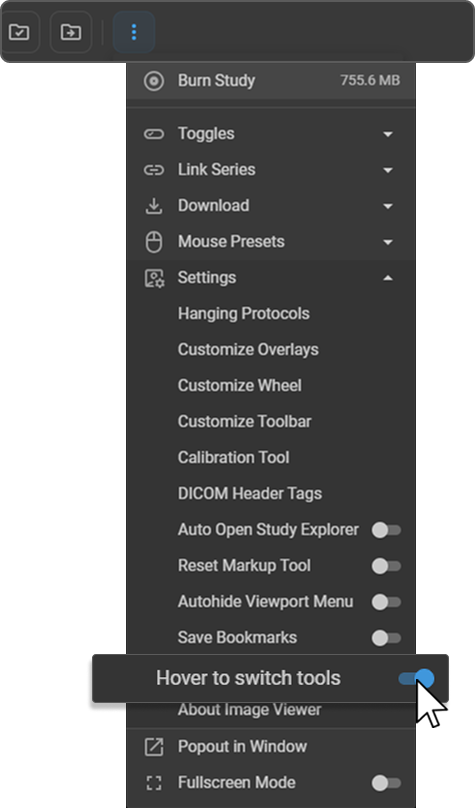
Cómo funciona
El botón central se divide en dos mitades:
|
|
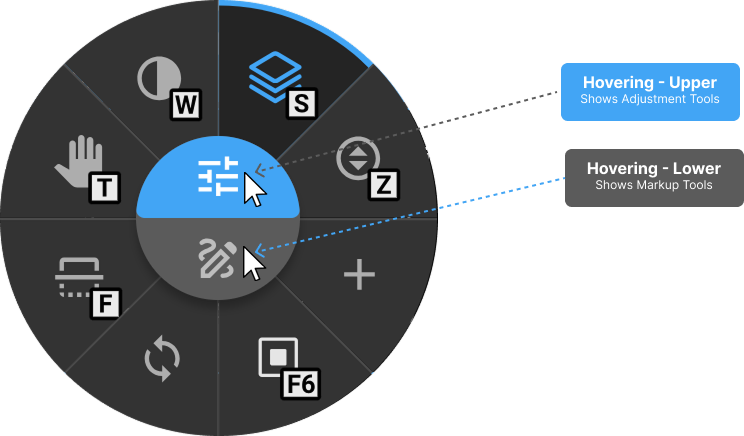
El cambio se produce al instante al mover el cursor. Cuando la función está desactivada, la rueda muestra un conjunto fijo de herramientas y deberá hacer clic manualmente en el botón central para cambiar entre las categorías de herramientas.
Personalización de la rueda de control de imágenes
Puede adaptar la rueda a su flujo de trabajo seleccionando un tamaño de diseño, eligiendo qué herramientas aparecen, asignando teclas de acceso rápido y guardando su configuración.
Acceso a «Personalizar rueda»
|
|
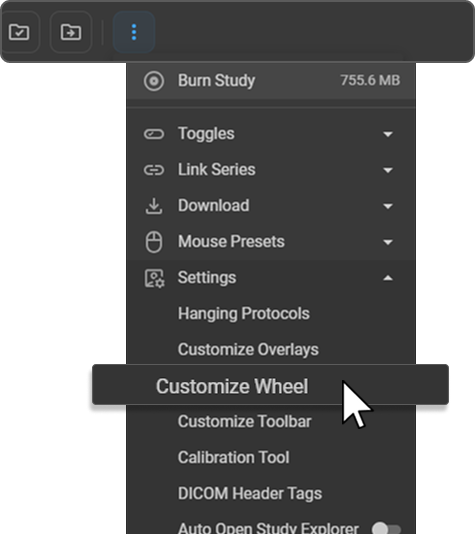
Se abre el panel de personalización de la rueda en la parte derecha de la pantalla.
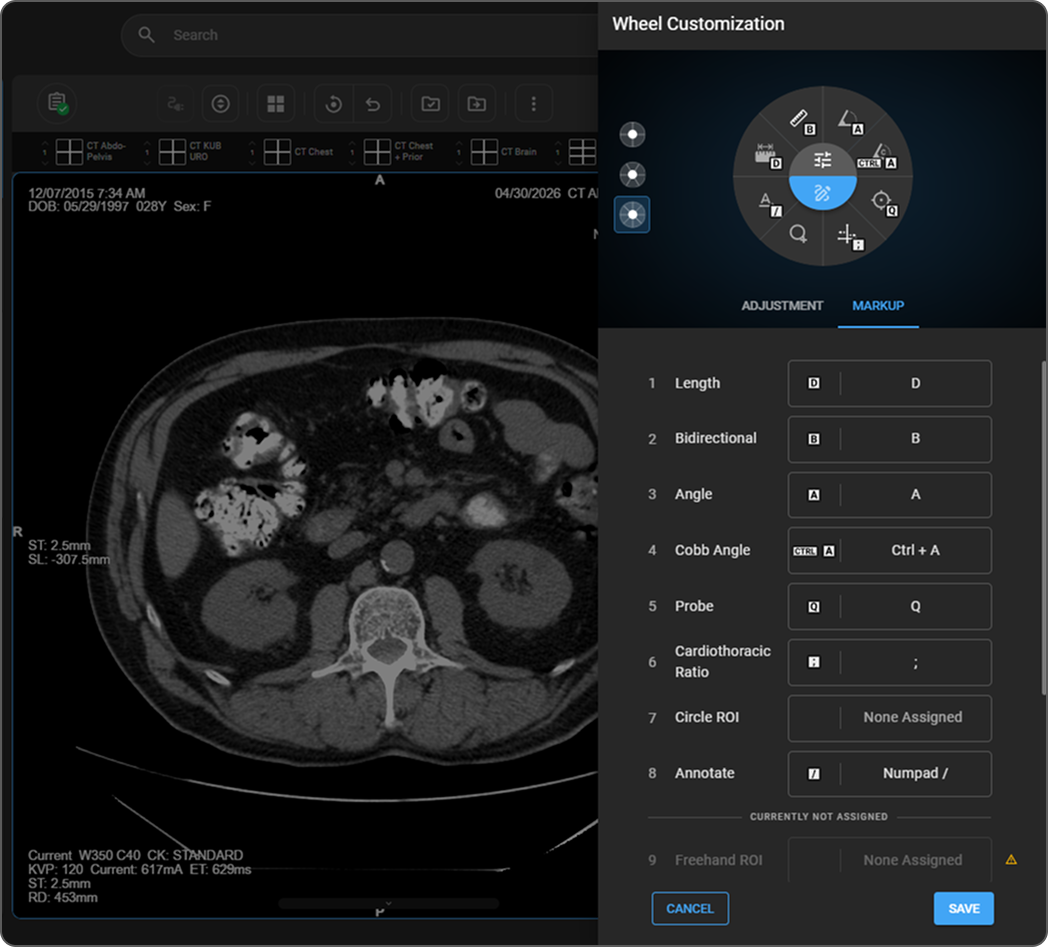
Paso 1: seleccione un tamaño de rueda
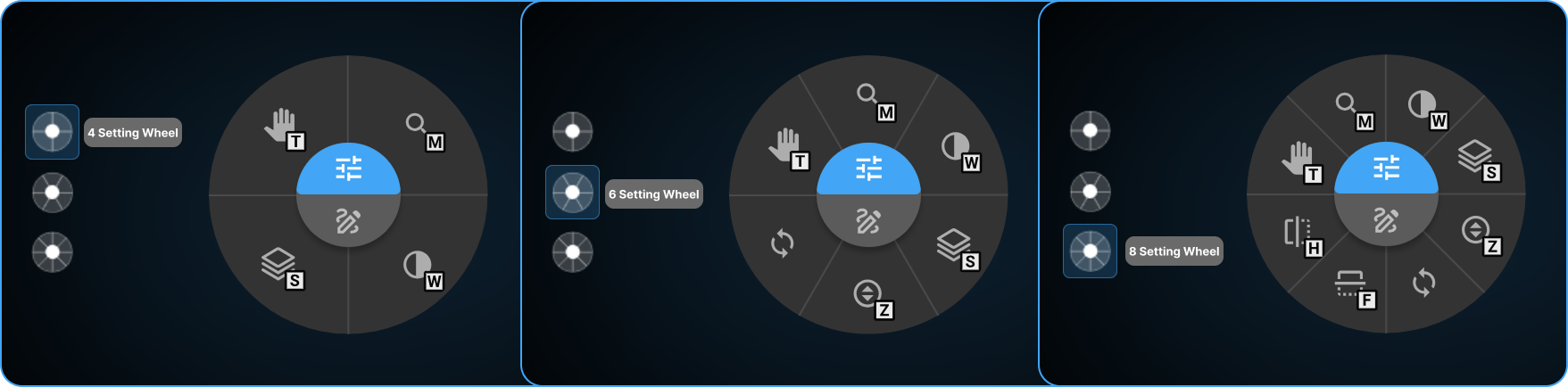
Se muestran tres opciones de tamaño de rueda en forma de selectores de puntos en el lado izquierdo del panel. Haga clic en el tamaño que prefiera:
| Tipo de rueda | Ranuras para herramientas |
|---|---|
| Rueda de 4 posiciones | 4 |
| Rueda de 6 posiciones | 6 |
| Rueda de 8 posiciones | 8 |
En la parte superior del panel se actualiza una vista previa en tiempo real de la rueda a medida que realiza la selección.
Paso 2: seleccione una categoría de herramientas
Haga clic en la pestaña Ajuste o Anotación para cambiar entre los conjuntos de herramientas:
- Ajuste: desplazamiento, ampliación, nivel de ventana, nivel de ventana fijado, herramienta cuadrada, puntero en forma de cruz, desplazamiento apilado, zoom y más.
- Anotación: herramientas de anotación y medición.
Paso 3 — Organizar las herramientas
Las herramientas aparecen en orden numérico. Las herramientas numeradas dentro del recuento de ranuras de la rueda (por ejemplo, del 1 al 8 en una rueda de 8 ranuras) aparecen en la rueda. Las herramientas que figuran debajo del separador Actualmente sin asignar están disponibles, pero no aparecen en la rueda.
|
|
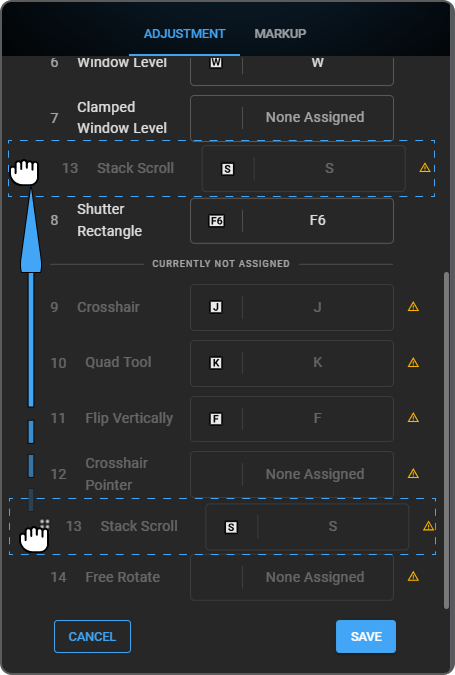
> Las herramientas que aparecen debajo del separador Actualmente sin asignar se indican con un icono de advertencia ⚠. Para volver a habilitarlas, reordene la lista de herramientas o modifique el tamaño de la rueda para que quepan dentro del número de ranuras activas.
Paso 4 — Asignar teclas de acceso rápido
|
|
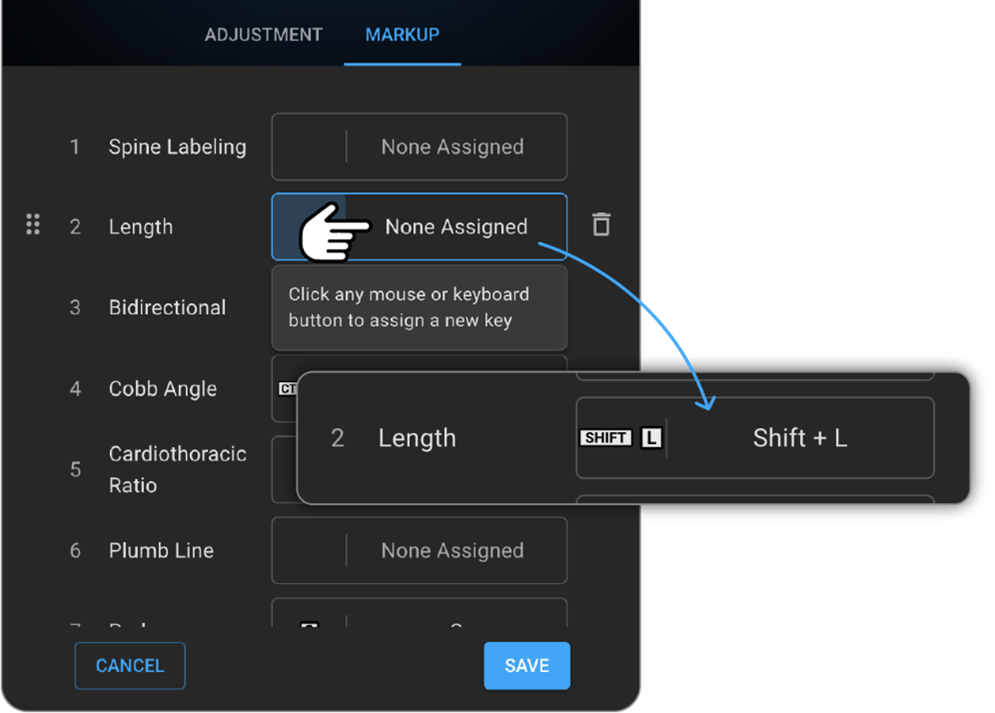
- Evite utilizar atajos ya reservados por su navegador o sistema operativo.
- Para eliminar una tecla de acceso rápido, haga clic en el icono Eliminar (papelera) situado junto al campo de teclas de acceso rápido.
> Para gestionar todas las teclas de acceso rápido del Visor de imágenes desde una única ubicación, consulte Personalización de teclas de acceso rápido.
Paso 5 — Guardar
Haga clic en Guardar para aplicar su configuración, o en Cancelar para descartar los cambios. Su configuración se almacena en su perfil de usuario personal y no afecta a otros usuarios.
Prácticas recomendadas
- Elija herramientas que se adapten a sus tipos de modalidades y a su flujo de trabajo diario.
- Asigne teclas de acceso rápido intuitivas y fáciles de recordar.
- Revise y actualice periódicamente la configuración de la rueda a medida que evolucione su flujo de trabajo.
- Utilice la función de desplazamiento del cursor sobre la rueda para identificar rápidamente las herramientas antes de seleccionarlas.