Importación de imágenes, vídeos y documentos
Descripción general
La función de importación de OmegaAI le permite añadir imágenes, vídeos y documentos directamente a un estudio seleccionado dentro del visor de imágenes mediante un sencillo método de arrastrar y soltar. Los archivos importados se procesan en función de su tipo y, una vez completado el proceso, quedan disponibles en el explorador de estudios.
> Para obtener más información sobre el explorador de estudios, consulte Explorador de estudios y control de calidad de imágenes.
Tipos de archivo compatibles
| Tipo de archivo | Descripción |
|---|---|
| JPEG | Imágenes fijas importadas a una serie existente o como una nueva serie |
| Documentos importados al visor de imágenes o al visor de documentos | |
| Texto | Archivos de texto importados como objetos DICOM de copia impresa o como documentos del estudio |
| DICOM | Archivos de imágenes estándar: fusionados en series existentes o añadidos como una nueva serie |
| MP4 | Archivos de vídeo importados como objetos de vídeo al estudio |
Proceso de importación
-
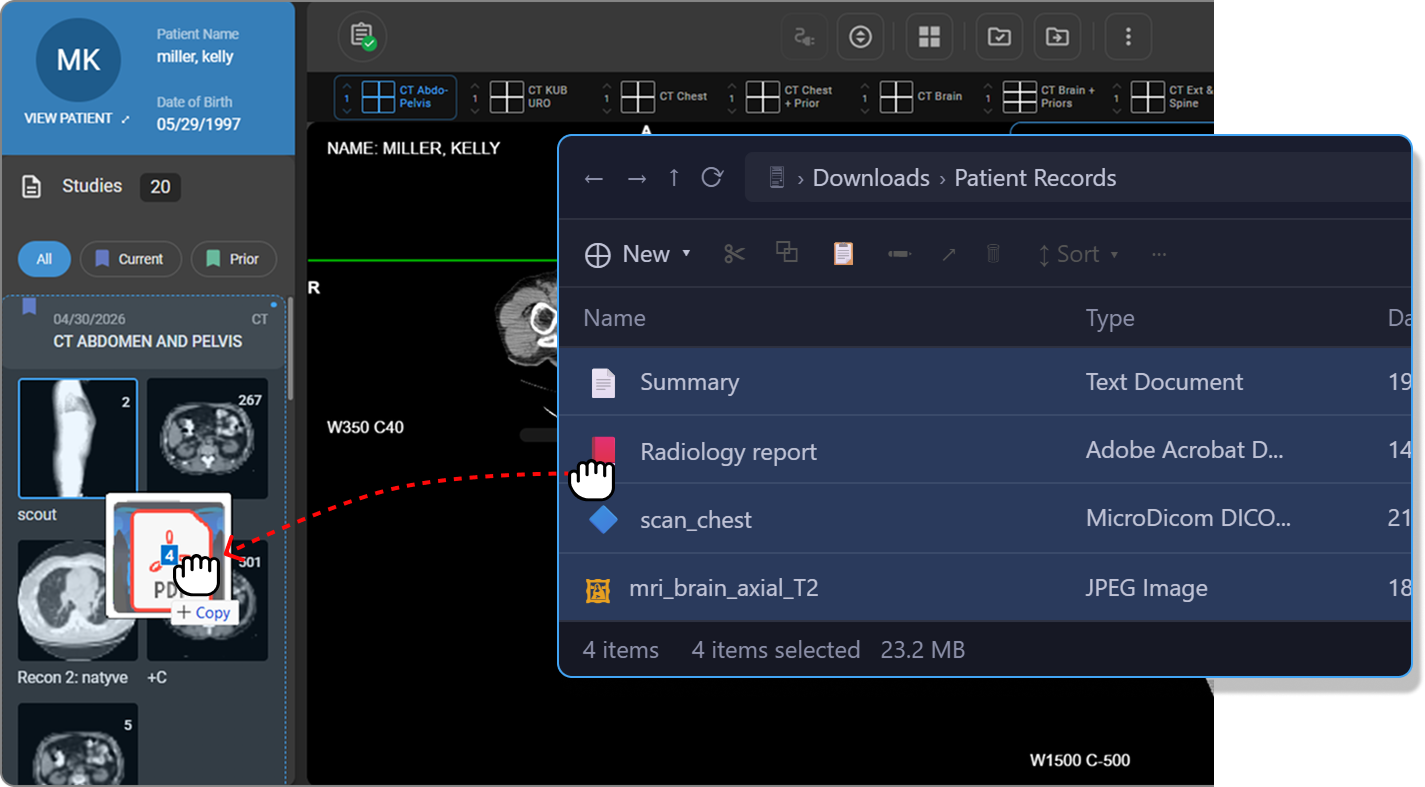
Abra el Visor de imágenes y despliegue el panel Explorador de estudios situado a la izquierda.
-
Localice la ficha de estudio en la que se deben importar los archivos y haga clic en ella para seleccionarla.
-
Abra el Explorador de archivos (Windows) o el Finder (Mac) y seleccione uno o varios archivos compatibles.
-
Arrastre y suelte los archivos seleccionados en la ficha de estudio deseada del panel Explorador de estudios.
-
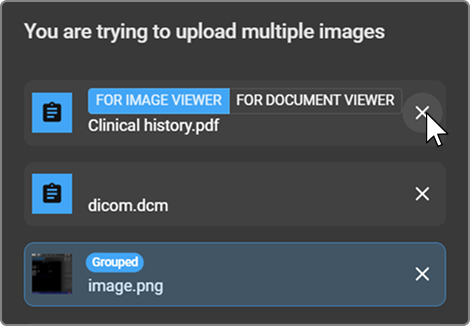
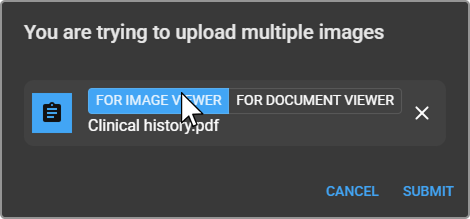
Aparecerá el cuadro de diálogo «Está intentando cargar varias imágenes», en el que se enumeran todos los archivos seleccionados. Para cada archivo, puede:
|
|
|
|
|
|
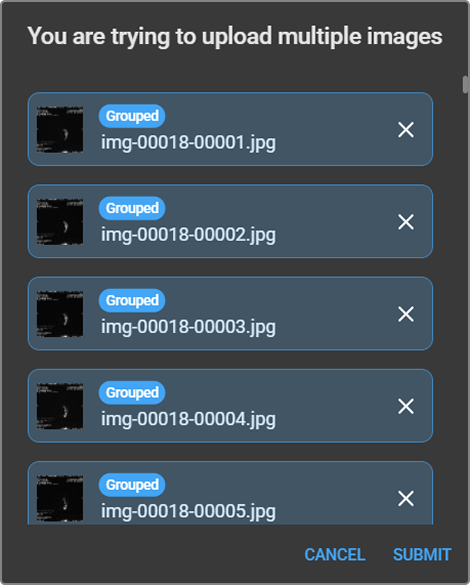
- Haga clic en Enviar para continuar, o en Cancelar para salir.
Procesamiento por tipo de archivo
JPEG
Las imágenes JPEG pueden importarse a una serie existente o como una nueva serie independiente. En el cuadro de diálogo de carga, haga clic en la fila del archivo JPEG para activar o desactivar la indicación Agrupado:
- Agrupado (seleccionado): el archivo JPEG se agrupa con otras imágenes y se importa como parte de una única serie.
- No agrupado (deseleccionado): el archivo JPEG se importa como una serie independiente.
PDF y texto
Seleccione el destino directamente en la fila del archivo en el cuadro de diálogo de carga:
- Para el visor de imágenes: importa el archivo como un objeto DICOM de copia impresa al visor de imágenes.
- Para el visor de documentos: importa el archivo como un documento de estudio al visor de documentos.
DICOM
El sistema comprueba si ya existen en el estudio la misma serie o los mismos fotogramas:
- Si se detectan fotogramas adicionales, se añaden a la serie existente.
- Si los objetos pertenecen a una serie distinta, se crea automáticamente una nueva serie.
MP4
Los archivos de vídeo MP4 se importan como objetos de vídeo y se adjuntan directamente al estudio.
Tiempo de procesamiento
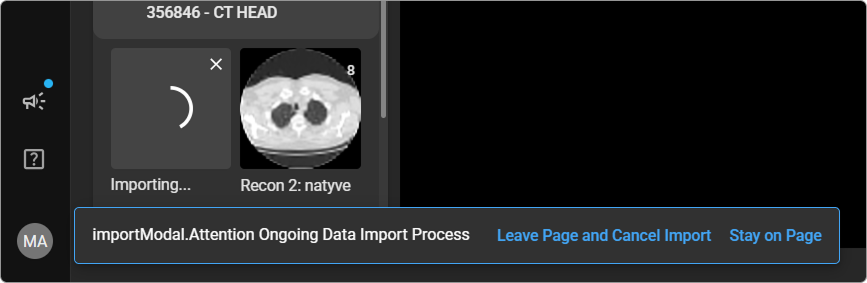
El tiempo de procesamiento depende del tamaño y la cantidad de archivos importados. Si sale del visor de imágenes durante el proceso de importación, aparecerá un mensaje de confirmación en el que se le pedirá que cancele o continúe con la importación. Una vez finalizada, todos los archivos importados serán visibles en el Explorador de estudios.