Modo de revisión de documentos
Descripción general
El modo de revisión de documentos de OmegaAI proporciona acceso al visor de documentos integrado (EDV), un entorno unificado de elaboración de informes que permite a los radiólogos y médicos visualizar imágenes DICOM, navegar por estudios anteriores y documentar los hallazgos en una única interfaz. El panel del EDV se abre junto al estudio de imágenes, sustituyendo al antiguo visor de documentos independiente por una experiencia moderna y totalmente integrada que admite flujos de trabajo de diagnóstico avanzados y necesidades complejas de elaboración de informes.
Este modo resulta especialmente adecuado para configuraciones con un solo monitor y da soporte a todo el ciclo de vida de la elaboración de informes, desde la navegación por documentos anteriores y la creación de nuevos informes hasta la carga de documentación clínica externa.
> Para obtener más información sobre el conjunto completo de funciones del EDV, consulte Visor de documentos integrado (EDV).
Acceso al modo de revisión de documentos
-
Abra un estudio en el Visor de imágenes.
-
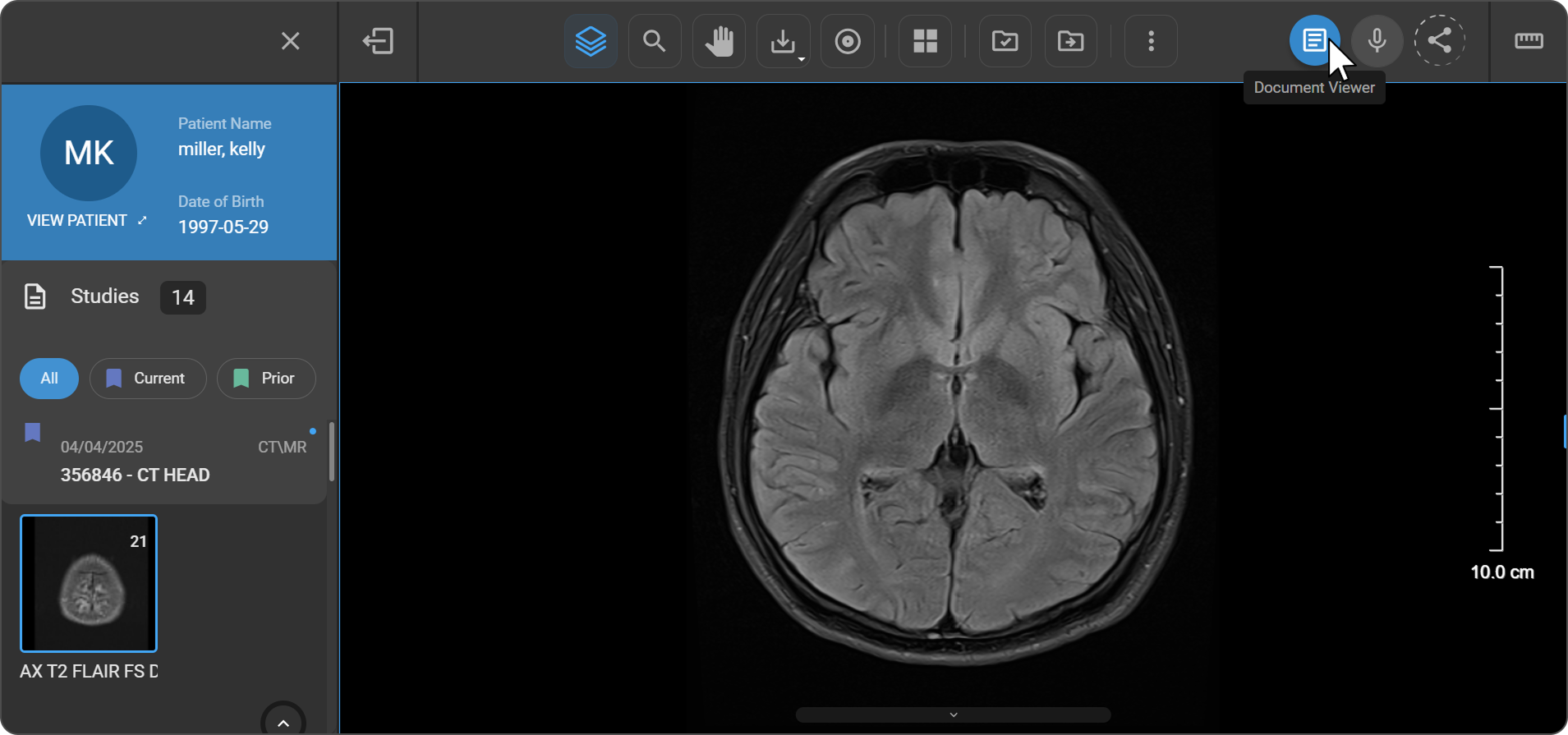
Haga clic en el icono del Visor de documentos (símbolo de documento) en la barra de herramientas superior.
-
El panel del Visor de documentos se abre en el lado derecho del espacio de trabajo. El estudio de imágenes permanece visible para su consulta simultánea.
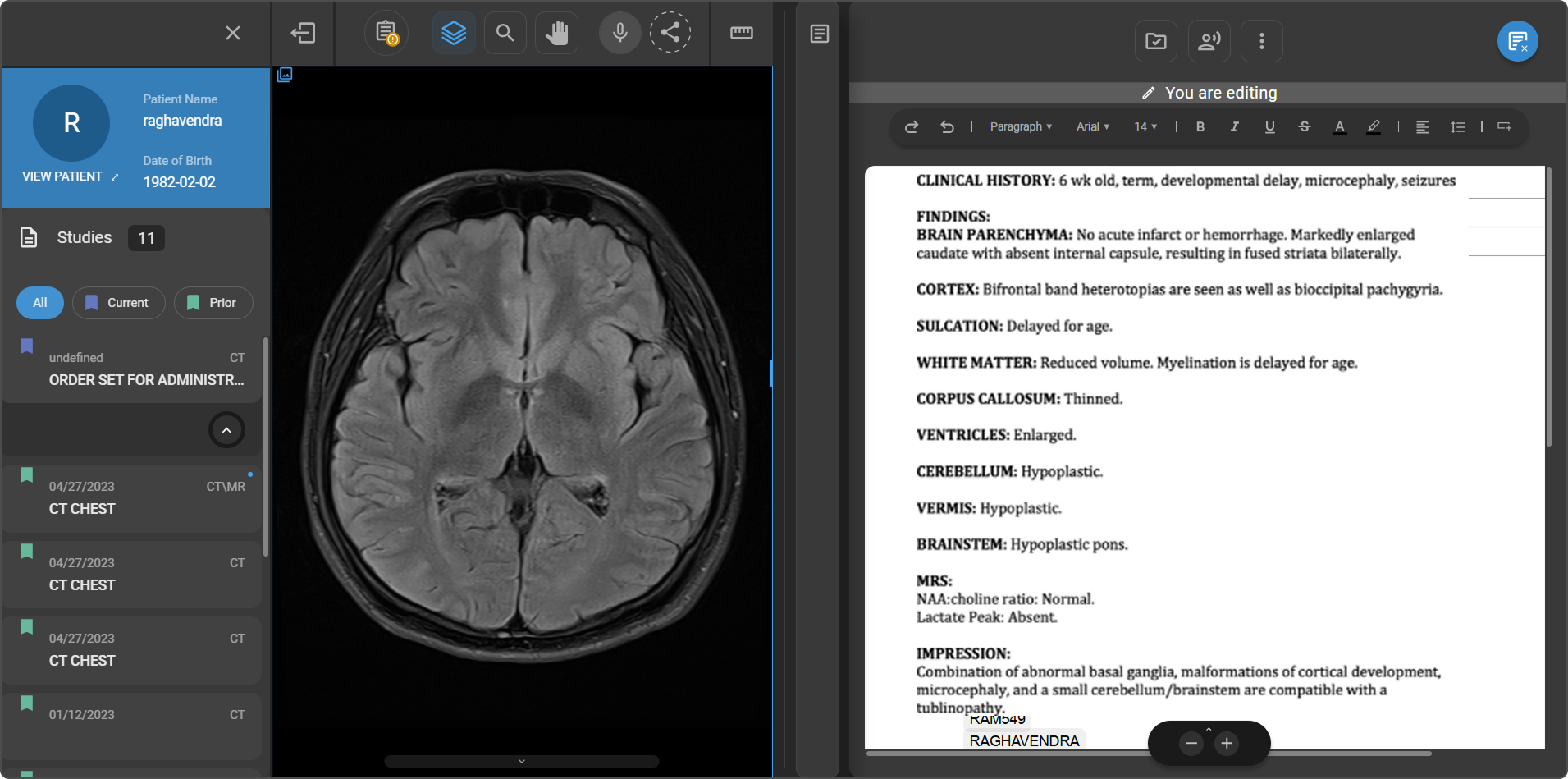
> Si ya existe un informe final para el estudio, se abrirá automáticamente. Si no hay ningún informe final disponible, el sistema seleccionará la plantilla más adecuada para que pueda comenzar de inmediato.
Herramientas del Visor de documentos
Resumen de IA
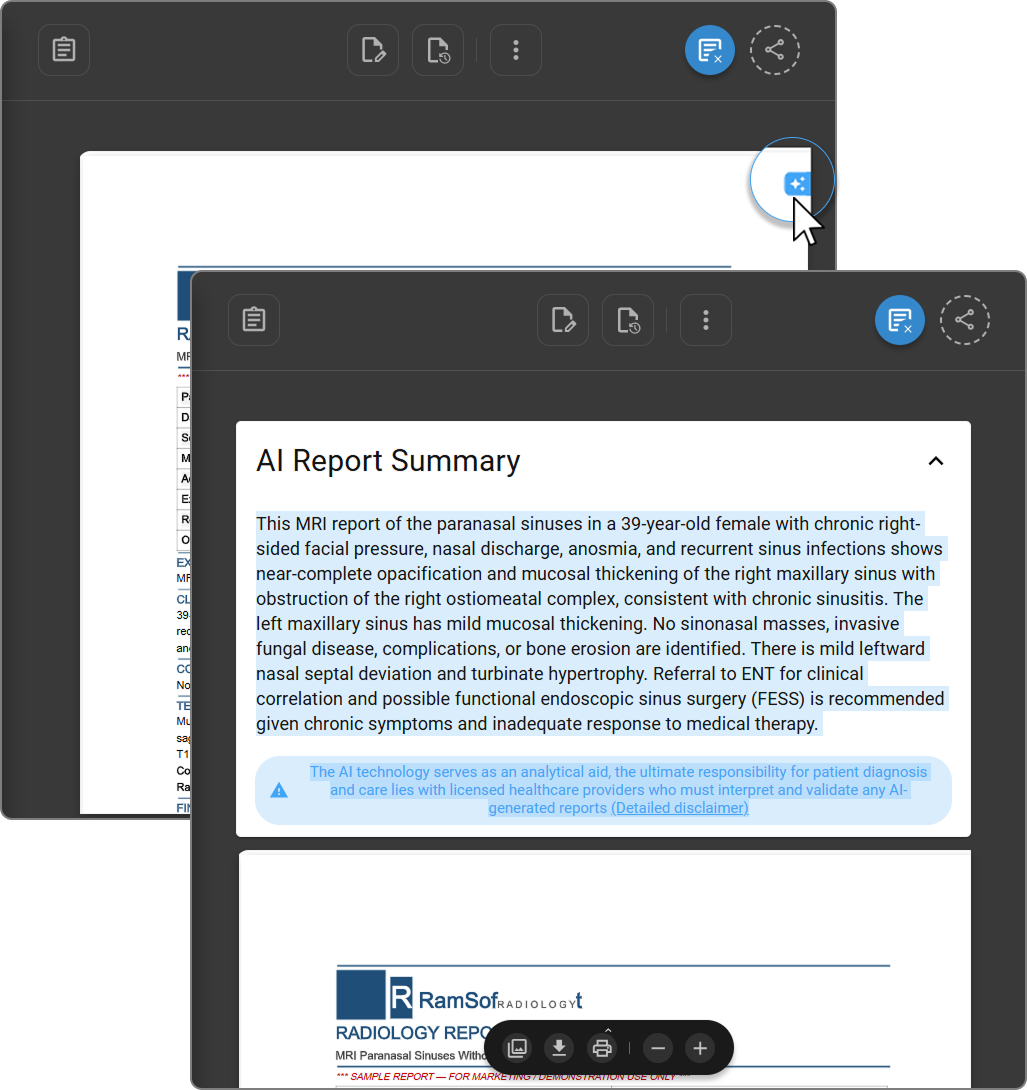
Haga clic en el icono de resumen de IA (✦) situado en la esquina superior derecha de la página del documento para generar un resumen del informe basado en IA. El resumen se abre como un panel situado encima del documento, en el que se condensan los hallazgos clave en un párrafo conciso.
> El resumen del informe generado por IA incluye un aviso legal: «La tecnología de IA sirve como ayuda analítica; la responsabilidad última del diagnóstico y la atención del paciente recae en los profesionales sanitarios colegiados, quienes deben interpretar y validar cualquier informe generado por IA». Haga clic en Aviso legal detallado para ver la declaración completa.
Resaltado de texto
Seleccione cualquier fragmento de texto del documento para ver una descripción basada en IA de esa sección.
Barra de herramientas de navegación
La barra de herramientas de navegación se encuentra en la parte inferior del panel del visor de documentos.
| Opción | Descripción |
|---|---|
| Mostrar páginas | Abre un panel lateral que muestra vistas previas en miniatura a página completa; haga clic en cualquier miniatura para navegar directamente a esa página |
| Descargar | Descarga el documento directamente desde el visor |
| Imprimir | Imprime el documento directamente desde el visor (sujeto a los permisos del usuario) |
| Acercar / Alejar | Ajusta el nivel de ampliación del documento para facilitar la lectura y la revisión detallada |

Explorador de estudios
El Explorador de estudios está disponible directamente en el modo de revisión de documentos, lo que le permite acceder a todos los estudios y documentos del paciente activo sin salir del visor.
Cómo abrirlo:
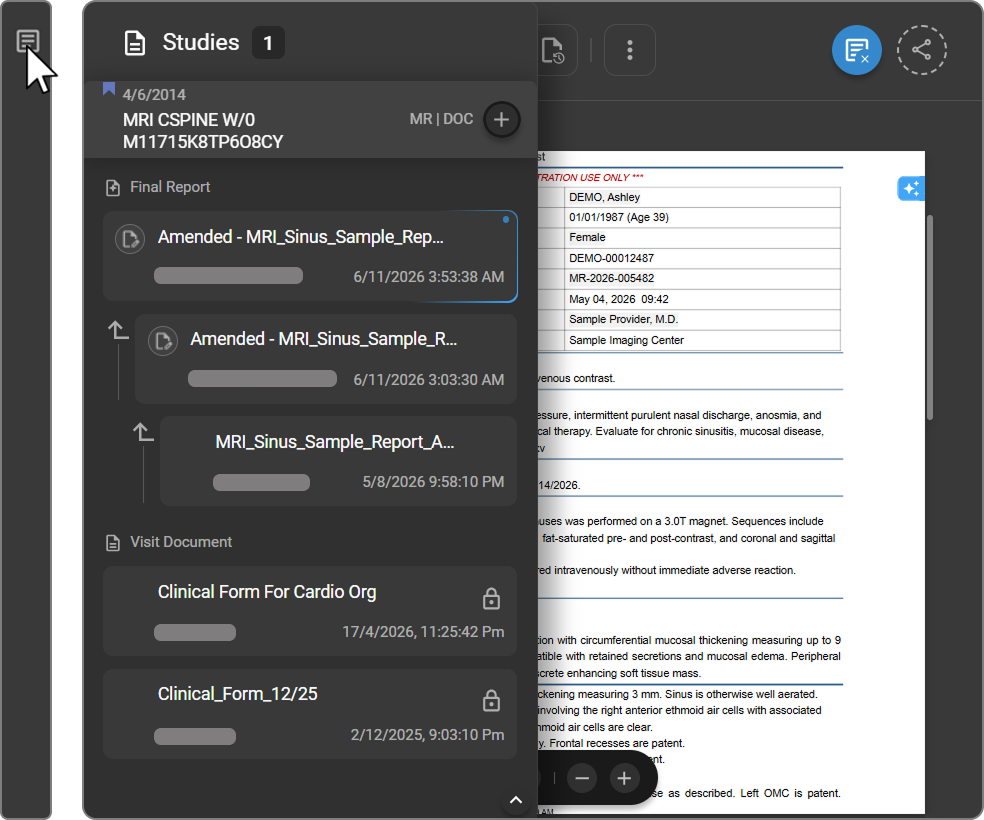
Haga clic en el icono del Explorador de estudios (primer icono a la izquierda de la barra de herramientas del visor de documentos). El panel se abre en la parte izquierda del visor de documentos.
Diseño del panel
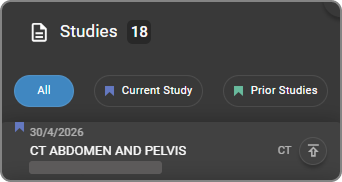
El encabezado del panel muestra «Estudios» con un recuento que indica el número de estudios disponibles. Cada ficha de estudio muestra la fecha del estudio, el nombre del estudio, las etiquetas de modalidad y el número de acceso. Junto al encabezado del estudio aparece un icono + (Añadir informe).
Categorías de documentos
Los documentos asociados a un estudio se enumeran debajo de la ficha del estudio, agrupados por tipo: Informe preliminar, Informe final y Documento de visita.
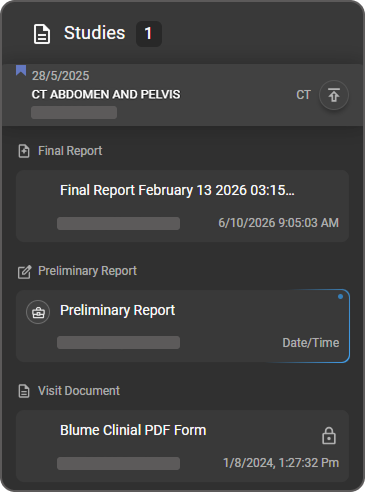
> Para obtener información detallada sobre las categorías de documentos, los estados de los informes y las acciones disponibles por categoría, consulte el Explorador de documentos.
Gestión de documentos
Los documentos se pueden crear, cargar, renombrar, firmar y finalizar directamente desde el panel «Explorador de estudios» en el modo de revisión de documentos.
Abrir y editar un informe
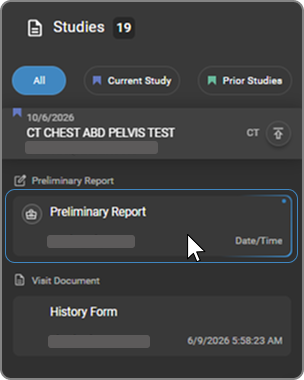
- En el Explorador de estudios, haga clic en la ficha Informe preliminar situada debajo del estudio para abrirla y editarla.
- Pase el cursor por encima de la ficha para mostrar el botón Plantillas. Haga clic en él para aplicar una plantilla si es necesario.
Añadir un informe adicional
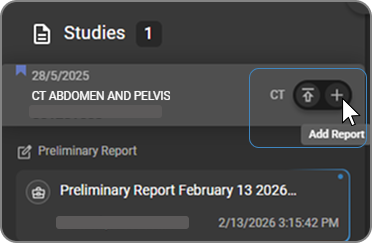
- En el Explorador de estudios, pase el cursor sobre la ficha del estudio.
- Haga clic en el icono Añadir informe (+) situado junto al encabezado del estudio.
- Aparecerá un cuadro de diálogo de confirmación; haga clic en Continuar para crear el informe adicional.
> Para obtener instrucciones completas sobre cómo firmar y finalizar informes, cambiar el nombre de los informes y crear varios informes, consulte Trabajar con informes.
Carga de un documento
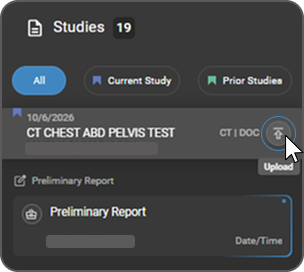
- En el Explorador de estudios, sitúe el cursor sobre la ficha del estudio.
- Haga clic en el botón Cargar.
- Seleccione un archivo de su sistema.
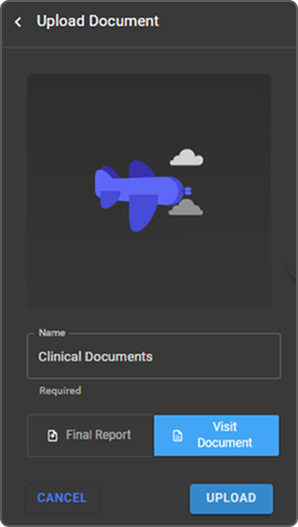
- Introduzca un nombre para el documento y seleccione el tipo de documento: Informe final o Documento de visita.
- Haga clic en Cargar para finalizar.
> Para conocer los tipos de archivo compatibles, el comportamiento de la conversión de imágenes y las opciones de ventana emergente, consulte Carga de un informe o documento.
Cierre del modo de revisión de documentos
Haga clic en el icono Visor de documentos situado en la esquina superior derecha de la barra de herramientas —el mismo icono que se utiliza para abrir el modo— para salir y volver al diseño estándar del visor de imágenes.
Artículos relacionados
| Artículo | Descripción |
|---|---|
| Visor de documentos integrado (EDV) | Conjunto completo de funciones del EDV: historial de versiones, revisión por pares, transcripción mediante IA, barras de herramientas específicas y trabajo con informes finales y preliminares |
| Explorador de documentos | Gestión de estudios, informes y documentos desde el panel del Explorador de documentos |
| Barra de herramientas de documentos | Referencia completa de las acciones de la barra de herramientas del visor de documentos |
| Editor de documentos | Edición, formato, firma y modificación de informes |
| Reconocimiento de voz y comandos de voz | Funciones de dictado manos libres y comandos de voz |
| Transcripción mediante IA | Transcripción asistida por IA para la generación de informes estructurados |