Customizing the Image Control Wheel in OmegaAI

Overview of the Image Control Wheel

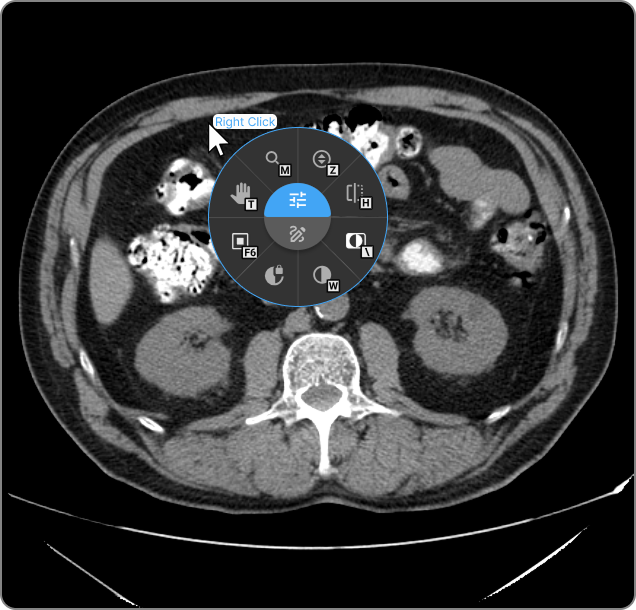
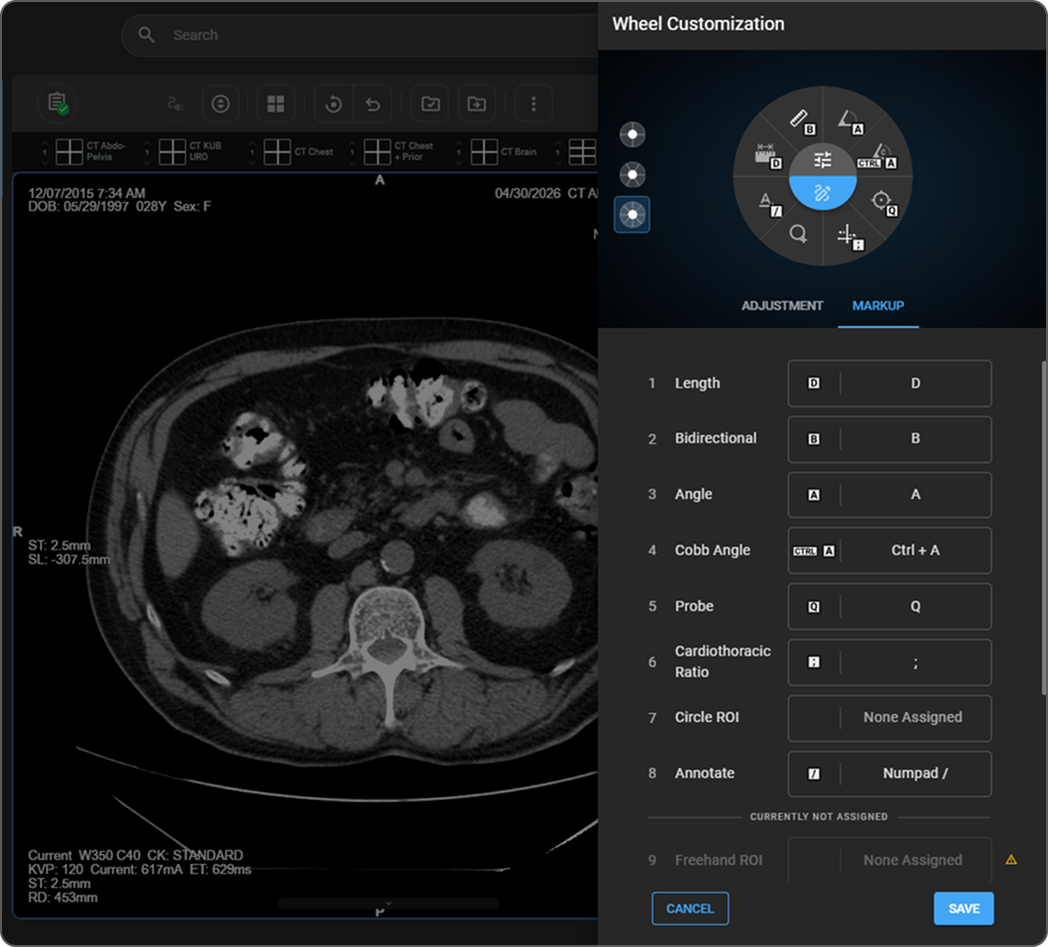
The Image Control Wheel in OmegaAI allows users to quickly access specific tools by right-clicking in a viewport. Customizing this wheel can enhance workflow efficiency by tailoring the toolset to your specific needs. This guide explains how to customize the layout and options of the Image Control Wheel.

Accessing Customization Options

  1. Open Customization Settings:

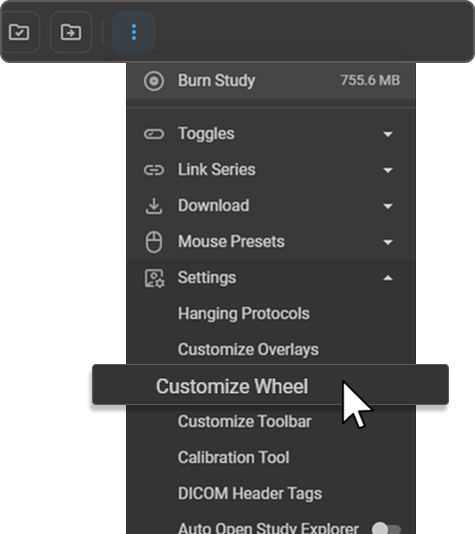
    • Navigate to the main toolbar of OmegaAI.

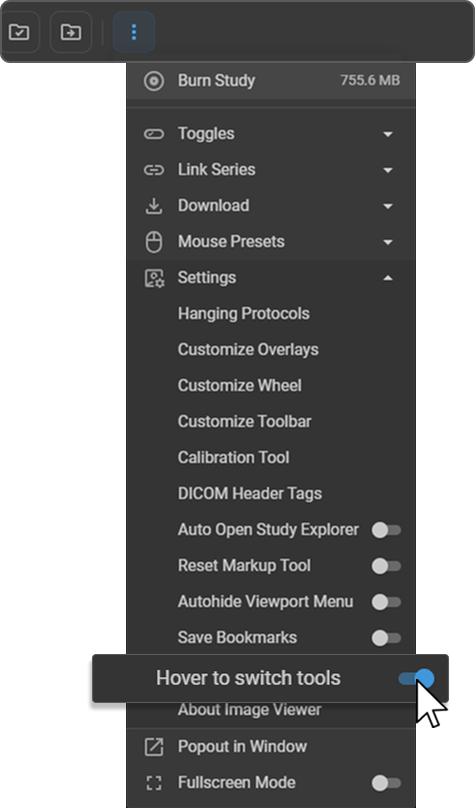
    • Click on the More Options three dot menu.

    • Select Customize Wheel from the dropdown menu.

      8

Customization Interface

  • Tabs for Customization:

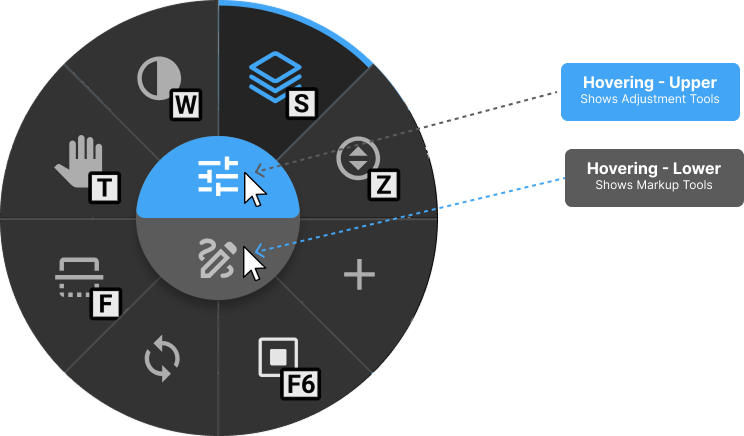
    • Adjustment Tab: Focuses on image adjustment tools.

    • Markup Tab: Contains tools for annotating and marking up images.

  • Tool Availability:

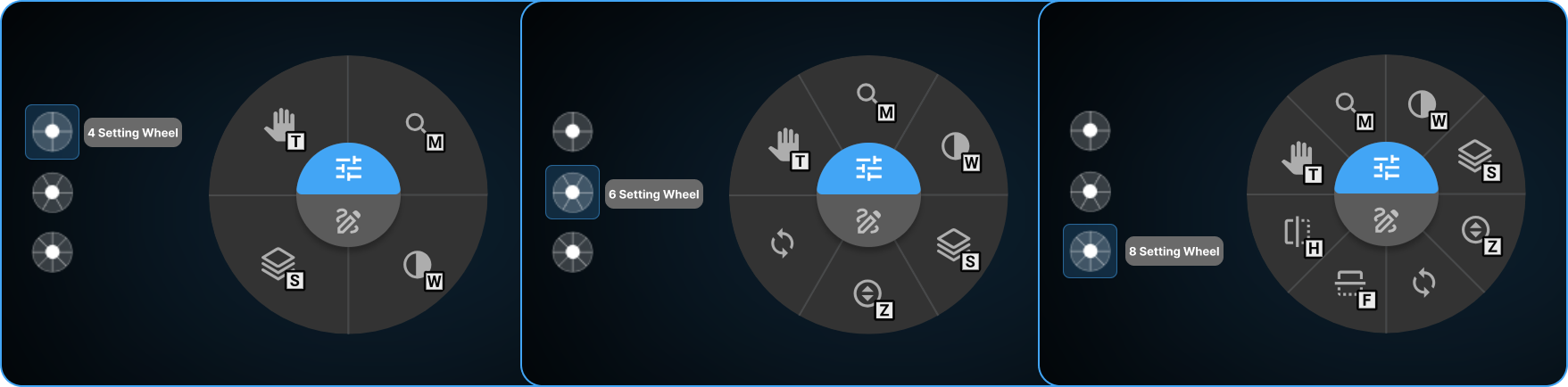
    • At the top of the customization drawer, select the number of tools you want visible on the wheel (options include 4, 6, or 8 tools).

      9

Configuring Tools

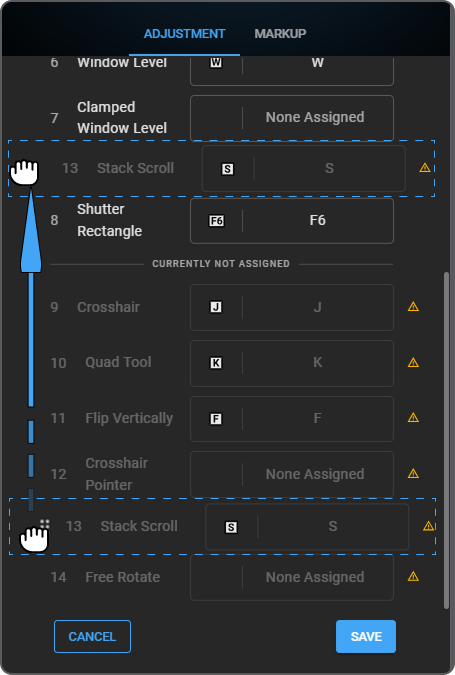
  1. Customize Tool Order and Visibility:

    • Tools are listed and can be rearranged by dragging them up or down the list.

    • Hover the mouse over the left side of the tool's listing to reveal a number, click and hold to drag the tool.

    • Tools above the "Currently Not Assigned" line will appear on the Image Control Wheel.

    • If a tool above this line is not relevant to the current image, the next two available tools below the line will become accessible.

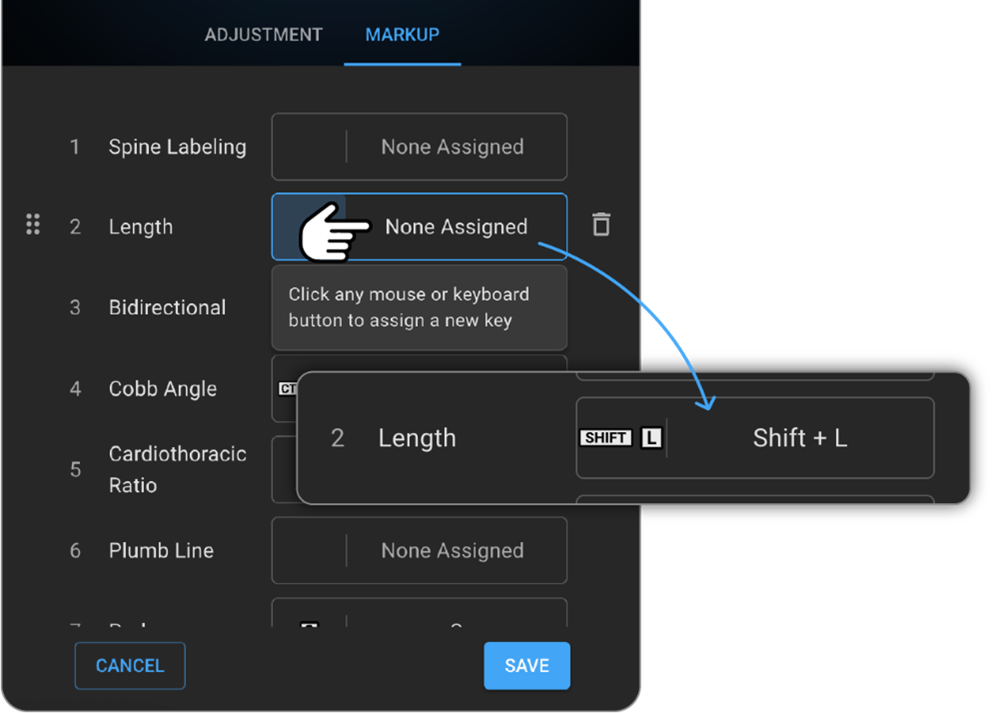
  2. Assigning Hotkeys:

    • Assign custom hotkeys to each tool by clicking on the tool and setting a key combination.

    • Acceptable formats include a single character, or combinations using Ctrl+Character or Shift+Character.

    • Avoid using hotkeys that conflict with common browser or operating system shortcuts.

Adjustment Tools

Pan Tool

  • Usage: Moves the image within the viewport.

  • Operation: Hold the left mouse button and drag.

  • Hotkeys: 'T' (Windows/Mac)

  • Clinical Utility: Enables detailed examination by navigating across large or detailed images.

Stack Scroll Tool

  • Usage: For browsing through multi-frame image series.

  • Operation: Vertical mouse movement.

  • Hotkeys: 'S' (Windows/Mac)

  • Clinical Utility: Crucial for viewing sequential images in modalities like MRI or CT.

Window Level Tool

  • Usage: Adjusts brightness and contrast.

  • Operation: Horizontal and vertical mouse movements adjust brightness and contrast, respectively.

  • Hotkeys: 'W' (Windows/Mac)

  • Clinical Utility: Optimizes image visualization to highlight different tissues or abnormalities.

Crosshair Tool

  • Usage: Aligns identical anatomical points across different planes.

  • Hotkeys: 'J' (Windows/Mac)

  • Clinical Utility: Facilitates accurate cross-sectional studies in multi-planar imaging scenarios.

Free Rotate

  • Usage: Rotates the image freely within the viewport.

  • Operation: Click and drag to rotate; single click for preset angles.

  • Clinical Utility: Useful for adjusting image orientation to standard anatomical positions.

Zoom

  • Usage: Alters the scale of the image within the viewport.

  • Operation: Right-click and drag to zoom.

  • Hotkeys: 'Z' (Windows/Mac).

  • Clinical Utility: Essential for examining details such as microcalcifications or fine tissue structures.

Magnifier

  • Usage: Enlarges a specific area of the image.

  • Hotkeys: 'M' (Windows/Mac).

  • Clinical Utility: Enhances the visibility of small or subtle features within an image.

Invert

  • Usage: Inverts the colours of the image.

  • Hotkeys: ''\” (Windows/Mac)

  • Clinical Utility: Can enhance the readability of certain image types by altering the contrast background.

Shutter

  • Usage: Masks unwanted portions of the image.

  • Hotkeys: '' (Windows/Mac)

  • Clinical Utility: Focuses the viewers attention on a specific part of the image by obscuring distractions.

Quad Tool

  • Usage: Specifically for mammography, zooms into each quadrant of the image sequentially.

  • Hotkeys: 'K' (Windows/Mac)

  • Clinical Utility: Facilitates detailed examination of each quadrant in breast imaging.

Flip Vertical/Horizontal

  • Usage: The ability to flip the image vertically or horizontally.

  • Hotkeys: 'F' for vertical, 'H' for horizontal

  • Clinical Utility: Useful for correcting orientation for better anatomical correlation and interpretation.

Markup Tools

Length Measurement

  • Usage: Measures the distance between two points on the image.

  • Hotkeys: 'D' (Windows/Mac).

  • Clinical Utility: Utilized to measure anatomical structures or lesion sizes, aiding in diagnosis and treatment planning.

Angle Measurement

  • Usage: Calculates the angle between two intersecting lines.

  • Hotkeys: 'A' (Windows/Mac).

  • Clinical Utility: Important for orthopedic assessments, such as measuring angular deformities.

Plumb Line

  • Usage: Draws a vertical reference line.

  • Hotkeys: '|' (pipe symbol, Windows/Mac).

  • Clinical Utility: Assists in evaluating structural alignments, particularly in spinal imaging.

ROI (Rectangular, Elliptical, Freehand)

  • Usage: Draws regions of interest for quantitative analysis.

  • Hotkeys: 'G' for rectangular, 'E' for elliptical, ';' for freehand (Windows/Mac).

  • Clinical Utility: Enables quantitative assessment of image areas, such as calculating tumour volume or tissue density.

Probe

  • Usage: Places a marker that displays quantitative data about the image at that point.

  • Hotkeys: 'Q' (Windows/Mac).

  • Clinical Utility: Used in CT to show Hounsfield units, crucial for assessing tissue densities.

Drag Probe

  • Usage: Similar to the Probe tool but without leaving a persistent mark.

  • Hotkeys: 'X' (Windows/Mac).

  • Clinical Utility: Allows temporary spot checks of different areas without altering the image.

Cardiothoracic Ratio

  • Usage: Measures the ratio of the cardiac silhouette width to the chest width.

  • Hotkeys: ';' (Windows/Mac).

  • Clinical Utility: Important in assessing heart enlargement in chest X-rays.

Bidirectional Tool

  • Usage: Places two perpendicular lines and measures their length.

  • Hotkeys: 'B' (Windows/Mac).

  • Clinical Utility: Useful in measuring dimensions of lesions or other structures in radiographic studies.

Cobb's Angle

  • Usage: Measures the angle between two non-parallel lines, places separately (no intersection on the viewport) typically used for scoliosis assessments.

  • Hotkeys: 'Ctrl+A' (Windows/Mac).

  • Clinical Utility: Critical for evaluating spinal alignment and curvature.

Spine Labelling

  • Usage: Labels vertebrae in spinal images to facilitate identification and reporting.

  • Clinical Utility: Enhances accuracy and clarity in documenting spinal studies.

Annotate

  • Usage: Allows the addition of text annotations and arrows on images. Arrow could be used without adding any text.

Saving Customizations

  • Apply and Save Changes:

    • After configuring the tools and hotkeys as desired, click the "Save" button to apply the changes.

    • Customizations are saved to your user profile and do not affect other users in the system.

Best Practices

  • Regularly update your tool configurations to match your current workflow needs.

  • Choose hotkeys that are intuitive and easy to remember, but that do not interfere with other commonly used shortcuts.