Image Viewer Toolbar

Using the Layout Selector in OmegaAI

The Layout Selector is a powerful feature within the OmegaAI Image Viewer that allows users to customize the arrangement of viewports according to their specific needs. This tool is accessible via the toolbar and provides options to manage both standard and mammography-specific viewing protocols.

Accessing the Layout Selector

  1. Opening the Layout Selector:

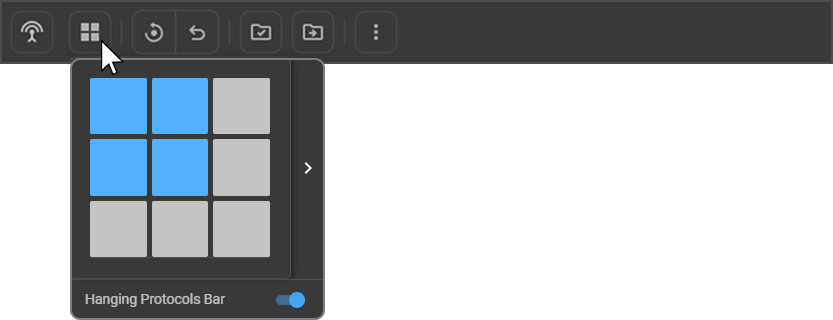
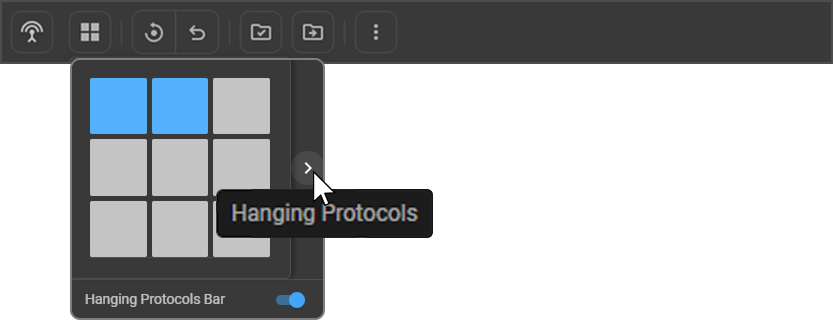
    • Click on the "Layout Selector" option on the toolbar.

    • This will display a three-by-three grid layout with the current viewport layout highlighted in blue.

Customizing Viewport Layouts

  1. Adjusting Viewport Numbers:

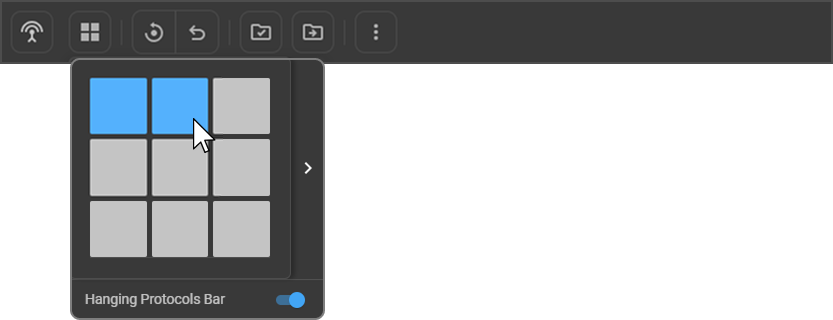
    • Increase or decrease the number of viewports displayed on the monitor by dragging the visible viewports on the layout selector to the left, right, down, or up.

    • You can configure up to an 8x8 grid on each of your monitors.

      2

  2. Applying Hanging Protocols:

    • To the right of the layout selector, there is a drawer that displays available hanging protocols for the selected study.

    • Select a desired hanging protocol by left-clicking on it.

    • In a single monitor setup, selecting a hanging protocol will affect only the current monitor. In a multi-monitor setup, it will apply to all connected monitors.

      2

Window Level Feature

The Window Level feature in OmegaAI allows users to adjust the brightness and contrast of medical images, enhancing the visibility of anatomical structures and lesions. This feature is crucial for radiologists as it helps to bring out details within specific tissues or regions of interest. Window Level settings include custom adjustments, Auto Window Level, Sigmoid adjustments, and window level presets, all designed to provide flexibility and optimize visualization based on study requirements.

Activation of Window Level Mode

  1. Starting Condition: Navigate to a loaded image within the Image Viewer.
  2. Activating Window Level Adjustments:
    • Access the Window Level tool from the top toolbar or wheel under the section Adjustments panel.
    • Upon selection, users can manually adjust window and level parameters by dragging across the image with the mouse, adjusting contrast and brightness as needed.

Auto Window Level

The Auto Window Level option is designed for efficiency, providing a quick enhancement without manual adjustments. This feature calculates and applies the optimal brightness and contrast based on the image’s histogram.

Steps to Apply Auto Window Level: On Opening the Study "Auto Window level" is applied automatically To Access it manually User can follow the following steps.

  1. Open the Window Level tool from adjustments Section on Toolbar or Wheel.
  2. Left Click on viewport and select Auto Window Level from the List of Presets.
  3. The system will automatically adjust the image settings to balance brightness and contrast for the selected region of interest, enabling enhanced visibility.

Note: Auto Window Level can be disabled at any time, reverting the image to the previous manual settings to "Reset to Default".

Sigmoid Adjustment for Window Level

The Sigmoid Adjustment feature offers a nonlinear scaling option to control brightness and contrast more precisely, especially for areas with high-density variation.

Using Sigmoid Adjustment:

  1. Open the Window Level tool from adjustments Section on Toolbar or Wheel.
  2. Access the Sigmoid option within the Window Level settings through Left clicking on viewport.
  3. Sigmoid adjustments are especially beneficial for complex tissue differentiation, providing an alternative to linear window leveling by emphasizing specific intensity ranges.

Clinical Use Case : Sigmoid adjustments can be used in soft tissue imaging, where fine contrast control helps highlight subtle density differences.

Note : Applied only on DX,MG and CR Modalities.

Clamped Window Level Tool

The Clamped Window Level Tool in OmegaAI enhances image brightness and contrast with greater precision. It is designed for CT, NM, PET-CT (CT only), and PT studies, complementing the standard Window Level feature.

Key Features

  • Clamped Behavior: Locks brightness/contrast bounds.
    • Lower Bound (L) = 0 (default)
    • Upper Bound (U) = WL + (WW/2)
  • Integration: Available under Adjustment Tools (Toolbar/Wheel).
  • Cursor Change: Specialized cursor for precise control.

clw

  • Color Map (PT studies): Overlay at the bottom of the screen for highlighting regions.

clw

  • Presets & Hanging Protocols: Works with existing presets and ensures consistent multi-monitor visualization.

clw

How to Use

  1. Open a study (CT, NM, PET-CT, or PT).
  2. Access via Adjustment Tools in Toolbar or Wheel.

clw

  1. Select the tool and adjust:
    • Up/Down = Window Level (WL)
    • Left/Right = Upper Bound (U)

clw

  1. For PT studies, pick colors from the map for region emphasis.

clw

Window Level Presets

Window level presets streamline the viewing process, allowing users to apply pre-defined settings with a single click. Radiologists can create custom presets, apply standard ones, or quickly switch between them using hotkeys for efficient workflows.

Creating a Window Level Preset:

  1. Open the Window Level tool from adjustments Section on Toolbar or Wheel.
  2. Left Click on Viewport and, select Configure Presets and Then click + on Window Level Configuration section appeared the right panel.
  3. Assign a name to the preset, with Window Width and Window Level and Modality and save it. This preset will now appear in the Presets list for future use.

Applying Presets with Hotkeys:

  1. Users can assign hotkeys to each preset, allowing for rapid switching.
  2. In the Window Level Configuration menu, navigate to Change Keypad corresponding to each Preset available in the Menu under "3 dots" button.
  3. To set the "Hotkey" user should press the Hot Key they want to assign and then click on the "Tick" Button.
  4. Once set, pressing the assigned hotkey will apply the chosen preset instantly.

Implementing Window Level Presets:

  • Users can apply presets across multiple studies or series, enabling consistent viewing settings for similar studies. Presets are particularly useful in standardizing the window level for specific organs or pathologies.

Managing Hanging Protocols

  1. Creating a New Hanging Protocol:

    • Click on the + icon to start creating a new hanging protocol based on your current layout preferences.

    • Alternatively, configure your desired layout and click on Save to preserve this arrangement as a new hanging protocol.

  2. Mammography-Specific Protocols:

    • When viewing mammography studies, you will have access to 11 predefined default mammography hanging protocols.

    • These can be selected and applied to enhance the viewing of mammographic images.

Customizing the Toolbar in OmegaAI

Overview of the Toolbar

The Customize Toolbar feature in OmegaAI allows users to personalize their toolbar layout to optimize their workflow in the Image Viewer. This guide explains how to access and adjust the toolbar settings, manage tools within distinct categories, and apply customization across different monitors.

Accessing the Customize Toolbar Feature

Navigate to Customize Toolbar:

  • Open Image Viewer.
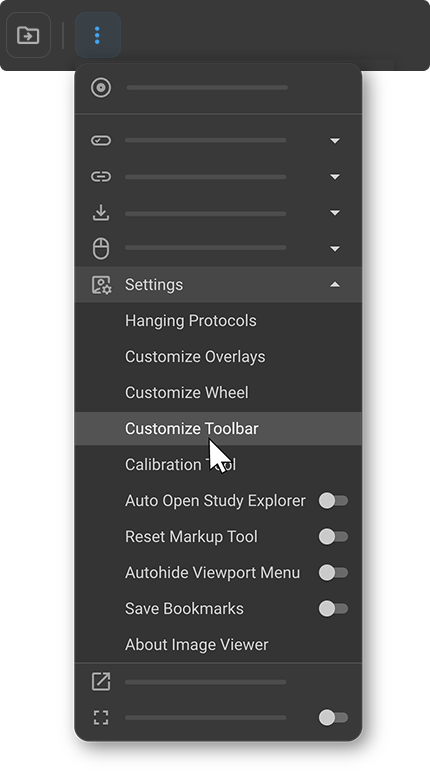
  • Click on the "More" (3 dots) section in the main navigation bar.
  • Select "Settings" from the dropdown menu.
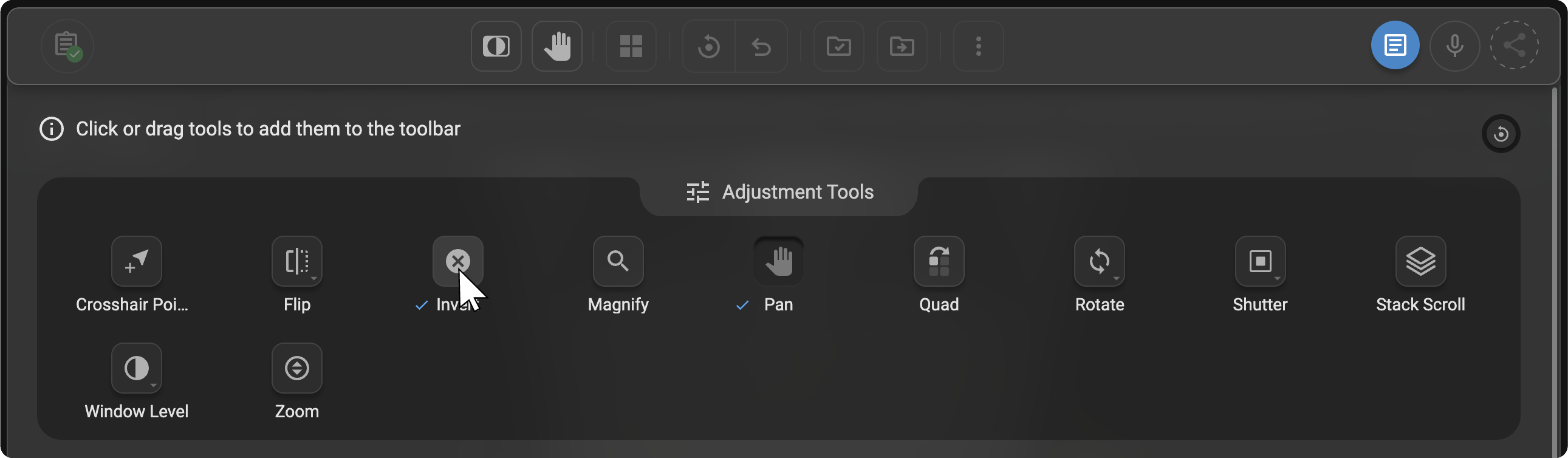
  • Click the "Customize Toolbar" button to enter edit mode.

Understanding Toolbar Sections

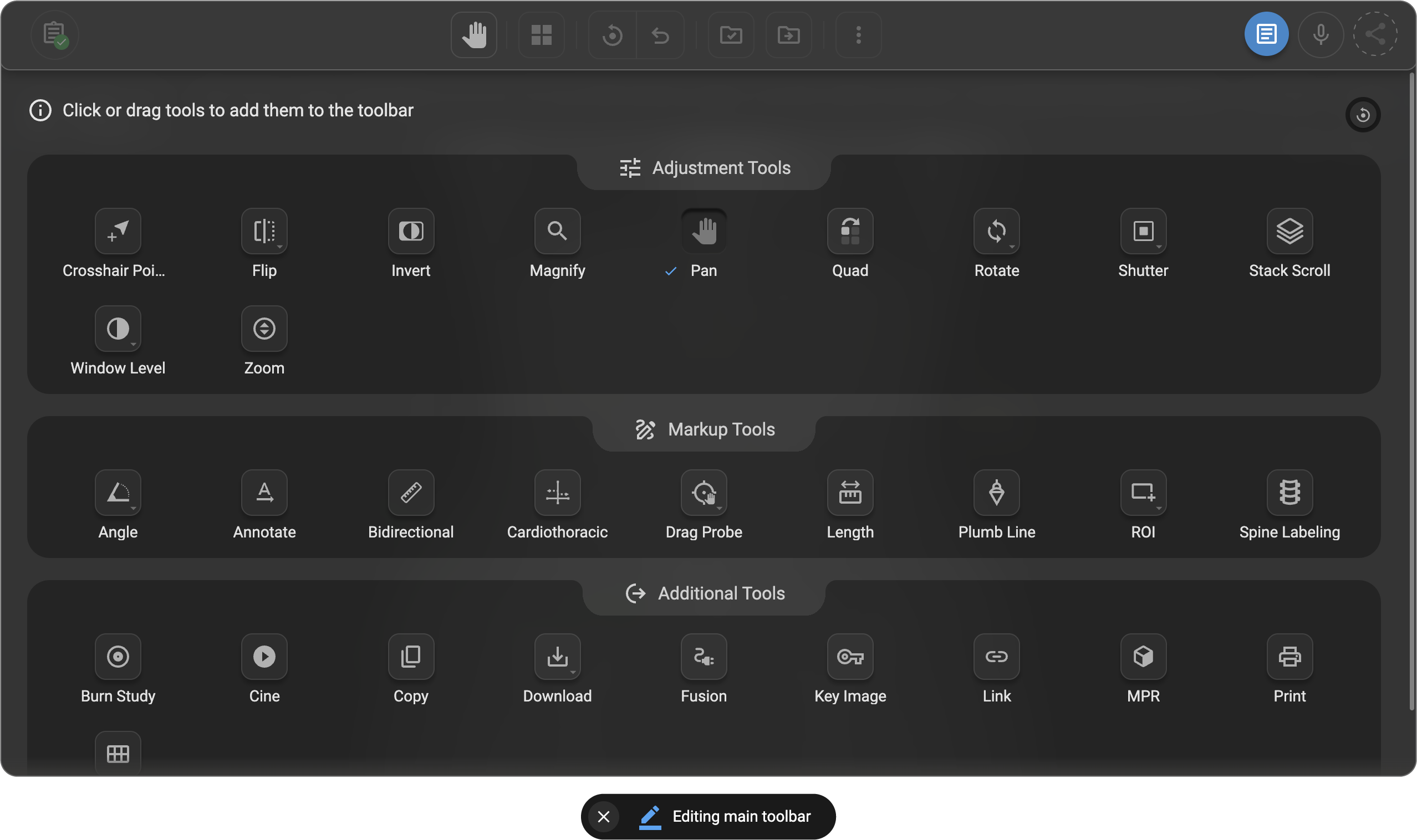
The toolbar is organized into three main sections:

  • Markup Tools:
    • Tools available: Angle, Annotate, Bidirectional, CTR, Drag Probe, Spine Labelling, Length, ROI (Rectangular ROI, Circular ROI, FreeHand ROI), Plumb Line.
  • Adjustment Tools:
    • Tools included: Crosshair Pointer, Pan, Rotate, Zoom, Flip, Invert, Magnify, Quad Zoom, Shutter, Stack Scroll, Window Level.
  • Additional Tools:
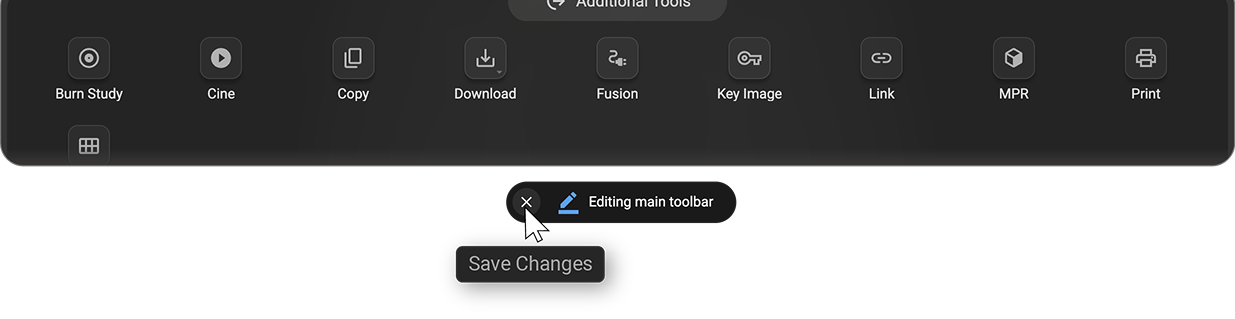
    • Features include: Cine, Fusion, Print, MPR, Key Image, Tile Mode, Link, Copy, Download (Download Study and Download Image), Burn Study

Customizing Your Toolbar

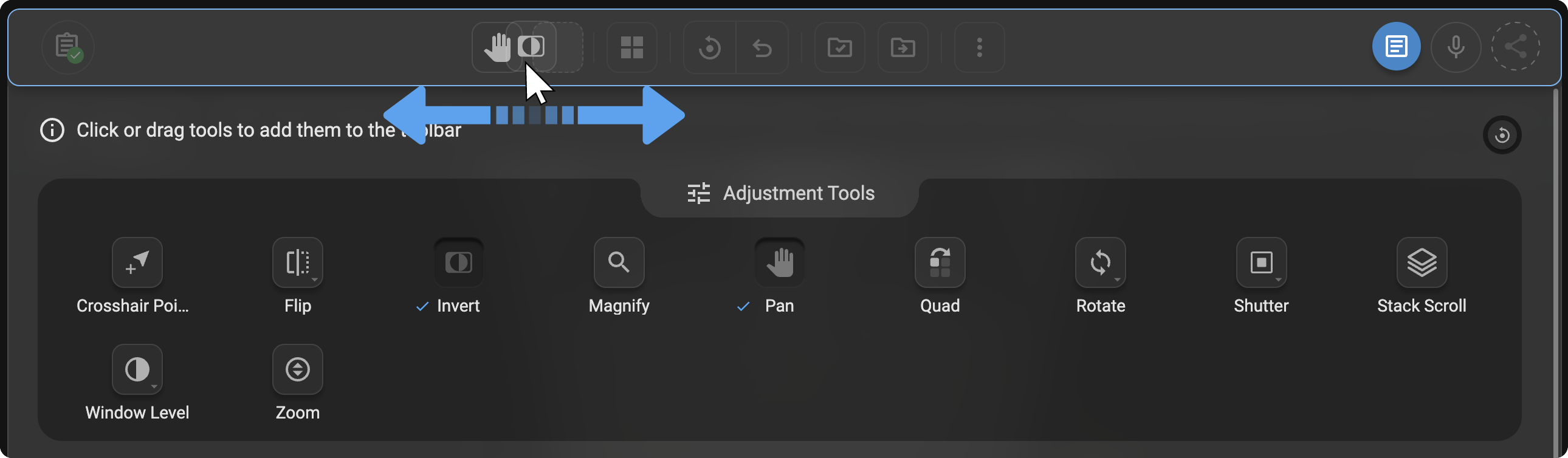
1. Adding and Removing Tools:

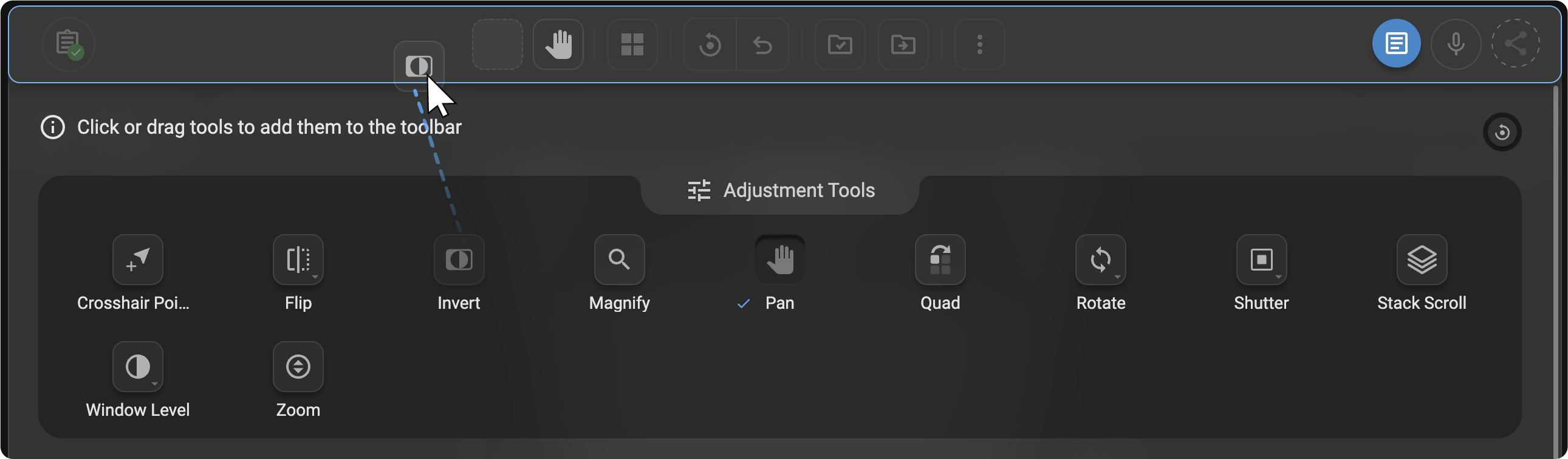
  • To add a tool to the toolbar, drag and drop it from the edit section to the top header section.
  • To remove a tool, click the cross button next to the tool in the toolbar.

2. Saving Changes:

  • To Save the Changes Click on the Cross button in the end of the panel enabling immediate access to the customized toolbar.

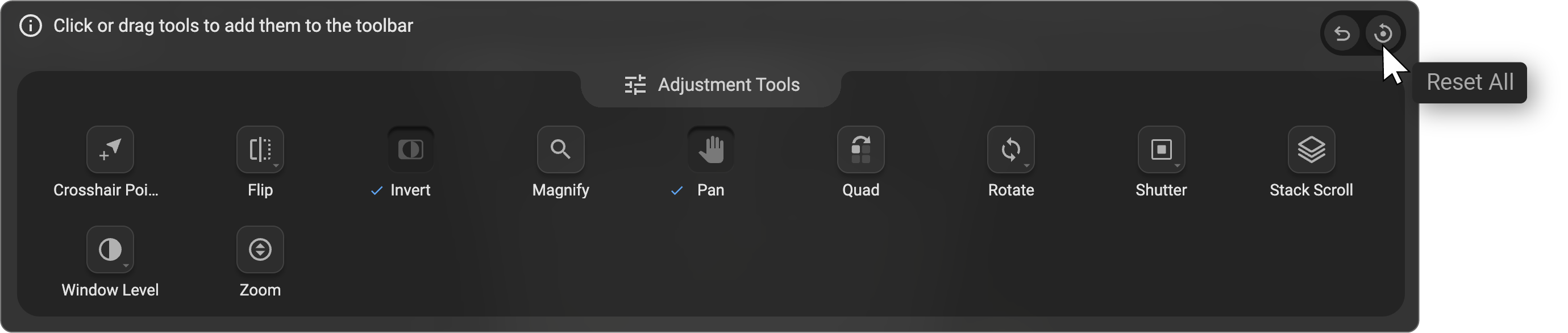
3. Resetting Changes:

  • Users can undo changes or reset the toolbar to default settings if needed.

Managing Default and Essential Tools

Certain tools like Hanging Protocol, Reset, Done, Done & Next, and the More section with the Mic icon (for Transcriptions) and Share button are fixed and cannot be removed due to their essential roles in the software functionality.

Multi-Monitor Customization

Users can set up a different toolbar for each monitor in monitor mode to cater to the specific needs of each display.

Tool Availability Based on Modality

Tools not applicable for the active modality in the viewport are automatically disabled, ensuring access to only relevant tools.

Crosshair Tool Behavior in MPR and Fusion Modes

In MPR and Fusion modes within PET/CT studies, the Crosshair tool is specifically enabled for precise navigation and alignment across different views.

  • Availability: When Fusion or MPR mode is activated, the Crosshair tool automatically appears in an active state in the top toolbar, making it easily accessible for markup within these specialized modes.
  • Restricted Display: Outside of Fusion and MPR modes, the Crosshair tool is hidden from the top toolbar. Users will only see the crosshair pointer for basic navigation.

Adjustment Tools

Pan Tool

  • Usage: Moves the image within the viewport.

  • Operation: Hold the left mouse button and drag.

  • Hotkeys: 'T' (Windows/Mac)

  • Clinical Utility: Enables detailed examination by navigating across large or detailed images.

Stack Scroll Tool

  • Usage: For browsing through multi-frame image series.

  • Operation: Vertical mouse movement.

  • Hotkeys: 'S' (Windows/Mac)

  • Clinical Utility: Crucial for viewing sequential images in modalities like MRI or CT.

Window Level Tool

  • Usage: Adjusts brightness and contrast.

  • Operation: Horizontal and vertical mouse movements adjust brightness and contrast, respectively.

  • Hotkeys: 'W' (Windows/Mac)

  • Clinical Utility: Optimizes image visualization to highlight different tissues or abnormalities.

Crosshair Tool

  • Usage: Aligns identical anatomical points across different planes.

  • Hotkeys: 'J' (Windows/Mac)

  • Clinical Utility: Facilitates accurate cross-sectional studies in multi-planar imaging scenarios.

Free Rotate

  • Usage: Rotates the image freely within the viewport.

  • Operation: Click and drag to rotate; single click for preset angles.

  • Clinical Utility: Useful for adjusting image orientation to standard anatomical positions.

Zoom

  • Usage: Alters the scale of the image within the viewport.

  • Operation: Right-click and drag to zoom.

  • Hotkeys: 'Z' (Windows/Mac).

  • Clinical Utility: Essential for examining details such as micro-calcifications or fine tissue structures.

Magnifier

  • Usage: Enlarges a specific area of the image.

  • Hotkeys: 'M' (Windows/Mac).

  • Clinical Utility: Enhances the visibility of small or subtle features within an image.

Invert

  • Usage: Inverts the colours of the image.

  • Hotkeys: ''\” (Windows/Mac)

  • Clinical Utility: Can enhance the readability of certain image types by altering the contrast background.

Shutter

  • Usage: Masks unwanted portions of the image.

  • Hotkeys: '' (Windows/Mac)

  • Clinical Utility: Focuses the viewers attention on a specific part of the image by obscuring distractions.

Quad Zoom

  • Usage: Quad Zoom is an advanced tool specifically designed for mammography. When selected, it automatically identifies the breast image and initiates a zoom-in sequence through each quadrant of the image.

  • Default Zoom Sequence:

    • Left Breast: Top Right → Top Left → Bottom Left → Bottom Right

    • Right Breast: Top Left → Top Right → Bottom Right → Bottom Left

  • Interaction:

    • To activate, click the Quad Zoom tool from the Adjustment Tools section.

    • To exit, press the Esc button.

  • Hotkeys: 'K' (Windows/Mac)

  • Clinical Utility: Facilitates focused and systematic inspection of all quadrants during breast imaging, improving diagnostic accuracy and efficiency.

Flip Vertical/Horizontal

  • Usage: The ability to flip the image vertically or horizontally.

  • Hotkeys: 'F' for vertical, 'H' for horizontal

  • Clinical Utility: Useful for correcting orientation for better anatomical correlation and interpretation.

Markup Tools

Length Measurement

  • Usage: Measures the distance between two points on the image.

  • Hotkeys: 'D' (Windows/Mac).

  • Clinical Utility: Utilized to measure anatomical structures or lesion sizes, aiding in diagnosis and treatment planning.

Angle Measurement

  • Usage: Calculates the angle between two intersecting lines.

  • Hotkeys: 'A' (Windows/Mac).

  • Clinical Utility: Important for orthopedic assessments, such as measuring angular deformities.

Plumb Line

  • Usage: Draws a vertical reference line.

  • Hotkeys: '|' (pipe symbol, Windows/Mac).

  • Clinical Utility: Assists in evaluating structural alignments, particularly in spinal imaging.

ROI (Rectangular, Elliptical, Freehand)

  • Usage: Draws regions of interest for quantitative analysis.

  • Hotkeys: 'G' for rectangular, 'E' for elliptical, ';' for freehand (Windows/Mac).

  • Clinical Utility: Enables quantitative assessment of image areas, such as calculating tumor volume or tissue density.

Probe

  • Usage: Places a marker that displays quantitative data about the image at that point.

  • Hotkeys: 'Q' (Windows/Mac).

  • Clinical Utility: Used in CT to show Hounsfield units, crucial for assessing tissue densities.

Drag Probe

  • Usage: Similar to the Probe tool but without leaving a persistent mark.

  • Hotkeys: 'X' (Windows/Mac).

  • Clinical Utility: Allows temporary spot checks of different areas without altering the image.

Cardiothoracic Ratio

  • Usage: Measures the ratio of the cardiac silhouette width to the chest width.

  • Hotkeys: ';' (Windows/Mac).

  • Clinical Utility: Important in assessing heart enlargement in chest X-rays.

Bidirectional Tool

  • Usage: Places two perpendicular lines and measures their length.

  • Hotkeys: 'B' (Windows/Mac).

  • Clinical Utility: Useful in measuring dimensions of lesions or other structures in radiographic studies.

Cobb's Angle

  • Usage: Measures the angle between two non-parallel lines, places separately (no intersection on the viewport) typically used for scoliosis assessments.

  • Hotkeys: 'Ctrl+A' (Windows/Mac).

  • Clinical Utility: Critical for evaluating spinal alignment and curvature.

Spine Labelling

  • Usage: Labels vertebrae in spinal images to facilitate identification and reporting.

  • Clinical Utility: Enhances accuracy and clarity in documenting spinal studies.

Annotate

  • Usage: Allows the addition of text annotations and arrows on images. Arrow could be used without adding any text.

Additional Tools

Burn Study

  • Usage: Allows the addition of a permanent mark or label on an image to indicate a specific area of interest.

  • Hotkeys: None

  • Clinical Utility: Helpful for marking areas that require special attention, such as abnormal findings or regions of interest in follow-up studies.

Cine

  • Usage: Plays a series of images as a continuous animation or movie.

  • Hotkeys: 'Ctrl + Arrow keys' (Windows/Mac)

  • Clinical Utility: Ideal for reviewing dynamic imaging data, such as moving structures or fluid flow in studies like MRI or CT angiography.

Copy

  • Usage: Copies the selected image or area for use in another view or document.

  • Hotkeys: 'Ctrl + C' (Windows), 'Cmd + C' (Mac)

  • Clinical Utility: Useful for sharing image data or comparing sections across different views

Download

  • Usage: Downloads the selected image or set of images to the local system.

  • Hotkeys: None

  • Clinical Utility: Facilitates the saving of images for offline analysis, reports, or sharing with external systems.

Fusion

  • Usage: Combines images from different modalities (e.g., MRI and CT) into one view for a comprehensive analysis.

  • Hotkeys: None

  • Clinical Utility: Aids in providing a more complete view of the patient’s condition, enhancing diagnostic accuracy.

Key Image

  • Usage: Highlights a specific image or frame within a series as a reference or point of interest.

  • Hotkeys: None

  • Clinical Utility: Useful for emphasizing critical images in a series, especially in multi-frame studies or to highlight important anatomical features.

Link

  • Usage: Links multiple images or series to allow for synchronized viewing.

  • Hotkeys: None

  • Clinical Utility: Essential for comparing images from different time points, modalities, or anatomical regions simultaneously.

MPR (Multi-Planar Reconstruction)

  • Usage: Reconstructs images in multiple planes (axial, coronal, sagittal) from a 3D dataset.

  • Hotkeys: None

  • Clinical Utility: Vital for viewing three-dimensional data in multiple perspectives, aiding in accurate localization and diagnosis.

Print

  • Usage: Sends the selected image to a printer or prepares it for printing in a specific format.

  • Hotkeys: 'Ctrl + P' (Windows), 'Cmd + P' (Mac)

  • Clinical Utility: Enables hard copies of images for physical review, patient documentation, or sharing with other healthcare professionals.

Tile Mode

  • Usage: Displays multiple images side by side in a tiled layout.

  • Hotkeys: None

  • Clinical Utility: Ideal for reviewing multiple related images or comparing views from different modalities, such as comparing CT slices or viewing multiple mammography views.

Saving Customizations

  • Apply and Save Changes:

    • After configuring the tools and hotkeys as desired, click the "Save" button to apply the changes.

    • Customizations are saved to your user profile and do not affect other users in the system.

Best Practices

  • Regularly update your tool configurations to match your current workflow needs.

  • Choose hotkeys that are intuitive and easy to remember, but that do not interfere with other commonly used shortcuts.