Date of Injury Bookmark
OmegaAI report templates support bookmarks — placeholder fields that automatically populate with patient or order data when a report is generated. The Date of Injury bookmark enables imaging centers handling personal injury and workers' compensation cases to include the patient's date of injury directly in radiology report templates.
Note: This feature is particularly relevant for imaging centers that process personal injury and workers' compensation orders, where the date of injury must appear in the final report sent to referring physicians and legal stakeholders.
Where the Date of Injury Data Comes From
The Date of Injury is captured in OmegaAI under Order Information → Accident Notes. It originates from the HL7 ACC-1 (Accident Date/Time) field, which OmegaAI maps to the Date of Injury.
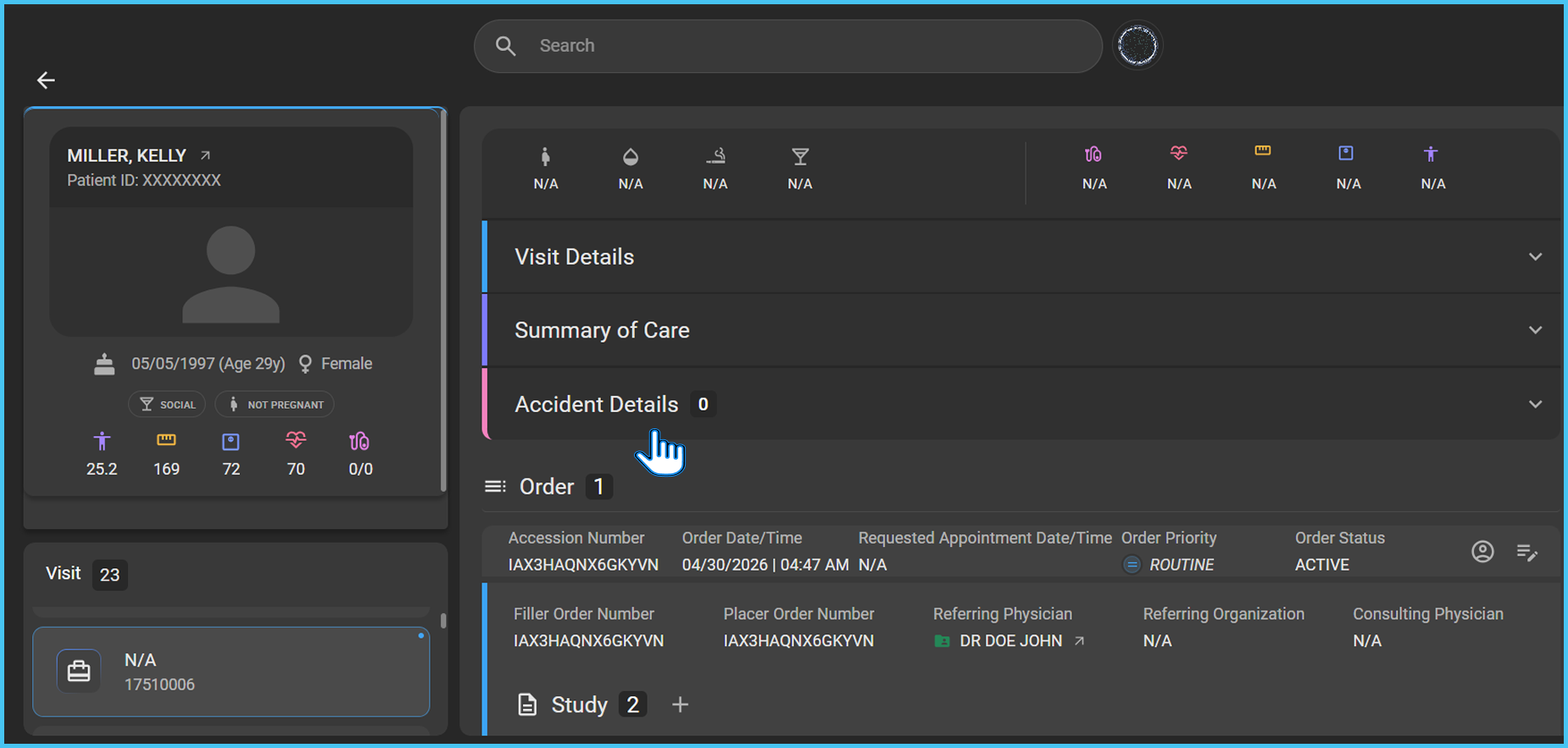
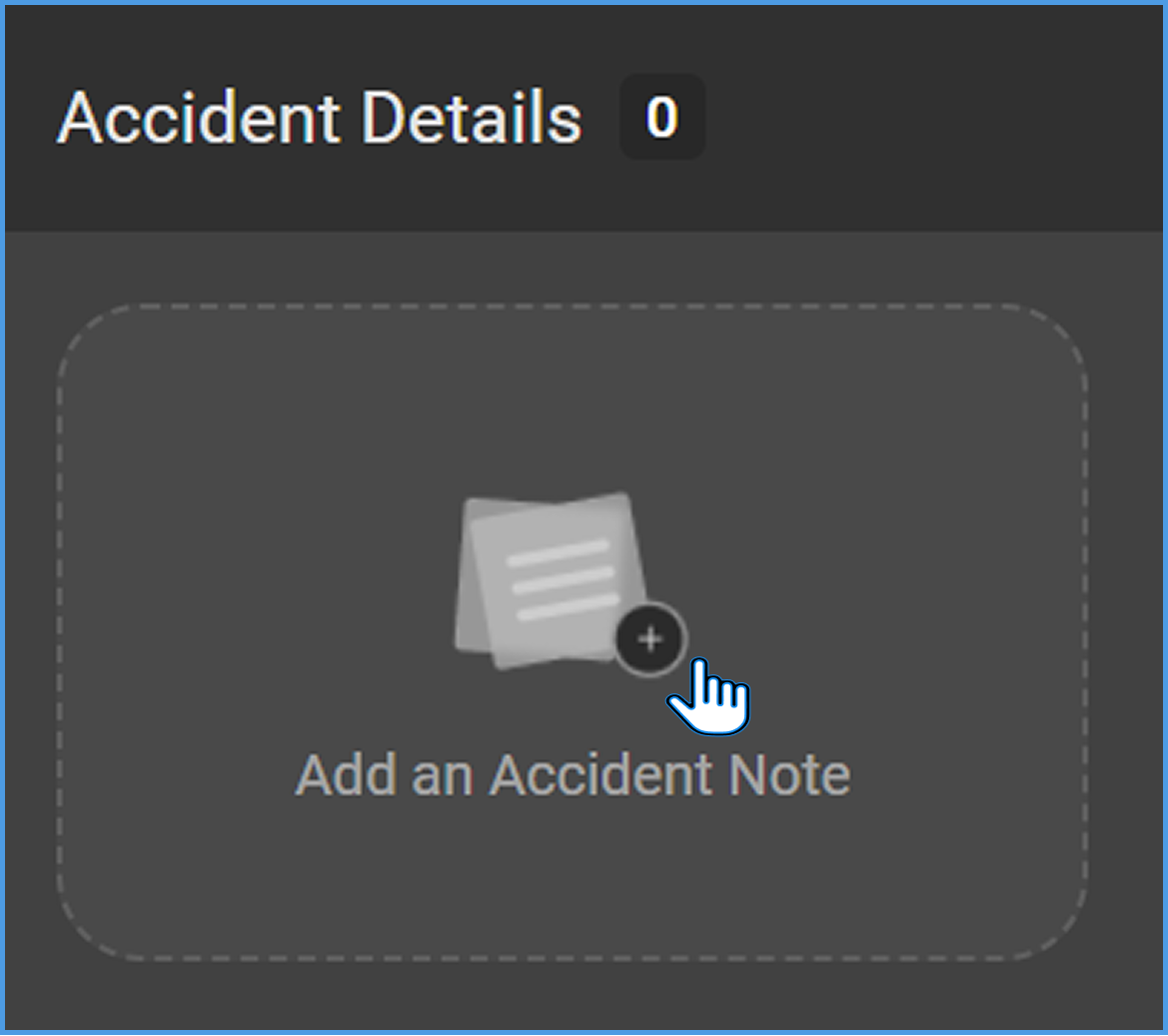
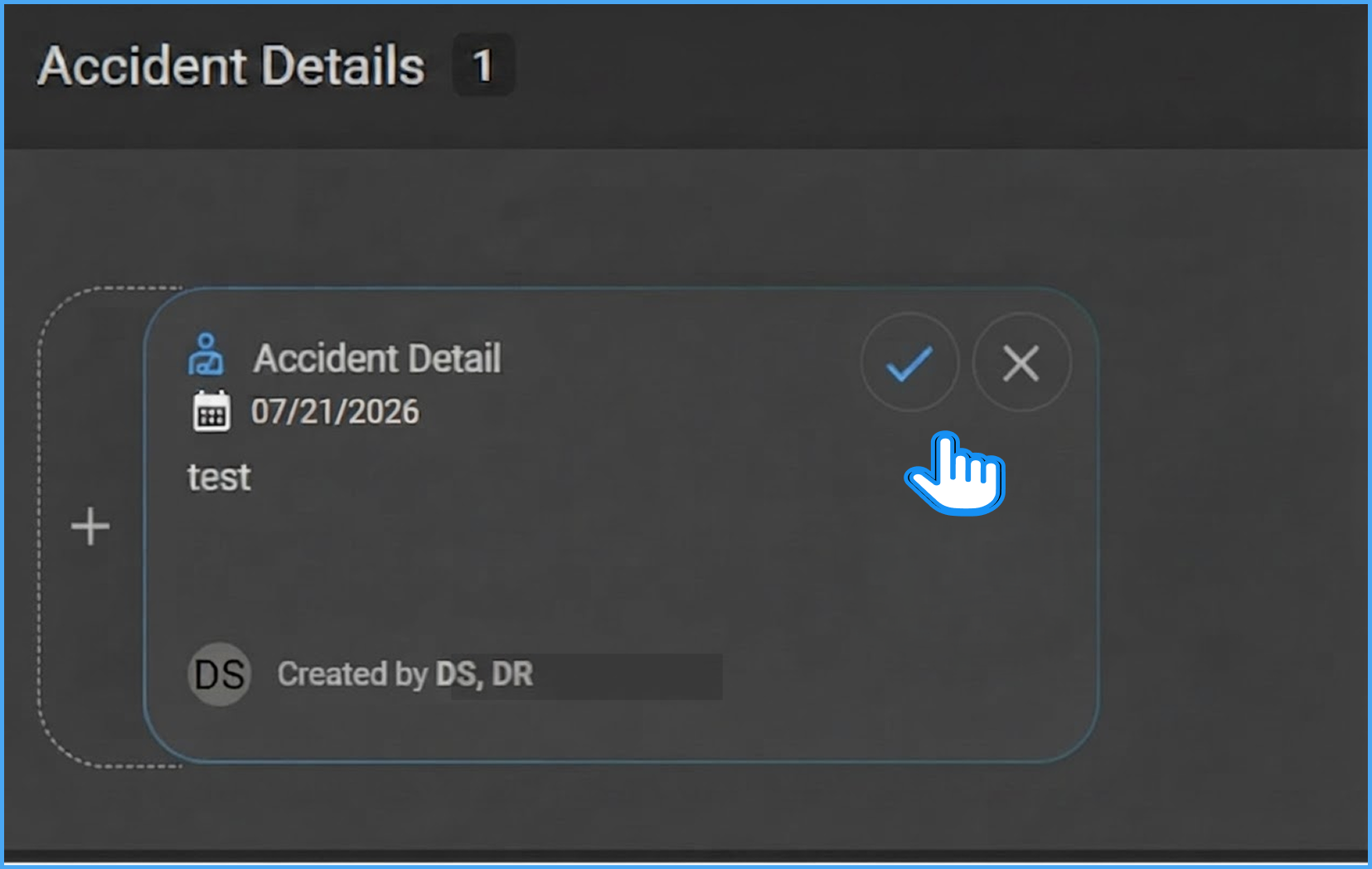

If a Date of Injury value is present on the order, the bookmark automatically resolves to that date when the report is generated or exported.
Bookmark Behavior
| Condition | Bookmark Resolves To |
|---|---|
| Date of Injury is recorded on the order | The date value from Accident Notes (e.g., 2025-08-14) |
| No Date of Injury is recorded | An empty field or editable placeholder — the radiologist can type the value directly in the report |
CAUTION: When no Date of Injury is present, the bookmark does not insert a static "N/A". The field remains blank or shows an editable placeholder so the radiologist can enter the value manually in the report editor.
Adding the Date of Injury Bookmark to a Report Template
Administrators and users with template editing permissions can add the Date of Injury bookmark to any report template using the Template Editor.
Steps to add the Date of Injury bookmark to a report template:
-
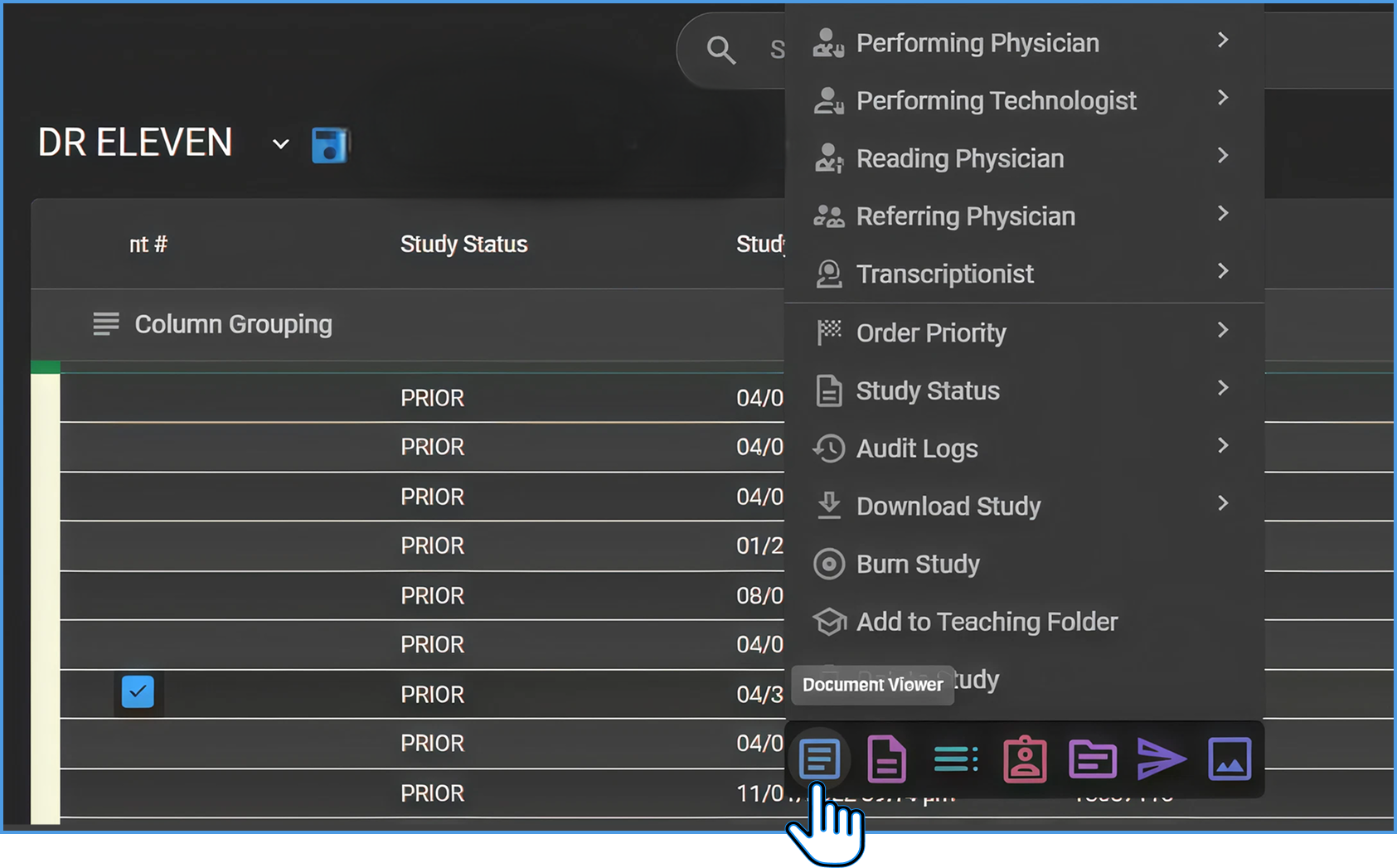
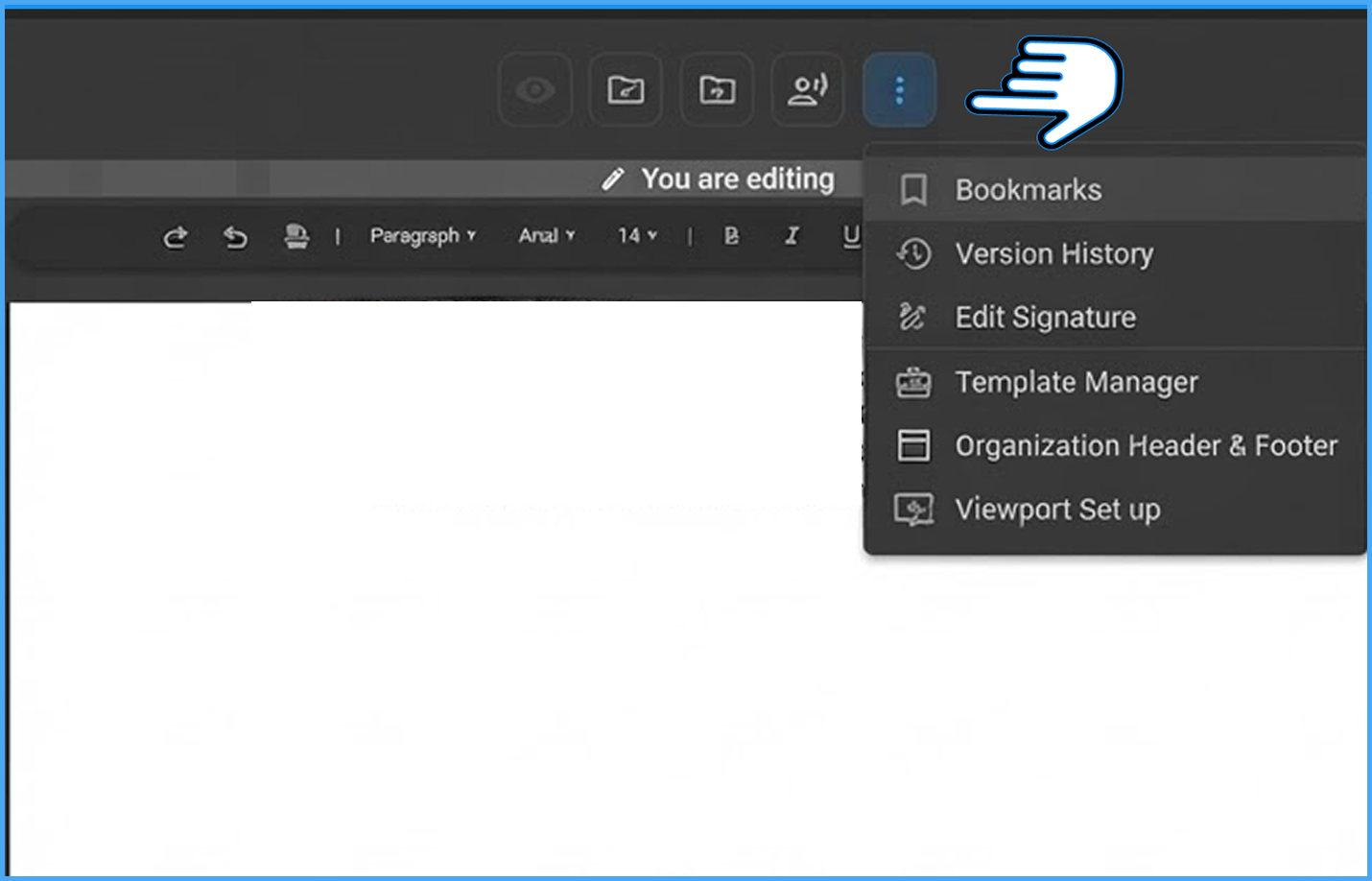
Open a report in the document viewer from the Worklist.
-
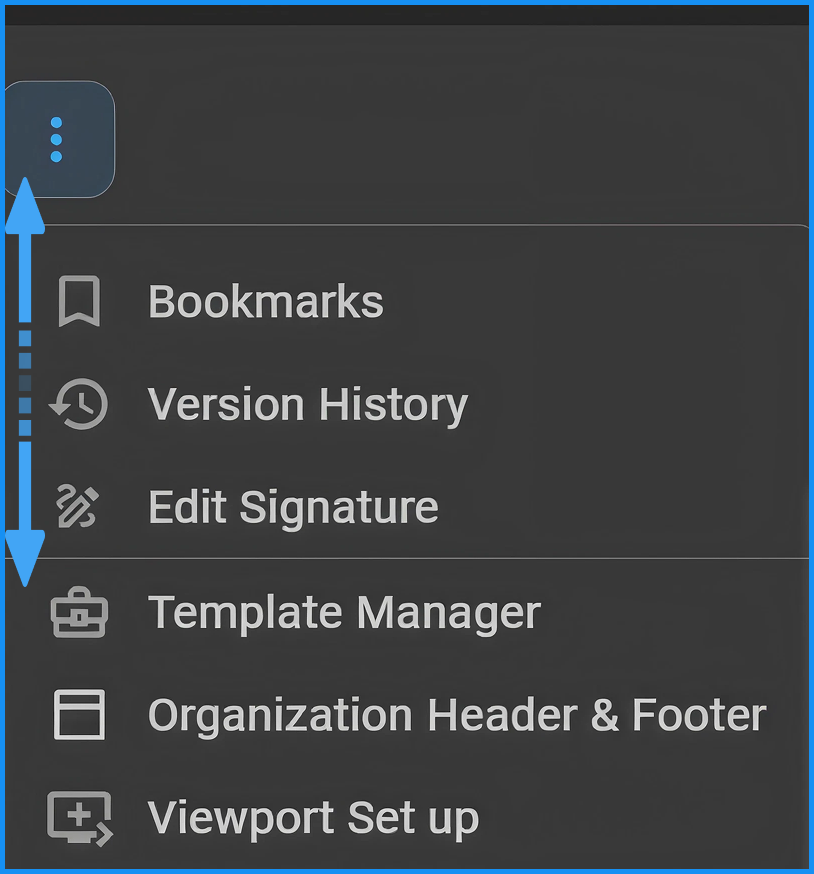
Click More Options (⋮) on the toolbar and select Template Manager.
-
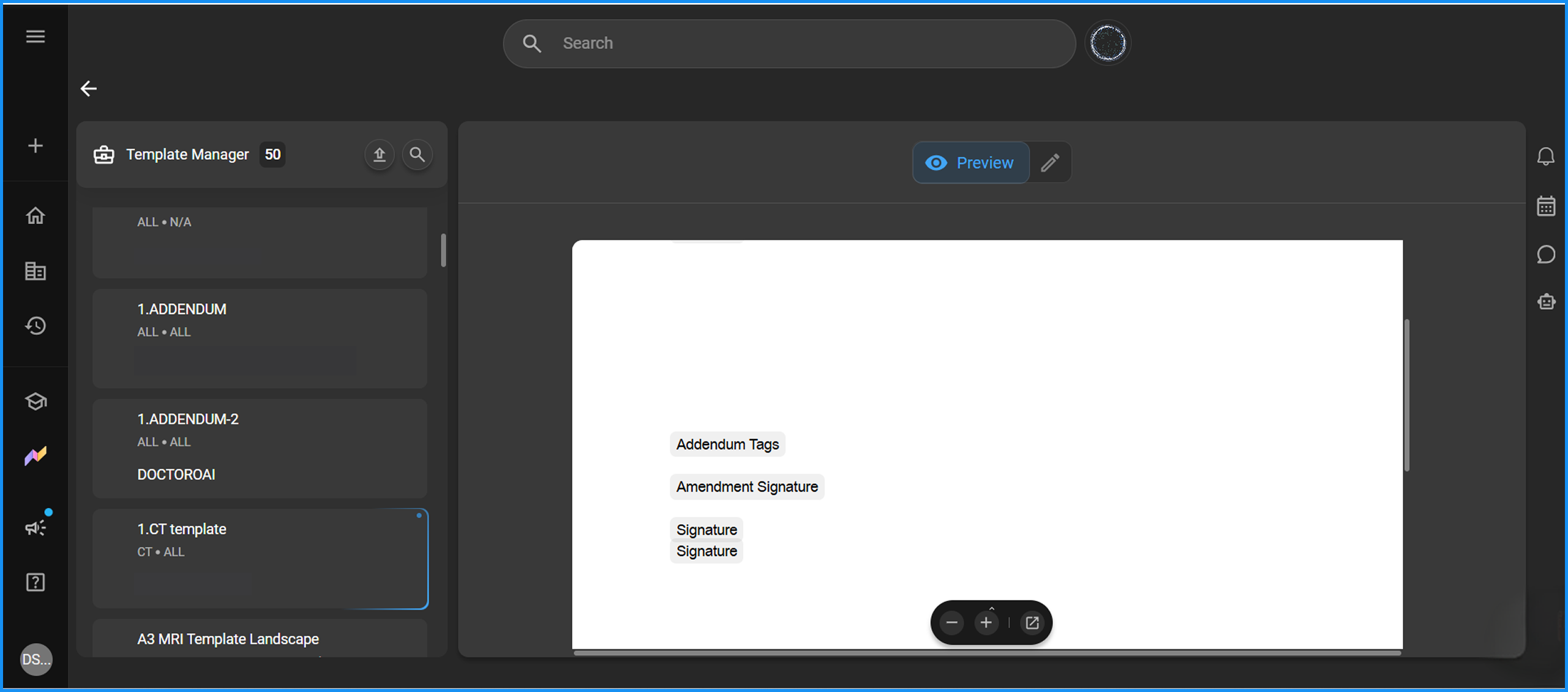
From the template list on the left, select the template you want to edit, or create a new one.
-
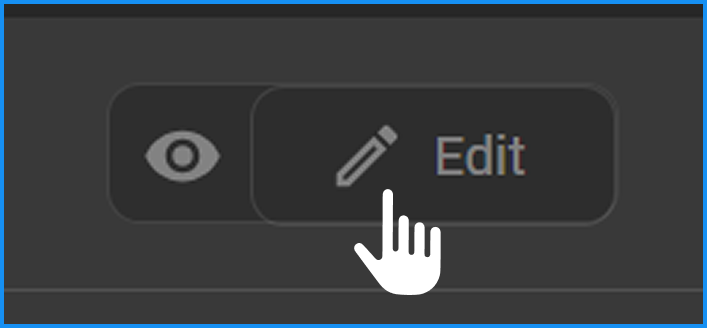
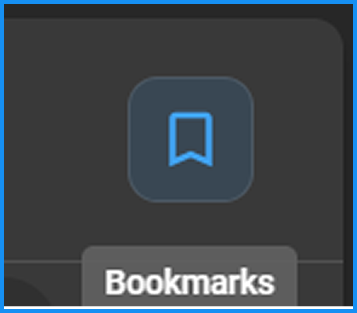
In the template editor, click the Bookmarks icon on the top right to open the Bookmark Selector panel.
-
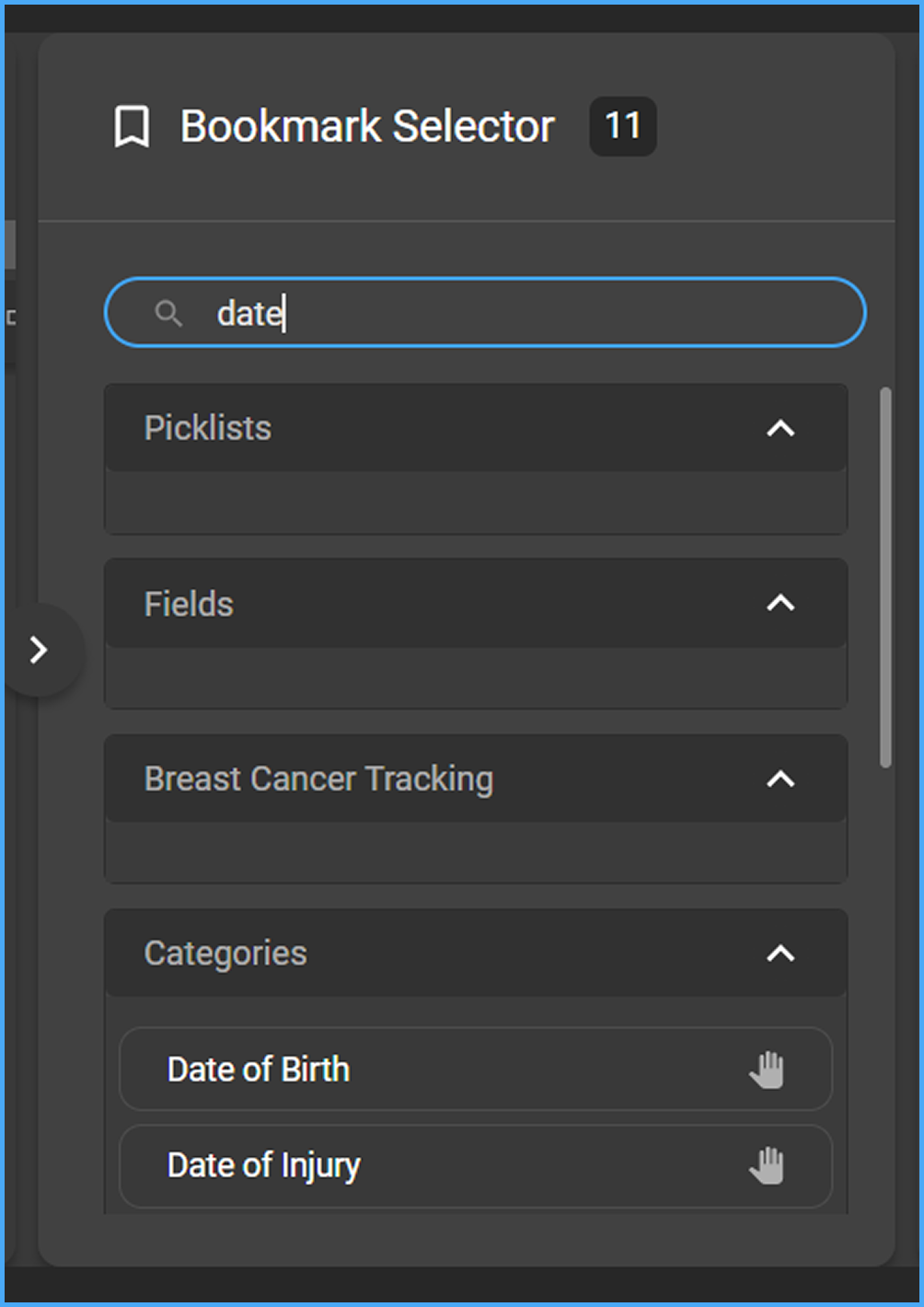
In the Bookmark Selector, type "date" in the search bar to filter the results.
-
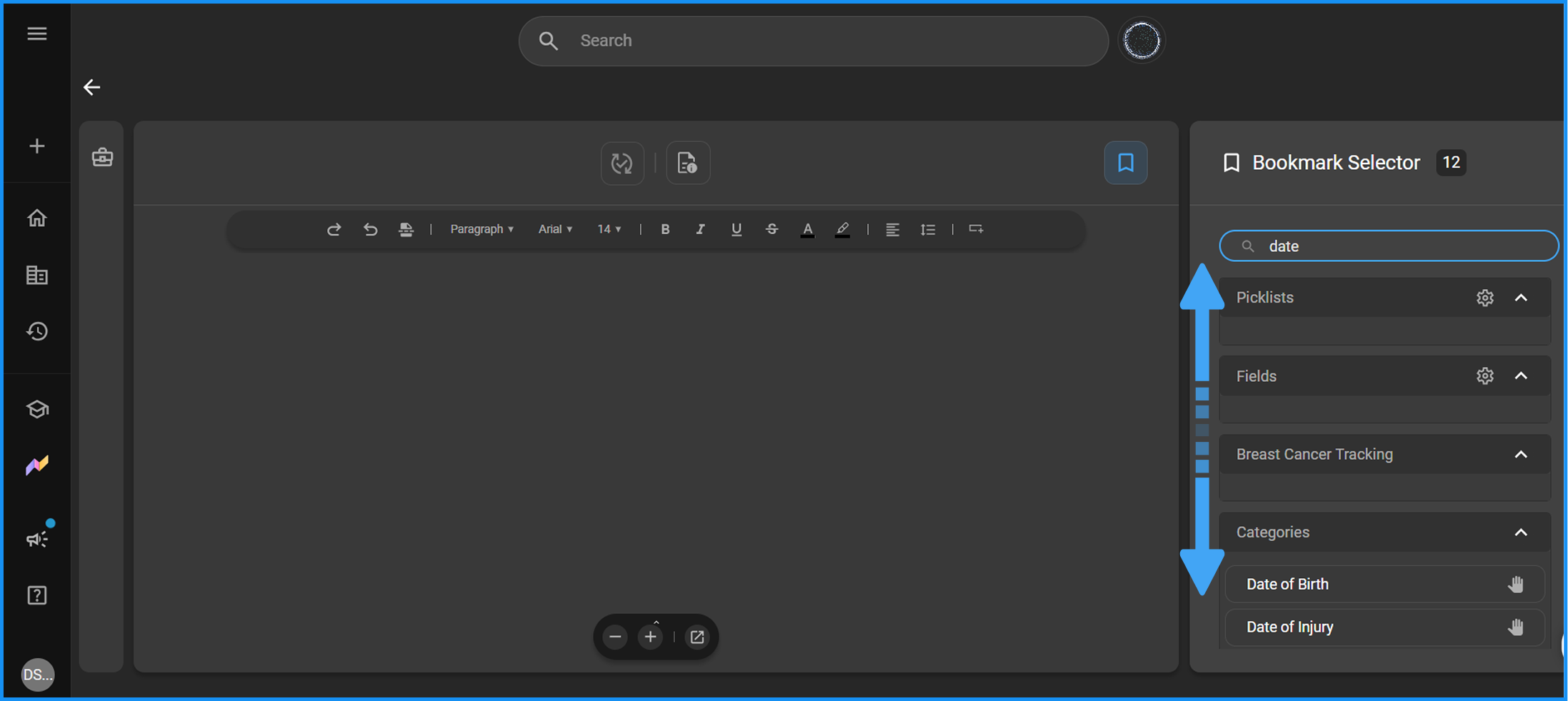
Under Categories, locate Date of Injury.
-
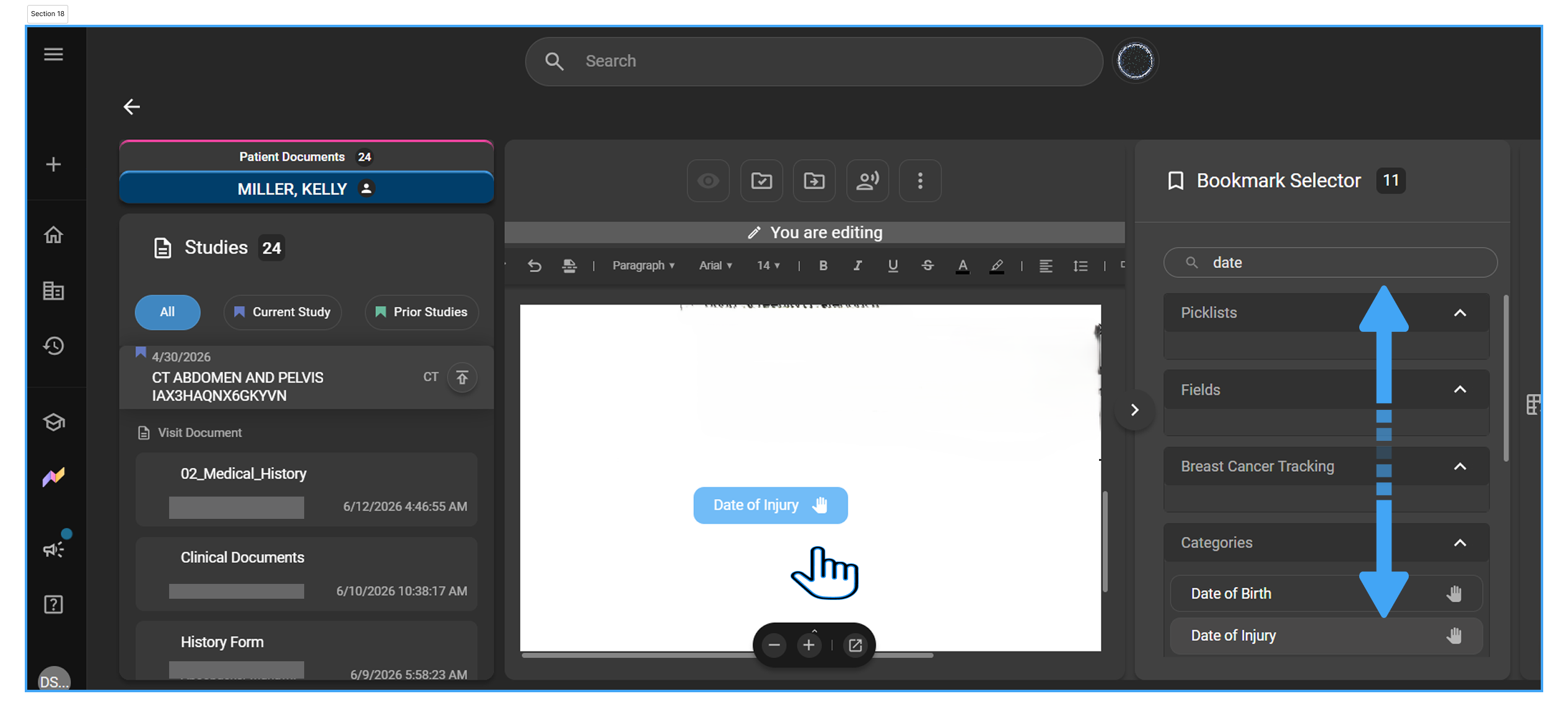
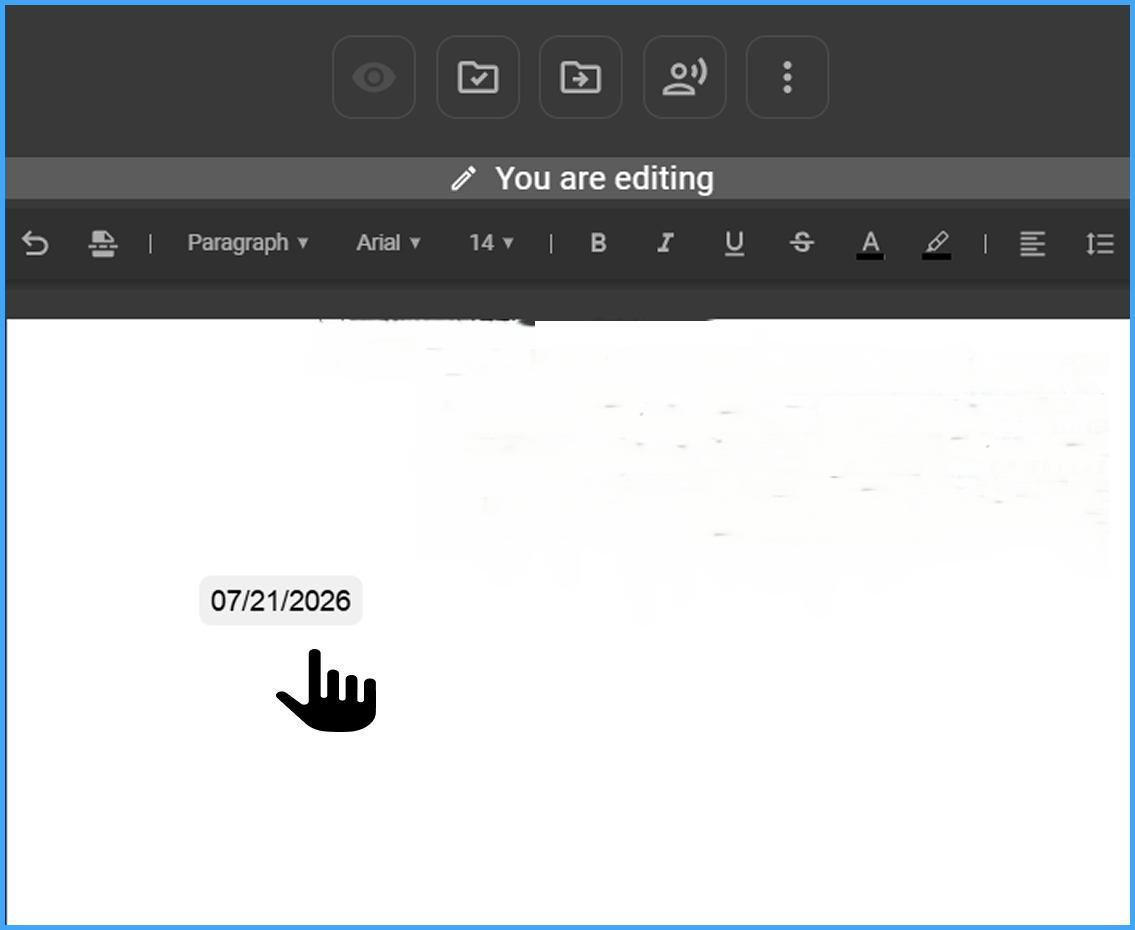
Drag and drop Date of Injury onto the desired location in the template.
-
Click Publish Template to save your changes.

How the Bookmark Appears in Generated Reports
When a report is generated from a template containing the Date of Injury bookmark:
- The bookmark is substituted with the Date of Injury value from the order's Accident Notes.
- The substituted value appears in the report body and is reflected in both exported PDF and Word (.docx) versions of the report.
- Radiologists can freely edit the substituted value in the report editor (TipTap) before signing, regardless of whether a value was auto-populated or left blank.
Supported Export Formats
The Date of Injury bookmark value is correctly substituted in the following report export formats:
| Format | Behavior |
|---|---|
| Date of Injury value appears at the bookmark location in the exported PDF. | |
| Word (.docx) | Date of Injury value appears at the bookmark location in the exported Word document. |
Who Can Use This Feature
| Role | Capability |
|---|---|
| Administrator / Template Editor | Add the Date of Injury bookmark to report templates. |
| Radiologist / Report Author | Edit the auto-populated or blank Date of Injury field in the report editor before signing. |