Navigate the OmegaAI Homepage
The OmegaAI homepage is the first screen you see after you sign in, and it's the central hub for accessing and managing your imaging workflows. This article tours each part of the homepage — the worklist, the navigation panels, Global Search, and the What's New panel — and explains how to use them so you can find your way around OmegaAI.
If this is your first time signing in, see Getting Started before this article.
From the homepage you can access the worklist, manage organization settings, review system logs, and use communication and scheduling tools.
The homepage at a glance
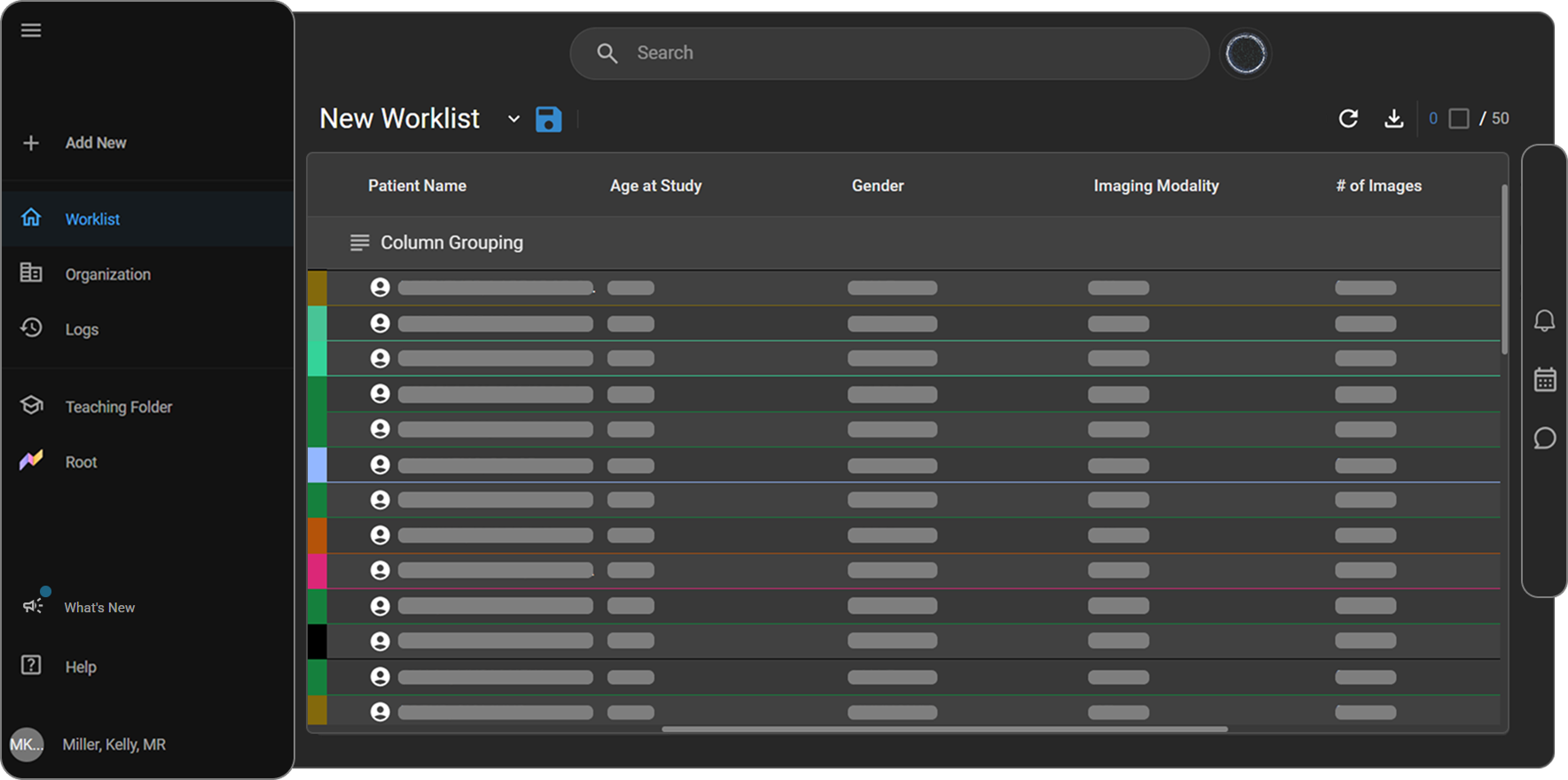
The page is made up of four areas:
- A worklist filling the center of the page — this is where you'll spend most of your time, and where the rest of your work in OmegaAI begins.
- A left-side navigation panel for moving between the major areas of OmegaAI.
- A Global Search bar across the top center.
- A right-side navigation panel for Notifications, Scheduler, and Chat.
The sections below walk through each of these in turn, starting with the worklist since it's the main thing you'll see and use.
Before you begin
- Some homepage options are visible only if your user role has permission to use them. Organization and Root in the left-side navigation panel are the main examples — if you don't see one of these, contact your system administrator to confirm your permissions. See User Access Control, Roles, and Privileges for details on how permissions are set up.
Work with the worklist
The central area of the homepage displays the worklist — the main list of studies you work from day to day. See the Worklist article for full details on working with studies in the worklist.
Worklist header controls
| Control | What it does |
|---|---|
| Refresh icon (↻) | Reloads the worklist to pull in the latest studies and status updates. |
| Download Data icon (↓) | Exports the current worklist data as a CSV (comma-separated values) or Excel file. |
Study counter (for example, 4 / 50) | Shows how many studies are selected out of the total currently loaded. Select the checkbox on a row to select an individual study; click the checkmark in the header to deselect all selected studies. |

Select or create a worklist
OmegaAI offers two primary worklist types — see Worklist Overview for full details:
- User Worklists — personal worklists that you create and customize yourself. You can create multiple user worklists to manage different sets of data or tasks.
- Role Worklists — pre-configured worklists that an admin creates and assigns to a role within your organization. Role Worklists are marked with an eye icon and typically appear first in the worklist list.
Important: Creating a Role Worklist requires administrative privileges. If you don't see the option to create one, contact your system administrator.
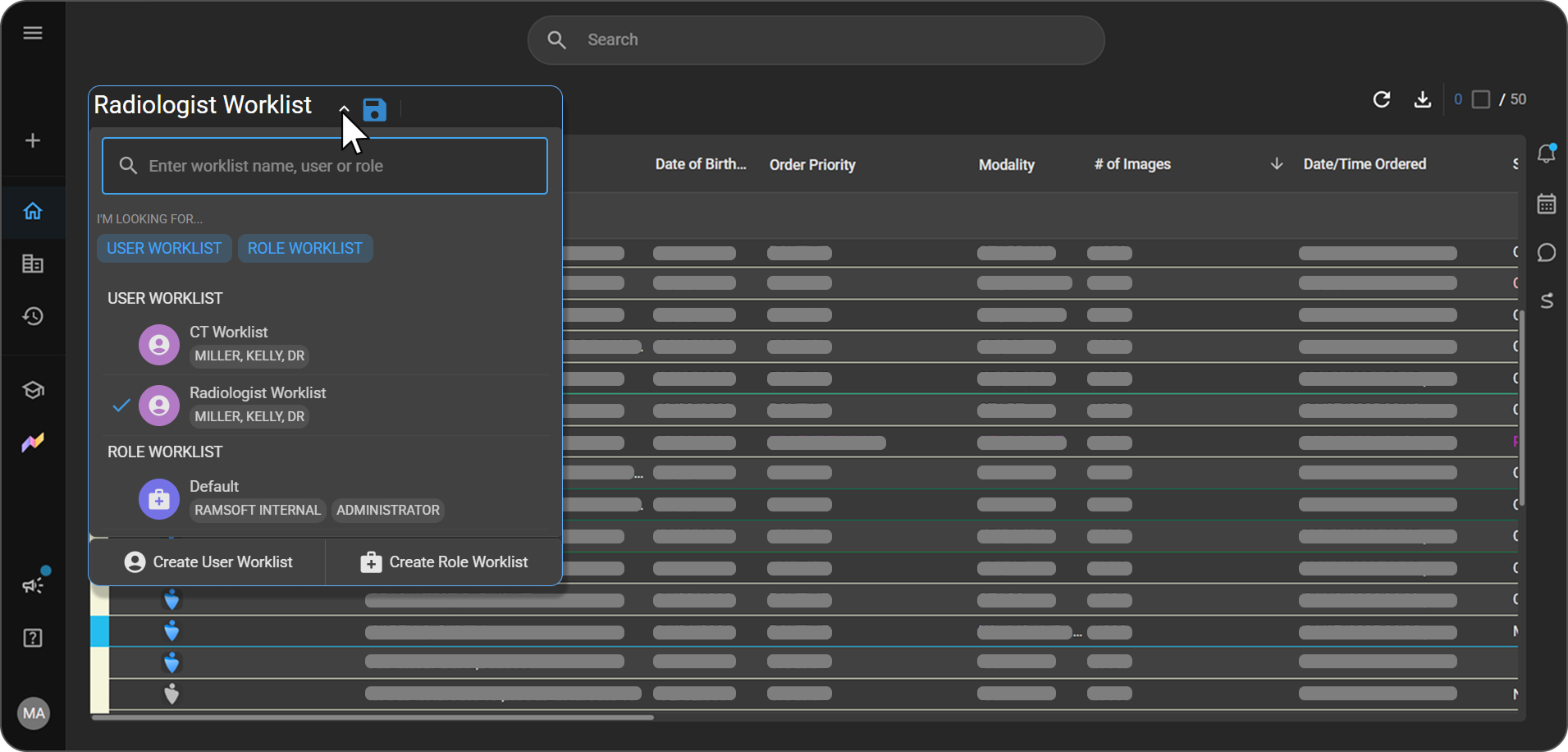
- Click the dropdown arrow next to the worklist name to open the worklist panel.
- Search by worklist name, user, or role, or filter by User Worklist or Role Worklist.
- Select a worklist from the list to switch to it.
Expected result: A checkmark appears next to the worklist you selected, indicating it's now the active worklist.
To create a new worklist instead of switching to an existing one:
- At the bottom of the worklist panel, click one of the following:
- Create User Worklist — creates a worklist specific to an individual user.
- Create Role Worklist — creates a worklist assigned to a role within your organization.
See Creating a Worklist for full details on setting up a new worklist.
Group worklist columns
- Drag any column header into the Column Grouping area at the top of the worklist table.
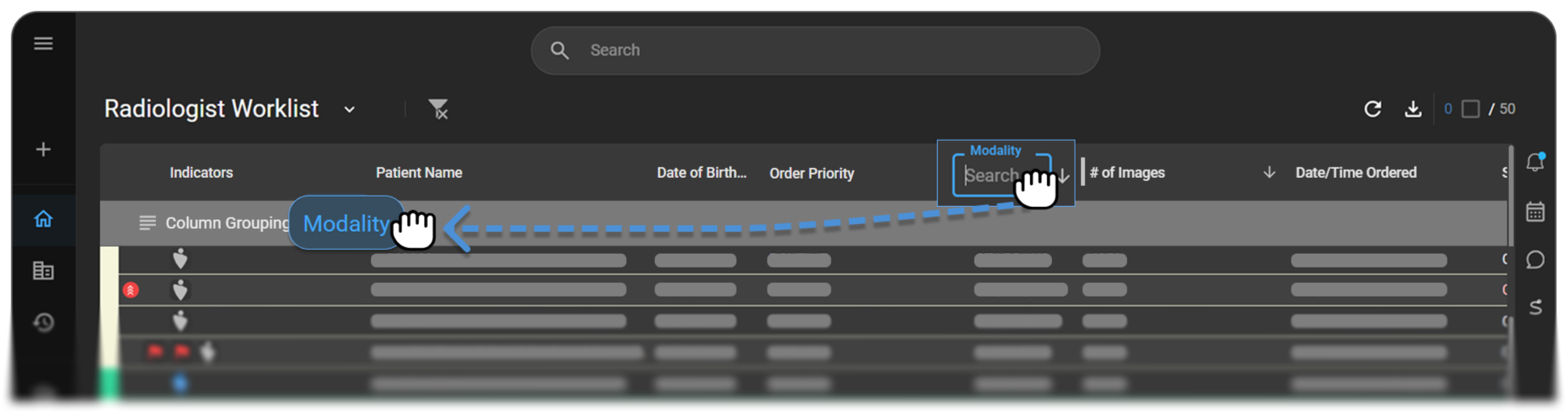
Expected result: Rows collapse into expandable groups based on the field you chose. For example, grouping by Accession # collapses rows into expandable groups for easier review.
Left-side navigation panel
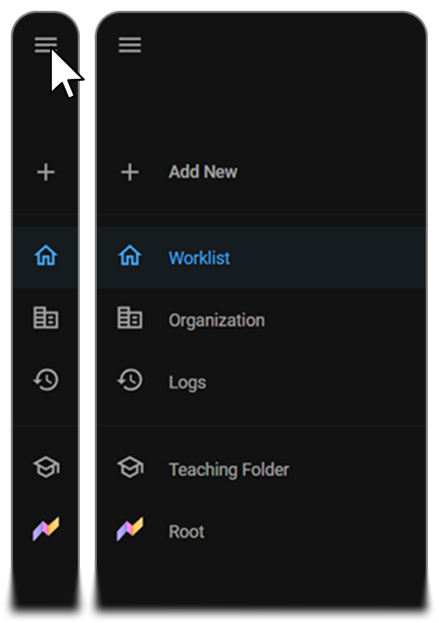
The left-side navigation panel gives you quick access to all major areas of OmegaAI.
- Click the hamburger icon (☰) at the top left of the panel to expand or collapse it at any time.
Main navigation options
|
|
Lower section options
|
|
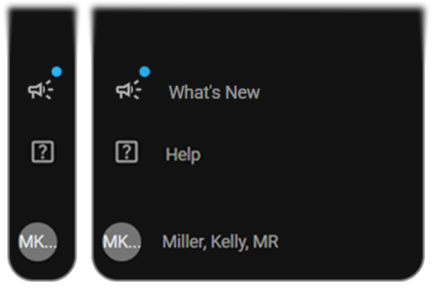
Right-side navigation panel
Additional tools are available from icons on the right-side navigation panel.
|
|

View and manage What's New announcements
The What's New icon in the left-side navigation panel shows whether new features or announcements have been released:
- No new updates: the icon appears with no notification badge.
- New updates available: a circular notification indicator appears on the icon.
To open the What's New panel:
- Click the What's New icon in the left-side navigation panel.
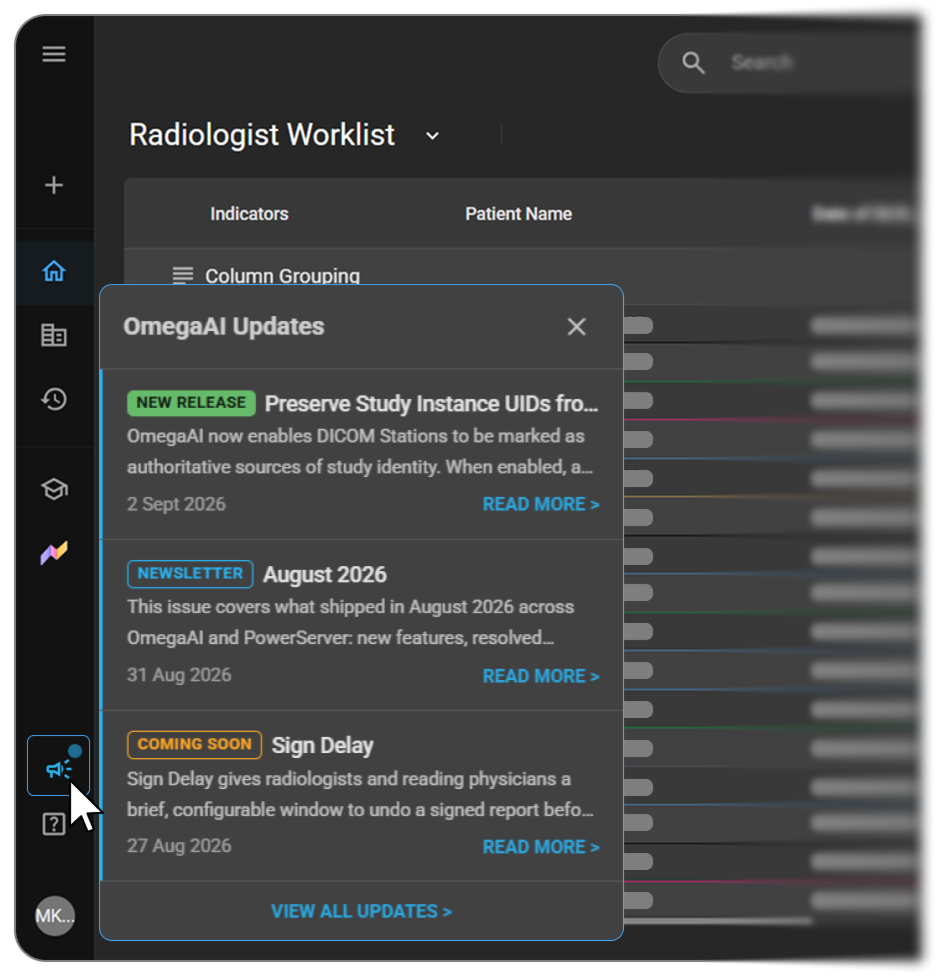
Expected result: The What's New panel opens (titled OmegaAI Updates inside the panel) and displays the 3 most recent feature announcements, newest to oldest. Each shows a status badge (Coming Soon for a feature that hasn't shipped yet, or New Release for one that's already available), a title and short description, the publish date, and a Read More link. Click View All Updates at the bottom to see older announcements.
Once the panel is open:
- Announcements you haven't viewed yet show a blue unread indicator. Opening the panel clears the notification badge on the sidebar icon and marks these as viewed, though some previously-unread entries may still remain visually distinguishable inside the panel, so you can tell what was new since your last visit.
- Previously viewed updates keep appearing in the panel without an unread indicator — you can revisit any of them at any time.
- The sidebar badge reflects whether a new update has been published since you last opened the panel, not simply whether you've started a new session. If you don't open the panel, the badge persists across future sessions; it clears automatically once you open the panel and reappears only after another new update is published.
To view a detailed help article from an update:
- Open the What's New panel.
- Select an update post.
- You're redirected to the OmegaAI Help Blog with more information.
If this doesn't work: If a new feature was released but the icon shows no badge, you (or another user on your workstation) likely already opened the panel since that update was posted. Open the What's New panel to review the full announcement list, including previously viewed posts.
Manage your user profile
In short: click your name and initials at the bottom of the left-side navigation panel any time to reach your account settings or log out.
- Click your name and initials at the bottom of the left-side navigation panel.
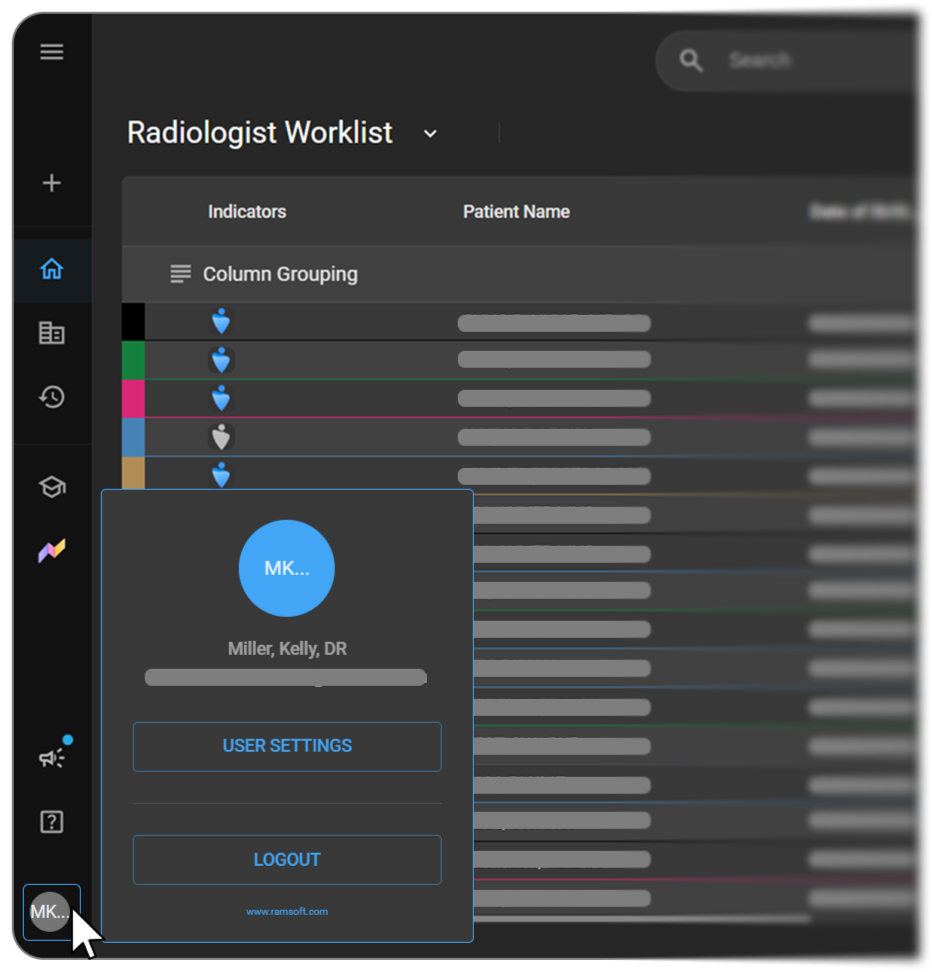
Expected result: Your profile panel opens, showing your avatar, your full name, and your email address, along with:
- User Settings — click to open your account settings and customize your workstation.
- Logout — click to sign out of OmegaAI.
The panel also includes a link to the RamSoft website (www.ramsoft.com).
See User Profile for more on customizing your workstation.
Search using Global Search
Global Search is located at the top center of the homepage and lets you search across studies, patients, and system resources. It includes built-in voice recognition that you can use to execute commands. See the Global Search article for full details.
- Click the Search bar to open the search panel.
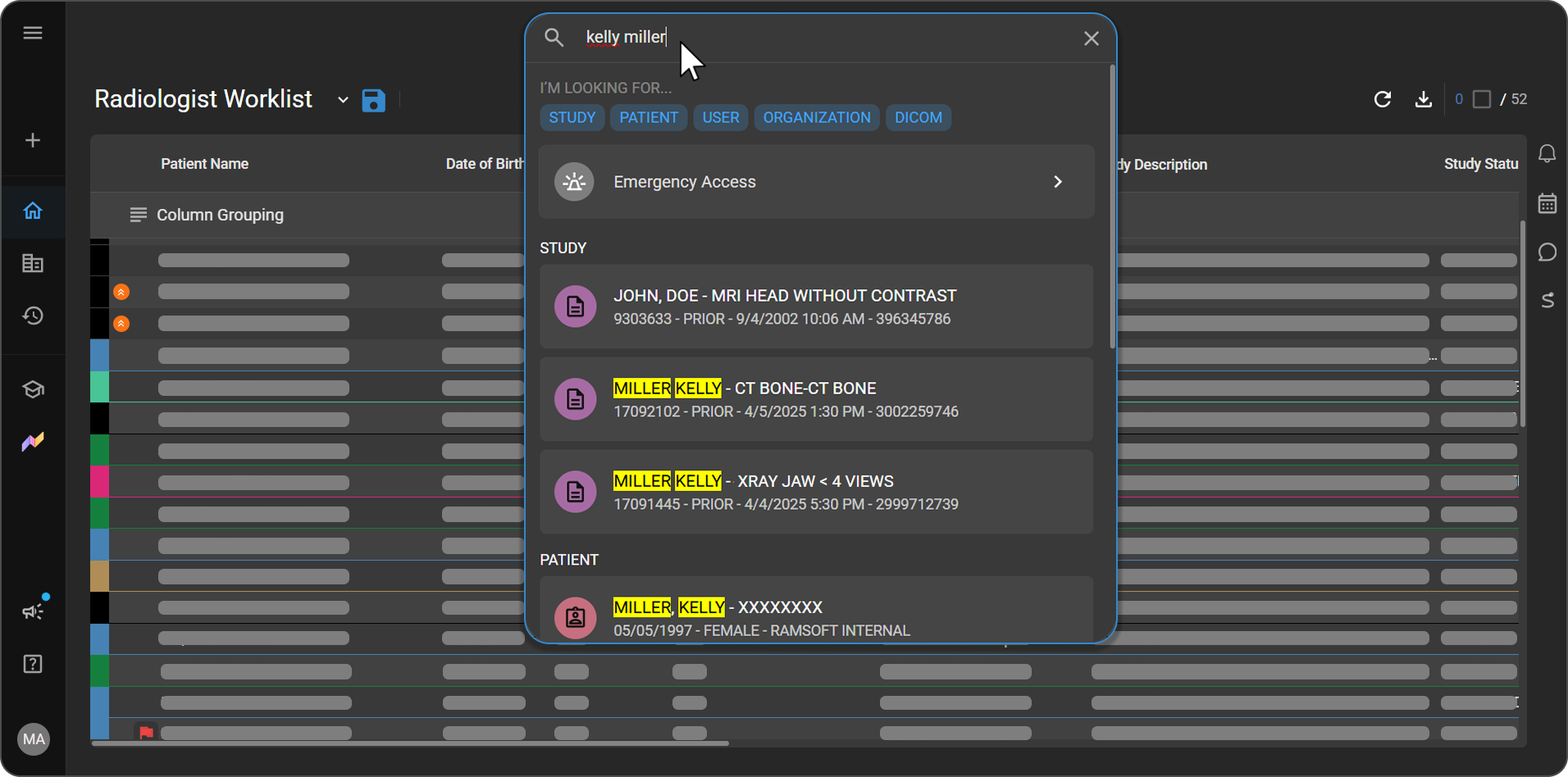
From the search panel, you can:
- Filter by type — select Study, Patient, User, Organization, or DICOM (Digital Imaging and Communications in Medicine, the standard format for medical images) to narrow your search.
- Emergency Access — click this option to get expedited access to patient studies in critical situations.
- Recently Viewed — quickly return to records you've recently opened.
- Recently Searched — revisit previous search terms for faster access.
Where to go next
Now that you know your way around the homepage, here are a few good first steps:
- Open your worklist and get familiar with the studies assigned to you.
- Check the What's New panel to see what's recently changed in OmegaAI.
- Open your user profile to confirm your account details and customize your workstation.
- Try a search in Global Search to see how it surfaces studies, patients, and other records.
Related articles
- Import Studies and Files
- Create New Order
- Worklist
- Table of Worklist Fields
- Worklist Customization Guide
- User Access Control, Roles, and Privileges
- Adding and Managing Organizations
- Logs
- Teaching Folder
- Root Business Analytics and Reporting
- User Profile
- Global Search
- Notifications
- Scheduler
- Using Chat