Overview
This release introduces updates to the Patient Page in OmegaAI, focused on improving usability, accessibility, and workflow efficiency.
We are excited to announce the launch of the revamped Patient Page, crafted for a more intuitive and efficient user experience. This update brings enhanced accessibility, a streamlined interface, and new functionalities designed to optimize workflows.
What’s New
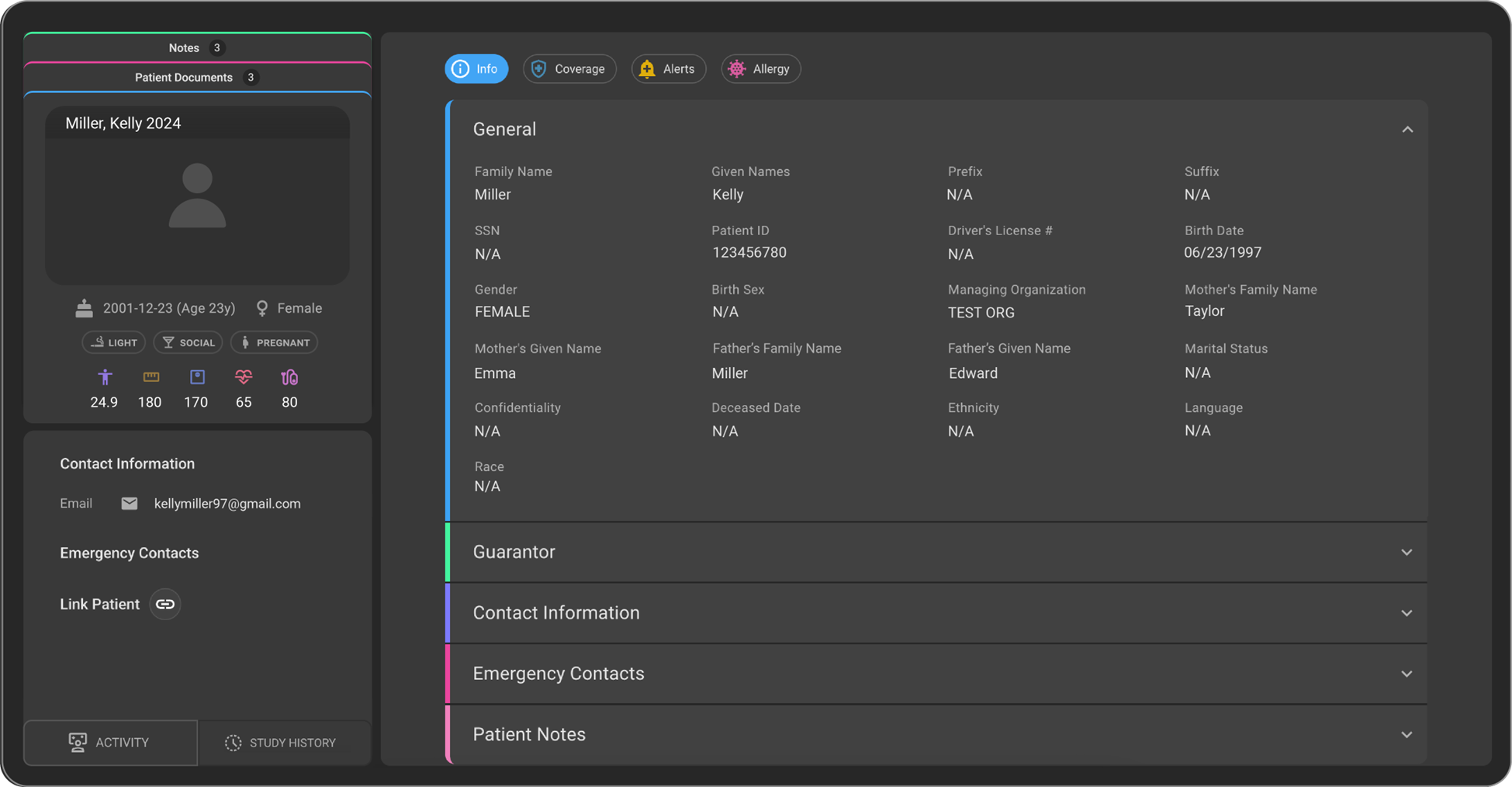
1. General Section
What changed:
All basic patient details such as Name, Gender, Date of Birth (DOB), SSN, etc., are available within this section.
Benefit:
Provides a centralized view of essential patient information for quick and easy access.
2. Guarantor Section
What changed:
Users can now add guarantor details for the patient.
A guarantor refers to a person who agrees to repay a patient’s medical bills if the patient is unable to pay.
Benefit:
Ensures financial responsibility details are captured and managed efficiently.
What changed:
The Contact Information section has been moved under the Info tab for easier accessibility. Users can add, edit, and delete multiple email IDs and contact numbers.
Benefit:
Improves accessibility and flexibility in managing patient contact details.
What changed:
Users can add emergency contact details for the patient.
Benefit:
Ensures critical contact information is readily available when needed.
5. Patient Notes Section
What changed:
Users can add, edit, and delete multiple patient notes.
Benefit:
Supports better documentation and tracking of patient-specific information.
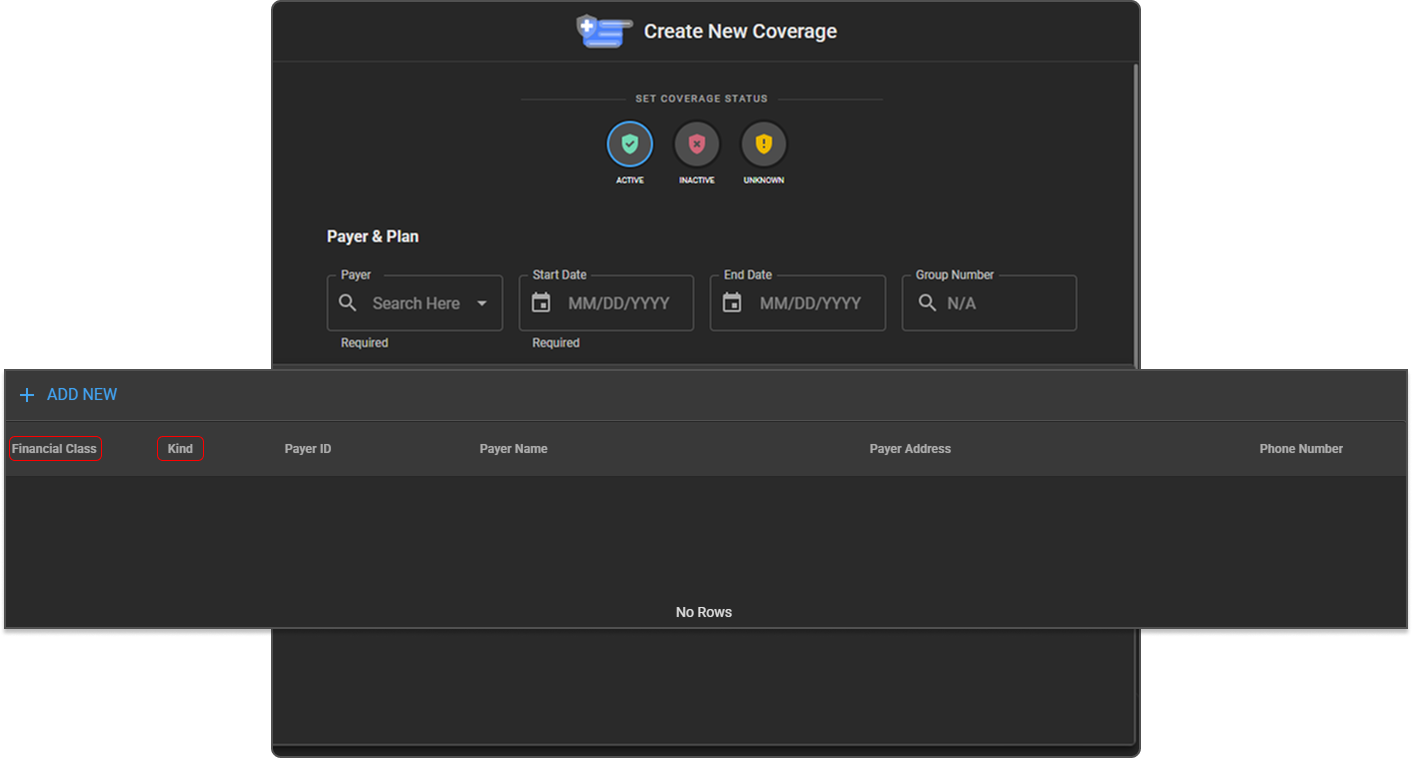
6. Coverage Section
What changed:
Users can add, edit, and delete multiple coverage details for the patient.
Benefit:
Enables comprehensive management of patient coverage information.
Important Notes
- The Patient Page interface has been streamlined for improved usability.
- Multiple entries are supported for Contact Information, Patient Notes, and Coverage.
- Contact Information is now accessible under the Info tab.
- Guarantor details can be added for financial responsibility tracking.
Where to Find It
You can access the revamped Patient Page from the Patient module in OmegaAI.
Navigation path in the application:
Patient → Info → Patient Page
Updated Help Articles
Managing Patient Record